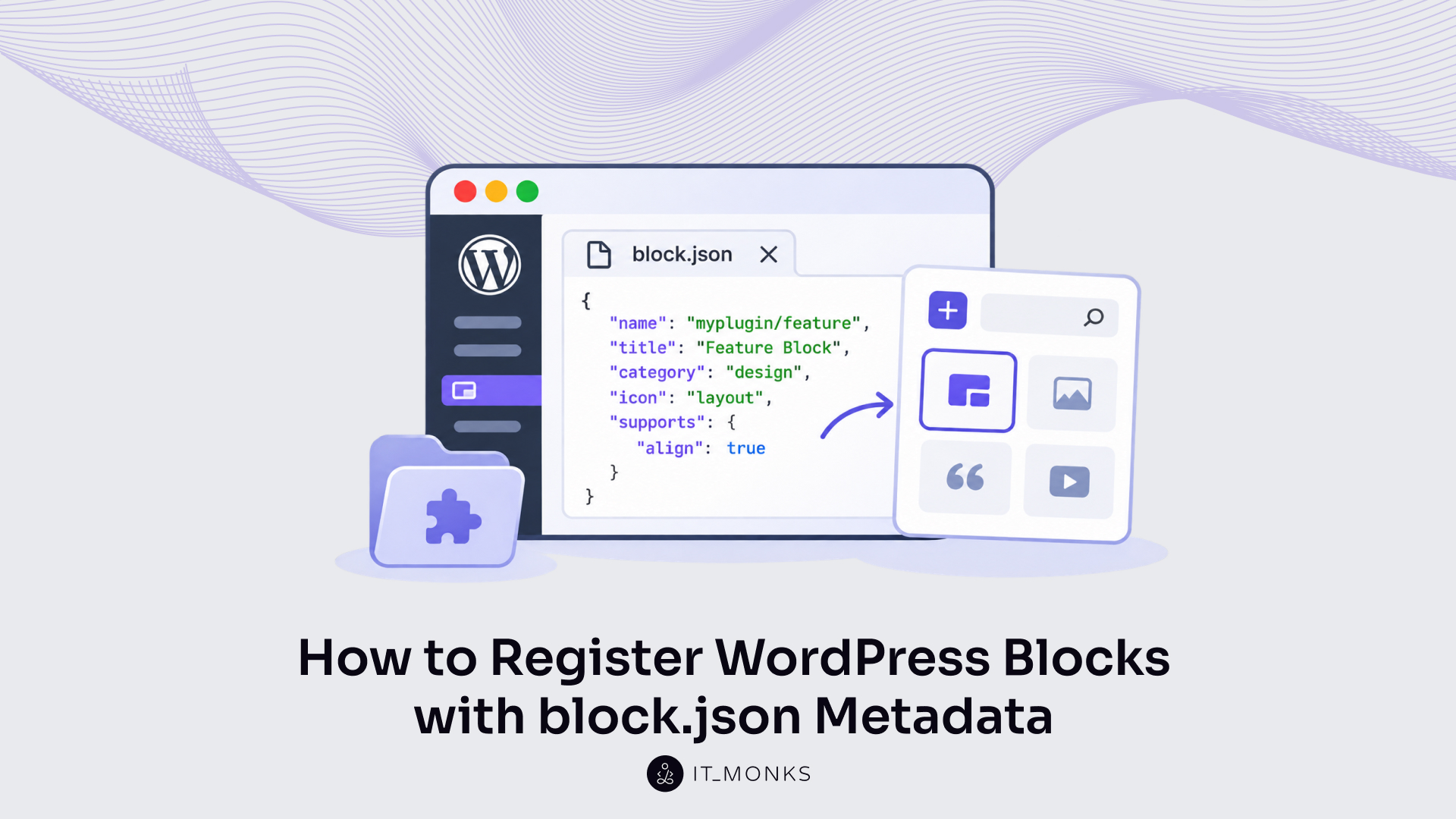
In WordPress, block.json is a JSON file that defines a block’s metadata and references its files. Both the server and the editor use this file, so the block’s metadata only needs to be defined once. Along with basic details, block.json includes keys such as attributes and supports, which control the block’s data and available features. WordPress uses the PHP function register_block_type() to read the metadata and register the block. The process starts with defining the block’s basic metadata in block.json.
Want blocks built for marketing?
block.json Basic Metadata
The basic metadata in block.json describes a Gutenberg block to WordPress and determines how it appears in the editor’s block inserter. It includes fields such as name, title, apiVersion, category, and icon.
Two fields are required: name and title. The name field follows the namespace/block-name format, with a namespace and block name separated by a slash. The title field contains the block’s display name, such as “Notice.”
For apiVersion, the recommended value is 3, introduced in WordPress 6.3. The Block Editor Handbook lists this field as optional, with a default value of 1. However, the trunk block.json schema requires it to be set to 3. Declaring "apiVersion": 3 satisfies both, so it’s best to include it explicitly when creating a new block.
The category field determines where the block appears in the inserter. WordPress has six default categories: text, media, design, widgets, theme, and embed.
A basic block.json file using these four fields looks like this:

{
	"apiVersion": 3,
	"name": "namespace/block-name",
	"title": "Notice",
	"category": "widgets"
}icon, the remaining basic metadata field, has more than one form.
icon in block.json
icon is the block.json field that sets a WordPress block’s icon in the editor inserter of the Gutenberg editor. Among the basic metadata of block.json, icon is the field with three forms: a Dashicon slug, a custom SVG, and an icon object with src, background and foreground keys.
icon in block.json is a string, and the string is a Dashicon slug. The slug is also the fallback icon in contexts without JavaScript.
{ "icon": "smile" }A custom SVG is the second form, and it is a JavaScript value. The source of the SVG element is used as icon in registerBlockType, where it is a client-side override of the icon field of block.json.
icon: <svg viewBox="0 0 24 24" xmlns="http://www.w3.org/2000/svg"><path fill="none" d="M0 0h24v24H0V0z" /><path d="M19 13H5v-2h14v2z" /></svg>,The icon object is the third form, defined in JavaScript. An icon object has a src key for the icon itself, plus optional background and foreground colors that appear with the icon in the editor inserter. The icon has an automatically defined readable color when foreground is not set.
icon: { background: '#7e70af', foreground: '#fff', src: <svg viewBox="0 0 24 24" xmlns="http://www.w3.org/2000/svg"><path fill="none" d="M0 0h24v24H0V0z" /><path d="M19 13H5v-2h14v2z" /></svg> },The three forms of icon are split between block.json and JavaScript: the Dashicon slug string is the form inside block.json, while the SVG element and the icon object are the forms in registerBlockType. block.json also has the fields that point to the files of the block.
block.json Block Files
The block files of block.json are the fields that point WordPress to the script, style and render files the block loads. Each file field has its own load context: editorScript loads in the editor only, script loads in the editor and on the front end, viewScript loads on the front end only, and style loads on both sides. The load context is the reason to use one field and not another. An editor-only script declared in editorScript is not loaded on the public page, and front-end behavior declared in viewScript is not loaded in the editor.
A file path has the same form in every file field: the file: prefix followed by a path relative to block.json. In the script and style fields, a registered script handle or style handle is the alternative to the file path.
{
	"editorScript": "file:./index.js",
	"viewScript": "file:./view.js",
	"style": "file:./style.css"
}
On the front end, the assets of a block registered from block.json are enqueued in optimized form when the theme supports lazy loading of assets.
block.json has a file field for every script and style of the block, but no field for edit and save: these two client-only settings stay in JavaScript, outside block.json.
The file paths follow block.json into the build directory. Where a compile step moves block.json from src to the build directory together with the compiled files of the block, file:./index.js is the index.js next to it in that directory. The script and style files these fields name are the same kind of assets as in the rest of front-end development in WordPress; block.json only states where each one loads.
One block file is neither a script nor a style. The render field contains the path to a PHP file, and that file renders the block’s server-side output.
render in block.json
render is the block.json field that names the PHP file WordPress uses to render the block on the server. Its value is file:./render.php, a file: path relative to block.json, in the same form the script and style fields use.
{
	"render": "file:./render.php"
}
The render field is available since WordPress 6.1. WordPress loads the file for every instance of the block type while it renders the page HTML on the server, and the rendered markup is what the front end shows.
The file itself is a PHP template, and the PHP template has three variables: $attributes, the array of block attributes; $content, the block default content as a string; and $block, the block instance. A minimal template uses $attributesonly. It is a wrapper element with the attributes from get_block_wrapper_attributes() and, inside it, the escaped label attribute, an attribute the block declares under the attributes key of block.json.
<div <?php echo get_block_wrapper_attributes(); ?>>
	<?php echo esc_html( $attributes['label'] ); ?>
</div>
Among the block files block.json references, render is the only PHP file: the scripts and styles load in the editor and on the front end, the template renders on the server. None of these fields has any effect until WordPress reads block.json, and a single PHP call makes WordPress read it.
How Does register_block_type Register a Block from block.json?
register_block_type registers a block from block.json through its first parameter: the path to block.json, or the path to the folder that contains the file. The path form of the first parameter is available since WordPress 5.8. register_block_type passes the call to register_block_type_from_metadata, the function that registers a block type from the metadata stored in block.json, when the value of the first parameter is a path that exists.
The registration of a block from block.json follows three steps.
- Hook a named function for the block registration to
init. - Pass
register_block_typethe path to the build folder that holds block.json, inside that function. - Use the block name defined in block.json in the client-side
registerBlockTypecall:registerBlockType( 'namespace/block-name', {} ).
function my_plugin_register_blocks() {
	register_block_type( __DIR__ . '/build' );
}
add_action( 'init', 'my_plugin_register_blocks' );
__DIR__ . '/build' is a folder path, not a file path: the build directory holds block.json next to the compiled files of the block, and register_block_type uses the block.json it contains.
From the file, PHP registration of the block takes the scripts, script modules and styles that block.json lists, and registers them by file path, not by asset handle. The render file is used when no render_callback is passed to register_block_type.
The result is a custom block registered on the server and on the client. The client-side call, registerBlockType in JavaScript, uses the block name defined in block.json, so the server and the client hold one name for the block.
register_block_type is one call per block. Since WordPress 6.8 the recommended registration is wp_register_block_types_from_metadata_collection: a single call that registers all block types defined in a blocks-manifest.php file, in place of the individual register_block_type calls, according to the WordPress block registration documentation. The call takes two paths: the build directory and the blocks-manifest.php file inside it.
function my_plugin_register_blocks() {
	wp_register_block_types_from_metadata_collection(
		__DIR__ . '/build',
		__DIR__ . '/build/blocks-manifest.php'
	);
}
add_action( 'init', 'my_plugin_register_blocks' );
blocks-manifest.php is a generated file, a single PHP file with the metadata of every block.json in the project. The wp-scripts build-blocks-manifest command generates it, and so does the --blocks-manifest flag of the wp-scripts build and wp-scripts start commands.
wp_register_block_types_from_metadata_collection requires WordPress 6.8 or later and a blocks-manifest.php file, so it is the call for a plugin with several blocks in one build directory. wp_register_block_metadata_collection, available since WordPress 6.7, registers the manifest first; register_block_type then registers each block individually, and WordPress reads the block’s metadata from the loaded manifest, not from disk. This pair is the route for a site on WordPress 6.7 and for blocks that need different arguments in each registration. Without a manifest, register_block_type alone registers each block from its block.json.
Registration from block.json is one step of custom Gutenberg block development, the step that registers the block’s name, files and render template with WordPress from one file. The same block.json, with one more key, registers an ACF block.
Planning custom Gutenberg development?
ACF Key in block.json
The ACF key in block.json is the acf object whose presence marks the file as an ACF block, the block type of ACF in WordPress, the Advanced Custom Fields plugin. ACF blocks are a premium feature of ACF PRO. Among its settings, the acf object contains renderTemplate, mode and blockVersion.
renderTemplate is the path to the PHP template that renders the block. The path is either relative to block.json or a full path to any file.
mode is the display mode of the ACF block, and it has three values: auto, edit and preview. With auto, the preview is on screen by default, and the edit form is in its place while the block is selected. With preview, the preview is always on screen and the edit form is in the sidebar while the block is selected. With edit, the edit form is always on screen. The default of mode is preview on the ACF block.json configuration page and auto in the ACF schema file. Neither default is used when mode is written in the acf object.
blockVersion is an integer with a default of 2. Version 1 is deprecated for block.json. Some other acf settings are marked as for version 3 blocks only.
{
	"apiVersion": 3,
	"name": "namespace/block-name",
	"title": "Block Title",
	"acf": { "blockVersion": 2, "mode": "preview", "renderTemplate": "testimonial.php" }
}
An ACF block.json is the same WordPress file with one more key: the acf key is declared next to name, title and the other core fields. Registration of the ACF block uses that same file.
ACF Block Registration from block.json
ACF block registration from block.json is the standard register_block_type call, which loads a block.json that holds the acf key. The same function registers a custom block that has no acf key.
The call runs on the init hook and takes the path to the block’s folder.
add_action( 'init', 'register_acf_blocks' );
function register_acf_blocks() {
  register_block_type( __DIR__ . '/blocks/testimonial' );
}
ACF has recommended block.json for block registration since ACF 6.0. Custom Gutenberg blocks based on ACF are part of our project work; Ruuvi is one of those projects, and the Ruuvi case study describes it.
In custom WordPress development projects we register blocks from block.json, the one file a custom block is registered from, with ACF or without it.