WordPress Full Site Editor: Complete Guide

Table of Contents
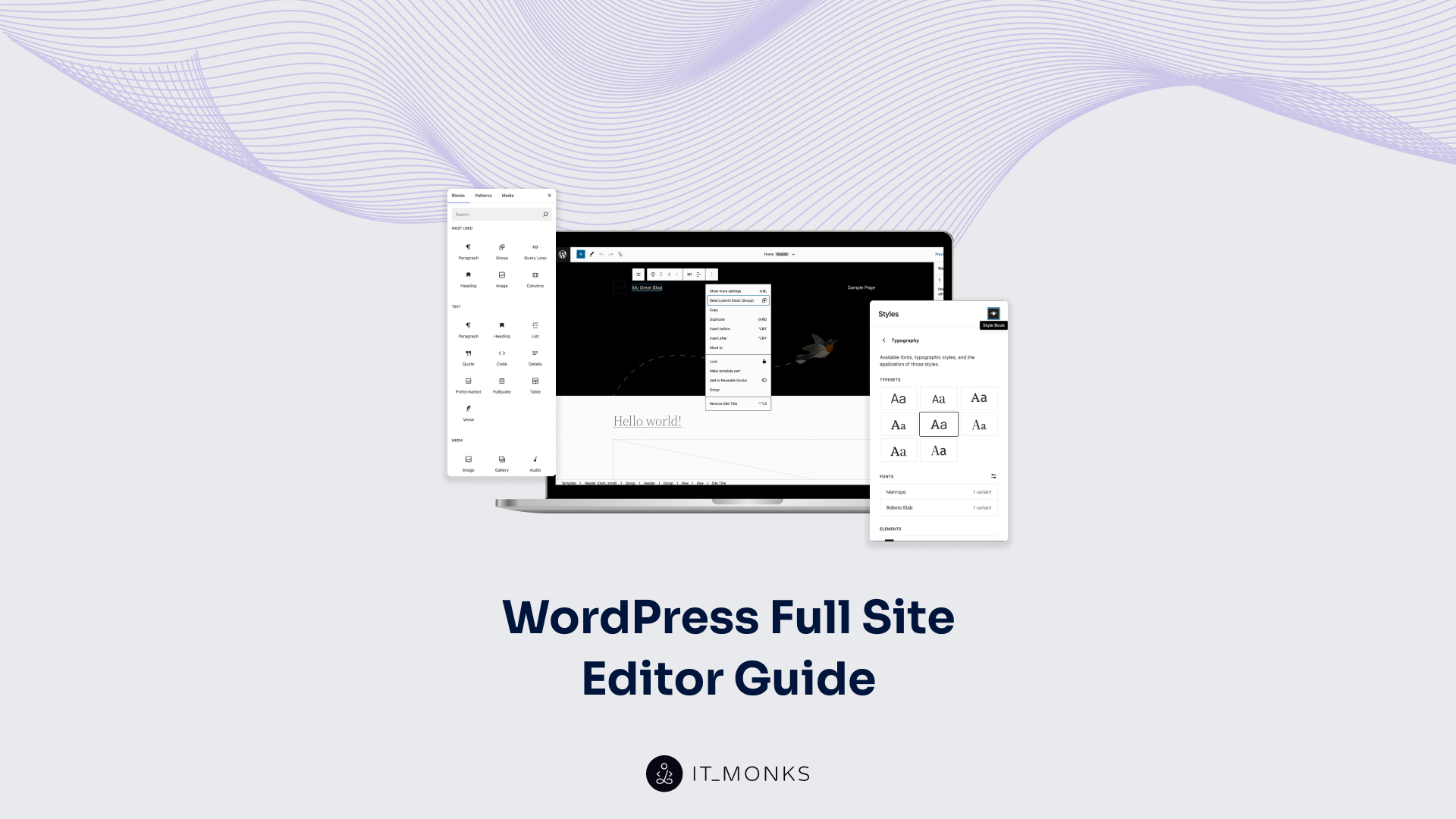
WordPress Full Site Editor provides a block-based environment for managing every visual and structural aspect of a WordPress site. It enables the management of structure and design without constantly switching contexts. The editing system connects templates, global styles, navigation menus, and page content into a single interface where headers, footers, and layout structures are built and modified through blocks.
This guide covers the editing environment and its core components: the template framework that controls site structure, the styling controls that manage visual consistency, and the navigation and page management layers that complete the system. We also discuss where WordPress Full Site Editor strengthens theme development workflows and where its current constraints affect adoption.
What Is WordPress Full Site Editor?
WordPress Full Site Editor is a built-in editing system in WordPress that allows site-wide editing using a block-based approach. It is used to control not just page content, but the whole website layout and structure from one place.
It uses blocks to manage templates, template parts, and reusable sections, so headers, footers, and other layout areas can be edited the same way as regular content. The editor also controls styles and navigation, applying global styles across the site and letting menus and structure be adjusted visually.
What makes it different is the scope. Instead of editing isolated pages, it manages the entire site design through connected templates and shared settings. This setup requires block themes, which provide the structure needed for templates, styles, and layout controls to work together.
Core Components of the Full Site Editor
Core components of the WordPress Full Site Editor include templates, template parts, patterns, styles, and navigation. Templates structure how pages are laid out, template parts handle reusable areas like headers and footers, and patterns include predefined sections that can be reused or adjusted. Styles control global design settings, while navigation organizes how content is connected and accessed.
What matters here is how these pieces connect. They form a single editing environment in which layout management and reusable areas are handled consistently.
Block Theme Requirement for Full Site Editing
WordPress Full Site Editor requires a block theme to be active on the site. Without one, the Editor option does not appear under Appearance in the WordPress dashboard.
A block theme is a WordPress theme that uses blocks for every part of the site: navigation, header, content area, sidebar, and footer. Unlike classic themes that rely on PHP template files and theme-specific options, block themes define their structure through block-based HTML templates and a theme.json configuration file. This architecture is what enables the Full Site Editor to control every section of the site visually.
Block themes are available in the WordPress theme directory. From the WordPress dashboard, navigate to Appearance > Themes > Add New, then filter by “Block Themes” to see the growing catalog of themes that support full site editing.
Full Site Editor vs. WordPress Customizer
WordPress Full Site Editor and WordPress Customizer both handle how a site looks in WordPress, but they do so in pretty different ways.
The Full Site Editor focuses on the structure itself. You’re editing templates, moving sections around, adjusting how the whole layout is built. The Customizer doesn’t really go that far. It controls design settings (colors, fonts, sometimes header or footer options), but usually within limits set by the theme. So you’re tweaking, not rebuilding.
Editing feels different, too. With the Full Site Editor, changes happen right where you see them. You click into a header, change it, and are done. The Customizer works more like a control panel with a live preview on the side. You adjust something in a menu, then check how it looks. Not complicated, just a bit more indirect.
Then there’s the theme side of things. The Full Site Editor depends on block themes, which treat templates and global styles as editable components. The Customizer is tied to classic themes, where most of the structure is already fixed, and you work around it. That alone changes what you can actually control.
How to Use WordPress Full Site Editor
How to Access the Full Site Editor
To get into the WordPress Full Site Editor, start from the WordPress dashboard. Once you’re logged in, look over to the left-hand menu.
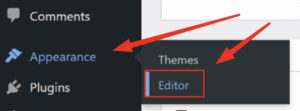
From there, open the Appearance section. You’ll see an Editor option listed there. Click it, and after a short load, you’ll land directly inside the Site Editor. That screen is the Full Site Editor itself, where the rest of the work happens.
Navigating the Design Panel
In the editor, the Design Panel appears in the sidebar and serves as the main navigation area for structure and layout. If it’s not already open, bring it up using the panel icon.
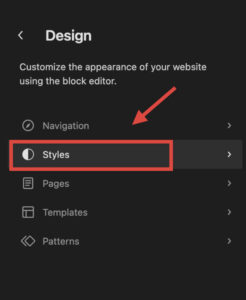
Once visible, you’ll notice sections like templates, template parts, patterns, navigation, and styles. These aren’t separate tools. They’re just different views of the same editing system. Clicking any of them switches the focus in the workspace.
Moving between them is pretty simple. You select a section, check or adjust what you need, then go back to the panel and pick another one. It’s more like switching layers than opening new pages.
Editor Workspace and Top Toolbar
The center of the screen is your main workspace. That’s where the actual editing happens. Whatever you select (a template, a section, or a block) shows up there.
Right above it is a toolbar. It’s easy to overlook at first, but it controls most actions. You’ll find options like undo, redo, preview, and save sitting there.
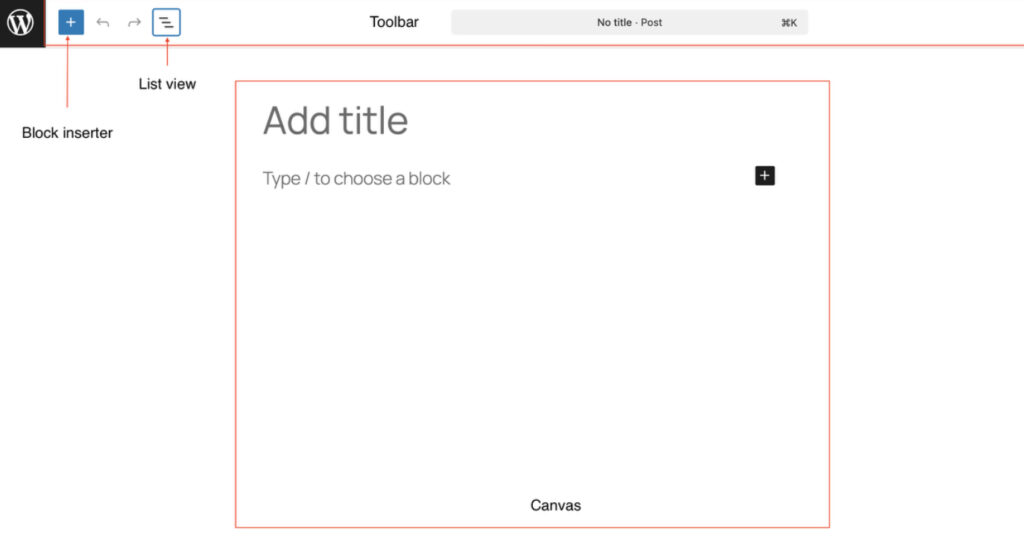
Clicking a block in the workspace activates additional controls in the toolbar. So the toolbar changes depending on what you’re working on. If you want to check changes, use preview. When you’re done, hit save, and nothing sticks.
Settings Sidebar and Block Configuration
On the right side, there’s the Settings Sidebar. That’s where more detailed adjustments live. If it’s hidden, you can open it using the icon in the top-right corner.
Once it’s open, click on any block in the workspace. The sidebar updates automatically and displays settings specific to that element. Sometimes it’s just a few options, other times it expands into multiple sections.
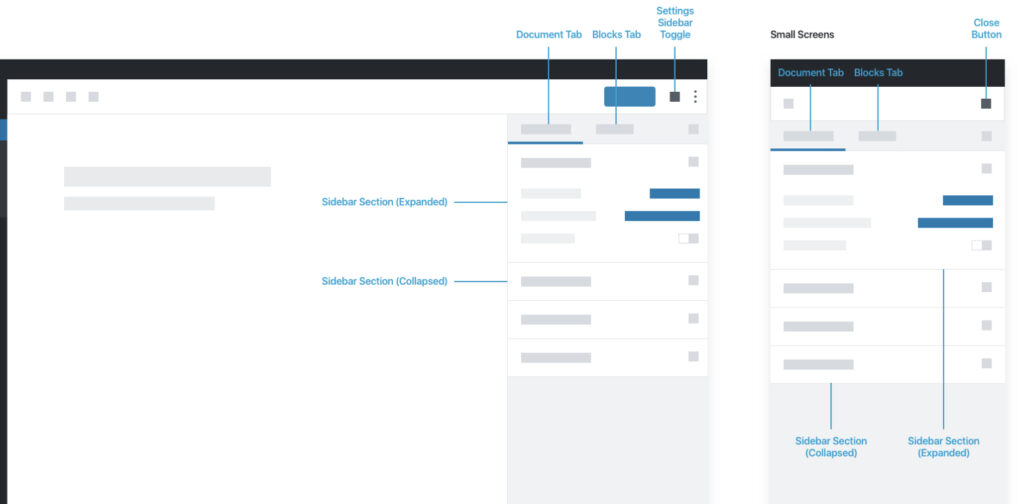
You can switch between tabs if they’re available, expand panels, and tweak things like styles, layout, or spacing. Changes show up instantly in the workspace, so you don’t really have to guess what’s happening; you see it as you go.
Template Management in WordPress Full Site Editor
Template management in the WordPress Full Site Editor controls layout and structure across a site in WordPress. It’s not just about editing a single page. It defines how different parts of the site are arranged and how that structure repeats from one page to another.
At its core, it manages templates as a layout system. That means it organizes how content is placed, how sections are reused, and how the overall structure holds together. Instead of building each page from scratch, the same layout logic is applied across multiple areas, keeping things consistent without extra effort.
This kind of control matters more than it looks at first. When templates are handled in one place, changes don’t stay isolated; they carry across the site. A layout tweak in one template can affect dozens of pages, which is exactly what makes site-wide editing feel connected rather than fragmented.
It also supports reusable layout and structured content arrangement without forcing everything into rigid patterns. Templates, reusable sections, and predefined structures all sit inside the same system, so managing them becomes part of a single workflow rather than separate tasks scattered around the dashboard.
Editing and Creating Templates
Templates in the WordPress Full Site Editor are where the overall layout really takes shape inside WordPress. If you want to change how pages are structured, this is the area you end up working in most of the time.
You start by opening the templates section from the sidebar. It brings up a list, usually things like page, single post, archive, depending on the setup. Pick one, and it opens right in the editor. From there, it’s pretty direct. You click into the layout, move blocks around, swap things, and remove sections if they don’t make sense. It feels a bit like editing a page, just at a higher level.
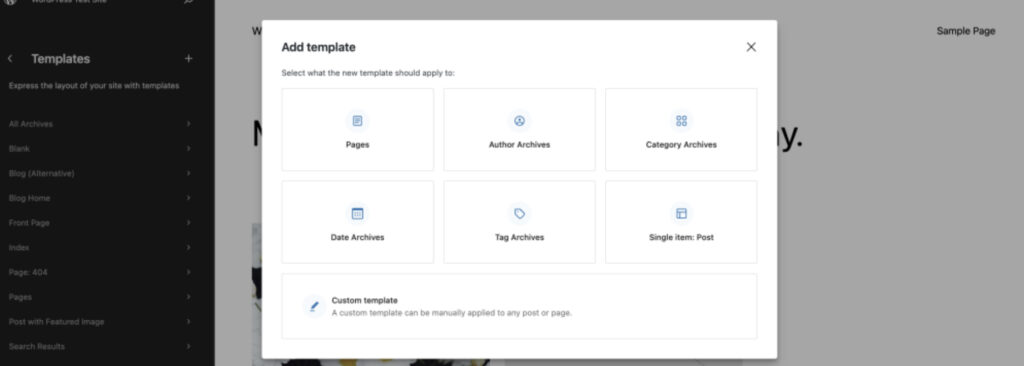
Creating a new template follows the same idea, just from scratch. There’s an option to add one; you choose the type, and then you’re dropped into a blank layout. From that point, it’s the same editing flow: build the structure, adjust it, save it, and it becomes part of the site’s layout system.
Template Parts: Headers, Footers, and Reusable Sections
Template parts are the pieces that repeat across the site: headers, footers, and sometimes other shared sections. In the WordPress Full Site Editor, they’re handled separately, so you don’t have to keep editing the same thing over and over.
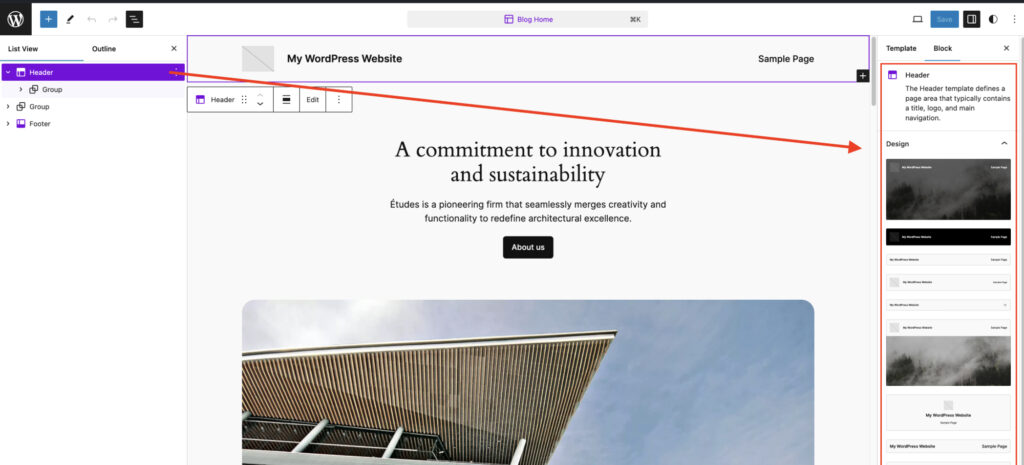
You open the template parts area from the sidebar, and you’ll see a list of those shared sections. Header and footer are usually there by default. Click one, and it opens just like a template, but on a smaller scale.
Editing works the same way as anywhere else in the editor. You click into the section, adjust blocks, maybe change navigation, update text, whatever needs fixing. Once you save it, that change carries everywhere the part is used. That’s the main idea: edit once, see it everywhere.
Patterns in the Full Site Editor
Patterns are a bit different. They’re more like ready-made layout sections you can drop in and tweak. In the WordPress Full Site Editor, they save time when you don’t want to build everything block by block.
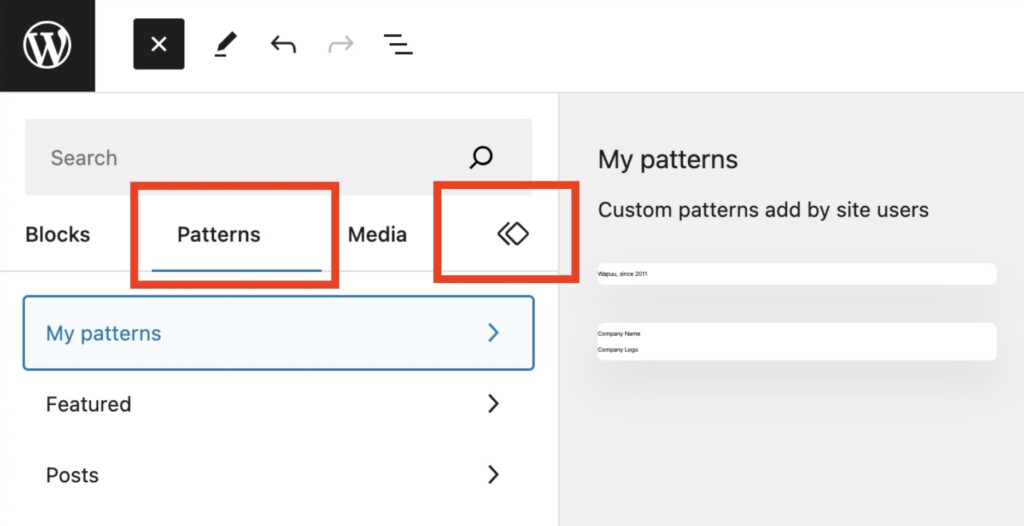
You open the inserter, switch to the patterns tab, and scroll through what’s available. Some are simple, others are more structured: sections with images, text, and buttons already arranged. When you pick one, it gets inserted straight into the workspace.
After that, it’s just regular editing. You adjust the content, rearrange elements, and replace blocks as needed. The original pattern is just a starting point, not something fixed. Once it’s in, it behaves like any other part of the layout.
Styling a WordPress Site with the Full Site Editor
Styling a WordPress site with the WordPress Full Site Editor is basically where the visual side of things comes together inside WordPress. It’s not about tweaking one page at a time. It’s more about setting the rules that everything else follows.
The editor handles styling at a broader level, so changes don’t stay stuck in one place. You adjust something once, and it quietly spreads across templates, sections, and layouts through systems like WordPress global styles. That’s what gives the site a consistent look without having to chase down small differences everywhere.
It also keeps design tied to the same space where structure is managed. You’re not jumping between tools or guessing how something will look somewhere else. Styling sits right inside the editing environment, which makes it feel a bit more connected, even if it takes a moment to get used to.
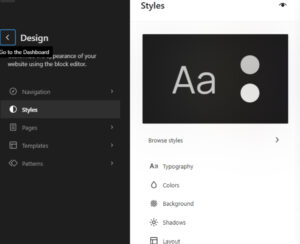
Typography, Colors, and Layout Controls
Typography, colors, and layout controls in the WordPress Full Site Editor are kind of the core trio behind how a site ends up looking. They don’t really work in isolation. One change tends to affect the others, even if it’s subtle.
Typography handles how text shows up. Font size, font family, spacing between lines, all of that feeds into readability and how content is perceived. Sometimes a small adjustment there changes the whole tone of a page.
Colors come next, shaping the palette across the site. Backgrounds, text colors, and accents set contrast and define what stands out. Once those are in place, they tend to repeat naturally, so the site doesn’t feel scattered.
Layout controls deal with spacing and structure. Width, alignment, and padding are the things that decide whether a page feels tight or open. You don’t always notice them directly, but they affect how everything sits together.
Style Variations in the Full Site Editor
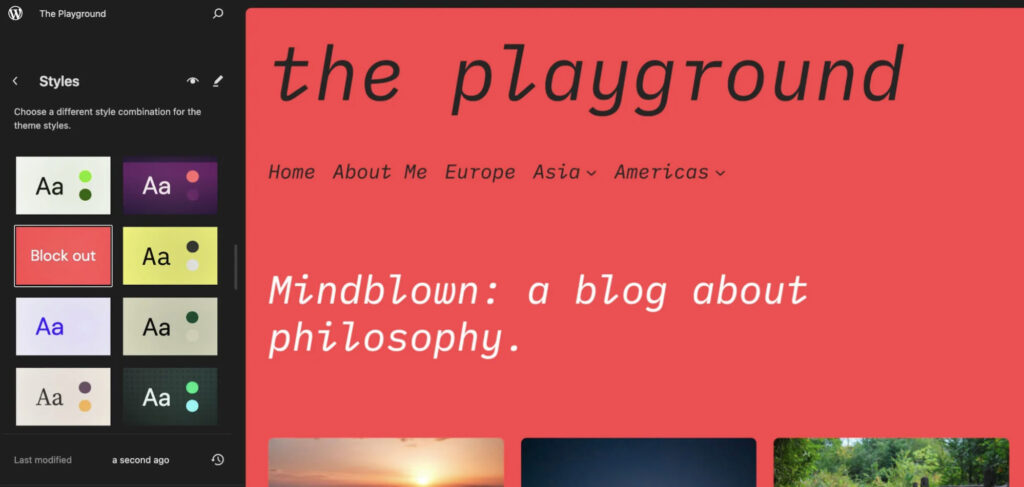
Style variations in the WordPress Full Site Editor are preset design options that shift the overall look without changing the underlying structure. Think of them as different visual versions already built into the theme.
Each variation applies a full set of styling choices at once (fonts, colors, spacing), so the site updates in one go. It’s not something you piece together manually. You switch it, and the whole appearance adjusts.
What makes them useful is how they stay within the same system. You’re not breaking anything or starting over, just moving between predefined styles. The layout stays intact, but the look changes, and it still feels consistent across the site.
Navigation Management in the Full Site Editor
Navigation management in the WordPress Full Site Editor controls how different parts of a site connect and how visitors move between them within WordPress.
At a basic level, it organizes menus and navigation links so that the site’s structure actually makes sense as you move through it. Pages aren’t sitting on their own; they’re connected through a defined flow, whether that’s a simple header menu or something more layered. That structure ends up guiding how content is found, not just how it’s displayed.
What stands out in the Full Site Editor is that navigation is part of the same editing environment as everything else. You’re not jumping out to a separate panel to manage menus. Instead, navigation becomes part of the layout itself, which makes the connection between structure and movement a bit more visible.
Page Editing in WordPress Full Site Editor
Page editing in the WordPress Full Site Editor is the part where you focus on a single page, its content, its layout, and how everything sits together inside WordPress. It’s more local than templates or global styles, but it still lives within the same editing environment.
Here, the work is centered on content blocks. Text, images, and sections can be adjusted directly in the editing area. You move things around, replace blocks, tweak spacing, or just rewrite content. It’s straightforward, closer to how WordPress Gutenberg works, since the same block-based approach is used underneath.
What makes it a bit different from older page editing is that it doesn’t feel isolated. Even though you’re working on a single page, the layout still follows the site’s broader structure. So changes stay local, but they don’t break the overall design or flow.
Benefits of WordPress Full Site Editor
WordPress Full Site Editor changes how you handle a site day to day inside WordPress. The benefits aren’t really flashy, but once you work with it for a bit, you start noticing where things get easier.
- Centralized control. Everything sits in one place: layout, styles, and structure. You’re not jumping between different sections trying to piece things together. It just keeps things more contained, which helps more than you’d expect.
- Simpler workflow (after a while). At first, it can feel a bit off, honestly. But once it clicks, moving between pages, templates, and sections feels more natural. Less back-and-forth, fewer “where was that setting again?” moments.
- Direct visual editing. You see changes as you make them. No guessing, no switching to preview every two seconds. It’s closer to just editing the page as it actually is, which speeds things up in practice.
- More consistent design. Because styles and layouts are connected, things don’t drift as easily. You change something once, and it carries across, so the site doesn’t end up looking slightly different on every page.
- Clearer structure overall. You start to see how everything fits together: templates, sections, pages. It’s not hidden behind layers of settings, which makes the whole site easier to understand when you come back to it later.
- Less repeated work. Fix a header once, and you’re done. Same for other shared parts. You’re not going page by page correcting the same thing over and over, which saves a lot of time on bigger sites.
Limitations of WordPress Full Site Editor
WordPress Full Site Editor has a few rough edges that tend to show up once you move past basic editing inside WordPress. It works well within its system, but that same system can feel a bit tight depending on what you’re trying to do.
- Limited flexibility in some layouts. The editor sticks closely to how block themes are built. If the theme doesn’t support a certain layout or structure, there’s little room to go beyond it without workarounds.
- Depends heavily on block themes. Full Site Editing doesn’t really function the same without a block theme. That dependency can be restrictive, especially if you’re working with older setups or specific theme requirements.
- Not always precise with advanced design control. Fine-tuning things like spacing, positioning, or complex layouts can feel a bit clunky. You can get close, but not always exactly where you want.
- Learning curve in the workflow. The way templates, styles, and pages connect isn’t immediately obvious. It takes a bit of time to understand how everything fits together, especially if you’re used to the older Customizer or classic editor.
- Mixed compatibility with existing setups. Some themes or plugins don’t fully align with the Full Site Editor. It works best in a clean block-based environment, but outside of that, things can feel inconsistent.
- Can feel restrictive for design-heavy projects. For simpler sites, it’s usually enough. But when you need more control over layout or detailed customization, the limits become more noticeable.
Full Site Editor vs. Page Builders
WordPress Full Site Editor and page builders both handle site building inside WordPress, but they don’t really follow the same logic.
The Full Site Editor focuses on a built-in, block-based editing model. Templates, styles, and pages are part of one system. Page builders sit on top as separate tools, each with its own interface and way of working.
That difference shows up most in flexibility. Page builders usually give more control over layout and positioning, sometimes down to very small details. The Full Site Editor keeps things more structured, which helps with consistency but can feel limiting if you’re trying to do something more custom.
Workflow is another split. The Full Site Editor keeps everything in one place, while page builders introduce a separate editing layer. Some people prefer that extra control; others find it a bit heavier to manage.
In terms of customization depth, page builders tend to go further. The Full Site Editor focuses more on keeping everything aligned across the site rather than offering maximum design freedom.
So it’s less about one being better, more about how you want to work. One leans toward structure and integration, the other toward flexibility and control.Styling a WordPress Site with the Full Site Editor
Contact
Don't like forms?
Shoot us an email at [email protected]