What Is a WordPress Theme: Guide for Developers

Table of Contents
A WordPress theme is a collection of template files, stylesheets, scripts, and configuration files that control how a WordPress site renders content in the browser. The theme separates presentation from content: WordPress stores posts, pages, and media in its database, while the theme determines how that data maps to HTML output on the front end.
WordPress ships with a default theme (currently Twenty Twenty-Five) and supports thousands of alternatives from the WordPress.org Theme Directory and third-party marketplaces. Every theme installed on a site is located in its own directory under wp-content/themes/.
This guide covers theme architecture, the three theme types (block, classic, hybrid), file structure, the template hierarchy, theme.json configuration, how to build a theme from scratch, parent/child relationships, the theme-vs-plugin boundary, and how to evaluate themes for development projects.
What Is a WordPress Theme
WordPress theme is a directory of files that installs inside wp-content/themes/ and loads whenever WordPress needs to render the front end of a site. It’s a small system that works together to turn stored content into the actual pages people see in the browser.
A classic setup requires at least two files to even work: index.php and style.css. The index.php file serves as the fallback template, while style.css includes both styling and a header comment block containing the theme metadata. Without that metadata, WordPress won’t even recognize the theme properly. Block themes shift things a bit; they rely on index.html instead of PHP templates, but still use style.css for styling.
From there, the theme controls most of what you visually experience on a site. Layout, typography, color scheme, widget areas, navigation menus, all of that sits inside the theme layer. It also maps post and page content into HTML structure, which is where things start to overlap with front-end WordPress development and how templates actually output markup.
There’s also a clear separation of concerns built into how this all works. WordPress Core handles the data side: database, admin, and APIs. Themes handle the presentation layer. Plugins step in for features and behavior. Once you see that split, a lot of WordPress decisions start to make more sense.
The official WordPress.org Theme Directory has more than 14,000 free themes, and they’re all reviewed before being listed. That review process checks for coding standards, security issues, and general quality, which matters more than most people think when you’re building on top of someone else’s code.
WordPress Theme vs Template
WordPress template is just one file that handles how a specific type of page gets rendered. A WordPress theme, on the other hand, is the complete setup: a folder containing template files, styles, scripts, and everything else needed to render the site properly. One template can’t really do anything on its own. It depends on the rest of the theme to work.
In classic themes, these templates are PHP files. You’ll usually see things like single.php for posts, page.php for pages, and archive.php for listing content. Then there are smaller pieces like header.php and footer.php that get pulled into multiple templates. It’s a bit modular, but still tied together through PHP.
Block themes changed that structure quite a bit. Instead of PHP templates, they use HTML files like single.html or archive.html, built with block markup. Same idea underneath, though: each file controls a specific view, just using a different format.
What trips people up is how WordPress decides which template to use. It doesn’t just pick one randomly. There’s the template hierarchy behind it. It checks for the most specific file first, and if that’s missing, it falls back step by step. So if something like category-news.php isn’t there, it’ll try category.php, then archive.php, and eventually land on index.php. Not always obvious when you’re debugging, but once you see the pattern, it clicks.
Types of WordPress Themes
WordPress themes are split along two axes:
- The architectural axis (block vs classic vs hybrid) determines the file structure, templating language, configuration system, and editing interface.
- The distribution axis (free vs premium vs custom) affects licensing, support availability, and update mechanisms.
The architectural distinction matters most for developers. It dictates which skills the project requires, which WordPress features are available, and how the theme integrates with the Site Editor or Customizer.
Block Themes
Block themes define how a WordPress theme is structured when everything runs on HTML templates rather than the old PHP approach. The layout lives directly in those template files, built with block markup, so what you’re editing isn’t some abstract layer; it’s basically the final structure.
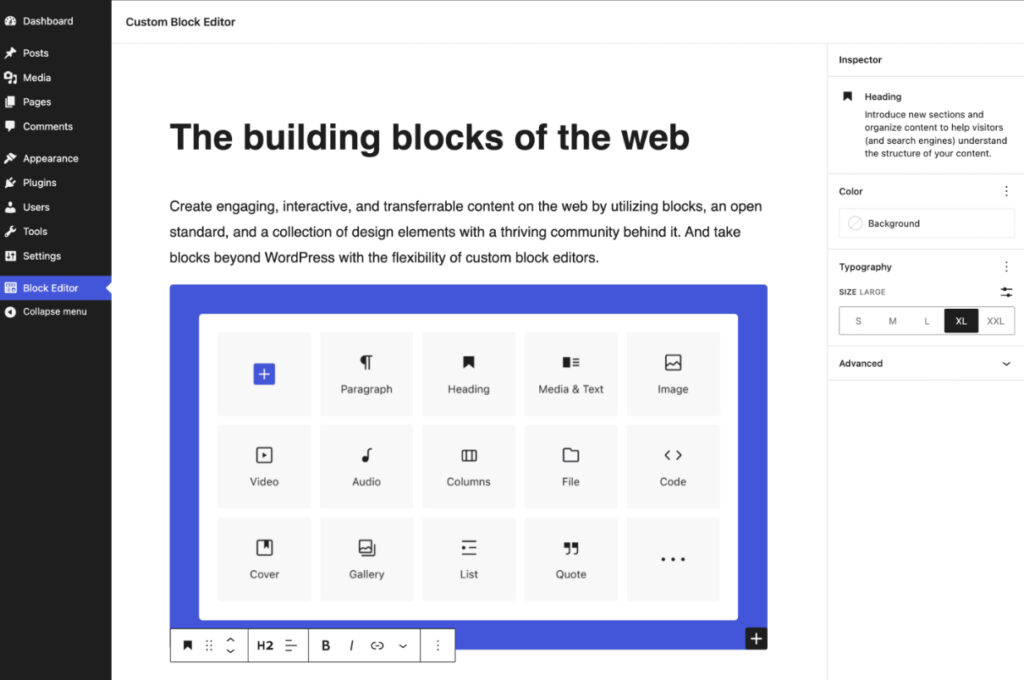
Much of the behavior comes from theme.json, which quietly handles global settings such as colors, typography, spacing, and layout widths. It ends up controlling more than you’d expect. Once it’s set, the whole design system tends to follow it without much extra effort.
The folder setup is pretty straightforward. You’ve got a templates/ directory with files like index.html, single.html, page.html, archive.html. Those define how different content types render. Then there’s parts/ for reusable sections like headers and footers. The rest sits at the root, where theme.json defines configuration and style.css carries the metadata header.
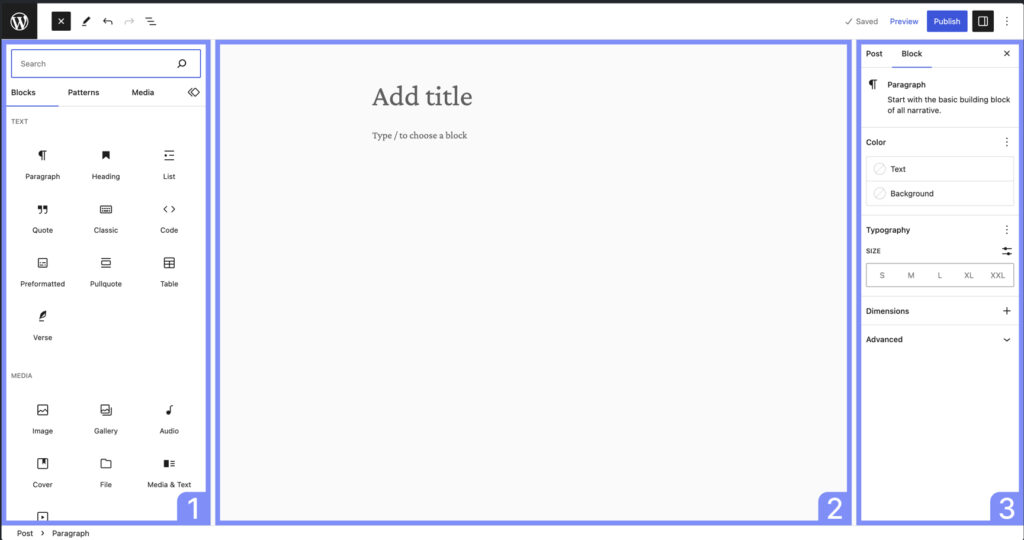
Where it starts to feel different is inside the Site Editor. Templates and template parts open visually, not just in code, and you can move things around right there. That’s where WordPress Gutenberg really ties in: the same system used for content ends up driving the entire layout, not just individual pages.
They do need WordPress 5.9 or newer to work properly. The shift started with Twenty Twenty-Two, and newer defaults like Twenty Twenty-Five keep building on the same structure.
One thing that stands out after using them for a while is how changes can be exported. Adjust a layout in the editor, and those updates can be written back into actual HTML templates and theme.json. It’s not fully code-free, but it definitely changes how much you need to touch files manually, especially for layout and styling work.
Classic Themes
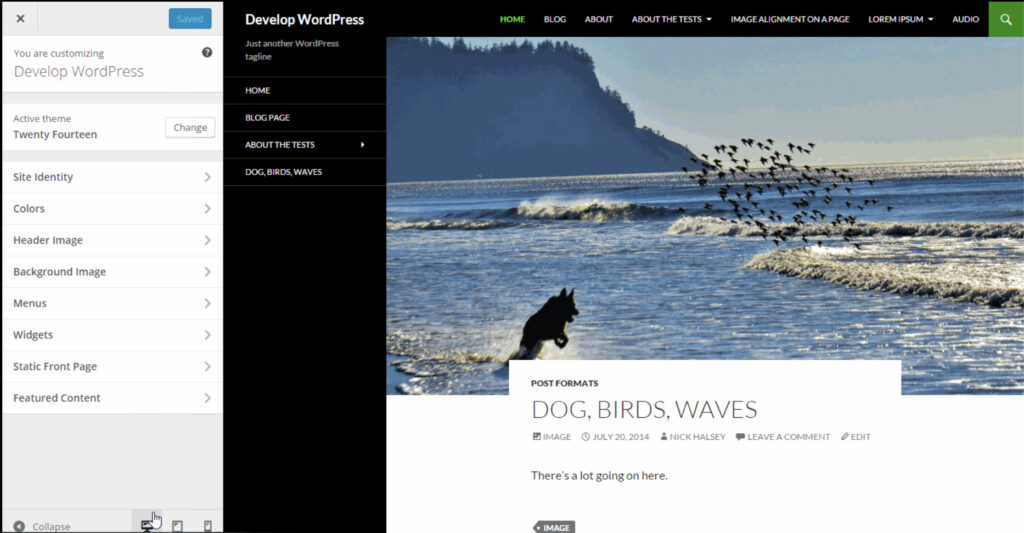
Classic themes rely on PHP template files for layout and rendering. They use the WordPress template hierarchy, template tags (the_title(), the_content(), the_excerpt()), and the WordPress Loop to process and display content. User-facing customization runs through the Customizer (Appearance → Customize), which provides a live-preview editing model distinct from the block theme’s Site Editor.
Required files: index.php and style.css. A production classic theme typically adds header.php, footer.php, sidebar.php, single.php, page.php, archive.php, search.php, 404.php, comments.php, functions.php, and screenshot.png. The functions.php file bootstraps the theme. It registers nav menus, declares widget areas, enables post thumbnail support, enqueues stylesheets and scripts, and adds editor style support.
Classic themes have been the standard since WordPress 1.5 shipped in 2005. Most commercial themes on ThemeForest and similar marketplaces still use this architecture. Building one requires knowledge of PHP, HTML, CSS, and often JavaScript, a higher code-skill floor than block theme development.
They remain fully supported in WordPress Core. No deprecation is planned or implied. For projects targeting WordPress installations below 5.9, or for teams with deep PHP for WordPress expertise and established classic theme workflows, the classic architecture remains a valid choice.
Hybrid Themes
Hybrid themes retain the PHP template foundation of classic themes while incorporating select block-related features. A hybrid theme might include theme.json for global settings and styles, use block template parts for the header and footer, or support the Site Editor for specific template customization while relying on PHP for main template rendering.
“Hybrid” is a community convention, not an official WordPress designation. Internally, WordPress treats them as classic themes. The distinction matters for developers because hybrid themes offer a migration path. Teams maintaining a large classic theme can adopt block features incrementally by adding theme.json for typography and color control, converting the header to a block template part without rewriting the entire theme.
A common pattern: keep single.php, page.php, and archive.php as PHP templates, add theme.json for global style configuration, and replace header.php with a block-based parts/header.html. This splits the theme across both systems while preserving existing template logic where refactoring isn’t warranted.
Free vs Premium vs Custom Themes
Free themes are stored in the WordPress.org Theme Directory, and they’re not as “basic” as people sometimes assume. Each one goes through a review process: code quality, security checks, and GPL licensing. You don’t get dedicated support most of the time, just forums, but for smaller builds or starting points, they hold up surprisingly well. Plenty of devs use them as a base and just shape them into what they need.
Premium themes come from marketplaces like ThemeForest or from smaller theme shops. You pay once (usually somewhere between $30 and $150), and in return, you get more built-in features, demo content, and actual support. Updates are part of the deal, although sometimes that support runs on an annual renewal. It’s convenient, no question, but you’re also working inside someone else’s system, which can get limiting later.
Custom themes are a different story. Built from scratch, usually for a specific project, often by an agency or a developer who knows exactly what’s needed. The price jumps quite a bit: a simple one might start around $1,500, while larger builds can climb way past that. But you’re not fighting the codebase. Everything is structured the way you want, performance is easier to control, and there’s no leftover baggage.
It really comes down to trade-offs. Free and premium options speed things up, but they also introduce dependencies. Custom work takes longer and costs more upfront, though it tends to reduce technical debt over time. Depends on the project: budget, deadlines, and how much control you actually need.
WordPress Theme File Structure
WordPress theme file structure is what organizes how a WordPress theme sits inside the system and how it gets picked up in the first place. Every theme lives in its own folder under wp-content/themes/, and that folder name ends up acting as the theme slug.
Inside that folder, style.css does more than it looks like. WordPress reads the header at the top of that file to identify the theme: name, version, author, and license. If that header isn’t there or is broken, the theme won’t even show up properly. So even though it’s called a stylesheet, it’s also the theme’s ID card in a way.
Everything else in the theme builds around that directory. Templates, assets, and configuration files all sit there and follow a certain structure. It’s not complicated once you’ve seen it a few times, but it’s strict enough that things can break if files aren’t where WordPress expects them to be. If you zoom out and look at the broader WordPress file and directory structure, this theme folder is just one piece, but it’s the one that directly shapes how the site renders.
One thing that trips people up is that not all themes follow the exact same layout anymore. Block themes and classic themes organize their files differently, especially regarding templates and configuration. That difference isn’t obvious at first, but it becomes important once you start working with both.
Block Theme File Structure
A minimal block theme directory:
theme-name/

├── parts/

│   ├── header.html

│   └── footer.html

├── templates/

│   ├── index.html

│   ├── single.html

│   ├── page.html

│   └── archive.html

├── styles/

│   └── variation.json

├── assets/

│   ├── fonts/

│   └── images/

├── theme.json

├── style.css

├── functions.php

└── screenshot.png- templates/ holds page-level template files. Each file contains block markup that defines the layout for a specific content type or page.
- parts/ holds reusable template parts: sections like headers and footers referenced by multiple templates.
- styles/ stores style variations: alternative theme.json presets that users can switch between in the Site Editor.
- assets/ organizes fonts, images, and other static resources.
- theme.json is the central configuration file. It defines global settings, styles, template part declarations, and custom template registrations.
- functions.php is optional in block themes but still useful for enqueuing additional scripts or styles, registering block patterns, or adding server-side functionality that block markup can’t handle.
The absolute minimum: style.css (with the metadata header) and templates/index.html. WordPress recognizes a directory as a block theme when it contains an index.html file in the templates/ subdirectory.
Classic Theme File Structure
A typical classic theme directory:
theme-name/

├── template-parts/

│   ├── content.php

│   └── content-single.php

├── inc/

│   ├── customizer.php

│   └── template-functions.php

├── js/

│   └── navigation.js

├── css/

│   └── editor-style.css

├── index.php

├── header.php

├── footer.php

├── sidebar.php

├── single.php

├── page.php

├── archive.php

├── search.php

├── 404.php

├── comments.php

├── functions.php

├── style.css

└── screenshot.png- index.php is the ultimate fallback template: if no more specific template exists for a request, WordPress renders index.php.
- functions.php bootstraps the theme: it registers nav menus with register_nav_menus(), declares widget areas with register_sidebar(), enqueues styles and scripts with wp_enqueue_style() and wp_enqueue_script(), and adds theme support declarations.
- header.php and footer.php are included in templates via get_header() and get_footer().
- Template parts in template-parts/ load through get_template_part(), which provides a clean way to reuse markup across templates.
- The inc/ directory holds modular PHP includes: Customizer settings, helper functions, template logic that doesn’t belong in template files directly.
The absolute minimum: index.php and style.css.
theme.json: Global Settings and Styles
theme.json is the JSON configuration file at the theme root that defines two primary sections: settings (what options are configurable) and styles (the default values for those options).
Settings control what appears in the Site Editor’s interface. A theme defines its color palette under settings.color.palette, font families under settings.typography.fontFamilies, font sizes under settings.typography.fontSizes, spacing scale under settings.spacing.spacingSizes, and content/wide layout widths under settings.layout. Custom CSS properties declared here become available throughout the theme.
Styles set the defaults: styles.color.background and styles.color.text define the base colors, styles.typography.fontFamily sets the body font, styles.elements.heading.typography controls heading styles, and styles.elements.link.color defines link colors.
The top-level structure:
{

  "version": 3,

  "settings": { },

  "styles": { },

  "templateParts": [ ],

  "customTemplates": [ ],

  "patterns": [ ]

}
version declares the schema version (currently 3). templateParts registers the template parts available in the theme, each entry specifies a name, title, and area (header, footer, or general). customTemplates registers custom page templates. patterns lists block pattern slugs from the WordPress Pattern Directory to bundle with the theme.
Per-block configuration adds granular control. Under settings.blocks, a theme can restrict the color palette for a specific block type, disable font size controls for paragraphs, or lock typography settings for headings. This prevents users from making design changes that break the theme’s visual system.
Hybrid themes use theme.json alongside PHP templates. Even without adopting block templates, adding theme.json gives a classic theme access to global settings, style controls in the Site Editor, and standardized configuration that replaces scattered Customizer options with a single declarative file.
WordPress Template Hierarchy
The template hierarchy is the priority-ordered decision tree WordPress follows to select which template file renders any given URL request. WordPress evaluates the request, determines the content type, and checks the theme for the most specific matching template. The first file found renders the page.
The hierarchy chains for common content types:
Single post: single-{post-type}-{slug}.php → single-{post-type}.php → single.php → singular.php → index.php
Page: {custom-template}.php → page-{slug}.php → page-{id}.php → page.php → singular.php → index.php
Category archive: category-{slug}.php → category-{id}.php → category.php → archive.php → index.php
Author archive: author-{nicename}.php → author-{id}.php → author.php → archive.php → index.php
Search results: search.php → index.php
404 page: 404.php → index.php
Block themes follow the same hierarchy logic. The difference: templates live in the templates/ directory with .html extensions. WordPress checks templates/single-post-my-slug.html → templates/single-post.html → templates/single.html → templates/singular.html → templates/index.html.
The hierarchy enables progressive specificity. A theme can start with only index.php (or templates/index.html) and add more specific templates as design requirements grow. Each added file captures a more targeted content type, while the existing fallback chain handles everything else.
Parent Themes and Child Themes
A parent theme is any complete, standalone theme. It contains all the templates, styles, and functions necessary to render a site. A child theme inherits everything from its parent but overrides specific files without touching the parent’s source code. The child theme’s style.css header includes a Template: field that names the parent theme’s directory:
/*

Theme Name: My Child Theme

Template: parent-theme-directory

*/
Child themes exist because parent theme updates overwrite modified files. A developer who edits single.php directly in the parent theme loses that change when the theme updates. A child theme preserves customizations across updates. WordPress loads child theme files first and falls back to the parent only when the child doesn’t provide an override.
The override mechanics follow clear rules. Placing a modified single.php in the child theme directory causes WordPress to use it instead of the parent’s single.php. The same applies to any template file: page.php, archive.php, header.php. For style.css, the child’s stylesheet loads after the parent’s in the CSS cascade, so child styles override parent styles for matching selectors.
functions.php behaves differently from template files. WordPress does not override the parent’s functions.php with the child’s, both execute. The child’s functions.php runs first, then the parent’s. This allows the child to use remove_action() or remove_filter() to unhook parent functions before they fire.
The child theme directory contains only the files that differ from the parent: the required style.css with the Template: declaration, any overridden templates, and an optional functions.php for additional logic. Keeping the child lightweight reduces the maintenance surface and keeps the update path clean.
How to Create a WordPress Theme
How to Build a Block Theme
1. Create the theme directory. Add a new folder under wp-content/themes/. The folder name becomes the theme slug.
2. Add style.css with the metadata header:
/*

Theme Name: Developer Theme

Version: 1.0.0

Requires at least: 6.0

Tested up to: 6.7

Requires PHP: 7.4

License: GNU General Public License v2 or later

License URI: https://www.gnu.org/licenses/gpl-2.0.html

*/
3. Create theme.json with settings and styles:
{

  "version": 3,

  "settings": {

    "color": {

      "palette": [

        { "slug": "primary", "color": "#1e40af", "name": "Primary" },

        { "slug": "secondary", "color": "#f8fafc", "name": "Secondary" }

      ]

    },

    "typography": {

      "fontFamilies": [

        {

          "fontFamily": "Inter, sans-serif",

          "slug": "inter",

          "name": "Inter"

        }

      ]

    },

    "layout": {

      "contentSize": "720px",

      "wideSize": "1200px"

    }

  },

  "styles": {

    "color": {

      "background": "#ffffff",

      "text": "#1a1a1a"

    },

    "typography": {

      "fontFamily": "var(--wp--preset--font-family--inter)"

    }

  },

  "templateParts": [

    { "name": "header", "title": "Header", "area": "header" },

    { "name": "footer", "title": "Footer", "area": "footer" }

  ]

}
4. Create templates/index.html with block markup:
<!-- wp:template-part {"slug":"header","area":"header"} /-->

<!-- wp:group {"layout":{"type":"constrained"}} -->

<div class="wp-block-group">

  <!-- wp:query {"queryId":1,"query":{"perPage":10,"offset":0,"postType":"post"}} -->

  <!-- wp:post-template -->

    <!-- wp:post-title {"isLink":true} /-->

    <!-- wp:post-date /-->

    <!-- wp:post-excerpt /-->

  <!-- /wp:post-template -->

  <!-- wp:query-pagination -->

    <!-- wp:query-pagination-previous /-->

    <!-- wp:query-pagination-numbers /-->

    <!-- wp:query-pagination-next /-->

  <!-- /wp:query-pagination -->

  <!-- /wp:query -->

</div>

<!-- /wp:group -->

<!-- wp:template-part {"slug":"footer","area":"footer"} /-->
5. Create parts/header.html and parts/footer.html as reusable template parts with site title, navigation, and footer content.
6. Add screenshot.png at 1200×900 pixels. This displays in Appearance → Themes.
7. Activate the theme in Appearance → Themes.
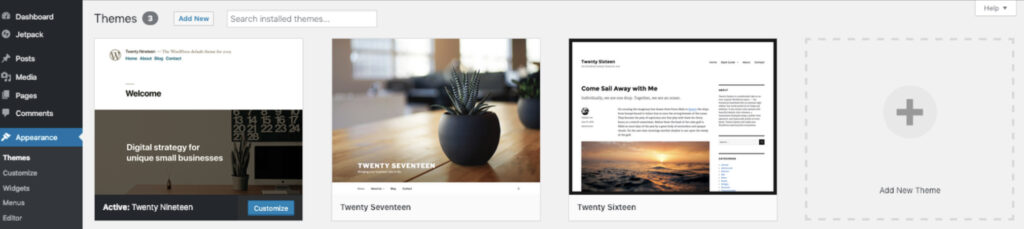
The Create Block Theme plugin offers a parallel workflow: install it, build templates and styles visually in the Site Editor, then export the entire theme as a zip. Useful for rapid prototyping before refining the code manually.
How to Build a Classic Theme
1. Create the theme directory under wp-content/themes/.
2. Add style.css with the metadata header (same format as block themes).
3. Create index.php with a basic WordPress Loop:
<?php get_header(); ?>

<main>

  <?php if ( have_posts() ) : ?>

    <?php while ( have_posts() ) : the_post(); ?>

      <article id="post-<?php the_ID(); ?>">

        <h2><a href="<?php the_permalink(); ?>"><?php the_title(); ?></a></h2>

        <?php the_excerpt(); ?>

      </article>

    <?php endwhile; ?>

    <?php the_posts_navigation(); ?>

  <?php else : ?>

    <p><?php esc_html_e( 'No posts found.', 'developer-theme' ); ?></p>

  <?php endif; ?>

</main>

<?php get_footer(); ?>
4. Create header.php:
<!DOCTYPE html>

<html <?php language_attributes(); ?>>

<head>

  <meta charset="<?php bloginfo( 'charset' ); ?>">

  <meta name="viewport" content="width=device-width, initial-scale=1">

  <?php wp_head(); ?>

</head>

<body <?php body_class(); ?>>

<?php wp_body_open(); ?>

<header>

  <h1><a href="<?php echo esc_url( home_url( '/' ) ); ?>"><?php bloginfo( 'name' ); ?></a></h1>

  <?php wp_nav_menu( array( 'theme_location' => 'primary' ) ); ?>

</header>
5. Create footer.php:
<footer>
<p>© <?php echo date( 'Y' ); ?> <?php bloginfo( 'name' ); ?></p>
</footer>
<?php wp_footer(); ?>
</body>
</html>6. Create functions.php to register theme features:
<?php

function developer_theme_setup() {

  add_theme_support( 'title-tag' );

  add_theme_support( 'post-thumbnails' );

  add_theme_support( 'custom-logo' );

  add_theme_support( 'html5', array( 'search-form', 'comment-form', 'comment-list', 'gallery', 'caption' ) );

  register_nav_menus( array(

    'primary' => __( 'Primary Menu', 'developer-theme' ),

  ) );

}

add_action( 'after_setup_theme', 'developer_theme_setup' );

function developer_theme_scripts() {

  wp_enqueue_style( 'developer-theme-style', get_stylesheet_uri(), array(), '1.0.0' );

}

add_action( 'wp_enqueue_scripts', 'developer_theme_scripts' );
7. Add screenshot.png and activate it in Appearance → Themes.
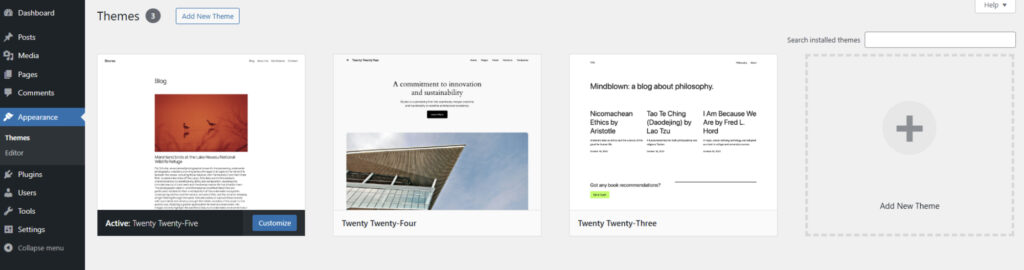
_s (Underscores) provides a production-ready starter theme with semantic HTML, accessibility-ready markup, and a best-practice file structure. Many developers fork _s as a starting point rather than building from an empty directory. It saves hours of boilerplate setup.
How to Install a WordPress Theme
Three installation methods cover different scenarios.
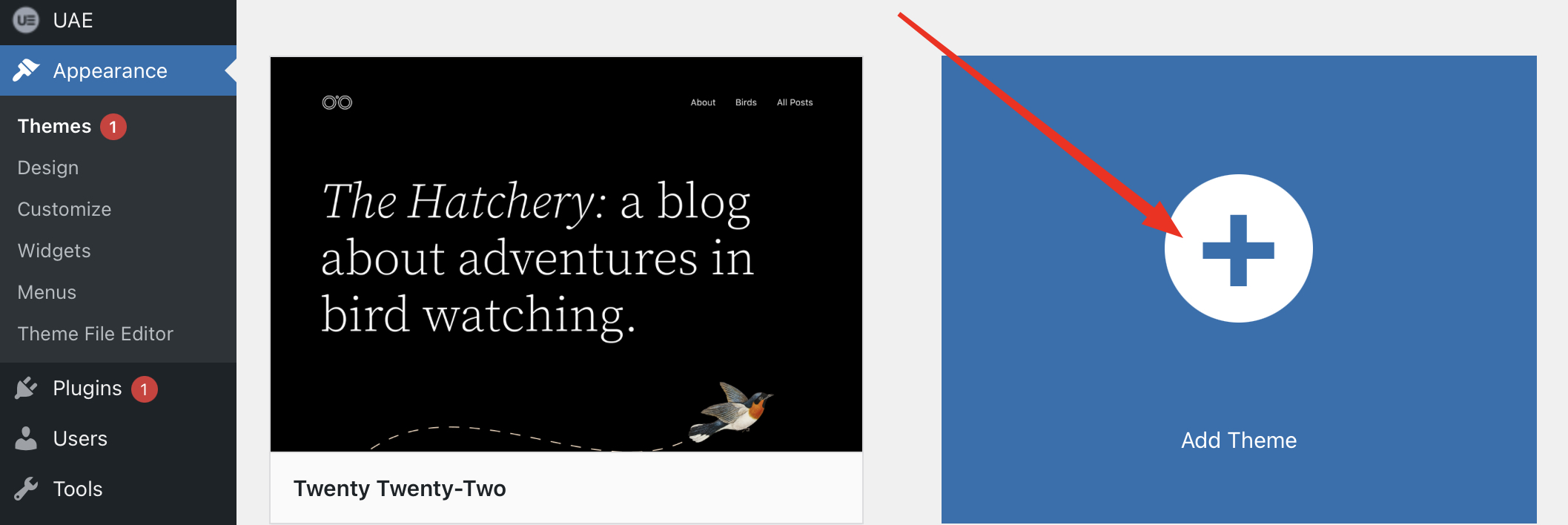
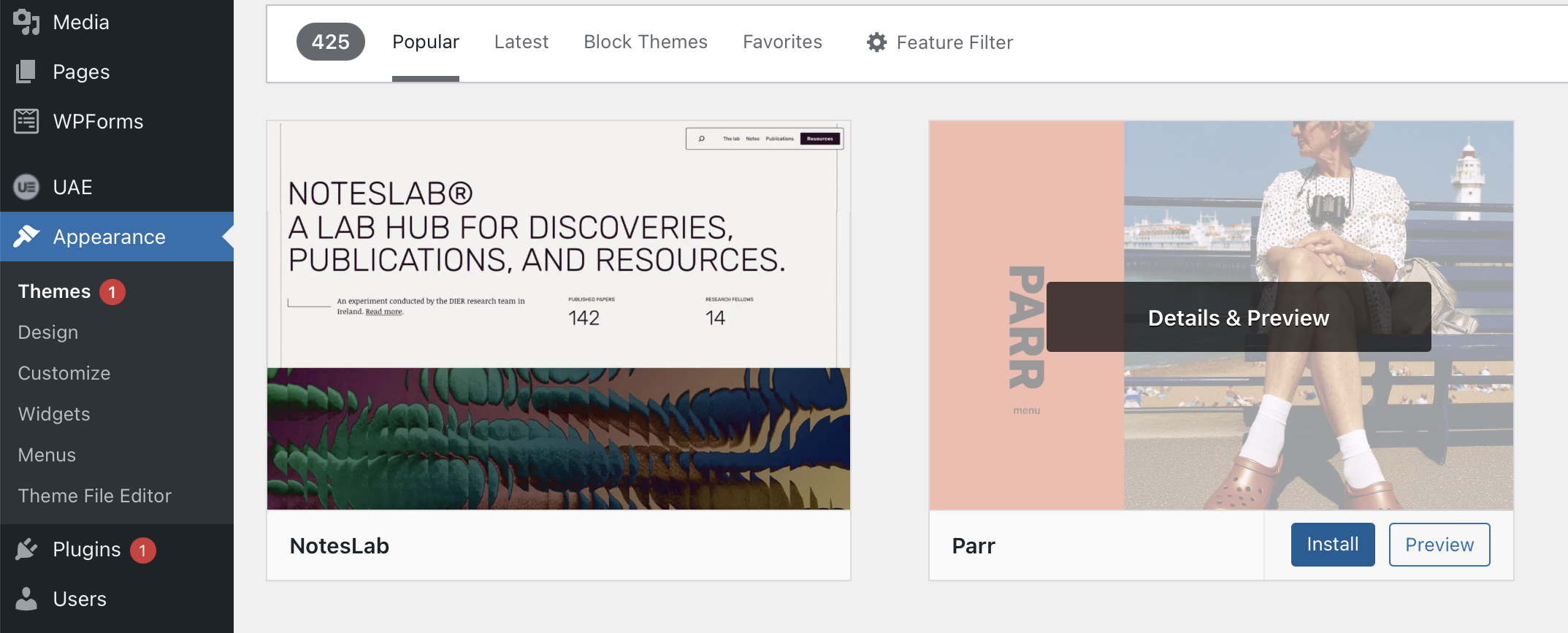
From the WordPress admin (Theme Directory). Appearance → Themes → Add New opens a browsable, searchable interface into the WordPress.org Theme Directory. Select a theme, click Install, then Activate. This method works only for free themes hosted on WordPress.org.
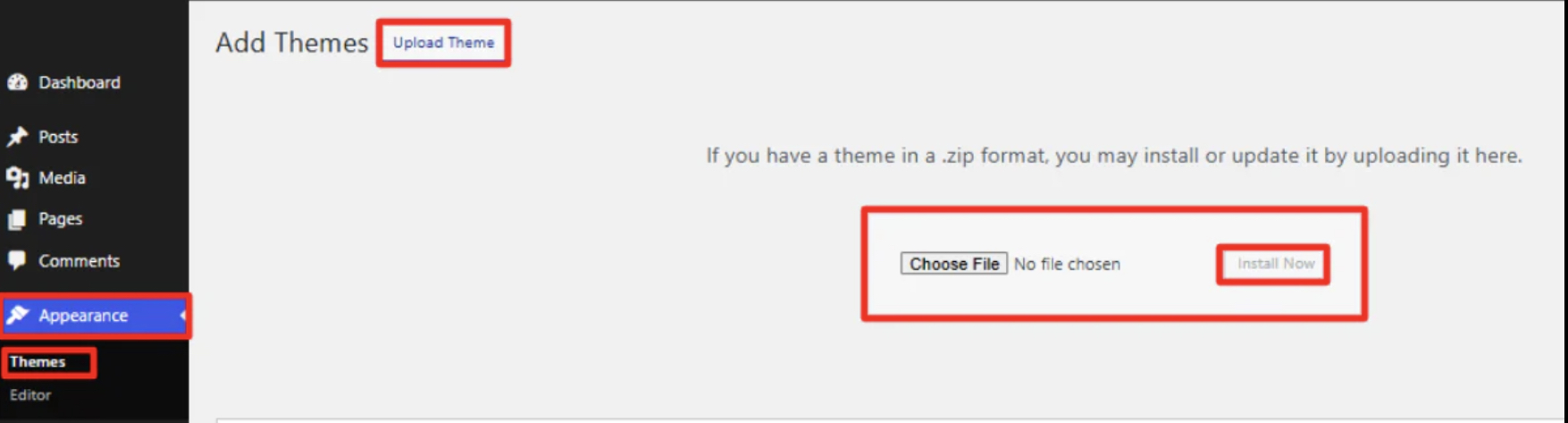
Upload via admin. Appearance → Themes → Add New → Upload Theme presents a file upload form. Select the theme’s .zip file (downloaded from a marketplace or developer site), click Install Now, then Activate. This handles premium themes and any theme distributed as a zip archive.
If you’ve already gone through something like how to install WordPress, this step feels like a natural continuation, just adding the visual layer on top.
Via FTP/SFTP or file manager. Upload the unzipped theme directory directly to wp-content/themes/ using an FTP client or the hosting provider’s file manager. Then activate in Appearance → Themes. This method bypasses admin upload size limits and works in environments where the WordPress admin is inaccessible.
WP-CLI adds a fourth option for developers: wp theme install theme-slug –activate installs and activates a theme from the command line. Teams using version control typically commit themes to the repository and deploy via CI/CD pipelines, no manual installation through the admin at all.
How to Choose a WordPress Theme
WordPress theme evaluation criteria tend to matter more after the site is already live, not while you’re picking it inside WordPress. A theme can look clean in a demo and still slow things down or limit what you can build later. That’s usually where the difference shows.
What actually gets evaluated is less about features and more about how the theme behaves in real use: code quality, performance, update frequency, and flexibility when you need to extend it.
Performance and Code Quality
Theme performance and code quality usually show their impact pretty quickly, even if it’s subtle at first. Some themes feel light and responsive, others drag a bit, and that often comes down to what’s under the hood.
Running a demo through Lighthouse or similar tools gives a rough idea right away. Page weight, number of requests, and render-blocking files tell you how heavy the theme is before you even add real content. Lighter themes stay manageable. Heavier ones tend to pile up fast.
Looking at the code itself gives a different kind of signal. Proper escaping functions, clean structure, and the use of hooks instead of hardcoded output don’t jump out visually, but they matter when you start modifying or maintaining the site. Same with translation support and general coding standards.
Update history is another one people skip, but it says a lot. If a theme hasn’t been touched in a while, it usually means problems are coming later, not immediately.
Dependencies can be a bit tricky too. Themes that rely on bundled builders or specific plugins can lock you into a certain setup. Sometimes that’s fine, sometimes it becomes a limitation.
Responsive Design and Browser Compatibility
Responsive design and browser compatibility tend to show up as small annoyances before they turn into bigger issues. A layout might look fine on desktop, then feel off on mobile: spacing gets weird, menus become harder to use, things shift around.
Checking that usually starts in DevTools. Resize the screen, move between viewports, see how elements react. Fluid layouts tend to behave better than rigid ones. If you spot horizontal scrolling or broken alignment, that’s already a sign something’s off. Keeping an eye on RWD best practices helps catch those patterns early, even before testing on real devices.
Browser differences still matter too. Chrome might handle something fine while Safari doesn’t. That’s where checking recent versions across major browsers comes in. CSS grid, flexbox behavior, even small JavaScript errors. They can all affect how the theme renders.
Accessibility sits in the same space. Themes marked as accessibility-ready usually handle keyboard navigation and contrast better. It’s not perfect, but it avoids some common issues.
Plugin Compatibility and Extensibility
Plugin compatibility and extensibility usually become noticeable once you start adding real features. A theme that works fine on its own can behave very differently once plugins are active.
Compatibility checks often revolve around the core stack. WooCommerce, SEO plugins, and multilingual tools tend to highlight issues quickly. Sometimes it’s styling, sometimes functionality, but it usually comes down to how the theme handles external output.
Extensibility is a bit more behind the scenes. Themes that include action hooks and filter hooks in key places give you more room to work without editing core files. That flexibility matters when you need to customize something or connect external systems through something like WordPress integration.
WordPress Theme Development Best Practices
WordPress Coding Standards shape how theme development stays consistent and maintainable inside WordPress. Once you start building themes regularly, these practices become part of the workflow.
- Follows WordPress Coding Standards. Code structure, formatting, and naming all stick to established standards across PHP, CSS, JavaScript, and HTML. It keeps things readable and avoids confusion when multiple developers are involved.
- Escapes all output properly. Every output gets handled through functions like esc_html(), esc_attr(), esc_url(), or wp_kses(). It’s a small detail, but skipping it usually leads to security issues sooner or later.
- Supports translation-ready setup. Text is wrapped in functions like __(), _e(), or _x() and tied to a defined text domain. That makes localization possible without rewriting the theme later.
- Prefixes functions and classes. Function names, classes, and global variables use a unique prefix based on the theme slug. It avoids namespace collisions, which can get messy in larger projects.
- Enqueues scripts and styles correctly. Assets load through wp_enqueue_script() and wp_enqueue_style() instead of being hardcoded. That keeps dependencies organized and avoids conflicts with plugins or other scripts.
- Uses WordPress APIs instead of custom frameworks. Settings, customization, and configuration rely on built-in tools like the Customizer API or theme.json. It reduces complexity and keeps the theme aligned with how WordPress evolves.
- Includes a proper screenshot.png. A 1200×900 screenshot represents the theme visually in the admin area. It sounds minor, but it’s part of how the theme is identified and presented.
- Supports core WordPress features. Features like custom logo, title tag, post thumbnails, and HTML5 markup are enabled by default. Skipping these usually limits how the theme behaves in real use.
- Tests with Theme Check plugin. Running the theme through the Theme Check plugin helps catch common issues before distribution. It’s not perfect, but it flags problems early.
- Keeps a child-theme-friendly structure. File structure and function usage avoid patterns that break inheritance. Using the right directory functions helps child themes override behavior without friction.
Contact
Don't like forms?
Shoot us an email at [email protected]