How to Disable Gutenberg Editor in WordPress

Table of Contents
Gutenberg replaced the Classic Editor as WordPress‘s default editor in version 5.0, released in December 2018. Every WordPress installation since then opens posts and pages in the block editor automatically. But not every WordPress site benefits from that switch; plugin conflicts, theme incompatibilities, and established workflows create real reasons to disable Gutenberg and revert to the Classic Editor.
The process takes minutes regardless of which method fits the situation. This article covers four approaches: the Classic Editor plugin for a complete revert, the Disable Gutenberg plugin for selective control, custom PHP code for developer-level precision, and block-level restrictions for sites that want Gutenberg active with a simplified interface.
Why Disable the Gutenberg Editor
Disabling Gutenberg editor is a technical decision based on a specific site’s conditions rather than a question of preference. There are several common circumstances that make it necessary.
Plugin incompatibility causes the most frequent issues. Some WordPress plugins generate custom meta fields, content sections, or editor interfaces that rely on the Classic Editor’s hook system, as explained in a WordPress Gutenberg guide. These plugins register meta boxes that Gutenberg either hides behind a dropdown panel or fails to render correctly. Contact form builders, custom field plugins, and SEO tools built before 2018 sometimes fall into this category.
Theme incompatibility creates similar problems. Older themes with custom page templates, proprietary meta boxes, or integrated builder functionality may break when Gutenberg loads. Gutenberg editor renders content differently from the Classic Editor; themes that inject custom controls into the editor screen may lose those controls entirely.
Existing page builder usage is another practical trigger. The sites using Elementor, Divi, Beaver Builder, or WPBakery have a dedicated visual editor. Gutenberg provides a second visual editor that a site does not need. It confuses content teams to have to switch between two systems.
Advanced Custom Fields and custom post types present a specific compatibility scenario. ACF field groups that use complex layouts, flexible content fields, repeater fields, or custom placement rules sometimes display better in the Classic Editor interface. The Classic Editor renders ACF fields inline with the content area, while Gutenberg pushes them into a separate panel below the block editor.
Client workflow continuity matters during transition periods. Clients trained on the Classic Editor need consistency. Switching their editing interface during a site migration or WordPress update introduces unnecessary friction when the priority is content stability.
Legacy site maintenance rounds out the list. WordPress sites built years before Gutenberg existed may rely on Classic Editor patterns throughout their content structure. Updating WordPress core without disabling Gutenberg changes the editing experience without changing the site’s underlying architecture , a mismatch that creates problems during routine maintenance.
None of these scenarios suggests anything is wrong with Gutenberg. The direction of WordPress development is toward a block editor and Full Site Editing as the path forward. Disabling Gutenberg is a pragmatic approach for a specific scenario.
How to Disable Gutenberg Using the Classic Editor Plugin
The Classic Editor plugin represents WordPress’s recommended solution for reverting to the pre-Gutenberg editing experience. With over 5 million active installations, it is maintained by WordPress contributors and recommended by the core team as a standard solution for reverting back to the classic editor.
Installation Steps
1. Open the WordPress admin dashboard.
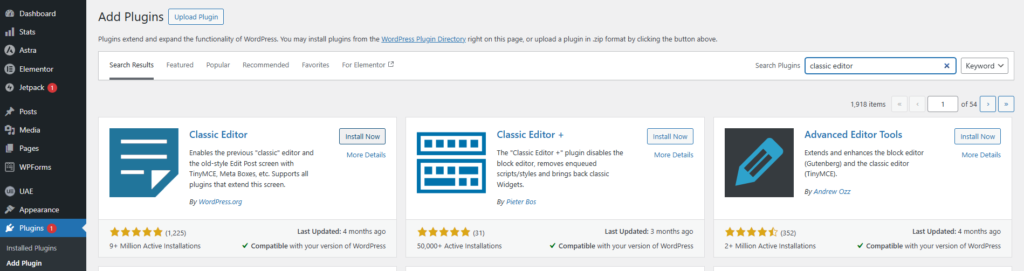
2. Navigate to Plugins → Add New.
3. Type “Classic Editor” in the search bar.
4. Locate the plugin by WordPress Contributors (it typically appears as the first result).
5. Click Install Now, then click Activate.
Configuration
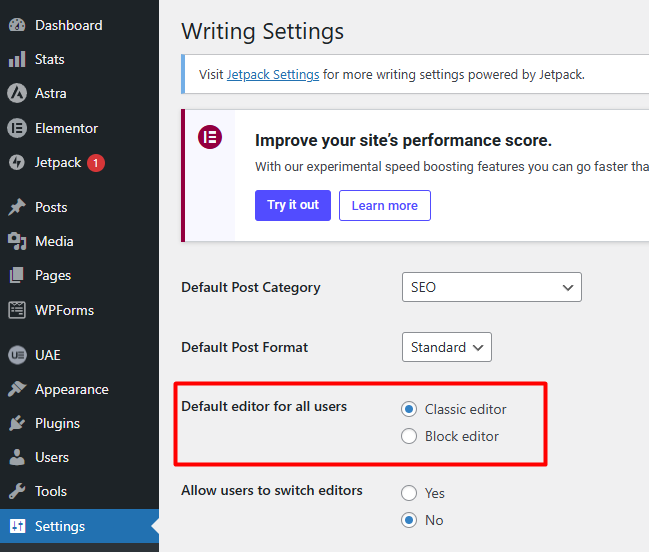
After activation, go to Settings → Writing. Two options appear under the Classic Editor section:
Default editor for all users, choose between “Classic Editor” and “Block Editor.” Selecting “Classic Editor” makes the Classic Editor the default for every user on the site. Every post and page opens in the old editor automatically.
Allow users to switch editors. Choose “Yes” or “No.” Setting this to “Yes” adds editor toggle links on the Posts and Pages list screens. Each post displays an “Edit (Classic Editor)” and “Edit (Block Editor)” link, letting individual users choose which editor to open for a specific post.
Two Operating Modes
Mode 1: Complete disable. Set the default editor to Classic Editor and set “Allow users to switch” to No. Gutenberg disappears from the editing experience entirely. Every user opens every post and page in the Classic Editor with no option to switch.
Mode 2: Classic default with Gutenberg access. Set the default editor to Classic Editor, but set “Allow users to switch” to Yes. The Classic Editor loads by default, but users see toggle links on the Posts and Pages screens. Clicking “Edit (Block Editor)” opens that specific post in Gutenberg. This mode works well during transition periods; teams use the Classic Editor for daily work but can test Gutenberg on individual posts when ready.
The Classic Editor plugin does not delete or modify any content. Posts created in Gutenberg remain intact. Block markup is preserved in the database and renders correctly on the frontend. Editing a Gutenberg-created post in the Classic Editor displays the raw block HTML, functional but not visually clean for complex block layouts.
One note on longevity: the WordPress team initially committed to supporting the Classic Editor plugin until December 2021, then extended support. The plugin still receives regular updates and works with current WordPress versions. Its long-term future depends on WordPress core development decisions, but for now, it remains actively maintained.
How to Disable Gutenberg Using the Disable Gutenberg Plugin
The Disable Gutenberg plugin serves sites that need more control than a simple on/off switch. Developed by Jeff Starr, the plugin has over 700,000 active installations and a 5-star rating. Its core feature: the ability to disable Gutenberg selectively by user role, post type, page template, or individual post ID.
Installation Steps
1. Navigate to Plugins → Add New in the WordPress admin.
2. Search for “Disable Gutenberg.”
3. Click Install Now, then Activate.
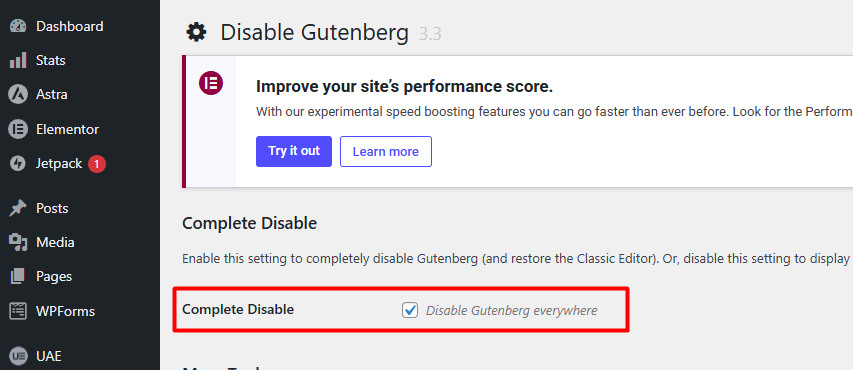
4. Go to Settings → Disable Gutenberg.
The plugin creates its own settings page rather than adding options to the default Writing screen. This keeps the configuration separate and easier to manage.
Default Behavior: Complete Disable
By default, the “Complete Disable” checkbox is checked. This disables Gutenberg site-wide, identical in effect to the Classic Editor plugin. The block editor disappears for all users across all content types.
Granular Controls
Unchecking “Complete Disable” reveals the plugin’s selective options:
Disable for user roles. Check specific roles (Administrator, Editor, Author, Contributor) to disable Gutenberg only for those users. Other roles continue using the block editor. Useful when administrators need Classic Editor access for certain tasks while content editors use Gutenberg.
Disable for post types. Check specific post types (Posts, Pages, or any registered custom post type) to disable Gutenberg on those content types only. A practical example: keep Gutenberg active for Pages (where block layouts matter) but disable it for Posts (where the Classic Editor’s streamlined writing interface works better).
Disable for page templates. Target specific page template files. Posts or pages assigned to a checked template open in the Classic Editor; all others use Gutenberg.
Disable for post IDs. Enter comma-separated post IDs to disable Gutenberg on specific individual posts or pages. Precision-level control for edge cases.
Additional Settings
Hide the plugin menu. A checkbox hides the Disable Gutenberg settings page from the WordPress admin menu. This is built for client sites: configure the settings once, hide the menu, and the client never sees the option to change the configuration.
Hide the dashboard widget. Removes the “Try Gutenberg” callout widget that WordPress adds to the admin dashboard.
The Disable Gutenberg plugin fits mixed environments where different content types or team members need different editors. The Classic Editor plugin offers simplicity. The Disable Gutenberg plugin offers precision.
How to Disable Gutenberg Editor with Code
WordPress provides filters that disable Gutenberg without installing any plugin. This approach suits developers who want to minimize plugin count, need custom conditional logic, or want to remove Gutenberg’s frontend assets entirely.
Method 1: Disable the Block Editor for Posts and Pages
A single WordPress filter reverts all posts and pages to the Classic Editor:
php

add_filter( 'use_block_editor_for_post', '__return_false', 10 );
The use_block_editor_for_post filter runs every time WordPress loads the editor for a post or page. Returning false tells WordPress to skip the block editor and load the Classic Editor instead.
Method 2: Disable the Block-Based Widget Editor
WordPress 5.8 replaced the classic widget interface with a block-based widget editor. A separate filter reverts that change:
php

add_filter( 'use_widgets_block_editor', '__return_false' );
This restores the traditional widget screen under Appearance → Widgets, where widgets are added to sidebars through the classic drag-and-drop interface instead of the block editor.
Method 3: Remove Gutenberg Frontend CSS
Even when the block editor is disabled in the admin, WordPress still loads Gutenberg-related CSS files on the site’s frontend by default. Sites that don’t use any Gutenberg blocks can remove these files to reduce page size:
php

add_action( 'wp_enqueue_scripts', function() {

wp_dequeue_style( 'wp-block-library' );

wp_dequeue_style( 'wp-block-library-theme' );

wp_dequeue_style( 'global-styles' );

}, 20 );
This dequeues three stylesheets: wp-block-library (core block styles), wp-block-library-theme (theme-level block styles), and global-styles (inline CSS generated by WordPress’s global styles system). Removing these reduces the number of HTTP requests and total CSS loaded on every page.
Important: Only remove frontend styles if the site uses zero Gutenberg blocks on any page. If even one page contains block content, removing these styles may break its formatting.
Method 4: Disable for Specific Post Types Only
A conditional callback replaces __return_false to target specific post types while keeping Gutenberg active elsewhere:
php

add_filter( 'use_block_editor_for_post', function( $use_block_editor, $post ) {

if ( $post->post_type === 'post' ) {

return false;

}

return $use_block_editor;

}, 10, 2 );
This example disables Gutenberg only for the “post” post type. Pages and custom post types continue using the block editor. Replace ‘post’ with any registered post type slug, ‘product’, ‘portfolio’, or ‘event’ to target different content types. Multiple post types can be checked using in_array():
php

add_filter( 'use_block_editor_for_post', function( $use_block_editor, $post ) {

$classic_types = array( 'post', 'testimonial', 'faq' );

if ( in_array( $post->post_type, $classic_types, true ) ) {

return false;

}

return $use_block_editor;

}, 10, 2 );
Safe Implementation with Code Snippets
Editing functions.php directly risks breaking the site if the code contains a syntax error. The Code Snippets plugin provides a safer alternative:
1. Install and activate the Code Snippets plugin from Plugins → Add New.
2. Navigate to Snippets → Add New.
3. Give the snippet a name (e.g., “Disable Gutenberg Editor”).
4. Paste the code into the code field.
5. Under “Run snippet,” select Only run in administration area (for Methods 1, 2, and 4) or Run snippet everywhere (for Method 3, which targets frontend assets).
6. Click Save Changes and Activate.
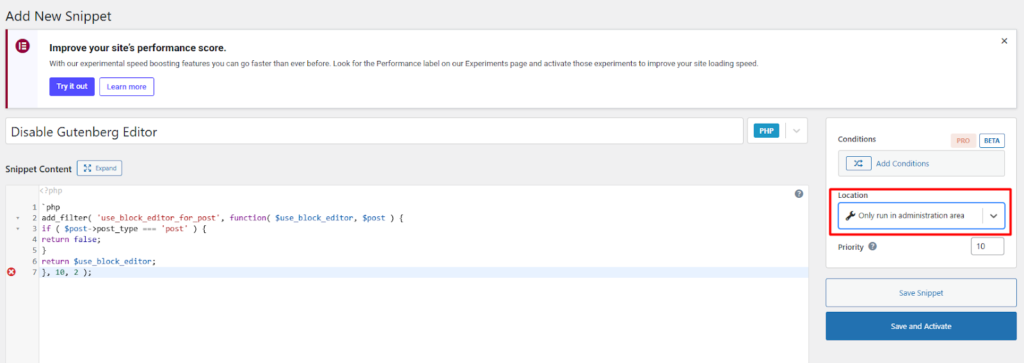
Code Snippets stores each snippet independently. If a snippet causes an error, the plugin catches it and deactivates the snippet automatically, no white screen, no locked-out admin panel. This makes it far safer than editing functions.php for users who aren’t comfortable with theme file modifications.
How to Disable Specific Gutenberg Blocks
Disabling the entire Gutenberg editor is not always necessary. Some sites need the block editor active but want to restrict which blocks are available, to simplify the editing interface, prevent layout-breaking block usage, or enforce content standards for editorial teams.
Code-Based Block Restriction
The allowed_block_types_all filter (available since WordPress 5.8) controls which blocks appear in the block inserter. The filter accepts a callback that returns an array of allowed block type names:
php

add_filter( 'allowed_block_types_all', function( $allowed_blocks, $editor_context ) {

return array(

'core/paragraph',

'core/heading',

'core/image',

'core/list',

'core/list-item',

'core/quote',

'core/table',

);

}, 10, 2 );
This example restricts the editor to seven basic content blocks. The block inserter hides everything else: no Columns, no Group, no Embeds, no Buttons. Content creators see only the blocks they need.
The filter can apply conditionally per post type using the $editor_context parameter:
php

add_filter( 'allowed_block_types_all', function( $allowed_blocks, $editor_context ) {

if ( ! empty( $editor_context->post ) && $editor_context->post->post_type === 'post' ) {

return array(

'core/paragraph',

'core/heading',

'core/image',

'core/list',

'core/list-item',

);

}

return $allowed_blocks; // All blocks for other post types

}, 10, 2 );
Blog posts get a minimal block set. Pages and custom post types keep the full block library. This separation gives design teams full layout control on pages while keeping the blog editor clean and focused.
Block type names follow the namespace/block-name format. Core WordPress blocks use the core/ prefix. Third-party blocks use their plugin namespace, for example, woocommerce/product-search or spectra/advanced-heading. The WordPress Block Editor Handbook lists all core block names.
Plugin-Based Block Management
For sites that prefer a visual interface over code, several plugins provide block toggle functionality:
– PublishPress Blocks includes a Block Manager that displays a checklist of all registered blocks. Toggle individual blocks on or off with a single click.
– Spectra and GenerateBlocks include block management settings within their respective admin panels.
These plugins handle the allowed_block_types_all filter behind the scenes, same result, no code required.
Practical Use Case
An agency managing client websites might configure block restrictions based on the theme.json settings and the allowed_block_types_all filter. Clients see only Paragraph, Heading, Image, List, and Quote blocks. They can create and edit content without accidentally inserting Columns, Spacer, or Custom HTML blocks that could break the page layout. The design team maintains full block access on their admin accounts through role-conditional filtering.
Which Method to Choose
Each method targets a different situation. The right choice depends on the level of control needed, whether a plugin is acceptable, and who manages the site.
| Method | Best For | Technical Level | Gutenberg Status |
| Classic Editor plugin | Complete revert to the old editor site-wide | Low, install, and activate | Fully disabled |
| Disable Gutenberg plugin | Selective disable by role, post type, template, or post ID | Low, install and configure checkboxes | Disabled where targeted |
| Code (functions.php / Code Snippets) | No-plugin setups, conditional logic, frontend CSS removal | Medium, requires PHP code | Disabled via filter |
| Block restriction (allowed_block_types_all) | Keeping Gutenberg active with a limited, simplified block set | Medium, requires PHP or a block manager plugin | Active with fewer blocks |
Classic Editor plugin fits sites that need the simplest path back to the old editor. One plugin, two settings, done. No decisions about which post types or roles to target.
Disable Gutenberg plugin fits agencies and multi-author sites where different content types or team members need different editors. The granular role and post-type controls handle mixed environments. The menu-hiding feature makes it clean for client-facing sites.
Code method fits developers who avoid unnecessary plugins or need logic that no plugin provides, disabling Gutenberg based on custom post meta, specific templates, or other conditions beyond what plugin checkboxes offer. The frontend CSS removal is exclusive to this approach.
Block restriction fits sites where Gutenberg works well, but the full block library creates problems. Editorial teams that should only use basic content blocks, without layout blocks, embed blocks, or custom HTML, benefit from a restricted inserter rather than a completely different editor.
Contact
Don't like forms?
Shoot us an email at [email protected]
