WordPress User Management: Complete Guide

Table of Contents
WordPress user management is a system that controls user roles and permissions, i.e., who gets access to your website’s admin dashboard, what kind of account they use, and what they’re actually allowed to do after logging in. Some users publish content; some just write; others barely interact beyond viewing.
Over time, most sites move past the default setup. Roles get adjusted, sometimes rebuilt entirely, and tools come in when the built-in options stop fitting. It usually happens gradually: more users, more specific tasks, and a greater need for control.
Security sits underneath all of this, even when it’s not being actively managed. Login checks, password strength, and session limits don’t stand out until something goes wrong. And when the dashboard stops being enough, user management often shifts into code, where functions and APIs take over and handle things in a more controlled, automated way.
What Is WordPress User Management?
WordPress user management is the system that administers user accounts, assigns roles, sets permissions, and regulates what each user can access and do on a site.
Two layers compose the system:
- Access management is about what a user can actually reach once they’re inside the admin dashboard. Some people see editing screens, others get access to settings, plugins, or user controls, and a few might only land on a simple profile page. It’s basically the gatekeeper for what parts of the site are even visible to them.
- Account administration is a different track. That’s where accounts get created, updated, or cleaned up. You change details, switch roles, reset passwords, or remove access entirely when someone’s no longer involved. It’s less about navigation and more about keeping user accounts in order over time.
WordPress delivers these controls through the Users menu in wp-admin, the General Settings page for registration options, and individual profile pages for account-level changes. Those same operations are available through code. WordPress PHP functions and the REST API handle automated or large-scale user management for sites that outgrow the dashboard.
WordPress User Roles Explained
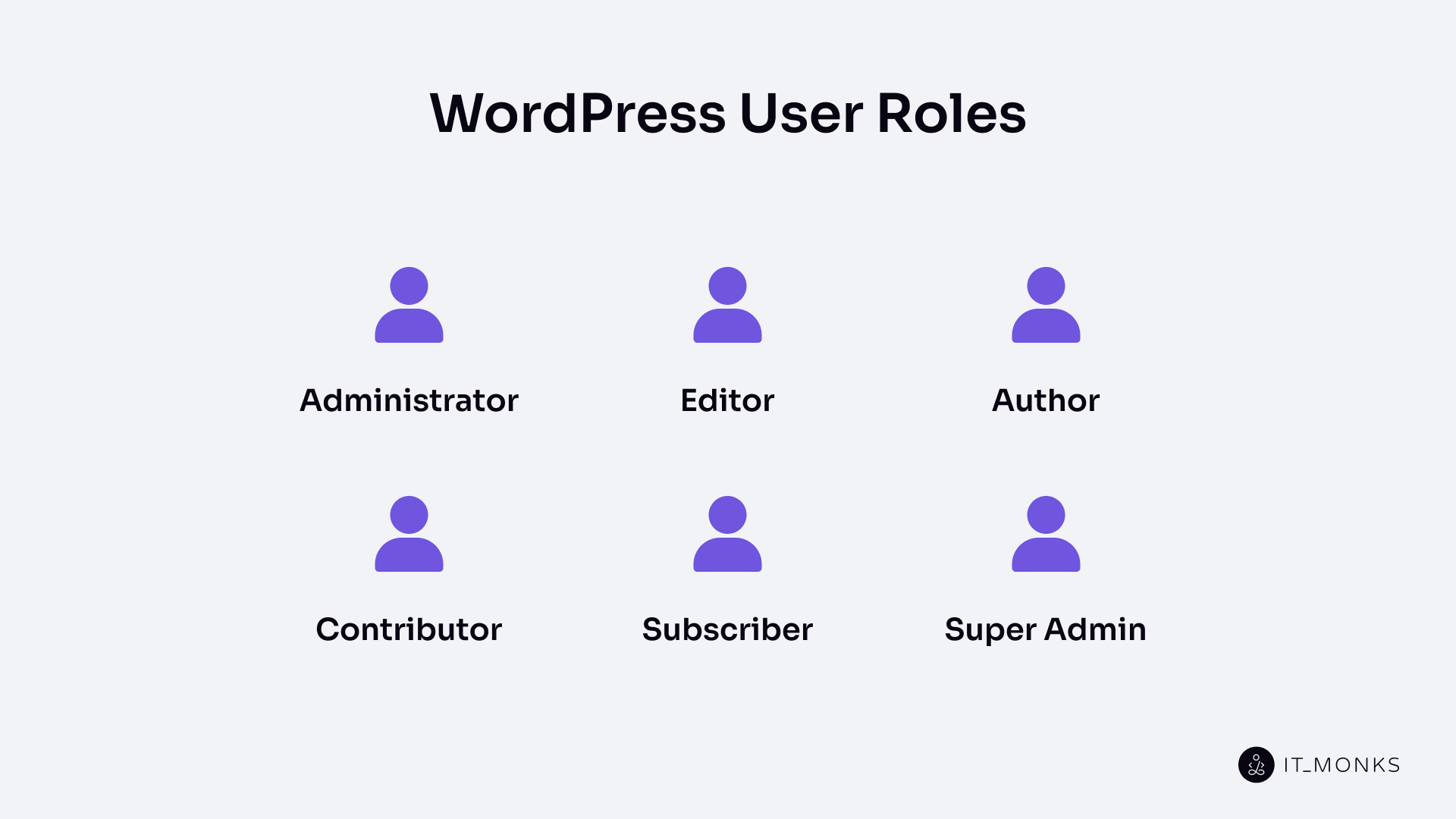
WordPress user roles classify registered accounts into structured access tiers, each one scoped to a specific operational responsibility. Every role is assigned a set of permissions that govern which actions a user can execute and which WordPress Admin dashboard areas remain accessible.
Responsibilities stay separated. Content producers, editorial staff, administrators, and general readers each operate within defined boundaries; no overlap unless a role explicitly grants it.
A standard single-site WordPress installation comes with five default roles: Administrator, Editor, Author, Contributor, and Subscriber. They range from complete site authority down to profile-only access. Multisite installations add a sixth-tier Super Admin with network-wide control.
Why not give everyone full access? By separating users this way, roles keep responsibilities from overlapping. They limit access where it shouldn’t exist, grant it where it’s needed, and keep site administration more predictable.
Administrator
Administrator is the highest permission level on a standard WordPress site, with access to everything the system exposes. It handles site settings, user accounts, plugins, and themes without restriction, so changes at this level affect the entire setup.
It also covers all content areas. Posts, pages, media files, comments. None of these are tied to ownership from this role’s perspective. Any item can be edited, removed, or updated as needed.
You can see that access right away in the dashboard. All the main sections are available, including ones that other roles never even see. It’s also the only built-in role that can manage other users and change the site’s overall setup.
That said, things aren’t exactly the same in a multisite setup. There, an Administrator still runs a single site, but not the entire network. Anything that affects all sites, such as global settings or managing multiple sites at once, falls outside its control and is handled at a higher level.
Editor
Editor works on the content layer of a WordPress site and stays within that space. It can write, edit, publish, or remove posts and pages, and it’s not limited to its own work. Content from other users can be managed the same way. Media and comments are part of that scope as well, so uploads and moderation usually fall into the same routine.
A good part of the role is keeping content organized as it moves through the site. Drafts get reviewed, posts are scheduled, and categories are adjusted when needed. It’s not just about creating content, but making sure it actually fits and gets published properly.
Anything outside that area remains out of reach. Settings aren’t available, plugins can’t be touched, themes stay as they are, and user accounts aren’t part of this role. The focus stays on content, without drifting into how the site itself is configured.
Author
Author is a publishing role, scoped to the content that the user themselves creates. An Author writes articles, uploads files to the Media Library, manages their published posts (edits, updates, deletions), but cannot view or edit content from other users.
Authors see comments on their articles but can’t approve, edit, or remove them. Dashboard access beyond Posts, Media, and the user’s own Profile page is blocked. The role suits users who need full publishing control over their own output, with no editorial or administrative reach beyond it.
Contributor
Contributor is a restricted content role scoped around writing and editing draft posts. A Contributor creates articles and revises their own drafts, but nothing gets published without approval. An Editor or Administrator reviews and publishes every piece.
Contributors can’t add images, videos, or documents through the Media Library. This constraint keeps the role a good fit for guest writers, occasional submitters, or accounts that shouldn’t publish directly. One more limitation: after an Editor or Administrator publishes a Contributor’s post, the Contributor loses edit access to that article.
Subscriber
Subscriber is the most limited default role in WordPress. Such users are allowed to read and access content only and can manage a personal profile. A Subscriber logs in, updates their display name, email, password, and biographical details, and nothing more.
There are no content creation, editing, deletion capabilities, access to posts, pages, media, comments, or any administrative screen beyond the profile page allowed. WordPress assigns Subscriber as the default for self-registered accounts. New registrations start at the minimum access level until an Administrator grants a higher one.
Sites that gate content behind logins, require authentication for commenting, or run member-only sections rely heavily on Subscriber accounts.
Super Admin
Super Admin is what you end up needing once a setup goes beyond a single site. It’s the role that controls the bigger picture: sites, users, and how everything is tied together. A Super Admin makes decisions such as creating new sites, removing old ones, and deciding which plugins or themes are available across all sites.
This only exists when WordPress Multisite is in play. On a normal setup, you won’t see it at all because the Administrator already covers everything. But once multiple sites are running within a single installation, control has to be split. Each site still has its own admin, but they don’t run the whole system.
That’s where Super Admin steps in. It doesn’t deal with just one site, it sits above them. Access can be granted or taken away across the network, and changes made here don’t stay local. They carry through every connected site, which is why this role feels less like site management and more like system-level control.
WordPress Editor vs Administrator
Both Editor and Administrator create, edit, publish, and delete all content. Beyond that, permissions diverge completely.
The administrator has the ability to install and remove plugins, deploy themes, modify settings (permalinks, reading, writing, discussion, media, privacy), manage user accounts, and access the Settings, Tools, and Appearance panels. Editor gets none of that. The line separates content from infrastructure.
Role assignment follows from this. Content teams (writers, managing editors, editorial leads) operate under the Editor with full editorial authority and zero exposure to site configuration. Site owners, lead developers, and technical managers need an Administrator to handle plugin maintenance, theme deployment, setting changes, and user administration.
Choosing Editor over Administrator is mostly about keeping access in check. A content-focused account doesn’t need control over settings or users. Roles set boundaries, but finer control comes from the permissions tied to them.
WordPress Capabilities and Permissions
WordPress capabilities and permissions define what a user is actually able to do once they’re inside the system. Every action (publishing a post, editing someone else’s content, installing a plugin, moderating comments, even deleting an account) comes down to a specific capability behind the scenes. Roles group those together, but the real control happens at the capability level.
There are two layers to how this works.
- Some capabilities are assigned directly and apply in a general sense (things like editing posts, publishing them, or managing settings).
- Others depend on context. For example, editing a post isn’t just about having permission in general, but whether that specific user can edit that specific piece of content. Ownership and role both factor into that decision.
Under the hood, these rules are stored as part of the site’s configuration. Roles and their capabilities live in the database, where each permission is simply marked as allowed or not. On top of that, individual users can have their own adjustments, which means their access doesn’t always match the role exactly.
What makes this flexible is how those checks can be adjusted at runtime. Through WordPress hooks, WordPress can change how permissions are evaluated depending on the situation: user, content type, or other conditions. That’s how plugins and custom setups reshape access without rewriting the core system.
Capabilities underlie every user action in WordPress, from basic profile edits to the most privileged administrative operations. Managing the accounts that support these capabilities is done through the dashboard’s user administration screens.
How to Manage Users in WordPress
The WordPress dashboard dedicates an entire section to user operations for creating, browsing, editing, removing accounts. Users > All Users loads a table of every registered account: username, name, email, role, post count. Administrators search by name or email, filter by role, run bulk actions, and open individual profiles from this screen.
Adding New Users
Adding a new user registers an account with a username, email address, password, and assigned role. The path: Users > Add New. The Administrator fills in the required fields, picks a role from the dropdown, and the account is live.
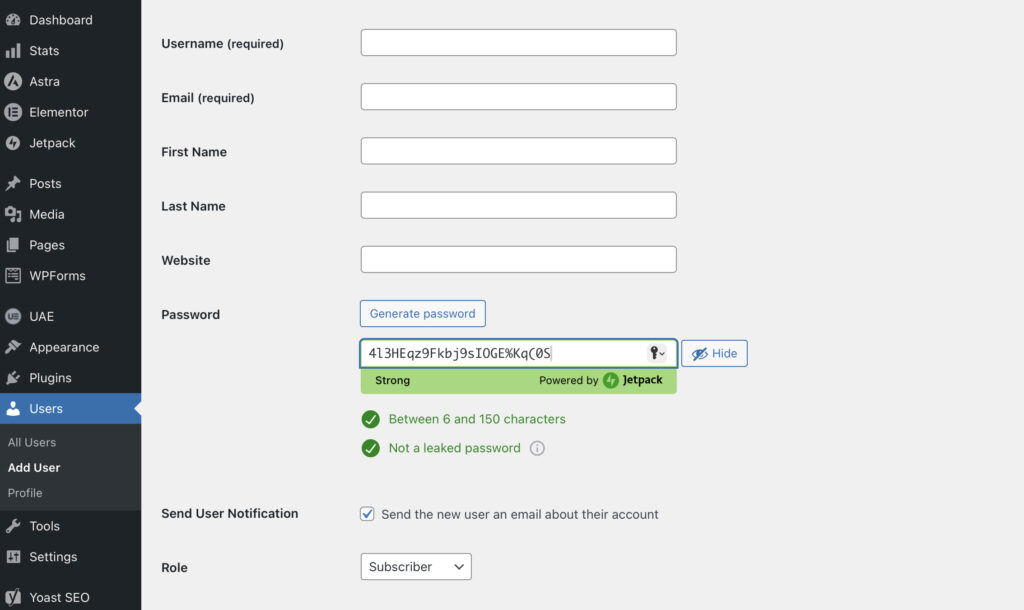
The username becomes the permanent login identifier. WordPress offers no native way to change it after creation, only direct database modification. The email address handles password resets and site notifications.
WordPress auto-generates a strong password; the Administrator can override it with a custom one. The role dropdown defaults to whatever’s set in Settings > General under “New User Default Role” > Subscriber unless someone changed it.
Picture it: a content agency brings on a new writer. The Administrator creates an account with the Author role. The writer can now create, edit, and publish their own posts. No access to other users’ content, no site configuration. Later, if editorial responsibilities expand, a role change to Editor grants that broader reach.
Self-registration is an option, too. Toggling “Anyone can register” in Settings > General places a registration link on the login page. New accounts automatically receive the configured default role. Sites needing custom registration (extra profile fields, avatar uploads, email verification) turn to plugins like WP User Manager or Profile Builder for frontend registration workflows.
Editing User Profiles
Editing a user profile is mostly about keeping account details accurate and usable. Instead of working with a fixed form, you’re just adjusting whatever needs updating: name, contact info, or how the account appears across the site. You can open a profile from the user list or access your own directly without going through the full list.

Fields cover first and last name, nickname, display name (assembled from name-field combinations), email, website URL, and biographical text, rendered on author archive pages by themes that support it. The “Display name publicly as” dropdown controls how the name shows on published content and comments.
Account Management offers direct password changes or a reset link sent to the registered email. Application Passwords introduced in WordPress 5.6 generate independent credentials for API access. They don’t expose the primary login password. Each one carries a label (“Mobile App,” “REST API Client”) and can be revoked individually.
Profile images default to Gravatar, the WordPress.com-linked avatar tied to the account’s email. Plugins like User Profile Picture or Simple Local Avatars enable direct uploads to the media library instead.
Example: a development team’s project manager needs their display name updated from a login like “jsmith” to “Jane Smith” for client-facing articles. The Administrator opens the profile, fills in first and last name, selects “Jane Smith” from the display name dropdown, and saves. The change applies immediately across all attributed content.
Updating and Changing User Roles
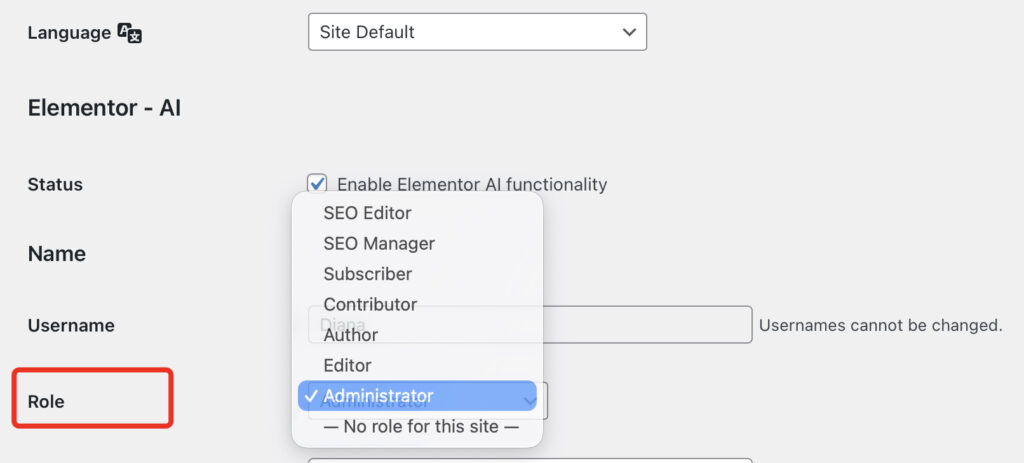
Changing a user’s role in WordPress instantly alters their permissions and dashboard access. No logout needed. No cache clearing. The moment the profile is saved, the new permissions take effect.
If you need to change a role for one user, just open their account from the user list, adjust the role field, and save it. That update takes effect right away.
When it’s more than one account, it’s easier to stay on the list screen. Select the users you want, apply a role change from the available actions, and confirm it.
One gap in WordPress core: role changes aren’t logged. No built-in audit trail showing who changed which account’s role, or when. Enterprise environments, regulated industries, and multi-editor newsrooms rely on plugins like WP Activity Log to capture changes with timestamps and the responsible Administrator.
Example: a freelance writer, initially assigned as a Contributor, has earned the trust and needs to publish independently. The Administrator switches the role to Author. Immediately, the writer can publish posts, upload media, and manage their published content. No new account, no re-authentication.
Deleting Users and Content Reassignment
Deleting a user permanently removes the account and cuts all site access. The operation runs through Users > All Users > select an account > click Delete. Bulk Actions handles multiple accounts at once.
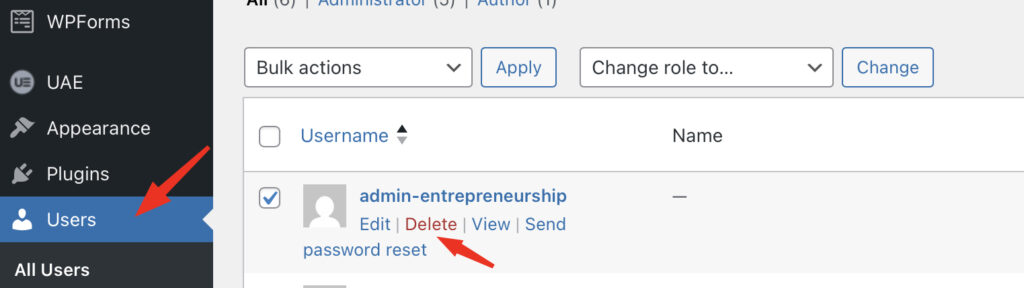
Before the deletion completes, WordPress asks a critical question: what happens to this account’s content? Two choices. “Delete all content” deletes every post, page, and link associated with that account. “Attribute all content to” transfers ownership to another existing account: posts, pages, URLs, comments, and metadata will be attributed to the new author.
That second option matters for any published site. Deleting posts strips URLs from search indexes, breaks inbound links, and permanently destroys published content. Reassignment preserves everything: posts stay live, URLs keep resolving, and only the author name changes.
Example: a staff writer leaves a company. The Administrator deletes the account but reassigns 47 published articles to the editorial team’s shared Editor account. Articles stay published, URLs function, and search rankings hold. The same flow works in bulk: select departing accounts, delete, and attribute content to one recipient.
Some sites hit a point where modifying default roles isn’t enough. Workflows that fall between existing tiers need entirely new roles built from specific capability sets.
WordPress Custom User Roles
WordPress custom user roles extend the default system by creating new roles with capability combinations tailored to specific operational needs. The five standard roles cover general access patterns. When a site’s actual workflows don’t fit those patterns, custom roles close the gap with precisely scoped permissions.
For example, a marketing team member might need to publish posts and manage categories, but shouldn’t moderate comments or manage other users’ content. That scope falls between Author (too narrow) and Editor (too wide). A client portal manager might need access to custom post types and specific dashboard pages while staying locked out of blog content and site settings. Custom roles make these boundaries possible.
Third-party plugins create their own roles, too. WooCommerce introduces Shop Manager (store operations without full admin access) and Customer (order history and account management). Membership plugins add subscriber tiers with varying levels of content access. All of these follow the same capability architecture: a role name, a display label, an array of capabilities set to true or false.
Building custom roles requires either a role editor plugin or custom code using `add_role()` and related functions.
WordPress User Role Editor
A WordPress user role editor is a tool, almost always a plugin, that provides a visual interface for inspecting, creating, modifying, and deleting roles and their capabilities, with no PHP required.
WordPress core doesn’t include a role editor screen. The Users panel shows role assignments per account, but there’s no page for adjusting what a role *permits*. Role editor plugins solve this by displaying all registered capabilities as toggleable checkboxes grouped by function: content permissions, plugin access, theme control, user management, and custom capabilities registered by other plugins.
- User Role Editor plugin (600,000+ active installations) offers a direct capability matrix. Select a role, toggle capabilities, and save. New role creation, role cloning from existing templates, and multi-role assignment to a single account are all supported. The pro version adds per-post and per-page content restrictions.
- PublishPress Capabilities plugin brings a comparable interface, WooCommerce role support, role-based content restriction, role configuration backup and restore, and permission definitions for custom post types and taxonomies.
WordPress User Management Plugins
WordPress user management plugins extend the core system with capabilities WordPress doesn’t ship natively: advanced role customization, access control, profile management, login security, and activity monitoring.
- Members by MemberPress pairs role editing with content restriction, with multiple roles per account, post and page access gating by role, and capability management through a clean interface. The MemberPress integration makes it a natural fit for membership sites where roles drive content access.
- PublishPress Capabilities delivers a capability editor with WooCommerce support, backup and restore for role configurations, and content restriction across posts, pages, and custom post types. Capabilities grouped by function make auditing simpler across roles.
- WP User Manager shifts focus to the frontend with custom registration forms, login pages, user profiles, password recovery, additional profile fields, and user directories. It takes WordPress user management beyond the dashboard into public-facing account workflows.
- Melapress Login Security takes a different angle compared to the others. Instead of dealing with roles, it focuses on how accounts are accessed in the first place. Things like weak passwords, repeated login attempts, or open access points are where it steps in.
WordPress User Security
WordPress user security is about keeping accounts from being misused, whether that comes from weak passwords, exposed credentials, or someone gaining access they shouldn’t have. Not every account carries the same weight either. If a low-level account is compromised, the impact is limited, but with higher permissions, the risk grows quickly.
A lot of it starts with how users log in. Passwords and authentication methods decide whether access should even be granted in the first place. On top of that, there are safeguards around login attempts (things like limits, restrictions, or additional checks) to stop repeated guessing or automated attacks.
Then there’s what happens after login. Sessions don’t just stay open indefinitely; they can be controlled, monitored, or cut off when needed.
Enforcing Strong Passwords
Strong password enforcement in WordPress is mostly about closing off the easiest way in. A lot of account issues don’t come from anything complex. They come from passwords that are short, reused, or just too predictable. WordPress does suggest strong ones when accounts are created or reset, but it doesn’t force anyone to keep them. Users can still swap them out for something weaker.
What counts as “strong” isn’t just about adding symbols for the sake of it. Length matters more than people think, and randomness matters even more. A password built from common words or patterns can still be guessed faster than expected. The less it resembles anything familiar, the better.
Enforcing it means setting boundaries instead of relying on users to decide. That might be a minimum length, certain character requirements, or simply blocking old passwords from being reused. Some setups push it further and require periodic changes, especially for accounts with broader access. Not every role needs the same level of restriction, so those rules can vary depending on what the account can do.
There’s also the case where passwords aren’t used in the usual way. WordPress allows separate credentials for things like API access, and those don’t always get the same attention. Even so, they carry the same weight in terms of access, so weakening them creates the same kind of risk.
Two-Factor Authentication
Two-Factor Authentication changes how login works by adding one more check after the password. Getting the credentials right isn’t enough on its own. There’s still a second step before access is granted.
Most setups rely on a small code that changes constantly. It’s generated on a device, not stored anywhere visible, and it expires quickly. Some sites fall back to email or one-time backup codes, but those tend to be used only when needed.
The real benefit shows up when a password gets exposed. That alone doesn’t open the door anymore. Without the second step, access stops there. For accounts with broader control, that extra barrier matters more than it seems.
It’s not built into WordPress by default, so it’s usually added later. Once it’s in place, it can be required for specific roles or applied across the whole site, depending on how strict things need to be.
Not every method carries the same weight. Codes generated on the device stay local and don’t depend on other systems. Alternatives like email or SMS rely on external channels, which can introduce their own weak points.
Login Security and Session Management
Login security and session management control how WordPress processes authentication attempts and manages active sessions, blocking unauthorized access and limiting exposure from compromised or abandoned logins.
Protection starts at the login page. WordPress, by default, imposes no limit on login attempts. An attacker can submit unlimited combinations of credentials against wp-login.php. Plugins like Limit Login Attempts Reloaded, Wordfence, and Melapress Login Security add thresholds (e.g., lockout after 5 failures), lockout durations, IP blocking, and CAPTCHA challenges to throttle automated attacks.
Changing the login URL from the default wp-login.php to a custom path reduces noise. Plugins like WPS Hide Login replace the standard route. This isn’t a security boundary; it’s volume reduction. Fewer bots find the page, fewer brute-force attempts land. Actual authentication controls do the real work.
Session management picks up after login. WordPress stores session tokens in `wp_usermeta`, and sets authentication cookies in the browser. Default duration: 48 hours, or 14 days with “Remember Me.” There’s no cap on concurrent sessions. One account can maintain simultaneous logins across multiple browsers, devices, and locations.
Plugins tighten this. Concurrent session limits (one or two active logins), idle timeouts that kill inactive sessions, forced logout on all devices when a password changes, and active session details (IP, browser, location) visible to Administrators for monitoring and selective termination.
Users > All Users shows the session status for each account. Administrators verify whether someone is logged in and force a logout when needed. Sites handling sensitive data, operating under compliance requirements, or managing large user bases use session policies to cut exposure from forgotten logins, shared devices, and stolen cookies. The dashboard controls, security measures, and user operations all run through WordPress’s PHP functions and database layer. The same mechanisms are available for programmatic control.
Programmatic User Management
Programmatic user management in WordPress handles users through code instead of the dashboard. Instead of creating or updating accounts one by one, those actions are handled in the background: users get created, roles assigned, permissions adjusted, all without manual input each time.
This usually comes up when the default interface stops being practical. A few users are easy to manage by hand, but once you’re dealing with larger numbers or repeated actions, that approach doesn’t scale very well. Moving things into code makes those tasks consistent and repeatable.
It also shows up in cases where user behavior depends on something else. Access might change after a purchase, a subscription update, or some external event. At that point, the system needs logic, not just clicks. The same goes for setups where WordPress isn’t working on its own. Connections to other platforms or services tend to rely on code-driven control.
Underneath it, there are two ways this is handled.
- One stays inside WordPress itself, where functions run as part of themes or plugins.
- The other reaches outward, exposing user-related actions so they can be triggered from outside systems.
Both end up doing the same thing of managing users, but they operate in different contexts depending on how the site is built.
WordPress User Functions
WordPress user functions manage users directly through code by handling core actions like creating, updating, or deleting accounts.
These functions are used when actions need to follow a specific flow. Instead of manually adding a user or changing a role, the process can run automatically based on certain conditions. That makes backend management more predictable, especially when the same actions repeat often.
A simple example:
wp_create_user( 'username', 'password', '[email protected]' );That one call creates a user account without touching the dashboard, which is usually all you need to understand how this works.
REST API User Endpoints
REST API user endpoints in WordPress give access to user data without going through the dashboard. Instead of managing accounts manually, requests are sent from outside, and WordPress responds with the data or applies the change. That’s how users can be created, updated, or removed remotely.
The connection happens through the REST API, which sits between WordPress and whatever system is interacting with it. Requests come in, endpoints handle them, and user data moves back and forth as needed. It’s less about interface, more about direct exchange.
This setup tends to show up when WordPress isn’t working alone. Another app might handle registration, a service might sync user data, or some process runs in the background and updates accounts automatically. In those cases, user management shifts away from clicks and into requests.
It’s still the same operations (create, read, update, delete), but handled differently. Instead of the backend screen, everything runs through endpoints, which makes it easier to connect systems and keep things in sync without manual work.
Contact
Don't like forms?
Shoot us an email at [email protected]
