WordPress Query Loop: What It Is and How to Use

Table of Contents
The Query Loop block is a WordPress core block, introduced in version 5.8, that retrieves and displays dynamic post content based on configurable query parameters. It operates within the Site Editor and the Block Editor, replacing the need for manual PHP loop customization in block themes. The block queries the WordPress database, iterates through matching posts, and renders each one through a set of nested sub-blocks that control layout and content display.
This article covers what the Query Loop block does, how queries and loops work under the hood, how to add and configure the block, which sub-blocks it contains, how to force page reloads and set random ordering, and how to troubleshoot the most common issues.
What Is the WordPress Query Loop Block
The Query Loop block is a WordPress core theme block in WordPress Gutenberg that executes a database query against wp_posts and renders matching content through configurable nested blocks. WordPress added it in version 5.8 as part of Full Site Editing, giving users a visual interface for building dynamic content displays without writing PHP.
The block operates in two contexts. Inside the Block Editor, it displays filtered post content on individual pages and posts. Inside the Site Editor, it controls how templates render post listings across the entire site. Two primary nested blocks sit inside every Query Loop: the Post Template block (which holds the per-post layout) and the Pagination block (which handles navigation between result pages).
Where classic WordPress themes require PHP template files to customize how posts appear in a loop, the Query Loop block abstracts that process into draggable, configurable blocks. The underlying query logic remains the same: WordPress still queries the database and iterates through results, but the interface shifts from code to visual configuration.
Query Loop Block vs Latest Posts Block
The Query Loop block and Latest Posts block both display post content dynamically, but they serve different levels of complexity.
Query Loop block supports custom post types, taxonomy, and author and keyword filters, configurable sub-blocks, pagination, layout switching between list and grid views, and template-level integration through inherited queries. Latest Posts block provides a simpler interface: it displays recent posts with limited customization options, such as post count, a single category filter, and toggles for showing the date, author, or excerpt.
The structural difference runs deeper than settings. Query Loop block renders content through nested sub-blocks, including Post Template, Post Title, Post Excerpt, Post Featured Image, and others, each independently configurable. Latest Posts block renders a fixed layout with no nested block architecture. That fixed structure makes Latest Posts faster to set up, but limits what it can display.
Inherited query support also separates the two. Query Loop block can inherit its query from the current template context, automatically matching the page it sits on (a category archive, search results, or the main index). Latest Posts block always runs its own static query regardless of the template context.
When to use which: Latest Posts fits simple “recent posts” sidebar widgets or footer sections where minimal configuration is enough. Query Loop fits any dynamic content display that requires filtering by taxonomy, author, or keyword; supports custom post types; or needs design control through nested blocks.
How Queries and Loops Work in WordPress
A query, in WordPress terms, is a structured request to the database. It targets the wp_posts table and filters results by parameters, such as post type, taxonomy, date, author, keyword, or any combination of these. Every page load in WordPress triggers at least one query.
The sequence runs like this: WordPress receives a URL, parses it into query variables, and passes those variables to the WP_Query class. WP_Query builds and executes the SQL statement against the database. The result is an array of post objects matching the specified parameters. This flow defines how to work with wp_query in practical terms, from request to result set.
A loop is the iteration mechanism that processes each returned post and renders it through a template. WordPress steps through the array one post at a time, makes that post’s data available to template functions, renders the output, and then moves to the next post. When no posts remain, the loop ends.
The Query Loop block abstracts this entire sequence into a visual interface. Instead of writing WP_Query arguments in PHP and building the loop structure manually, the block’s settings panel handles parameter selection. Its nested sub-blocks handle the template. The underlying database query still executes the same way: the block just provides a no-code layer on top of it.
How to Add the WordPress Query Loop Block
The Query Loop block can be inserted in two distinct contexts, and the choice matters. The Block Editor allows adding the block to individual pages and posts, which changes affect only that specific page. The Site Editor allows adding the block to templates, which changes affect every page that uses that template.
Template-level insertion is the more common approach for blog listing pages, archive templates, and search results. Page-level insertion works for one-off layouts, such as landing pages or curated content sections on a specific page.
Adding a Query Loop Block in the Block Editor
The Block Editor opens when editing any page or post. The block inserter, the “+” icon in the top toolbar or within the content area, provides access to all available blocks. Searching “Query Loop” surfaces the block, which also appears under the “Theme” block category in the inserter’s browse view.
An alternative insertion method: type /query directly in the content area. WordPress recognizes the slash command and presents the Query Loop block as an option.
After the block lands on the page, WordPress immediately presents a choice: select a predefined pattern or start blank. That selection process applies identically whether the block was inserted via the Block Editor or the Site Editor.
Adding a Query Loop Block to a Site Editor Template
The Site Editor handles template-level editing. The navigation path: Appearance → Editor → Templates. From the template list, select the template to edit; the Index template is the most common choice for blog post listings, since it controls how WordPress displays the main post index.
Some block themes ship with a Query Loop block already configured in their Index template. Twenty Twenty-Four, the current default block theme, includes one. Other block themes may leave the Index template empty or use a different structure.
Adding a new Query Loop block to a template follows the same process as the Block Editor: use the block inserter, search for “Query Loop,” and place it where the post listing should appear. The critical distinction is scope. A Query Loop block on the Index template affects every page that resolves to that template; the blog listing, author archives, and date archives may all inherit it, depending on the theme’s template hierarchy.
Choosing a Pattern or Starting Blank
After insertion, the Query Loop block presents two paths. The first is the Patterns tab, which offers predefined layouts, such as grid arrangements, list layouts with images, and standard blog-style formats. Available patterns vary by theme, since themes can register their own Query Loop patterns.
The second path is Start Blank. Selecting this reveals four base variations:
- Title & Date – loads Post Title and Post Date sub-blocks inside the Post Template
- Title & Excerpt – loads Post Title and Post Excerpt
- Title, Date & Excerpt – loads all three
- Image, Date & Title – loads Post Featured Image, Post Date, and Post Title
Each variation pre-configures the Post Template block with the corresponding nested sub-blocks. Additional sub-blocks can be added or removed after selection.
The Replace button in the Query Loop toolbar allows swapping the current pattern or variation for a different one at any time, without losing the block’s query settings.
Query Loop Sub-Blocks
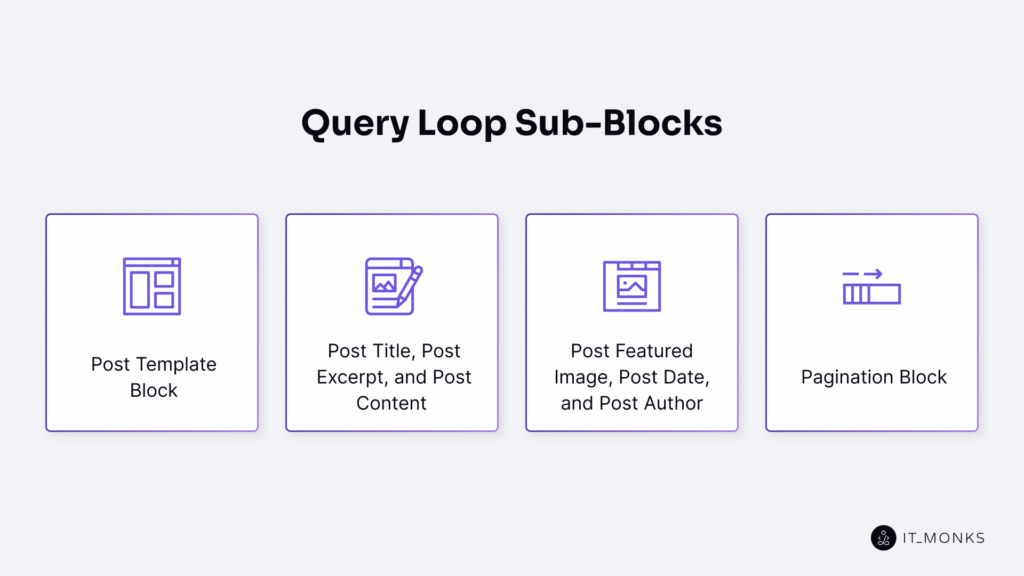
The Query Loop block organizes its content through a two-level nesting structure. At the first level, two blocks sit directly inside the Query Loop: the Post Template block and the Pagination block. At the second level, the Post Template block holds any number of content-display sub-blocks, including Post Title, Post Content, Post Excerpt, Post Featured Image, Post Date, Post Author, Post Author Biography, Post Categories, and Post Tags.
Despite the “Post” prefix in their names, these sub-blocks render content from any post type. A Query Loop configured to display WooCommerce products uses the same Post Title and Post Featured Image blocks; they pull the product title and product image, respectively. The naming convention reflects WordPress’s internal content model, where all content types extend the base post object.
Post Template Block
Post Template block is the repeating container inside the Query Loop. It renders once for every post the query returns. All content-display sub-blocks, such as titles, excerpts, images, dates, and author data, must be placed inside it. A sub-block placed outside the Post Template won’t repeat per post.
Two display modes control the Post Template’s layout. List View stacks posts vertically in a single column. Grid View arranges posts in a multi-column grid. The toggle between these modes sits in the Query Loop block’s toolbar, not the Post Template’s own toolbar, a distinction that causes confusion when users try to switch layouts from the wrong block’s controls.
Post Template controls the structural layout. Individual sub-blocks inside it control what content appears and how each piece looks. Rearranging sub-blocks within the Post Template changes the order of elements in every rendered post simultaneously.
Post Title, Post Excerpt, and Post Content
Post Title block displays the heading for each post. It supports heading level selection from H1 through H6, a toggle to make the title a clickable link to the full post, and typography and color settings in the sidebar. For listing pages, H2 or H3 heading levels keep the semantic hierarchy correct under the page’s own H1.
Post Excerpt block renders a summary of each post. It includes a “Read More” link with configurable anchor text, placement (inline or on a new line), and color. The excerpt pulls from the post’s manual excerpt field if one exists; otherwise, WordPress auto-generates it from the first portion of the post content.
Post Content block renders the entire post content inside the loop. On listing pages, this creates extremely long output, where every full post is stacked in sequence. Post Excerpt is the better choice for any page displaying multiple posts. Post Content makes sense only in single-post templates or layouts where one complete post needs to appear inline.
Each of these three blocks supports spacing, typography, and color adjustments through the sidebar settings panel.
Post Featured Image, Post Date, and Post Author
Post Featured Image block displays the featured image assigned to each post. It supports a link-to-post toggle (clicking the image opens the full post), dimension controls for width and height, border radius settings, and duotone filters that apply two-color overlay effects to the image.
Post Date block shows either the published date or the last modified date; a toggle in the block’s sidebar settings switches between them. Custom date format strings override the default format. The block also supports linking the date to the full post.
Post Author block displays three pieces of author data: name, avatar, and biography. Each element can be toggled independently, for example, show the name and avatar without the bio, or show just the name. Avatar size is configurable through a slider. An author selection dropdown allows overriding the post’s actual author, though this feature primarily serves template preview purposes.
Two additional taxonomy sub-blocks deserve mention here. Post Categories and Post Tags display the taxonomy terms assigned to each post. Both support typography and color customization. They’re useful in layouts where readers need to see which category or tag a post belongs to directly in the listing.
Pagination Block
The Pagination block renders navigation links for paginated query results. It must be inside the Query Loop block as a direct sibling of the Post Template block, after Post Template in the block order. Placing it inside the Post Template causes it to repeat per post (broken behavior). Placing it outside the Query Loop disconnects it from the query entirely.
Three nested blocks compose the Pagination block: Previous Page, Page Numbers, and Next Page. Each renders its respective navigation element. Page Numbers displays clickable page links; Previous Page and Next Page render directional arrows or text labels.
Pagination interacts directly with the Display Settings. When the Items Per Page value is lower than the total number of posts matching the query, pagination links appear. When all posts fit on one page, no pagination renders; the Pagination block exists in the markup but produces no visible output.
Adding the Pagination block requires using the List View panel. Select the Query Loop block (not the Post Template), then insert the Pagination block as a new child. The List View makes the nesting hierarchy visible, preventing the common mistake of inserting Pagination at the wrong level.
Query Loop Block Settings and Filters
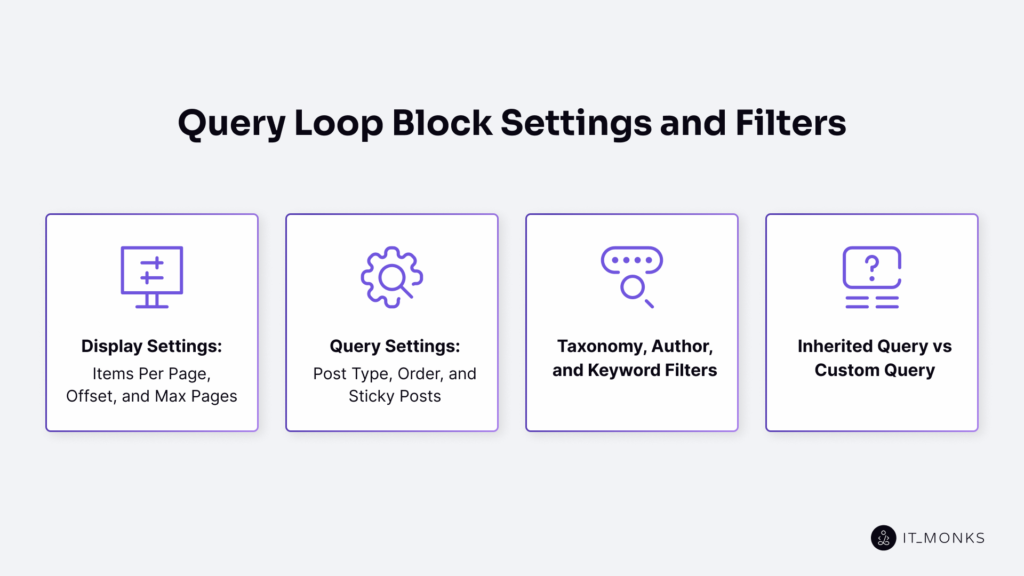
The Query Loop block exposes its configuration through two interfaces. The toolbar, which is visible when the block is selected, contains Display Settings, the Replace button, and the List View/Grid View toggle. The sidebar settings panel, which is accessible through the gear icon or the “Show more settings” toolbar option, contains query configuration, filter options, color settings, and advanced options.
Sub-blocks from the previous section control what content appears in each post’s card. The settings covered here control which posts the query returns, how many appear per page, and in what order they’re sorted.
Display Settings: Items Per Page, Offset, and Max Pages
The Display Settings icon in the toolbar opens three numerical controls.
Items Per Page sets how many posts render on each pagination page. The default typically matches the site’s “Blog pages show at most” setting under Settings → Reading, often 10. Lowering this value creates more pagination pages; raising it shows more posts before a page break.
Offset skips a defined number of posts from the beginning of the query results. Setting Offset to 1 skips the first post. This is essential for featured post layouts: one Query Loop block displays the most recent post alone (Items Per Page = 1), and a second Query Loop block uses Offset = 1 to display the remaining posts without duplicating the featured one.
Max Pages to Show caps the number of pagination pages the block renders, regardless of how many pages the full query results would produce. Setting this to 5 means only the first five pages of results are navigable, even if the query returns enough posts to fill twenty pages.
Query Settings: Post Type, Order, and Sticky Posts
The sidebar’s Settings panel contains three core query parameters. These appear only when “Inherit query from template” is toggled off. When the toggle is on, the block inherits all query parameters from the template’s context, and these controls disappear.
Post Type defaults to Posts. The dropdown includes Pages and any registered custom post type, such as WooCommerce products, portfolio items, testimonials, or any type registered by a plugin or theme, which is explained in detail in a guide on how to create a custom post type. Switching the post type changes which content the query targets.
Order offers four combinations: date descending (newest first), date ascending (oldest first), title A–Z, and title Z–A. The default is date descending, the standard chronological blog order.
Sticky Posts controls whether sticky posts appear in the results. Three options exist: include sticky posts (default), exclude them, or show only sticky posts. The “only sticky” option filters out all non-sticky content, which returns an empty result set if no posts are currently marked as sticky.
Taxonomy, Author, and Keyword Filters
The Filters section in the sidebar narrows query results beyond the base post type and order settings.
Category filter accepts comma-separated category names. Only posts assigned to the specified categories appear in the results. Multiple categories use inclusive (OR) logic, which is a post matching any listed category qualifies.
Tag filter works identically to the category filter but targets tags instead. Comma-separated tag names filter the results to posts carrying at least one of the specified tags.
Author filter presents a dropdown of registered site authors. Selecting an author restricts results to posts published by that author only.
Keyword filter accepts a text string and filters posts whose content contains the specified keywords. This functions like an internal search within the query’s scope.
Filters stack. Applying a category filter and an author filter together narrows results to posts that match the category AND are written by the selected author. Each additional filter tightens the result set further.
Inherited Query vs Custom Query
The “Inherit query from template” toggle in the sidebar controls the most consequential behavior split in the Query Loop block.
Inherited query (toggle on) means the block adopts the query context from whatever template it sits in. On a Category archive template, the block automatically displays posts from that category, no manual category filter needed. On the Search Results template, it shows the search results. On the Index template, it displays all posts in the default order. The block reads the template’s query context and mirrors it.
Custom query (toggle off) reveals all manual settings: post type, order, filters, sticky post controls. The block runs its own independent query regardless of the template context. A custom query on a Category archive template could display products instead of posts if configured to do so.
Default behavior differs by context. Template-level Query Loops in the Site Editor default to inherited query; the expectation is that a template’s Query Loop should reflect the template’s purpose. Page-level Query Loops in the Block Editor default to a custom query, since individual pages don’t have an inherent query context, so manual configuration is necessary.
The practical rule: use inherited query for archive templates, index templates, and search results where the Query Loop should match the page’s semantic context. Switch to custom query for landing pages, curated sections, or any layout where the displayed content doesn’t relate to the page’s URL-driven context.
Force Page Reload in WordPress Query Loop
Query Loop block pagination triggers a full page reload by default. Clicking a pagination link navigates the browser to a new URL:/page/2/, /page/3/, and so on. The server processes the new URL, runs the query with the appropriate offset, and returns a complete HTML page. No AJAX, no partial content loading.
The search intent behind “force page reload query loop WordPress” (300 monthly searches) typically comes from situations where this default behavior breaks. Three causes account for most cases.
JavaScript conflicts with caching or optimization plugins. Plugins that defer, combine, or minify JavaScript can intercept pagination link clicks and prevent the browser from navigating to the new URL. WP Rocket, Autoptimize, and similar tools sometimes interfere with default link behavior when their JavaScript optimization is aggressive.
Theme or plugin pagination overrides. Some themes and page builder plugins inject AJAX-based pagination that overrides the default full-reload behavior. If a theme registers its own pagination handler, the Query Loop block’s links may stop triggering full page reloads.
Permalink structure issues. A misconfigured permalink structure can cause /page/2/ URLs to return 404 errors instead of the second page of results. Flushing permalinks, such as Settings → Permalinks → Save (without changing anything), forces WordPress to rebuild its rewrite rules and often resolves this.
For the reverse scenario, users who want AJAX pagination instead of full reloads, the Query Loop block does not support this natively. Achieving partial-page content loading requires either a third-party plugin that extends the block’s pagination behavior or custom JavaScript that intercepts pagination links and fetches the next page’s content without a full navigation.
WordPress Query Loop Block Order by Random
The Query Loop block’s native order options are limited to four: date descending, date ascending, title A–Z, and title Z–A. Random ordering does not appear in the settings panel.
Displaying posts in random order requires extending the block through the Block Variations API. The approach involves registering a custom variation that sets the orderby query parameter to rand. Here’s a working implementation:
wp.domReady( function() {

    wp.blocks.registerBlockVariation( 'core/query', {

        name: 'random-order-query',

        title: 'Random Order Query Loop',

        attributes: {

            query: {

                orderBy: 'rand',

            },

        },

    } );

} );
This script registers a new variation of the Query Loop block that sets random ordering as the default. Enqueue it in the block editor by adding this to functions.php or a custom plugin:
function enqueue_random_query_variation() {

    wp_enqueue_script(

        'random-query-variation',

        get_template_directory_uri() . '/js/random-query-variation.js',

        array( 'wp-blocks', 'wp-dom-ready' ),

        '1.0.0',

        true

    );

}

add_action( 'enqueue_block_editor_assets', 'enqueue_random_query_variation' );
After enqueuing, the new “Random Order Query Loop” variation appears when inserting a Query Loop block. Posts render in a different random sequence on each page load.
A second option: third-party plugins that extend the Query Loop block’s settings panel to include additional order options. These plugins add UI controls directly to the sidebar, making random order selectable without writing code.
Note that random ordering bypasses caching. If a caching plugin stores the page, all visitors see the same “random” order until the cache refreshes. Page caching and random query order work against each other; consider excluding pages with random Query Loops from the cache, or setting short cache expiration times.
Advanced Query Loop Techniques
The Query Loop block’s built-in settings cover most standard use cases: blog listings, filtered post displays, and archive templates. Three techniques push beyond that baseline by extending the block through the Block Variations API, setting global styles for visual consistency, and combining multiple Query Loops on a single page for complex layouts.
Extending Query Loop with the Block Variations API
The Block Variations API allows registering custom variations of any core block, including Query Loop. A variation pre-sets specific attributes, restricts available controls, and appears as a distinct option in the block inserter.
The allowedControls property restricts which filter controls appear in the sidebar. Passing an array with only ‘inherit’, ‘order’, and ‘taxQuery’ hides the Author and Sticky Posts controls:
wp.blocks.registerBlockVariation( 'core/query', {

    name: 'tutorials-only',

    title: 'Tutorials Query Loop',

    attributes: {

        query: {

            postType: 'post',

            taxQuery: {

                category: [ 5 ],

            },

        },

    },

    allowedControls: [ 'inherit', 'order', 'taxQuery' ],

    isActive: [ 'namespace' ],

} );
This variation creates a Query Loop preset that only displays posts from category ID 5, with order and taxonomy controls visible and everything else hidden. Content editors see a streamlined interface; no opportunity to accidentally change the post type or toggle sticky post settings.
Registering variations requires enqueuing a JavaScript file in the block editor using the enqueue_block_editor_assets action hook. The script must declare wp-blocks and wp-dom-ready as dependencies.
Setting Global Styles for Query Loop Blocks
The Global Styles editor applies default styles to all instances of a block type across the entire site. For Query Loop blocks, this means setting consistent colors for text, backgrounds, links, and headings without configuring each instance individually.
Access the WordPress Global Styles editor through the Styles icon (half-filled circle) in the Site Editor’s top-right toolbar. Select “Blocks” from the Styles sidebar. Scroll to or search for “Query Loop” in the block list.
The available style options for the Query Loop block include text color, background color, and link color. Custom colors beyond the theme’s default palette can be added under the Palette section. Click the “+” under CUSTOM to define new colors.
Each sub-block inside the Query Loop, such as Post Title, Post Excerpt, Post Featured Image, and others, supports its own global styles independently. Setting the Post Title block’s global heading color to a specific value applies that color to every Post Title block on the site, whether it sits inside a Query Loop or stands alone.
Global styles cascade downward but can be overridden at the individual block level. A Query Loop block with a manually set background color ignores the global default for that property.
Using Multiple Query Loops on a Single Page
Multiple Query Loop blocks on a single page or template operate independently. Each maintains its own query settings, filters, display settings, and sub-block configuration.
The most common pattern: a featured post section above a grid of remaining posts. The first Query Loop block sets Items Per Page to 1, uses List View for a full-width layout, and removes the Pagination block; only the most recent post appears. The second Query Loop block sets Offset to 1 (skipping the featured post), switches to Grid View, and includes Pagination for browsing the rest.
Other configurations follow the same principle. Displaying blog posts and WooCommerce products on the same page requires two Query Loop blocks, which is one with Post Type set to Posts and the other set to Products. Showing different categories in distinct page sections uses separate Query Loops with different category filters applied.
Each Query Loop block’s Offset and Items Per Page settings coordinate independently. When two blocks query the same post type without filters, Offset values prevent overlap. When they query different post types or apply different filters, overlap isn’t possible, and Offset isn’t needed.
Troubleshooting Common Query Loop Block Issues
Query Loop block issues typically surface in three areas: the block displays no posts or the wrong posts, pagination fails to work correctly, or the block behaves differently than expected in specific theme contexts. The sections below address each category.
Query Loop Block Not Showing Posts
Five configurations cause an empty Query Loop; no posts are visible despite published content existing on the site.
Wrong post type selected. The Post Type setting in the sidebar defaults to Posts. If the target content is a custom post type, such as products, portfolio items, or testimonials, the dropdown must be set to match. A Query Loop set to “Posts” displays zero results when only Pages or Products exist.
Over-restrictive filters. Category, tag, author, and keyword filters stack with AND logic. A category filter set to “Tutorials” combined with an author filter set to a specific author who has never posted in “Tutorials” returns zero results. Removing or widening filters resolves this.
Inherited query returning no results. When “Inherit query from template” is toggled on, the block mirrors the template’s query context. On a Category archive template for an empty category, the inherited query returns nothing. Toggling the setting off and configuring the query manually overrides the empty inherited context.
No published posts for the selected type. Draft, pending, and private posts don’t appear in Query Loop results. Only posts with “Published” status qualify. If all content for the selected post type is still in draft, the block shows nothing.
Sticky posts exclusion conflict. Setting the Sticky Posts option to “Only sticky” when no posts are currently marked as sticky produces an empty result. Switching back to “Include” or marking at least one post as sticky resolves the blank display.
Pagination Not Working in Query Loop
Pagination failures in the Query Loop block stem from five common causes.
Incorrect block nesting. The Pagination block must be a direct child of the Query Loop block and a sibling of the Post Template block. Placing Pagination inside the Post Template causes it to repeat for every post, rendering multiple broken pagination bars. Placing it outside the Query Loop disconnects it from the query entirely. The List View panel makes the correct nesting visible: Query Loop → Post Template + Pagination, at the same hierarchy level.
Permalink structure issues. Pagination URLs follow the pattern /page/2/, /page/3/, etc. A misconfigured permalink structure causes these URLs to return 404 errors. Flushing permalink rules, navigating to Settings → Permalinks and clicking Save Changes without modifying anything, forces WordPress to regenerate its rewrite rules. This resolves most 404-on-pagination issues.
Items Per Page exceeds total posts. Pagination only renders when the total number of matching posts exceeds the Items Per Page value. A Query Loop with Items Per Page set to 50 and only 30 matching posts produces no pagination; all results fit on one page. Lowering Items Per Page or publishing more content triggers pagination to appear.
Max Pages to Show set to 1. This setting caps visible pagination at a single page, effectively hiding all pagination links. Increasing the value or leaving it at 0 (no limit) restores normal pagination behavior.
Caching plugins serving stale pages. After changing Query Loop settings, cached versions of the page may still reflect the old configuration. Clearing the site cache, through the caching plugin’s purge function or the hosting dashboard’s cache controls, ensures visitors see the updated pagination.
Contact
Don't like forms?
Shoot us an email at [email protected]