Explore our specialized services, tailored solutions, and industry expertise to elevate your digital presence. From custom WordPress development to seamless integrations, we build high-performing websites that deliver impact.
Creating a WordPress custom post type answers a problem that turns up in nearly every client project: content that belongs to neither a post nor a page. A property listing, a staff profile, a case study, a downloadable specification; each one carries its own fields, its own archive, and its own editing screen, and each one fits badly into the two content types a fresh WordPress install offers. Push that content into Posts and the blog stops being a blog. Push it into Pages and the page tree grows past the point the next developer on the project can maintain.
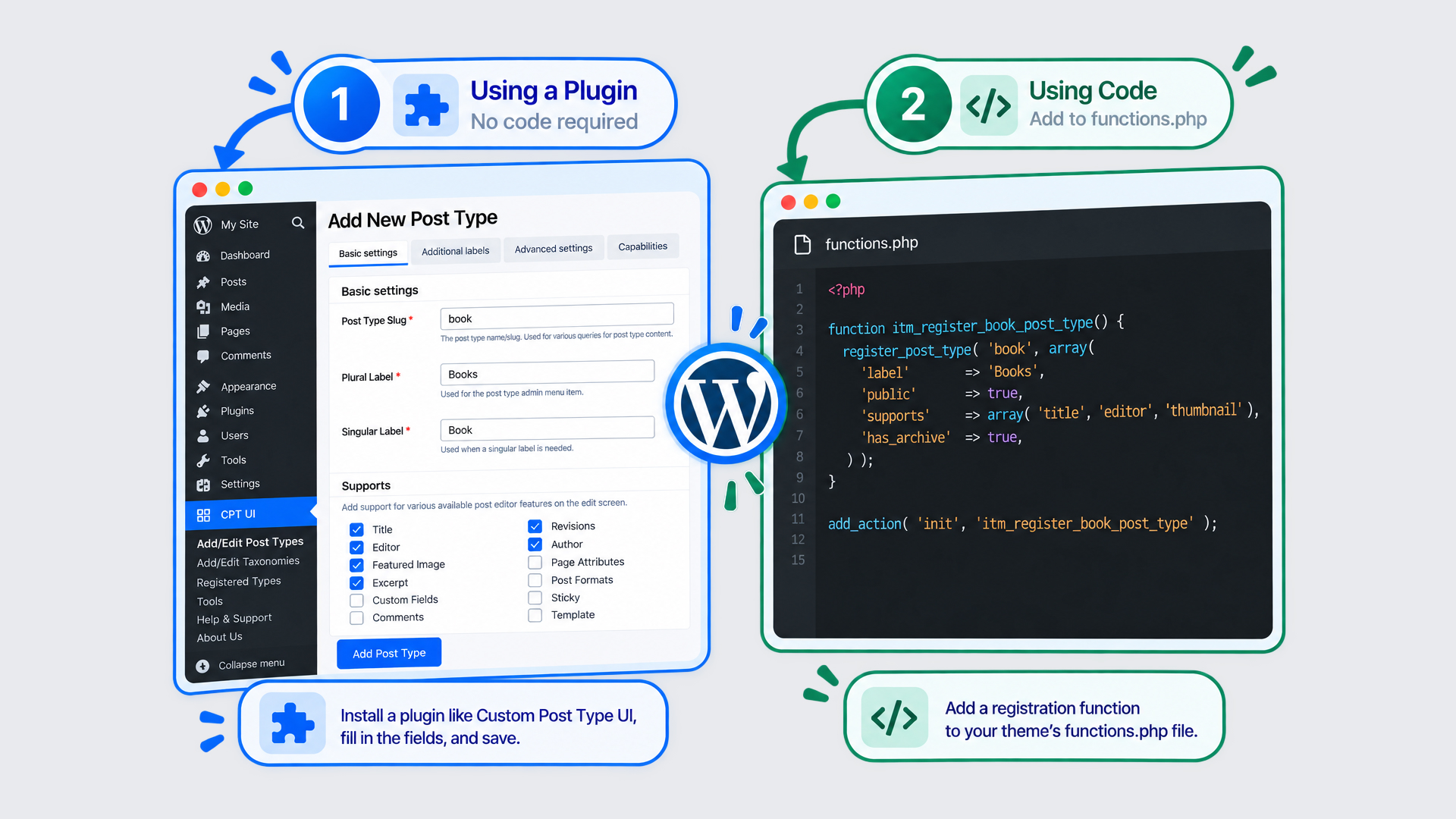
That mismatch forces a content modeling decision. A WordPress custom post type is the usual outcome of it on an agency build, and two routes create one: a plugin route that registers the type through a form in the WordPress admin interface, or a code route that registers it through a function call placed in a theme or a plugin file.
The same content shape then repeats across client projects. A portfolio for one client, a staff directory for the next, an events calendar for the one after. The modeling problem recurs on every project that stores content of that shape, and creating custom post types becomes routine agency work rather than a one-off exercise.
Creating one runs through a fixed sequence of decisions: the class of post types the new type joins alongside the ones WordPress already ships, the table its entries are stored in, the route that registers it, the labels and editing features that registration declares, the template files that render it on the front end, and the block editor and REST endpoint surfaces registration can open to it. Everything past that sequence extends a type that already exists. None of the sequence starts, though, before the type at the centre of it has a definition.
What Is a WordPress Custom Post Type?
A WordPress custom post type is a content type that a developer registers, rather than one WordPress ships. Its entries are neither posts nor pages. They are entries of a third kind, created by declaring a name and a set of behaviors to WordPress while the site loads. That declaration makes a custom post type custom. The entries themselves are ordinary WordPress records, and you don’t need to edit any WordPress core file to create them.
WordPress custom post types belong to one class of objects: the post type. Posts and Pages are members of that class. So is every type a plugin or a theme registers on top of them. A registered type has that class’s behavior by belonging to it. A custom post type in WordPress has its own entry in the admin menu, its own set of entries, and its own front-end output, just like Posts. In plugin documentation and developer forums, the same content type goes by a short form: WordPress CPT.
A custom post type represents whatever the developer defines it to represent. A product, an event, and a portfolio are content shapes a client project needs to store, list and edit separately from the blog, and each becomes a type the moment it is registered under its own name. Custom post types have no meaning beyond the one a client project gives them.
Because a registered type extends a class WordPress has already populated, the types already in that class on a default installation set the behavior every new one inherits.
The Built-in WordPress Post Types
The built-in WordPress post types are the ones a default installation registers on its own, with no plugin installed and no theme code involved. Five of them hold content a build touches: Posts, Pages, Attachments, Revisions and Navigation Menus.
WordPress registers further internal types for its own storage (customizer settings, reusable blocks, privacy requests, and on a block theme the site templates), but no part of a custom post type build depends on them. Built-in means shipped: each of the five exists the moment WordPress is installed. Two of the five run entirely behind the admin interface, which is why an editor may never see a post type in WordPress.
Each of the five holds a different kind of content:
Posts: dated blog entries, ordered newest first and classified by categories and tags.
Pages: undated standalone content, arranged in a parent-and-child hierarchy instead of a timeline.
Attachments: the media library records, one entry per uploaded file, holding its title and its caption on the row, with its alternative text and its file path kept as the entry’s metadata.
Revisions: the saved earlier states of an entry, kept when a revised field changed and capped by the site’s revision limit, each belonging to the entry it came from.
Navigation Menus: the individual menu items, each holding a label and a link target.
Every entry of every built-in type is a row in the same wp_posts table, and each row records the name of the type it belongs to. That one value keeps a page out of the blog and keeps a revision out of the front end altogether. Behavior that looks like five separate systems is really one system reading one value.
A WordPress custom post type is registered into that same class by a plugin or by theme code, rather than shipped with WordPress. Registration aside, a custom post type has what the built-in five have from the class, its own admin screens, its own query behavior, and a row in the same table every one of them already uses.
WordPress Custom Post Type Storage in the wp_posts Table
Storage for a WordPress custom post type is the wp_posts table, the same table of the WordPress database that already holds every post, every page and every revision on the site. Registering a type creates no new table and adds no column. An entry of a custom post type is one row in wp_posts, stored beside rows of every other type, and that row carries the registered type’s name as its post_type value.
Two tables and one column account for the whole arrangement:
wp_posts: one row per entry of every post type, holding the title, the content, the slug, the status and the dates.
post_type the column on each row naming the type the entry belongs to: post, page, or the registered name of a custom post type.
wp_postmeta: the metadata attached to an entry, stored as key and value pairs tied to that entry’s identifier.
The post_type column is the only separation mechanism. Ask wp_posts for rows whose post_type value is product and the result is every product on the site; ask for post and the blog comes back instead. Nothing about a custom post type’s rows is structurally different from a post’s rows. The two differ in one column value.
Because an entry of a custom post type belongs to the same table as a post, every system that already reads wp_posts reads it without modification: the main query, the template loader, the admin list screens, the search index. Each one queries the post_type value and handles the row accordingly. A custom post type has the query and rendering code that already reads wp_posts, and it has that code because it stores nothing anywhere new.
Everything else about that row (the type’s name, its labels, its admin behavior, its place in the menu) belongs to the registration that created the type, not to the table that stores it.
Two Routes to Create a Custom Post Type
A route carries a type’s declaration to WordPress. Two routes create a WordPress custom post type, and both register it through the same act: a declaration of the type’s name and its behaviors that WordPress reads while the site loads. Registration creates the type, and the route is where that declaration is written.
The plugin route registers the type from a saved form. A developer installs a plugin, defines the type’s name and its editing features on an admin screen, and the save creates the type. The code route registers the same type from a function call written in PHP: the register_post_type() function, placed in a site plugin file or a theme, with its settings set as arguments instead of form fields.
The criterion is whether the client project already ships PHP under active maintenance. Where a build has no developer on retainer and no release process, the plugin route creates the type and keeps its settings visible in the admin interface, editable by the developer who inherits the site. Where the project already has a version-controlled site plugin and a deployment path, the code route creates a custom post type in WordPress without a plugin, and the repository owns the registration along with everything else the build defines.
The content being modeled (a property listing, a case study, a staff profile) has no stake in the answer; the team that maintains the site afterward does.
Both routes register the same type, and the registration adds a custom post type in WordPress that has one new section in the admin menu and stores its entries as rows in wp_posts. The declaration itself is stored in one of two places: a plugin’s own settings, or a PHP file. The plugin route defines the type’s name in a form field. The code route defines it as the first argument of a function call. Everything after that (the labels, the editing features, the archive) is the same set of decisions declared twice over, in two vocabularies.
How to Create a Custom Post Type With a Plugin
Creating a WordPress custom post type with a plugin means registering it through an admin screen rather than a file. The plugin adds a form to the WordPress admin interface, the form collects the same declaration a function call would carry, and saving the form registers the type. No file is edited, and no deployment is involved, which is the whole of the route’s appeal on a build the agency does not hold code access to.
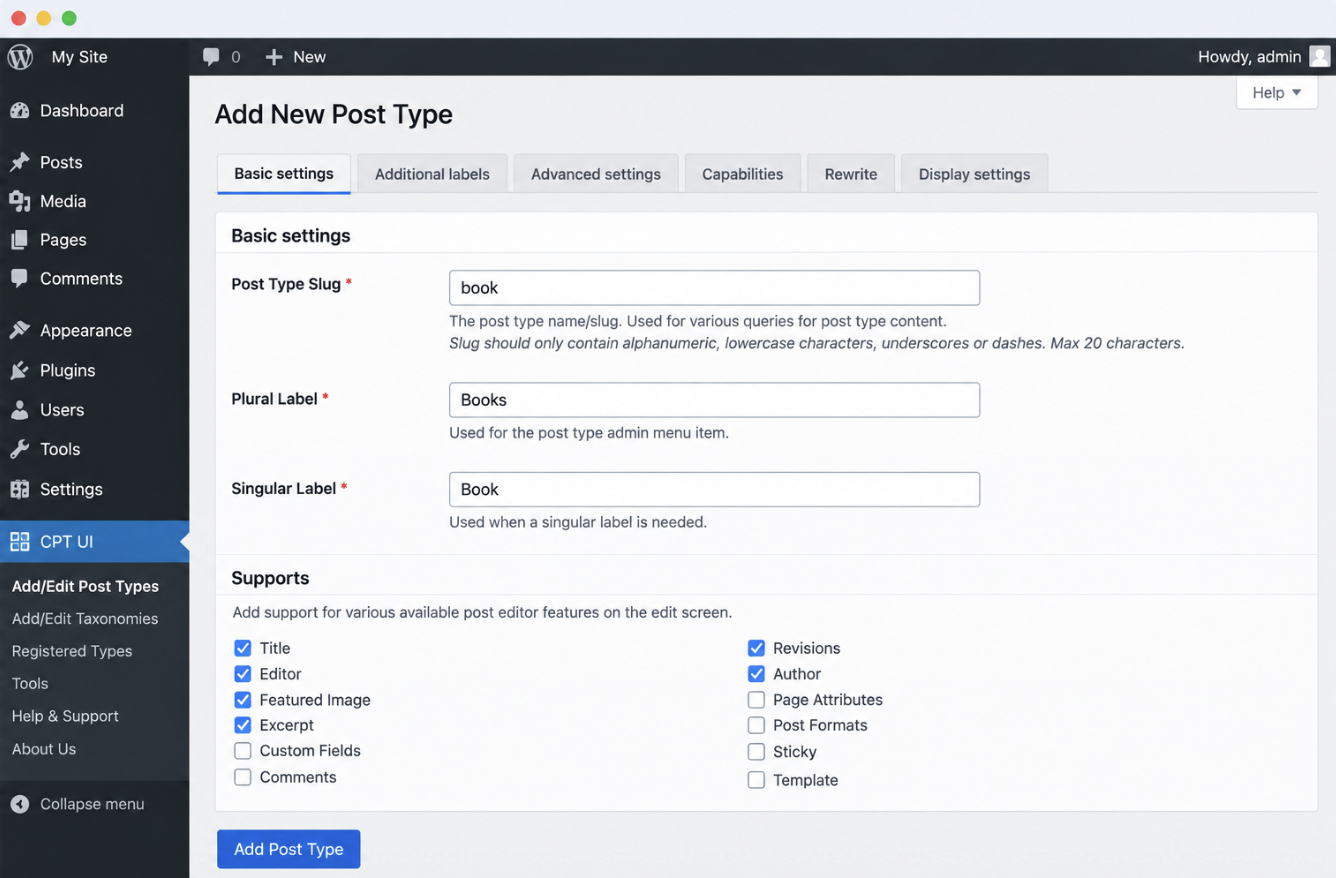
The screen that collects the declaration is added by Custom Post Type UI, a plugin whose admin menu entry holds an add-new post-type form. The same type is registered from a screen of much the same shape by several other WordPress tools, and what separates them is mostly field naming and the extras bolted on around the registration form, ground the survey of the best WordPress custom post type plugins already covers in full.
The sequence on the screen is short:
Install and activate the plugin. Add it from the WordPress plugin directory and activate it; a new menu entry appears in the admin sidebar.
Open the add-new post-type screen. The screen is one form, and each field is one registration argument.
Set the slug, the singular and plural labels, the visibility and the supports. The slug is the stored identifier, the labels are what an editor reads in the menus and buttons, the visibility settings define where the type is queryable, and the supports define which editing panels the entry screen offers.
Save the form. The save registers the type on every subsequent page load.
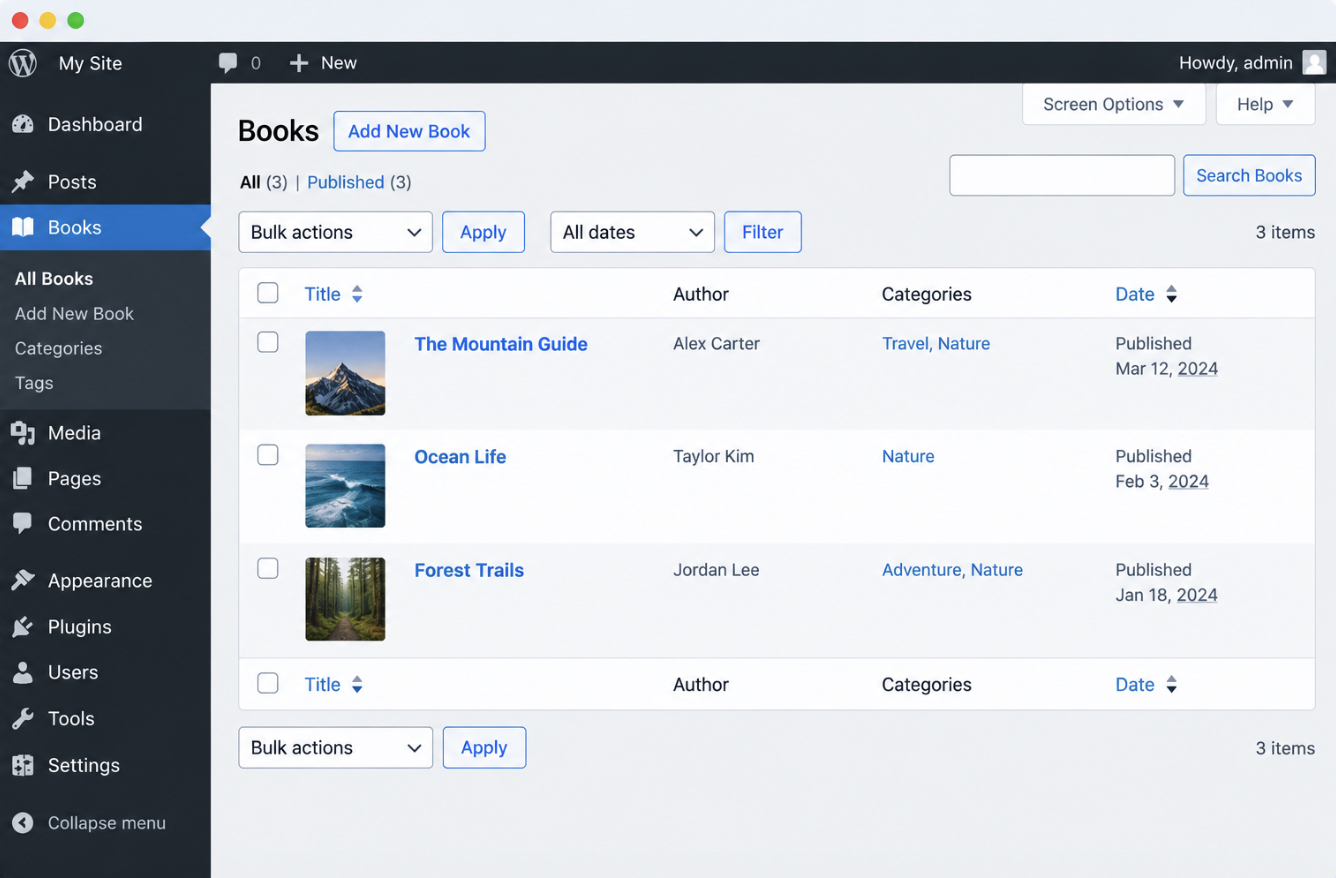
Verify the new admin section. A section named by the plural label is added to the sidebar, with its own list table and its own add-new screen.
The visibility field is where the type declares whether it is public, whether its entries are included in front-end queries and whether the section is visible to anyone beyond an administrator. Who may add and edit those entries is a separate declaration, made by the capability arguments rather than by the visibility toggle, and custom post type capabilities are what that declaration defines.
The save creates a type, not a page and not a plugin setting that only the plugin understands. Every entry added under the new section is a row in wp_posts, and the post_type value on that row is the slug set in the form. Deactivate the plugin and the rows stay exactly where they are; only the declaration disappears, which is why the same declaration is worth writing as code when a build has a PHP file to put it in.
How to Create a Custom Post Type With register_post_type()
Creating a custom post type in WordPress without a plugin means writing that same registration as a function call, and register_post_type() is the call. Two arguments are enough to register a type: the name it is stored under, and an array of the behaviours it declares. The call is written in a site plugin file on most agency builds, or in a theme’s functions.php where the theme is bespoke and owned by the same team. Whichever file holds it, add_action() attaches the function containing register_post_type() to init, one of the WordPress hooks and filters WordPress provides.
Both arguments here carry the type. public set to true makes its entries visible on the front end and its section visible in the admin interface. has_archive set to true gives the type a listing URL of its own, so the entries have somewhere to appear as a set rather than only one at a time.
The type this creates is the type the plugin route creates. The string book is the post_type value written to every row the type adds to wp_posts, and the type has a section of its own in the admin menu. That section’s name, though, is not book. With no labels array in the call, the type has the built-in Post label defaults, so the menu entry reads Posts, a duplicate of the built-in one, and the symptom a developer hits first.
The call defines an editor-facing label, and the editing panels the entry screen offers, through further arguments in the same array.
How to Add Labels and Supports to a Custom Post Type
WordPress custom post type labels and supports are the two registration inputs no build skips. Labels are the admin strings that name the type on menus, buttons and screens. Supports is the list of editor features an entry of the type can use. Both are arrays inside the same argument set, and both are set the same way whichever route created the type, a field on the plugin’s form, a key in the array passed to register_post_type().
Until labels are defined, the type has the built-in Post strings on every admin surface and sits in the sidebar as a second Posts section; until supports is defined, the entry screen has a title field and a content editor and nothing else.
The labels array holds one string for each place WordPress prints the type’s name in the interface. Two keys carry the array: name holds the plural form and singular_name holds the singular. WordPress sets menu_name, all_items, archives and name_admin_bar from that pair, and every remaining key has the built-in default instead.
The Post strings on a non-hierarchical type, the Page strings where hierarchical is true. That fallback is why an incompletely labelled type still has Post wording on an action button somewhere. An agency build sets these label inputs by hand and leaves the remainder to WordPress:
name: the plural label, on the admin menu and the list table.
singular_name: the singular label, on the edit screen and in status messages.
menu_name: the sidebar text, set where the plural label is too long for the menu.
add_new_item: one of the action strings, set individually because name and singular_name do not reach it.
The text domain, not a key of the array but the second argument of __() around each string, the identifier that ties every one of them to a build’s translation files.
Labels are not exclusive to post types. A taxonomy registered alongside the type has a labels array of the same shape, with its own keys for the term screens and the term list, and WordPress custom taxonomies defines that paired labeling layer in full.
Supports on a WordPress custom post type is the argument that names which editor features the entry screen offers. Each value in the array adds one panel or one field to that screen, and each feature absent from the array has no panel on it. Five supports features are set on almost every client build:
title: the entry title field, the one feature almost no type omits.
editor: the main content editor, the panel a type omits when its entries are pure structured data.
excerpt: the short summary field, read by archive listings and by search results.
thumbnail: the featured image panel.
custom-fields: the native name-and-value panel, the switch that exposes per-entry stored values on the edit screen.
Both lines are keys in the array register_post_type() takes as its second argument. They name a case rather than a book, so a build carrying the book type sets its own two strings and its own text domain in the same two keys. The plugin route sets the same two from a label field set and a row of supports checkboxes, and the type that comes out has the same labels array and the same supports array either way.
custom-fields adds a plain key-and-value table, not a designed input. Where a client build has typed fields (a date picker for an event, a currency field for a product), the admin-field layer is a separate registration, and add_meta_box() creates it.
Labels and supports are where the type gets a name an editor recognizes and a screen an editor can work in. Neither array has any say in whether this content belongs in a custom post type at all.
When to Create a WordPress Custom Post Type for Client Content?
Client content that repeats as structured entries, each with its own fields and its own archive, and that sits outside the page hierarchy, is a WordPress custom post type; one-off content that belongs in the navigation tree and that a visitor reaches by clicking through a menu is a page. Both are containers for client content, and the criterion that separates them is structural rather than editorial.
The fields half carries most of the decision. A page has a title and a body, and anything beyond those two is markup typed into the body by hand, with no structure a query or a template can read back. A structured entry has named values that repeat identically on every entry of the type: a date, a price, a client name, a rating. WordPress custom fields store those values, and their presence is the strongest single signal that the content is a type and not a page.
The archive half is about how the set is reached. A page has one URL and one position in a parent-child tree; entries of a custom post type have neither, and their set has a listing URL of its own, ordered by date rather than by menu order. Client content a visitor browses as a set, rather than navigates to as a destination, is a type on that basis alone.
Four kinds of client content are custom post types on almost every agency build:
Products. Each product has a price, a stock state and an image set, values with no equivalent field on a page.
Events. Each event has a start date, a venue and a capacity, and the set is queried by date in a way a page tree cannot represent.
Portfolios. Each project has a client, a delivery date and a gallery, and the set represents the agency’s work as a browsable list rather than as navigation.
Testimonials. Each testimonial is a quotation, an attribution and, on most builds, a pointer to the product or project it describes, a connection between two types rather than a field on one, which custom post type relationships exist for.
On a client deliverable the modelling decision is made once, and every later content choice on the project is inside it. A type created for content that was only ever one page has an empty admin section for the life of the site; a page created for content that repeats has a list the site owner re-edits by hand every time the set changes. The call belongs with the structural choices the WordPress development guide defines at the start of a project.
Client content that belongs in a custom post type is, at this point, a registered type with its labels, its supports, its rows in wp_posts and its own section in the admin menu. What it has no part of yet is the front end, the visitor-facing URLs where its entries are something more than rows an editor sees.
How to Display a WordPress Custom Post Type on the Front End
Front-end display for a WordPress custom post type is three things: a theme template file named for the type, an archive the type was registered to have, and a set of permalinks saved since that registration. Together they are the theme’s side of the build, the point at which a registered type stops being an admin object.
The theme template file decides how an entry appears, and a custom post type has two of them: one for a single entry, one for the archive listing. A template file holds template tags and, in the archive case, a loop; the entries themselves stay in wp_posts. That loop queries the type’s rows and displays one entry per pass.
Registration also adds rewrite rules, and WordPress does not rebuild the stored set on its own.
Save permalinks after registering the type. Opening Settings → Permalinks and clicking Save Changes rebuilds the rewrite rules WordPress matches an incoming URL against, and on a site running pretty permalinks the URL for a single entry is a 404 until that happens. The slug the entries publish under and the address the archive answers on belong to custom post type permalinks.
All three stem from one call. The file name comes from the post_type value the type was registered under, the listing exists because the type was registered with one, and the rebuilt rules are the ones registration added. A developer verifies the sequence the same way every time (register, save, open one entry), and the file that entry opens into carries a name the theme derives from the type itself.
The Template Files That Display a Custom Post Type
A WordPress custom post type template is a theme file whose name carries the type’s post_type value. That naming convention is the entire mechanism. WordPress takes the slug the type was registered under, joins it to a prefix naming what the file displays, and looks in the active theme for the result. A type registered as book is displayed by single-book.php and archive-book.php.
The two template files a custom post type uses are these:
single-{post_type}.php displays one entry of the type, the page a visitor opens from a link or a search result.
archive-{post_type}.php displays the listing of every entry of the type; has_archive set to true at registration turns that listing on.
The second file defines what the archive page looks like, and the archive page itself exists only where the type was registered with has_archive. A type registered without it has single entries and no listing, and adding archive-book.php to the theme does not create one. The registration argument produces the listing, the file only defines its appearance.
Where a theme contains neither template file, WordPress falls back through a fixed order of other files, and that order belongs to the WordPress template hierarchy rather than to the type.
The two template files share a property their names hide: each one loads with its entries already fetched. single-{post_type}.php receives one row from WordPress and displays it. archive-{post_type}.php receives the whole matched set (WordPress queries for the type’s entries first, and the archive file loads with the result in hand), so the file adds only the block that walks it, the loop a developer creates inside the archive template.
How to Loop Through a Custom Post Type in the Archive Template
The loop through a custom post type in WordPress is the PHP block in the archive template that walks the entries the main query already matched and displays them one at a time. The main query has already run by the time the template loads: is_post_type_archive() is true for the type, the query was scoped to that type by post_type, and archive-book.php has the result. The template does not fetch. It iterates.
if ( have_posts() ) {
    while ( have_posts() ) {
        the_post();
        the_title( '<h2>', '</h2>' );
    }
}
have_posts() is the check that a row is left in the result. the_post() makes the next row the current entry, and the template tags between the two, the_title() in this case, display once per entry. No reset call follows, because the main query is still the query in scope.
A second WP_Query inside the archive template contains the same block shape and behaves differently. It queries the database a second time beside the query WordPress has already run, and it has only the arguments handed to it, so the paged value the request carried is absent unless a developer sets it; page two of the listing then displays the rows of page one. Its count per page comes from its own array, or from the Reading setting where the array omits one. pre_get_posts still fires for it, but the callbacks that shape a custom post type archive are conventionally guarded with is_main_query(), so a secondary query inherits none of what they set.
A secondary query belongs in a template that has no set of its own: a front page, a landing page, a block displaying the three newest entries of a type beside unrelated content:
wp_reset_postdata() closes that one, restoring the entry data the page held before the query ran.
Changing what the archive itself lists (an order, a taxonomy condition, a value stored in wp_postmeta, a different number of entries per page) is an edit to the main query rather than a replacement of it. pre_get_posts carries that edit, and the argument list it sets belongs to WP_Query.
With the loop in the archive template, a WordPress custom post type is complete as a front-end object. Every surface the type has to this point is rendered by WordPress itself, in PHP, on the server. One registration argument adds two surfaces WordPress does not render in PHP on the server.
The show_in_rest Argument for a Custom Post Type
show_in_rest is the registration argument that gives a custom post type a WordPress REST API endpoint and a block editor entry screen. It is one boolean in the same array every other argument is in, and a type registered without it has neither surface.
'show_in_rest' => true,
That line is a key in the array register_post_type() takes as its second argument, and the plugin route sets the same thing from a checkbox.
One surface is the block editor: a type with show_in_rest set to true has the block editor on its entry screen.
The other is the endpoint at /wp-json/wp/v2/book, a route WordPress names for the type, where every entry of it is readable as JSON. Authentication, custom routes, and the request and response on either side of them belong to WordPress REST API integration.
Both surfaces are set once, at registration, and neither is the end of the type’s working life. A custom post type and its entries keep changing after the build, once the rows in wp_posts are a client’s content rather than a developer’s test data, and custom post type lifecycle defines that stretch.
The REST endpoint is not the only schema a registered type is readable in. WPGraphQL is a plugin that exposes a registered custom post type through a GraphQL schema (one route for the whole site, and a field set defined for each type), and WPGraphQL for WordPress defines that layer.
A WordPress custom post type is one object from end to end, and everything about it is set at the moment it is registered: the slug WordPress stores in the post_type column of every row it adds to wp_posts, the labels an editor reads on the admin menu, the supports that decide which panels the entry screen has, the archive the type is registered to have, the theme files named after its slug, and the two surfaces show_in_rest adds.
A form in a plugin and a register_post_type() call are two ways of writing the same declaration, made once, for content a client project has that repeats as structured entries. The type a build ends up with is the type that declaration describes.




 ChatGPT
  Claude
  Grok
Grok  Gemini