Explore our specialized services, tailored solutions, and industry expertise to elevate your digital presence. From custom WordPress development to seamless integrations, we build high-performing websites that deliver impact.
A local WordPress development environment gives developers, designers, site owners, and agency teams a private WordPress install on localhost, running on the developer’s own machine for build and test work before going live. A local WordPress setup keeps theme changes, plugin testing, database edits, and layout experiments away from the live production site while the project is still being created or refined.
This guide explains how a WordPress local development environment works, why local development matters, how to set up a local WordPress development environment, how to run and create local sites, which tool types fit different workflows, and how a finished local site can later move toward deployment. First, the local environment itself needs a clear meaning.
What Is a Local WordPress Development Environment?
A local WordPress development environment is a WordPress install running on localhost on one’s own machine, set apart from a public, remotely hosted live site. Being local is what makes it that. The development environment runs on the same computer a developer is sitting at, reachable only from that machine through localhost, never served to the open internet.
A live WordPress site, by contrast, runs on a remote host and answers requests from anyone with the URL. The local environment is private and self-contained; the production site is public and shared. That single distinction, local and private versus live and public, defines the entity.
The environment is not one program but a small set of cooperating parts. Three of them carry the workload:
A local server that runs the web server software, the PHP runtime, and a database engine on the machine itself, standing in for the remote host a live site would use.
A tool or stack that assembles and manages those server pieces, whether a packaged desktop application, a hand-built collection of services, or a container setup.
A local site instance, the actual WordPress install, its files and its database, sitting on disk and answering at a localhost address.
None of those parts is the environment on its own. The local server alone runs no WordPress; the WordPress files alone serve nothing without a server underneath them; the database holds content that the install reads and writes but cannot display by itself.
The environment is what they become together, a single working copy of WordPress that behaves like the real thing while running entirely on localhost. No vendor owns this definition. Whether the stack arrives as a one-click desktop application or as services wired together by hand, the result answers to the same description: WordPress, running locally, on one machine, off the public web.
Because everything stays on that machine, the environment becomes the safe place to do the work a live site cannot afford to host. That safety is the reason developers reach for it.
Why Develop WordPress Locally?
A developer develops WordPress locally to build and test changes safely on their own machine before deploying them to a live server, so that nothing experimental ever disrupts a site real visitors are using. The reasoning starts with who does the work and why.
A developer writing a custom theme, a site owner trialing a new plugin, an agency rebuilding a client’s layout, each needs somewhere to make mistakes without consequence. Local development gives them exactly that, a private build-and-test space where a failed experiment costs nothing and a broken page is invisible to the public.
Working this way separates the messy part of the job from the visible part. On localhost, a developer can install an untested plugin, watch it conflict with the theme, and roll it back without a single visitor noticing.
Code that throws errors throws them privately. A redesign can sit half-finished for a week. Database changes can be made, checked, and undone. The live site, meanwhile, keeps running untouched, because the work that might break it never reaches it until testing confirms it holds.
Three benefits sit at the center of the practice. Safe testing comes first: every local WordPress test runs against a real install with no risk to the production site, so a change can be exercised, broken, and corrected entirely offline. Offline work follows: development continues on the machine without depending on a hosting account or a connection.
No live disruption is the result that matters most, since the in-progress work stays off the production site while the next version is built and tested out of sight, so visitors keep seeing the current stable site until a finished change is deliberately deployed. Each benefit traces back to the same property, a WordPress install running locally, isolated from the live server until the work is ready.
That readiness is reached through setup. Building the environment, getting WordPress installed and running on the local machine, is where the practice turns from reason into procedure.
Local WordPress Setup
Local WordPress setup is the act of standing up a local WordPress development environment on one’s own machine, from a bare set of prerequisites through to a running install that answers at localhost. The setup runs as a whole sequence: get the prerequisites in place, obtain either a managed tool or a server stack, create the WordPress site against it, then verify the site responds.
None of it touches a public server, and no single product owns the procedure. A developer can set it up with a desktop application, a container, or a hand-assembled stack, whichever route is already on the machine.
What every route shares is a prerequisite state. The machine needs three things: a PHP runtime, a database engine for the site’s content, and a web server process to answer requests. PHP must sit at the version the current WordPress release supports.
That floor was PHP 7.4 for a long stretch, and recent WordPress releases prefer a higher one, so treat the number as a requirement to check against the active release rather than a figure to memorise. A managed tool bundles all three pieces and hides them; a stack route installs them separately. Either way, the database is not optional. WordPress stores posts, settings, and users in it.
With the prerequisites confirmed, the setup follows a short, tool-neutral sequence:
Confirm the prerequisites: a PHP runtime at the current required version, a database engine, and a web server, supplied either by a managed tool or by a stack.
Obtain the environment: install a managed local-development tool, or assemble the server stack that provides PHP, the database, and the web server.
Create the local WordPress site: point the tool or stack at a new site, which downloads WordPress and writes its configuration against the local database.
Run and verify: start the local server and load the site at its localhost address to confirm the install responds.
Each step produces the next: prerequisites enable the tool, the tool produces the install, the install produces a site that runs locally. That running install is the output the whole setup aims at, and obtaining WordPress itself is the step the install action turns on.
Install WordPress Locally
Installing WordPress locally means obtaining the WordPress files on one’s own machine through the chosen tool or stack and running the install to completion, with no public server involved at any point.
This is the step where the setup stops being a pile of prerequisites and turns into an actual WordPress site: the moment a runtime, a database, and a web server become a working install. A developer triggers it; the tool or stack carries it out; the result is a working install bound to the local database.
The action has two parts:
First, WordPress is obtained on the machine. A managed tool downloads the latest release on the developer’s behalf, while a command-line route fetches it directly.
Then the installer runs, connecting WordPress to the local database and writing the site’s configuration.
A managed environment that creates the site through its new-site dialog collapses both parts into a single action; a stack or command-line route exposes them as explicit commands. A generic, tool-neutral form of that command looks like this:
# Download and install WordPress locally with WP-CLI, against the local database
wp core download
wp config create --dbname=local_wp --dbuser=root --dbhost=127.0.0.1
wp core install --url=http://localhost --title="Local Site" --admin_user=admin --admin_email=dev@example.test
The command is illustrative: a managed application performs the same three operations behind its interface, with no terminal in sight. The XAMPP-stack route handles the same install through a server bundle and its own database front end; that path has its own walkthrough and is not repeated here.
For the general install action across every environment, including the standard hosted case, the broader reference on how to install WordPress covers the install screen and configuration in full. Once the install completes, the setup procedure has produced what it set out to: a WordPress site sitting on the machine, ready for a server to run it.
The Local Server That Runs WordPress
The local server that runs WordPress is the web-server process on the developer’s own machine that answers requests for the local site, serving its pages back to a browser without any public network in between.
It is a distinct part of the environment: the install puts WordPress on disk, but a running server is what turns those files into a site a browser can load. Whether it comes from a managed tool, a container, or a stack, the role is identical: listen for requests, hand them to PHP, return the rendered WordPress pages.
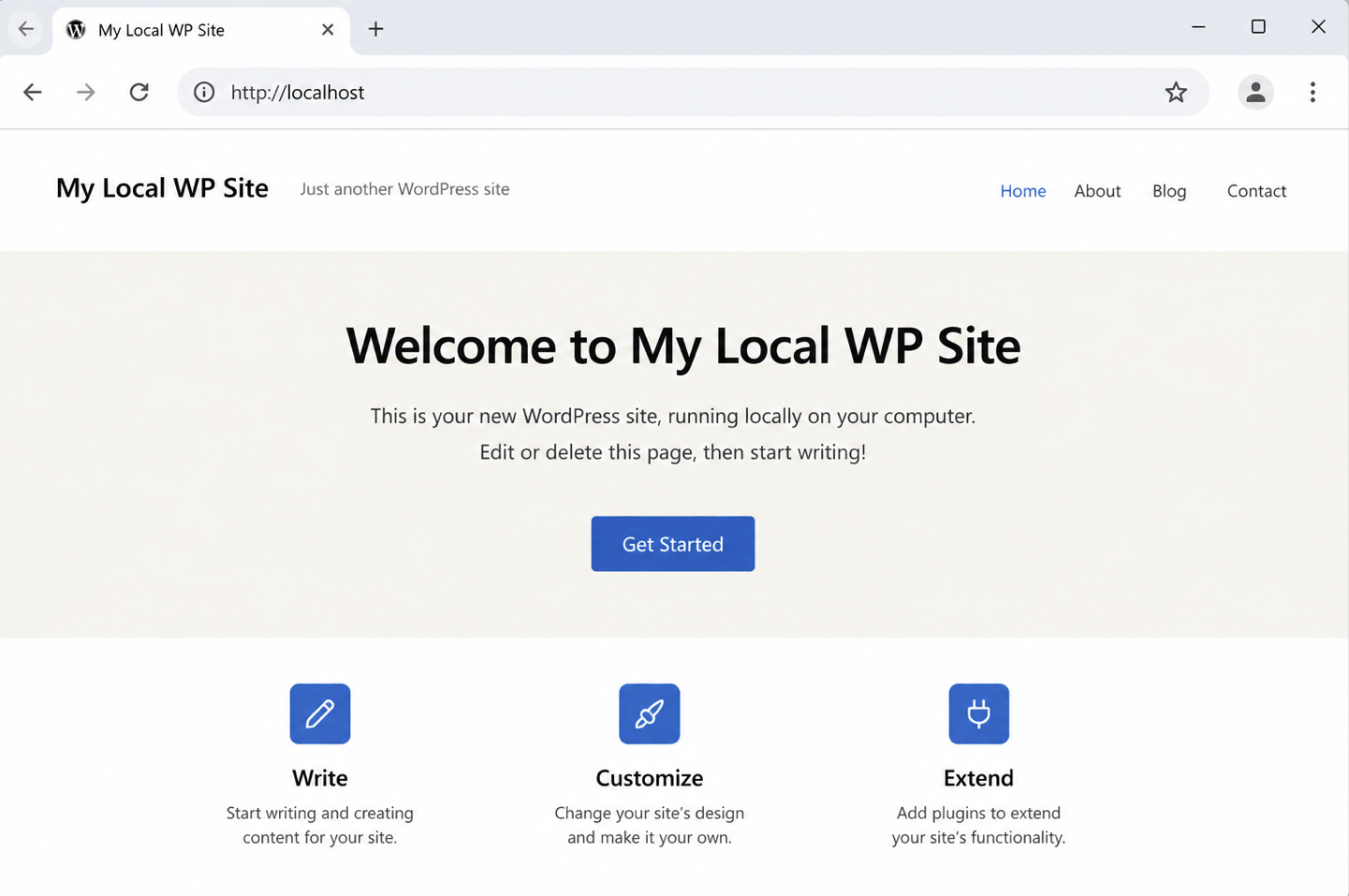
Requests resolve at a localhost address. The site loads at http://localhost, or at http://localhost:PORT when the tool assigns a port, commonly http://localhost:8080, http://localhost:8888, or http://localhost:10003, depending on which environment is running. That address never leaves the machine; localhost resolves to the same computer that runs the server, which is exactly why the site stays private during development.
Serving a WordPress site this way is hosting at the local stage, narrowed to one strict meaning: a process on the developer’s own machine answers requests for the pages, and nothing more. Hosting later expands into something far bigger, a public provider holding the live site on the open internet, but none of that applies here.
No public address, no provider, no monthly plan enters into it; those arrive only when the site moves to a live server. Keeping the server, the localhost address, and that narrow sense of serving together holds the running environment firmly bound to WordPress on localhost.
Running WordPress Locally
Running WordPress locally means starting the local server and loading the WordPress site at its localhost address, so the install becomes a site that actually renders in a browser. Two pieces come together at this point: the install supplies the files, the local server answers requests for them, and running the site is the act that joins them. A developer starts it; the chosen tool or stack is the instrument that spins the server up.
Once the server is running, the site loads at its localhost address : http://localhost or the port the environment assigned, such as http://localhost:10003. The browser requests that address, the local server returns the WordPress front page, and the site renders exactly as it would on a public server, only privately. A managed tool that exposes its own interface offers a start control and an open-site shortcut; a stack route starts its server process and the same localhost address resolves to the site.
A loaded front page at localhost confirms the run worked: the local server is answering on the machine, exactly as it should. Running the site is one half of how that server presents itself; hosting WordPress on the machine, in its strict localhost sense, is the other.
Local WordPress Hosting
Local WordPress hosting is WordPress served in its localhost-only sense: the site is held and answered for on the developer’s own machine, reachable at localhost and nowhere else. The local server hosts it in exactly this narrow way. It stores the files and responds to requests for them, all on one computer, with nothing published to the public internet and no third party delivering the pages.
What this version of hosting buys is privacy by default. Because the site answers only at localhost, a half-finished theme, a broken plugin, or a database full of test posts is visible to no one but the person building it; there is no live audience to embarrass and no search engine to index a draft. The same machine that runs the server is the entire reach of the site.
That isolation is the reason a developer works locally first: edits are cheap, mistakes are invisible, and nothing the outside world sees changes until a deliberate, separate move copies the finished site onto a live server. Until that move happens, local WordPress hosting stays bound to localhost and the developer’s own machine, which closes out how the running environment serves WordPress and leaves the procedure ready for the site itself to be created and confirmed.
Create a Local WordPress Site
Creating a local WordPress site means standing up a single WordPress install that the setup procedure produces and that runs entirely on the developer’s own machine, reachable at a localhost address rather than on any public server.
A local WordPress site is the object every earlier step was working toward: the prerequisites, the chosen tool or stack, and the local server all exist so that one concrete site can come into being and run. Setting up the environment is the work; the local WordPress site is what that work produces.
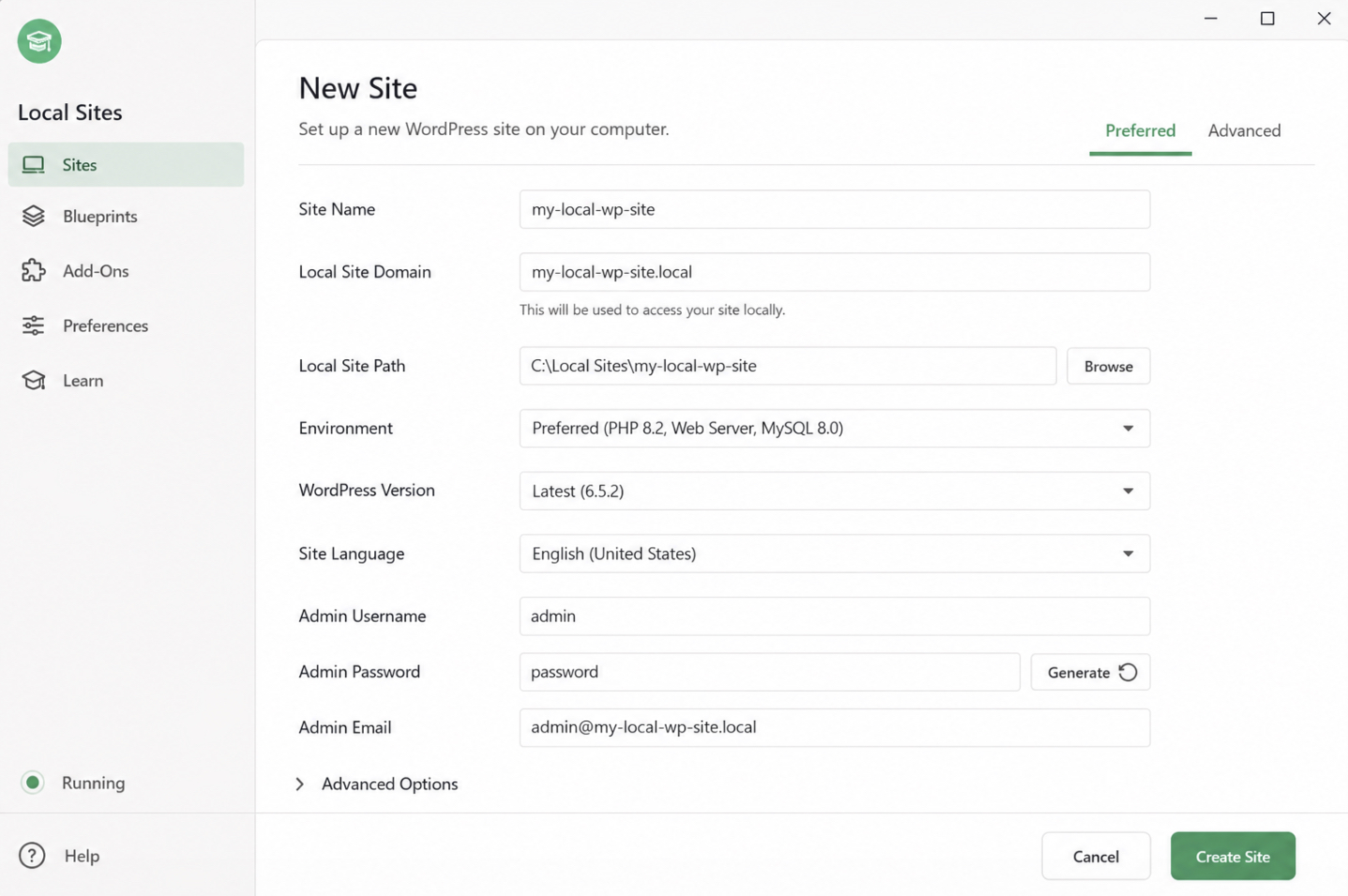
The create action draws on the tool or stack already in place. Whatever provisions the environment, a managed desktop application or a container route, exposes a way to register a new site, name it, and generate its WordPress core files, database, and admin account in one pass.
To create a local WordPress site, the builder names it and lets the tool assemble those parts; no public domain, registrar, or remote server enters the picture, because the whole install resides on one machine. The result is a fully formed WordPress install, the same software that would run on a live server, only served privately for build and test work.
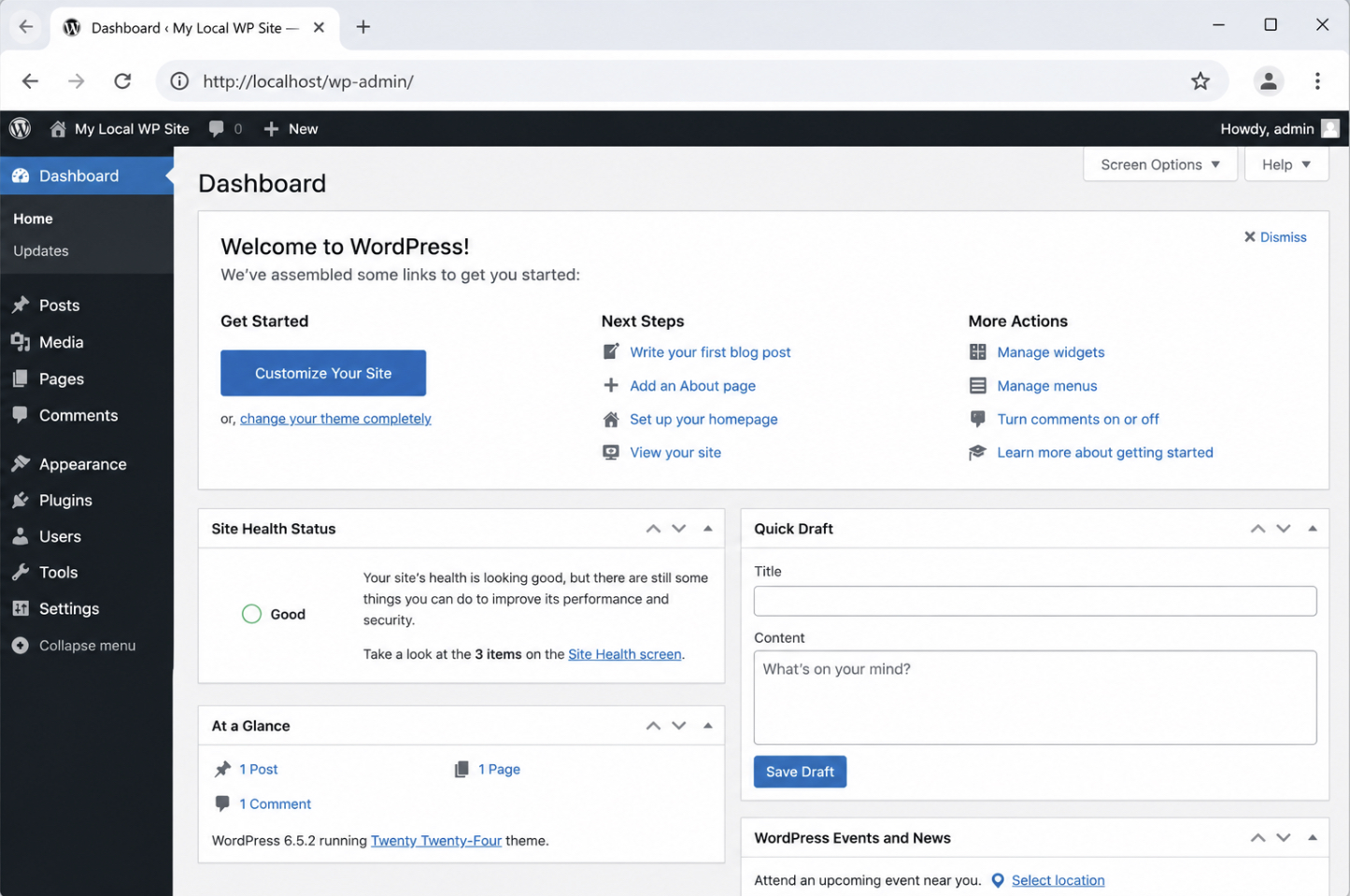
Verification confirms the site exists. Once the create step finishes, the local WordPress site answers at its localhost address, http://localhost or http://localhost:PORT depending on the tool, and the wp-admin dashboard loads there. Opening that address and seeing the dashboard confirms that the site runs, that the database is connected, and that the environment is usable rather than half-built.
A created local WordPress site is, by definition, an instance of the local WordPress development environment that this whole procedure exists to produce. The environment is the general arrangement, the localhost server, the tool or stack, the database, and the local site, and the created site is that arrangement made specific and running. Reaching this point closes the build half of the workflow: the environment is set up, the server runs WordPress locally, and a working site now exists on the machine.
With a running local site in hand, two decisions remain. The first is which local WordPress development tool to build on, since the same site can be produced by a managed application, a container route, or a bare stack. The second is how to move the finished, tested build from localhost to a live server when the work is ready to go public, the deploy step that takes the site out of the private environment and into production.
Test the Local WordPress Site
Testing the local WordPress site means confirming that the created site loads and functions correctly at its localhost address before any move to a live server. A local WordPress test is the verification sub-step of creating the site: it checks that the install the previous step produced actually works, which is the entire reason for building on the developer’s own machine in the first place, to catch problems privately, before going live.
Confirming the site works comes down to a short set of checks at the localhost address. The builder loads the front page at http://localhost (or its port) and verifies that pages render, the dashboard opens, and core actions, logging in, viewing a post, switching a setting, respond as expected. A local WordPress test that passes shows the database connection holds, the WordPress core files are intact, and the site behaves the way it should. A check that fails surfaces the fault here, on the machine, where fixing it disrupts nothing public.
This is what build-and-test-before-going-live means in practice. The local site exists precisely so that changes can be verified in private, on localhost, and the test step is where that purpose is satisfied: a working, confirmed local WordPress site is the green light for the next stage. Once the site checks out, the choices that follow, which tool to standardize on and when to take the build live, are decisions about a site already proven to run.
Local WordPress Development Tools
A local WordPress development tool is the software that provides a local WordPress development environment as a named, ready-to-run package, so the underlying server, database, and WordPress install arrive bundled rather than assembled by hand. Each tool is one concrete way to stand up the same environment on a developer’s own machine.
The landscape splits into three recognizable kinds: managed desktop applications that wrap the whole stack behind a single window, the container route that runs WordPress inside isolated containers, and the bare stack route that installs the server pieces directly.
Managed applications are the most common starting point because the environment exists the moment the application launches a new site. LocalWP leads this group by usage, and DevKinsta sits beside it as another managed desktop option.
The container route, built on Docker, runs the same WordPress install inside portable containers instead of a desktop wrapper. The stack route assembles the server components separately, which a developer reaches for when full control over each piece matters more than a one-click start.
Choosing one tool over another weighs them against each other, and that weighing shifts the page off its set-up purpose, so the decision routes elsewhere. A side-by-side breakdown of managed applications, the container route, and the stack route, along with what to reach for as a local WordPress alternative, is covered in the dedicated guide to local WordPress development. Each tool named here is one concrete way to run the environment, not a contender weighed against the rest.
LocalWP
LocalWP is a managed local WordPress development app that installs the entire environment, the local server, the database, and the WordPress core, as a single desktop application, which makes it the most-searched tool among local-development options by demand.
It carries an earlier identity: “Local by Flywheel” is the prior brand name for the same application, so documentation and search results that reference Local by Flywheel point at LocalWP under its former label. The application is obtained from its official source, where each new release publishes for the major desktop operating systems.
Inside LocalWP, a new local WordPress site appears from a guided new-site dialog, and the application handles the server and database wiring that a hand-built stack would expose directly. For the full add-on configuration and a step-by-step first-site walkthrough, the dedicated guide on how to “install WordPress with Local” carries that detail. As one concrete way to run the environment, LocalWP is the managed end of the spectrum; the container route sits at the other end.
Docker for Local WordPress Development
Docker for local WordPress development is the container-based way to run the environment, where WordPress, its server, and its database run inside isolated containers on the developer’s own machine rather than inside a desktop application or a directly installed stack.
A Docker-based setup runs WordPress locally from a defined image, which makes the same environment reproducible across machines, a property the container route is valued for. It is the more configurable alternative to a managed application like LocalWP.
The bare stack route, where the server components install directly on the machine, stays a single pointer here. The complete walkthrough for that path is covered in the guide on how to “install WordPress locally with XAMPP“. Both the container route and the stack route are two more ways to run the same local WordPress development environment, which leaves one step once the local site is built and verified: taking it live.
Deploy the Local Site to Production
Deploying the local site to production is the exit step of local WordPress development, the point where a build that has been created and tested on the developer’s own machine moves to a live server so the public can reach it.
The whole local workflow exists to reach this moment safely: the environment was set up, the site was run at localhost, created, and tested precisely so the deploy carries a verified build, not an untested one, onto production. Once that verification holds, the local site is ready to move.
The localhost-to-live move itself, the database transfer, the file copy, and the URL change that turn a local build into a production site, is its own procedure rather than a closing note. The full sequence is documented in the guide on how to “move WordPress from localhost“, which takes the verified local site the last distance to a live audience.




 ChatGPT
  Claude
  Grok
Grok  Gemini