Explore our specialized services, tailored solutions, and industry expertise to elevate your digital presence. From custom WordPress development to seamless integrations, we build high-performing websites that deliver impact.
Configuring WordPress email delivery over SMTP inside a Docker container is the configuration that lets a WordPress Docker container send email in the first place, the outbound SMTP transport that carries password resets, order receipts, and admin notifications out of the running container and into real inboxes. On an ordinary server, that wiring already exists. Inside a container, it usually does not.
The starting point is a stack that already runs. This work assumes a docker-compose setup is up and serving the site: the database is healthy, the web service answers requests, and mail is the one piece still missing. With that in place, Docker WordPress email becomes a focused configuration job rather than a rebuild of the whole environment.
That missing piece has a concrete cause. The official WordPress image ships with no local mail transfer agent, so the PHP routine WordPress reaches for when it hands off a message finds nothing waiting to accept it. Mail is generated and then quietly discarded, no error a site visitor would ever see.
Closing that gap takes two moves, not one. First, point WordPress at a transport that can actually reach an SMTP server; second, confirm that a real test message leaves the container instead of disappearing. Both halves matter, because a transport that looks configured but never delivers is worse than an obvious failure.
The most direct of those transports adds no extra software at all. It routes WordPress mail straight to an external SMTP server, wired through the same docker-compose file that already defines the site.
How to Set Up SMTP Email Sending for WordPress in Docker
Setting up SMTP email sending for WordPress in Docker means routing every message wp_mail() generates through an external SMTP server, so outbound mail leaves the container by a reliable path that actually exists. Rather than depending on a local binary the image never installed, WordPress hands each message to a named SMTP host that relays it onward.
This configuration only makes sense once the site is already running, which is why the WordPress Docker Compose setup comes first: the stack has to serve the site before there is any mail to route.
An SMTP server is defined by a small, fixed set of values: a host, a port, a username and password, and an encryption mode. The host is the address WordPress connects to. The port is almost always 587 for STARTTLS, with 465 reserved for implicit SMTPS and 25 for an unauthenticated relay that most networks now block. Credentials authenticate the container to the provider, and the from-address decides which sender real recipients see. Changing the WordPress email sender is that same from-address value, set once in the environment.
In a container, WordPress email setup is not the marketing-list task the phrase often suggests. To send email from WordPress here is to move transactional messages (the account, checkout, and notification mail the application produces on its own) out through SMTP. Even a plugin or theme that needs to send a custom email in WordPress, or code that sends mail programmatically, ends at the same SMTP server; the container simply gives it a real exit.
No single environment key carries these values to every transport; each transport reads them from its own place. The official WordPress image consumes just one configuration key, WORDPRESS_CONFIG_EXTRA, appending whatever it holds to wp-config.php at startup, which is where an SMTP plugin picks up its values as constants:
Two follow-on questions shape the rest of the configuration: where the SMTP server itself comes from, and where its password is allowed to live. A managed relay answers the first. A secrets file answers the second, and only once both are settled does the choice of transport, plugin or in-image, actually matter.
External SMTP Relay Through Docker Compose env vars
An external SMTP relay wired through docker-compose env vars is a managed sending service (SendGrid, Mailgun, Amazon SES, or a comparable provider) that accepts the container’s mail and routes it onward, with the host and credentials passed in as env vars rather than hard-coded anywhere. The relay runs outside the stack; the compose env vars are simply how the WordPress service learns where to reach it.
Because a managed relay signs each outbound message on its own infrastructure and carries the sending reputation, it takes on most of the deliverability burden a self-hosted mail server would otherwise shoulder, reducing, though not eliminating, what the site owner has to maintain. Retries, message signing, and sending reputation sit with the provider, which is exactly what keeps the env-vars path so short.
On the plugin path, pointing at a provider changes only the host and credentials inside those same constants:
One detail is still exposed. The relay key read through getenv('RELAY_KEY') has to resolve to a real environment value somewhere, and leaving that value in plain text beside the compose file would undo much of the point of a managed service.
SMTP Credentials as Docker Compose Secrets
SMTP credentials in a Docker Compose project belong in a secrets block or an env_file, never inline in the image or committed beside it. The password that authenticates the container to the SMTP server is the one value that must stay out of a built layer, because anything baked into the image travels with it to every registry and every host that pulls it.
An env_file keeps those credentials in a local file that compose reads at startup and injects into the running service as env vars. A secrets block goes further, mounting the password into the container at runtime as a file the image itself never contains. Either way, the built image holds the configuration but excludes the credentials, the layers stay reproducible, and the secret stays out of version control.
In the compose file, both mechanisms attach to the WordPress service directly:
Which mechanism feeds which transport differs, and the two paths do not read the password the same way. The env_file path injects the password into the container environment, where the plugin’s WPMS_SMTP_PASS constant resolves it through getenv('SMTP_PASS'), or the plugin takes it from its own wp-admin settings screen. The secrets block instead mounts the password as a file at /run/secrets/smtp_password, and a mounted file is invisible to getenv(); that path suits the in-image agent, whose msmtprc reads the file directly at runtime rather than an environment variable. The lowest-friction of those needs no image rebuild at all: a WordPress plugin that takes the SMTP host, port, and credentials in wp-admin and routes wp_mail() to the SMTP server.
How to Send WordPress Email with an SMTP Plugin in Docker
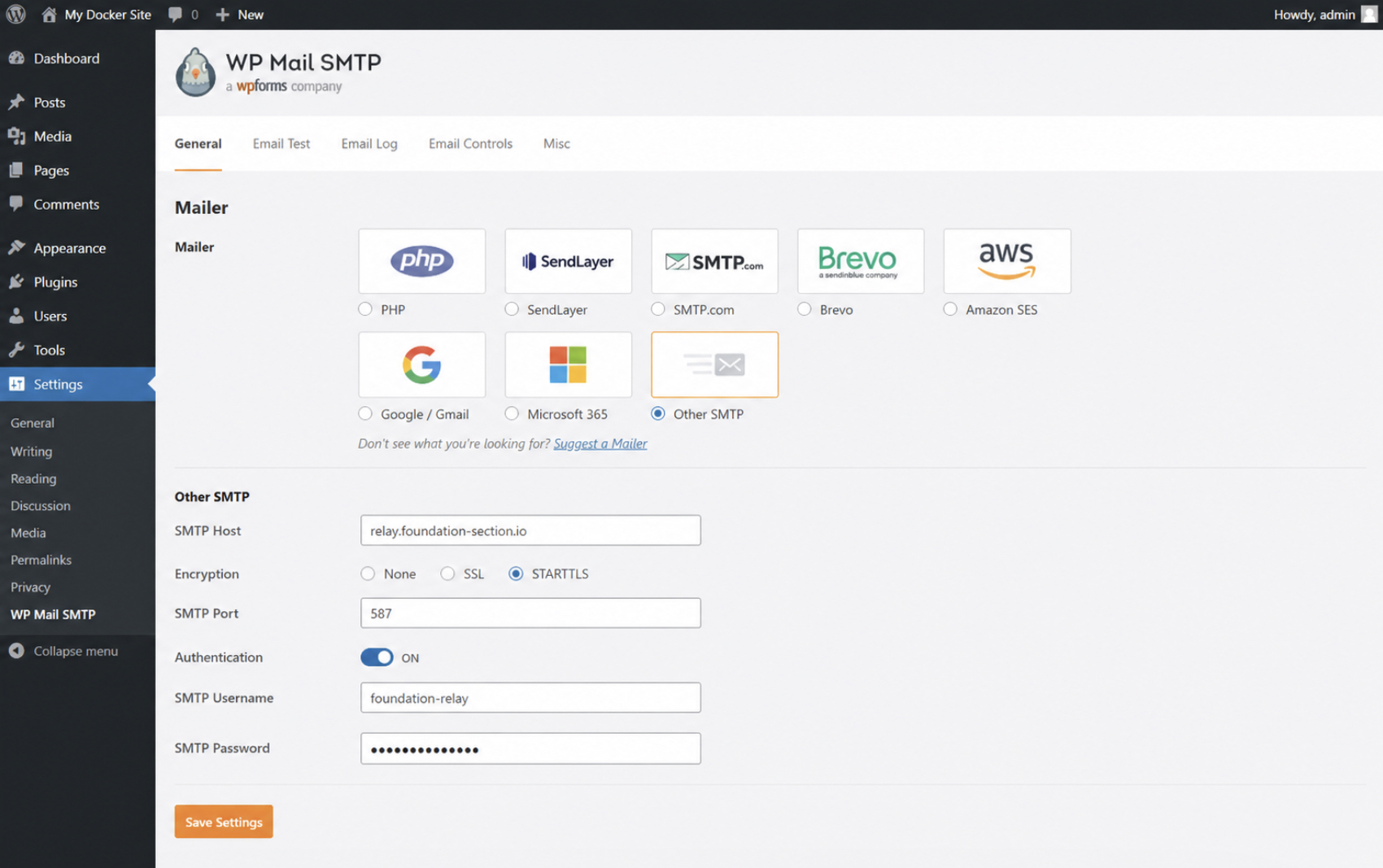
A WordPress plugin to send email reroutes wp_mail() to an external SMTP server, which lets a container that ships without a local mail agent still hand outbound messages to a real relay. WP Mail SMTP and Post SMTP are the two plugins that do this from inside wp-admin. Both expose a mailer set to Other SMTP, then the same SMTP host, port, credentials, and STARTTLS encryption the compose stack already defines for the WordPress service.
What makes the plugin transport the low-friction option is what it does not touch. Nothing changes in the Dockerfile, nothing rebuilds the image. The plugin installs like any other, reads its settings from the constants injected through WORDPRESS_CONFIG_EXTRA or from the fields saved in wp-admin, and from then on routes every wp_mail() call through the configured relay instead of the container’s absent sendmail. Because it adds nothing to the image and configures entirely through the admin screen, this is the recommended first choice for outbound mail in a Dockerized WordPress stack. Where a plugin is not an option (a stripped-down image, a headless build, an admin locked down by policy) the mail transport moves into the image itself.
How to Set Up a Mail Transfer Agent in the WordPress Docker Image
A mail transfer agent installed inside the WordPress Docker image gives the container its own sendmail, the local sending program PHP mail() looks for and a stock image lacks. msmtp and Postfix are the two agents that fill that gap: msmtp is a lightweight forwarder that relays everything to an upstream SMTP server, while Postfix is a fuller agent that can queue and route on its own. For a Docker WordPress SMTP setup that skips the plugin entirely, the lighter msmtp is enough, and it goes in during the image build:
Whether the container ships with a usable sendmail at all depends on the base image the build starts from. The official WordPress image, a Bitnami image, and a hand-rolled custom image each carry different defaults, which is why image choice decides sendmail availability; the trade-offs sit in WordPress Docker images compared. Once the agent is installed, a short msmtprc template tells it which relay to reach and how to authenticate, with the host and credentials filled from the injected environment at container start:
account default
host ${SMTP_HOST}
port 587
tls on
auth on
user ${SMTP_USER}
passwordeval cat /run/secrets/smtp_password
An entrypoint renders that template with envsubst '$SMTP_HOST $SMTP_USER' before PHP starts, restricted to the non-secret host and user, so envsubst never touches the password at render time and no plaintext credential is baked into the rendered file. The password stays a live lookup: passwordeval cat /run/secrets/smtp_password reads it at runtime from the file Docker mounts under /run/secrets, so the relay host and user come from the injected compose env vars while the secret itself never leaves its mounted file.
The relay on the far end handles authentication and message signing, so the deliverability records those depend on stay outside the container’s concern. One setting still has to connect PHP to the agent: sendmail_path, the php.ini directive that points wp_mail() at msmtp rather than a missing binary. A WordPress Docker SMTP path built in the image, rather than in a plugin, comes down to that one line.
sendmail_path in the WordPress Container php.ini
sendmail_path is the php.ini directive, set inside the container, that points PHP mail() at the in-image mail agent. With msmtp installed, a single line in php.ini routes every message from wp_mail() through it:
sendmail_path = "/usr/bin/msmtp -t"
That one value is the whole connection between PHP and the agent. mail() stops searching for a system binary that is not there and instead hands each message to msmtp, which forwards it to the relay. Locating the active php.ini inside a running container, and editing it so the change survives a rebuild, follows its own steps in edit php.ini for WordPress.
How Does WordPress Send Email Inside a Docker Container?
How WordPress sends email inside a Docker container starts with one internal function: wp_mail(). WordPress calls wp_mail() whenever it needs to send a message (a password reset, a comment notice, anything transactional) and that function hands the message straight to PHP’s mail() function. PHP mail() then relies on a local mail transfer agent, a sendmail-compatible program on the same system, to accept the message and pass it toward its destination.
WordPress email over SMTP changes where that handoff goes. SMTP, the Simple Mail Transfer Protocol, is the external transport wp_mail() is redirected to once a plugin or an in-image mail agent is explicitly configured to hand it the message: instead of dropping the message into a sendmail binary, the send routine opens a connection to an SMTP server elsewhere and relays the mail through it. That redirect happens because something was set up to route the message, not because a local program is absent. The message still originates from wp_mail(); only its exit route differs.
A Docker container ships with no default mail transfer agent. The official WordPress image, and most slim base images beneath it, carry PHP and a web server but lack sendmail, so PHP mail() has nothing local to hand the message to, and wp_mail() fails silently. That gap is exactly why a container running WordPress needs an explicit SMTP transport: it is the only exit the message has. Whether that transport actually carries a message out of the container is a separate matter, and a single test send settles it.
How to Test WordPress Email Delivery from the Container
Checking that WordPress email sending works from inside a Docker container comes down to one transport-agnostic question: did the outbound message actually leave the running container? The answer does not depend on which transport is in place; plugin, in-image agent, or external relay all reduce to the same check. A WordPress test email is the instrument. From inside the container, wp-cli calls wp_mail() directly and prints what it returns:
docker compose exec wordpress
  wp eval 'var_dump( wp_mail( "you@example.com", "Docker SMTP test", "Sent from the container." ) );' --allow-root
A result of bool(true) confirms wp_mail() reached the transport and the message left the send routine without error. That return value alone does not prove delivery, though, it confirms the handoff, not the arrival. To send a test email from WordPress and know it truly went out, the second half is reading the destination: the real mailbox for an external SMTP send, or a local catcher when the send should never leave the machine.
WordPress test email sending is verified only when both halves agree. The return value is true and the message is sitting where it was addressed. A successful test send is the point at which the SMTP configuration is settled, and nothing about the mail path is left to assumption.
Local Mail Catcher with MailHog
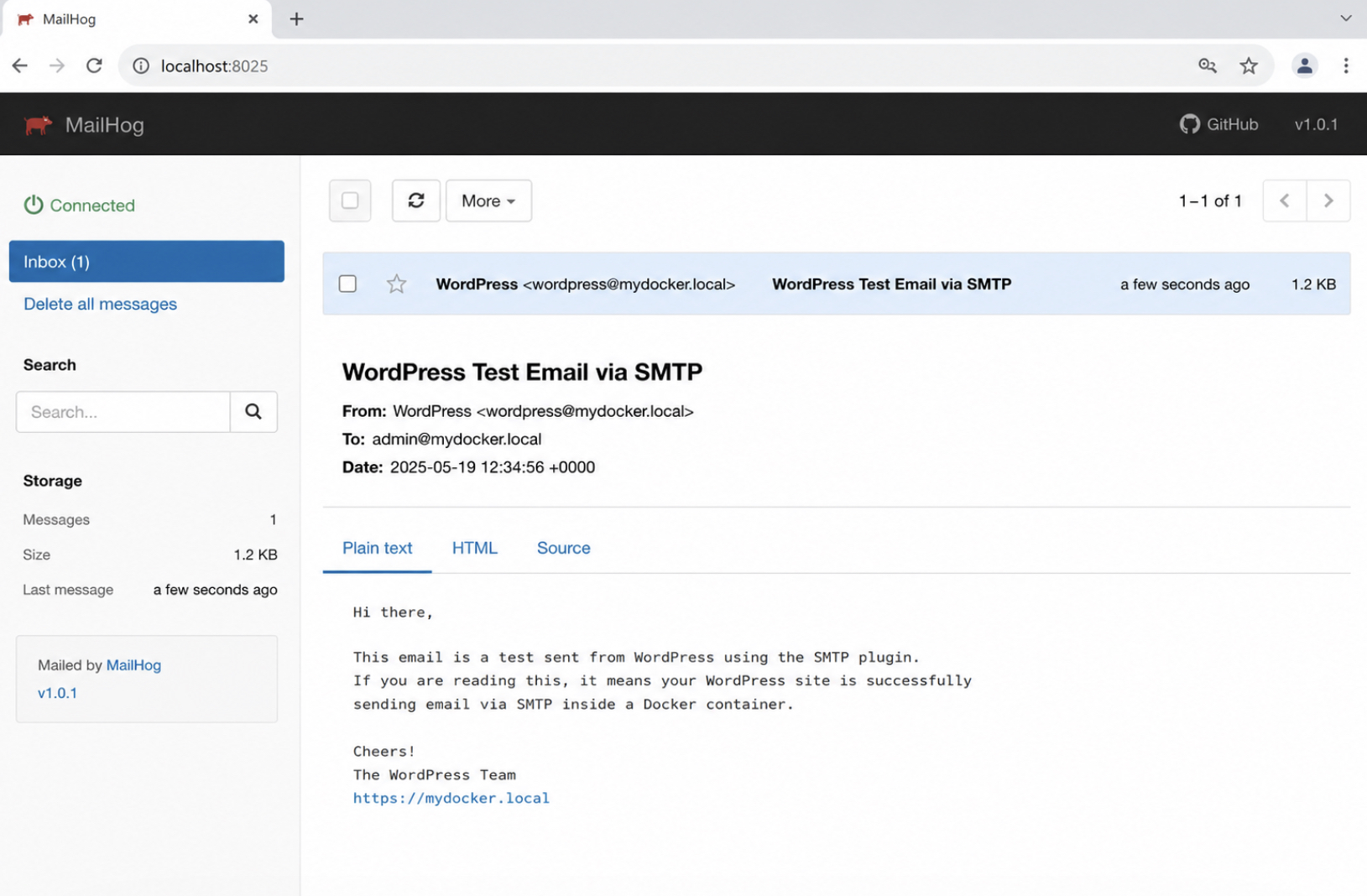
MailHog is a mail catcher, a small service that captures outbound mail in-container and holds it for inspection instead of sending it onward to a real recipient. For a development stack, that behavior is the point: a WordPress test email can be verified without a single message reaching an external inbox.
The complication is that WordPress and MailHog run as two separate containers, and by default they cannot reach each other. A shared docker network resolves the mismatch. Placing both services on the same compose network lets the WordPress container address MailHog by its service name, and the SMTP transport is then aimed at host mailhog on TCP port 1025:
MailHog receives the mail on port 1025 and exposes a web interface on port 8025. Every message the WordPress container emits lands in that interface rather than a public mail server.
Seeing a caught message in that inbox is direct proof that the WordPress container can send email; the capability is demonstrated, not assumed.
Can WordPress Send Email from Inside a Docker Container?
Yes, any check of whether WordPress can send email from inside a Docker container is affirmative, once an SMTP transport is wired and verified. The capability depends on a configured transport, not on anything the base image provides: the container ships with no default mail transfer agent, so nothing carries a message outward until an SMTP server is named and its credentials supplied.
The full path from a fresh stack to a delivered message is short and sequential. A running docker-compose stack comes first, and a chosen mail transport runs on that stack: an SMTP plugin configured inside wp-admin, an external managed relay passed in through compose env vars, or a mail transfer agent built into the image and driven by the sendmail_path setting.
Whichever transport handles the mail, it points at an SMTP server by host and port, with credentials and STARTTLS encryption set, and those credentials stay out of the built image, held instead in compose secrets or an env_file. A test send from inside the running container is the final step, out to a real mailbox or into the MailHog catcher, and once that message lands, outbound WordPress email over SMTP from inside the Docker container works from end to end.






 ChatGPT
  Claude
  Grok
Grok  Gemini