Explore our specialized services, tailored solutions, and industry expertise to elevate your digital presence. From custom WordPress development to seamless integrations, we build high-performing websites that deliver impact.
Moving a WordPress site from localhost to a live server is the deployment route that takes a build running only on your own machine and turns it into a public site at a real domain. You built the thing locally (themes installed, content drafted, plugins configured), and now it has to live somewhere people can actually reach. That distance, from a site only you can open to one anyone can, is the whole job: written for the DIY-curious site owner and the in-house developer doing the deploy by hand, on a WordPress install they already have running locally.
The route itself is short and ordered. You confirm the local site is ready, move the database out of the local environment, bring it to the live host, transfer the WordPress files, and rewrite every stored web address so the site stops pointing back to your machine. Then, a final check confirms the public site loads. None of those parts is hard in isolation. The order and one specific address rewrite are where most moves quietly break.
This is the localhost-specific route inside the broader WordPress migration guide. That parent guide handles moves between two already-public hosts and deliberately hands the local-to-live case down here, because a site with no public domain behaves differently the moment you try to put it online. What that local environment actually is and why its missing domain shapes everything that follows comes first.
What is a Local Development Environment?
A local development environment is a WordPress installation that runs on the developer’s own machine rather than on a public host, served by a stack such as XAMPP, MAMP, or Local, and reachable only at an address like localhost or 127.0.0.1.
It behaves like a complete WordPress site in every respect but one: no one outside that machine can access it. The missing piece is a public domain, and that single absence is precisely what makes moving WordPress from localhost a distinct job rather than a routine file copy.
Why does the missing domain matter so much? Because WordPress does not hold its address loosely. It writes the site URL into the database: into the options table and, more stubbornly, into serialized option data, where widgets, theme settings, and page-builder layouts each keep their own buried copy.
On localhost, every one of those stored values reads as the local address. Carry the database onto a live host untouched, and the site keeps insisting it lives on your machine: internal links resolve to localhost, the dashboard redirects into a loop, and images refuse to load. The site is present on the live server and is still unusable.
That stored-address problem is why one step in the move carries more weight than the rest: rewriting every local address to the live domain (the database site-URL replacement, the search-replace) is the load-bearing step.
The mechanical parts can each run flawlessly, and the move still fails if that rewrite is skipped or run with a tool that mangles serialized data; the operational detail of how it is done only comes into play when the procedure reaches it. A working local build is the starting condition that makes any of this possible, so the move opens by establishing that the local site is ready.
Local Site Readiness Before the Move
Local-site readiness before the move is the set of preconditions that must be true before any database or file operation runs (the gate the localhost→live move passes through first). A move that begins without these in place does not fail loudly at the start; it fails three steps later, on a live host, with a half-deployed site and no clean state to fall back to. So readiness is checked before, not during.
Three conditions define that gate:
A working local build: the site as it stands on localhost, themes and plugins active, content final, no broken state you would not want carried forward.
A provisioned live server: a host where an empty database can be created and the domain is pointed at that host, so there is a real destination for the move to land on. The database itself is created on that host as part of the import; readiness only needs the host account, database access, and the domain in place, not a finished empty database sitting idle.
FTP or SFTP credentials for that host, since the WordPress files have to travel somewhere and those credentials are how they get there. The live server here is purely a readiness condition (it must exist, with host, domain, and the ability to create a database), not a host you are still shopping for; choosing or buying hosting is a separate decision, this route assumes you have already made.
Two of those preconditions carry enough weight to handle on their own. The working local build reduces to a concrete question about which tooling the existing site already runs on, and the safety question (what happens if a step goes wrong midway) reduces to a recoverable copy taken before anything irreversible runs. With the local site confirmed ready and a backup in hand, the destructive part of moving WordPress from localhost can begin with the database.
Local Development Environment
A local development environment is the XAMPP, MAMP, or Local tooling that the reader’s existing WordPress site already runs on, the deployment source from which this whole move starts. Here, the concept is narrower than its full definition: not what such an environment is or why a missing domain reshapes the move, but the concrete prerequisite itself: a working WordPress site, served by one of those local stacks, sitting on your machine right now, ready to be moved.
The route assumes that the site exists. It is the thing being moved, so there is no way to migrate WordPress from localhost without a real local install in place. If you already have a site running under XAMPP, MAMP, or Local, you meet this condition and need to do nothing here.
If you do not yet have one, if you landed here planning to build locally first, set that up before going any further; the focused walkthrough for that lives in the guide on how to “install WordPress locally“. Once a working local environment is confirmed, the first of the two readiness conditions is satisfied and the gate is one step from open.
Local Site Backup
A local-site backup is a recoverable copy of the local WordPress files and database, taken before any move operation runs. It is not a backup-strategy project or a plugin tour; it is a deliberate snapshot of the site in its known-good local state, taken before anything starts changing.
Why insist on it as its own step rather than fold it into general caution? Because the operations ahead are destructive in the sense that they cannot be casually undone. Pulling the database out, reading it onto a live host, sending files across, rewriting stored addresses: any one of those can go wrong partway, and when it does, the recoverable copy is the difference between starting the step again and rebuilding the site from memory.
The backup protects the local original; it preserves the exact state you are moving from, so a failed attempt costs an hour, not the work itself. With the local environment confirmed and that recoverable copy set aside, the readiness gate is open, and the move can act on the database with nothing irreversible left unguarded.
WordPress Database Export From Localhost
The WordPress database export from localhost is the step that copies the local site’s entire database from the development environment into a single portable file, so everything the site stored while you were building it can be moved to the live server.
When you migrate a WordPress site from localhost, almost nothing the visitor will ever see lives in the files on disk. Posts, pages, users, plugin settings, menu structures, and the addresses WordPress recorded for itself, all of that sits in the database. Move the files without the database, and you have shipped an empty shell. The export is the process by which data leaves the local machine in a format that the live server can later accept.
The operand here is the local WordPress database: a set of MySQL tables that the local stack writes to whenever you save a post or change a setting. A handful of those tables, wp_options chief among them, hold the site’s own URL, and on a local build, that value is something like http://localhost/yoursite or http://localhost:8888, stored not only as a plain field but threaded through serialized option data where plugins and themes cached it.
You do not need to touch that yet. You only need to know it is in there, because it is the reason a later step in moving WordPress from localhost to a server exists at all. The export’s job is to get every table out intact, including localhost addresses and all.
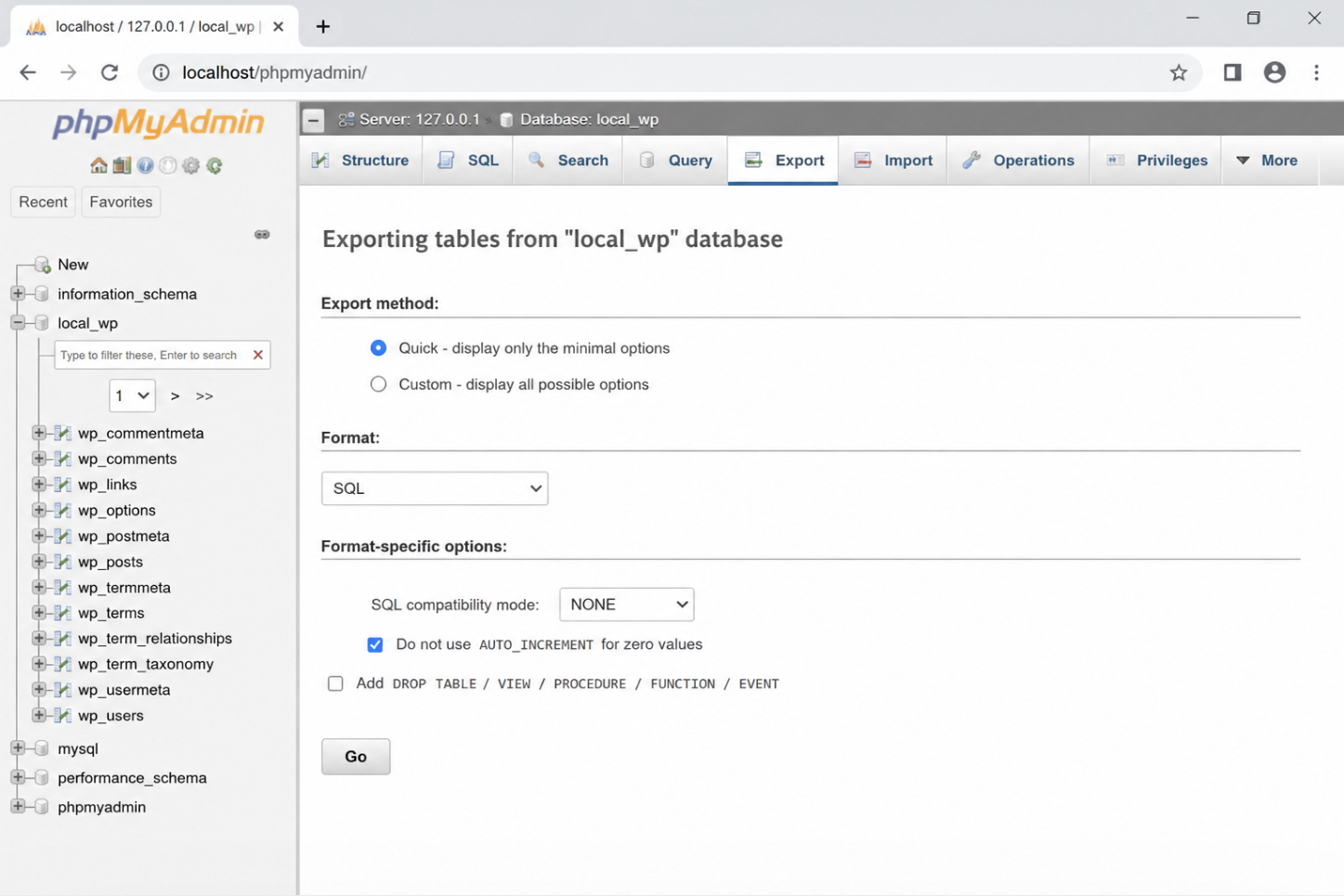
The instrument is the database tool already sitting in your local stack: phpMyAdmin in most XAMPP and MAMP setups, Adminer in others, both reached in the browser at an address such as localhost/phpmyadmin. Select the local WordPress database in the left-hand tree, open the Export tab, leave the method on Quick for a standard site or switch to Custom and SQL format when you want control over which tables go, and run it with Go.
What lands on your machine is a single .sql file: plain text, the full set of CREATE TABLE and INSERT statements that can rebuild the database anywhere. No tool review is needed here; phpMyAdmin and Adminer produce the same .sql, and the choice between them changes nothing about what you carry forward.
That .sql file is the whole point of this step, and its size tells you what the rest of the move is dealing with. A modest blog or a freshly built site exports to roughly 2–10 megabytes; a site with years of content, revisions, and chatty plugin tables runs into the tens or low hundreds of megabytes (a 50–150 MB file is common at that stage), and a large store with extensive order history crosses into the gigabytes, often 1–5 GB.
Note the figure. It is the payload, the next stage of moving the site to the live server, that has to be put down on the other side, and it is the first concrete thing you now hold from the local environment that the live server will consume.
WordPress Database Import on the Live Server
The WordPress database import on the live server is the step that takes the exported .sql file and loads it into a database that lives on the production host, so the moved WordPress install finally has populated tables to read from instead of an empty shell. The export produced one file and put it in your hands.
This step performs the reverse operation on the other side: it rebuilds, on the live server, the exact set of tables that the local site had. Until it runs, the WordPress files you intend to put on the server have nothing behind them: every post, user, and setting still lives only inside that single .sql payload, not on the live host.
One thing has to exist before the file can land: the empty database on the live server you provisioned during the readiness gate. That gate already had you create the database, create a database user, set a password, and grant that user full privileges on that database through the host control panel. Keep it empty on purpose.
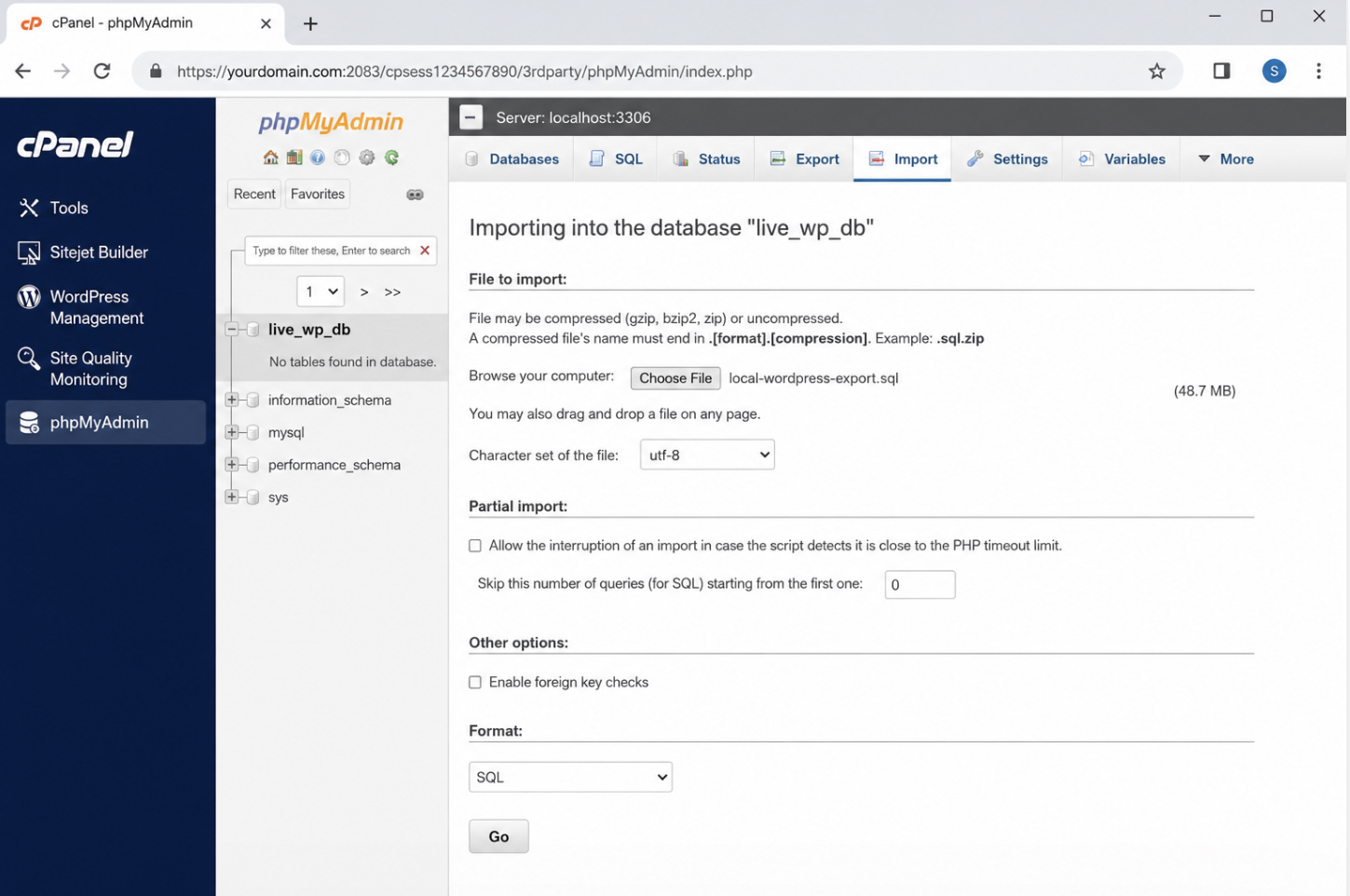
You are not blending two datasets; you are placing the complete local dataset into a clean target, and a database that already has tables in it is the quickest way to corrupt a move. With that empty database waiting, you reach the live host’s database tool. On most hosts, that tool is phpMyAdmin again, opened through cPanel or Plesk rather than at a localhost address: the same interface, a different building around it. Select the empty live database you prepared, open the Import tab, choose the exported .sql file, and run it.
Duration scales with the file you noted at export. A 2–10 MB database finishes in well under a minute; a database in the tens or low hundreds of megabytes takes roughly 2–10 minutes; a very large, media-heavy dataset in the gigabytes can take 30–60 minutes or longer.
When the browser tool refuses the file (many hosts cap the upload size at around 50 MB), the same .sql file is uploaded via a command-line database client or the host’s dedicated import utility instead, and what ends up stored is byte-for-byte identical. The destination does not change with the instrument; only the path the file travels does.
When the import completes, the live database contains every table the local site had, including rows where WordPress recorded its own address as a localhost URL. That carried-over detail is why the move is not finished here, and it surfaces two steps on.
What the populated live database needs immediately is a way for the WordPress install on the server to find it: the moved site has to know this database exists, which credentials open it, and where it answers. That connection between the imported data and the WordPress files is not automatic, and it is the next thing the deployed site depends on.
wp-config.php Database Credentials
The wp-config.php database credentials are the four connection settings WordPress reads at the start of every request to locate and open its database: DB_NAME, DB_USER, DB_PASSWORD, and DB_HOST. They are configuration, not an action: a small block of values in one file that tells the moved WordPress install which database to talk to and how to prove it is allowed to do so.
When you migrate a WordPress site from localhost to a live server, this file is the seam where the freshly imported live database and the WordPress files on the server actually meet. Without the credentials matching, the import you just ran is unreachable, and the deployed files answer with nothing.
The credentials on a local build point at the local stack. A wp-config.php written for localhost names a local database, a local user such as root, an empty or throwaway password, and localhost as the database host. None of that resolves on the live server.
The live database carries the name you chose when you created the empty database, the user you granted privileges to, the password you set, and a host the provider specifies: sometimes still localhost, often a dedicated database-server hostname. The four constants sit in wp-config.php as literal lines:
Every value has to match what the host issued, character for character.
A wrong DB_NAME points WordPress at a database that is not there;
A wrong DB_USER or DB_PASSWORD gets the connection refused;
A wrong DB_HOST means the request never reaches the database at all.
Get all four right and the moved install connects to the imported data on the first load. Get one wrong and the live address answers with a database connection error rather than a page. The credentials, not the import itself, are what bind the deployed files to the deployed data.
This same file also carries a second, separate pair of values: the site’s own address constants, WP_HOME and WP_SITEURL, which decide which URL WordPress treats as home and are not part of the database connection at all. Setting those is a focused procedure with its own conditions, covered end-to-end in the dedicated walkthrough on how to “change the WordPress site URL in wp-config.php“, which sets the WP_HOME and WP_SITEURL constants in full.
For the move, the database credentials are what have to be right before anything else can be: with the four constants matched to the live database, the imported data is reachable, and the site’s own address, still resolving to localhost everywhere it was stored, is the next thing the moved WordPress site has to resolve.
WordPress Site Files Transfer to the Live Server
The WordPress site files transfer is the move of the site’s on-disk code and media from localhost to the live server, the second object you migrate, working alongside the database that already sits on the host.
The files are everything WordPress runs from on disk. That means the wp-content directory, including its themes, plugins, and uploads, plus the WordPress core files and the root configuration. The database holds the posts, options, and settings; the files hold the code and media that turn those rows into pages. Both halves of the moved site have to land on the live server before a single request can be answered there.
The operand is the full WordPress directory exactly as it stands in your local environment. How big that is varies more than people expect.
A content-light build is small, a typical theme-and-a-handful-of-plugins install runs around 50 to 150 MB once WordPress core is counted in, and the move is over almost before it starts.
A media-heavy site behaves differently: the uploads folder alone can grow to several hundred megabytes, and a large media library pushes the payload past 1 GB and into multiple gigabytes. Check the directory size before you begin. That number, not the raw file count, determines whether the move takes a few minutes or stretches into an hour, and on a very large media library, hours.
The file count is its own surprise: a stock WordPress install is already near 2,000 files, and once every theme asset and every plugin file is added a real site sits in the 5,000-to-15,000 range, which is the whole reason this runs as one bulk operation rather than a manual copy.
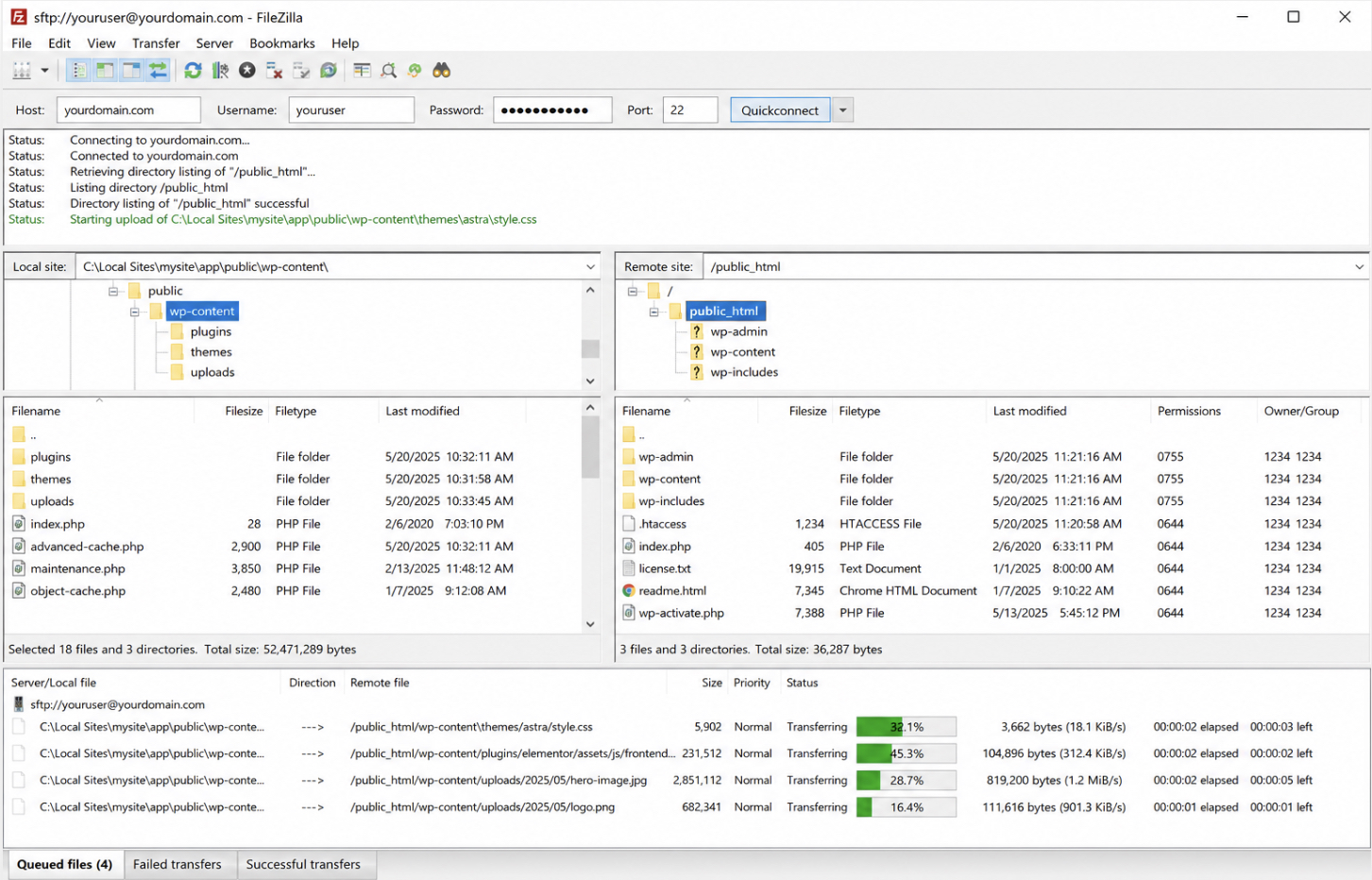
You move the files over an SFTP or FTP connection. An SFTP client (FileZilla is the one most people reach for) opens a session to the live server using the host address and credentials your provider issued. The local WordPress folder appears in the left pane; the live server’s web root appears in the right pane. The web root is the directory the domain serves from, named public_html on most hosts and www on some. Drag the local directory onto the web root, and the client queues every file and sends them in order. The queue is where the megabytes and the minutes count down, and on a media-heavy library it is where you learn whether your earlier size check was optimistic.
When the upload finishes, the moved files and the already-imported database together constitute the WordPress site as it now exists on the live server. The code is in place. The content is in the database. The two are wired together, and the live server maintains a complete copy of the site.
One thing stays true at this point, and it is the thing the next move turns on: every internal address the database stores still points at localhost, so the site renders against local URLs even though it lives on the host. None of this would have been safe to attempt without the readiness already settled before any of it ran: a working source, a provisioned server, transfer credentials, and a recoverable backup were what made an irreversible sequence something you could run with confidence.
The files have arrived and the database is loaded; what is left is making the site answer to its own domain instead of localhost, which is the site-URL correction the move closes on.
WordPress Site URL Search-Replace After the Move
A WordPress site URL search-replace after the move is the rewrite of every stored localhost address to the live domain across the imported database. The database you just moved still believes it is running at http://localhost/yoursite, because WordPress writes that origin into the wp_options table and then stamps it again, this time in serialized form, inside widget settings, theme options, and post metadata.
Files uploaded, credentials correct, and the site still points at a machine the public internet cannot see. It resolves to nothing. Until the localhost URL is replaced everywhere it appears, the move from localhost is finished on paper and broken in practice: the home page loops, the login bounces back to localhost, and every image requests a server that only exists on your laptop.
The old origin hides on two surfaces, and they do not behave the same way. The first surface is shallow: the siteurl and home rows at the top of wp_options, which a direct SQL statement flips in two lines.
UPDATE wp_options SET option_value = 'https://example.com' WHERE option_name = 'siteurl';
UPDATE wp_options SET option_value = 'https://example.com' WHERE option_name = 'home';
Those two rows are the first things WordPress reads, so correcting them is usually enough to get the dashboard to load. The whole front end, though, is a different problem, because it draws on the second surface: serialized data, PHP arrays saved as strings where every value carries its own byte-length prefix.
A blind find-and-replace edits the text but leaves the prefix unchanged, WordPress then refuses to unserialize the now-mismatched record, and widgets disappear, theme settings reset, page-builder layouts fall apart. A length-aware pass is what rewrites the address while keeping serialization intact, table by table.
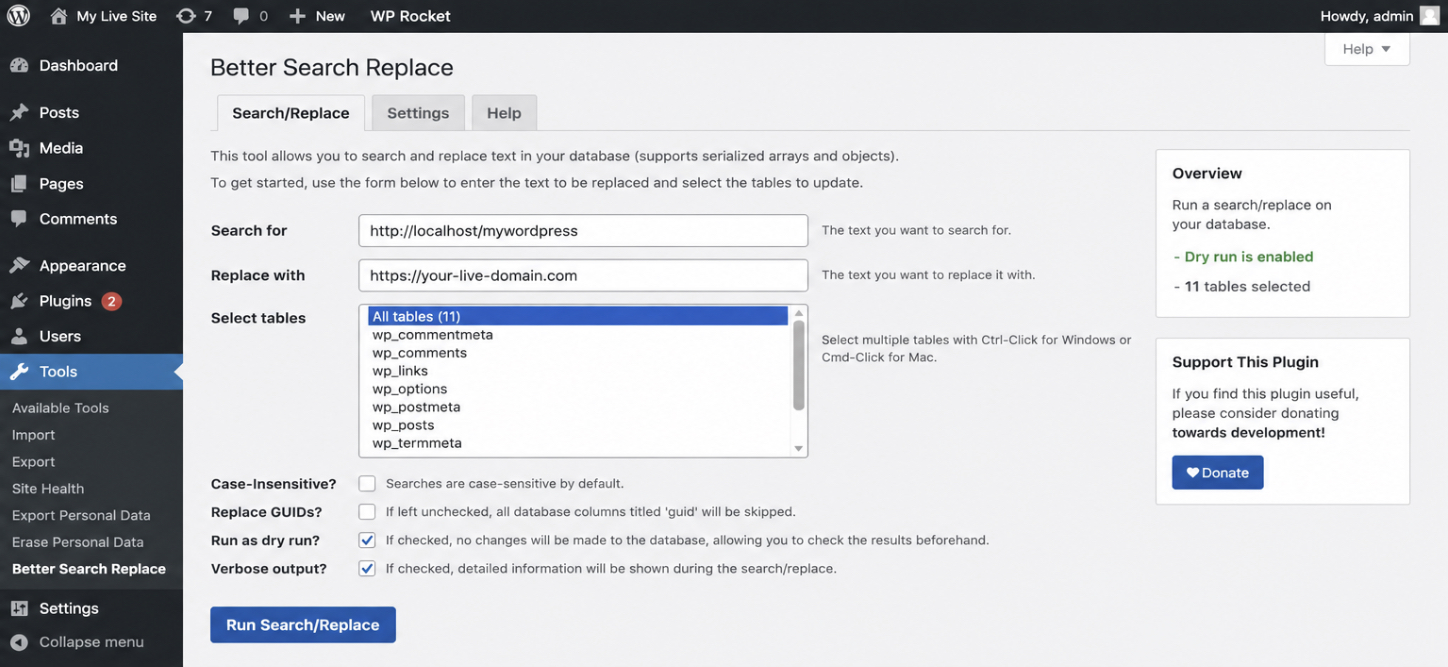
A dry run is what proves the rewrite is pointed correctly before a single value is written — the localhost address in the search field, the live domain in the replace field, every table selected, and nothing committed until the preview confirms the match:
So the localhost-to-live URL fix splits into two real operations. One performs the swap itself: the controlled rewrite across wp_options and serialized data, previewed and then committed. The other confirms it by loading the moved site at its real domain and watching it render like a production site.
The scriptable form of the same rewrite (the single, repeatable command an agency runs on migration day instead of clicking through a plugin) is provided by WP-CLI, the WordPress command-line interface. It lives within the agency WP-CLI workflow, where wp search-replace natively walks serialized data from the command line.
That command-line version is one disciplined instance of the logic described here. And the logic itself is not specific to a laptop: the same export-and-rewrite shape carries, unchanged, to any source that feeds a production server, a point worth holding until the moved site is confirmed live and working.
Site URL Replacement
Site URL replacement is the controlled swap of every stored localhost address for the live domain across the imported database: the two wp_options rows first, then the serialized option, widget, and post-meta values that the obvious rows do not cover.
This is what it means to migrate WordPress from localhost: not the file copy, which is already done, but the rewrite of the address the database hands to every template, link, and asset reference. The stored localhost site URL is the operand. The live domain is what it becomes.
Better Search Replace is the tool most site owners reach for because it understands serialized data and runs inside the dashboard; the credentials fix is just made accessible. Install it on the live site, open it, and enter your exact local address into the search field: http://localhost/yoursite (no trailing slash), copied character for character from the value you saw during the database export.
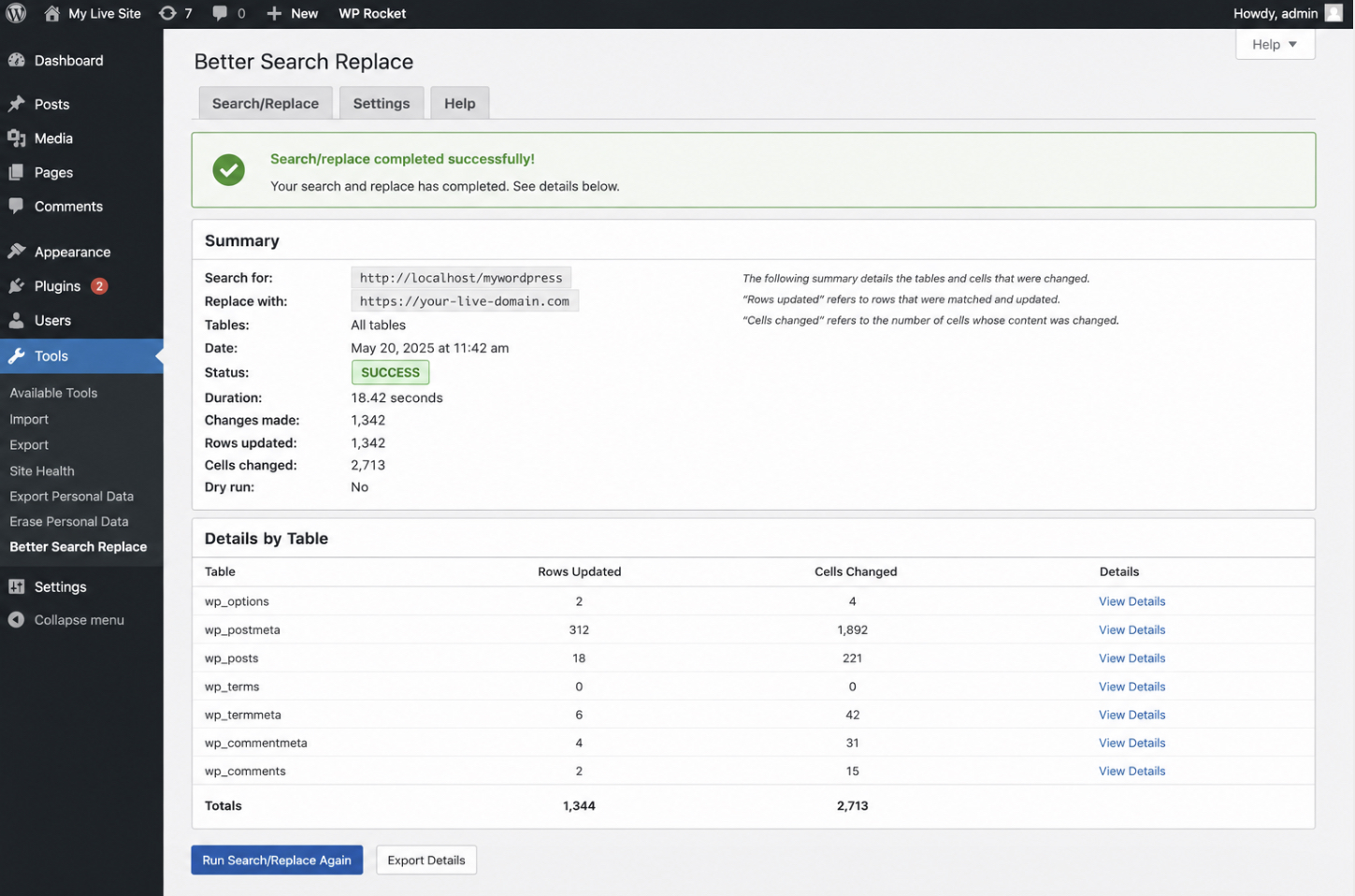
Put the live address, https://example.com, into the replace field. Select every table, not a subset: the localhost string hides in wp_postmeta and serialized wp_options rows as readily as in the two obvious ones, and a partial selection leaves the site half-moved. Run a dry pass first, with the dry-run box ticked. The plugin reports how many rows it would touch per table, and a count like “47 cells in wp_options, 312 in wp_postmeta” is the proof you want. It says the localhost URL really is embedded that widely and the replacement is about to reach all of it.
Untick the dry-run box, then run it for real. The results panel now shows what actually changed, table by table, with the same per-table counts and a completed state. Read those numbers. A live run that reports zero changes did not match the search string: almost always a trailing slash, an http against https mismatch, or a port like :8888 from a MAMP install that you left off the front of the address. Match the stored string exactly and the counts come back populated where the dry run said they would.
The plain SQL UPDATE on the two wp_options rows is still a valid fallback when no plugin is available; it resolves siteurl and home, which is enough to reach the dashboard. It does nothing for the localhost URLs within widgets, customizer settings, and page-builder content, and those are the ones that need the length-aware pass so the serialized strings rewrite without corruption.
Once the live run finishes across every table, the database no longer names the machine on your laptop anywhere. The moved site now resolves to its public address, ready to be loaded and confirmed.
Live Site Verification
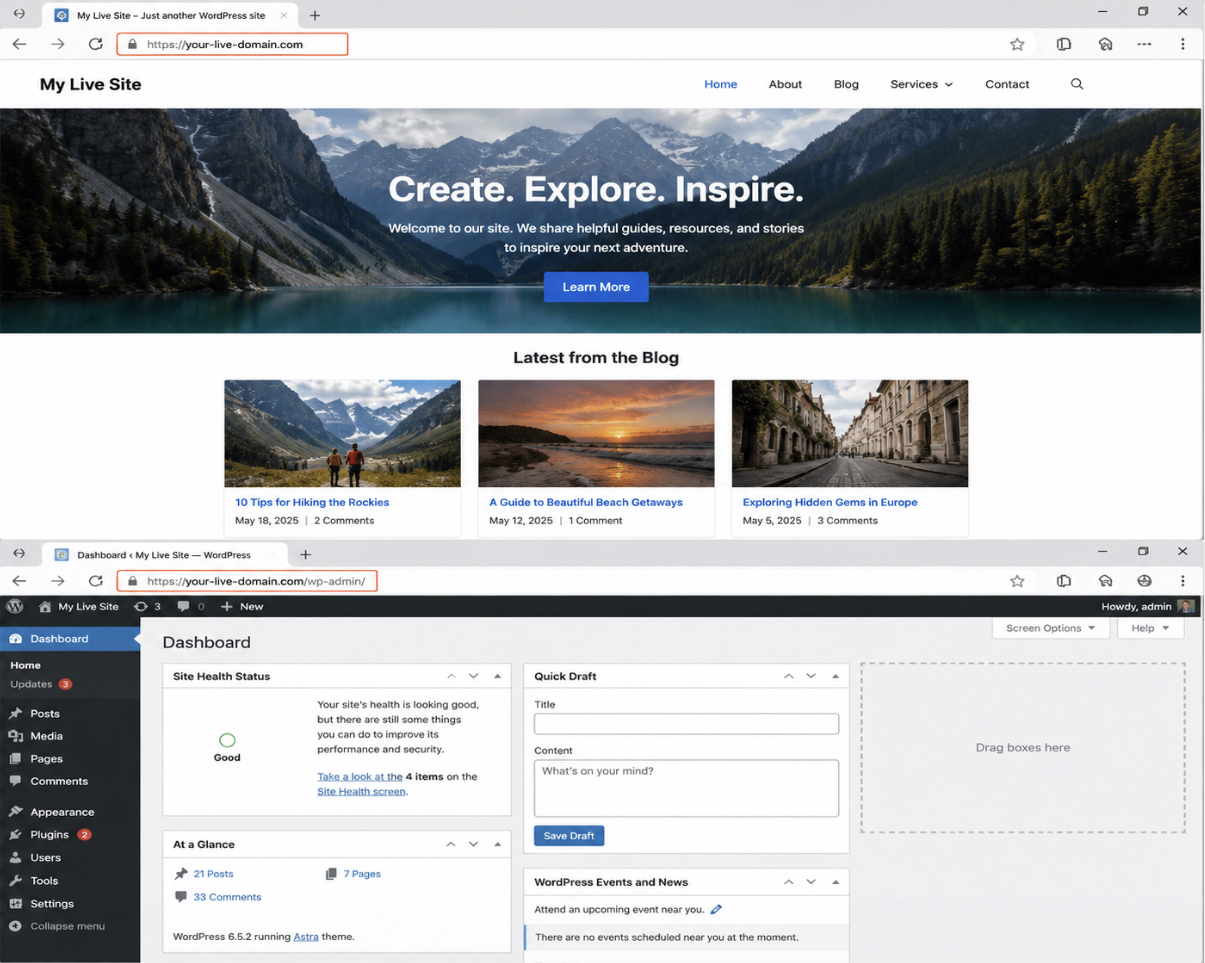
Live site verification confirms that the moved WordPress site is working and publicly accessible on its real domain (the final step in the localhost-to-live move). Verification is where the move stops being a claim and becomes something the reader can see, so this is where you load the site as a visitor would and watch it behave like a production site rather than a local copy. The migration from localhost is only as done as this last check proves it to be.
Open the live domain in a clean browser tab. The address bar should read https://example.com, not localhost, and it should stay there without redirecting back to the local machine. The front end renders: the theme loads with its styling intact, images resolve from the live server, internal links move between real pages instead of dead localhost addresses.
Three checks settle it:
The front end first: the home page and one inner page, fully styled, as a visitor sees them.
The live admin dashboard second, at https://example.com/wp-admin, which should present the login and then the dashboard with no database-connection error and no white screen.
Third, a permalink spot-check: open a single post directly by its own URL and confirm it returns the post rather than a 404, which shows the rewrite rules survived the move and the stored URLs resolve at the individual-content level too.
When a check fails, the failure points back to an earlier named step, not to this confirmation. A “database connection error” on the dashboard is not a verification fault. It points to the wp-config.php credentials, where the database name, user, or password still carries a local value.
A site that loads into redirect loops, or a front end that comes up unstyled with broken images, points back to the site URL replacement: a localhost string the search-replace pass did not match, usually because the search term and the stored value were not identical. Each symptom maps cleanly to one prior operation, which is why this stays a confirmation and never turns into a troubleshooting exercise.
Address bar on the live domain, front-end rendering cleanly, dashboard loading, a permalinked post returning itself. At that point, the move is complete and demonstrated. The WordPress site that lived only on your laptop is now a working public site on its own domain, reachable by anyone and behaving like a live site should.
That endpoint closes the localhost-to-live procedure itself. The same export, replace, and confirm shape, though, is not bound to a laptop as the starting point. It carries over unchanged to any other source that pushes a built WordPress site to a production server.
Source Environment to Production Move
A source-to-production move takes a WordPress site that lives on a non-public origin and brings it to its public, live home. That is the localhost-to-live route already established, with one assumption dropped: the origin no longer has to be localhost.
Localhost was one source environment. It happens to be the one most people start from, but it is not the only one, and nothing about the route changes when the origin does. The procedure you followed to get a WordPress site from localhost to a live server is the procedure here, too. What differs is one recorded value: the site address the database has stored. That is the whole of the difference.
Hold onto that, because it quietly collapses several questions that look separate into a single one. A site sitting on a staging environment and a site sitting on a developer’s working setup both move to production along the route the localhost path already traced. The destination is the same. The order of operations is the same.
The origin’s stored address simply steps into the slot the localhost address held, and everything past that behaves exactly as it did before, which is why “wordpress staging to production” turns out to be the same problem you have already solved, wearing a different starting address.
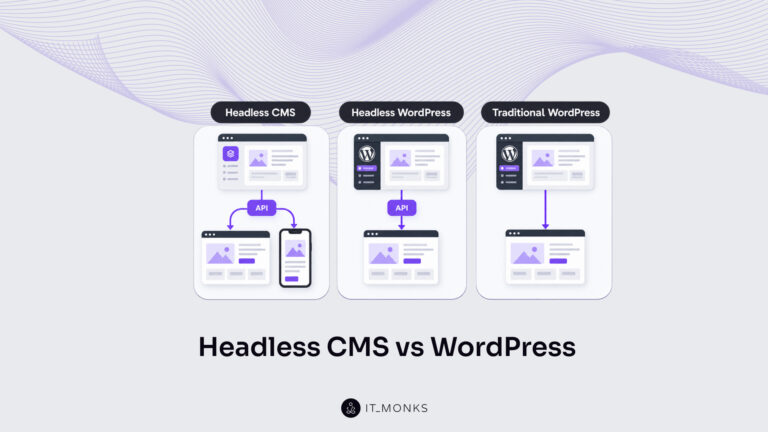
Two origins surface most often when the question comes up: a staging environment and a development environment. Both are private by design, both eventually have to face a live audience, and both reach it the way moving a WordPress site from localhost to a live server reaches it. Where it gets interesting is not the move itself but the relationships around it: what each environment is for, when work flows from one to the next, who is allowed to touch which. That belongs to the wider model of “staging, production, environments“, not to a deployment you run once and finish. The mechanics here stay deliberately narrow.
Staging to Production Move
A staging-to-production move takes a WordPress site that lives in a staging environment and moves it to production, along the route, with the localhost path already established. Staging is a private mirror of the live site, close to production in shape, intentionally closed to the public. Moving it forward is not a new technique. It is the technique you already know, with a single value swapped.
The difference is precisely one thing: the address the database has stored is the staging URL rather than a localhost address. So when the route reaches the point where the origin’s recorded site address gives way to the live domain, the staging address gives way (the steps around it do not shift, and nothing is rerun differently).
“Move wordpress from staging to production” and “moving a wordpress site from staging to live” describe the same ordered sequence you have, with the staging address occupying the position the localhost address occupied.
That is staging in full. How a staging environment and production actually relate across a project’s life, not the one day a site goes live, but the way work travels between them over months, is a question about how environments fit together, and that depth sits with the broader environments model rather than with this single move. The development origin works the very same way.
Development to Production Move
A development-to-production move takes a WordPress site that lives in a development environment and moves it to production via the already-established localhost path. A development environment is where a site is built and changed before anyone outside the team sees it: private, like staging, and like localhost before it.
Only the stored value differs. The development environment’s recorded site address stands in for the localhost address, and the route runs unchanged around it: same sequence, same destination, one substituted origin.
There is nothing extra to learn for this case. “Move wordpress site from development to production” is the localhost move you already did, starting from a different address.
How a development environment relates to staging and to production across the life of a project (the order work travels, what each environment is responsible for) is a question about how environments fit together as a model, not about a single deployment, and the broader environments material carries that depth.
Moving a WordPress site from localhost to a live server is, by this point, done and confirmed: the database is in place on the server, the recorded addresses resolve to the live domain, and the site answers on its public address exactly as the localhost copy did.
The same shape of move serves a staging origin or a development origin just as cleanly, only the starting address changes, so the route you followed is the route that takes any private WordPress site to its public, live home.





 ChatGPT
  Claude
  Grok
Grok  Gemini