WordPress Template Hierarchy: Complete Guide

Table of Contents
Every URL within a WordPress website ultimately maps to a particular template file. WordPress uses a predefined sequence, known as the template hierarchy, when searching for the template file. This process determines what appears in your posts, archives, searches, and even 404 errors.
When viewing any webpage, WordPress searches its list of templates from the most precise to the most generic. If there’s no match, WordPress will rely on the default template file.
In this article, we’ll learn how to determine the template, which templates work for various page types, the differences between classic and block themes regarding template files, the template overriding method with child themes, and, finally, how to determine the currently active template on any webpage.
What Is the WordPress Template Hierarchy?
The WordPress Template Hierarchy is the predefined lookup process that helps the theme choose which template file to use to display a given page. WordPress relates the URLs or WP_Query parameters with the list of template files in order of priority. Any page in WordPress, from posts to archives to search results, and even 404 pages, is checked by the hierarchy in a systematic manner.
The lookup follows one and only rule, and that is the specificity-to-generality rule. First, WordPress searches for the most appropriate template file. If it cannot find any that would be applicable, then it works its way down to other options that fit.
Finally, if there are no other templates, then WordPress uses the index.php file in traditional themes and index.html in block-based themes. This is the only file that a theme requires in order to function, although all the content on your site would look the same.
Using more templates, you get to customize your website further, as posts, pages, and archives will now have different appearances.
This process is not optional and cannot be changed by the user. It is used by every WordPress theme. The WordPress core uses the hierarchy on every front-page rendering, whether your theme uses two or two hundred templates. It is also how a post looks different from an archive in the same WordPress installation.
How the Template Resolution Process Works
The template hierarchy is a concept. Resolution is the method through which WordPress converts a URL into a page. The steps below outline the process.
WordPress accepts a URL, breaks it down into query variables, which are pieces of information that specify what the user wants to access. This is done using WP Query, where the information obtained from the URL is applied to create the main query object.
After WP_Query completes, template-loader.php fires. This core file serves as the bridge between the query results and the template system. It evaluates a series of conditional tags , is_single(), is_page(), is_category(), is_archive(), is_search(), is_404(), and others , against the current query. Each conditional tag identifies a page type.
Once the page type is identified, WordPress calls get_query_template() for that type. This function builds a candidate file list in priority order, the specific-to-generic sequence defined by the hierarchy. For a category archive, the candidate list might be: category-tutorials.php, category-5.php, category.php, archive.php, index.php.
WordPress then checks the active theme’s directories for each candidate filename, starting with the child theme directory (if one is active) and falling back to the parent theme. The first file that physically exists in either directory wins. WordPress loads it and renders the page.
One final step: the template_include filter fires after the template is resolved but before it renders. This hook allows plugins or theme code to override the selected template programmatically, swapping one file for another regardless of what the hierarchy resolves to. Developers use template_include for conditional template logic that the standard hierarchy cannot express.
Where Template Files Live in a WordPress Theme
Template file locations differ between classic and block themes, and this behavior is directly tied to the WordPress file and directory structure. The file structure determines how WordPress finds and loads each template.
Classic Themes
Classic themes store template files as .php files in the theme’s root directory: wp-content/themes/{theme-name}/. Files like single.php, page.php, archive.php, category.php, search.php, 404.php, and index.php all sit at this level. Structural components, header.php, footer.php, and sidebar.php, share the same directory.
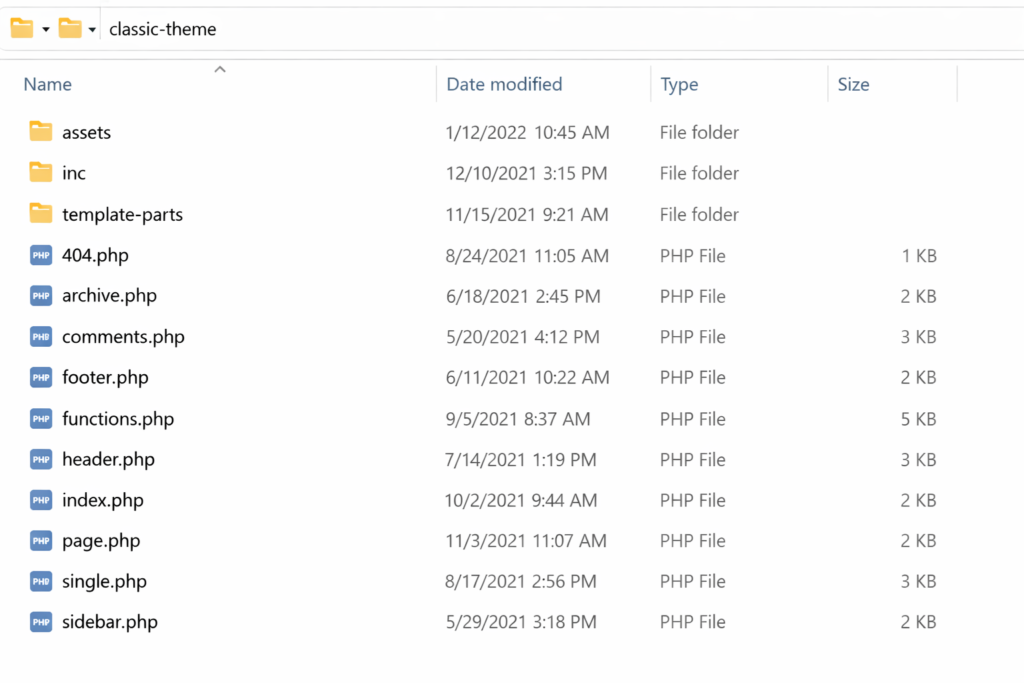
Some themes organize partial templates in subdirectories. A template-parts/ folder might contain content-single.php, content-page.php, and content-none.php. These partials are loaded by primary templates through get_template_part() rather than resolved by the hierarchy directly.
get_template_directory() returns the parent theme’s root path. get_stylesheet_directory() returns the child theme’s root path. These functions are how themes reference their own file locations in code.
Block Themes
Block themes separate template files into two dedicated directories. Full page templates, .html files, go in /templates/. Template parts go in /parts/. The theme root contains theme.json (global styles and settings), style.css (theme metadata), and optionally functions.php.
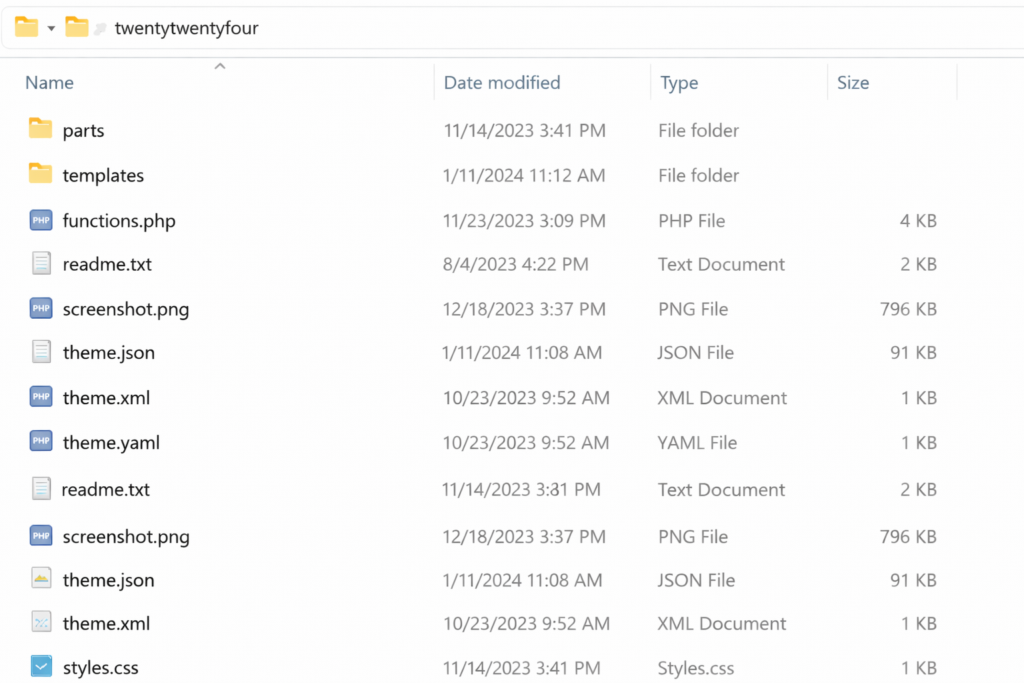
WordPress recognizes a theme as a block theme when the /templates/ directory exists and contains at least an index.html file. The /parts/ directory holds reusable components like header.html and footer.html, referenced in templates through block markup.
Hybrid Themes
Hybrid themes contain both .php and .html template files. When a theme declares block theme support and both file formats exist for the same template slot, the .html version in /templates/ takes precedence over the .php version in the root directory.
Template Hierarchy by Page Type
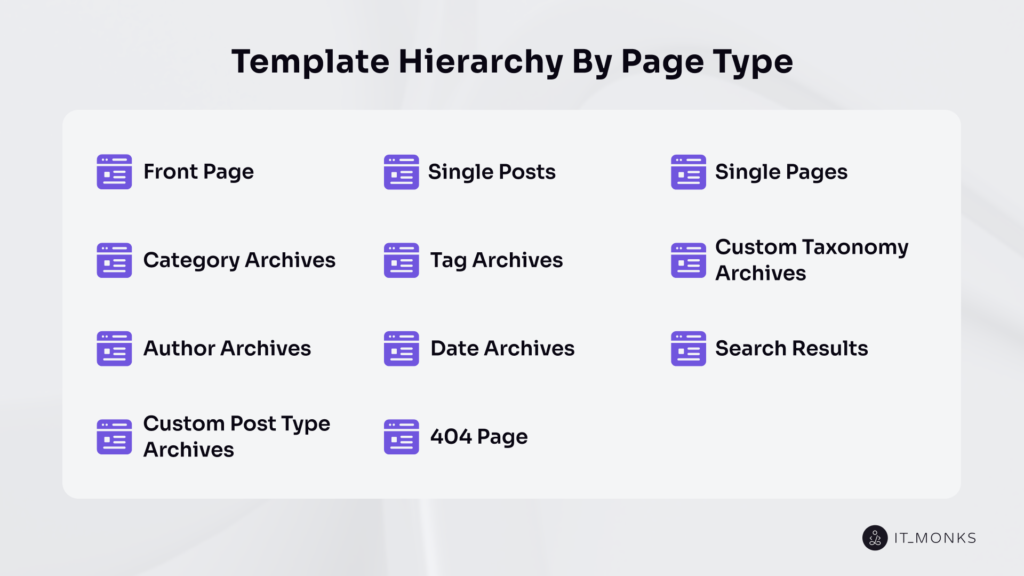
WordPress applies a different template lookup chain for each page type. The following sections cover every type with its specific fallback sequence, from the most specific template filename to the universal fallback at index.php.
Front Page
The front page has the most complex lookup because its behavior depends on the Settings → Reading configuration.
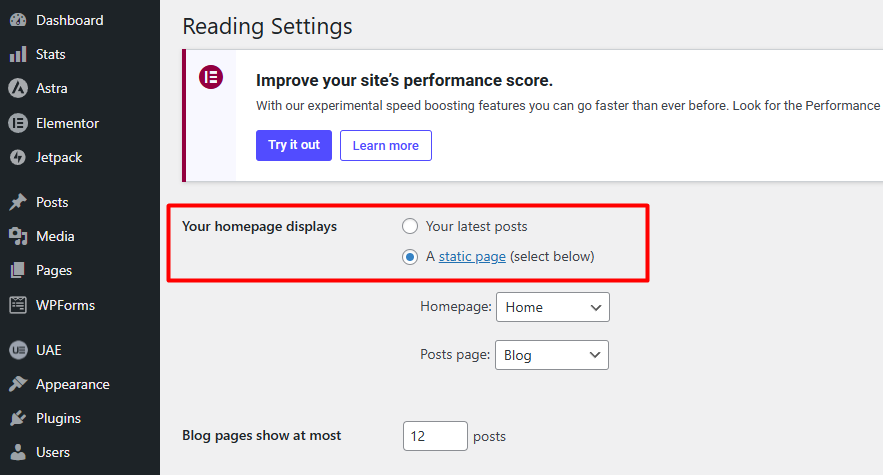
Static page mode (Settings → Reading → “A static page”): front-page.php → page-{slug}.php → page-{id}.php → page.php → singular.php → index.php.
Latest posts mode (Settings → Reading → “Your latest posts”): front-page.php → home.php → index.php.
front-page.php always takes priority regardless of which mode is active. If this file exists in the theme, WordPress uses it whether the homepage displays a static page or the latest posts. The two modes only matter when front-page.php is absent.
home.php serves a specific purpose: it controls the blog post listing page. When the site uses a static front page, home.php renders the separate posts page (the page assigned as the “Posts page” in Settings → Reading), not the homepage.
Single Posts
The single post chain resolves individual post pages, blog posts, custom post type entries, and any content viewed as a standalone piece.
For the default post type: single-post-{slug}.php → single-post.php → single.php → singular.php → index.php.
For custom post types: single-{post_type}-{slug}.php → single-{post_type}.php → single.php → singular.php → index.php. A WooCommerce product with the slug “blue-widget” would trigger a search for single-product-blue-widget.php first.
singular.php was introduced in WordPress 4.3 as a shared fallback for both single posts and single pages. It sits between type-specific templates and index.php in both chains.
Single Pages
The page chain includes one element that the post chain does not: custom page templates assigned through the editor.
Custom page template → page-{slug}.php → page-{id}.php → page.php → singular.php → index.php.
A custom page template is a theme file that includes a Template Name: PHP comment header at the top. This header registers the file as a selectable option in the Page Attributes panel of the page editor. When assigned to a page, it takes the highest priority in the lookup, above slug-specific and ID-specific templates.
For an “About Us” page with ID 42: WordPress checks the assigned custom template first, then page-about-us.php, then page-42.php, then page.php.
Category Archives
Category archives list all posts within a specific category.
category-{slug}.php → category-{id}.php → category.php → archive.php → index.php.
archive.php is the shared fallback for all archive types, categories, tags, authors, dates, custom taxonomies, and custom post type archives. If a theme includes archive.php but no category-specific templates, all archive pages share the same layout.
Tag Archives
Tag archives follow the same pattern as categories.
tag-{slug}.php → tag-{id}.php → tag.php → archive.php → index.php.
tag.php handles all tag archives unless a slug- or ID-specific template exists. Without it, tag archives fall through to the shared archive.php.
Custom Taxonomy Archives
Custom taxonomies registered via register_taxonomy() have their own lookup chain, separate from the built-in category and tag chains.
taxonomy-{taxonomy}-{term}.php → taxonomy-{taxonomy}.php → taxonomy.php → archive.php → index.php.
The {taxonomy} placeholder is the taxonomy’s registered slug. {term} is the specific term slug. A “genre” taxonomy with a “thriller” term triggers a search for taxonomy-genre-thriller.php first, then taxonomy-genre.php, then the generic taxonomy.php.
Author Archives
Author archives display all posts by a specific user.
author-{nicename}.php → author-{id}.php → author.php → archive.php → index.php.
The {nicename} value is the URL-safe version of the username, stored in the user_nicename database field.
Date Archives
Date archives cover yearly, monthly, and daily post listings.
date.php → archive.php → index.php.
WordPress uses a single template file for all date granularities. Differentiation between year, month, and day views happens inside the template itself using conditional tags: is_year(), is_month(), is_day(). The hierarchy does not provide separate templates for each.
Custom Post Type Archives
Custom post type archives only exist when the CPT is registered with has_archive => true.
archive-{post_type}.php → archive.php → index.php.
The {post_type} placeholder is the CPT slug. A “portfolio” post type would trigger a search for archive-portfolio.php before falling back to the generic archive.php.
Search Results
The search results chain is the simplest in the hierarchy.
search.php → index.php.
The search query string is available within the template via get_search_query(). WordPress returns posts matching the search terms, ordered by relevance.
404 Error Page
The 404 chain fires when WordPress finds zero matching content for the requested URL.
404.php → index.php.
This is the only template type triggered by the absence of content rather than its presence. A well-built 404.php typically includes a search form, site navigation, or links to popular content to redirect visitors toward existing pages.
Template Parts and Reusable Components
Template parts are partial files included within full page templates. The hierarchy does not resolve template parts; primary templates call them explicitly.
Classic Theme Template Parts
get_template_part() loads partial templates by name. The function accepts a slug and an optional name parameter. get_template_part(‘content’, ‘single’) searches for content-single.php first, then falls back to content.php. This allows themes to share rendering logic across multiple templates while varying it by content type.
Three specialized functions handle structural components: get_header() loads header.php (or header-{name}.php for named variants), get_footer() loads footer.php (or footer-{name}.php), and get_sidebar() loads sidebar.php (or sidebar-{name}.php). A theme can define multiple header variants, header-home.php, header-minimal.php, and load the appropriate one per template.
Block Theme Template Parts
Block themes store template parts as .html files in the /parts/ directory. Templates reference them through block markup:
<!-- wp:template-part {"slug":"header"} /-->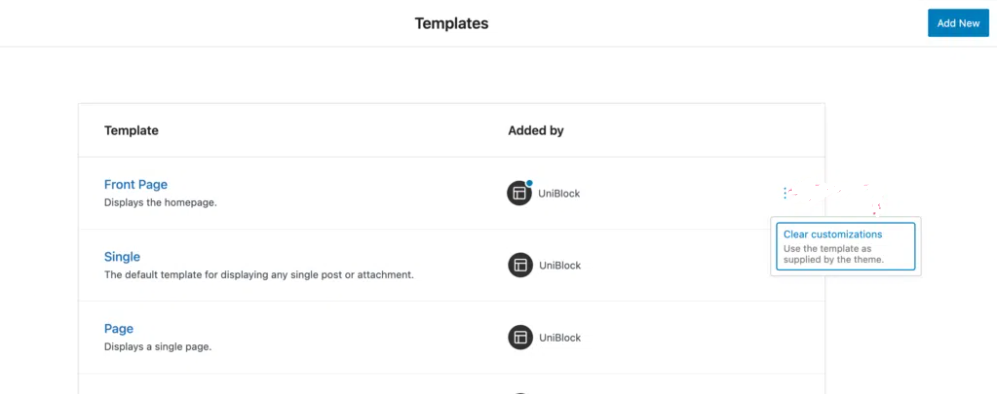
The Site Editor (Appearance → Editor → Template Parts) provides a visual interface for editing these parts. Changes made through the Site Editor are stored in the database and override the theme’s file-based versions.
Child Themes and the Template Hierarchy
Child themes insert an additional lookup layer into every hierarchy chain. For each candidate filename, WordPress checks the child theme directory first, then the parent theme directory. Placing a file with the same name in the child theme overrides the parent’s version.
For single posts, the full resolution with a child theme active becomes: single.php in child theme → single.php in parent theme → singular.php in child theme → singular.php in parent theme → index.php in child theme → index.php in parent theme. The first file found in either directory wins.
The child theme’s style.css requires a Template: header that specifies the parent theme’s directory name. This declaration establishes the parent-child relationship.
functions.php behaves differently from all other theme files. Both the child and parent versions load, child first, then parent. This is additive, not replacement. Every other template file follows replacement behavior: the child theme version completely replaces the parent theme version with no merging.
Block theme child themes follow the same override rules for .html files in /templates/ and /parts/. One exception: theme.json in the child theme merges with the parent’s theme.json rather than replacing it. Child theme settings override matching parent settings, but parent settings not addressed in the child remain active.
The child theme approach is the recommended method for any template customization on a production site. Parent theme updates only affect files in the parent directory; child theme overrides remain untouched.
Classic Themes vs Block Themes in the Hierarchy
The template resolution logic is identical for both classic and block themes. Same hierarchy, same fallback chains, same page type coverage, same lookup order. The difference lies in file format, rendering engine, and how templates are created and edited.
Classic Themes
Classic themes use .php template files in the theme root. Templates contain PHP code mixed with HTML markup. Content rendering relies on The Loop, template tags (the_title(), the_content(), the_excerpt()), and PHP conditional logic. functions.php handles theme setup: registering menus, widget areas, custom image sizes, enqueuing scripts and styles.
Block Themes
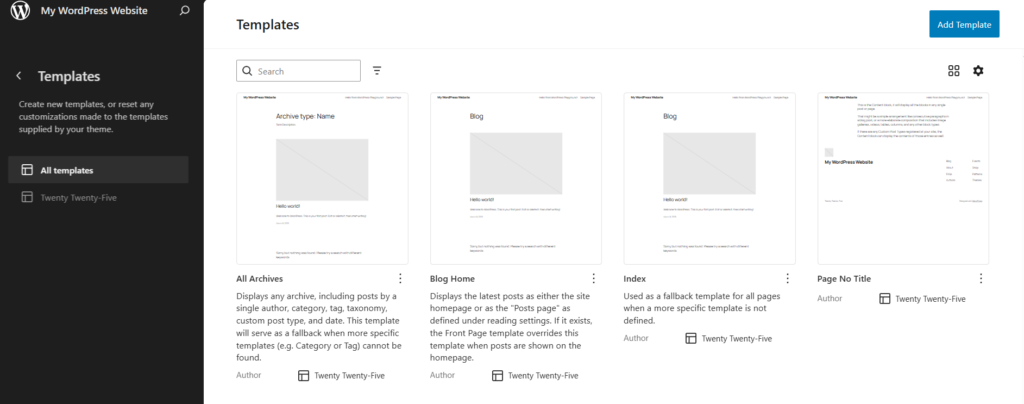
Block themes use .html template files in the /templates/ directory. Templates contain block markup, structured HTML comments that define WordPress blocks (<!– wp:paragraph –>, <!– wp:query –>, <!– wp:post-title /–>). Content rendering happens through the block parser rather than PHP execution. theme.json replaces much of what functions.php handled in classic themes: color palettes, typography scales, spacing presets, and layout widths.
The Site Editor (Appearance → Editor) exposes template editing as a visual interface. Users can create new templates, modify existing ones, and manage template parts without editing files. These customizations are stored in the database and take precedence over theme files, meaning a database-stored template overrides even the child theme’s file-based version.
Hybrid Themes
Hybrid themes declare block theme support while retaining .php templates. When both .php and .html versions exist for the same template slot, the .html version takes precedence. This allows gradual migration from classic to block architecture without rebuilding an entire theme at once.
How to Identify Which Template Is Active on Any Page
When a page layout looks wrong, or a template override is not working, the first debugging step is identifying which template file WordPress actually loaded.
Query Monitor Plugin
Query Monitor is the most efficient tool for template debugging. Install and activate the plugin, then visit any front-end page. The admin bar displays a Query Monitor panel. Open it and navigate to the Template section.
This section shows the resolved template file path, every candidate template that WordPress checked during the lookup, all template parts loaded by the active template, and the full hierarchy chain for that page type. It provides an immediate answer to “which template is rendering this page and why.”
template_include Filter
The template_include filter fires after WordPress resolves a template but before it renders. Adding a filter that logs the resolved path writes the active template to the debug log:
add_filter('template_include', function($template) {

    error_log('Active template: ' . $template);

    return $template;

});
This approach works when Query Monitor is not available, on staging servers, client sites, or environments where plugin installation is restricted. The output appears in wp-content/debug.log when WP_DEBUG and WP_DEBUG_LOG are enabled in wp-config.php.
Body Class Inspection
WordPress automatically appends CSS classes according to the template used to each <body> tag. Simply right-click on any webpage and select “Inspect”, then check the CSS classes that appear in the body tag, which include the page-template-{file name} classes, single-post, archive, category-{slug}, and search-results classes.
get_page_template() Function
get_page_template() returns the file path of the template assigned to the current page. Calling it within a template or via a debugging snippet confirms which file WordPress resolved for that specific page request.
Contact
Don't like forms?
Shoot us an email at [email protected]
