Explore our specialized services, tailored solutions, and industry expertise to elevate your digital presence. From custom WordPress development to seamless integrations, we build high-performing websites that deliver impact.
WordPress migration is the process of moving an existing live WordPress.org site to a new host, server, or domain without losing content, breaking permalinks, or dropping search rankings.
Four moving parts have to migrate together:
the files under wp-content (themes, plugins, uploads)
the configuration files wp-config.php and .htaccess
the MySQLdatabase
the DNS record that points the domain at the server.
Migration preserves posts, media, users, settings, theme customizations, and plugin data. Teams that want to wipe the slate follow the reset or rebuild a WordPress site path instead. For WordPress operators, agency teams, and site owners running scheduled migrations, the move draws on the backup-and-restore practice published in the WordPress Codex and sits inside the broader WordPress development lifecycle as the handover stage between build and operation.
Coverage runs through preparation, the file and database artifacts, the manual-versus-plugin and DIY-versus-agency decisions, a server move, verification, common breakages, the compressed host-change path, and neighboring routes alongside the core act.
Pre-Migration Checklist for a WordPress Site
The pre-migration checklist is the preparatory gate between deciding to migrate a WordPress site and touching any files, exporting the database, or changing any DNS records. The checklist exists because migration is a sequence of irreversible swaps on a live system, and every swap that fails without a rollback turns a planned WordPress maintenance window into an outage.
Eight items belong on the list, each tied to a specific failure mode:
Site audit. Record the current WordPress version, active theme, active WordPress plugins with versions, PHP version, MySQL version, disk footprint, and row count per major table. The audit becomes the truth table for post-move verification.
Full backup of files and database. A fresh copy of wp-content, wp-config.php, .htaccess, root PHP files, and a complete MySQL dump. UpdraftPlus, BackupBuddy, or All-in-One WP Migration produce this automatically; a manual SFTP-plus-mysqldump pair produces the same result with fewer moving parts.
Maintenance-mode activation. Enable a maintenance flag so visitors and crawlers see a holding page during cutover. Without it, Googlebot can index a broken intermediate state.
Caching disabled. Clear and disable page-level, object-level, and CDN caches on both source and destination. A stale cache hides a successful migration by serving pre-move HTML; a stale CDN cache does the same at the edge.
Staging-first test. Run the whole path once against a staging or pre-production environment before repeating it on production, , especially when teams use WordPress collaborative editing plugins. The staging pass exposes serialized URLs, absolute paths in content, and hard-coded DB credentials that would otherwise surface during the live window. Installations without staging can install WordPress on a staging server first, then clone production into it.
Downtime window planned. Pick a low-traffic window that covers the database export, file transfer, DNS switch, and certificate reissue. Traffic analytics shape the choice; the DNS TTL shapes the minimum floor.
Credentials inventory. Collect, in one place, the SFTP / SSH keys, hosting-panel logins, database host / user / password / name on both ends, DNS registrar login, and SSL certificate details the migration needs. Hunting for a password mid-cutover stretches a short step into a long one.
Rollback note. Document the single command or sequence that reverts to the pre-migration state (swap DNS back, restore database backup, re-enable source hosting). Rollbacks that are not written down before they are needed do not run cleanly when they are.
How to Migrate WordPress Site Files
WordPress site files are the first of two primary artifacts every migration moves, paired with the database. The file set is the code, configuration, and assets on disk: the wp-content directory (themes, plugins, uploads, media library, WordPress block templates), wp-config.php (the link between the WordPress site and its database), .htaccess (rewrite rules and access directives), and the root WordPress PHP files.
When the file set moves intact and the configuration is re-pointed at the new database, the site loads on the new host. When any directory or config file is missing, the destination returns a white screen or a database connection error.
Four steps carry the file set from source to destination:
Back up the files from the source. Connect over SFTP, through a cPanel File Manager, or with WP-CLI, and create a compressed archive of the full WordPress installation root: wp-content in full, wp-config.php, .htaccess, and every root PHP file. The archive is the migration source; the original remains untouched on the live site until cutover.
Export the file set for transit. Download the archive to the local workstation or push it directly host-to-host where the destination supports SSH pulls. File count matters more than GB total here; thousands of small media files move slower than a single large SQL dump of equivalent size because each file carries its own transfer handshake. WP-CLI plus rsync compresses the handshake cost where both ends are reachable from a shell.
Upload the files to the destination. Decompress inside the destination web root (public_html, htdocs, or the host’s equivalent) so the directory structure on the new server matches the old one. The match matters because WordPress resolves themes, plugins, and uploads through relative paths anchored at the web root.
Edit wp-config.php with the new database credentials. Replace the four database constants (DB_NAME, DB_USER, DB_PASSWORD, DB_HOST) with the credentials the destination host issues. Leave the table prefix untouched unless the destination database requires a new one. Save the file before any browser request reaches the destination; the first uncached request reads wp-config.php and succeeds or fails based solely on those four values.
Tool choice across these steps is intentionally open:
SFTP is the lowest common denominator path.
cPanel File Manager wraps the same transfer in a browser UI.
WP-CLI replaces the GUI handshake with shell commands, making it the fastest path for large installations.
Two failure modes recur:
Permissions drift is the first: files arrive owned by the wrong Unix user, and the web server cannot read them. The fix is to re-chown the web root to the destination’s PHP user and re-chmod directories to 755 and files to 644.
A forgotten .htaccess is the second: skipping the invisible dot-file produces a site whose permalinks all return 404 because the rewrite rules never arrived.
Both failures disappear when the archive in step one captures the installation root in full.
How to Replace a WordPress Site with Another
Replacing a WordPress site with another is a file-level overwrite that points to the same destination the four-step path just ended at. A replacement is not a host, server, or domain move. The location does not change. What changes is the installation that lives at that location: an existing WordPress site at the destination is overwritten by the files and database of a second WordPress site. Same URL, same server, different contents.
Three scenarios produce the case:
Staging-to-production promotion: a staging build finishes review, and its file set plus database overwrites the production installation at the live URL.
Site duplication for client handoff: a development copy is duplicated into the client’s hosting account, overwriting whatever placeholder WordPress installation the host provisioned at signup.
Content-staging cutover: the same physical server hosts both a live installation and a next-version copy in a separate directory, and the cutover swaps the two at the web root.
Tool options mirror the file-layer move.
UpdraftPlus Migrator packages the source’s files and database into a single archive and restores it over the destination, overwriting files and replacing tables in one pass.
All-in-One WP Migration produces a portable export file for the operator to upload. The import drops existing tables, restores them from the export, and then overwrites wp-content.
WP-CLI covers the same workflow at the command line: wp db export from the source, wp db import –drop-tables at the destination, plus rsync or tar to push wp-content across.
Replacement and migration share the file-layer plumbing but differ in intent: migration moves the same content to a new location, while replacement leaves the location unchanged and swaps the content.
The common failure is treating a replacement as a migration: the destination keeps its existing database, the transfer proceeds, and the site loads new files against old tables. The protective rule is to treat the destination as occupied and empty it, intentionally, before the overwrite.
Best Way to Migrate a WordPress Site
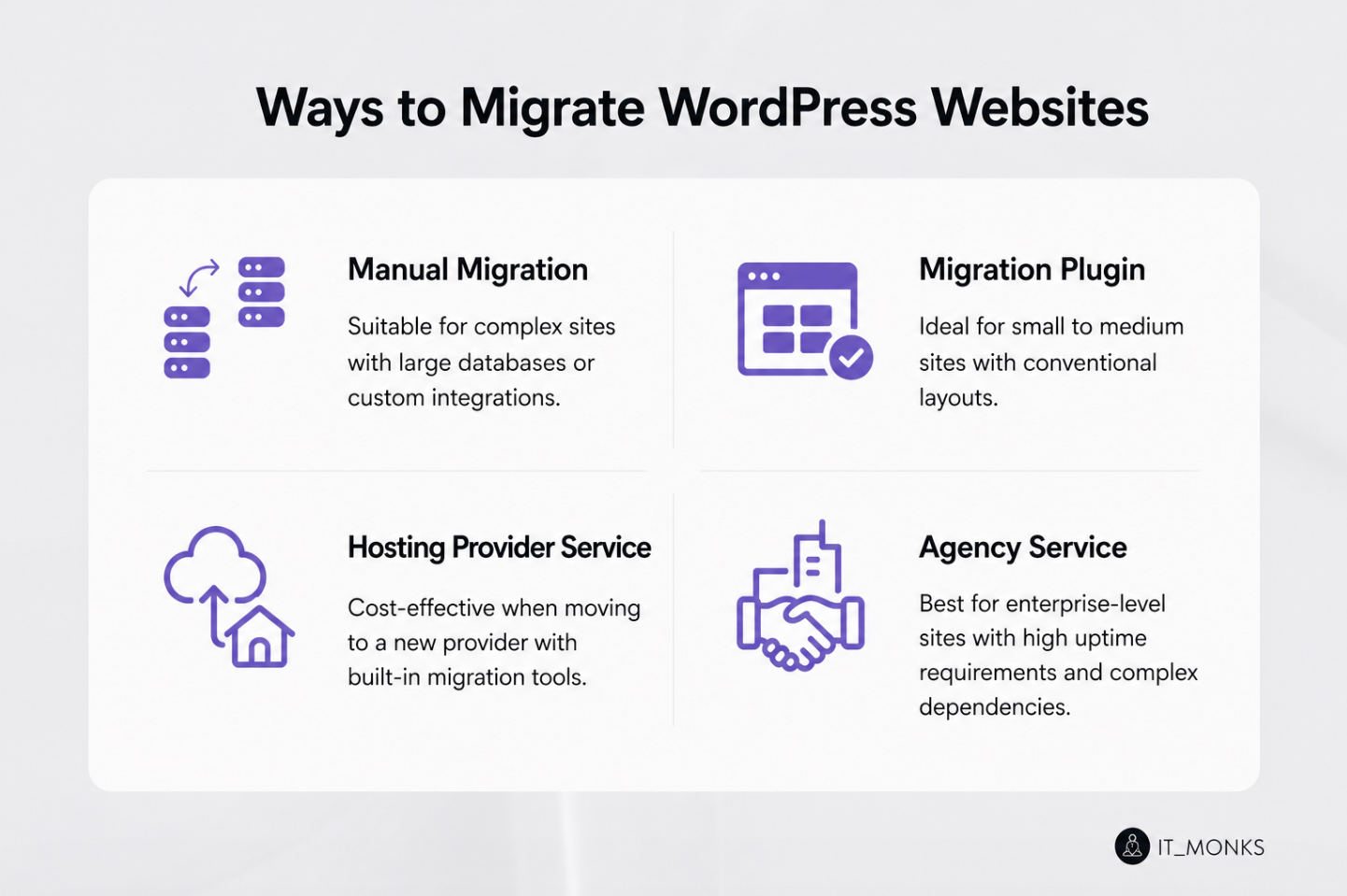
The best way to migrate a WordPress site is the one that fits the site’s size, the team’s technical capacity, and the audience’s tolerance for downtime. Method selection occurs upstream of the file and database moves: every migration runs through exactly one of four execution paths.
Manual migration is when an operator moves files by hand via SFTP or a shell and exports the database using mysqldump. The manual path trades speed for control: every value in wp-config.php, every directory permission, every row of the dump is visible at the moment of transfer.
Migration plugins (UpdraftPlus Migrator, All-in-One WP Migration, Duplicator, or an equivalent) package the full WordPress site into a single export artifact and restore it to the destination in a single step.
A WordPress site migration service is a managed offering from hosting providers (WP Engine, Kinsta, SiteGround, Cloudways, IONOS, and others ship one, sometimes free with a new plan) in which the provider’s tooling moves the site onto its own infrastructure with minimal involvement from the owner. An agency runs the same move as a scoped project, with the agency owning the outcome rather than the individual hours.
Fit decides among them.
Manually migrate a WordPress site when the install is complex, the database is large, the stack has custom integrations a packaged plugin would miss, or the team already has developers who treat SFTP and SQL dumps as first-class tools.
A migration plugin fits when the site is small to medium, the file set is within the plugin’s size cap, and the layout is conventional enough that a one-shot export-import produces a working copy.
A hosting provider service fits the move-onto-that-provider case: the site is changing home, the new home ships a migration routine, and the cost is lower than building the same move manually.
An agency fits the enterprise shape: revenue-sensitive uptime, complex cross-system dependencies, regulatory or security review gates, or an organization that cannot afford in-house WordPress developer time against the migration window.
Ownership transfer is a related sub-case. Transferring ownership of a WordPress site is, at heart, an account-and-billing handoff: the hosting account transfers, the registrar record transfers, the WordPress admin user rotates to the new owner’s email, and the outgoing owner’s access is revoked.
When infrastructure also changes, ownership transfer runs on top of one of the four execution paths; when only the owner changes, the file and database artifacts do not move at all.
Manual vs Plugin Migration
Manually migrating a WordPress site means the operator moves the file set over SFTP or SSH and exports and imports the database with mysqldump or phpMyAdmin. Plugin migration runs the same transfer using a migration plugin that packages files and the database into a single export artifact, transports it to the destination, and unpacks it via an import routine. The two paths deliver the same end state through opposite starting points.
Five axes separate the poles:
Axis
Manual migration
Plugin migration
Control
Every file, permission, and database row is directly handled by the operator.
The plugin determines file order, table order, serialized URL rewrites, and restore hooks; the operator sees outcomes, not intermediate steps.
Speed
Slower on small sites where SFTP and mysqldump handshake cost dominates; faster on very large sites where a plugin times out on upload size or PHP limits.
Faster on small-to-medium sites that fit the plugin’s archive cap; slower or blocked on sites that exceed the cap or trigger memory limits mid-import.
Risk of breakage
Localized, a wrong credential in wp-config.php produces a targeted failure that the operator fixes.
Systemic, a failed import can leave the destination database half-restored, and unwinding the partial state requires manual cleanup anyway.
Technical skill
SFTP, mysqldump, file permissions, serialized URL handling, and shell basics are non-negotiable.
Admin-level familiarity with the destination panel and the plugin’s UI is enough for most conventional sites.
Cost
No license fee; cost is the operator’s time, scaling with complexity.
The free tier covers small sites; the paid tier removes size caps and includes the migrator add-on.
Fit falls out directly:
Small, simple WordPress sites (a blog with a conventional theme, a default plugin set, a database under a few hundred MB) lean toward the plugin pole because the packaged automation runs inside the size envelope.
Complex installations, multisite networks, and sites with large databases lean toward the manual pole.
A multisite carries a network-wide options table, per-site tables under a numbered prefix, and cross-site references in serialized values that most general-purpose plugins do not handle correctly.
A large-database site hits the size cap or PHP memory limit before the import finishes, and the operator ends up running a manual dump-and-restore anyway. The plugin fits when it works; when it does not, the site is on the manual path, whether the team planned for it or not.
DIY vs Agency Migration
DIY versus agency is the second axis over the same method space. Where manual-versus-plugin asks how the transfer is executed, this one asks who owns the execution.
A DIY migration is run by the site’s own people (an in-house developer, a technical site owner, a freelance contractor hired as labor) against their own runbook, on their own time. An agency migration is run by an outside firm under a scoped engagement: the WordPress site is handed off against a statement of work, the migration team plans and executes the move, and the outcome (a working site on the new infrastructure, within the agreed downtime window) is what the site owner pays for.
Four conditions describe the DIY fit.
The site is small to medium in file volume and database size.
An in-house developer is already on the team with experience in SFTP, WP-CLI, and SQL dumps.
Downtime is tolerable: the site can go dark during cutover without causing revenue loss or an SLA breach.
Budget is constrained, which does not mean zero, but means the operator’s own time is cheaper than an outside engagement.
Four different conditions describe the agency fit, and they stack:
The site is large or enterprise-scale, with millions of posts, a database in GB, and a file tree so large that a single rsync pass takes hours.
Downtime tolerance is tight or zero: uptime is a contractual commitment, so the migration runs as a rehearsed cutover.
Dependencies are complex: custom plugins built with WordPress hooks that mutate the schema; a multisite network rewriting URLs across dozens of subdomains; a high-traffic WooCommerce catalog whose cart state must survive; a headless front-end whose API endpoints the new infrastructure must keep honoring.
Compliance gates are in the path:PCI, HIPAA, SOC 2, ISO 27001, or sector-specific rules requiring documented change control. When the WordPress site sits inside this shape, enterprise WordPress development becomes the execution frame whose deliverable matches the constraints.
The decision mostly resolves itself once the numbers are written down. A small-to-medium site with in-house dev capacity does not need an agency. An enterprise site with a no-downtime requirement does not survive a DIY weekend. The genuinely intermediate case (medium site, thin dev bench, one integration a freelancer could handle, but an agency would handle better) is where the trade-off becomes an honest comparison of capacity against engagement cost.
How to Migrate a WordPress Database
A WordPress database is the MySQL or MariaDB store that holds accounts, capabilities, and other WordPress backend configuration.
The wp_-prefixed tables are its signature: wp_posts holds content, wp_options holds site-wide settings including the home URL, wp_users and wp_usermeta hold accounts and capabilities (including settings used to customize the WordPress dashboard), wp_postmeta holds custom fields.
Migrating the database means moving the full set of tables from the source instance to the destination, ensuring the destination WordPress site opens with the same content, users, and settings.
Three steps carry the database across:
Back up the source database first. The backup is the pre-cutover safety net and the fail-back path if the cutover produces a broken destination. It can come from the hosting control panel, phpMyAdmin’s export, or WP-CLI; the artifact is a .sql file containing the schema for every table and every row. It is taken on the source before any change touches the destination, and stored somewhere reachable even if the source hosting account is gone: local disk, S3, or a separate backup host. Without it, the migration is a one-way commit.
Export the database to a portable SQL dump. The export differs from the backup in intent (backup is insurance; export is the payload), but the mechanical act is the same: read the tables from MySQL, write them to a .sql file, and treat that file as the database in transit. Character encoding is the top corruption vector here; the protective rule is to read the source’s charset and collation before export and match them on the destination, with details covered in the common problems list further down.
Create the destination database, import the dump, and point wp-config.php at it. A fresh empty database on the destination MySQL server is the target. The import recreates the schema and inserts every row. Once the tables are in place, wp-config.php is edited so that DB_NAME, DB_USER, DB_PASSWORD, and DB_HOST match the destination’s credentials. At this point, the destination has the source’s content but is still telling browsers that its home URL is the source URL, which is where the next adjustment lands.
A short command-line form covers the same three steps with WP-CLI:
# on the source
wp db export backup.sql

# on the destination, after creating the empty DB and editing wp-config.php
wp db import backup.sql
Serialized URL rewriting sits between the import and a working destination. The wp_options table stores siteurl and home as plain strings, but plugins and themes store arrays of settings in wp_postmeta, wp_options, and custom tables as PHP-serialized values, with every string prefixed by its byte length.
A naïve sed s/old.com/new.com/g changes the string but not the byte length, and the serialized value becomes unreadable to PHP on the first read. Safe tools preserve the length prefix as they rewrite: WP-CLI’s wp search-replace old.com new.com –all-tables runs the rewrite across every table with serialization awareness, and Velvet Blues Update URLs runs the same logic from the WordPress admin. A manual SQL UPDATE on the wp_options rows for siteurl and home covers the obvious case but leaves the serialized meta intact.
With the three steps and the serialized rewrite complete, the WordPress site stands on two artifacts and is ready for a server move, a domain move, or a host move, depending on which dimension the team is still working through.
How to Migrate a WordPress Site to a New Server
A server move is a migration of the WordPress site across the infrastructure layers that run it: the physical or virtual machine, the operating system, the PHP runtime, the web server daemon, and the MySQL or MariaDB instance.
The URL does not have to change. The hosting vendor does not have to change. What changes are there to the machine and the software stack: a bare-metal box replaced by a virtual machine, an Ubuntu 20.04 server replaced by an Ubuntu 24.04 server, and a PHP 7.4 stack replaced by a PHP 8.3 stack. When any substrate layer moves, the WordPress site migrates to a new server, even if the domain and hosting account remain the same.
Four move shapes cover most cases.
A machine swap replaces one server with another as part of a hardware refresh or end-of-life retirement.
A VPS upgrade moves the WordPress site from a smaller virtual server to a larger one, trading more CPU, RAM, or faster disk for the higher cost.
A data-center relocation moves the machine from one facility to another, usually due to latency concerns, regulatory data-residency requirements, or vendor consolidation.
A cross-cloud move shifts the site between AWS, GCP, Azure, a bare-metal provider, or different regions of the same cloud as part of an enterprise cloud migration.
Four prerequisites decide whether a server move lands cleanly.
PHP version parity: a site on PHP 7.4 that moves to a PHP 8.3 server runs into deprecated functions, removed callable syntax, and stricter type checks that throw fatal errors from plugins PHP 7.4 tolerated silently.
MySQL and MariaDB version parity: a database dumped from MySQL 5.7 loads into MySQL 8.0 for most schemas, but may fail due to reserved words or authentication plugins that changed between versions.
Disk space: the destination needs headroom for the file set, the database, and working space for backups and logs.
SSH access: every practical server move assumes shell access for file transfer, WP-CLI, and troubleshooting, and a destination that only exposes a control panel forces the operator onto the plugin path regardless of what the numbers say.
The border between a server move and a host change matters. A server is infrastructure: the machine, the OS, the stack. A host is a commercial relationship: the vendor, the billing account, the support contract, and the control panel.
A WordPress site can move to a new server without changing host (a VPS upgrade at the same vendor does exactly that). A WordPress site can also change hosts without fundamentally changing the server setup. When the move crosses both axes, the work composes, but they are separate moves with separate checklists. With files transferred, the database imported, and the server provisioned, what remains is proving that the move worked.
Post-Migration Checks for a WordPress Site
Post-migration checks for a WordPress site are the verification gate that separates “moved” from “done,” the structured pass an operator runs after files, database, and server have all landed. The file set is on disk; the database is loaded; the installation opens in a browser. None of that yet proves the WordPress site works the way it worked before the move.
Six checks cover the surface where silent breakage hides:
SSL / HTTPS. The destination serves every page over HTTPS with a valid certificate chain. A certificate that matches the domain, an auto-renewal hook that stays wired, and a site-wide redirect from http:// to https://complete the HTTPS signal. A certificate that resolves on the home page but fails on /wp-admin because the reverse proxy was half-configured is the failure shape this check catches.
DNS propagation. The A record and any CNAMEs resolve to the destination across major resolvers, including Google’s 8.8.8.8, Cloudflare’s 1.1.1.1, and a regional resolver serving the audience. The check passes when every resolver returns the destination IP.
URL rewrites. The wp_options table holds the destination’s siteurl and home; every serialized setting in wp_postmeta, wp_options, and custom plugin tables points at the destination URL; no hard-coded source URL remains in theme files, including custom WordPress footer templates. Running wp search-replace in –dry-run mode against the source URL afterward, expecting zero matches, catches the last stubborn references.
SEO signals. Canonical tags point to the destination URL. Hreflang annotations on multilingual sites name the destination map. The XML sitemap regenerates with destination URLs. The robots.txt file does not carry a Disallow: / left over from a staging lockdown.
Broken links. A crawl with the site’s own sitemap as the seed returns no 404 Not Found, no 500 Internal Server Error, no soft-404 patterns, and no redirect chain longer than one hop. Internal links pointed at the source URL during staging but never rewritten are a common finding.
Form submissions. Every contact form, checkout flow, subscription form, and custom submission endpoint is submitted end-to-end for testing. Transactional email often breaks silently when the previous host’s SMTP relay or API key does not survive the move; the form test is what surfaces it.
The rollback path is what makes verification usable rather than cosmetic. A failed check that cannot be fixed in place (an HTTPS certificate that will not issue, a corrupted import, a plugin that refuses to initialize on the destination PHP version) routes back to the pre-migration backup. Restoring puts the WordPress site back where it started; the failed cutover turns from an outage into a planning signal.
A WordPress migration checklist compiles these six checks into a runnable artifact (line items, acceptance criteria, and the fail-back entry point), so verification no longer depends on memory.
Common WordPress Migration Problems
Common WordPress migration problems are the canonical failure modes that appear on the destination once verification starts. The three most common problems are:
.htaccess errors and broken rewrite rules.
WordPress permalinks depend on the .htaccess file on an Apache host: the rewrite rules turn a URL like /blog/my-post/ into the internal query the PHP runtime executes. Migrations that copy only the wp-content tree and skip the root-level dotfiles leave the destination without a valid .htaccess, and every URL except the home page returns a 404.
The fix is a rewrite-rule reset: save the Permalinks settings page from wp-admin once, which writes a fresh .htaccess with the canonical WordPress rule block, and confirm the file’s presence on disk. A destination that still returns a 404 after the reset is usually missing Apache’s AllowOverride All directive.
Character-encoding corruption on database import.
A source database whose tables declare utf8 (three-byte UTF-8) dumped into a destination whose MySQL defaults to utf8mb4 (four-byte UTF-8 with emoji and supplementary-plane support) produces mojibake on every row that held a non-Latin glyph, an em-dash, or a curly quote. The page renders without an error, but the text is garbled.
The fix is utf8mb4 conversion at both ends: set the source’s export to emit utf8mb4 explicitly, create the destination database with CHARACTER SET utf8mb4 COLLATE utf8mb4_unicode_ci, and verify the CREATE TABLE statements carry the matching DEFAULT CHARSET clause before importing.
mod_rewrite disabled and the Error 500 that follows.
A destination Apache server without mod_rewrite loaded cannot execute .htaccess rewrite rules at all. The failure shape is not a 404 on individual URLs — it is a 500 Internal Server Error on the home page, because Apache encounters rewrite directives it does not understand and fails the request outright.
The fix is to enable the module: on Debian or Ubuntu, run a2enmod rewrite, followed by a service reload; on other distributions, load the module in the main config and restart.
How Do You Migrate a WordPress Site to a New Host?
Migrating a WordPress site to a new host means moving the site from one hosting provider to another: from a shared-hosting account at one vendor to a managed WordPress account at another, from a self-managed VPS to a Kinsta or WP Engine account, from a small-plan package at SiteGround or Bluehost to an IONOS dedicated environment. The site keeps its content and usually its domain; what changes are the billing account, the control panel, and the infrastructure, which is why a host move requires a DNS cutover, whereas a server move alone does not.
Six steps carry the host move across in sequence, UI-agnostic across vendors:
Provision the destination account, select the plan matching PHP version, database engine, disk footprint, and traffic profile, and collect the SSH credentials, MySQL credentials, and origin hostname.
Transfer the file set (wp-content, wp-config.php, the dotfiles, and the webroot) from source to destination via SFTP, rsync, or the vendor’s migration tooling. WP-CLI for WordPress keeps the transfer out of the browser on managed hosts that ship a CLI migration path.
Import the .sql dump into the destination MySQL / MariaDB for WordPress instance, holding charset at utf8mb4 across both ends, and run the serialized-URL rewrite from source hostname to destination origin.
Validate the destination before DNS switches: edit the local hosts file or use the vendor’s staging URL to resolve the production domain against the destination origin. At the same time, public DNS still points to the source, then walks the site as if it were live.
Cut DNS to the destination: update the A record for the apex domain and the CNAME for www and any subdomains to point at the destination’s IP. The source host stays live during the cutover window, so caches that still hold the old record have somewhere to land.
Reissue the SSL at the destination and run the six-check verification against the live site: the previous host’s certificate does not travel, so the destination’s auto-provisioning must be confirmed wired to the live domain rather than to the origin hostname that served during validation.
Query variants (“transfer WordPress site to new host,” “move WordPress to new host”) resolve to this sequence. Vendor-specific control-panel detail and the choreography of a zero-downtime cutover live at the move a WordPress site to a new host page. Once verification clears, the host migration is complete, and the source host can be kept on a short grace window for any forgotten assets before the account is closed.
How to Migrate a WordPress Site to a New Domain
A WordPress site moving to a new domain faces the same cutover mechanics as a host move, except that the destination URL changes under the installation. Migrating a WordPress site to a new domain is the URL-level variant of that cutover surface, not a separate procedure, and four signals differentiate it.
The first signal is a serialization-safe search-and-replace across the database. Old-domain strings sit inside posts, options rows, and serialized PHP arrays scattered across widgets, plugin settings, and theme customizer entries. A naive find-and-replace corrupts the serialized payloads because their byte-length prefixes no longer match.
The second signal is the siteurl and home option values in wp_options: both must include the new domain before the destination can load without redirect loops or broken asset paths.
The third signal is a 301 redirect map from old-domain URLs to new-domain equivalents, served from the old domain long enough for search-engine indexes and legacy inbound links to transfer.
The fourth signal is SSL certificate reissuance for the new domain. The old certificate does not cover the new hostname. Instructions to change WordPress domain name, with serialization-safe rewrite tooling, redirect-map construction, and the SSL reissuance sequence, live in the dedicated domain-change guide.
Related WordPress Migration Paths
WordPress migration most often starts from another WordPress site, which is what the main coverage assumes. Starting points that are not an existing WordPress installation (a Wix editor, a Squarespace site, a hand-coded HTML project, a Joomla or Drupal CMS, or a WordPress instance on a developer’s localhost) follow different inbound extraction shapes before the destination-side import and verification sequence becomes recognizable. Each path is covered in its own walkthrough:
For a site on the Wix editor whose content needs to be extracted out of Wix’s template model and rebuilt inside WordPress, follow the path to migrate Wix to WordPress.
For a Squarespace 7.x or 7.1 site whose exported content package becomes the import source for a new WordPress installation, the route is to migrate Squarespace to WordPress.
For a hand-coded or generator-built static site whose pages, assets, and navigation have to be absorbed into a WordPress theme, see how to convert HTML to WordPress.
For a Joomla CMS whose articles, categories, and users move out of Joomla’s schema into WordPress’s posts, taxonomies, and user roles, the walkthrough to migrate Joomla to WordPress covers the schema translation.
For a Drupal site whose nodes, content types, and taxonomies are restructured into WordPress’s post-and-custom-post-type model, the Drupal to WordPress migration benefits guide covers both rationale and schema mapping.
For a WordPress installation under a local development stack that needs URL rewriting, database export, and live-host configuration, the procedure to move WordPress from localhost to live server covers the handoff.
What ties every starting point back to WordPress migration is the destination: a WordPress site they all end at. Once inbound content loads, the same files, database, URL rewrite, DNS, and SSL verification posture apply. An agency-run migration absorbs every step of the move into a contractual deliverable.
 | updated:




 ChatGPT
  Claude
  Grok
Grok  Gemini