Explore our specialized services, tailored solutions, and industry expertise to elevate your digital presence. From custom WordPress development to seamless integrations, we build high-performing websites that deliver impact.
You can reset a WordPress site to its clean default (fresh-install) state when you need a true restart: when the current setup feels cluttered, broken in ways that are hard to unwind, or you’re repurposing the same site for a totally different direction. The reset is about returning the site to a clean slate so you can rebuild with confidence, alongside sibling paths like a rebuild or a relaunch, while staying clearly separate from migration or restore.
Because a reset can delete what you currently have, the first step is to back up anything you want to keep before you restart. In practice, this fits into the broader WordPress site lifecycle (planning, building, iterating, and occasionally starting over), so it helps to situate the decision inside your WordPress development plan.
This guide focuses on what a reset changes, what it leaves behind, and the three practical ways to get back to default.
What a WordPress Reset Does
A WordPress reset returns the site to its clean default fresh-install state. The database tables that hold your content are emptied and rebuilt from the default schema, the active theme, and every plugin is cleared, and the configuration you accumulated is gone. The site comes back as if WordPress had just been installed for the first time, with the default theme active and the setup screen waiting for an administrator to be created. That is the whole act, stated plainly.
The reset applies to the same domain and hosting account. Nothing moves. The site that comes out the other side answers at the identical address, on the identical server, under the identical hosting plan, and only its contents have been wiped back to default.
This is the formal line that separates a reset from the two acts it is mistaken for whenever the symptom is “the site is wrong, and I want it gone”: moving the site to a new home, and rolling the site back to an earlier saved version. A reset does neither. It does not move the site or roll it back to an earlier saved version; it returns the site to factory settings. Holding that boundary matters, because the instinct to “undo the damage” points at the wrong tool. A reset does not undo. It erases and starts the count from zero.
What disappears is content plus configuration. Posts, pages, comments, and uploaded media in the library are deleted. All plugins and their stored settings are removed. The active theme is cleared, custom CSS is removed, and user accounts and login credentials are wiped along with everything else.
A fresh WordPress install does not hand you an administrator on its own. The rebuilt default database contains the default settings and no users. You create the administrator yourself on the setup screen, just as a brand-new install asks for one.
The exception is the plugin route: a reset plugin keeps the WordPress core files and your current administrator account intact, so you stay logged in while the content around you is wiped. What survives is short and sits outside WordPress itself: the domain, the hosting account, and, depending on the method and options you choose, the current theme if you tell the reset to leave it active.
Wiped by a reset
Kept through a reset
Posts, pages, and comments
The domain name
Media library uploads
The hosting account and server
All plugins and their settings
WordPress core files (rebuilt to default)
The active theme and custom CSS
Optionally, the current theme (if you choose to retain it)
User accounts and login credentials
Database content (tables emptied to default)
One variation widens that “kept” column on purpose. A reinstall( replacing the WordPress core files with a fresh copy while deliberately leaving the wp-content folder and the database in place) keeps your content and settings even though the install itself is brand new.
It is the same instinct as a reset, scoped narrower: refresh the engine, preserve the cargo. That path fits the case where a clean WordPress core is wanted without losing the site’s data, and a later route runs it while preserving the data. The standard reset, though, preserves none of that: every piece of site data goes, and exactly which items disappear is determined by the deletion scope.
What Gets Deleted in a Reset
A reset deletes the site data that makes a WordPress install yours: every post and page, all comments, the full media library, each installed plugin and its saved options, the active theme together with any custom CSS, the user accounts and their login credentials, and the database content those things were stored in.
When the reset finishes, the database tables still exist (they have to, for WordPress to run), but they have been emptied and rebuilt to the default schema, holding the default settings and no user content. On the manual route, there is no administrator in that rebuilt database until you complete the setup screen and create one; the plugin route is the exception, since it keeps your current administrator so the account survives the wipe. Everything you added is gone; the structure that held it remains, blank.
“Content” has a narrower meaning than a full wipe, and the difference determines which operation a reader actually needs: clearing only what was published, or tearing down the whole environment.
In a full reset, that distinction collapses because posts, pages, comments, and media are content, and they are wiped along with the plugins and theme that displayed them.
A content-only clear-out has a narrower scope: it empties posts, pages, comments, and media but leaves plugins, the theme, and configuration intact, so the site keeps its structure and loses only what was published to it. Knowing which of the two you actually want determines which method fits later on.
A full wipe and a content-only purge are distinct operations with different tools, and choosing the wrong one can erase too much or too little.
The cleanest way to read the deletion scope is as the exact inverse of what stays. Everything that lives inside WordPress (content, plugins, theme, settings, credentials) is on the deleted side. Everything that lives outside it (the domain, the hosting account, the server) is untouched, because a reset never reaches that far; it works only within the install.
That mirror is the whole model: nothing survives the wipe except the things WordPress was running on top of, never the things it was running. With the deleted set settled, the practical question turns to execution, and the first route is to run the wipe by hand, without installing anything extra.
Reset WordPress Without a Plugin
WordPress ships with no built-in reset switch, so a plugin-free reset means you do by hand what a reset plugin would automate: empty the database, then reinstall the core files. The site stays on the same server and domain; only its contents return to a clean default state. This is the manual route, and it gives you full control over every file and every table that a reset touches.
You use this route when the plugin route is unavailable to you. A locked-out admin dashboard blocks any plugin install. A site too broken to load the wp-admin screen blocks it too. Some hosts or managed environments restrict which plugins you can add at all. In each of those cases the WordPress site can still be reset, through the hosting control panel and a fresh set of core files, without a plugin anywhere in the procedure.
The manual reset runs in two stages.
You wipe the database in cPanel, which clears every post, page, user, setting, and plugin configuration the old site stored.
Then you reinstall WordPress core, which lays down a clean fresh-install state on top of the empty database.
Each stage is its own job with its own tools, and the order matters: the database goes first because the reinstall expects to write into an empty one. End to end, the cPanel route runs about seven ordered steps, the figure WP Astra documents for the manual cPanel and MySQL process, and broadly what LoginPress walks through as well. The first of those steps starts in the cPanel database tools.
Reset the Database in cPanel
The WordPress database is the MySQL store that holds every post, page, comment, user account, option, and plugin setting your site has accumulated. Resetting it to a clean default state in cPanel means deleting the database in full and recreating an empty one in its place.
The delete cannot be undone (a wiped database is gone, and a clean reset does not return the old data), so this stage assumes the full-site backup the dedicated backup step covers is already in hand before you touch the controls.
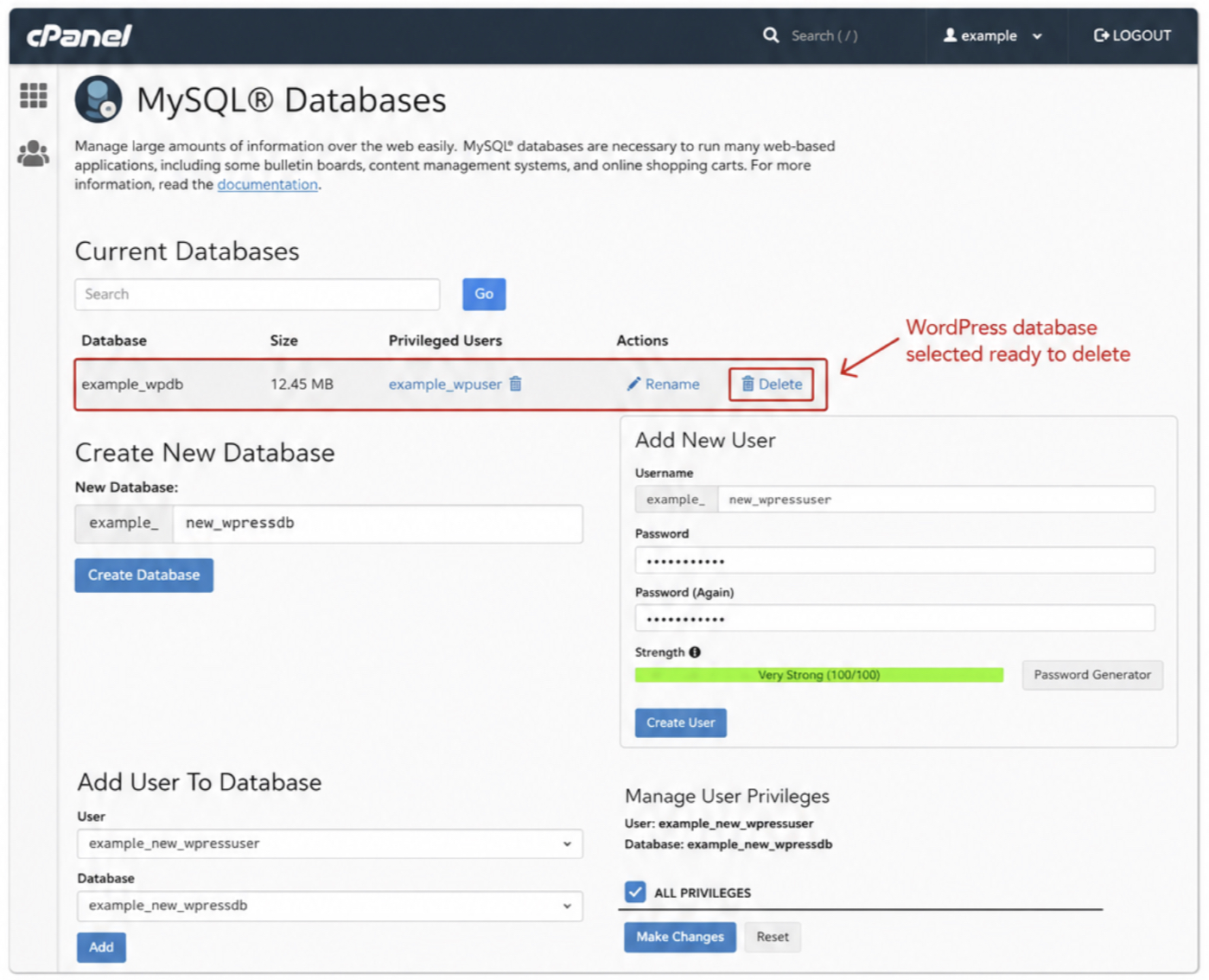
Inside cPanel, open MySQL Databases. From there the sequence is short and strictly ordered:
Locate the WordPress database in the list of current databases and delete it. This removes every table the old site wrote.
Create a fresh database. Give it a name you can recognise. Many installs reuse the original database name so the wp-config.php connection settings still match without an edit.
Recreate the database user, or create a new one, with a password you record.
Add that user to the new database and grant it All Privileges, so WordPress can read and write every table it needs.
If the new database name, user, or password differs from the original, WordPress can no longer connect until you tell it the new credentials. Those live in wp-config.php at the site root. Update the four constants so they match exactly what you just created in cPanel:
With the old database deleted and an empty one wired up, half the reset is done: there is no content left, only a hollow shell waiting for WordPress to fill it. An empty database on its own is not a working site; it has no tables, no admin user, and nothing to load. The reinstall turns that empty database back into a usable, clean install, and that is the second stage of the manual route.
Reinstall WordPress Without Losing Data
Reinstalling WordPress means laying down a fresh copy of the core software while keeping the parts that hold your work, wp-content and the database, untouched. That is the no-data-loss path: the program files get replaced, but your themes, uploads, plugins, and content survive the operation. It is the deliberate opposite of a full wipe, and it is the part of a manual reset most guides skip entirely.
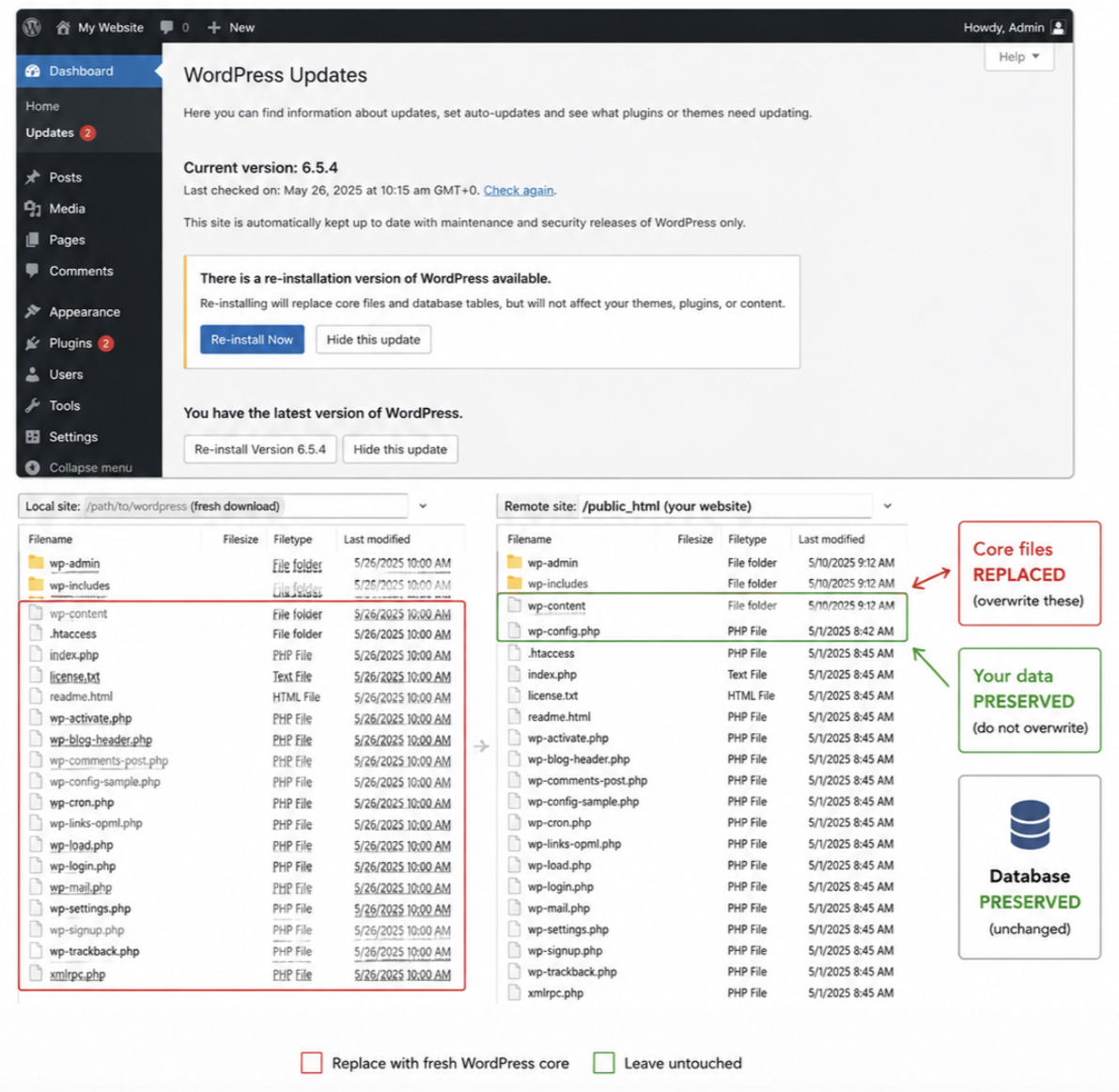
That boundary runs through every file in a WordPress installation, and the side a file falls on determines whether it survives the operation. Reinstalling replaces the core directories (/wp-includes, /wp-admin, and the loose PHP files in the site root) because those carry no data, only WordPress itself.
It leaves alone wp-content (your themes, plugins, and the uploads folder), wp-config.php (your connection settings), and the database (your posts, pages, users, and options). A file on the replaced side loses nothing because it never held your data; a file on the preserved side persists because reinstall never reaches it.
Two routes reinstall the core. From inside a working dashboard, the Updates screen offers a Re-install Now button that downloads and overwrites core for you. When the dashboard will not load, the FTP route works instead: download a fresh WordPress package, then upload its core files over the existing ones while leaving wp-content and wp-config.php in place. Either way you overwrite the core files only, never the database, never your uploads.
A reinstall is not a backup rollback and it is not a move to new infrastructure; it swaps the engine and leaves the cargo where it sits. Used at the end of the manual route, it pairs with the cleared database to produce a true fresh-install state. exactly the clean default a reset is meant to deliver. And because a clean reinstall reuses the same fresh-core sequence as a first-time setup, the steps to install WordPress / set up a staging environment carry over directly to anyone rehearsing the reset on a copy first. Whichever route you take, the safety of the whole operation still rests on one thing done before any of it: the backup.
WordPress Site Backup Before a Reset
A backup taken before a reset is a complete copy of the WordPress site (its files and database) saved while the site is still working, so the wipe can be undone. The order in that sentence is the whole point.
A reset is irreversible: once it runs, the posts, pages, plugins, themes, uploads, and configured options that define the site are gone, and nothing in WordPress will restore them. Back up before the reset, not after it.
The backup has to capture both halves of the site because a WordPress site is not a single thing. The files (everything under wp-content, the active theme, the plugin folder, custom uploads, and the wp-config.php at the root) hold the code and assets. The database stores the content and settings: every post and page, the menus, the widget arrangement, user accounts, and the option rows that enable features.
Save the files without the database and you keep the look but lose the writing. Save the database without the files and you keep the writing but lose the design and the plugins that ran it. A complete backup is the pair, exported together and downloaded somewhere off the live server, so neither half depends on the site it came from.
That pairing is exactly what makes the no-data-loss path trustworthy. The query behind this (how to reinstall WordPress without losing data) only has a clean answer when a full backup already exists, because “without losing data” is not a property of the reinstall itself; it is a property of the copy taken first. Reinstall the core software on a wiped install and the data does not survive the act. It survives because it was saved in advance and deliberately put back.
The backup is the precondition that turns a destructive procedure into a recoverable one: if a reset finishes wrong, or wipes more than intended, the saved files and database return the site to the exact working state it was in moments before. Without that copy, “start over” means start from nothing.
So the backup is not a fourth way to reset a site, and it is not a step that can be folded into one of the methods. It is the single precondition every method assumes: the manual database wipe through cPanel, the data-preserving reinstall, and the plugin route alike. Each one only stays recoverable because a verified, downloaded copy of files plus database exists before the irreversible action. With that copy in hand, the simplest of those methods is also the safest place to begin.
Reset WordPress With a Plugin
A WordPress reset plugin is a tool installed inside WordPress that wipes the site back to its clean default state from the dashboard, with no cPanel and no database console, and WP Reset is the one to reach for. It is the simplest method for a reason: the entire reset happens from wp-admin, the same screen you already log in to, so there is no file manager, no MySQL prompt, and no hosting panel involved. The backup is already accounted for, so the plugin can be pointed straight at the destructive step.
The flow is short. Competitor walkthroughs of WP Reset land it in two to three actions, and the plugin is built to match:
Install and activate the plugin. From the dashboard, add WP Reset the way any plugin is added: search, install, activate. Nothing on the live site changes yet; activation only puts the tool in place.
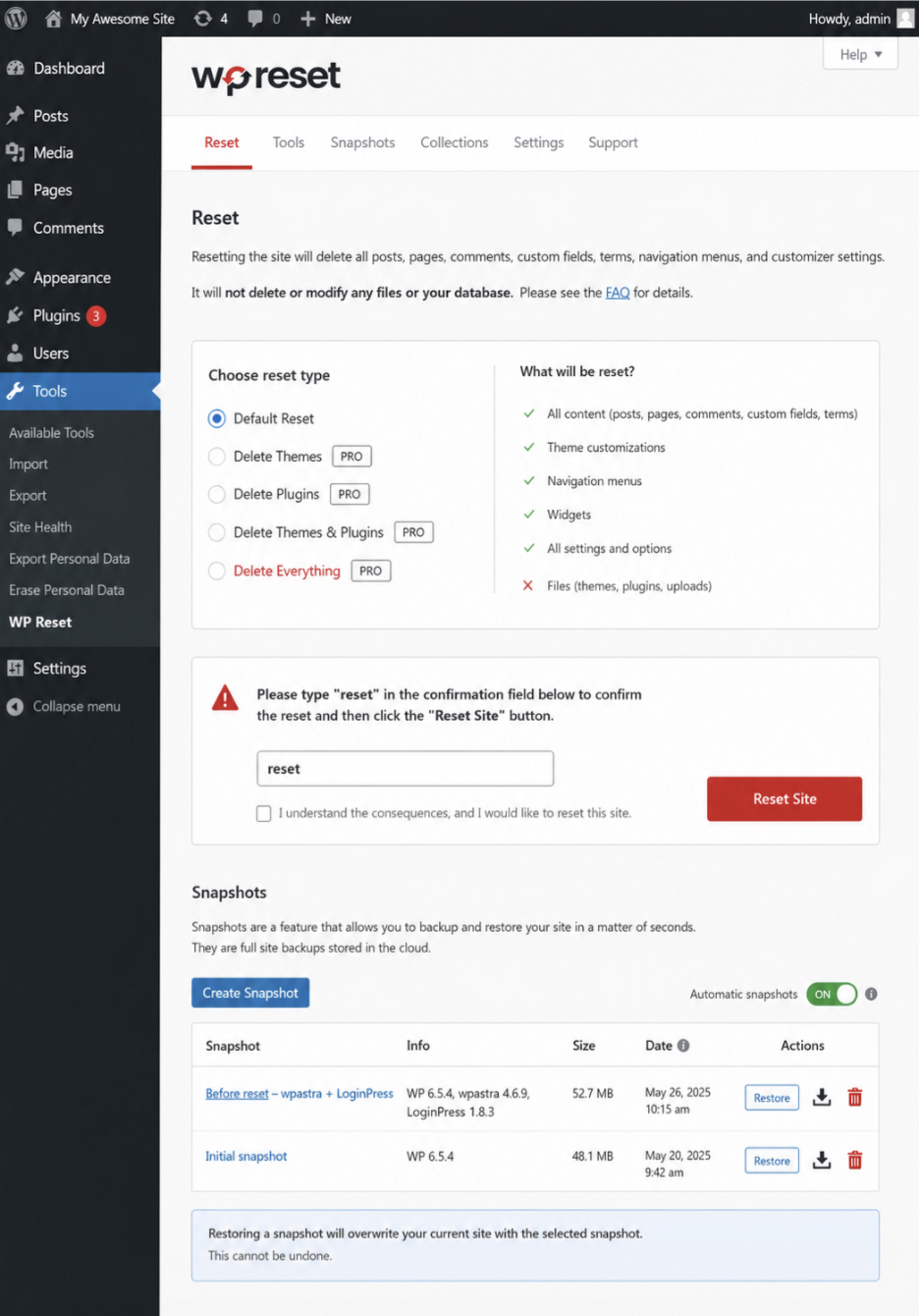
Open Tools → WP Reset and configure the scope. The plugin lives under the Tools menu in wp-admin. Opening it shows the reset panel, where the scope of the wipe is set. The default reset clears posts, pages, custom tables, and content while leaving the WordPress core files and the admin account intact, so you land on a clean install you can still log into. The panel states plainly what the chosen scope removes and what it keeps before anything runs.
Confirm by typing “reset”. The action is gated behind a confirmation field: the wipe will not fire until the word “reset” is typed into it by hand. That deliberate keystroke is the last guard before an irreversible change, and it is why the backup had to exist before this point, not as an afterthought to it.
What sets the plugin route apart from the manual one is the safety net it carries. WP Reset can take a Snapshot (a captured state of the database recorded inside the tool) and a Snapshot can be rolled back after the reset has run. The full file-plus-database backup is still the precondition that protects everything; the Snapshot is the plugin’s own quick rollback layered on top, useful when the reset removed something only missed once it was gone.
The plugin also does more than reset to default. The same panel exposes the heavier acts: clearing the site down to nothing so it can be built from an empty install, or wiping only the active theme and its settings while the content stays. Resetting to default is the broad clean slate; deleting everything to start over is the next, sharper option, the act of stripping the site down to bare WordPress and rebuilding from there.
Delete the WordPress Site and Start Over
To delete the WordPress site and start over means removing the install entirely at the host, then building a fresh one in its place: a harder, more total option than a reset. A reset wipes the WordPress site back to its clean default state while the install itself stays put. Deleting the site removes the install. That single difference determines which option you choose: a reset leaves the WordPress instance in place, while a full deletion removes the instance, so you start over with an empty account.
A full deletion earns its place in a few specific situations. The site is corrupted past the point a clean wipe can recover: malware threaded through core files, a database a reset cannot cleanly truncate. Or the platform is wrong for the project and no amount of clearing fixes that. Or the work is a different project altogether and the old install carries nothing worth keeping.
In each case you cancel or empty the account at the host control panel, then run a fresh install on the bare space. “Restart WordPress” describes the same act under a different name, a WordPress restart is this delete-then-reinstall sequence, sometimes phrased as a restart from scratch, and it resolves to the same two moves: remove, then reinstall.
A full teardown does not have to take everything with it. If a handful of pages are worth carrying into the next build, copy them out before the account is gone. You can duplicate a page in WordPress and keep that content on hand while the rest of the site is deleted and started over.
Once the host removes the account, the old site is gone and no longer exists; the fresh install is a blank WordPress, not a recovered one. When the layout is off but the site itself is fine, the change narrows to the theme alone.
Reset the WordPress Theme
A WordPress theme reset returns the active theme to its default settings while the rest of the site stays untouched: content, plugins, users, and database all intact. It is the scoped variant of the reset act: the same return-to-default move, narrowed from the whole install down to one layer. A theme reset reaches the theme and nothing else. The site keeps running; only the theme drops back to how it shipped.
Three routes reach that default state, and each stays strictly inside theme settings.
Reset the theme’s customizer or options panel, which clears the saved design choices and returns the theme to its packaged defaults.
Deactivate the active theme and reactivate it, which clears session-level settings on themes that store them that way.
Switch to a default WordPress theme and switch back, which forces the theme to reload its own defaults rather than your stored values.
None of these touch posts, pages, or the database. The reach is the theme, the result is default settings, site untouched.
One boundary matters and stands on its own: a theme reset resets the theme, it does not design or customize one. Returning a theme to default settings and theme design work run in opposite directions: a reset removes design decisions, theme work adds them.
Building or styling a theme is a separate task with its own tools and its own workflow, distinct from a theme reset. What carries forward from a theme reset is the rebuild idea it implies: keep the content, replace the look. That is the angle the reasons for resetting open onto: when wiping to default is the right call at all, and when a different move fits better.
Reasons to Reset WordPress
Reasons to reset WordPress are the conditions under which wiping a site to its clean default state is the right move rather than patching it in place.
A reset applies when:
the site is cluttered with abandoned plugins, half-finished pages, and test content that is faster to clear than to untangle;
when a development or staging site has done its job and needs to be empty for the next round of work;
when the domain is being repurposed for something unrelated to what is on it now;
when the project is new work and the cleanest starting point is the default install.
One reason that looks similar but is not a reset reason: a slow or compromised site. A site that is slow or has been hacked is a maintenance concern, not a candidate for a reset. Clearing it to default discards the site rather than addressing what made it slow or vulnerable, and that work belongs to ongoing site upkeep, not a wipe.
When a reset is not the answer, three adjacent moves are, and each is decided by one question: keep, move, or replace the site. A reset wipes to default and keeps nothing. A rebuild keeps the content and puts a new build around it on the same domain; once that build crosses onto new infrastructure or a new domain, it moves into territory the WordPress migration guide owns.
Before a rebuild is even on the table there is an earlier fork in the road, because keeping a working site and improving it in place is sometimes the cheaper, lower-risk path and clearing everything to start clean is sometimes the faster one. That clear-and-rebuild-or-keep-what-is-there trade-off is weighed in full when you compare whether to update an existing website vs build from scratch, the dedicated evaluation a reader facing exactly that decision should read next.
The other two adjacent moves leave the content where it is and act on the look instead. A relaunch keeps the infrastructure and replaces the design (a new face on the same foundation), and the enterprise-scale version of that move, with stakeholder sign-off and phased cutover, is set out in the website relaunch playbook. A redesign sits one level up from a relaunch: it is the planning methodology that decides what the new design must achieve before any of it is built, scoped and run as a project rather than a quick swap, and that scoping discipline is documented in the website redesign project plan.
So the choice resolves cleanly. Reset to the default. Rebuild to keep content under a new build. Relaunch to replace the design on the same infrastructure. Redesign to plan the work as a project. A reset is the move when a clean default state is what the site needs, and nothing on it has to survive.
If you were wondering how to reset a WordPress site to its clean default state, that’s now resolved. The reset clears the install back to the state a fresh WordPress ships in, a backup taken first protects anything that has to survive the irreversible change, and the method that fits the situation is the one to use: the plugin route for speed, the manual database route through the host control panel for full control, or the reinstall route when the install itself is the problem.
The site is back to its default, clean state, ready for whatever it becomes next. Whether what comes next is a reset, a rebuild, a relaunch, or a redesign is the question that the decision frame answers, and it points the way forward from here.




 ChatGPT
  Claude
  Grok
Grok  Gemini