Explore our specialized services, tailored solutions, and industry expertise to elevate your digital presence. From custom WordPress development to seamless integrations, we build high-performing websites that deliver impact.
You duplicate a page in WordPress whenever the fastest path forward is to create a working copy of something the site already has. The landing page for last quarter’s campaign is the obvious starting point for next quarter’s variant. The product overview that converted well deserves a near-twin for a sister product. The article you are about to overhaul should keep a frozen copy of its current shape before any editor touches the live record. A site owner reaches that moment often enough that the WordPress admin has grown four distinct paths for handling it.
The duplicate is an independent page record. It carries the source page’s content, block structure, page settings, featured image, custom fields, and SEO metadata, and it lives at its own slug under its own status. Once the copy exists, you adjust the parts that should differ and publish, without disturbing the page you copied from. The original keeps its URL, its history, and its incoming links. The duplicate becomes its own page from the first save.
You can clone a page in four ways inside WordPress, and the right method depends on which editor the page was built in and whether the task is a one-off or a routine.
The block editor in Gutenberg ships a Copy-all-blocks command that copies all blocks to the clipboard for pasting into a fresh draft.
The manual route does the same job by hand, useful when you need editorial control over what crosses to the new page.
A duplication plugin adds a one-click action to the WordPress admin and is the standard answer when cloning becomes a frequent task or when custom fields and post-type metadata need to travel with the copy.
Page builders such as Elementor and Divi expose their own Save as Template feature – a builder-specific path whose scope is limited to pages already built inside the page-builder canvas.
Each method has its own trade-offs regarding speed, the completeness of what gets carried over, and how much the admin must do for you. Picking the right one comes down to which editor the page lives in and whether the task is one-off or repeated, alongside two adjacent jobs, the four methods share, pairing the page workflow with the post workflow on the Posts list, and answering the most common questions readers raise once a duplicate exists.
What is Duplicating a Page in WordPress?
Duplicating a page in WordPress is the act of creating an independent copy of an existing page record inside the WordPress admin, a new entry in the wp_posts table that holds its own ID, its own slug, and its own status while inheriting the source page’s editable content.
The duplicate is not a reference back to the original; it is a separate page that the admin treats as a peer of every other page on the site (for the whole-site analog that shifts every page, post, and setting between hosts or domains rather than one record between slugs, see the dedicated WordPress migration guide).
What carries across to the duplicate, in a clean copy, is the editable substance of the source: the content body, the block structure as the editor stored it, the page settings (template, parent, order), the featured image, the custom fields attached to that page, and the SEO metadata that any installed SEO plugin keeps in postmeta.
What the duplicate does not carry is the source page’s continuing existence or its URL. The original is still there, still indexed, still receiving the same visitors it had a minute ago. The new record gets a fresh URL the moment WordPress saves it, typically the source slug with -2 appended until you change it – and that URL is what every future reference, every preview, and every published link will resolve to.
The reasons a site team reaches for page duplication fall into a small set of practical jobs.
Test a variant of a working page. You keep the converting page exactly as it is and clone it to try a different headline, hero image, or call-to-action on the copy. The original keeps earning while the variant proves itself.
Streamline the design of a similar page. You copy a finished page whose layout, spacing, and block stack already match what the next page needs, then swap content. The structural work is done; only the editorial work remains.
Mind the duplicate-content question on public clones. A duplicate of a published page produces two near-identical URLs that search engines will treat as competing copies until one is marked the canonical – typically through a canonical URL tag pointing the duplicate at the original, or a temporary noindex meta tag while the duplicate is still in draft.
Three other WordPress actions sit close to page duplication in everyday conversation and deserve naming so the difference is plain.
Revision. A revision is an autosaved snapshot stored in a page’s history, accessible from the Revisions menu in the page editor. The snapshot stays internal to that page record and never produces a second page with its own URL.
Redirect. A redirect is a URL-forwarding rule in .htaccess or in a plugin such as Redirection that sends requests for one address to a page that already exists at another address. The rule creates a path between URLs without writing a new page record.
Export and import. The Tools → Export and Tools → Import workflow writes the site’s pages to a portable XML file and reads that file into another WordPress install. The destination is a different site, so the export-and-import path moves a page between sites rather than producing a second record on the same one.
With those three neighbors named, copying a page stands on its own as a distinct job: one site, two page records, the second one editable from the first save. The block editor in Gutenberg ships the cleanest path that needs no extra plugin and no manual copy-paste between tabs.
Duplicate a Page in the Block Editor
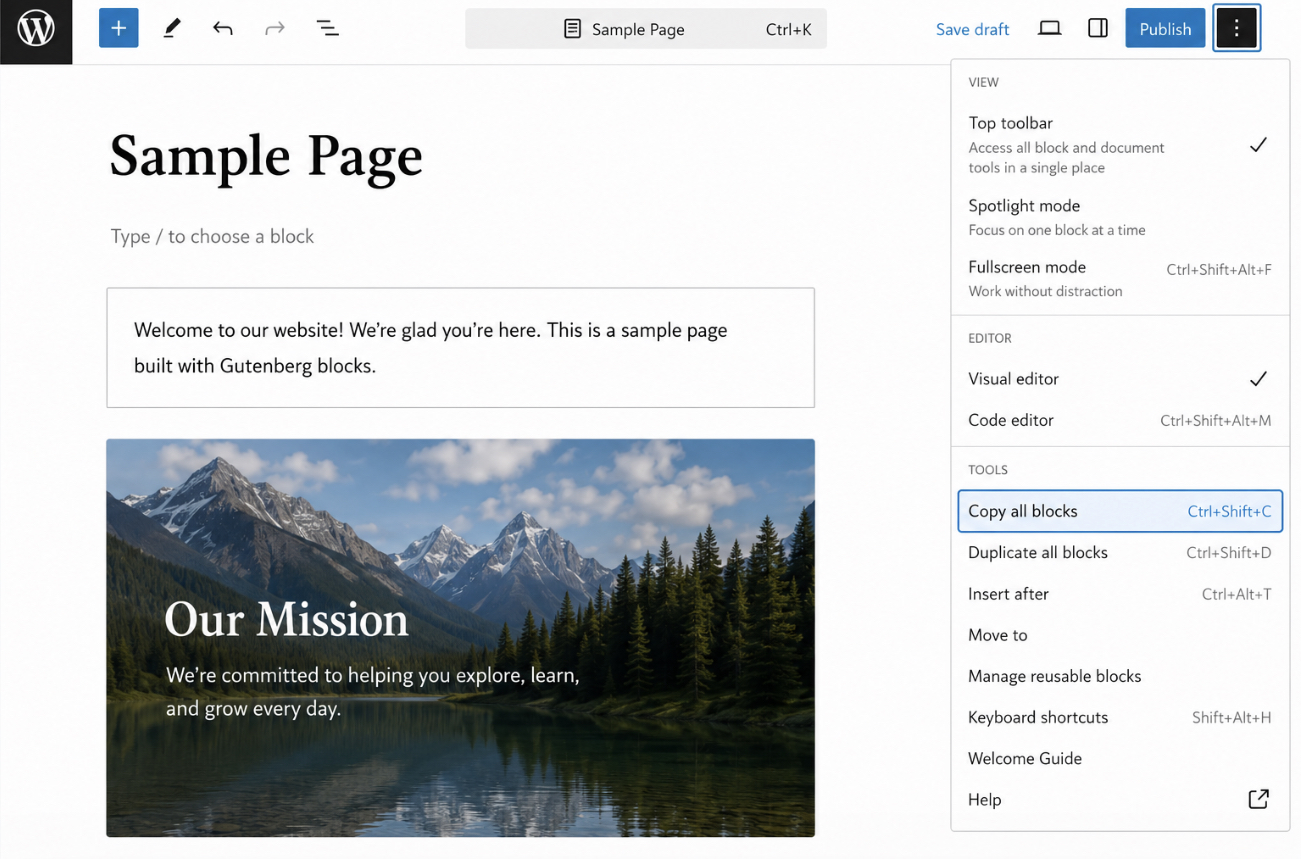
Duplicating a page in the block editor means using Gutenberg’s built-in “Copy all blocks” command, a single menu choice inside the three-dot Options menu that copies every block from the source page in one motion. The block editor exposes this as a built-in feature, so you stay entirely inside WordPress with no plugin, no saved template, and no third-party clipboard utility. (Older WordPress versions labeled the same menu “Tools”; current Gutenberg renders the tooltip as “Options”. One menu, two labels in the wild, the steps are identical.)
What “Copy all blocks” preserves is what makes it different from a generic browser copy-paste. Gutenberg keeps the block structure intact when the entire block list moves through the menu: each block’s alignment, color settings, spacing controls, and any custom CSS classes carry over with the markup.
A browser-level Ctrl+A followed by Ctrl+C tends to flatten that – the visible text and images may land in the destination, but block-level attributes get stripped or rewritten by the browser’s own clipboard serializer. The Options menu route avoids that loss because Gutenberg serializes the blocks itself, in the format the block editor expects on paste.
The three-step sequence is short.
Open the source page in the block editor.
Click the three-dot Options menu in the top-right corner of the editor toolbar.
Select “Copy all blocks” from the menu.
Keyboard shortcut. Ctrl+A on Windows and Linux, or Cmd+A on macOS, selects every block on the page before the Options menu copy. The selection happens at the block layer rather than at the text-character layer, so each block gets highlighted as a unit rather than as a stream of characters. With the blocks selected, the Options menu still drives the copy itself – the shortcut just makes the selection scope explicit when a page mixes regular blocks with reusable blocks or synced patterns.
The destination paste, together with a code-editor fallback for blocks that resist a clean round-trip, completes the menu route. On installations where the Options menu is not available – a classic-editor site or a theme that disables Gutenberg – you fall back to the manual copy-and-paste route to copy the page across instead.
Copy All Blocks in Gutenberg
The Gutenberg “Copy all blocks” menu walk is a three-step sequence that copies the source page’s full block list onto the clipboard in Gutenberg’s own serialized format. Each step occurs at a named location within the block editor, and that naming keeps the walk reproducible across WordPress versions where the toolbar layout drifts slightly.
The three steps run as follows.
Open the source page in the block editor. The source page is the existing page you want a copy of. Open it from the Pages admin list, not from the front-end view, so the editor canvas loads with the block list rather than the published HTML.
Click the three-dot Options menu at the top-right of the editor toolbar. The icon sits next to the document settings sidebar toggle; on smaller screens it collapses other controls into itself, so the three-dot icon stays visible even when the rest of the toolbar shifts.
Select “Copy all blocks” from the Options menu. The command runs immediately – no confirmation dialog, no selection cursor. The blocks are pasted into the system clipboard as Gutenberg’s serialized markup.
Paste step. Open or create the destination page inside the same block editor. Place the cursor inside the empty editor canvas, then paste with Ctrl+V on Windows and Linux or Cmd+V on macOS. The block structure transfers intact: each block lands as the same block type it was on the source; alignment settings, color choices, spacing values, and any custom CSS classes assigned through the Advanced panel carry over to the destination block unchanged. A reusable block pasted this way arrives as a reusable block, not as a static copy of its contents.
Code-editor fallback. Some blocks do not round-trip cleanly through “Copy all blocks”. Corrupt blocks (the ones that throw the “this block contains unexpected or invalid content” warning) and dynamic-content blocks that pull from external data sources sometimes lose their bindings on paste. When that happens, the code editor offers a raw-markup path.
From the same Options menu, choose “Code editor” to switch the canvas to the raw block markup view. Copy the markup directly from the code editor, switch the destination page to its code editor via the same Options menu, then paste the raw markup in. Switch the destination back to the visual editor and the blocks reassemble from the markup. This route trades the convenience of one menu choice for direct control over the serialized format, which carries a stubborn block across whenever the block validator accepts the markup on paste – blocks the validator rejects on paste need to be rebuilt by hand.
If your installation runs the classic editor (or if you maintain older themes that disable Gutenberg), you cannot reach the Options menul, because the menu is a block editor feature. On those installations, the manual copy-and-paste route through the WordPress editor takes over instead.
Manual Step-by-Step Page Duplication
The manual method duplicates a WordPress page using only the built-in editor and the Pages admin, without plugins, page builders, or extra installs. It is the route that works everywhere, including the classic-editor sites where the “Copy all blocks” affordance simply isn’t available. The trade-off is real and worth naming before you start: the manual method copies only what you can see on the page.
The procedure runs in two phases. First, you open the source page in the editor and copy its content to the clipboard. Then you create a new page and transfer the clipboard into the fresh editor, where you finish the duplicate with a short checklist of page-level settings. Each phase is a small, atomic move; together, they hand you a working duplicate of the visible content in under a minute.
What the manual method preserves is everything that lives inside the editor: paragraphs, images, blocks, headings, embedded media, and the layout the original built. What it does not carry over is the metadata layer: custom fields, SEO settings (canonical URL, meta description, focus keyword, schema), Open Graph values, taxonomy assignments, scheduled-release timing, template overrides, and anything else stored against the page record outside the editor body.
If you need those fields cloned with the content, you can route to a duplication plugin, which preserves the metadata that the manual method drops.
One failure case is worth flagging before you start the copy. If the source page was built with Elementor, Divi, or another page builder, the manual copy-paste captures only the rendered HTML that sits inside the WordPress editor – the page-builder structure, the section/column hierarchy, and the builder-specific widgets do not survive a generic Ctrl+A out of the editor.
For pages built that way, Elementor’s template library copies the page with the design intact; the plugin route handles non-builder pages whose metadata layer needs to travel with the content.
Copy Content from the Source Page
The source page is the existing page you want to duplicate – the original record whose content the duplicate will inherit. First, locate it in the WordPress admin’s Pages list and open it in the editor.
From the admin sidebar, click Pages. The Pages screen lists every page on the site. Find the source page in the list and click its title to open it in the editor.
Inside the editor, select all the page’s content with Ctrl+A on Windows or Cmd+A on macOS, then copy the selection with Ctrl+C or Cmd+C. The entire content of the source page is now on your clipboard, ready to drop into a new editor window.
The source page itself stays untouched. Copying reads the content; it does not change the original record, its URL, its live status, or anything stored against it. You can leave the source tab open or close it. The clipboard holds the copy either way, and the duplicate gets built in a fresh page record.
Copy Content into a New Page
The new page is a blank page record created to receive the copied content, the destination half of the manual duplicate. You make it the same way you make any WordPress page, then drop the clipboard into it and finish the page-level settings that the editor doesn’t fill in automatically.
From the admin sidebar, click Pages → Add New. A blank editor opens with no title and an empty body. Leave the cursor in the body area.
Paste the clipboard content into the new editor with Ctrl+V on Windows or Cmd+V on macOS. The full content transfers into the new record – every block, image, and heading appears in the same order it sat on the source.
With the content in place, work down a short settings checklist before saving. Four page-record fields stay empty on a fresh page, and each one needs a deliberate value on a duplicate – the permalink, the featured image, the page title, and the save state.
Permalink: the new page auto-generates a slug from the title, and WordPress appends a numeric suffix (-2, then -3, and so on) when the source slug already exists. Override the suffix to a clean, intentional slug so the duplicate’s URL reads the way you want, not the way the collision-handler defaulted it.
Featured image: featured images live on the page record, not in the editor body, so the clipboard transfer does not bring them along. Swap in the image you want the duplicate to use.
Page title: the title field is empty on a new page. Give the duplicate a title that distinguishes it from the source; the title also feeds the URL slug if you have not set the permalink by hand.
Save state: save the new page as a draft if you are still working on it, or save it live if it is ready. Drafts let you finish editing without exposing the duplicate; a live save makes the duplicate visible at its new URL right away.
What the duplicate does not inherit through the manual route is the page record’s metadata layer: custom fields, SEO settings, canonical URL, meta description, schema markup, social-share images, taxonomy assignments. Those values live against the original page record, not inside the editor body, and the clipboard reads only the editor. If the duplicate has to carry that metadata, a dedicated duplication plugin handles it in one click.
Duplicate a Page with a Plugin
A duplication plugin duplicates a WordPress page in a single click by adding a row-action to every page and post row inside the WordPress admin, and the duplicate it produces carries content, block structure, page settings, featured image, custom fields, and SEO metadata across in that single action. That single-action fidelity is the trait that the manual route and the block-editor route both lack.
When you clone a page in WordPress through the editor, the body content travels, but the page settings, the featured image, the custom fields, and the SEO metadata stay behind on the original record. A duplication plugin closes that gap by writing a full sibling record at the database level, with every meta key intact, the instant you click the row action.
The plugin route is therefore the right choice whenever a WordPress page carries custom-field data, Yoast or Rank Math metadata, or page-builder settings that the duplicate must preserve. If the broader need is rebuilding the whole site rather than cloning one page, the procedure shifts entirely to reset or rebuild a WordPress site and the plugin route no longer applies.
Four duplication plugins top the WordPress repository for this job, each taking a slightly different shape.
Name
Type
Price
One-click
Custom fields + metadata
Best-for
Yoast Duplicate Post
Free plugin
Free
Yes – row-action Clone and New Draft
Copies post meta, taxonomies, featured image, Yoast SEO metadata; selectable in settings
The default site that needs a one-click duplicate row-action for pages, posts, and custom post types without configuration
Duplicate Page and Post
Free plugin
Free
Yes – row-action Duplicate This
Copies post meta, taxonomies, featured image, comments toggle
Sites that want a lightweight plugin with the smallest settings surface
Duplicate Page
Free plugin (Pro tier exists)
Free, Pro from $39
Yes – row-action Duplicate This
Copies all meta and taxonomies; open-in-editor toggle in settings
Editors who want the new draft to open in the editor every time without changing buttons
Post Duplicator
Free plugin
Free
Yes – row-action Duplicate Post
Copies post meta, taxonomies, featured image; configurable per post type
Multisite or custom-post-type setups that need per-type duplication rules
To install any of these plugins, go to Plugins → Add New in the WordPress admin, search by name, click Install Now, and click Activate. The row-action appears on the Pages and Posts lists the moment activation finishes, with no settings page required for first use.
The choice between the four plugins is a question of fit, not of ranking. A site that already runs Yoast SEO inherits Yoast Duplicate Post with one fewer vendor to vet. A site that wants the smallest possible plugin surface tends to pick Duplicate Page and Post. A site that wants the duplicate to open in the editor every single time tends to pick Duplicate Page with the open-in-editor setting on. A site that runs many custom post types and needs per-type rules tends to pick Post Duplicator.
The mechanism each plugin exposes is the same row-action pattern, so a writer who learns the pattern on one plugin reads the row on the other three without retraining. Yoast Duplicate Post is the most-installed of the four, and its three row-action buttons are the reference shape that the other three plugins each implement with one or two cosmetic differences.
Yoast Duplicate Post
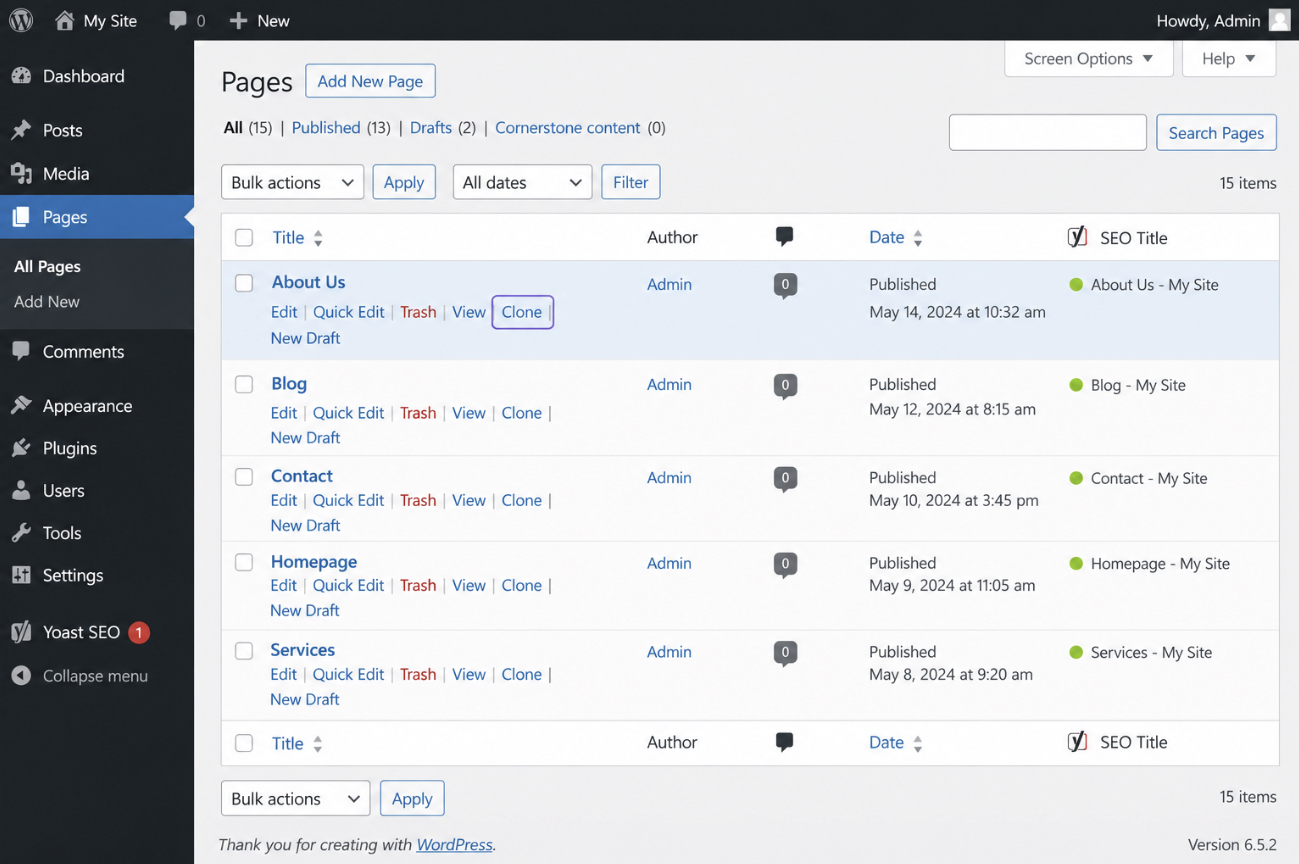
Yoast Duplicate Post is the most-installed WordPress duplication plugin, and three row-action buttons cover the three contexts in which a reader actually duplicates a WordPress page. Each button lives on the Pages list and the Posts list, appears when the cursor hovers the row, and writes a full copy that preserves content, block structure, page settings, featured image, custom fields, and Yoast SEO metadata. The buttons differ only in what happens immediately after the copy is written.
Clone writes an immediate duplicate draft and leaves the reader on the Pages list. Hover the row of the source page, click Clone, and a new draft appears at the top of the list with the original title prefixed by Copy of (the title prefix is configurable in Settings → Duplicate Post, with Copy of as the default). The editor does not open. Pick Clone for a quiet archive copy before editing, a staging draft to hand to another author, or a batch where several pages need to be cloned in succession without breaking the list view.
Choose New Draft when the next move after duplicating is editing. Hover the source row, click New Draft, and the editor loads with the cloned page ready to edit. The clone itself is identical to what Clone produces. The difference is that the editor is already open when the duplicate appears. Pick New Draft for a landing-page variant that needs immediate hero-block edits for an A/B test, a translated copy that needs immediate rewriting, or a campaign page where the title and hero block change but the rest of the layout stays.
Rewrite & Republish writes a duplicate that is bound to the original. The clone opens in the editor exactly as New Draft does, but on save the edited copy supersedes the original at the same URL, with the original record archived. Pick Rewrite & Republish when an existing published page needs a substantive rewrite (a content refresh, a structural reorganization, a re-illustration), and the live URL must keep its inbound links and its search ranking intact while the new version is built.
Duplicate Page and Post, Duplicate Page, and Post Duplicator each expose a similar row-action with the same underlying mechanism: a single hover, a single click, a full-fidelity duplicate written at the database level. Duplicate Page and Post calls the button Duplicate This. Duplicate Page calls it Duplicate This and offers an open-in-editor toggle that mimics the New Draft flow. Post Duplicator calls it Duplicate Post and lets administrators define what gets copied for each post type. A reader who is comfortable with the Yoast row-action reads each alternative on first hover.
A WordPress page can be duplicated four ways: the block-editor Copy all blocks command for pages built in Gutenberg, the manual content transfer for sites without plugin access, the plugin row-action that Yoast Duplicate Post or its three peers expose, and the page-builder Save as Template flow for Elementor-built pages. WordPress posts duplicate through the same plugin row-action with two small accommodations for the post-only metadata that pages do not carry.
Duplicate a Post in WordPress
You duplicate a post in WordPress through the same four method families that duplicate a page: manual copy and paste, the block editor’s Copy all blocks command, a dedicated duplication plugin, and the page-builder save-as-template route, with two post-specific differences to handle before publishing. Swap the Pages list for the Posts list in the WordPress admin, and the row-actions menu, the three-dot block-editor Options menu, and the plugin’s Clone or Duplicate button behave identically.
Two differences matter in practice.
The first is location: posts live under Posts → All Posts in the admin sidebar, not under Pages → All Pages, so every “open the Pages list” step in the four method families becomes “open the Posts list”.
The second is metadata: posts carry categories, tags, and a theme-dependent author field that pages do not have, and these inherited values are editable in the new post screen before publishing.
Yoast Duplicate Post copies categories, tags, and the author by default; the manual and block-editor paths do not transfer the author and require categories and tags to be set on the duplicate. A duplicated post inherits everything else – the title prefix or “-2” slug suffix, the featured image, the SEO metadata – exactly as a duplicated page does.
Readers whose source record is a post rather than a page can apply Yoast Duplicate Post’s Clone row-action on the Posts list as the direct equivalent of the same row-action on the Pages list. The Copy all blocks command in the block editor works post-for-post as well, with the same trade-off. Block structure and block-level attributes copy across cleanly, post-level metadata such as categories and tags do not. Whether the record being copied is a page or a post, two reader questions recur often enough to warrant a direct answer.
Duplicate a Page in Elementor
Elementor duplicates a WordPress page through its template library: the Save as Template feature lifts a page’s design into a reusable record, and the library’s Insert action drops that record back into a new page. The route is two steps from end to end and does not touch the row-actions menu the plugin and admin-driven methods rely on.
Step 1 saves the source page as an Elementor template. Open the source page in the Elementor editor, click the small arrow next to the Update button at the bottom of the left panel, and choose Save as Template from the menu that opens. Give the template a name that identifies the source (a date stamp or the source page title with a short suffix works well), and choose whether to save it to the cloud library (synced across sites if the cloud library is connected) or to the local site library (visible only on this site). Click Save, and the template is stored.
Step 2 inserts the template into the destination. Create a new page in the WordPress admin, open it in Elementor, and click the folder icon in the editor canvas to open the template library. Switch to the Templates tab, then to the Site or Cloud sub-tab depending on where the template was saved a moment ago, locate the template by name, and click Insert. The full Elementor structure – sections, columns, widgets, and widget settings – drops into the new page.
Scope note. Elementor is one WordPress page builder among several: Divi, Brizy, and Beaver Builder each carry an analogous template-library feature, and a builder-to-builder comparison sits outside the scope of duplication itself.
Choosing among the four method families comes down to where the page already lives and what has to travel with it:
the block-editor Copy all blocks command for pages already inside Gutenberg whose block-level attributes need to come across,
manual copy and paste for classic-editor sites or smaller changes where only the visible content has to move,
a dedicated duplication plugin when page-level metadata (slug, featured image, SEO data, categories, custom fields) has to clone alongside the content,
Elementor’s Save as Template when the page lives inside a page builder and the duplicate is really a template-library round trip.
The same four-way choice applies when the record is a WordPress post on the Posts list rather than a page in the Pages list.
Frequently Asked Questions about Duplicating a Page in WordPress
Can you duplicate a page in WordPress without a plugin?
Yes. WordPress has two built-in paths that duplicate a page without any plugin. The first path is the block editor’s Copy all blocks command, opened from the three-dot Options menu in the top-right of the editor (or via Ctrl+A then Ctrl+C inside the editor canvas). The second path is straightforward manual copy-and-paste: open the source page, select its content, copy it, create a new page, and paste it into the new editor canvas.
What does each plugin-free path actually preserve? The two paths preserve different things, and the choice between them depends on what the duplicate needs to inherit. Copy all blocks moves the entire block structure across with block-level attributes intact: alignment values, color settings, spacing, custom block CSS classes, and any patterns the editor recognises survive the round trip.
Manual copy and paste preserves only the visible content, which means headings and paragraphs and images land in the new page but block-level styling resets to the editor’s defaults. Neither plugin-free path carries the page-level metadata that lives outside the editor canvas (the slug, the featured image, the SEO title and description, the categories or template selection, the custom fields), so readers who need page-level metadata to come across should choose a dedicated duplication plugin rather than either built-in path.
Do duplication plugins copy custom fields and metadata?
Yes, most duplication plugins copy custom fields and metadata. Coverage varies per plugin and per metadata type.
Yoast Duplicate Post copies custom fields, taxonomies, page metadata, and SEO data by default, with a settings panel under Settings → Duplicate Post that exposes which fields to include or exclude on each duplication.
Duplicate Page and Post and Post Duplicator copy most custom fields and the standard taxonomy and metadata set out of the box.
Duplicate Page is the most limited of the four – it focuses on basic page settings and does not consistently transfer arbitrary custom-field types added by upstream plugins.
While running a specific custom-field source (Advanced Custom Fields, JetEngine, Meta Box, or Pods), check that plugin’s documentation against the chosen duplication plugin before bulk-duplicating production content. The duplication plugin reads what the custom-field plugin has registered in the WordPress post-meta tables, and an unusual field type (a repeater group, a relationship field, a flexible-content block) may copy as a raw value rather than as a fully wired field instance. A two-record dry run on a staging page or a draft post is enough to confirm what survives before you fire the same plugin at dozens of production records.




 ChatGPT
  Claude
  Grok
Grok  Gemini