Explore our specialized services, tailored solutions, and industry expertise to elevate your digital presence. From custom WordPress development to seamless integrations, we build high-performing websites that deliver impact.
A local WordPress development environment bundles a web server, a database, and PHP into one stack that runs on the developer’s own machine, so a site takes shape and gets tested well before it touches a live host. Choosing the best local WordPress development environment, then, is rarely about crowning a single tool. It comes down to fit across seven axes: operating system support, ease of use, production parity, developer tooling, price, migration path, and multi-site support.
Five environments recur across real-world use: XAMPP, Local by Flywheel, MAMP, DevKinsta, and wp-env. Each assembles that server stack in its own way. One leans on a manual control panel; another handles the server setup behind a one-click dashboard; a third runs entirely from the command line. The decision that actually matters stays narrow: which one to install, given the machine it runs on, a developer’s comfort with configuration, and the route a finished site takes to go live.
No single option is the best development environment for WordPress in every situation; each earns its place under a different set of constraints.
Comparison of Local WordPress Development Environments
The best local server for WordPress is not a fixed title. It is whichever environment holds up best across the seven axes that separate one local stack from the next: operating system support, ease of use, production parity, developer tooling, price, migration path, and multi-site support. Those seven stay constant for every tool.
The category itself sits one level up. For what a local WordPress development environment is, the parent guide defines the class in full, so the roster here keeps its attention on the choice between tools rather than the meaning of the term. Every environment answers the same seven questions, so no tool is scored on a measure another one skips.
Environment
Operating system support
Ease of use
Production parity
Developer tooling
Price
Migration path
Running multiple sites
XAMPP
Windows, macOS, Linux
Manual control panel; no one-click WordPress
Apache, MariaDB, PHP; versions set by the bundle
phpMyAdmin database manager; no step debugger or mail catcher
Free / open-source
Manual database export and file copy
Several independent installs: manual (virtual hosts)
Local by Flywheel
Windows, macOS, Linux
One-click site creation via a graphical dashboard
PHP version switching; Nginx or Apache web server; MySQL
Xdebug, mail catching, Live Link
Free core; paid Pro tier
Live Link or push to a connected host
WordPress Multisite network: built-in site type
MAMP
macOS, Windows
Control panel; manual start and stop; no one-click WordPress
Apache (Nginx in Pro), MySQL; PHP version switching in Pro
phpMyAdmin database manager; no mail catcher; extras in Pro
Free core; MAMP Pro from $99
Manual database export and file copy
Several independent installs: manual (extra hosts)
DevKinsta
Windows, macOS, Linux (runs on Docker)
Graphical dashboard; one-click site creation
Multiple PHP versions; MySQL; Nginx
Built-in database manager (Adminer) and mail catcher (MailHog)
Free
Push to a Kinsta host, or manual export
Several independent installs: yes (one dashboard)
wp-env
Any operating system with Node.js and Docker
Command line; no graphical interface; a config file is required
Two columns carry more weight than they first look. Production parity and migration path are the axes that most cross-tool comparisons leave half-empty, yet they decide whether local work moves to a live server without breaking. Each per-tool profile earns its verdict in those two columns instead of asserting it. XAMPP is the first of the five profiled, the oldest and most widely installed, and the one that asks the most of the developer setting it up.
XAMPP
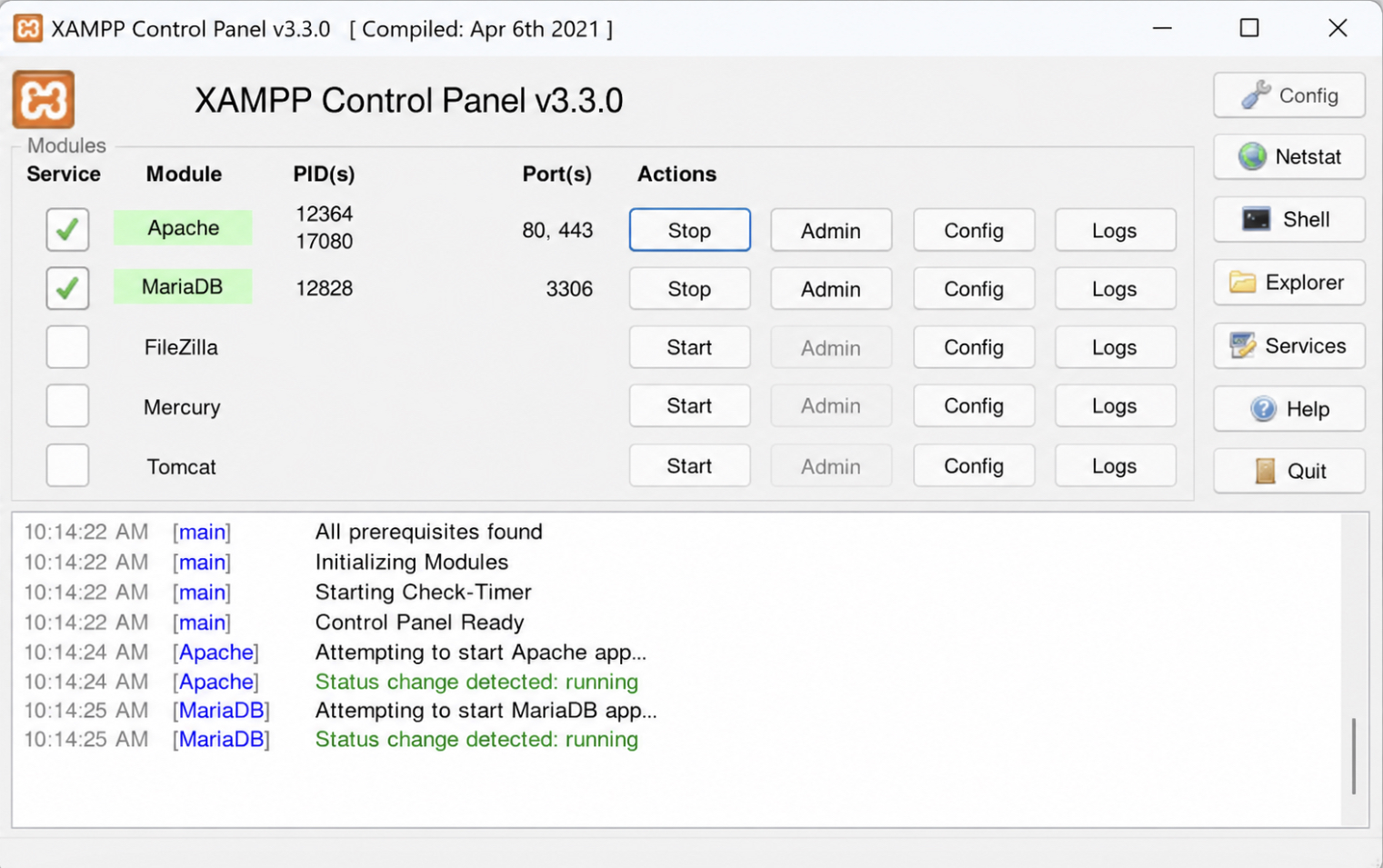
XAMPP is a free, open-source local WordPress development environment that bundles the Apache web server, MariaDB, and PHP into one installer run on the developer’s own machine. Nothing here is remote. The stack runs from the local disk, and a compact control panel manages each module.
Operating-system support is broad. XAMPP runs on Windows, macOS, and Linux from the same project, so a mixed team works from one familiar tool. Ease of use is where the environment requires the most manual work: the control panel provides start buttons for Apache and MariaDB, and it includes no one-click WordPress installer, so standing up a site requires several manual steps before a first page loads.
Production parity depends on the versions in the box. XAMPP bundles a fixed pairing of PHP and MariaDB, PHP 8.2 with MariaDB 10.6 in recent builds, and it supports HTTPS locally once a certificate is in place.
Moving to a different PHP version requires swapping the whole package rather than a quick version switch. Developer tooling stays lean. The stack includes phpMyAdmin for database work, yet it provides no built-in step debugger and no mail-catching inbox, so those require separate setup.
Price is the simplest axis: XAMPP is free and open-source, with no paid tier at all. Its go-live path is manual as well, since XAMPP offers migration by letting a developer export the database and deploy it alongside a file copy of the wp-content directory.
Running several sites means hand-writing virtual-host configuration for each one; the control panel does not manage independent installs on its own. That manual overhead is exactly what Local by Flywheel removes, trading the control panel for a graphical dashboard that stands a site up in one click.
Local by Flywheel
Local by Flywheel is a managed, graphical local WordPress development environment that provides a point-and-click dashboard in place of a manual server control panel. Where a classic stack runs from a control panel, Local provides a dashboard that stands up a complete WordPress site in a few clicks.
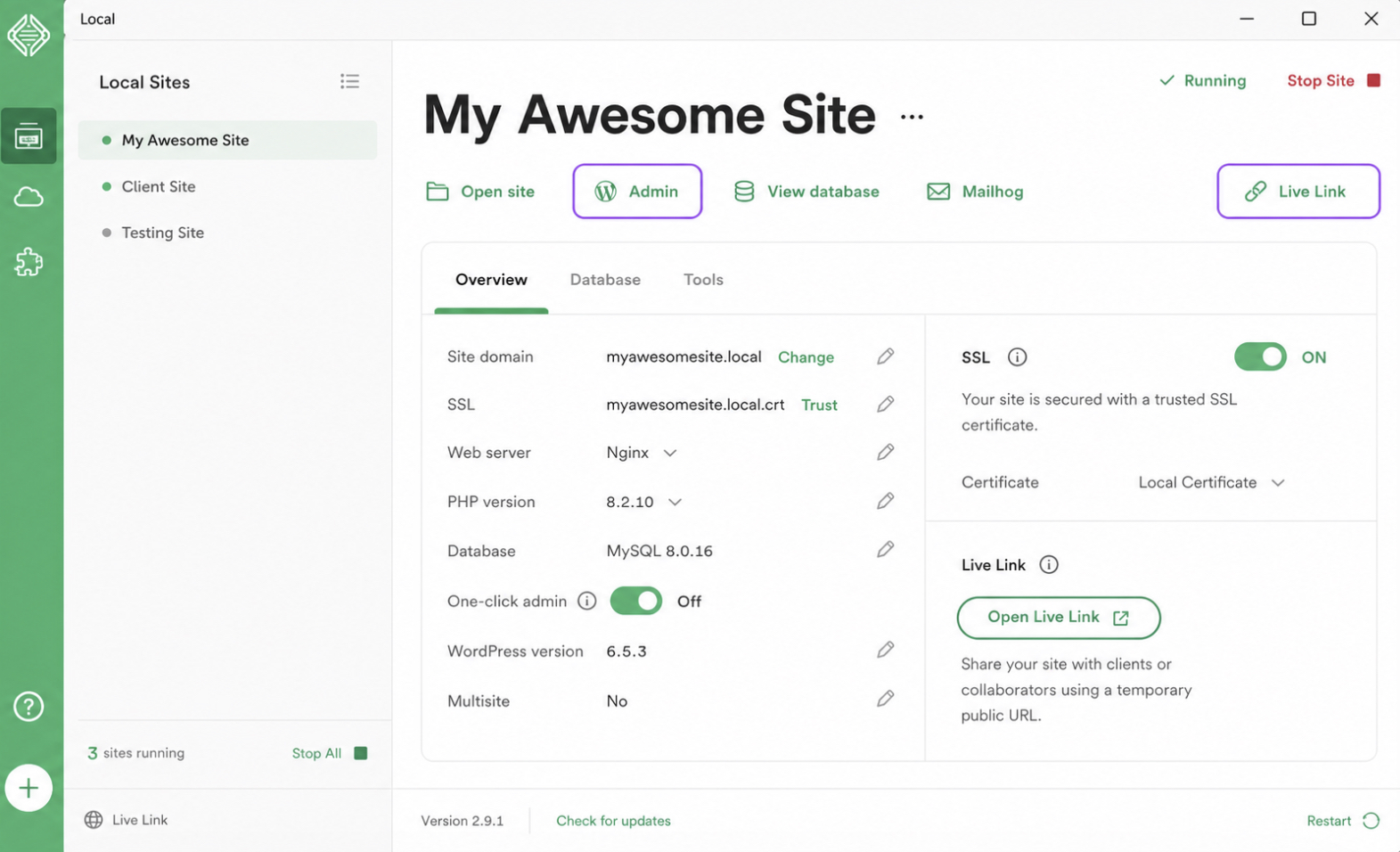
Local runs on Windows, macOS, and Linux, so operating-system support is broad. Ease of use is the clearest contrast with a manual stack: Local provides one-click site creation and requires no command line, and the dashboard offers a running install, an admin login, and an SSL toggle without hand-editing a single configuration file.
For production parity, Local supports switching both the PHP version and the web server between Nginx and Apache per site from the dashboard, with MySQL as the fixed database engine, keeping a local build close to its destination server. Developer tooling is where Local ships more than a bare stack: it includes step-debugging support and a mail-catching inbox that captures outgoing email, so a developer inspects transactional messages without a live mail server.
Price splits in two, since Local offers a free core that covers everyday development and a paid Pro tier that ships team add-ons. The go-live path runs through the same dashboard: Local ships a Live Link that provides a temporary public URL for a local site, and it deploys a finished build by pushing it to a connected host.
A WordPress Multisite network is built in, because Local offers it as a site type at creation. A developer who chooses Local can follow the full Local by Flywheel setup guide for the step-by-step install. On macOS, where a classic control panel is still the familiar starting point, that same bundled-stack simplicity is longest established in MAMP.
MAMP
MAMP is a bundled local server stack that packages a web server, a database engine, and PHP into one installer, giving a developer a local WordPress development environment to run on a single machine while deciding which option to install. The name records its roots: macOS, Apache, MySQL, PHP. That first platform is still the primary target, though a Windows build exists and behaves the same way, so operating-system support reaches both desktop platforms even though Linux is not on the list.
Ease of use rests on a compact control panel. MAMP starts and stops its servers from that panel, and a developer presses start, then points a browser at the local host. WordPress itself arrives through no one-click installer, so the database and the WordPress files are prepared by hand. Production parity is the axis where the paid tier changes the picture. The free MAMP core runs the single PHP version it ships with on the Apache web server, and MAMP Pro, the paid tier, adds switching between multiple PHP versions along with a choice between Apache and Nginx as the web server; a MySQL engine backs the database in either case.
Developer tooling stays deliberately lean. MAMP bundles phpMyAdmin as its database manager alongside the web server, MySQL, and PHP, yet it includes no mail-catching service, so a project that needs one adds it separately. Price follows the same tier line: the MAMP core is free, and MAMP Pro is the paid upgrade, priced from $99, that adds host management, the Nginx option, and multiple-version PHP switching.
Going live is manual: MAMP provides no deploy button, so a release means exporting the MySQL database and copying the WordPress files to the production server by hand. One environment is the default; running several sites at once requires configuring extra hosts rather than launching them from a menu.
Skipping that manual database export and file copy, and getting mail testing built in rather than added separately, points toward a managed, container-based option, the role DevKinsta fills.
DevKinsta
DevKinsta is a free, container-based managed environment that provisions a full WordPress stack behind a graphical dashboard, built for a developer who wants a local WordPress development environment with minimal setup. Kinsta, a managed hosting vendor, builds and distributes it, while the tool runs on any developer machine and carries no purchase requirement. Operating-system support covers Windows, macOS, and Linux, and DevKinsta runs on Docker internally to isolate each site, so the containers hold the runtime and the developer works only from the dashboard above them.
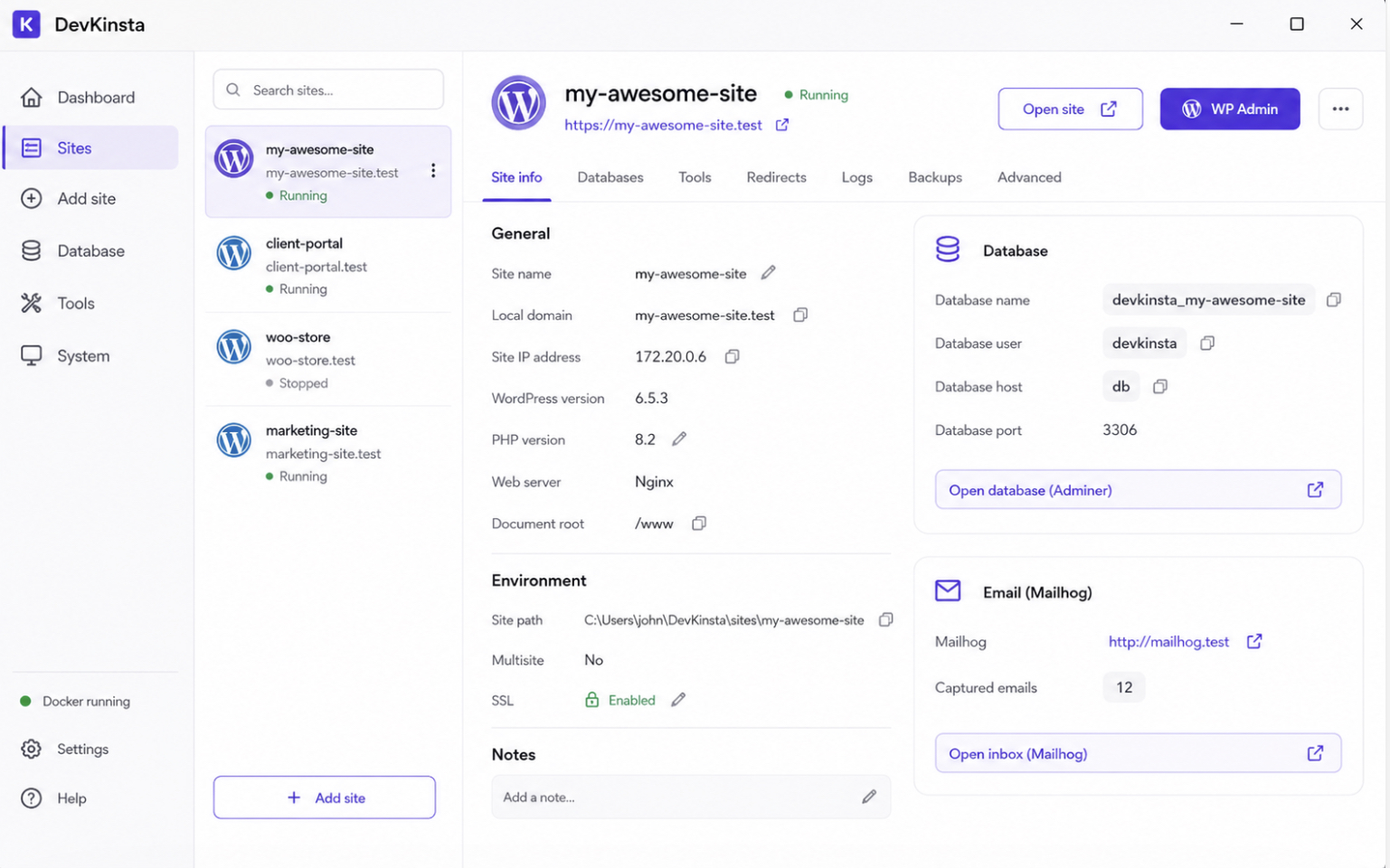
Ease of use is the dashboard’s strongest argument. DevKinsta creates a working site from a single click, filling in the database, the WordPress core, and a local domain with no manual copy step. Production parity holds through configurable PHP versions and a standard database engine, so a site assembled in DevKinsta approximates the versions a production host would run.
Developer tooling is DevKinsta’s clearest point of difference. DevKinsta ships a built-in database manager and a mail catcher in the same install: the database manager (Adminer) displays the tables directly, and the mail catcher (MailHog) collects outgoing WordPress email into a local inbox so a contributor can read it without anything reaching a real address. The mail catcher is the piece the classic bundled stacks leave out: XAMPP and MAMP both ship a database manager in phpMyAdmin, but neither includes a developer mail-catching inbox by default.
Price is simple: DevKinsta is free, with no paid tier gating the database manager or the mail catcher. Migration offers two routes: DevKinsta can push a finished local site straight to Kinsta hosting, or export the database and files for any other host, so the push to Kinsta reads as a convenience for that platform rather than a lock-in. Several local sites can run side by side, each managed from the same dashboard, which keeps multi-site work inside one interface.
A developer who settles on DevKinsta can follow the full DevKinsta setup guide to provision the first site and configure the bundled tooling. For a developer who wants no dashboard at all, and would rather declare the whole environment in a single file, the command-line route sits at the other end of the spectrum.
wp-env
wp-env is the official, command-line WordPress environment, a container-based tool that the WordPress project maintains for spinning up a disposable local WordPress development environment. wp-env requires Node.js, Docker, and the command line, three prerequisites that separate it from the graphical options and define its trade-off. Operating-system support follows those prerequisites rather than a fixed platform list: wp-env runs on any operating system that can install Node.js and Docker, which covers Windows, macOS, and Linux alike.
Ease of use is the price of that flexibility. wp-env provides no dashboard; a project describes the environment in a small configuration file and boots it from a terminal. A minimal .wp-env.json pins the WordPress core and the PHP version:
That file is the entire interface, nothing to click. Production parity comes from keeping those versions declarative. wp-env reads the core and PHP version straight from the config, so every developer on a project runs an identical, reproducible stack, and the declarative PHP and core versions remove the drift that hand-configured setups tend to collect. One command starts it:
npx wp-env start
Developer tooling favors automation over convenience features. wp-env provides disposable, reproducible environments that a script can create and tear down, which suits contributors testing patches and continuous integration pipelines that need a clean WordPress on demand. Price matches its origin: wp-env is free and open-source, shipped as an official WordPress tool. Migration expects a manual export of the database and files to a staging server, and multi-site runs are configured by declaring additional instances rather than through a panel.
The go-live path from wp-env, like the others, ends in an export to a staging or production host. Which of these environments to install comes down to the machine at hand, a developer’s comfort with the command line, and how close the local stack has to sit to production, the same axes that separate a lightweight classic stack from a reproducible, container-based one.
Which Local WordPress Development Environment to Choose
Choosing a local WordPress development environment comes down to fit rather than ranking. No single tool is the best local WordPress alternative for every developer. The right environment depends on the same seven axes (operating system support, ease of use, production parity, developer tooling, price, migration path, and multi-site support), which decide the answer far more reliably than any headline verdict.
Weighing them against the roster produces a short set of situation-to-tool recommendations, each conditional and none crowned:
Local by Flywheel suits a developer on Windows, macOS, or Linux who wants zero configuration and a graphical dashboard instead of a control panel and a command line.
DevKinsta fits anyone who needs free, bundled database management and email catching in one place, without paying for a premium tier.
wp-env favors contributors who want the closest production parity and disposable, reproducible, scriptable environments for continuous integration.
XAMPP and MAMP match a developer who already knows Apache and prefers the lightest classic bundled stack, with MAMP the macOS-first choice of the two.
A different situation sits just past the edge of local development. A developer who outgrows a single machine (running many sites at once, or needing container images that match a hosting stack byte for byte) steps up toward containerized workflows, where running WordPress in Docker becomes the next thing to weigh. That path trades the convenience of a bundled installer for reproducibility at scale.
Whichever environment matches the situation, the finished site still has to move off the developer’s machine and onto a live server, and that route looks the same across all five tools.
How to Deploy a Finished Local Site to a Live Server
Deploying a finished local site means moving the built WordPress site off the developer’s own machine and onto a live server where visitors can reach it. Every one of the five local WordPress development environments produces the same two things (a database and a wp-content directory), so the route to production runs through the same three stops no matter which tool built the site: local, then staging, then the live server.
The class-level migration path is a short, ordered sequence:
Export the local database from the environment.
Copy the wp-content files: themes, plugins, and uploads.
Search-replace the site URLs so the local address becomes the production domain.
Import the database and files to a staging server and verify the site there.
Promote the verified staging build to the live server.
The chosen environment changes only the export mechanics at the first step: XAMPP and MAMP hand over a manual database dump and a file copy, while Local by Flywheel and DevKinsta expose a push-to-host action that packages the same artifacts. The path itself does not change. Staging always comes before production, and verification always comes before the promotion goes live.
A finished, deployed site is the outcome the whole comparison serves. Weighing five local WordPress development environments matches each developer to the right tool for a running local build, then carries that build to a live site, with nothing about the deploy left to guesswork.





 ChatGPT
  Claude
  Grok
Grok  Gemini