Explore our specialized services, tailored solutions, and industry expertise to elevate your digital presence. From custom WordPress development to seamless integrations, we build high-performing websites that deliver impact.
Editing the wp-config.php configuration file in WordPress lets you safely change the settings that control how your website connects to its database, applies security-related options, and manages core behavior without breaking the site. This guide focuses exclusively on editing this file correctly and explains when changes are appropriate, how to make them safely, and how to verify that your website continues to function as expected.
You will learn the complete editing process in the correct order: locate the file, access it through your hosting environment or file manager, create a backup, edit the required define() settings or configuration values, save your changes, and verify that WordPress loads normally after the update. Following this sequence helps reduce the risk of syntax errors, configuration mistakes, and unnecessary downtime.
Before making any changes, it is important to understand the role this file plays within a WordPress installation. The next section explains what the wp-config.php file is and why it is central to your site’s configuration.
What Is the wp-config.php File?
The wp-config.php file is the WordPress configuration file that stores the settings a WordPress installation needs before it can run, the one configuration file a site owner is meant to edit directly. It sits in the site root as a single, user-editable PHP file, which sets it apart from the dozens of core files WordPress ships and expects administrators to leave alone. Most people first edit the wp-config file when a plugin guide or a hosting article tells them to add a line to it.
Inside, the file holds the values that decide how the install behaves. The database credentials come first (name, user, password, and host) followed by the authentication keys and salts that protect logged-in sessions, the table prefix that namespaces every database table, and a set of behavior constants that turn features like debugging or the built-in file editor on and off.
The credentials, keys, salts, and behavior constants are each declared with a single define() statement, while the table prefix is set through the $table_prefix PHP variable rather than a define() constant.
wp-config.php is not wp-settings.php, the core loader WordPress executes on its own and no one edits. It is not the setup-config.php installer either; that is the screen that generates these credentials during a first install. And despite the shared word in the name, the WordPress config file has nothing to do with a browser’s about:config or an IIS web.config; those belong to different software entirely.
Because this one file configures the entire installation, every value changed inside it changes how the whole site runs, and making any of those changes starts with finding the file on the server.
Where Is the wp-config.php File Located?
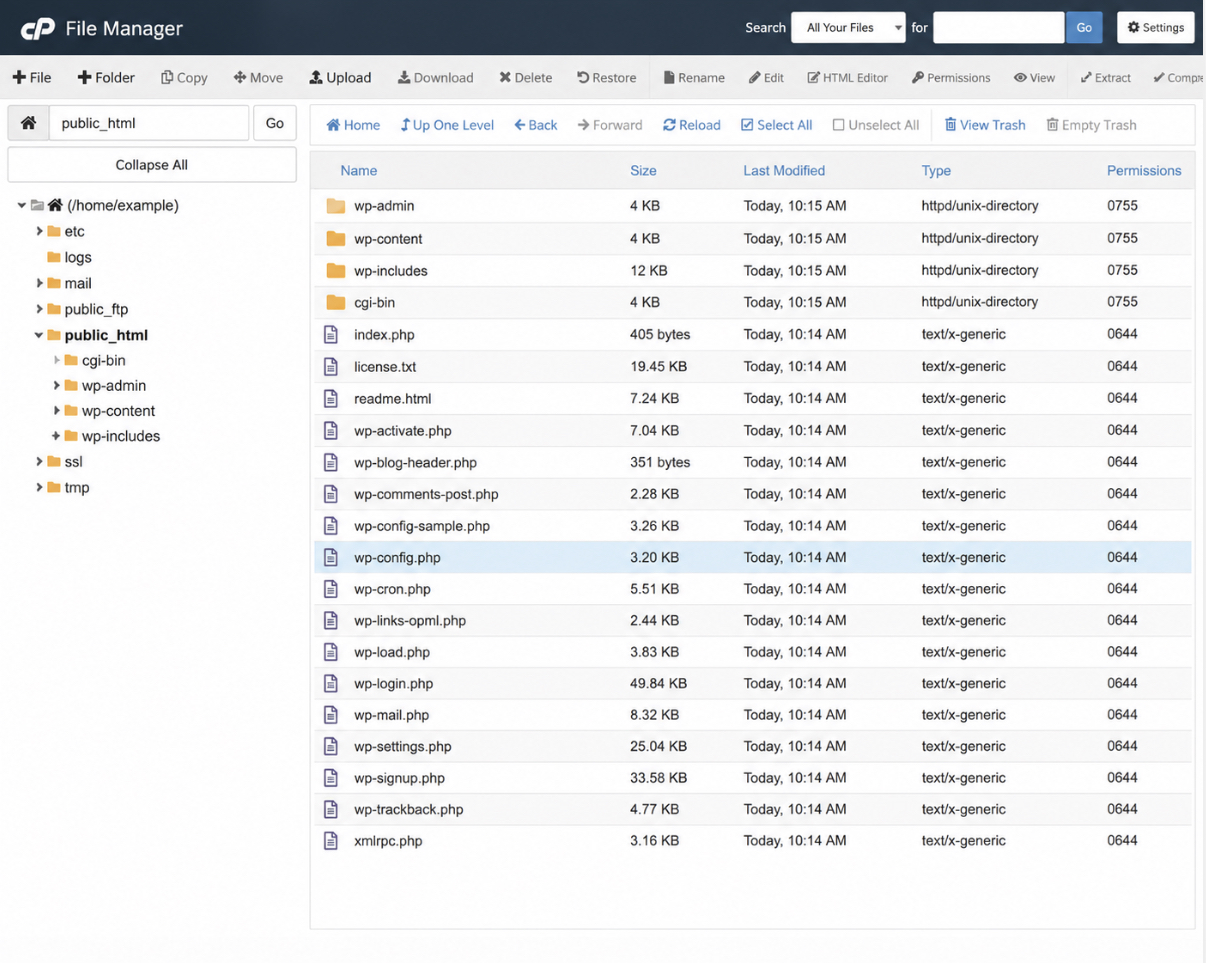
wp-config.php is located in the WordPress root directory, the top-level folder that on most hosts is named public_html. WordPress keeps the file there, sitting directly beside the wp-content folder that holds themes and plugins and the wp-admin folder that runs the dashboard. Find those two folders, and the configuration file is in the same place.
The root itself goes by different names depending on the host. Many servers label it public_html; some use www or httpdocs; a few point the site at a custom document root chosen during server setup. Whatever the label, it is the same top-level directory that contains the WordPress files, and the configuration file always sits at its base rather than inside a subfolder.
A file manager in the hosting control panel and an FTP/SFTP client both show this location plainly, which is where opening the file and making the first change begins.
How to Access the wp-config.php File
Accessing the wp-config.php file means opening the same configuration file that sits in the site root, using whichever file tool the host provides. Three of them reach it. A cPanel File Manager, an FTP or SFTP client, and the host’s own built-in file editor each open wp-config.php in place. The file does not move, only the tool used to open it changes.
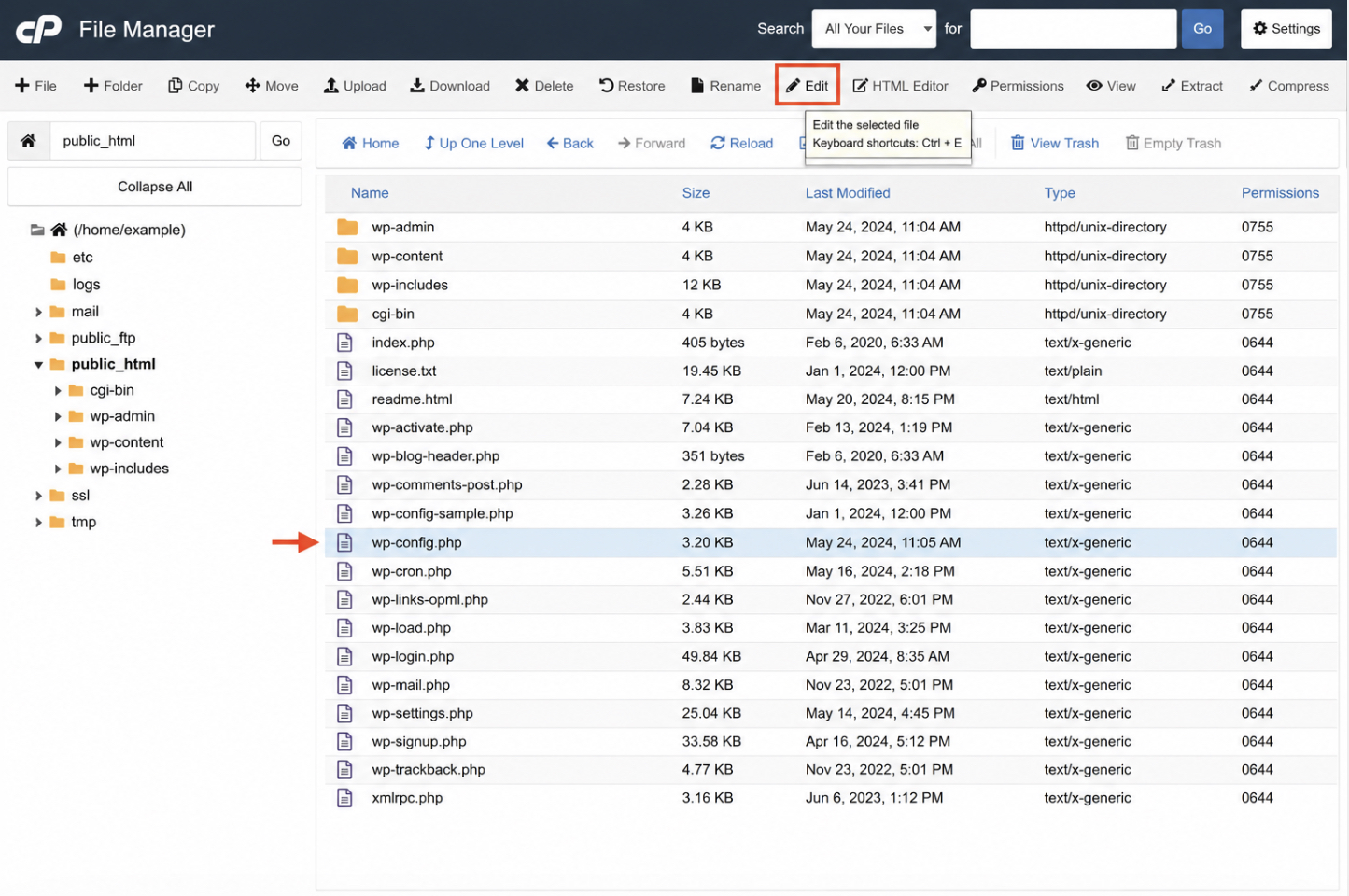
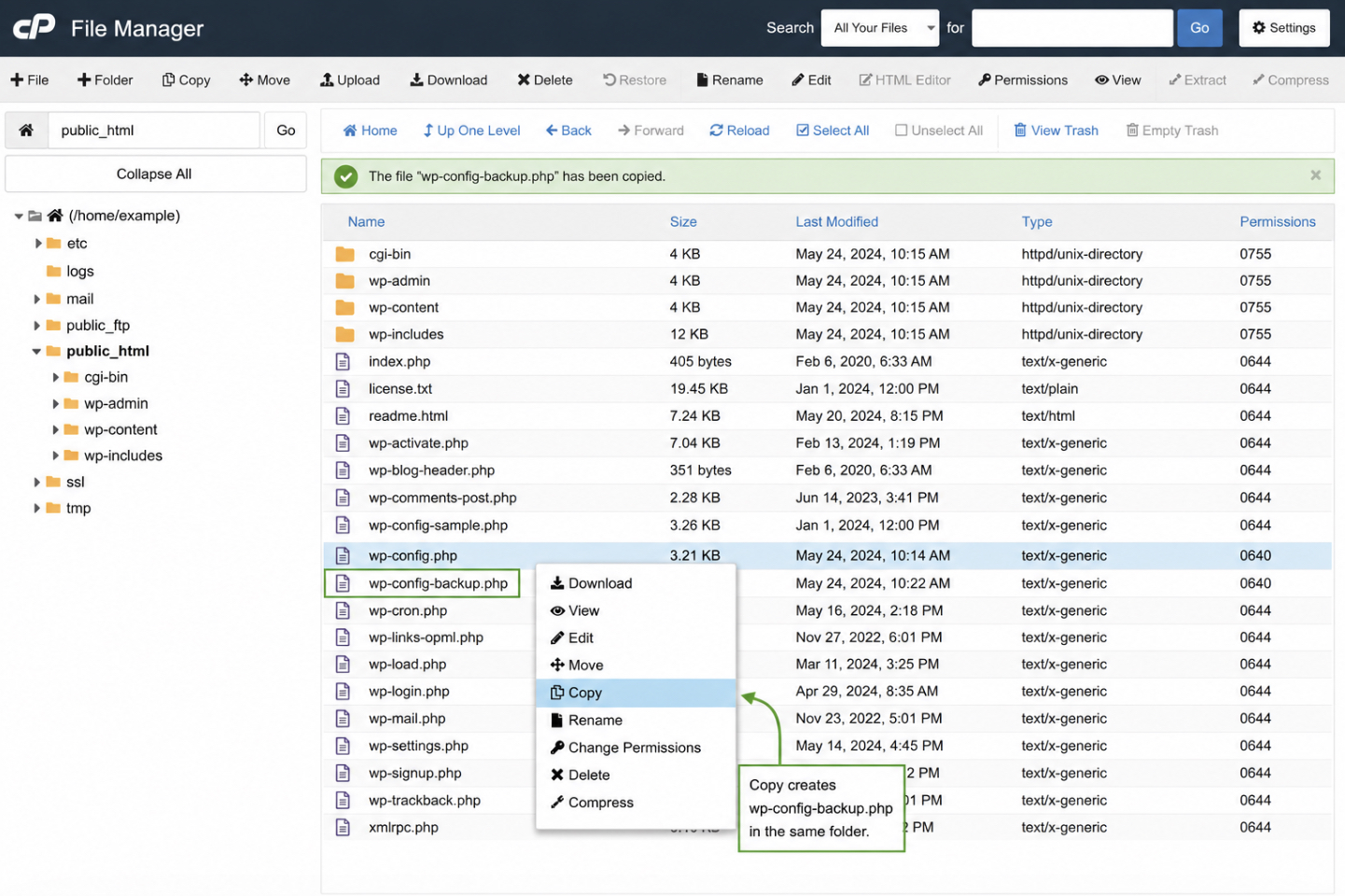
Through cPanel File Manager, open the site root (usually the public_html folder), locate wp-config.php in the file list, select it, and click Edit or Code Editor. The file opens in a text pane, ready to read.
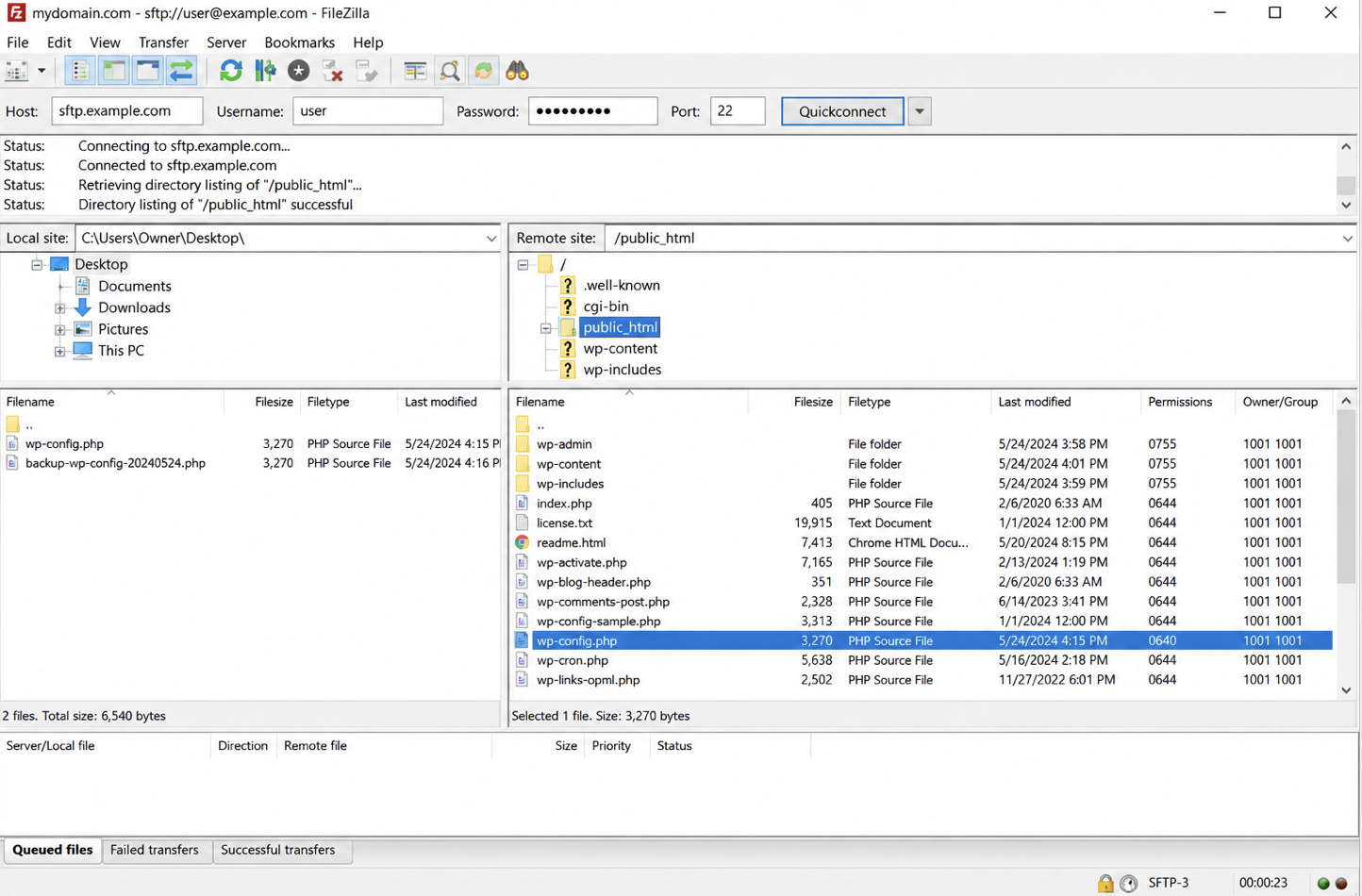
An FTP or SFTP client takes the second path, and FileZilla is the one most site owners already reach for. Connect to the server with the host credentials, navigate to the site root, then either download wp-config.php to open in a local text editor or edit it in place if the client supports live editing. Prefer SFTP over plain FTP here: wp-config.php carries database credentials, and an encrypted transfer keeps them from crossing the network in the clear.
The third path skips the separate client entirely. Many managed WordPress hosts ship a code editor inside the account dashboard, and that built-in file editor opens wp-config.php straight from the panel.
Whichever tool opens it, the file should stay locked to conventional 640 or 600 permissions so the credentials inside are never world-readable. With wp-config.php open, one thing comes before any change: make a copy of it first.
How to Back Up the wp-config.php File Before Editing
Backing up the wp-config.php file before editing means keeping a second, untouched copy of the file so the original can be restored the instant a change misbehaves. No edit to wp-config.php should happen without that copy in hand. A single mistyped line in the configuration file can take down the whole site, and the backup is the difference between a ten-second fix and a support ticket.
Making the copy takes one action. In cPanel File Manager, right-click wp-config.php and choose Copy or Download; a duplicate named wp-config-backup.php in the same folder does the job just as well, kept beside the original where it is easy to find again. Over FTP or SFTP, download wp-config.php to a local drive before touching the version living on the server.
The value of that copy shows up only when an edit goes wrong. If the site returns a blank page or a database error after a change, restoring the backup reverts everything to the last working state in a single move: delete the edited file and rename wp-config-backup.php back to wp-config.php, or re-upload the local copy over the broken one. That restore path is the whole reason the copy comes first: if confirming that the site still loads turns up a broken edit, the untouched copy restores a working site in a single step.
With an untouched copy set aside, the configuration file is safe to change.
How to Edit wp-config.php with the define() Statement
Editing wp-config.php with the define() statement means changing the file the way WordPress reads it by declaring a named constant instead of rewriting any logic. The define() statement is a small PHP function, and inside wp-config.php it is the reusable instruction that hands WordPress the value of one setting. Learn it once, and every configuration change in this file becomes the same move.
The pattern holds a name and a value:
define( 'CONSTANT_NAME', value );

/* That's all, stop editing! Happy publishing. */
The first argument, in quotes, is the constant name WordPress looks for. The second is the value assigned to it — a string in quotes, or a number or true/false written without them. Every define() line belongs above the /* That's all, stop editing! */ comment near the bottom of the file, because that comment marks where WordPress loads its core through wp-settings.php. A constant placed below that line is read too late to take effect. Each constant is declared once, too: a second define() for the same name does not override the first, it only throws a notice.
That one pattern covers both jobs an edit can involve. Adding a new setting means writing a fresh define() line above the stop-editing marker. Changing an existing setting means editing the value inside the define() line already sitting there. Nothing about the mechanism shifts from one constant to the next; the name identifies the setting, the value sets it, and WordPress applies it on the next page load.
Once a define() line is in place and the file is saved, one thing remains before the edit can be trusted: confirming the site still loads.
How to Save the wp-config.php File and Verify the Edit
Saving the wp-config.php file writes the define() edit to the server, and verifying the edit confirms the site still loads once that file is live. Until the file returns to its place in the site root, the change exists only inside the editor buffer. No request WordPress handles knows about it yet. Save it there first.
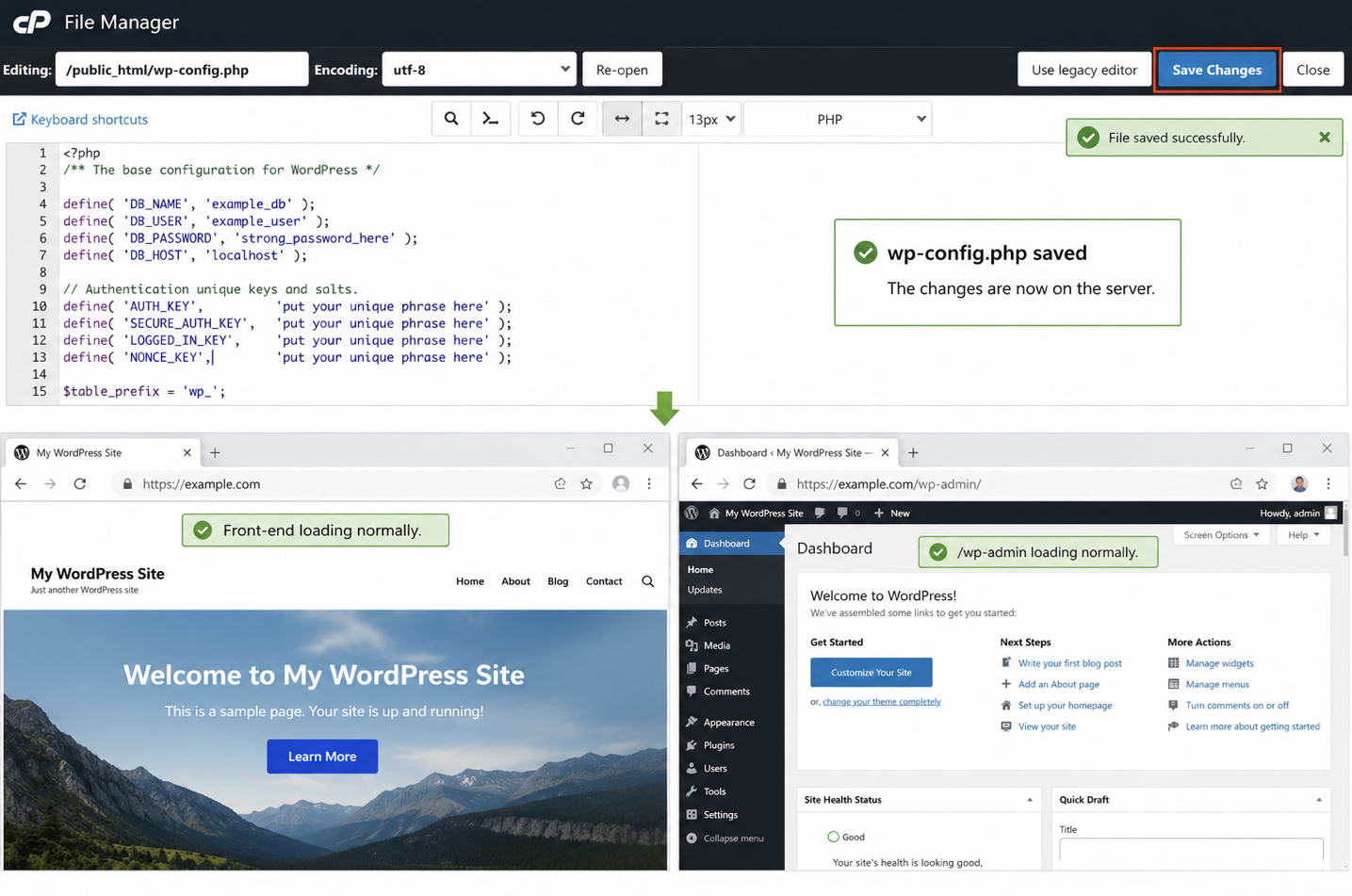
In the cPanel File Manager code editor, the Save Changes control commits the file in place. Working over FTP or SFTP instead, re-upload the edited wp-config.php to the site root and overwrite the copy already on the server. Either route ends the same way: one saved wp-config.php sitting where WordPress expects to read it.
Now verify. Reload the front-end of the site, then open the /wp-admin dashboard. A wp-config.php edit touches the code that runs before WordPress renders a single page, so a small slip (a missing semicolon, a stray quote, a define() line pasted twice) surfaces at once as a blank white screen or a database connection error rather than as a quiet failure buried three clicks deep. Both pages loading cleanly is the confirmation that the edit holds.
When either page breaks, restore the backup taken before the edit. Drop the untouched copy of wp-config.php back into the site root, overwrite the broken version, and the install returns to the exact state it was in a moment earlier. That backup is why editing wp-config.php stays a reversible operation rather than an irreversible risk: a bad edit costs one re-upload, never the site.
A saved, verified, working file closes the editing procedure. Beyond the procedure sits the vocabulary of the file itself, the short list of constants a site owner reaches for most often, and the database credentials wp-config.php has carried since the day WordPress was installed.
Common wp-config.php Constants to Define with define()
A wp-config.php constant is a fixed configuration value written once with the define() function and read by WordPress on every request. The full roster runs to dozens of entries, and a compact wp-config.php constants cheat sheet lists each one with its accepted values. Only a handful come up regularly, though, and every one of them doubles as a clean worked example of the same safe define() edit.
WP_SITEURL and WP_HOME fix the two addresses WordPress keeps for itself. WP_SITEURL points at the location where the core files answer requests; WP_HOME points at the address visitors type to land on the homepage. Defining both pins the install to one canonical address and shuts down the redirect loops that so often follow a domain move or a shift from HTTP to HTTPS.
FS_METHOD controls how WordPress writes to its own filesystem when it applies updates, plugins, or themes. Defining it as ‘direct’ tells WordPress to write straight to disk instead of demanding FTP credentials on every single update, the usual cure when the update screen keeps asking for a connection the server should already have.
DISALLOW_FILE_EDIT and DISALLOW_FILE_MODS harden the install from the configuration file outward. DISALLOW_FILE_EDIT disallows the built-in theme and plugin code editor under Appearance and Plugins, so a hijacked admin login cannot rewrite live PHP from inside the dashboard. DISALLOW_FILE_MODS reaches further and disallows every dashboard-driven file change at all; no plugin or theme installs, updates, or deletions through the browser, which suits managed sites where deployments run through version control rather than the admin screen.
Two more constants come up almost as often, each with a deeper procedure of its own. WP_DEBUG switches WordPress error reporting on, turning a featureless white screen into a readable list naming the exact file and line at fault. The first thing to reach for when a define() edit or a stray plugin takes the site down, walked through end to end under enable WP_DEBUG.
WP_MEMORY_LIMIT is the second of them, and it raises the ceiling PHP enforces on a single request, a value such as ‘256M’ gives a heavy theme or a large import room to finish. Upload-size ceilings often need lifting alongside it, but those are php.ini directives such as upload_max_filesize and post_max_size rather than wp-config.php constants; increase WordPress memory and upload limits walks through the memory constant and the upload directives together.
Every one of these lines uses the identical define() shape the editing procedure relies on. The file holds one more group of define() lines that predate all of them, written automatically the moment WordPress first connected to its database: the database connection settings.
The Database Connection Settings in the wp-config.php File
The database connection settings in the wp-config.php file are the four values WordPress reads to open its connection to the MySQL database on every page load. WordPress stores no post, page, user, or option inside its PHP files, all of it is stored in the database, and this small cluster near the top of wp-config.php is what lets the two halves connect.
DB_NAME names the specific MySQL database that holds the site’s content. DB_USER and DB_PASSWORD are the MySQL account credentials WordPress logs in with. DB_HOST identifies where that database server answers, almost always ‘localhost’ on a standard single-server install, or a supplied hostname (occasionally with a port, as in ‘localhost:3306’) on managed and remote configurations.
These four values change for one reason: to match a database that has moved to a new server, been renamed, or issued fresh credentials. Editing them relocates nothing on its own. Actually moving a database (exporting it, importing it elsewhere, repointing a live site at the copy) is a database-management job with its own procedure, and wp-config.php only records where that database already sits once the move is done. Change the values to follow the database; do not expect the values to carry it.
Keeping live credentials in a file stored in the site root works for one site but becomes hard to manage across many of them. Larger operations lift the four values out of wp-config.php entirely and hold them in environment variables instead, the approach behind manage WordPress secrets with .env files, where a single secret store feeds many installs and no password ever lands in tracked code.






 ChatGPT
  Claude
  Grok
Grok  Gemini