Explore our specialized services, tailored solutions, and industry expertise to elevate your digital presence. From custom WordPress development to seamless integrations, we build high-performing websites that deliver impact.
A local WordPress environment set up with wp-env runs on the developer’s own machine. The plugin or theme developer sets it up and starts it from a terminal beside a code editor, opening no desktop application to do either.
Setup runs in a fixed order: the machine confirms what it must already have, the package installs, the environment is declared in a configuration file the first start reads, commands operate it day to day, the same terminal reaches its database and its debugging output while it runs, a few failures interrupt it, and removal closes the sequence out. The first of those failures is a refused download, not the refused WordPress login it looks like.
The order produces a WordPress site reachable in a browser on the local machine, running the plugin or theme under development: code on disk, the site around it disposable. All of it rests on what wp-env is.
What Is wp-env?
wp-env is a command-line tool that installs and runs a local WordPress site from a declaration held in a file, which states what the site contains and what wp-env installs.
The environment includes four Docker containers a plugin or theme developer works with directly: wordpress and tests-wordpress run the development site and an isolated test copy, cli and tests-cli contain the WordPress command-line interface for each. The development container includes a full WordPress core install, not a stub.
wp-env is distributed as the npm package @wordpress/env, and wp-env is the command the terminal has once it is installed. Both names belong to the WordPress project, which maintains the tool in the same repository as the block editor and ships it with that toolchain (the reason block-based plugin and theme development starts with it).
It costs nothing, requires no vendor account, and publishes its defaults in the wp-env pages of the WordPress Block Editor Handbook and the @wordpress/env package documentation. None of it installs, though, on a machine missing three things.
wp-env Prerequisites
A wp-env prerequisite is a machine state that already holds before the tool starts. wp-env requires three, and no environment starts while one is missing.
wp-env requires Docker because the environment consists of containers, which need a runtime: Docker Desktop on macOS and Windows, Docker Engine on Linux, answering the same docker command either way.
wp-env requires Node.js and npm as a pair for a different reason: the tool is an npm package, npm needs Node.js, and npm puts wp-env on the machine.
Each of the three prerequisites is confirmed on the machine by its own version command.
Docker: the container runtime the environment’s containers run in. Confirmed by docker --version.
Node.js: the JavaScript runtime npm needs. Confirmed by node --version.
npm: the package manager that installs wp-env. Confirmed by npm --version.
docker --version
node --version
npm --version
Each line returns a semantic version string (major.minor.patch for Docker and npm, the same triple v-prefixed for Node.js) and a string on every line confirms all three are present. The first does not confirm that the runtime has started: docker --version reports from the command-line client, which prints its own version regardless of the runtime’s state. Three strings printed, with that runtime up, are the machine state wp-env’s installation requires.
wp-env Installation
A wp-env installation puts one command on the system, wp-env, delivered by npm as the package @wordpress/env, and nothing more: WordPress, the database and the web server arrive later as Docker containers the tool builds on first run.
One decision comes attached and cannot be deferred: the tool belongs either to the machine or to the project. npm names the two modes, a global installation and a local installation, and each takes a single npm command.
What the choice changes is the invocation. The environment is identical either way; only the path to the command differs.
Global Installation
A global installation places the wp-env command on the machine rather than inside one project. Two lines install it and confirm it landed:
npm -g install @wordpress/env
wp-env --version
The second prints whatever version npm resolved at that moment. No particular number is expected; that the command answers at all confirms the executable is on the PATH.
From there the command is bare. wp-env, typed in any folder holding a wp-env configuration, runs against that folder. That suits a developer who moves between codebases. One constraint comes with it: a single version of wp-env serves every project on the machine, so a project needing a different version has nowhere to record that fact.
Recording it is what the project-local route does.
Local Installation
A local installation keeps wp-env inside one project, listed in its package.json as a development dependency rather than machine-wide. Install and first invocation are two lines:
npm i --save-dev @wordpress/env
npx wp-env
The first writes @wordpress/env into devDependencies and unpacks it into the project’s node_modules. The second reaches it: npx resolves the executable out of node_modules/.bin first, so the project’s own copy runs at the pinned version even where a global one exists.
A scripts entry in package.json wraps it:
{ "scripts": { "wp-env": "wp-env" } }
npm run wp-env now reaches the tool, any subcommand passed after a -- separator. The wrapper matters for where it puts the command: in the repository. Clone the checkout, run npm install, and the tool is present at the version the project declared, no drift between one laptop and the next.
Neither install describes the environment, which WordPress version starts, which plugin or theme is mounted, which port it answers on. All of that is declared in a separate file the tool reads from the project root.
The .wp-env.json Configuration File
The .wp-env.json configuration file declares a wp-env environment in one JSON object at a project’s root: the WordPress core it runs, the PHP version it pins, the plugins and themes it installs, the port it publishes on. Nothing is configured elsewhere.
Any machine holding the file rebuilds that same site from it. Two uses follow: tracked in the project repository the declaration becomes the team’s, and split with the env key it adds a second WordPress install for the test suite.
Seven keys account for most of what the file declares.
Key
Declares
Value forms
Effect when changed
core
WordPress source the environment runs
null for the latest release, a GitHub reference like "WordPress/WordPress#6.5", a zip URL, or a local path
that source installs on next start
phpVersion
PHP version WordPress runs under
null for the package default, or a pinned version string such as "8.2"
the environment restarts on that version
plugins
plugins installed and activated
array of local paths, GitHub references or zip URLs; "." is the project directory
listed plugins come up active
themes
themes installed
the forms plugins accepts
listed themes are available to activate
port
port the development site is published on
bare integer; 8888 by default
site answers on the declared port
mappings
local directories mounted into the install
object of container path to local path, e.g. "wp-content/uploads": "./uploads"
mapped directory appears at that path
env
values differing between development and tests
object of development and tests, taking the same keys
named environment overrides the top-level value
A minimal declaration for a plugin under development pins core and PHP, maps a directory and sets the port:
The single dot inside plugins maps the project directory itself into the environment, so the plugin under development is active from the first start. A theme maps the same way through themes, and mappings extends it to any other path inside wp-content.
wp-env start reads .wp-env.json on every start, so a core bump or a newly mapped plugin is one edit and one command. The file only reaches a second developer if the repository carries it.
Committed .wp-env.json
A committed .wp-env.json is the declaration tracked in the repository beside the code it runs, so a clone contains the environment that code needs.
What the repository contains is everything identical for every developer: .wp-env.json itself and the npm script versioned in package.json so npm run wp-env means one thing across the team, and the source of that meaning is the committed script, not one shell history. What stays local is everything one machine owns.
Committed to the repository
Local to one developer
.wp-env.json: pinned WordPress core and PHP versions
Docker and the daemon it runs
.wp-env.json: mapping of the plugin or theme under development
containers and volumes wp-env builds
.wp-env.json: declared development and tests ports
per-machine port overrides, untracked in .wp-env.override.json
the package.json script that runs wp-env
database contents of the local site
A second developer reaches that environment from a fresh checkout in three commands:
The checkout carries the declaration, npm install adds @wordpress/env, and the start run reproduces the containers it describes (the same site as the first developer’s rather than a similar one). The env key splits that declaration in two.
The env Block
The env block is the part of a .wp-env.json declaration that splits it into two environments, development and tests. Each half takes the top-level keys and overrides them for itself alone.
The development half declares the site a plugin or theme is built in. It keeps port 8888, maps the project directory, and holds what accumulates during ordinary work: draft posts and uploaded media.
The tests half declares a second WordPress install with its own database, in the same file rather than a second project, separate because a test run overrides the data it runs against: fixtures declared, options rewritten, tables emptied. Pointing that test run at the development site consumes the work inside it.
The two halves differ in their ports and in their plugin lists. The tests environment installs an extra fixture plugin the development environment does not.
wp-env publishes each half on its own port, so both run at once from a single start. Development answers at http://localhost:8888 and tests at http://localhost:8889.
WordPress Access in wp-env
WordPress access in wp-env is a running WordPress site served from the local machine, its admin screens in a browser and its files inside the containers wp-env brought up. That site is reachable only from the local machine, which makes it safe to break.
One command produces it. wp-env start brings the containers up and publishes the addresses the site is reachable at:
$ wp-env start
WordPress development site started at http://localhost:8888
WordPress test site started at http://localhost:8889
Those ports are declared values, not constants: 8888 is the fallback the @wordpress/env documentation records when the configuration file declares none.
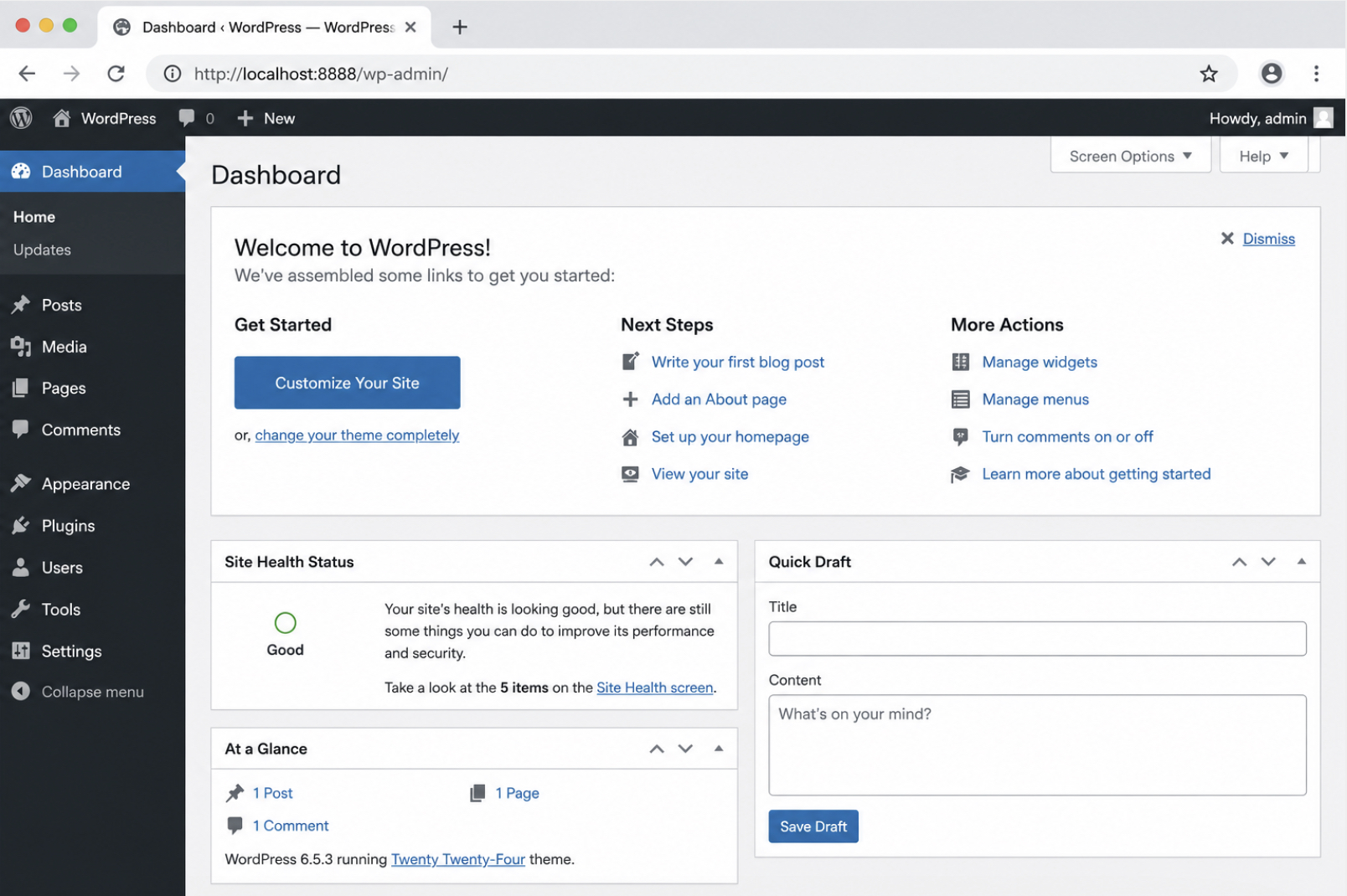
That address opens the front end, and the admin path appended to it opens the dashboard. Three access values open the running site:
Development site: http://localhost:8888
Admin screens: http://localhost:8888/wp-admin
Default administrator account: user name admin, password password
Log in with that account first. Every environment wp-env builds has that pair, the default the wp-env documentation in the WordPress Block Editor Handbook publishes.
A second WordPress site starts alongside it at http://localhost:8889, the address the env block declares; a destructive run there leaves 8888 intact.
The terminal that started both sites operates the environment.
wp-env Commands
wp-env commands are the terminal instructions that operate a WordPress environment already on the machine. wp-env start is the first; the rest act on containers already defined.
start and stop are a pair. wp-env start takes the configuration file as it stands. wp-env stop ends the running environment.
wp-env run executes a command inside a named container rather than on the host. Container name first, command second:
wp-env run cli wp plugin list
cli is the container carrying WP-CLI; the same form reaches the wordpress and tests-wordpress containers.
Two commands report rather than change. wp-env logs is where a blank page or a 500 Internal Server Error shows its actual message. wp-env status reports a port, a URL or the WordPress path on disk rather than an assumed one, a job it has carried since version 11.0.0 of the @wordpress/env package replaced install-path.
Five commands operate a built environment day to day:
Command
What it does
When a developer reaches for it
What it leaves behind
wp-env start
Brings the containers up and publishes the development and tests sites
Opening a session, or after a configuration edit
Two running sites, on 8888 and 8889
wp-env stop
Stops the running containers
Closing a session, or before another project takes the ports
Stopped containers; database volumes and site content intact
wp-env run
Executes a command inside a named container
WP-CLI or Composer work where the WordPress files are
The environment still running, changed by whatever the command did
wp-env logs
Reports container output as it is produced
Diagnosing a blank page or a 500 Internal Server Error
Nothing changed; the container output open in the terminal
wp-env status
Reports whether the environment is running, the site URLs and published ports, and the WordPress path on disk
Confirming a port or a path
Nothing changed; the environment’s current facts printed
The five operate the environment, not the data it stores, and the route to the tables still runs through one of them, wp-env run.
wp-env Database Access
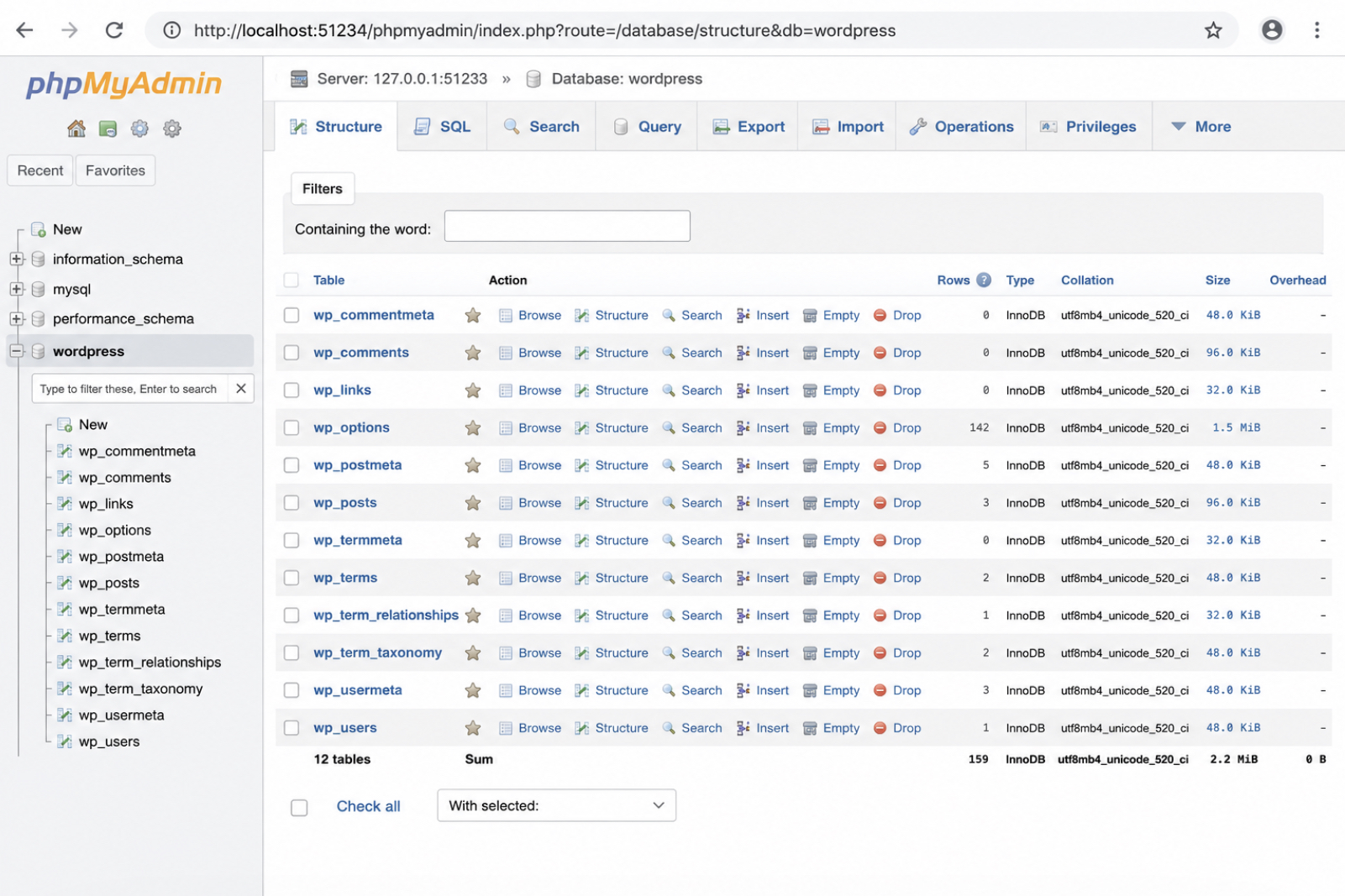
Database access in wp-env reaches a MySQL server the environment runs for itself: one per install, each in a container of its own alongside those serving the two WordPress sites. The WordPress database is one of those running services, not a file on the host, and phpMyAdmin or a container shell opens it.
Development answers on 8888 and tests on 8889 because the configuration file declares those numbers; the MySQL port is whatever the container runtime has free at start unless the configuration file declares one, so two environments on one machine report different numbers. mysqlPort is that declaration: a top-level integer, null by default in the @wordpress/env package.
127.0.0.1 is the host paired with each of the two MySQL ports. wp-env start reports them as it finishes, one line per service: the line naming MySQL carries the development port, and the line naming MySQL for automated testing carries the tests port.
$ wp-env start
MySQL is listening on port 62378
MySQL for automated testing is listening on port 62379
$ wp-env run cli wp db cli
62378 is one machine’s output on one run. The run form opens a database shell inside the container through WP-CLI, enough to query a table or drop a stale transient.
phpMyAdmin is the browser route to the WordPress database, and it runs as one of the environment’s own services: the phpmyadmin key set to true starts it, and phpmyadminPort sets the number it answers on. Its address prints with the start output, and it opens on the table list of that environment’s database: wp_options, wp_posts, and whatever tables the plugin under development created on activation. Browsing rows confirms an option key carries the value the code intended.
What a row cannot report is why the code wrote it; the environment exposes a second surface for that.
wp-env Debugging
Debugging in wp-env runs on two mechanisms for finding errors in the code it runs: Xdebug, already in the containers and turned on by a flag on the start command, and the WordPress debug constants, declared through the configuration file’s config key. The debugger steps through execution; the constants decide whether WordPress reports what it noticed and where.
wp-env start –xdebug enables the step debugger. The environment restarts with Xdebug listening for an editor’s debugging client, so any request can pause on a breakpoint. The expanded form takes a comma-separated list of modes, adding profiling and tracing when a slow request needs measuring rather than inspecting.
wp-env start --xdebug
wp-env start --xdebug=profile,trace,debug
wp-env logs all
Every key inside the config key is written into wp-config.php at start, so the constants survive a rebuild rather than being hand-edited in a container. The config key, the constants it accepts, and the Xdebug build already in the containers are recorded in the @wordpress/env package documentation.
WP_DEBUG turns WordPress’s own error reporting on. WP_DEBUG_LOG sends every notice, warning and fatal error to debug.log inside wp-content, readable after the request ends. WP_DEBUG_DISPLAY set to false keeps that output off the rendered page, which matters when a notice breaks a REST response into invalid JSON. SCRIPT_DEBUG loads the unminified core scripts, so a stack trace names a real function.
A debugging session runs as five ordered steps.
Start the environment with the debugger on: wp-env start --xdebug. The flag restarts the environment, so it replaces a plain start.
Declare the debug constants through the config key and start again, so the values reach wp-config.php. Both halves are needed: one exposes execution, the other what WordPress logged about it.
Reproduce the error in the plugin or theme under development: load the screen, save the post, hit the endpoint.
Read where it surfaced: a breakpoint holds execution in the editor’s debugging client, debug.log holds the notices WordPress wrote, and wp-env logs all reports what the containers emitted.
Turn the debugger off with a plain wp-env start once the cause is identified.
Xdebug inspects every request the environment serves, so that environment runs measurably slower while the debugger is on, and profile and trace modes keep writing files. Both halves assume an environment that came up at all, a failure that stops it reports itself earlier, as a refusal on the command line.
wp-env Troubleshooting
Troubleshooting wp-env means naming the failure that stopped a start run: a blocked download that a corporate proxy refused, or a port the environment cannot publish on. The start run reports its own failure in the terminal, naming the step it reached and the operation it could not complete, so a diagnosis begins there.
Both failures sit on either side of one moment: the point where the environment’s images finish downloading. One stops the run before any image arrives, when the image download comes back refused with a 403 Forbidden response. The other stops it after the images land, when wp-env tries to publish the site and finds the address taken. Neither clears on its own, and each has its own fix.
403 Forbidden
A 403 Forbidden response during a wp-env start run is a refused download, not a refused WordPress login. The run stops before any container exists, naming a registry rather than a site.
What the run was fetching is the container image the environment is built from, not WordPress core. That pull is the first outbound operation of a first run, so a fully blocked network stops the start right there.
That download is not wp-env’s own work: it is performed by the container runtime’s background service, and on a corporate network the refusal comes from a proxy between that service and the registry. Check whether a browser on the same machine reaches the internet. If it does, the cause narrows to a refused pull rather than an unreachable network.
The service reads its proxy values from its own start-up environment, not from the terminal that ran wp-env start, so they have to be set where it looks for them. On the desktop runtime that is Settings > Resources > Proxies, whose Containers proxy field carries the host and port every image pull goes through. On a Linux engine the same values sit in a drop-in file the service loads as it starts, whose four lines are file contents rather than commands.
HTTP_PROXY and HTTPS_PROXY name the proxy’s host and port; NO_PROXY lists the addresses the service reaches directly. New values take effect only after the service restarts, so the reload and restart come first, then the retried start run completes the download.
A run that clears the download still meets one stop ahead, where the environment claims the address it publishes on.
Port Already in Use
A port is already in use when the address the environment publishes on is held by something else on the machine. That collision stops wp-env at the last step of a start run, and the fix is a value in .wp-env.json.
Three things commonly occupy 8888: a second wp-env environment from another project folder, a local web server left running, and this project’s own environment, never stopped.
Two configuration keys decide the published ports: the top-level port key for the development site at http://localhost:8888, and the port key in the tests half of the env block for the tests site on 8889, declared separately because both run at once and cannot share an address. Both already sit among the keys .wp-env.json accepts, so a collision is settled by a value change. Reassign each to a free number.
New port values do not apply to a live environment. Stop it, start it again, and wp-env publishes the development site on http://localhost:8890 with the tests site on 8891. With the ports free and the start run completing, what remains is taking the environment off the machine.
wp-env Removal
wp-env removal takes two things off a machine: the environment the tool built, then the tool itself. Because wp-env removes its own environment, uninstalling the package first strands containers, volumes and networks with no command left to clear them. Within the environment half, teardown commands run least-destructive first, so each still has something to act on.
No wp-env teardown command leaves the local databases standing. wp-env reset all discards them outright, along with the posts, users, uploaded media and activated plugin state, while the containers and images stay, so the environment restarts from a fresh WordPress install. wp-env destroy discards the same databases and removes what holds them: the containers, volumes, networks and images wp-env created.
They split on what infrastructure remains, not on what data survives; past the destroy prompt, nothing discarded is recoverable. The effects of both commands are recorded in the @wordpress/env package documentation.
A wp-env removal runs in this order:
# disk used — run before and after teardown
docker system df
# databases discarded; containers and images stay
wp-env reset all
# deletes containers, volumes, networks, images
wp-env destroy
# remove the machine-wide package
npm -g uninstall @wordpress/env
# remove the project-local dependency
npm uninstall @wordpress/env
Containers and images occupy disk that only removal reclaims. docker system df reports a size per type: images in GB, volumes in MB. Run it before the teardown and again after; the difference is what was reclaimed. No fixed figure fits, since every image set measures differently.
Uninstalling the package, the second half, depends on how it was installed. npm -g uninstall @wordpress/env removes the machine-wide copy, after which the bare wp-env command is gone from the system PATH. npm uninstall @wordpress/env, run in the project directory, removes the dependency from that project’s package.json alone. The machine-wide form does not remove it, which is where a teardown quietly leaves something behind.
Once wp-env destroy has run and both npm uninstall forms with it, nothing of wp-env or its environment remains on the machine. What is left is not a wp-env command but a project question: which WordPress projects have a reason to run an environment declared in a file, and which have none?
When Should a Developer Use wp-env?
A developer uses wp-env when the project’s environment belongs in a file rather than in hand-configured settings. The WordPress core version, PHP version, plugins, themes, ports and folder mappings all sit in .wp-env.json, committed with the code and reproduced identically wherever wp-env start runs next.
Plugin and theme projects with several contributors fit that shape, and so does any project working against two WordPress versions at once, since one file declares both.
Local by Flywheel, XAMPP, MAMP and DevKinsta occupy the same local WordPress development environment category, and wp-env belongs to it as the command-line, declared-in-a-file option, one instance of what a WordPress development environment is.
Which option suits a given project is a wider question, and it belongs to local WordPress development environments compared. The narrower contrast, closest to wp-env itself, sits between the command-line route and the desktop-application route.
Why Use wp-env Rather Than a Desktop Application?
wp-env differs from a desktop application in where the local WordPress environment is defined: wp-env declares it in .wp-env.json and drives it from the terminal, while a desktop application creates it through a window, on whichever machine someone clicked it.
A declaration file is text, so it travels with the plugin or theme repository that holds it. Cloned onto a second machine and started with one command, that repository runs the same WordPress version, the same plugins, the same port, the environment a second contributor runs the plugin in.
DevKinsta is the desktop-application route a developer may already run, a graphical installer in place of a file and a command. The procedure to set up DevKinsta for WordPress belongs to that tool’s own walkthrough. Gutenberg block developers run the file-and-command route for a reason of their own.
Why Do Gutenberg Block Developers Use wp-env?
Gutenberg block developers use wp-env because the environment and the block editor tooling ship from the same first-party WordPress source (the @wordpress/env package and WordPress core), so the version a block is developed against is the version the environment runs.
wp-env mounts the mapped plugin folder declared in .wp-env.json into the running installation, so the block plugin under development appears in the site’s plugin list from the first start.
That environment is what the guide to create a custom Gutenberg block assumes, and the mapped folder is one thing it contains without further setup; the command-line client is another.
Can a Developer Run WP-CLI in wp-env?
Yes, a developer can run WP-CLI in wp-env directly, because WP-CLI is already inside the environment and needs no separate installation. Alongside the container serving the site, wp-env starts a container that contains the client, wired into the same WordPress installation.
wp-env run reaches that container by name (cli in the development environment, tests-cli in the test environment), and everything after it goes to the client.
wp-env run cli wp user list
That command executes inside the container and lists the local site’s users with their identifier, login, email and role, exactly as the client does on a server.
The client is one surface of an environment installed from the terminal, declared in a committed .wp-env.json, started into a running local WordPress site, operated by a small command set, recovered when a port conflict stops it, and removed when the project ends. What remains is a text file: a repository carrying .wp-env.json carries its own local WordPress environment, and any machine that clones it runs that environment from the file.




 ChatGPT
  Claude
  Grok
Grok  Gemini