Explore our specialized services, tailored solutions, and industry expertise to elevate your digital presence. From custom WordPress development to seamless integrations, we build high-performing websites that deliver impact.
Setting up a local WordPress installation on a Mac means installing on the Mac the software a rented server would otherwise supply.
A rented server comes with three pieces already in place: a web server, a PHP runtime, and a database service. They are there before a site owner ever sees them. A Mac carries one of the three. The web server is present. The PHP runtime and the database service are not. Installing those two on the Mac is the first half of the procedure. Setting up the WordPress files and their database on top of them is the second half.
Two things about the Mac are settled before any of that begins.
One is the chip: Apple Silicon or Intel.
The other is the macOS release, whichever one the machine already has installed.
Neither is chosen during the install. Both are read off the machine. Together they decide which software the Mac will accept, and which build of it. The disk is a separate matter. It does not need to be empty. A Mac that already carries a local WordPress site takes a second one on the same terms.
Two ordinary macOS behaviours then interfere. Neither has anything to do with WordPress. Background services already on the machine want the same ports a local server stack wants. Software downloaded from the internet does not open until a person allows it. Either one can stop a local WordPress install that is otherwise correct.
Six moves build a local development environment on one Mac, in this order: the version floors the Mac has to clear, a local server stack, one of the named install routes, the WordPress files and a MySQL database, the address the finished site answers at, and the macOS blocks. A route is what installs the stack. The blocks can interrupt any of the other five moves.
Those floors are published figures, and the macOS one is not the same for every install route.
Mac System Requirements for a Local WordPress Install
System requirements, at the scope of a local WordPress install on a Mac, are the minimum versions the machine has to already carry before an install route will open on it: the macOS release, the PHP runtime, the database engine, and the chip inside the Mac, either Apple Silicon or Intel. Each version figure is a floor, not a target. The first move to install WordPress on a Mac is a check against those floors.
Component
Minimum value
Source
macOS
11 Big Sur or later
MAMP system requirements documentation (retrieved July 29, 2026)
PHP
8.3+
WordPress requirements page, recommended baseline (retrieved July 29, 2026)
Database
MySQL 8.0+ or MariaDB 10.11+
WordPress requirements page, recommended baseline (retrieved July 29, 2026)
*macOS 11 Big Sur or later is the floor MAMP’s own documentation publishes. The Apache Friends download page publishes a separate one for the XAMPP Mac build, Mac OS X 10.6 or later, and the two remain separate documents stating separate minimums rather than one combined macOS floor.
The runtime and database figures are the recommended baseline of the WordPress requirements page, which keeps a lower pair on record as well: PHP 7.4+ and MySQL 5.5.5+, marked End Of Life and named there as a security exposure (retrieved July 29, 2026).*
A Mac that already clears all three figures is a machine an installer will open on, and a Mac that sits under one of them has a version problem to settle before an installer is worth opening. The constraint on a Mac is a version constraint throughout, and the release side of it resolves against what the operating system reports about itself.
The chip is the requirement with no number on it. A Mac has either Apple Silicon or an Intel processor, and that one property decides which build of an install route the machine takes. The route vendors publish two Mac builds and offer the choice at the download itself, as Jetpack’s walkthrough of the MAMP download records. Nothing about that branch is a preference. It is a hardware fact the download menu asks the machine to confirm.
Both the release and the chip are read off the machine itself, and the release is the value each route states its floor against.
macOS Version
The macOS version is the release the local server routes are built against, the operating-system value a route’s documentation names when it states what it supports, and the value the Mac reports about itself. It has a release name and a release number that travel together: macOS 11 Big Sur, macOS 14 Sonoma. The routes state floors against that pairing, not against the Mac’s model year.
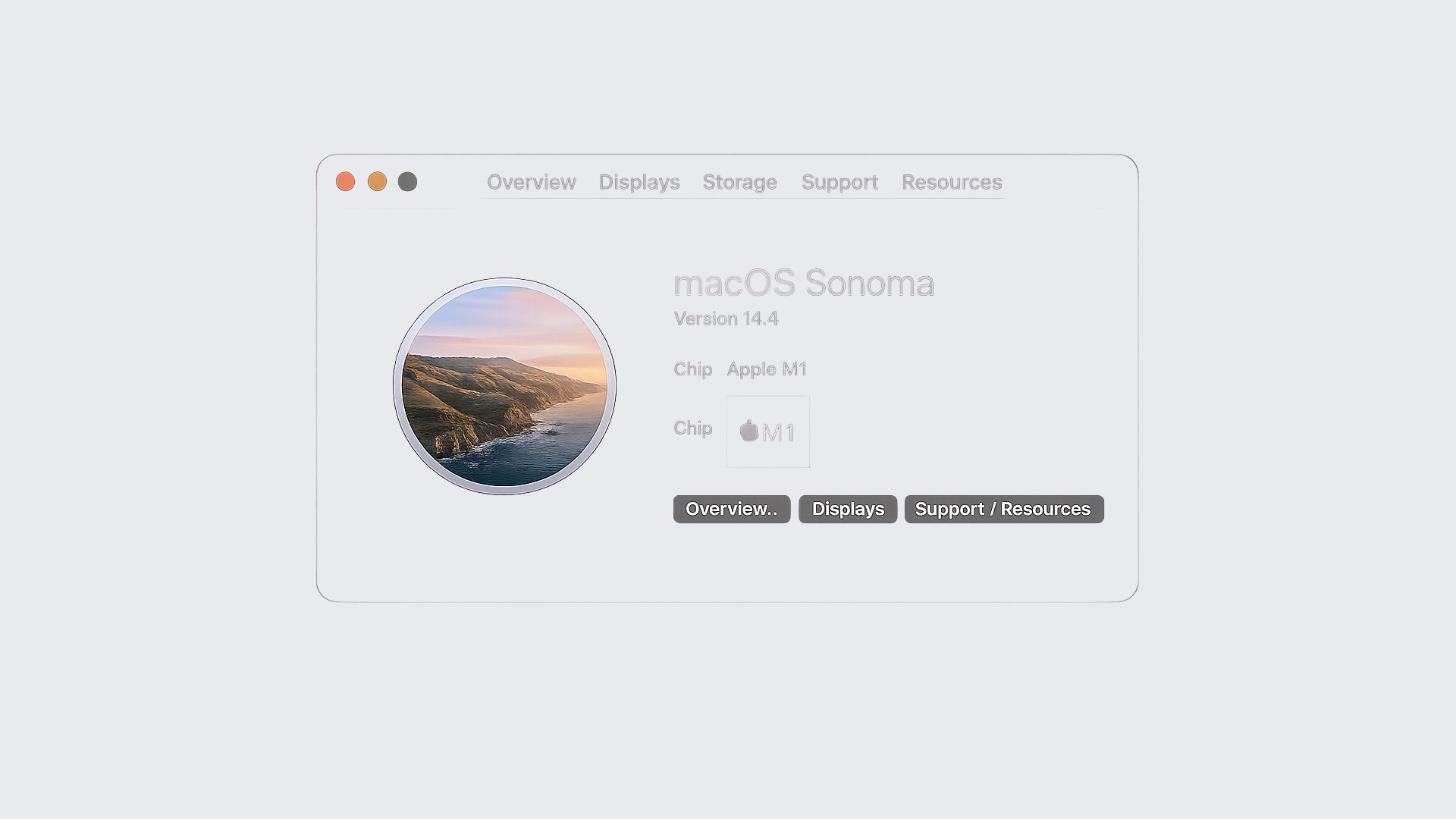
The Mac reports both the release and the chip on one panel, About This Mac, reached from the Apple menu in the upper-left corner of the screen. The release name and number sit at the top of the panel; the chip line sits directly beneath, naming either an Apple M-series chip or an Intel processor. One reading of that panel answers both requirements.
Two documented floors apply to that release value, and they belong to two different routes. MAMP requires macOS Big Sur 11 or later, as its system requirements documentation states, retrieved July 29, 2026.
The XAMPP Mac build requires Mac OS X 10.6 or later, as the Apache Friends download page states, retrieved July 29, 2026. Neither figure generalises into the other: a machine that clears the older floor has not thereby cleared the newer one, and the value the panel reports has to be checked against whichever route’s documentation is being followed.
The consequence is narrow and practical. A Mac carrying a release below a route’s stated floor cannot install that route’s current build; what remains is an older build published back when that release was supported, or that route stays unavailable on the machine until the release is updated.
The chip line carries one documented consequence of its own. The XAMPP virtual-machine build requires an Intel processor and is not supported on Apple Silicon, as the Apache Friends download page states, while the native build supports Apple Silicon and Intel alike.
MAMP’s requirements add one condition with no version attached. The account performing the install has to belong to the Admin group, which macOS shows under System Settings › Users & Groups. It is a one-time check on the account rather than on the release.
Once the release clears its floor and the chip is known, the machine still has nothing underneath WordPress: no web server answering requests, no runtime executing PHP, no database holding content. That missing layer is the local server stack.
Local Server Stack for WordPress on a Mac
A local server stack for WordPress on a Mac is the set of three services that has to be running on the machine before a single WordPress file can answer a request: a web server, a PHP runtime, and a database service. The stack is the requirement. The bundle that packages the stack is not. A Mac can run a local WordPress install without MAMP, or without any other single named bundle, as long as those three services are installed and running underneath.
Each of the three is responsible for one thing the WordPress files require on a Mac:
Apache: the web server the WordPress files answer from, so a page requested in a browser on the Mac reaches the install folder instead of nothing at all.
PHP: the runtime that executes those files, since WordPress arrives on disk as PHP source and a browser has no way to read it.
MySQL database service: the process that contains what the files themselves do not: posts, options, users, and every setting written after the install finishes.
Apache is the one service of the three a Mac already contains a copy of. A second Apache is present on every recent Mac before any stack is installed, dormant, with a configuration of its own. That copy is inactive by default. It is also a separate matter from getting the stack installed correctly, and it does not go away once a route puts a second web server on the machine.
PHP is the component with a number attached to it. A local WordPress install on a Mac needs PHP 8.3+, the recommended baseline the WordPress requirements page publishes, retrieved July 29, 2026. The database service (MySQL, or MariaDB where a route ships it in its place) and the web server are carried by what they do rather than by a version number: at stack level what matters is that each one is installed and answering. One detail decides which PHP that floor is measured against: the PHP the route installs is the one the site is served with, not whatever php is first on the shell PATH.
The MySQL database service is not the site’s database. The service is the process the stack contains; the site’s database is one schema inside that process, and it does not exist yet at this point in the procedure. Installing the service does not create it, but only makes one possible.
With Apache, PHP, and the MySQL database service all installed and running, the Mac contains everything WordPress needs underneath, and installing WordPress on a Mac reduces to putting files and a database on top of a stack that already works. Of the three, PHP is the one that can be running at a version the WordPress files will not accept.
PHP Version Errors
A PHP version error is the gap between the PHP version the WordPress files require and the PHP version the running stack has. Neither piece is faulty on its own. The WordPress files ask for PHP 8.3+, the recommended baseline of the WordPress requirements page, the running stack has exactly one PHP that answers, and when that one does not meet the floor the error is what the machine has instead of a site.
Two moments on a Mac carry it. The browser at the localhost address has a fatal error where the five-minute installer should be, or the installer does not start at all and a version notice is on screen in its place. Either way the useful question is which PHP answered. A Mac can carry more than one php: the one the route installed inside its own directory, and whatever php is first on the shell PATH, put there by some other tool rather than by the operating system. The site is served by the route’s, not by the shell PATH’s copy.
The remedy is one setting, and the setting is the route’s rather than the machine’s. Every route that installs a stack of its own has a place to change which PHP that stack serves (a version selector, a configuration value, or a rebuilt image) and changing it moves the whole stack onto a PHP that meets the 8.3+ floor. Nothing outside the route’s own directory changes. Whatever php the shell PATH has can be left exactly where it is, because the WordPress files never ask it anything.
Each install route puts a PHP of its own on the Mac, and each one has its own place to confirm which version is in service before the WordPress files require one.
Install Routes for WordPress on a Mac
An install route is one named way of putting a local server stack onto a Mac. A local WordPress installation on a Mac arrives through exactly one route, and six of those routes install onto macOS:
XAMPP puts Apache, MariaDB and PHP on the Mac as a single package installed into macOS from one download.
MAMP puts Apache, MySQL and PHP on the Mac inside one macOS application that carries its own preferences pane.
Docker puts a container runtime on the Mac, and the stack itself arrives inside a container image that runtime loads.
Local WP, also called Local by Flywheel, puts a self-contained site manager on the Mac that provisions each site its own services; the full procedure sits in the guide to install WordPress with Local by Flywheel.
WordPress Studio puts a desktop application on the Mac, in Apple Silicon and Intel builds, that creates local sites without a separate server install.
Bitnami puts a pre-packaged WordPress stack on the Mac, with the server components and the WordPress files delivered together.
Three of the six supply a server stack alone and leave the WordPress files as a separate step: XAMPP, MAMP and Docker. The other three deliver WordPress inside the same action, so Local WP, WordPress Studio and Bitnami each finish a site the moment their own application does. That difference is one of scope. Selecting a route settles what gets installed onto the machine and in what order the parts land; it does not change what the finished local site does once it answers at its address.
Every one of the six reads two properties of the Mac before it installs anything: the chip, Apple Silicon or Intel, and the macOS version that chip is running. The XAMPP route makes both of those the first decision, because its package is published per chip.
The XAMPP Route on a Mac
XAMPP on a Mac is an Apache Friends package that provides Apache, MariaDB and PHP to macOS in one download, and installing WordPress on a Mac using XAMPP means installing that package first and placing the WordPress files against it afterwards. The macOS minimum is 10.6+ and the current build ships Apache 2.4.56 and MariaDB 10.4.28, according to the Apache Friends download page (retrieved July 29, 2026).
Two macOS builds exist and they differ by chip. The native installer places the server software directly onto macOS and supports Intel and Apple Silicon processors alike. The virtual-machine build supports Intel only, which makes the chip reading on an Apple M-series Mac decisive rather than cosmetic.
The XAMPP route installs on a Mac in four steps, from the chip-matched download to the WordPress files landing in the directory XAMPP serves.
Download the macOS build that matches the chip: the native installer on an Apple Silicon or Intel Mac.
Install the package, which lands in /Applications/XAMPP.
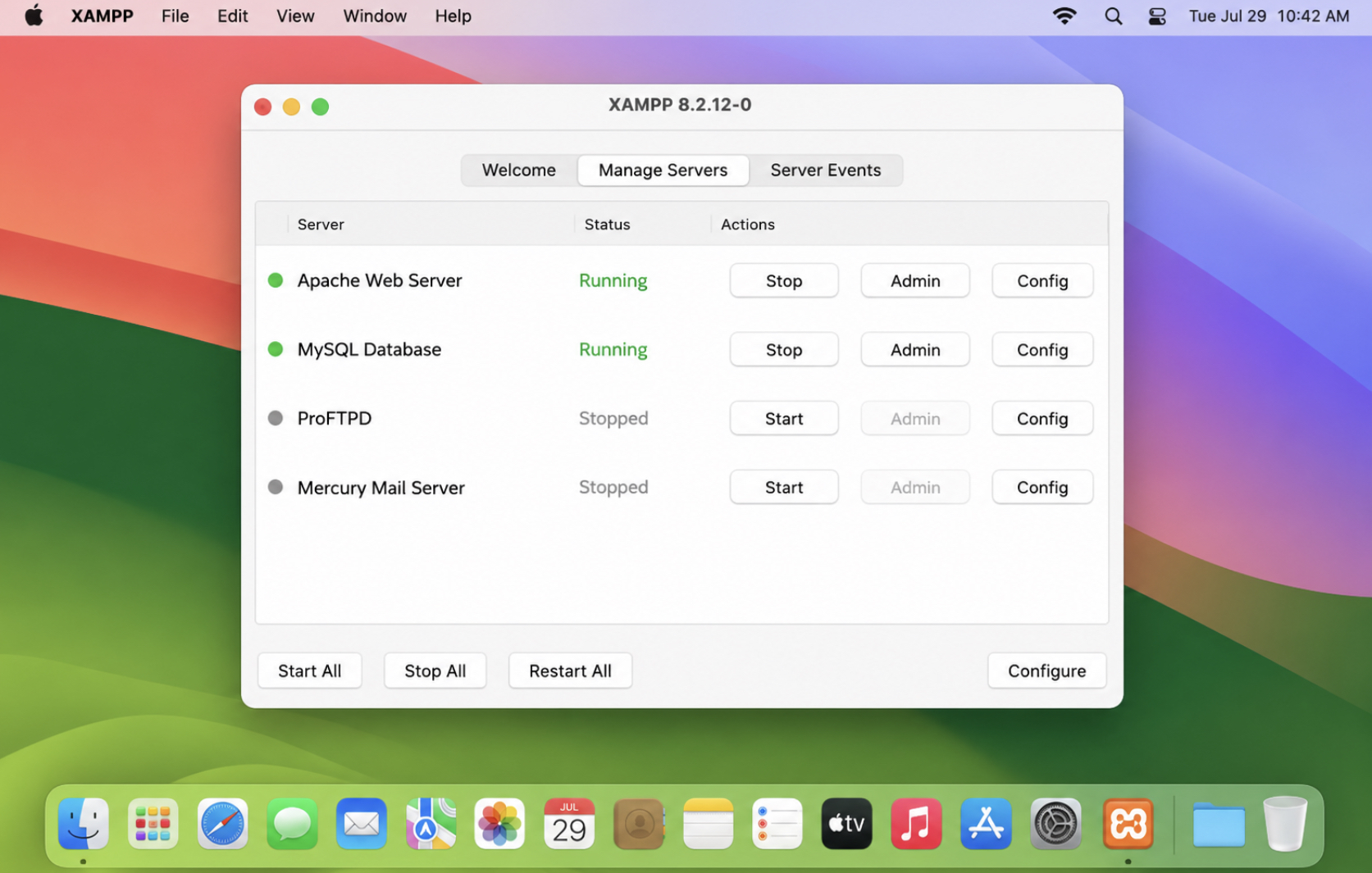
Open the XAMPP manager and launch the two services, listed in the manager as Apache Web Server and MySQL Database.
Place the WordPress files in the directory XAMPP serves from, /Applications/XAMPP/xamppfiles/htdocs.
The manager’s server list is where the state is legible: Apache Web Server and MySQL Database each report Running, and both run before a single WordPress file goes into the serving directory. That directory is the tie between the route and the installation. Whatever sits in htdocs is what Apache serves at the local address. The MAMP route sets up the same tie inside one macOS application, where the serving folder is a field in a preferences pane rather than a fixed directory.
The MAMP Route on a Mac
MAMP is the Mac, Apache, MySQL and PHP bundle, and the MAMP route on a Mac provides all three server components inside one macOS application rather than as separate installs. The documented macOS minimum is 11+ and the installing account has to belong to the Admin group, checked in System Settings › Users & Groups, according to the MAMP system requirements documentation (retrieved July 29, 2026).
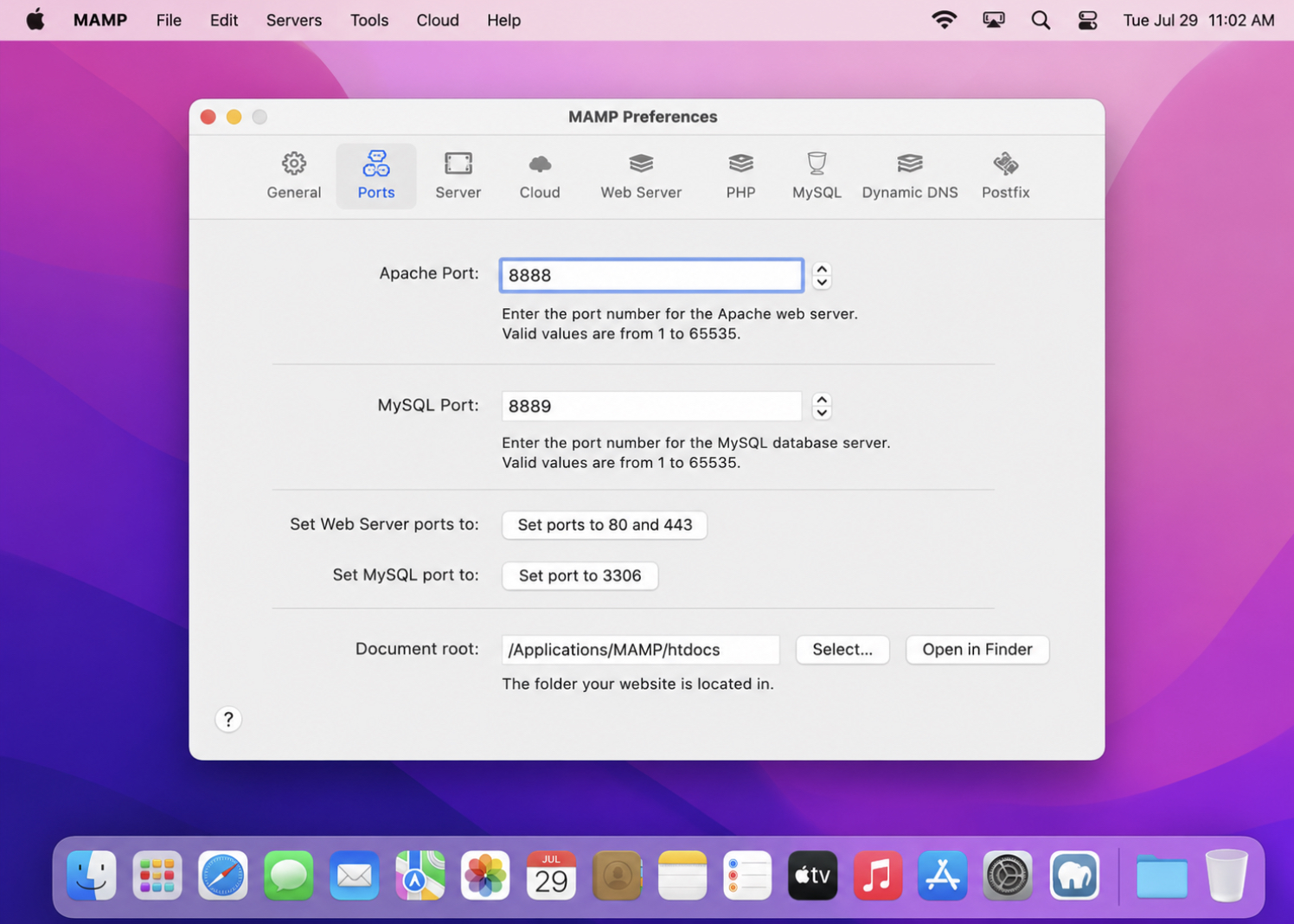
Installing MAMP puts the application at /Applications/MAMP, and the folder it serves from lands underneath it at /Applications/MAMP/htdocs, as documented by WPBeginner (retrieved July 29, 2026). Two listening ports come with it. The Apache port is 8888 and the MySQL port is 8889, both readable in the Ports tab of the preferences pane, as recorded by Jetpack (retrieved July 29, 2026).
Installing WordPress on a Mac using MAMP starts with four steps that set up the bundle and end with the WordPress files in its serving folder.
Install MAMP into /Applications.
Open the preferences pane, check the Apache port and the MySQL port, and change either field if it arrived with a different value.
Launch the servers from the application window.
Place the WordPress files inside /Applications/MAMP/htdocs, or inside whatever folder the Document root field names.
Both servers run once the application reports them up, and the Document root field is what decides which folder on the Mac becomes the site. Point it somewhere else and the WordPress files follow it: the folder is a setting, not a fixed location.
Docker supplies the same three services without installing any of them onto macOS. Nothing lands on the operating system except a runtime.
The Docker Route on a Mac
The Docker route on a Mac is a container-based install route for WordPress: it provides Apache, MySQL and PHP inside containers instead of installing them onto the operating system as XAMPP and MAMP do. What Docker requires on the machine is narrower than what it eventually provides: Docker Desktop for Mac, a build of it matched to the chip, and a share of the Mac’s resources reserved for the engine in Docker Desktop’s own Resources settings.
The quantities that decide the download on this machine are the chip and the build label matched to it: the Apple Silicon build on an Apple M-series Mac, the Intel build on an Intel one.
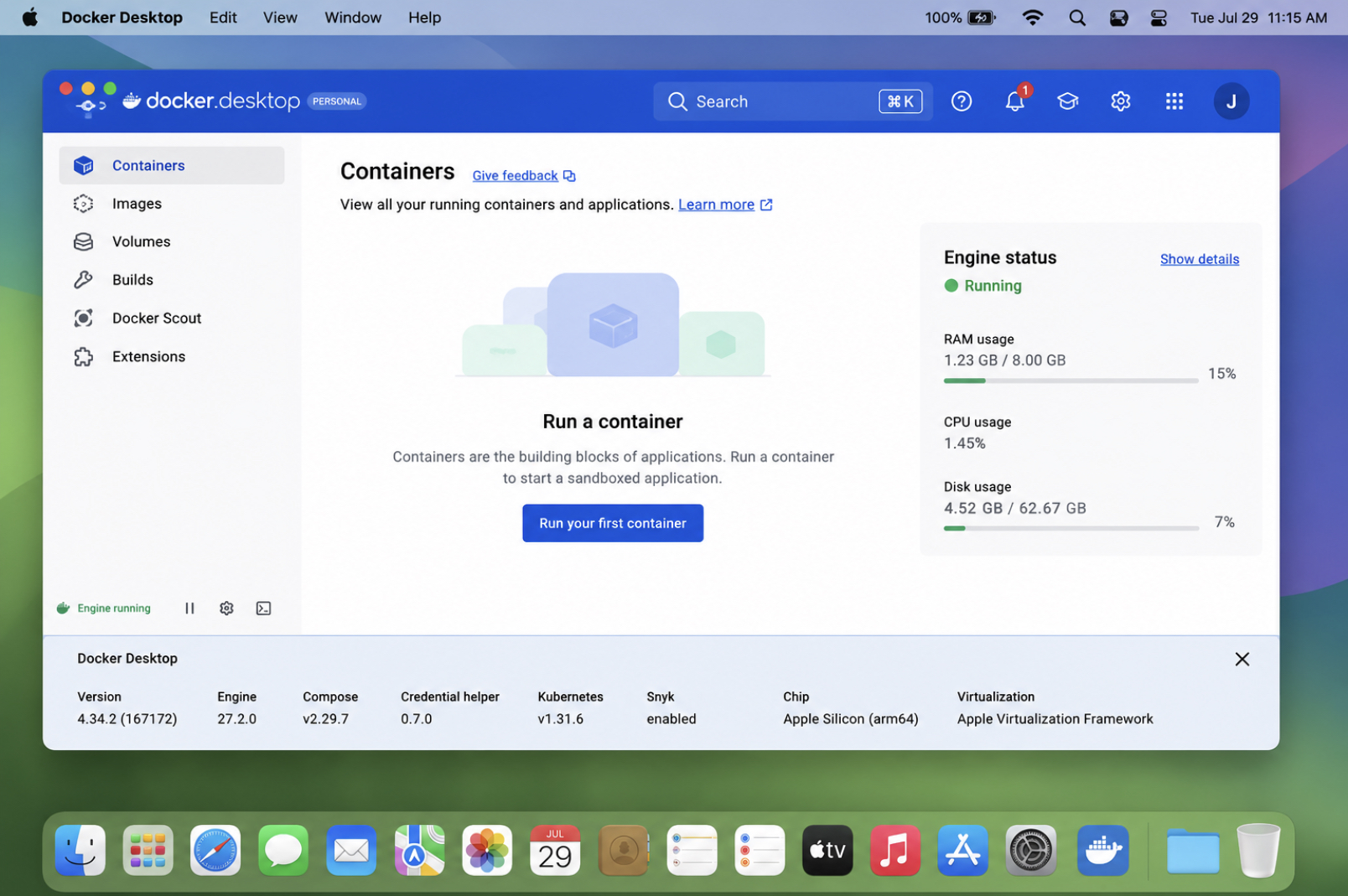
Installing Docker on a Mac runs to four route-level steps, from the chip-matched build to what Docker Desktop reports once the engine is up.
Select the Docker Desktop for Mac build that matches the chip, Apple Silicon or Intel.
Install Docker Desktop into /Applications.
Open Docker Desktop and let the engine come up.
Confirm what Docker Desktop reports: the engine’s state and the build that installed.
Once the engine runs, the route is finished and the stack is still absent. A running engine is a runtime and nothing else, Apache, MySQL and PHP arrive with the container image a WordPress site is built from, and that image is assembled separately from the runtime. What the three routes share is where they stop. Each one ends with a server stack the Mac can run, and none of them has yet put a WordPress file or a database on the machine.
The WordPress Installation on a Mac
The WordPress installation on a Mac is the WordPress files plus the database connection joining them: a folder of PHP files on the Mac’s disk, and a set of tables inside MySQL that those files read and write. To install WordPress on a Mac is to set up that pairing. Everything before it (the machine requirements, the local server stack, the route that put one on the disk) produced Apache, MySQL and a PHP interpreter on the machine, and the site software still has to arrive.
The serving folder comes from the route. MAMP defaults to /Applications/MAMP/htdocs, a path Finder opens from the Applications folder in the sidebar. The XAMPP equivalent is /Applications/XAMPP/xamppfiles/htdocs, one level deeper. Under Docker the serving folder can be any folder on the Mac’s disk, mapped into the container. Whichever of the three the route created, the unzipped WordPress folder goes inside it, and the name given to that folder becomes part of the local address.
Downloading the WordPress files is the step where routes differ, and XAMPP, MAMP and Docker all leave it to the developer, who takes the archive from WordPress.org, expands it in Finder and drags the resulting folder into the serving folder. Installing WordPress locally on a Mac stops being route-specific past that point.
Three steps remain, and their order is fixed. A database has to exist before anything can connect to it. The credentials that reach that database have to be correct before the installer can open it. The installer then writes everything else: the tables, the site title, the administrator account. Same three steps on every route, on every Mac, whatever the download looked like. The database comes first.
The MySQL Database for WordPress on a Mac
The MySQL database for WordPress on a Mac is the site’s own database: one named set of tables, created on top of the MySQL service the local server stack already supplies. The two are not one object. The service is the process the route keeps alive on the machine; the database is a thing made inside it, and installing WordPress on a Mac requires the second, not just the first.
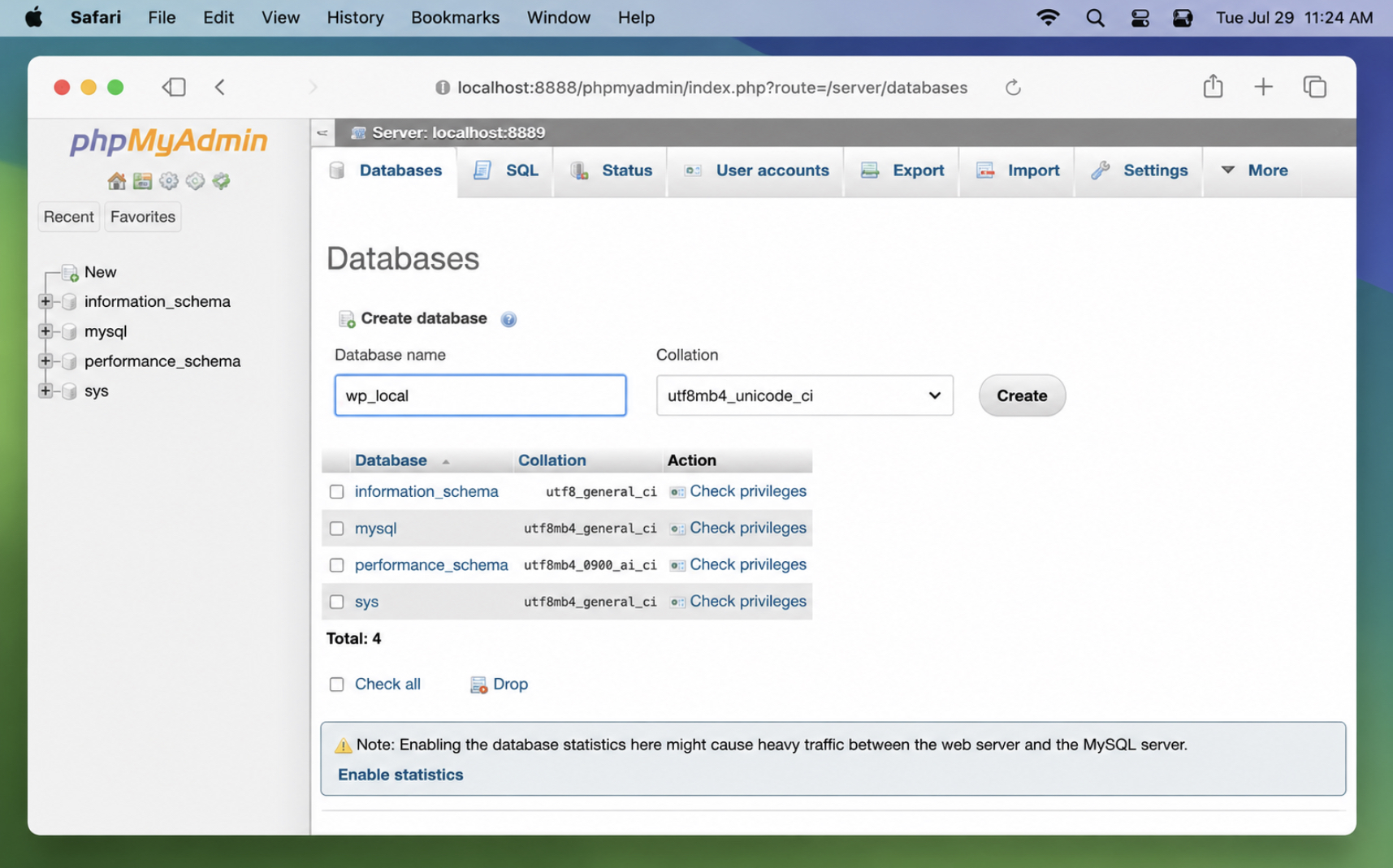
phpMyAdmin is the tool that reaches it. Under MAMP it opens from the control panel’s Tools menu, in a browser tab on the Mac. Under XAMPP it opens at localhost/phpmyadmin, an address XAMPP’s own Apache configuration holds for the phpMyAdmin folder inside /Applications/XAMPP/xamppfiles. A Docker route exposes whatever database tool the compose file names, or the MySQL client inside the container itself.
Open phpMyAdmin in a browser on the Mac.
Select the Databases tab.
Enter a name in the Database name field and confirm with Create.
Note that name exactly as it was typed.
The name is the first of four values the WordPress files need. The user and the password are the next two, and the route defaults them: under MAMP, both are root. The host is the fourth, and it is the one that differs between routes. MAMP answers MySQL on 8889, so its host value carries that number. XAMPP leaves MySQL on 3306, the default, so nothing has to be appended. Under Docker the host is the name the compose file gives the database service, not localhost at all.
Four values, one database, and none of them do anything until they are written into a file.
wp-config Credentials
wp-config.php contains four database constants, and those four are the credentials: the name, the user, the password and the host. Each joins the WordPress files to the MySQL database created in phpMyAdmin, and installing WordPress on a Mac fails at this one file when any of the four is off by a character.
The file sits at the top level of the WordPress folder inside the serving folder: /Applications/MAMP/htdocs/mysite/wp-config.php on an untouched MAMP path, which Finder reaches through Applications, or any text editor reaches by dragging the file onto it. It arrives one of two ways. Either it is copied from wp-config-sample.php in the same folder and renamed, or the installer writes it directly once it can open the database.
Each constant has one source. DB_NAME holds the name typed into the phpMyAdmin form, character for character. DB_USER and DB_PASSWORD hold the route’s defaults. DB_HOST holds the address MySQL answers on, and it carries a port suffix whenever the route moved MySQL off the default. The value above is written for MAMP, where MySQL answers on 8889. A route that left MySQL on 3306 needs nothing after localhost.
That last constant is the one most likely to be wrong on a Mac, because the route decides which port MySQL answers on. Four short strings carry the whole of a local WordPress set-up on a Mac, and when one of them is wrong the site says so on the very next page load.
Database Connection Errors
A database connection error is the WordPress files reaching for a database they cannot open with the values they were given. The connection is not established, so nothing renders past it: the page carries the error and no more, and installing WordPress on a Mac has one wrong string between it and the installer.
Each of the four constants maps to one candidate cause. A wrong DB_NAME points at a database that does not exist. A wrong DB_USER or DB_PASSWORD fails the credential the MySQL service checks. A wrong DB_HOST sends the request to an address, or a port, where nothing is answering.
Check the host first. Open the route’s control panel, confirm which number MySQL is answering on, and change DB_HOST until it matches. Then check the database name against the name entered in phpMyAdmin. Then check the user and the password against the route’s defaults. Every corrected value has exactly one source: the step on the Mac that produced it. The fix is always to the credential.
With all four matching, the files open the database on the first attempt, and the installer opens with them.
The WordPress Installer
The WordPress installer is a procedure rather than a program: a short sequence of browser pages, served by the route’s Apache on the Mac, that takes five minutes and writes the site into the database. Nothing is downloaded to reach it. The WordPress installer on a Mac is reached the same way any local page is reached, by opening a local address, and installing WordPress on a Mac ends here.
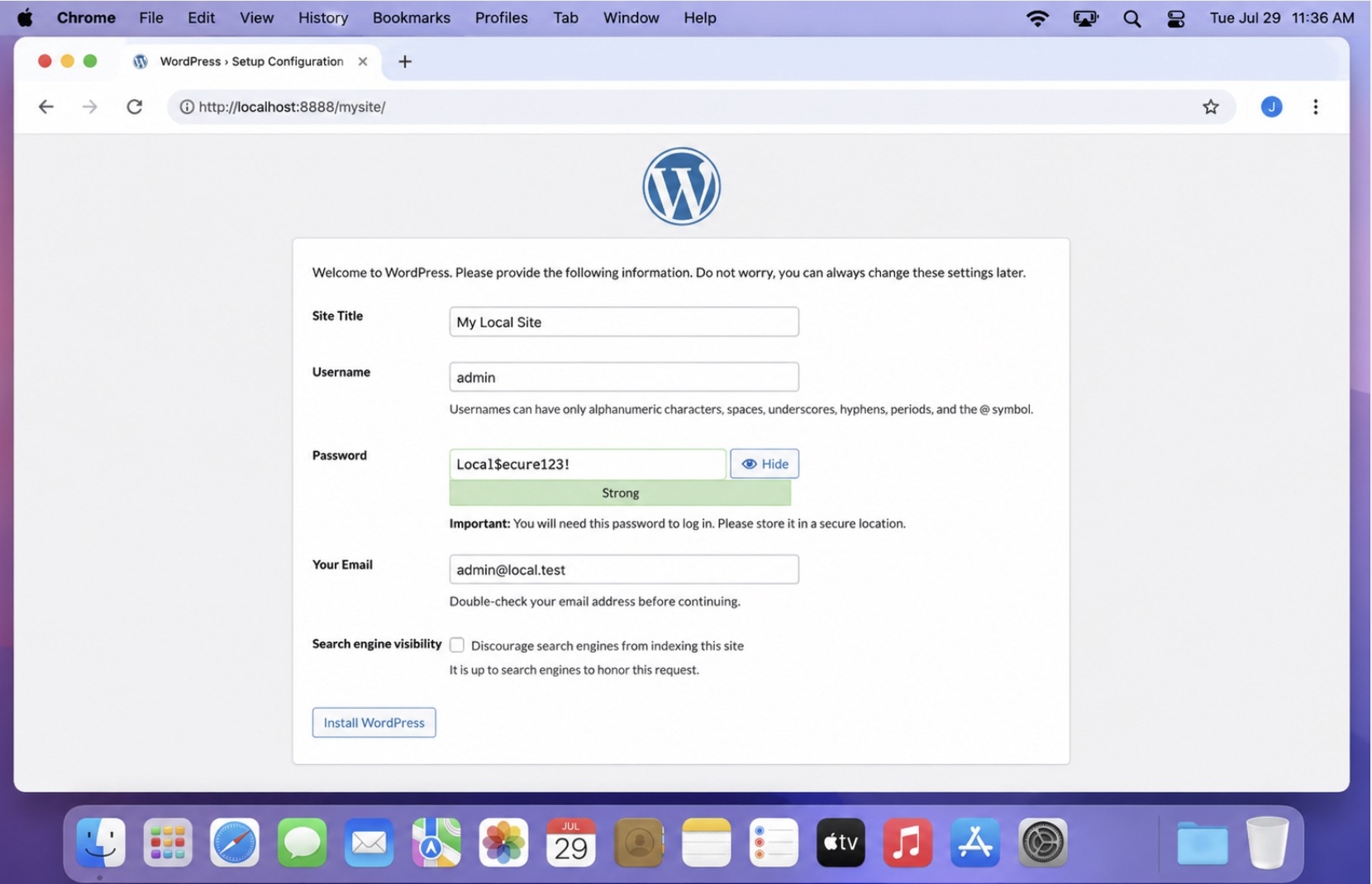
The address contains the route’s port. Under MAMP, Apache answers on 8888, so the installer sits at http://localhost:8888/mysite/, where mysite is the folder name given inside htdocs. XAMPP’s Apache answers on 80, so no number appears in the address at all.
Open the local address in a browser on the Mac.
Choose the language.
Enter the site details: site title, administrator username, administrator password, email address.
Submit, and confirm the success screen.
Of the values this screen asks for, none were produced earlier. The database values were settled in wp-config.php, which is why the installer passes straight over them when that file is present and correct; the site title, the administrator username and the administrator password are new, entered once, and only here.
The administrator account is what the installer creates besides the tables. Its username and password are the pair the sign-in page accepts afterwards, and no other step on the Mac produces them. Submitting the screen ends the installation. From that moment the site runs on the machine, at the local address the installer itself was opened at.
The Local WordPress Site Address on a Mac
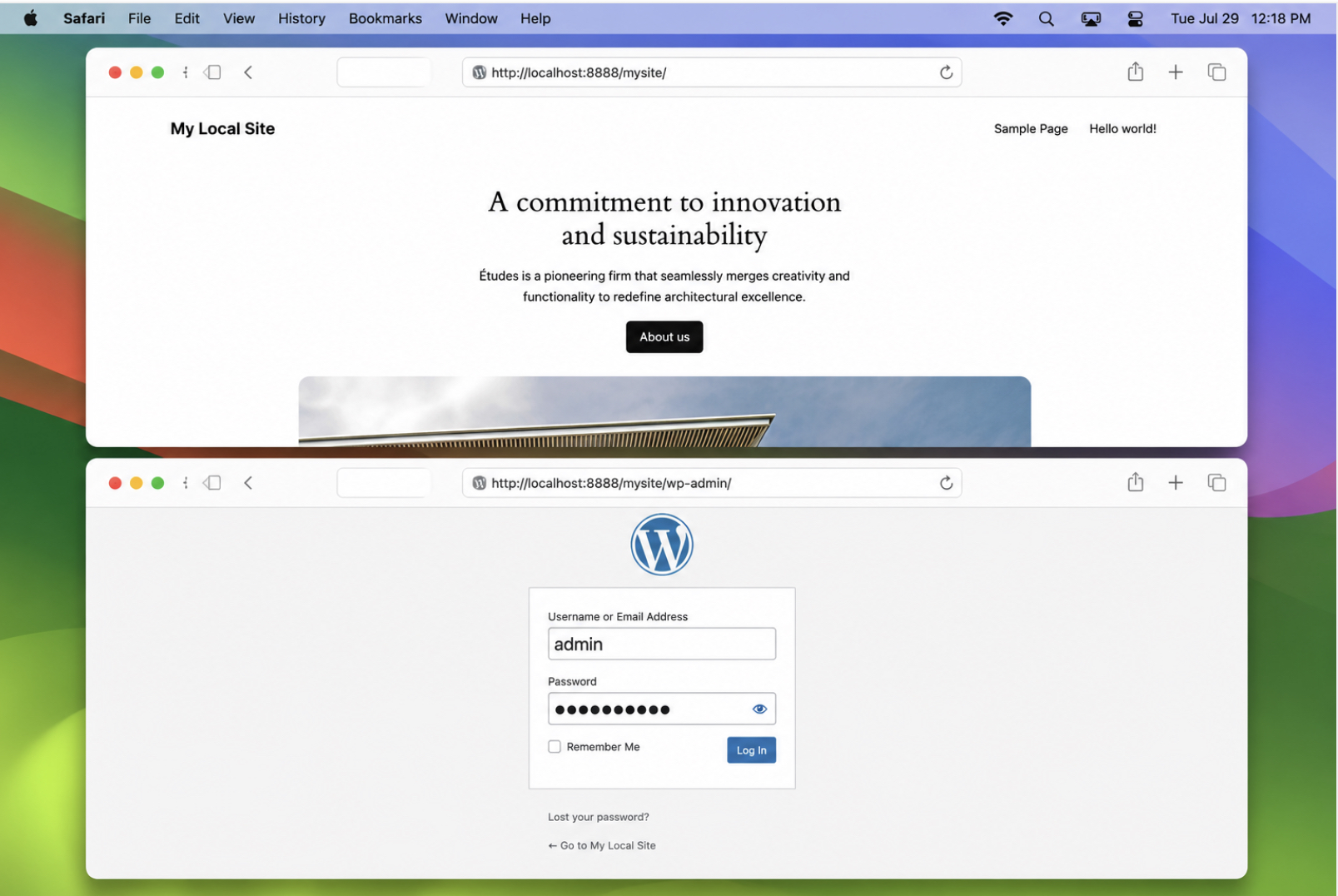
The local WordPress site address on a Mac is the localhost URL, port number included, that the running stack answers on: http://localhost:8888/mysite/ on a Mac where the route’s Apache listens on 8888. Open it in a browser and the site installed a few minutes earlier is there, served by the Mac to itself. No domain is involved, no DNS lookup happens, and no request leaves the machine.
A number appears in that address because the number a browser assumes is rarely the number the route’s Apache is listening on. Port 80 is the protocol default, the one a browser uses when the host carries nothing after it, and on a Mac it falls below 1024. The range a process binds only with administrator rights. A stack listening above that line starts without asking for the Mac password at all. The address therefore contains 8888 on a Mac running the MAMP route, whose Apache listens there out of the box; moving that same Apache down to 80 works, and prompts for the password at every start, as Hostinger’s MAMP walkthrough records (retrieved July 29, 2026).
It carries no number at all on the XAMPP route, whose Apache is installed to run with the rights 80 requires and takes that number directly. On a Docker route it contains whichever number the container answers on, fixed in the container’s own definition rather than by macOS.
The same host has the wp-admin path. Enter http://localhost:8888/mysite/wp-admin/ and the sign-in screen is at the identical host and the identical number as the site itself; only the path differs. The account that signs in there is the one the installer created: the username and password entered during the five-minute browser install. Not the Mac account, which authorises changes to the machine, and not the database user in wp-config.php, which the PHP runtime reads and presents to MySQL.
A site answering at that address confirms every step behind it at once: the Mac met the version floors, the local server stack runs, the route installed it where the document root points, and the WordPress files reach their database through the credentials in wp-config.php. One address in one browser tab checks all of it. The site is hosted on the developer’s own Mac, and it answers nowhere else.
None of that is guaranteed on a Mac. The operating system runs services of its own and raises blocks of its own, and either can stop the stack before it answers on any number.
macOS Collisions with a Local Server Stack
A macOS collision with a local server stack is the operating system stopping software a route installed: either macOS refuses to run what the route downloaded, or a machine service already holds what the route’s own service needs: the same port, or the same command name, with one of the two answering and the other silent. The service contest has two halves, and they behave differently; checking them as one problem is what makes them hard to resolve.
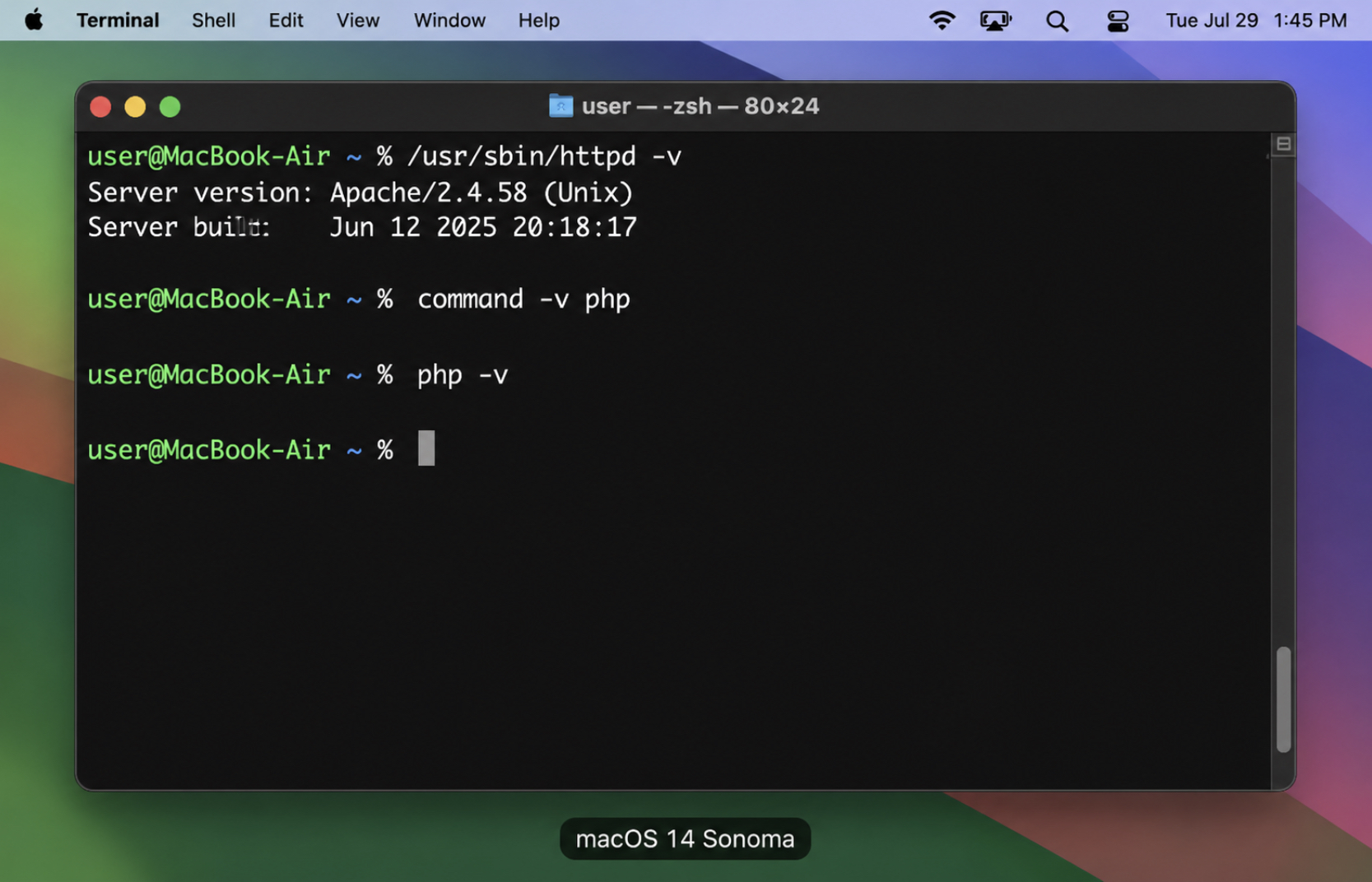
macOS includes an Apache at /usr/sbin/httpd. It is not started by default, so on a stock machine it holds nothing, but it is present, it is the binary apachectl drives, and once anything starts it, it claims port 80. Run /usr/sbin/httpd -v by absolute path and the machine’s own copy reports Server version: Apache/2.4.x, a shipped version rather than a floor. Which Apache answered a request has to be readable, because a browser cannot tell them apart: an “It works!” page where WordPress should be, on a Mac serving from 80, is the machine’s own Apache answering out of /Library/WebServer/Documents.
macOS ships no PHP runtime at all. None has been bundled since macOS 12 Monterey. Nothing bundled competes with the route’s PHP, so what competes is whatever php sits first on the shell PATH. Check it with command -v php; on a stock machine that and php -v both return nothing, and the empty result is the evidence. When a path does come back it names the source: /opt/homebrew/bin/php on an Apple Silicon Mac, /usr/local/bin/php on an Intel one, a MAMP binary under /Applications/MAMP/bin/php, or a build that arrived with the Xcode command line tools. Only the route’s own PHP answers for the site.
One symptom covers both halves: a service that will not start, or a site answering wrongly.
The first collision on a Mac arrives before either of those, though, before the route’s Apache has been started once, and before any number is in play. macOS blocks the downloaded installer package itself.
The Gatekeeper Prompt
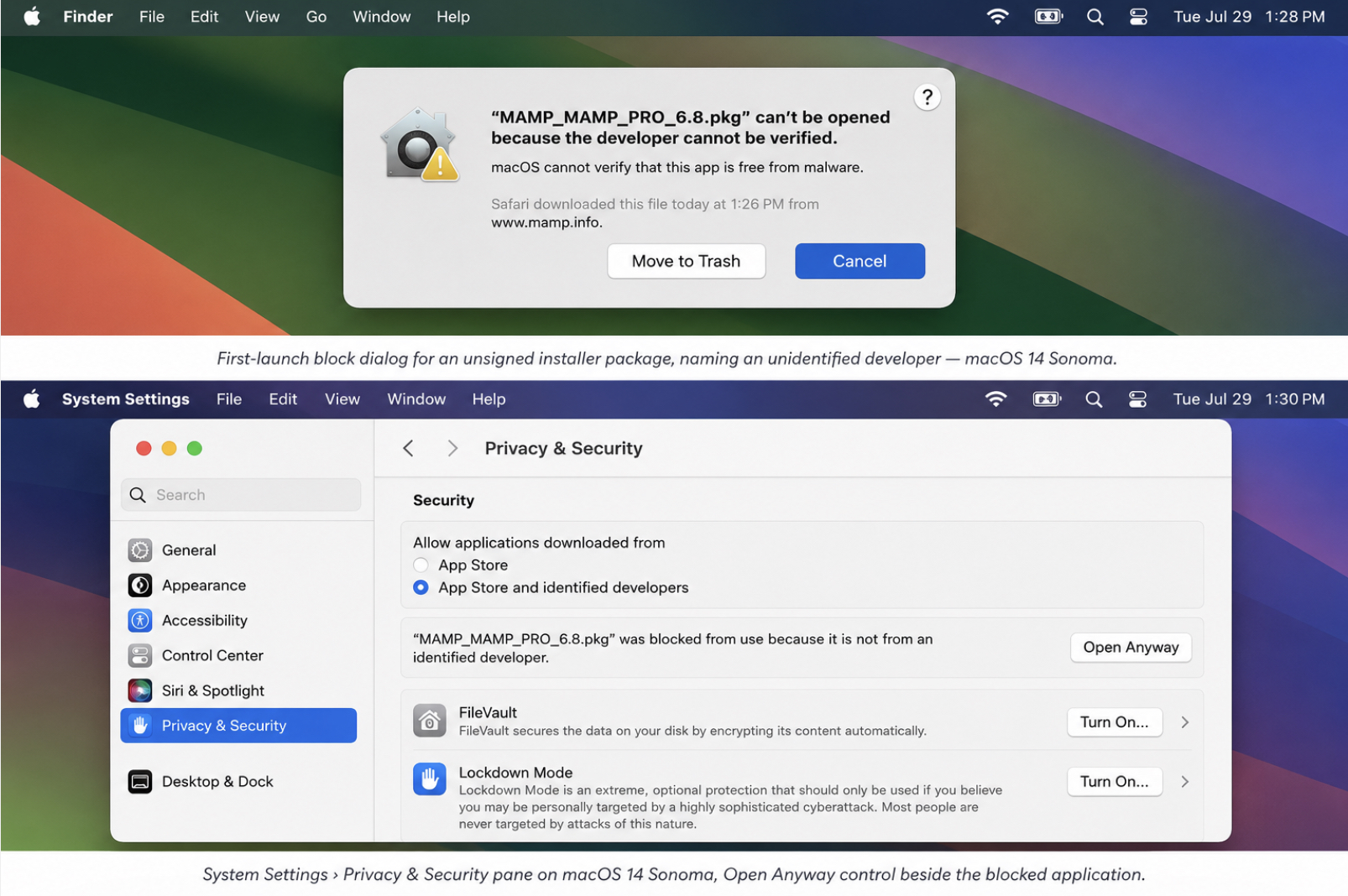
The Gatekeeper prompt is the block macOS raises before it will run a downloaded installer package it cannot verify. It appears at first launch, immediately after the download and before that package has run once, which is why a route can look broken on a Mac before a single WordPress file has been placed, while nothing about the route is broken. On Apple Silicon Macs the check is stricter than on Intel: code built for the Apple M-series chips will not launch without at least an ad-hoc signature, so an unsigned build that starts on an older Intel machine may not start here at all.
The prompt is not the authorisation prompt the installer package raises itself. An installer package that asks for a Mac username and password is requesting permission to write outside the user’s folders, and every local stack installer package on macOS legitimately requires it. That one is the downloaded package talking, and it appears after the application has launched. The Gatekeeper block is macOS talking, it names an unidentified developer, and it offers no way forward inside the dialog.
The remedy is a per-application override on the one application that was downloaded. Open System Settings › Privacy & Security, go to the security block, and select Open Anyway beside the named application; confirm once, and macOS records the exception for that application alone. On macOS 14 Sonoma the path reads System Settings › Privacy & Security. Before macOS 13 the same control was under System Preferences › Security & Privacy, so an older Mac presents the identical override under the older name.
Nothing wider than that is needed. A terminal command that strips the quarantine attribute from a whole folder, or a change to the system-wide verification setting, widens the exception far past the one route being installed and leaves it widened afterwards.
Once the application launches, the route can install its stack, and the WordPress files can go on top of it. The next thing macOS holds against the local install is a number.
Port Assignments on a Mac
A port assignment is the number a service listens on, and one number is held by one service at a time. Two cannot share it. Whichever service starts first takes the number, and the second reports the address already in use and does not start.
Four numbers come up on a Mac, and what matters about each is which service is holding it:
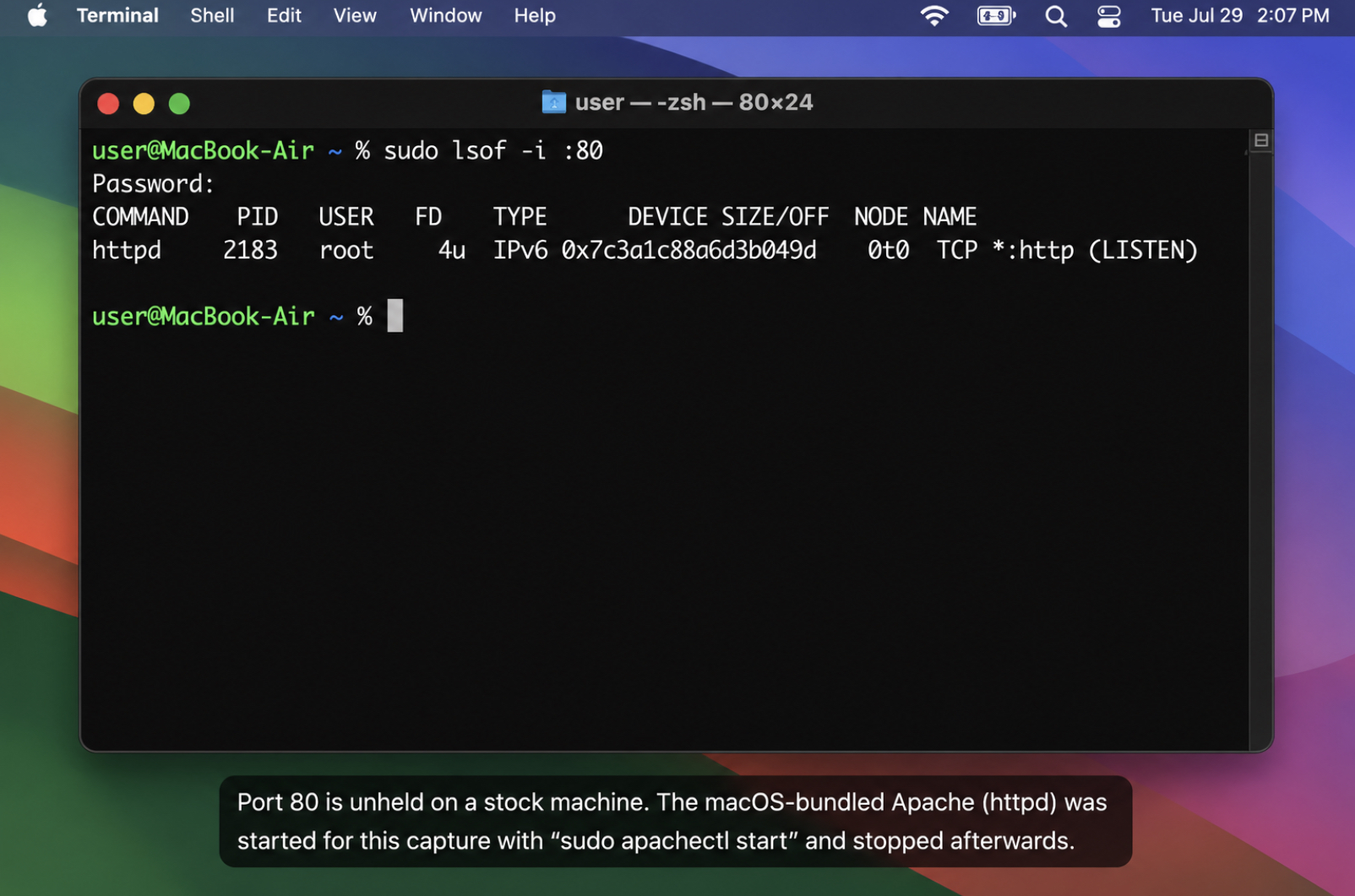
80: the protocol default. The Apache bundled with macOS takes it, but only once something starts that Apache; nothing holds it on a stock machine.
8888: held by the MAMP route’s Apache from first launch, so nothing has to be stopped for it.
8889: held by the MAMP route’s MySQL, which is why a second database service started afterwards finds it taken.
8080: free on a stock Mac, which is what makes it the number a contested service moves to.
Run sudo lsof -i :80 in the terminal to check what holds a number on a Mac. The COMMAND column names the process and the user column names its owner, so a macOS-owned listener shows as httpd running as root, the bundled Apache, not the route’s. One other macOS service takes numbers a local stack may want: AirPlay Receiver, run by Control Center and available on a Mac from macOS 12 Monterey onward, as Apple’s Mac User Guide states (retrieved July 29, 2026). While it is on, the same check names Control Center on 5000 and on 7000. Naming the process is what makes checking a held number useful, because “another application” is not something a developer can act on.
Two remedies exist, and the choice between them is about which service should have the number. Change the route’s service to a free number: both of the MAMP route’s ports, Apache and MySQL, sit in the route’s own preferences, and changing them there keeps the change with the route rather than with the machine. No such pane exists in the macOS XAMPP application, where the same change means editing httpd.conf under /Applications/XAMPP/xamppfiles/etc, and on a Docker route the number is set in the container’s own definition. Or stop what holds the number: sudo apachectl stop stops the machine’s own Apache, and 80 is free for the route’s Apache afterwards.
A changed number appears in the address. A site that answered at http://localhost:8888/mysite/ answers at http://localhost:8080/mysite/ once the route’s Apache runs on 8080, and the wp-admin path changes with it. The port change is not complete until the route’s Apache runs on the new number and the address confirms it.
A local WordPress site running on a free number, on a Mac that raises nothing against it, is the finished state of this procedure: a full WordPress instance on the developer’s own machine, ready for the work it was installed for.
What Is a Local WordPress Install on a Mac For?
A local WordPress install on a Mac is for developing a site on the machine in front of the developer, before that site is reachable by anyone else. The install contains a complete copy of WordPress, the same core files a public site is built on, set up against a server stack on the Mac’s own disk instead of a rented one. It is not a trial version, and not a preview account.
What a local install allows, and a remote server does not, is offline work. Building a theme, testing a plugin, breaking the whole install and setting it up again: all of it happens with no deploy, no network and no audience. A practitioner can duplicate the site folder in Finder, take the copy apart at eleven at night, and lose nothing. The same experiment on a remote server costs a backup, a maintenance window and, when it goes badly, a live site.
The route that installs that stack on a Mac is a choice made once, not a fixed part of the procedure. Whichever route is in place, it belongs to the field of WordPress development environments a Mac can support, and which one suits a given kind of work is a question that field answers rather than any single install, local WordPress development environments compared takes that question up for the environments it covers.
None of that widens what the install is bounded by. A local WordPress install on a Mac is one machine’s worth of site: addressable at a localhost address on that Mac, invisible to every other device on the network, complete only for as long as the work it holds stays private. The moment that work is meant to be seen, the Mac is no longer the machine the site belongs on.
How to Host a Local WordPress Site on a Live Server
Hosting a local WordPress site on a live server means putting a site that has only ever run on this Mac onto a machine that answers to the public internet. The site itself does not change. Which machine hosts it changes, and with it who can open it, a site on a live server is addressable by anyone, where the same site on the Mac was addressable only from the Mac.
Two objects travel, and the install on the Mac already produced both: the WordPress files and the database. The files are the folder the chosen route wrote WordPress into, sitting under the local stack’s document root on the Mac’s disk. The database is the MySQL database that wp-config points at on that same Mac, exported to a single file. Nothing else has to leave the machine. The local server stack itself stays behind, because a live server contains its own.
On arrival the address and the credentials both change. The address stops being the localhost address the site carried on the Mac and becomes the domain configured on the live server, which means every stored reference to the old address inside the database has to be updated before the site opens correctly. The credentials change for the same reason: wp-config on the live server requires that server’s database name, its own user and its own password, not the ones entered on the Mac. Confirm both before anything else. A site that opens on the live server with the Mac’s address still recorded in its database will half-work, and half-working is harder to diagnose than a blank page.
Once the site answers on the live server, the local server stack has stopped running anything, and it comes off the Mac the same way it went on: the route’s folder under /Applications, and the database files beside it. Whether it comes off at all depends on what is due next on the Mac. A local WordPress install on a Mac is quicker to keep than to build again, and the next site that needs developing offline is installed on a machine that is already set up for it.





 ChatGPT
  Claude
  Grok
Grok  Gemini