Explore our specialized services, tailored solutions, and industry expertise to elevate your digital presence. From custom WordPress development to seamless integrations, we build high-performing websites that deliver impact.
You can start a WordPress blog from scratch and move from idea to published post without handing control to a third-party platform. A self-hosted WordPress blog gives you ownership over the domain, design, content structure, and publishing workflow while keeping the path sequenced and manageable: platform choice, hosting, domain setup, theme selection, plugins, core pages, and the first published article.
For anyone starting a WordPress blog with the goal of operating a real content property, the important shift is treating the blog as a structured publishing system rather than a single webpage. Whether you want to start a WordPress blog for personal publishing, niche authority, or long-term search visibility, the process begins with choosing the correct WordPress setup and preparing the platform foundation before design or content expansion.
WordPress.com vs WordPress.org for Your WordPress Blog
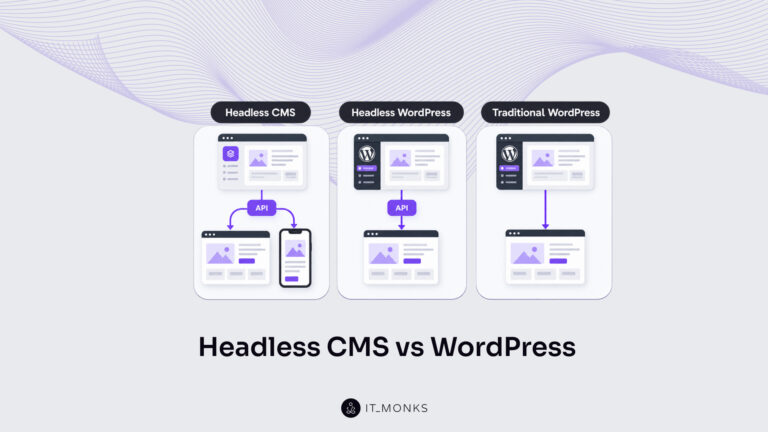
WordPress.com is the hosted service run by Automattic. The platform handles servers, software updates, security, and backups inside its own infrastructure, and you can sign up at the free tier and have a working blog on a wordpress.com subdomain within a few minutes. Paid tiers raise the storage cap, remove platform ads, allow a custom domain, and on the higher tiers permit plugin and theme installation, but the trade-off is permanent: the WordPress.com platform owns the operating environment, and customization stays inside the boundaries Automattic sets for the tier.
WordPress.org is the open-source software the WordPress project distributes for free. You install it on your own hosting account, where it runs on server space you rented and control. Every plugin in the public directory is available, every theme runs without tier gates, and the database and files belong to the account holder. Hosting costs and domain registration sit outside the software itself, and that separation is what produces full control over the WordPress blog and the environment it runs in.
The WordPress.org self-hosted route is the route that produces a WordPress blog with full control over the install and the environment around it. The hosted Automattic platform stays a legitimate alternative for a user who wants servers and updates handled by someone else, but a self-hosted WordPress blog matches a practitioner-blogger building on owned infrastructure, and the next step is getting that infrastructure in place, starting with web hosting.
Web Hosting for a WordPress Blog
Web hosting is the server space a WordPress blog runs on. The hosting account holds the files, the database, and the runtime (the PHP processor, the web server, the storage and bandwidth allocations) that make the WordPress install reachable on the public internet. Starting with no hosting account, no domain, and no install yet means the hosting account is the first procurement: until a server exists to run on, the WordPress software has nowhere to be installed and the blog has no address visitors can reach.
A self-hosted WordPress blog needs its own hosting because every part of the install sits inside that account. The user controls which version of WordPress runs, which plugins are added or removed, which theme files are edited, and how database backups are scheduled. Customization that the hosted Automattic platform would gate behind a tier (editing theme files directly, adding any plugin from the directory, running custom code in the site’s functions) happens freely on a self-hosted blog because the account holder owns the runtime. That ownership is what makes the rest of the procedure possible.
Three operational items shape the web hosting choice for a WordPress blog: the hosting plan a user buys and what it covers, the five hosting architectures a WordPress blog can run on, and the trade-off between owning the runtime and having a vendor operate it. Each one acts on the same WordPress blog through a different lever: contractual scope, infrastructure model, and division of responsibility.
Hosting Plan
The hosting plan is the contractual item a user buys from a hosting company to operate a WordPress blog on rented server space. The plan covers a quoted amount of storage for the install and the database, a bandwidth allowance for visitor traffic, an SSL certificate for HTTPS, and email accounts attached to the domain. WordPress-aware plans also include a one-click WordPress installer that places the software on the account without manual file transfer, scheduled automatic backups of the site and database, and a tuned PHP environment matched to current WordPress requirements.
A first WordPress blog needs the following selection criteria from a hosting plan:
A WordPress-tuned stack (current PHP, an opcode cache, MySQL or MariaDB at versions WordPress supports), so the blog runs at acceptable speed without manual server work.
A one-click WordPress installer included in the control panel, which moves the install procedure from manual file uploads to a single form.
Automatic daily backups of files and database, retained for at least seven days, so a broken update or a bad edit is recoverable.
A free SSL certificate provisioned automatically (typically through Let’s Encrypt), so the blog serves over HTTPS from day one.
Live support (chat or ticket) staffed by people who recognize WordPress error messages, because the first month of running a blog is the month that produces the most questions.
An entry-tier price that fits a first-blog budget without locking the user into a multi-year contract.
Entry-tier shared plans aimed at a first WordPress blog typically land between $3 and $10 per month on a one-to-three-year contract, with renewal rates running noticeably higher than the introductory price. Treating the renewal rate as the real cost keeps the budget honest. With a plan understood, what remains is the infrastructure the plan sits on.
Types of WordPress Hosting
The types of WordPress hosting are the infrastructure models a WordPress blog can run on. A WordPress blog runs on one of five hosting architectures (hared hosting, managed WordPress hosting, VPS hosting, dedicated hosting, and cloud hosting), and the differences are not about WordPress itself, but about how server resources are divided, how much administration the vendor bundles, and how the price scales with traffic.
Type
Infrastructure model
Price band (USD/month)
Best fit for
Shared
One server hosts many sites; CPU, memory, and disk are shared across all accounts on the machine
$3-$10
A first WordPress blog with low to modest traffic and a small budget
Managed WordPress
A vendor-tuned cluster runs WordPress only, with caching, security, and updates handled at the platform level
$20-$50 entry, scaling with traffic
A WordPress blog whose owner wants performance and security operated for them
VPS
Resources are isolated on a virtualized partition of a physical server, giving guaranteed CPU and memory
$20-$80
A growing blog whose traffic outgrew shared hosting and whose owner is comfortable with server administration
Dedicated
A single physical machine runs the WordPress install with no other tenants
$80-$300+
High-traffic publications or owners with strict performance and isolation requirements
Cloud
The install runs across elastic infrastructure that scales compute and storage on demand, billed by usage
$10-$100+ depending on traffic
A WordPress blog with spiky or unpredictable traffic patterns
For a user starting with no install yet and no current traffic, shared hosting or managed WordPress hosting is the realistic entry point. Shared hosting keeps the monthly cost low and bundles a one-click WordPress installer, which closes the install step in under ten minutes.
Managed WordPress hosting costs more, but trades that cost for performance tuning, automatic core updates, and platform-level security, useful for a user who wants to spend time writing posts rather than administering the WordPress install. The trade-off between owning the runtime and having it operated for the user runs deeper than price alone; the self-hosted versus managed-hosting distinction sets out exactly how much.
Self-Hosted vs Managed Hosting
A self-hosted WordPress blog is one where the user owns the hosting account, installs WordPress on it, and controls every file and database on the server. The plugins, the theme files, the wp-config, the database tables, and the backup schedule all sit under the user’s control. Day-to-day administration (keeping the WordPress core, themes, and plugins updated, monitoring for downtime, restoring from backup when something breaks) also sits with the user. Self-hosted is the architecture where the WordPress blog is unambiguously the account holder’s property and unambiguously the account holder’s responsibility.
A managed WordPress hosting setup is one where the vendor operates the WordPress install on the user’s behalf inside infrastructure the vendor tunes specifically for WordPress. Core updates ship automatically. Caching runs at the server level instead of inside a plugin. Daily backups, malware scanning, and uptime monitoring are included as platform services, and the support team troubleshoots WordPress-specific problems instead of redirecting them to a forum. The user still writes the posts and selects the theme and plugins, but the operating environment belongs to the vendor.
The trade-off is direct:
Dimension
Self-hosted WordPress blog
Managed WordPress hosting
Control
Full, every file, every database, every config
Limited, vendor restricts certain plugins, server-level files, and runtime tweaks
Cost
$3-$10/month entry on shared hosting
$20-$50/month entry, climbing with traffic
Time investment
Higher, updates, backups, and troubleshooting are the user’s
Lower, operational work is bundled
Scaling
Manual, upgrade the plan or move to a larger host as traffic grows
Automatic on most vendors, billed by tier or usage
For a practitioner-blogger starting a WordPress blog with no install yet, the realistic path is to self-host on an entry-tier shared plan or, if budget allows and operational time matters more than dollars saved, to use managed WordPress hosting at the entry tier. Both routes produce the same outcome: a WordPress install that belongs to the user, ready to run a blog.
With the hosting account live, the WordPress software is installed via the host’s one-click installer or a manual upload; the full installation procedure (database creation, wp-config setup, and the five-minute install on a live hosting account) is covered in the parent walkthrough on installing WordPress on a live hosting account. With the installation complete, the WordPress blog requires the same next ingredient on both routes: an address visitors can type to reach the blog.
Blog Domain Name Ideas
A domain name for a WordPress blog is the web address users type to reach the blog and the brand handle the practitioner reuses across socials, email signatures, and bylines. Both jobs sit on the same string of characters. Once the hosting account is in place, the domain name is the next item the blog needs, because the hosting account has nothing to point at until a domain answers to it. The WordPress blog is reached at one address and recognized at one handle; the closer those two roles overlap, the cleaner the brand reads on every surface where the blog appears.
Brandability is what separates a working domain name from a forgettable one. A memorable domain name is short enough to recall after one glance and easy enough to spell back without prompting. Topic fit matters too.
The WordPress blog about home espresso reads more naturally on a coffee-themed handle than on an unrelated string of letters, and the topic the address signals becomes the first impression a search-result snippet leaves. The .com top-level domain is the default the practitioner reaches for unless a stronger reason exists to land elsewhere, because .com is what most users type by reflex when they remember a name without remembering the exact suffix.
Hyphens, double letters at word boundaries, and easily-misheard substitutes drift the address away from what people will actually type and are worth dropping early. Cross-platform handle availability matters as much as the address itself. If the WordPress blog launches at the address but the matching handle is already taken on the major social platforms, the brand fragments across surfaces.
A practical way to generate candidates is to start from three patterns and let the patterns suggest specific names rather than the other way round.
The first pattern is a descriptor plus the blog’s topic, a short qualifier that signals stance or angle, followed by the topic the WordPress blog is about.
The second pattern is the author’s name plus the topic, useful when the practitioner intends to build the blog as a personal column rather than a standalone publication.
The third pattern is a niche keyword plus a clean .com, the address points directly to the search term most likely in a user’s head when they need what the WordPress blog publishes.
Each pattern produces a shortlist; the shortlist runs through the brandability criteria; the survivor is the address worth registering.
The .com TLD registers for roughly $10 to $15 USD per year at most registrars at the standard first-year rate, with the same range applying to renewal in subsequent years. Some registrars run a deep first-year discount and renew at the upper end of that band, so the renewal price is the figure to confirm before registration rather than the promotional sticker price. With the address chosen and registered, the WordPress blog is reachable and named; the next layer the blog needs is the layout the practitioner uses to design how every post and page renders.
Theme Selection for a WordPress Blog
A theme for a WordPress blog is the layout and visual layer the blog renders through, the styling, typography, and arrangement that posts, archives, and pages all share. The theme is what a user actually sees when the WordPress blog loads. The active theme renders every post and page on the WordPress blog; choosing a theme is therefore the design decision that propagates across every piece of content the blog will publish.
With the domain registered and the WordPress application running on the hosting account, the blog now needs a theme to design the way users will experience it.
Themes come from two places. The WordPress.org theme repository hosts free themes maintained against current WordPress versions and reviewed before they appear in the directory. They install directly from the Appearance menu inside the blog’s admin and cost nothing.
Premium themes come from commercial theme marketplaces, sold either as one-time purchases with a renewable support window or as annual subscriptions that bundle updates and access to additional themes. Free themes are enough to launch a blog; premium themes earn their cost when the practitioner needs a niche layout, a specific demo, or active vendor support that the free repository does not promise.
A theme worth activating on a WordPress blog meets the following criteria.
Block-editor compatibility: the theme must work with the current Gutenberg block editor that ships with WordPress, because that is what the practitioner writes posts and lays out pages in.
Blog-post layout: the theme has an explicit single-post template that reads cleanly on a long article, with comfortable line length and clear hierarchy between heading levels.
Typography: the theme uses readable type sizes, line heights, and font choices that hold up across blog-post length on both desktop and phone screens.
Mobile responsiveness: the theme reflows correctly on phone-width screens, because more than half of blog users will arrive on mobile devices.
Demo content: the theme provides demo content that imports cleanly, so the practitioner designs against a populated layout rather than empty placeholders.
Update frequency: the theme has been updated in the last few months and the changelog shows the vendor responding to new WordPress releases, not a stale project the practitioner will be stuck patching.
Support: for a free theme, the support forum on WordPress.org shows active replies; for a premium theme, the vendor offers a documented support channel within the active license window.
Free themes from the repository cost nothing. Premium themes price in a band of roughly $30 to $80 USD as a one-time purchase, or about $50 to $100 USD per year for subscription access depending on the marketplace and the bundle. The WordPress blog now has a theme selected; the design step that follows reaches into the WordPress admin to set the site title, tagline, colors, header image, menus, homepage layout, and blog-post layout.
Theme Customization
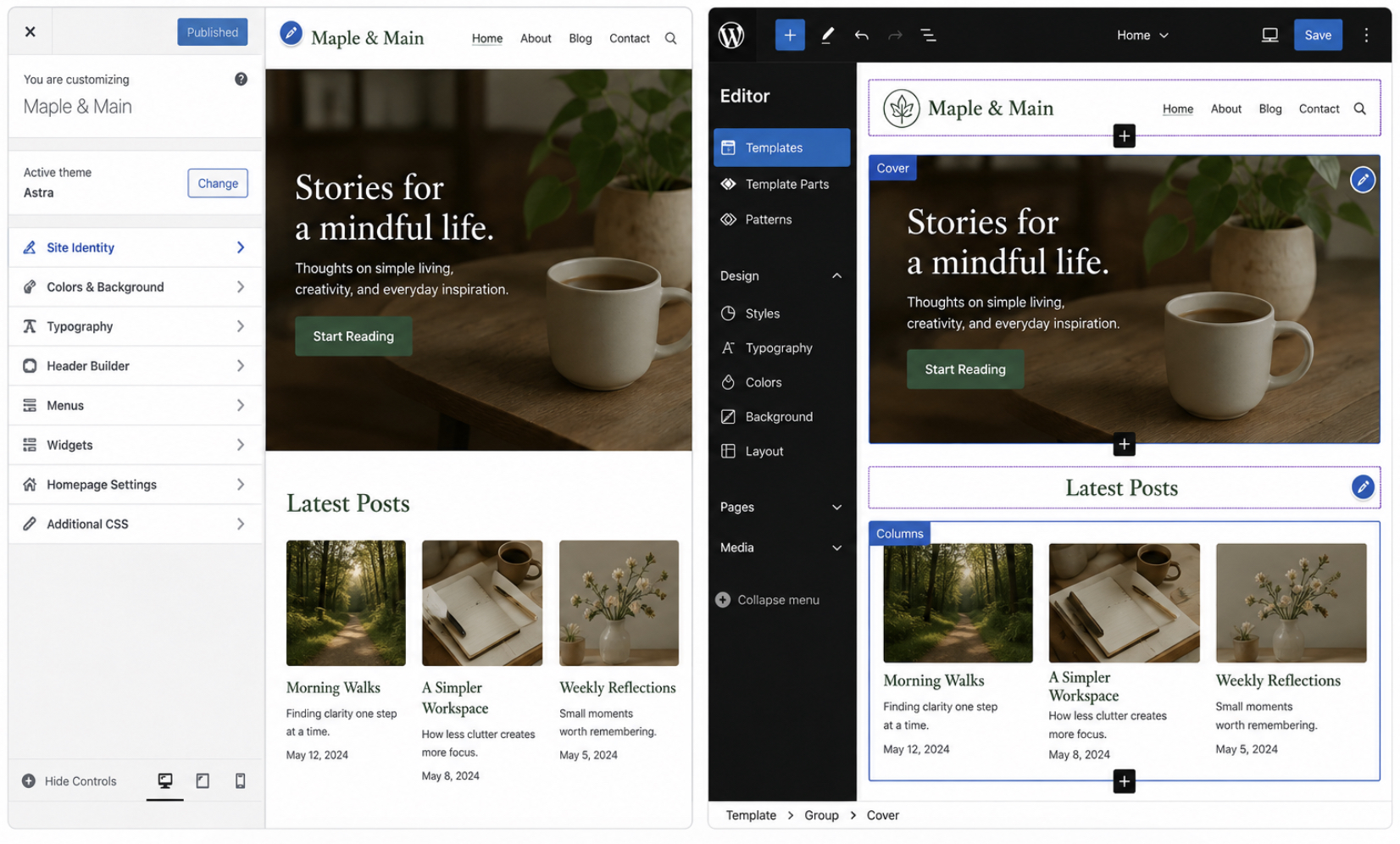
Theme customization is the design step where the practitioner adjusts the surface elements of the active theme so the WordPress blog reads as the practitioner’s own publication rather than a stock demo. The active theme supplies the underlying layout; customization tunes that layout to the blog’s identity. Two routes through the WordPress admin do this work.
Classic themes are designed inside Appearance > Customize, the WordPress Customizer panel with a live preview on the right and grouped options on the left. Block themes are designed in the Site Editor under Appearance > Editor, where the same surface elements are accessible as editable blocks on the rendered page. Which route applies depends on the theme; the design steps themselves are largely the same on both.
A first WordPress blog walks through the following customization steps, in the order they are typically tackled inside the admin.
Site title: the name of the WordPress blog as it appears in the header and the browser tab. The title is usually the brand handle that matched the registered domain.
Tagline: a one-line description that sits next to the title in header areas and search-engine result snippets; it tells a first-time user what the blog publishes about in roughly five to ten words.
Colors: the theme’s color palette, adjusted to the blog’s brand. Most themes expose two to four palette slots (primary, accent, background, text) that recolor the entire blog when changed.
Header image: the image, logo, or background graphic that sits at the top of the WordPress blog. The Customizer or Site Editor accepts the file directly and crops it to the theme’s expected dimensions.
Navigation menu: the menu items that appear in the header navigation. For a first blog these are typically Home, Blog (the post archive), About, and Contact. The menu is built inside Appearance > Menus on classic themes and inside the Site Editor’s navigation block on block themes.
Homepage layout: what visitors see at the root address of the WordPress blog: either the latest posts (the blog’s reverse-chronological archive) or a static welcome page that introduces the blog and links to the latest posts as a list. The choice lives under Settings > Reading.
Blog-post layout: the single-post template, where the practitioner sets whether posts show the author byline, the publication date, the featured image, the categories and tags, and the comment area. Block themes expose this through the single-post template inside the Site Editor; classic themes expose it through the Customizer or theme-options panel.
Once these surface elements settle, the theme reads as the practitioner’s WordPress blog rather than a stock demo, and the blog is ready for the layer that adds functional features on top of the design, the small group of plugins the blog needs to handle the jobs the theme does not.
Essential WordPress Blog Plugins
A WordPress plugin is a modular software extension that adds a specific feature to a WordPress blog without altering the WordPress core files, and the essential plugins are the small set every WordPress blog needs to run safely, load quickly, surface in search results, and accept user contact. Plugins ship through the WordPress.org plugin repository as packaged extensions the practitioner installs from inside the WordPress admin.
A WordPress blog with a theme controlling presentation already has the layout layer; what it does not yet have is the feature layer that turns a presentational blog into an operational one.
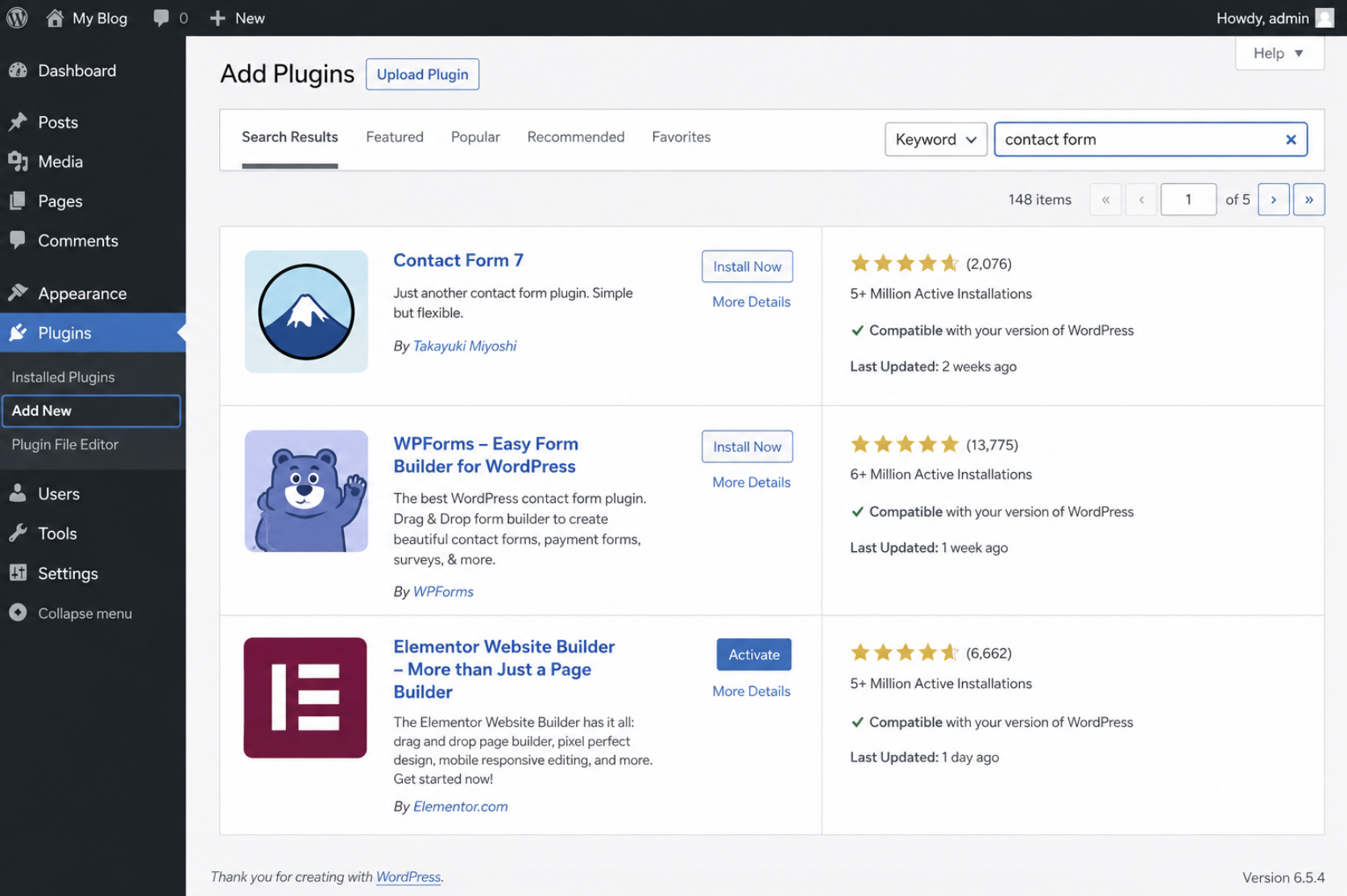
Installing a plugin on a WordPress blog follows a single, repeatable path in the WordPress admin. The practitioner opens Plugins > Add New, searches the WordPress.org plugin repository by the feature category the WordPress blog needs, installs the listing, and activates it. Hence, the feature becomes live on the blog. Activation is what tells WordPress to load the plugin’s code on every page request. Installation alone leaves the package dormant in the file system until the activate step runs. The feature categories a working WordPress blog covers are search optimization, security, caching, backups, contact form, anti-spam, image optimization, and related posts.
A separate plugin selection guide carries the listing-by-listing comparison work. The practical advice for a working WordPress blog is one plugin per category and nothing more. Every additional plugin loads more PHP on every page request, widens the surface that needs updating, and raises the chance of conflict between two plugins that hook the same WordPress action.
With the WordPress core extended by these eight feature categories, the WordPress blog now has the runtime features a user and a search engine expect. What it does not yet have is the small set of pages every visitor reaches before reading a single post: the About surface, the contact channel, and the privacy disclosure a WordPress blog needs alongside its plugins.
Required Pages for Your WordPress Blog
Every WordPress blog needs three required pages (an About page, a Contact page, and a Privacy Policy page) that sit outside the post archive and stay reachable from the main navigation across the life of the blog. Pages are a content type WordPress maintains separately from posts: posts carry dated entries that flow through the archive, while pages hold the durable, evergreen content that introduces the author, opens a contact channel, and discloses how the blog handles visitor data.
A WordPress blog with posts but no required pages reads as anonymous and untrusted to a first-time visitor, which is why a WordPress blog needs the About, Contact, and Privacy pages alongside its plugins.
The About page introduces the practitioner and the WordPress blog’s topic to first-time users, and it covers three things in plain language: who is writing the WordPress blog, what subjects the blog will cover, and why the user who arrived from search or social is in the right place. A short author bio sits at the top, a paragraph that names the practitioner, the relevant background, and the angle the blog brings to the topic. The topic statement names what the WordPress blog covers: these subjects, in this depth, for these users.
The About page closes by giving a first-time user something concrete to do (subscribe, read a starting post, follow a social profile ) and that closing builds trust at the moment a stranger has decided to look beyond a single search result.
The Contact page opens a working channel between the WordPress blog and any user who has a question, a correction, a sponsorship offer, or a guest-post pitch. A simple contact form sits at the centre of the page (delivered by the contact-form plugin the WordPress blog already has installed), and collects a name, an email address, a message, and an optional topic routing field that helps the practitioner triage user email from sponsor email from collaborator email.
An email address is optional below the form for users who prefer email over a form, and a one-sentence response-window note sets the expectation for how quickly the practitioner replies. The Contact page is also where a user who needs to discuss something the blog has published reaches the author directly. A separate contact-page guide covers ticket routing and form configuration in depth.
The Privacy Policy page discloses what data the WordPress blog collects from visitors, what the blog does with that data, and which third parties receive it, and the Privacy Policy page exists because data-protection regulation in most jurisdictions legally requires any website that processes personal data to publish a disclosure visitors can read.
A WordPress blog collects five categories of visitor data: analytics data the blog records about visits and page views, cookies the blog or its plugins place in the visitor’s browser, comment-form submissions and the optional commenter name and email a WordPress blog stores when a user leaves a comment on a post, contact-form submissions the blog receives and stores, and third-party services (the analytics provider, the hosting provider, plugin vendors) that receive visitor data as part of how the blog operates.
A privacy-policy generator with WordPress-blog-specific templates is the practical starting point; jurisdiction-specific legal questions belong with a legal professional, and the WordPress blog gets a defensible baseline by publishing the generator’s output with the blog’s actual data practices filled in.
With the About page introducing the practitioner, the Contact page opening a user channel, and the Privacy Policy page disclosing how the WordPress blog handles visitor data, the WordPress blog has the presentational, functional, and trust surfaces a first-time visitor expects. What it does not yet have is the one piece of dated, readable writing under its own URL that proves the WordPress blog is a working publication, and the first blog post creates exactly that.
Write Your First Blog Post
The first blog post is the closing step of the WordPress blog creation procedure and the proof that the WordPress blog is running, a dated, published piece of writing under its own permalink that confirms every prior step (hosting, domain, theme, plugins, pages) cohered into a working publication. Writing a blog post on WordPress takes between one and three hours for a first post of typical length, and the process covers two parts: composing the post in the WordPress block editor and publishing it so the post becomes live and readable at its own URL on the WordPress blog.
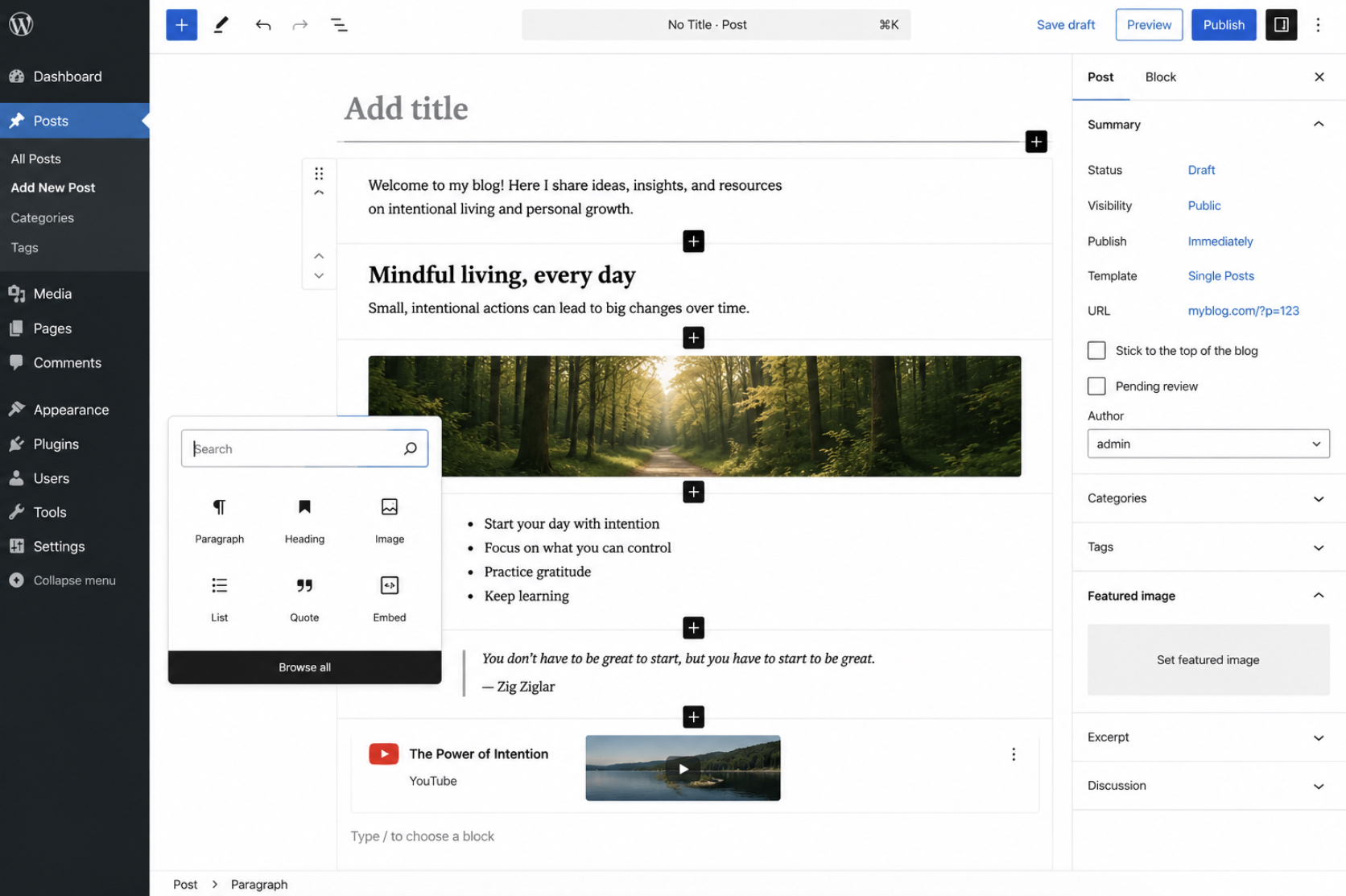
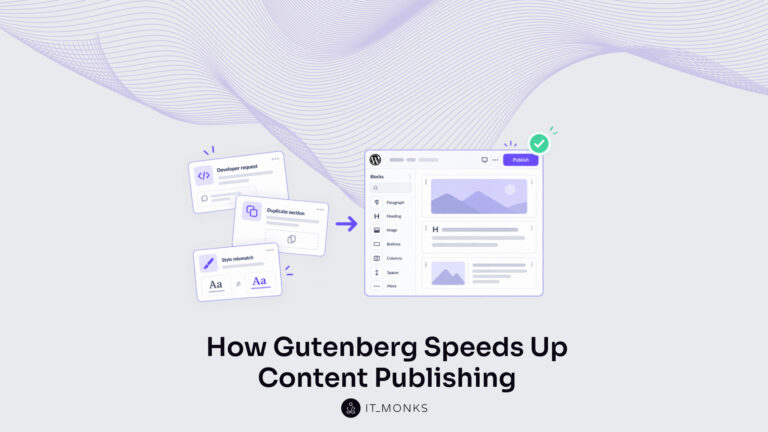
The block editor is the WordPress admin interface that opens at Posts > Add New, and a practitioner who has reached the editor sees a single column with a title field at the top, a body area beneath it where every paragraph, heading, image, list, and quote is a separate block, and a right-rail sidebar with publication controls (status, visibility, schedule, permalink, categories, tags, featured image).
Adding a block (a paragraph, a heading, an image, a list, a quote, an embed) happens through a + button between blocks or through a / keyboard shortcut that opens an inline block-type chooser. The editor previews how the post will render on the live WordPress blog via the Preview control in the right-rail sidebar, allowing the practitioner to confirm layout and typography before publication.
Writing a first blog post on a WordPress blog runs through a small ordered procedure inside the block editor:
Write a clear, specific title in the title field: a working description of the post that matches what a user will type into a search engine to find the post.
Add a short introduction in the first paragraph block that states what the post will cover and why a user benefits from reading it.
Build the body of the post block by block: paragraph blocks for prose, heading blocks for structure, image blocks for screenshots, list blocks for steps. A useful first post lands between 800 and 1,500 words and reads as a single piece of writing on a single topic, not a survey of several.
Add a featured image through the featured-image control in the right-rail sidebar: the image that represents the post in archive listings, in social-media share cards, and on the WordPress blog’s home page.
Assign one category to the post through the categories control so the post sits under a topic the WordPress blog will continue to publish under.
Add three to five tags that describe the specific subjects the post discusses, more granular than the category and more searchable than the post body alone.
Use Preview to confirm the post reads cleanly on the live WordPress blog: title, body, featured image, categories, tags all rendering as intended on desktop and on mobile.
Publish the post through the Publish button in the right-rail sidebar.
Before pressing Publish, a working pre-publish review catches the small mistakes that are easier to fix in draft than after the post is indexable. The pre-publish review for a WordPress blog post covers four checks: the title is spelled correctly and matches the post’s actual subject, every internal link in the body resolves to a live URL on the WordPress blog or to a working external destination, the featured image is sized within the dimensions the theme expects so it does not crop awkwardly in archive listings or social share cards, and the post has a category and three to five tags applied so the published entry slots into the WordPress blog’s archive structure cleanly.
Once Publish is pressed, the post is live at its own permalink on the WordPress blog and the user can reach it through the WordPress blog’s home page, the post’s category archive, the post’s tag archives, or a direct link. A practitioner who has reached this point uses the WordPress blog the way a publisher uses a publication: writing the next post, replying to the contact form, and building the archive one dated entry at a time. The procedure that started at hosting closes here, and the WordPress blog is a running publication.
How Much Does It Cost to Start a WordPress Blog?
A WordPress blog costs roughly $60 to $300 in the first year. That total covers hosting, the domain registration, the theme, and any premium plugins the writer adds.
A WordPress blog costs money on four core items: a hosting plan that runs the software, a domain registration that owns the address, a theme that shapes the layout, and the plugin set that extends what the platform does out of the box, plus a small optional extras row for items like a professional mailbox tied to the domain or a premium SSL certificate where the host does not include one. Hosting carries the largest share of the bill and almost always sits at the top of the line items.
The domain registration is small, predictable, and recurring. Theme and plugin spend depends entirely on whether the writer accepts the free repository tier or upgrades to a premium license. The $60-to-$300 band is a band, not a single figure, because hosting providers move their introductory prices several times a year and premium licenses range widely. A WordPress blog launched on the cheapest entry-tier shared hosting with a free theme and the free plugin set lands near the floor.
A WordPress blog launched on managed hosting with a premium theme license and a paid security and backup plugin set lands near the ceiling. Both are still a WordPress blog; the cost difference is the tier of each line item, not the platform itself. The four core items split into five table rows once the optional extras line is counted, and each row carries its own price band and its own behavior across the year.
First-Year Cost Breakdown
The first-year cost of a WordPress blog breaks down into five line items, each with its own band and its own behavior across the year.
Line item
Price band (USD)
Notes
Hosting plan
$30–$180 / year
Shared and entry-tier plans sit near the floor; managed WordPress hosting sits higher and includes server-level caching, automatic updates, and routine backups.
Domain registration
$10–$15 / year
A standard .com top-level domain. Country-code domains and longer extensions sit in roughly the same band.
Theme
$0 to $50–$100
The WordPress.org theme repository offers free templates that work for a launching blog. A premium theme license is a one-time or annual fee, depending on the vendor.
Plugins
$0 to $50–$200 / year
A search-optimization plugin, a security plugin, and a backup plugin are the common paid ones. The free editions of each cover most launch needs.
Optional extras
$0–$50 / year
A professional email address tied to the domain and a premium SSL certificate where the host does not include one.
The first-year cost of a WordPress blog includes line items that drop to zero and line items that always carry a charge. Theme and plugin spend drops to zero on the free repository tier. The WordPress.org library runs thousands of free templates, and the four most common functions (search optimization, security, backups, contact forms) all have free editions that handle launch-stage traffic.
Hosting and domain registration always carry a non-zero annual fee, because a WordPress blog cannot be served from the public web without a server to run it and an address to reach it. That split (two items that can be free, two items that cannot) sets up the answer to whether a WordPress blog can be started without paying anything at all.
Can You Start a WordPress Blog for Free?
Yes, a WordPress blog can be started free on the WordPress.com free tier, with trade-offs that change what the blog looks like and what it can do. A WordPress blog on the self-hosted WordPress.org route can also be started with free software, a free theme, and free plugins, but hosting and the domain registration still cost money, the practitioner gets free software, not a free WordPress blog.
The WordPress.com free tier provides a working blog at a subdomain in the form yourname.wordpress.com, the default block editor, a small set of free themes, and the standard publishing workflow. The trade-offs are real. A WordPress blog on the free tier carries WordPress.com branding on every page. The blog cannot accept third-party plugins, because the free plan does not expose the plugin installer.
A WordPress blog on the free tier is also limited in customization to what the plan exposes, and the blog’s address belongs to WordPress.com rather than to the writer. The self-hosted WordPress.org route runs the free open-source software on a server the writer rents, with a domain registration the writer owns. A WordPress blog on the self-hosted route accepts any theme and any plugin from any source, and the blog answers to the writer’s address rather than a subdomain.
The cost floor is the hosting plan plus the domain registration (roughly $40 to $200 a year combined), even when every other line item drops to zero. Free software does not mean a free server, and a self-hosted WordPress blog requires both.
The practical path starts free, then moves to self-hosted. A practitioner who wants to test the writing habit before paying for hosting starts free on WordPress.com, writes a handful of posts, and confirms the habit holds. Once the habit is real and the writing is steady, the practitioner moves to self-hosted WordPress.org and accepts the small annual cost in exchange for ownership, plugin freedom, and a clean address. A WordPress blog is live at the end of this sequence, runs on a platform the writer controls, and serves the first post to users from an address the writer owns.



 ChatGPT
  Claude
  Grok
Grok  Gemini