Explore our specialized services, tailored solutions, and industry expertise to elevate your digital presence. From custom WordPress development to seamless integrations, we build high-performing websites that deliver impact.
A Joomla to WordPress migration requires a structured, step-by-step process that moves your Joomla site from versions 1.5, 2.5, 3.x, 4.x, or 5.x into a self-hosted WordPress.org environment without losing critical content, URLs, or site structure.
This guide explains how to migrate Joomla to WordPress by auditing the existing site first, then transferring content, preserving URL redirects, choosing an FG plugin or manual workflow, refitting extensions, verifying the migrated pages, and preparing the final theme handoff before deciding whether agency support is necessary.
If you plan to convert Joomla to WordPress or migrate from Joomla to WordPress while reviewing the broader platform differences at a high level, the next sections move directly into the migration procedure rather than a feature-by-feature comparison.
Pre-Migration Audit
Before you migrate a Joomla site to WordPress, audit the Joomla source first so the source state is clear before any content transfer or URL handling begins. The pre-migration audit confirms whether the Joomla site, hosting environment, domain configuration, and existing content structure are ready for a predictable joomla to wordpress process and helps you avoid downstream import inconsistencies during the WordPress destination setup.
This stage also establishes the prerequisites that shape later extraction, redirect mapping, plugin selection, verification, and overall WordPress migration planning by checking the Joomla version, hosting readiness, domain readiness, and content inventory in sequence before you migrate from Joomla to WordPress.
Joomla Version Check
The Joomla version check is the first step of the audit because the source version determines which content categories migrate automatically and which need a workaround. Identify the major-minor release on the source platform (Joomla 1.5 legacy, 2.5 long-term support, 3.x, 4.x, or 5.x modern) and read off the migration-relevant capability the release supports.
Featured images were introduced in Joomla core at line 2.5, tags arrived at 3.1, and custom fields at 3.7, so each version marker gates a different bundle of attributes that the import has to handle.
The version-to-capability map maps each Joomla release to the migration attributes it natively supports.
Joomla version
Capability available for migration
Joomla 2.5+
Featured images carry across to the WordPress media library and post thumbnail.
Joomla 3.1+
Tags migrate as native WordPress tags.
Joomla 3.7+
Custom fields migrate as native WordPress custom fields or post meta.
Hosting Readiness
The hosting readiness check verifies that the WordPress destination will accept the imported Joomla content before any export runs on the source side.
Check four destination requirements:
the PHP version WordPress core requires,
the MySQL or MariaDB database engine the install relies on,
the disk allowance the imported media library and database backup will need,
the install path that points to the directory where the destination site lives.
Shared, managed, and VPS environments all support a WordPress destination provided each requirement clears the core threshold; the audit treats every hosting category as neutral and looks only at the capability frame.
Domain Readiness
Domain readiness is the source-domain-side check that confirms which address the WordPress destination will serve from after cutover.
The decision splits two paths.
Keep the current Joomla custom domain and re-point the DNS A record or CNAME at the new destination. This preserves the domain authority the Joomla site has built and avoids any rename procedure.
Move the WordPress site onto a different domain entirely, which carries a separate full rename procedure. See the sibling guide on how to change a WordPress domain for the WordPress-side rename in full.
Same-domain migrators continue to the content inventory; new-domain migrators first settle the rename plan with the sibling guide.
Content Inventory
The content inventory lists and counts every Joomla content type on the source site, so the downstream migration phases know exactly what needs to be moved. Inventory articles, categories, and (on Joomla 1.5 only) sections; featured images for any 2.5-or-later source; tags for 3.1-or-later; custom fields for 3.7-or-later; users; menus; modules; extensions; custom HTML modules; and custom templates.
A typical small-business Joomla site falls between 10 and 200 articles and 1 to 10 categories, but record the exact counts. The inventory becomes the source-side ground truth the content-migration phase reconciles against.
Joomla to WordPress Content Migration
Joomla to WordPress content migration is the content-side half of the move: the set of records inside the Joomla database that need to land inside the WordPress database with fields, relationships, and authorship intact.
The FG Joomla to WordPress plugin documentation names the eight content types in scope (articles, categories, sections, featured images, tags, custom fields, users, and menus), and both the plugin route and the manual export-and-import route cover the same inventory. This stage describes WHAT moves, not WHICH tool moves it.
The eight content types do not include everything inside a Joomla install. Joomla extensions (K2, JReviews, JomSocial, JEvents, Akeeba Backup, and similar) are functional components, not content records. They need a destination-side WordPress plugin to re-fit against. The Joomla template is not a content record either: presentation moves to a WordPress theme through a different handoff. Joomla SEF URLs and the redirect map sit outside the content inventory too; the URL layer is its own arc with its own 301 plan.
Four pairings group the eight content types in the order an editor sees them in the Joomla back-office:
articles with categories,
featured images with media,
tags with custom fields,
users with menus.
Articles and Categories
Articles and categories are the primary content types in any Joomla site, and the mapping is direct: Joomla articles to WordPress posts, Joomla categories to WordPress categories.
Article body text, publish state, publish date, intro text, full text, and author byline travel with the record. Category names, descriptions, and hierarchies are carried with the category records into the same parent-child structure.
The complication is the range of Joomla versions. Joomla 1.5 used a three-tier model (sections, categories nested under sections, and articles nested under categories), and that structure does not exist in WordPress.
The collapse handles it:
1.5 sections fold into top-level WordPress categories,
1.5 categories become child categories,
articles import as posts with their existing taxonomy assignment.
From Joomla 1.6 onward, the model is already two-tier (categories only), and the import is a straight one-to-one.
Featured Images and Media
Featured images and media are the article-level visual assets: lead images, inline images, and arbitrary uploads from the Joomla media manager. They migrate into the WordPress media library as a single import sweep: files land in wp-content/uploads/ with original filenames preserved and references rewritten to the new paths.
The version-range caveat sits with featured images. Joomla 2.5 introduced featured-image support natively, so any 2.5-or-later source carries the attachment as a structured field. Pre-2.5 Joomla (the 1.5 line) had no native featured-image field. Those sites relied on custom module fields or used the first inline image as the de facto featured image, so a pre-2.5 source needs a manual remap step.
Joomla’s default media path is /images/; sites with a custom path pass that path to the import tool. The destination is always wp-content/uploads/. Some body references end up pointing at filenames no longer on the new server, and orphaned media references are cleaned up during the verification pass.
Tags and Custom Fields
Tags and custom fields are the metadata layer beside the article body, and the version cutoffs are stricter here than for any other content type. Joomla 3.1 introduced tags as a native taxonomy.
Any 3.1-or-later source carries tag records that map directly onto WordPress tags. Joomla 3.7 introduced custom fields as a native article-level metadata system.
Any 3.7-or-later source carries custom-field records the import maps onto WordPress custom fields (post meta). Legacy Joomla sites (1.5 and 2.5) predate both features and skip this content type entirely.
Native post meta handles simple text values without any plugin. More complex Joomla custom-field types (repeater fields, relationship fields, image fields, structured groups) exceed native post meta, and the WordPress site needs Advanced Custom Fields, Meta Box, or a similar plugin. The choice is a theme-side decision: a theme built against ACF expects ACF; one built against Meta Box expects Meta Box.
Users and Menus
Users and menus migrate as the account and navigation half of the content inventory: Joomla user accounts map onto WordPress user accounts, and Joomla menu items map onto WordPress menu items. The FG plugin documentation covers both branches. Accounts with their passwords on one side, menus and links on the other.
Joomla ships nine default user groups (Public, Guest, Manager, Administrator, Registered, Author, Editor, Publisher, Super Users) against WordPress’s five default roles (Administrator, Editor, Author, Contributor, Subscriber).
The mapping is privilege-aware, not name-aware: Joomla Super Users, the only role that can edit Global Configuration, map onto WordPress Administrators. Joomla Administrators have no Global Configuration access on the Joomla side, so they map onto WordPress Editors by default; promote them to Administrator only when they were already trusted at the Global Configuration level. Joomla Registered users become WordPress Subscribers, and Editor / Author / Publisher roles map to their WordPress counterparts.
Account records (username, email, group) migrate cleanly. The password hash field is the operational caveat: Joomla 3.2 and later use bcrypt ($2y$), earlier versions used MD5-with-salt or PHPass, and WordPress uses PHPass or bcrypt depending on its version.
The FG plugin’s free tier does not reliably preserve login credentials across this level of hash diversity, and the documented recommendation is to send a forced password reset email on first login. The reset gives the install a clean credential baseline. Menus migrate alongside accounts: a Joomla menu item linking to a Joomla article becomes a WordPress menu item linking to the equivalent post, with the link target re-pointed to the new permalink.
Reasons to Migrate from Joomla to WordPress
The main reasons to migrate from Joomla to WordPress usually center on how the destination platform handles extensibility, search visibility, and day-to-day site management after a Joomla to WordPress transition. When organizations evaluate a Joomla to WordPress migration, they often look for a larger plugin ecosystem, stronger SEO capability, and a more unified admin interface without turning the process into a feature-by-feature platform comparison.
WordPress offers a broader extension ecosystem for content, commerce, forms, multilingual publishing, and workflow customization, giving the destination platform wider long-term integration coverage than the source platform in many common publishing scenarios. The same migration rationale also appears in adjacent platform moves such as WIX to WordPress and SquareSpace to WordPress, where site owners prioritize ecosystem flexibility, SEO control, and administrative consistency as their content footprint grows. WordPress also provides mature SEO tooling for metadata management, redirects, structured content organization, and crawl-oriented optimization, while the admin interface keeps publishing, media handling, navigation management, and user workflows within a more consolidated environment for many editorial teams.
Plugin Ecosystem Comparison
Plugin ecosystem comparison is the largest and most quantifiable reason to migrate Joomla to WordPress. As of May 2026, the WordPress.org plugin directory listed approximately 59,000 plugins while the Joomla Extensions Directory (JED) listed approximately 8,000 extensions, a catalogue gap of roughly 7.4 to 1 that shapes almost every later decision in the migration, from how a Joomla extension is replaced on the WordPress side to how confidently a project team can quote a feasibility estimate.
The structural shape differs, too. Joomla splits third-party functionality into four surface types: components, modules, plugins, and templates. WordPress consolidates the same surface area into two: plugins for functionality and themes for presentation. Fewer concepts means fewer integration seams.
SEO Capability Comparison
SEO capability comparison is the second reason for migrating from Joomla to WordPress. The WordPress directory carries a mature SEO plugin category occupied by Yoast, Rank Math, and SEOPress, each providing on-page optimization, schema output, and XML sitemap generation out of the box. Joomla covers similar ground through its own SEO extensions, but WordPress has wider adoption, a faster release cadence, and tighter dashboard integration.
The SEO advantage carries one binding condition. Destination plugins only help if existing rankings survive the move, and rankings survive only if old Joomla URLs map cleanly to new WordPress URLs and redirect with the correct status code. The 301 redirects link equity; without that mapping, no SEO plugin on either platform can recover the lost equity.
Admin Interface Comparison
Admin interface comparison is the third reason to migrate Joomla to WordPress. The WordPress dashboard exposes Posts, Pages, Media, Comments, Appearance, Plugins, Users, and Settings as a single left-hand menu, and every editing surface opens into the Gutenberg block editor with the same controls. Joomla’s admin is denser: articles, categories, menus, modules, components, and extensions sit in separate manager screens, and the access-control list runs in its own layer that admins configure before content work begins.
Joomla combines a complex access-control model with a multi-component admin built around four extension types, useful when permission granularity matters, costly when an editor just wants to publish a post. WordPress unifies the admin into a single dashboard and block editor, and the path from login to a published post stays short.
Joomla to WordPress URL and 301 Redirect Mapping
Unlike Joomla SEF URLs and the bare query-string URLs Joomla also serves, WordPress permalinks come from a single configuration screen, and the join between the two sides is a 301 redirect map.
Every URL the Joomla site has been serving must reach the same content at a WordPress address, and every external link or search-engine citation pointing at an old Joomla URL must land at a new WordPress URL without a dead end. The 301 tells search engines and link-following clients that an address has moved permanently, handing the old URL’s accumulated ranking signals and inbound link equity to the new URL.
A Joomla source produces two URL surfaces:
Search-Engine-Friendly (SEF) form: short readable paths like /about-us or /products/category/item.
Bare query-string form /index.php?option=com_content&view=article&id=42, which Joomla emits for any site that never enabled SEF and which often survives in inbound links after SEF gets switched on.
The URL-preservation arc covers four pieces of work: identifying the Joomla source URL pattern, configuring the WordPress destination permalink, building the 301 redirect plan, and repairing internal Joomla URLs the content migration leaves hardcoded inside post bodies.
Joomla SEF URLs
Start by listing every SEF path the Joomla site serves. Joomla SEF URLs are the form a Joomla site exposes when SEF is turned on: the Joomla Router rewrites internal article and category URLs into clean paths, and .htaccess carries the rewrite rules that hand each request to the router. The result is what visitors see and what search engines have indexed, typically /about-us for a single article, /products/category/item for a category-and-article path.
A Joomla site can also serve the bare query-string form, either because SEF was never enabled or because inbound links from the pre-SEF era still point at it. Either way, the query-string URL has to appear in the map.
The two forms look like this side by side, for the same underlying Joomla article:
Both URLs point to the same article record, and after the move, both have to land on the same WordPress post. List every distinct URL that each surface produces, and treat their union as the complete source set.
WordPress Permalinks
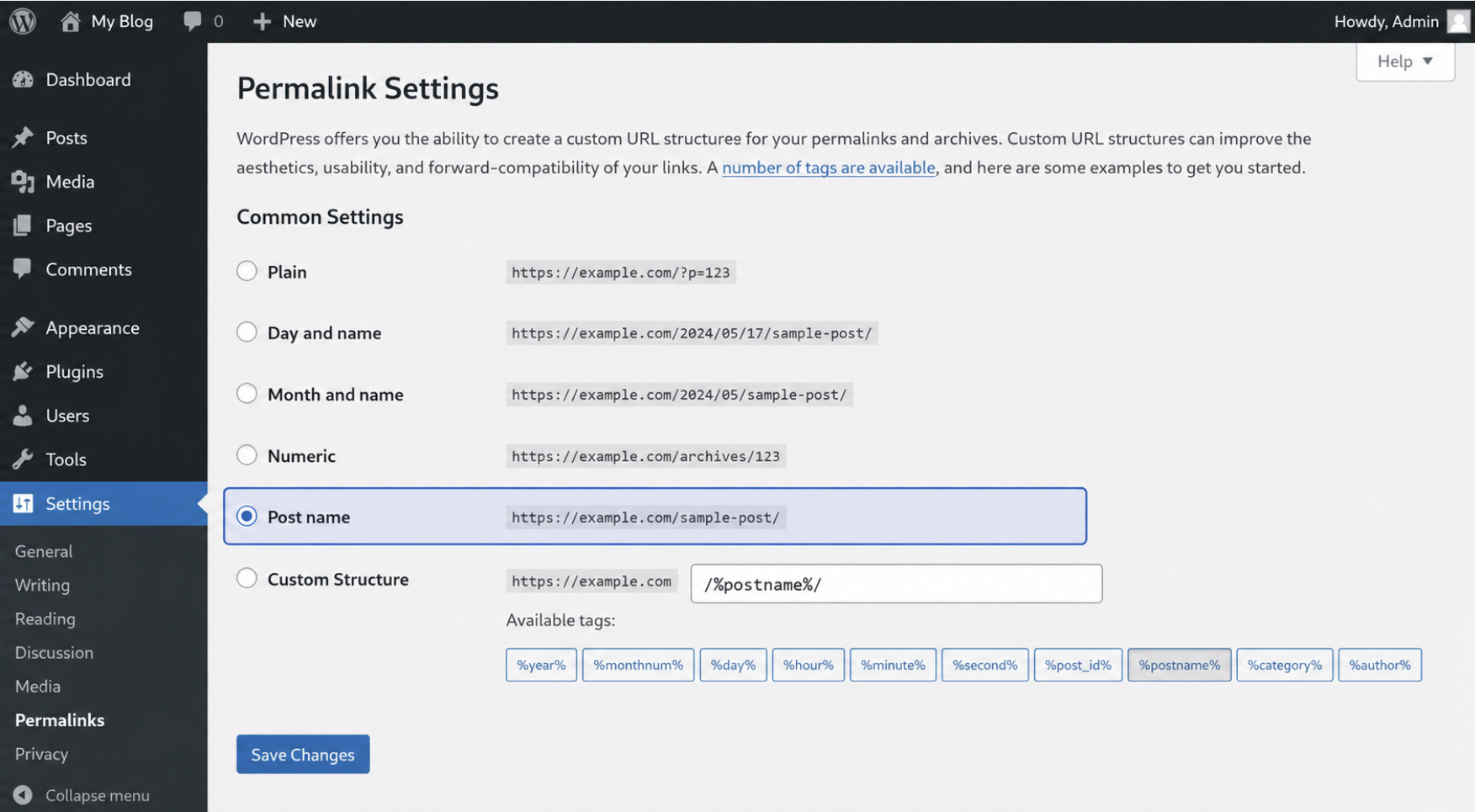
WordPress permalinks are the URLs a WordPress site exposes for posts, pages, and archives, and the structure choice is made once at the destination before any redirects run. The configuration screen is Settings > Permalinks in the admin sidebar, the same on every install.
The panel offers six options.
Post name produces https://example.com/sample-post/, a flat slug-only URL matching a Joomla SEF path like /about-us.
Custom Structure exposes a permalink template field where /%category%/%postname%/ produces https://example.com/products/sample-post/, matching a category-plus-article SEF path.
The Day and name, Month and name, and Numeric options produce date-stamped or ID-based URLs that almost never match what Joomla was serving, and Plain produces query-string-style URLs that reintroduce the very pattern the move is supposed to leave behind.
The rule that closes the choice is shape-matching. Flat slug-only Joomla URLs pick Post name; URLs that carry a category segment pick a Custom Structure that reproduces it. The closer the match, the shorter the 301 redirect list.
301 Redirect Plan
A 301 redirect plan is the URL-map artifact that joins every Joomla source URL to its WordPress destination URL with a 301 (Moved Permanently) response: a spreadsheet or CSV with one column for the old Joomla URL, one for the new WordPress URL, one row per redirect. Building the map before any redirects are written keeps the move auditable.
Build the map by listing every distinct Joomla source URL. SEF paths come from a sitemap export or a crawl of the live site. Query-string URLs come from server access logs (filter for index.php?option=com_content), from Google Search Console’s indexed-URL report, and from inbound-link reports in tools like Ahrefs or Majestic.
Implementation splits two paths, both producing the same 301 outcome.
The server-level path writes Apache RewriteRule entries to .htaccess at the WordPress document root, faster and more resilient to plugin disable.
The plugin-managed path installs a WordPress redirect plugin (Redirection is one common choice) and stores entries in the database, no server access required, with a UI for editing.
An .htaccess block implementing two redirects (one SEF source with a changed slug, one query-string source) looks like this:
# Redirect a Joomla SEF path /old-joomla-page to a new WordPress slug /new-wordpress-slug
RewriteEngine On
RewriteRule ^old-joomla-page/?$ /new-wordpress-slug/ [R=301,L]

# Redirect a Joomla query-string URL to a WordPress post slug
RewriteCond %{QUERY_STRING} (^|&)option=com_content(&|$)
RewriteCond %{QUERY_STRING} (^|&)view=article(&|$)
RewriteCond %{QUERY_STRING} (^|&)id=42(&|$)
RewriteRule ^index.php$ /blog/post-slug/? [R=301,L]
The first rule rewrites the SEF source /old-joomla-page to the new WordPress slug /new-wordpress-slug. The second matches index.php?option=com_content&view=article&id=42 by conditioning on the three query parameters and rewriting to /blog/post-slug/. The same pair of patterns scales row-by-row across the rest of the map.
Internal Link Repair
Internal link repair is the post-redirect cleanup that scans imported posts and page bodies for any Joomla URLs still embedded in the content and replaces them with the matching WordPress URLs. The 301 redirects cover external arrivals at a Joomla URL; internal link repair covers readers clicking a link inside an article body that still points back at the Joomla domain.
Two paths handle the scan-and-replace.
The first is a search-and-replace plugin (Better Search Replace is a widely used option) run against wp_posts, using the old Joomla domain as the search string and the new WordPress URL as the replacement; it handles serialized and unserialized fields without breaking serialization.
The second is database-direct: a WP-CLI command (wp search-replace) or a direct SQL update. The plugin path is the lighter-touch default for a site administrator; the database-direct path is the developer default when the migration touches many tables or is scripted as part of a larger handover.
FG Joomla to WordPress Plugin Path
The FG Joomla to WordPress plugin path is the automated route, a single migration plugin installed on the destination side. The plugin is FG Joomla to WordPress, authored by Frédéric Gilles, and it runs from inside the WordPress admin against a connected Joomla source database. The path automates the full content set the pre-migration audit inventoried: articles, categories, featured images and media, tags, custom fields, users, and menus into their WordPress equivalents.
The plugin ships in two tiers.
The free tier handles the core content migration (articles, categories, media, tags, users, menus), which covers what most Joomla sites carry.
The premium tier adds URL-redirect generation tied to the new permalink structure plus select extension data the source side stores under non-standard tables (K2 content, custom-field collections beyond the core schema).
Four steps run the path in sequence: install and activate the plugin, connect the Joomla source database, review the import configuration and run the import, and add the premium add-ons where the source needs them.
FG Plugin Install
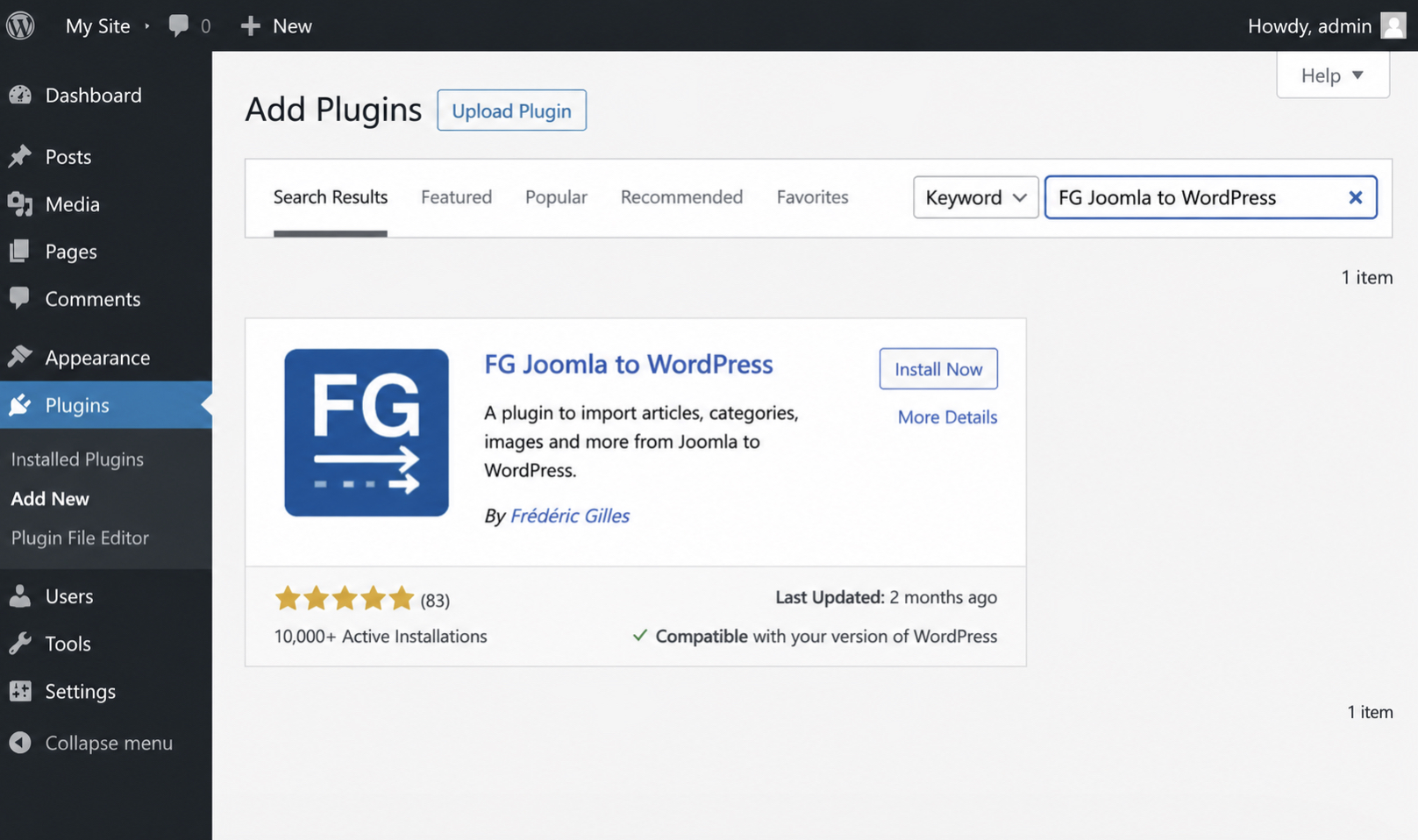
Installing the FG plugin is the first step in the automated path. The plugin is installed via the standard WordPress plugin directory. Open WordPress admin → Plugins → Add New, search “FG Joomla to WordPress”, and the plugin’s card appears with Frédéric Gilles as author and an Install Now button on the right.
A click on Install Now downloads the plugin, and a follow-up click on Activate turns it on, making the admin pages accessible from the Tools menu. A clean WordPress install is the prerequisite; no content, theme work, or other plugins need to be in place; an empty install with default settings is exactly what the FG plugin expects.
Joomla Database Connection
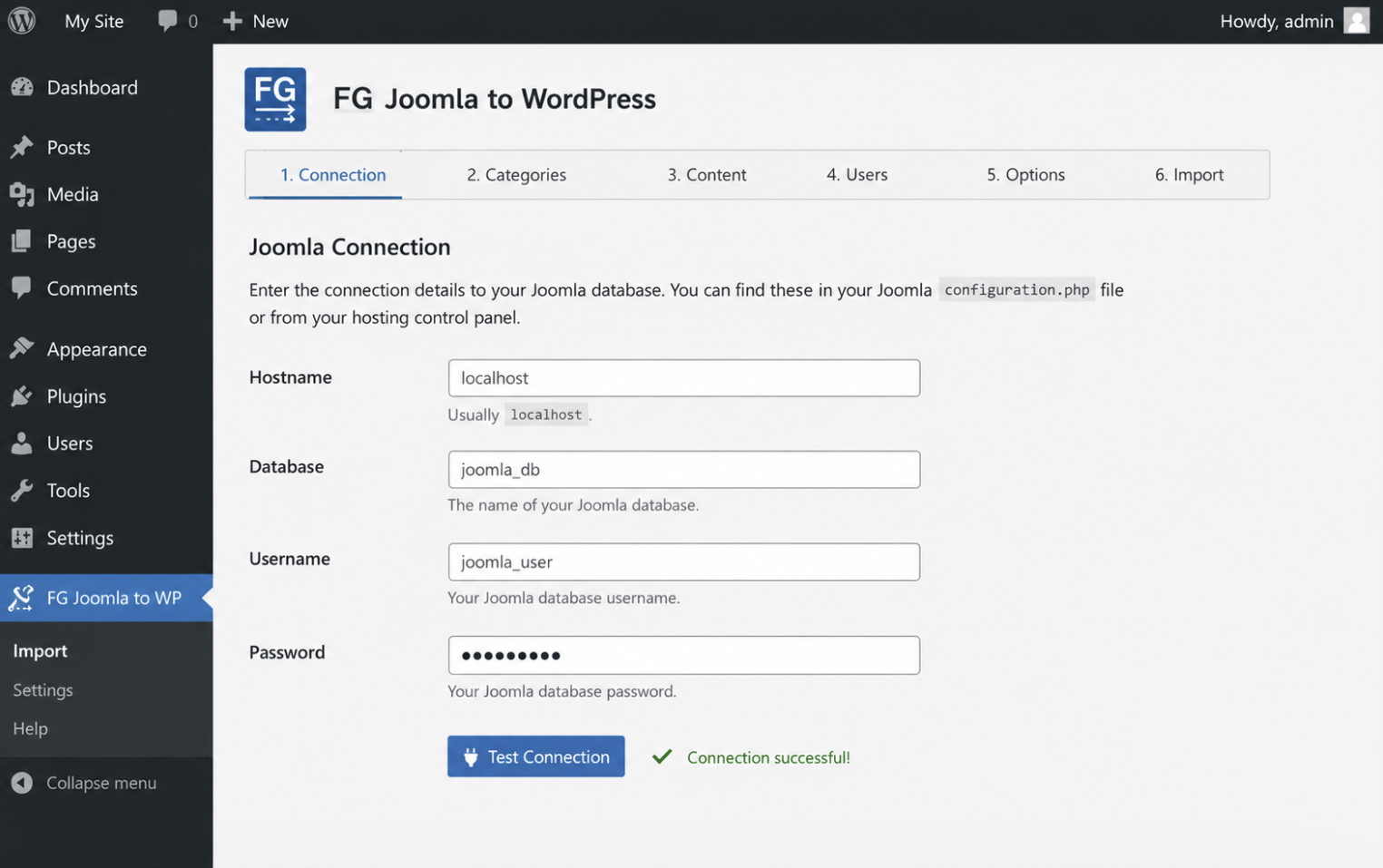
The Joomla database connection is the FG plugin’s bridge to the source: the plugin requests four credentials that point to the Joomla site’s database, then reaches across the connection at import time. The credentials are Hostname, Database, Username, and Password, exposed as four labeled fields on the connection panel.
The four credentials live in the Joomla site’s configuration.php file at the install root, under the host, db, user, and password properties. A reader without filesystem access can pull the same values from the source host’s database control panel. The four fields go into the FG panel exactly as they read on the Joomla side.
The Test Connection button confirms the bridge is live: a successful test returns a confirmation message; a failed test names the credential that the FG plugin could not authenticate with.
Import Configuration
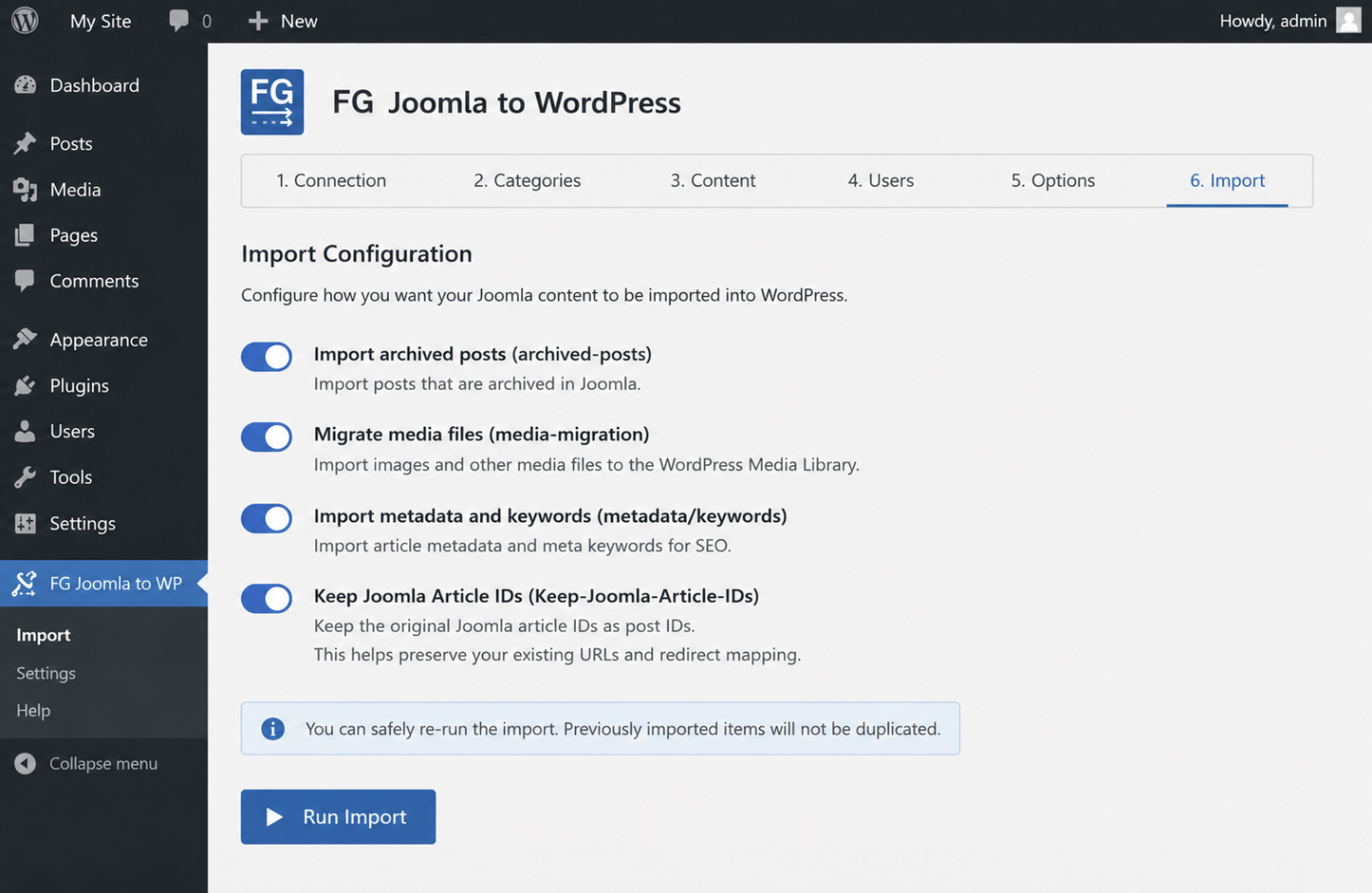
The import configuration is the FG plugin’s run-setup panel: toggles that decide which Joomla content the import pulls across, plus the Run Import button that triggers the migration. The toggles cover slices not every site wants by default: archived posts, media migration that copies the Joomla /images/ tree into the WordPress Media Library, and metadata or keyword fields that preserve per-article meta description and meta keyword values for the destination SEO plugin.
One toggle carries weight beyond its own setting: Keep Joomla Article IDs. With it on, each imported WordPress post receives the same numeric identifier the source article held, preserving the part of the Joomla URL pattern the 301 redirect mapping depends on. With it off, destination posts get fresh sequential identifiers, the source-to-destination URL pairs no longer line up, and the redirect plan loses its mechanical hook.
A click on Run Import starts the migration: the FG plugin walks the connected Joomla database table by table and reports per-table totals when the run completes.
FG Premium Add-ons
The FG premium add-ons are the paid extensions to the FG Joomla to WordPress plugin: they sit on top of the free tier and cover source-side content the free tier does not reach. As of May 2026, the premium tier lists at EUR 39.99 (approximately USD 43.50 / GBP 34) on the Frédéric Gilles site and unlocks the add-on catalogue under a single licence per Joomla source.
The add-ons that most often earn their place are the URL-redirect add-on (generates the destination redirect map from the imported article identifiers and the new permalink structure), the custom-fields add-on (carries Joomla custom-field collections beyond what the free tier handles), and the K2 add-on (reads K2 content from the source and writes it into WordPress posts).
The premium tier is evidence-driven, not mandatory. A source running only core articles, categories, media, tags, and users completes on the free tier. A source that holds K2 content, custom-field collections, or a URL pattern the destination has to preserve is where the premium tier earns the cost.
Joomla Extension to WordPress Plugin Re-fit
Joomla extensions and WordPress plugins solve the same job: adding behavior to a content management system, but Joomla splits that job across four extension types (components, modules, plugins, templates) while WordPress collapses everything except presentation into a single plugin model.
The re-fit is a mapping decision, not a transfer. Each extension that earns its place on the destination gets rethought against the WordPress shape that fits the function the Joomla extension delivers.
Five pairings carry the bulk of the work: K2 to WordPress posts, JReviews to a custom build or alternative directory plugin, JomSocial to BuddyPress, JEvents to The Events Calendar, and Akeeba Backup to UpdraftPlus. The extension-to-destination map names the most common WordPress landing point for each pairing.
Joomla extension
Common WordPress destination
K2
WordPress posts (with a custom post type when K2 layout fields exceed the vanilla post)
JReviews
Custom build on native posts and custom fields, or an alternative WordPress directory or reviews plugin
JomSocial
BuddyPress with the relevant per-component add-ons, or BuddyBoss as the commercial overlay
JEvents
The Events Calendar
Akeeba Backup
UpdraftPlus
Each WordPress plugin listed is the most common landing point for the function the Joomla extension delivered, not the only sensible answer.
K2 to WordPress Posts
The K2 to WordPress posts re-fit is the source-to-destination mapping from K2 article records on Joomla to native post records on WordPress, with K2 layout fields landing on either standard post meta or a custom post type depending on field count.
A vanilla WordPress post handles K2 records cleanly until the K2 layout carries fields the vanilla post does not, at which point the destination earns a custom post type. K2 categories map to WordPress categories when the receiving theme treats post categories as the primary taxonomy, or to a custom taxonomy when the theme expects a non-standard name.
K2 extra fields map to WordPress custom fields for small sets and Advanced Custom Fields for richer ones. The FG plugin’s premium tier carries a K2 add-on that automates this end-to-end.
JReviews re-fit
The JReviews re-fit is the directory-and-reviews decision between rebuilding on native WordPress shapes or commissioning an alternative WordPress reviews plugin. JReviews on Joomla powers structured listings and reviews: directory-style content where each item is a record with fields, ratings, and review comments.
On WordPress, that pattern is served either by a custom build on top of native posts and custom fields (or Advanced Custom Fields, where the field set is rich) or by an alternative directory or reviews plugin. One caveat controls the decision: an existing JReviews Joomla license does NOT convert to a JReviews WordPress license.
A fresh license is required if the destination is the JReviews WordPress product, and the cost-benefit of that license against a custom build on native WordPress is the actual decision.
JomSocial to BuddyPress
The JomSocial to BuddyPress re-fit is the community-features mapping from JomSocial’s monolithic suite on Joomla to BuddyPress’s plugin-plus-add-ons architecture on WordPress. JomSocial delivers member profiles, member groups, activity streams, and private messaging as a single extension.
BuddyPress delivers the same surface area as a plugin core plus a separate add-on per component for everything the core does not include by default. BuddyBoss is the commercial overlay packaging BuddyPress with an integrated theme and a curated add-on set. Sites that lean on JomSocial’s full feature surface tend to land on BuddyBoss; sites that used only one or two components tend to land on plain BuddyPress with the matching add-ons.
JEvents to The Events Calendar
The JEvents to The Events Calendar re-fit is the events-content mapping between two category-driven event-management systems with recurrence rules. JEvents categories map onto The Events Calendar’s category taxonomy without a structural change, and JEvents recurring-event rules map onto the recurrence engine for repeating events.
Recurrence complexity is the detail that surfaces: simple weekly or monthly recurrence is handled by the free version; complex recurrence (exceptions, irregular intervals, multi-rule patterns), typically requires the paid recurrence add-on. The decision is whether the events justify the paid tier or fit inside the free core.
Akeeba Backup to UpdraftPlus
The Akeeba Backup to UpdraftPlus re-fit is the backup-tool handoff that places restorable site backups on both ends of the migration. Both produce scheduled backups to local file paths or remote destinations like object storage and cloud drives.
Backup tooling belongs in migration prep, not a post-migration afterthought: an Akeeba snapshot of the Joomla source taken before any cutover work begins is the safety net for the migration itself, and standing UpdraftPlus up on the WordPress side as one of the first install decisions closes the same loop on the new platform.
Manual Joomla to WordPress Export and Import Path
The manual Joomla to WordPress export and import path is the tool-neutral migration route: export content from Joomla in a portable format, then import it into WordPress without routing through a dedicated migration plugin.
This path exists for sites where the FG plugin path is unreliable: very large content volumes that exceed the plugin’s stable batch size, custom Joomla extensions whose content sits outside the plugin’s mapped tables, and complex template logic the plugin cannot reconstruct on the WordPress side.
The path splits into three actions, taken in order. Export the Joomla data as XML, or extract it with a SQL query against the Joomla content tables. Configure the WordPress Importer on the destination side and run it against the exported file. When the source data sits outside the Importer’s WXR schema, or the volume defeats a file-based round trip, script a database-direct sync that reads Joomla tables and writes to WordPress tables without an intermediate file.
Joomla XML Export
The Joomla XML export is the source-side action that produces a portable content file from the Joomla database. Joomla does not ship a first-party WordPress-compatible XML exporter, which shapes everything downstream.
WordPress publishes its own export schema, the WordPress eXtended RSS format (WXR), and the WordPress Importer reads that schema natively. An XML round trip therefore, builds the WXR-shaped file from Joomla content rather than asking Joomla to emit it.
Two extraction approaches reach a usable XML file. The SQL approach queries the Joomla database directly, pulling article rows from #__content and joining them to category rows in #__categories on the catid foreign key, then shaping the result into WXR markup. The CSV approach exports Joomla content as CSV through a Joomla extension that supports CSV export, then imports that CSV through a CSV-to-WXR converter, useful when the Joomla source is small enough to inspect by row.
The SQL approach is the more reliable for non-trivial volumes. An illustrative query against a Joomla database with the default jos_ table prefix looks like this:
SELECT
  c.id              AS joomla_article_id,
  c.title           AS post_title,
  c.alias           AS post_slug,
  c.introtext       AS post_excerpt,
  c.fulltext        AS post_content,
  c.created         AS post_date,
  c.state           AS publish_state,
  cat.title         AS category_name,
  cat.alias         AS category_slug
FROM jos_content       AS c
JOIN jos_categories    AS cat
  ON cat.id = c.catid
WHERE c.state = 1
ORDER BY c.created;
The query joins articles to categories on catid, filters to published rows on state = 1, and orders by creation date. Substitute the real Joomla table prefix in the FROM and JOIN clauses (jos_, j25_, j3x_, and site-specific prefixes are all common).
The schema also shifts across major versions: fulltext carries the article body in Joomla 1.5 through 4.x, featured-image references move from a content plugin in 1.5 to the images column in 2.5 and later, and tags appear as a join through #__contentitem_tag_map from Joomla 3.1 onward.
WordPress Importer Setup
The WordPress Importer setup configures the destination-side ingestion mechanism. The WordPress Importer is a free first-party plugin at Tools > Import, alongside other format-specific importers (Blogger, RSS, Tumblr). It reads WXR files and writes parsed posts, pages, categories, tags, authors, and media references into the destination database.
The configuration sequence is short. Open Tools > Import, install the Importer the first time it is used, run it, upload the WXR file, and map imported authors to existing users (or create new ones) at upload time. A checkbox lets the Importer also download and import file attachments referenced in the WXR, useful when Joomla source images need to land in the media library at the same time.
The Importer reads WXR and only WXR. Sources outside that schema (a raw CSV from a Joomla CSV-export extension, a custom XML shape produced without WXR wrapping, a JSON dump) do not load through the stock Importer. Cover those with a hand-built importer: a PHP script that runs inside WordPress and uses the core functions wp_insert_post, wp_insert_term, and wp_insert_attachment plus wp_generate_attachment_metadata for media.
Database-direct sync
The database-direct sync is the deepest action in the manual path, and the one with the narrowest audience. A sync script reads Joomla database tables and writes to WordPress database tables without exporting a file in between — no XML, no CSV, no upload.
The sync queries the Joomla source (#__content, #__categories, #__users, #__menu) and the WordPress destination (wp_posts, wp_terms plus wp_term_taxonomy plus wp_term_relationships, wp_users, wp_options).
This path requires a developer or agency team operating at the database level. The risk is silent failure. A miswritten foreign key in wp_term_relationships does not raise an error. It leaves posts with the wrong category. A wp_users insert that skips the meta table leaves an account in the user list but prevents it from logging in. A wp_options write to the wrong row breaks the permalink configuration without any visible message.
The rollback is a fresh WordPress install plus a fresh import from the next-most-recent backup, not a targeted fix on corrupted rows. That property binds the audience: a developer who reads the schema carefully enough to keep relations intact, and an agency team holding a verified backup of the destination database from the moment before the sync ran.






 ChatGPT
  Claude
  Grok
Grok  Gemini