Explore our specialized services, tailored solutions, and industry expertise to elevate your digital presence. From custom WordPress development to seamless integrations, we build high-performing websites that deliver impact.
A WordPress site moves to a new host when the existing files and database are copied off the current hosting provider, restored on the new host, and the live domain points at the new server. The work is sequenced rather than complicated: motivation, method choice, preparation, file transfer, database transfer, URL rewrite, DNS and SSL cutover, and verification on the destination. The piece closes with the help-versus-DIY decision, the recurring error set, and the SEO preservation pass that protects the URL surface across the move. Each step has a clear precondition and a clear handoff into the next.
The scope is host-to-host moves of an already-running WordPress installation; other lifecycle moves sit on sibling pages under the parent guide.
Why Change WordPress Hosting?
WordPress hosting changes when the current plan stops fitting the site. Performance falls behind traffic, downtime breaks the site at the wrong hours, support response slows, the renewal cost outgrows the value, security incidents recur, scaling needs hit a ceiling, or ownership shifts. The trigger is rarely a single event. It builds across months until the site owner decides the host is the bottleneck and the work to move is cheaper than another year of friction.
Within the broader WordPress migration topic, host change is one specific lifecycle move. The host change applies to an existing site moving from its current hosting provider to a new one, with the domain and the application stack staying the same.
The trigger signs fall into a short list:
Slow performance. Page render and TTFB drag, even after caching, plugin pruning, and image fixes.
Unscheduled downtime. Outages that do not line up with announced maintenance.
Poor support response. Tickets that sit for days, or replies that punt the problem back to the site owner.
Rising cost. Renewal pricing climbs faster than the value the host delivers.
Security incidents. Repeated malware reinjection, account compromise, or a host that will not isolate a noisy neighbor on shared infrastructure.
Scaling limits. Traffic, storage, or PHP-worker caps the current plan cannot be raised without a forced upgrade.
Ownership change. The site is sold, transferred to a new agency, or moved into a parent company’s hosting account.
When two or three of these signs appear together, the calculation tips. The host has become the layer that keeps breaking, and the method choice for the move comes next.
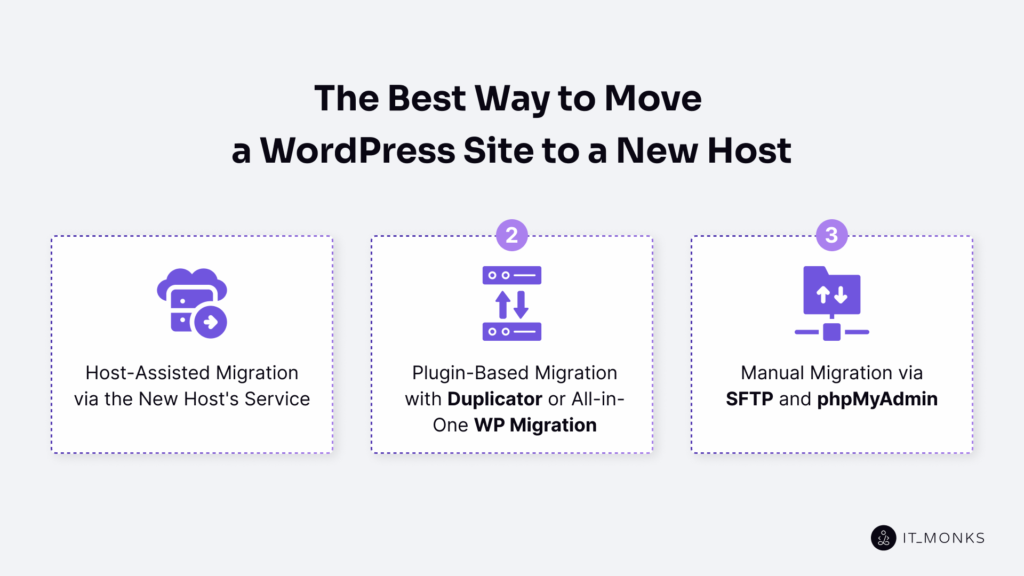
What Is the Best Way to Move a WordPress Site to a New Host?
The host-assisted route fits most reader scenarios for moving a WordPress site to a new host, because the new host owns the move and the site owner verifies the result. Plugin-based and manual paths are alternatives when the host does not offer the service, the site exceeds plugin file-size limits, or the stack carries non-portable pieces. Three factors drive the choice: technical skill, downtime tolerance, and the size and complexity of what is being moved.
The trade-offs sit along the same five axes:
Method
Skill required
Time
Cost
Risk
Fits this situation when
Host-assisted
Low
Hours, mostly waiting
Premium tier or one-off fee
Low; the new host owns the move
Time is short, the new host offers the service, the site is standard
Plugin-based
Medium
Half a day
Free for small sites; paid tier for larger
Medium; file-size limits and serialized-data edges can bite
The site is small to mid-size, WP-admin is reachable, the plugin stack is portable
Manual
High
A working day, sometimes more
Time only
Lowest in skilled hands; highest in unskilled ones
The site is large, the stack is custom, plugin file-size limits get in the way, full control is needed
The manual route is the slower, more transparent path that translates cleanly into the other two when needed.
Host-Assisted Migration via the New Host’s Service
Host-assisted migration is the method where the new host’s team or its 1-click migration tool performs the move on the reader’s behalf. The site owner provides source-host credentials, the target plan, and a cutover window; the new host pulls files and database, restores them on the target server, and reports back when the staged copy is ready. The site owner then verifies and triggers the DNS switch.
The fit is managed-host plans, time-constrained moves, and standard WordPress installs. The cost shows up as a premium tier or a one-time migration fee. The hidden cost is reduced visibility into what happened, which makes post-migration verification more important rather than less.
Plugin-Based Migration with Duplicator or All-in-One WP Migration
Plugin-based migration uses a migration plugin to package the site for export from the source host and restores it on the new host. Duplicator and All-in-One WP Migration are two examples. Both run inside WordPress, produce a single transportable archive of files plus database, and offer a restore flow the site owner drives from the new host’s WP-admin.
The fit is small to mid-sized sites where WP-admin access is reliable on the source host. Two constraints set the ceiling: free plugin tiers cap the package size, and serialized data survives only if the plugin handles serialization correctly during the URL rewrite. Custom serialized payloads sometimes need a manual pass anyway.
Manual Migration via SFTP and phpMyAdmin
Manual migration relies on the developer using SFTP to move the files and phpMyAdmin (or Adminer, or WP-CLI database commands) to move the database, then performs the URL rewrite and the DNS cutover by hand. The components are well-understood: a file transfer over SFTP, a database export and import as SQL, a search-replace pass to update URLs, and the DNS switch when verification is clean.
Manual migration fits sites that exceed plugin file-size limits, custom stacks with non-portable plugin or theme setups, hardened source hosts where WP-admin plugin access is restricted, and developers who want a clear audit of every file and every table that crosses. The first stop is the snapshot, because nothing else in the sequence is safe to attempt until rollback is on the table.
Preparation for the Move to the New Host
Preparation for the move to the new host is the prerequisite phase that the developer completes before any file or database transfer leaves the source host. Nothing moves until a verified backup exists, a hosting account is provisioned with a database created on the new host, SFTP credentials are in hand, a downtime window is communicated, and a rollback plan is named. The verified backup carries a dual role: migration source and rollback path.
The pre-migration checklist names the prerequisites in order:
Full backup of the WordPress site, captured in one operation across files and database.
A new-host account, provisioned and reachable.
A database created on the new host, empty and waiting for the import.
SFTP credentials issued by the new host, tested with a single connection attempt.
A downtime window is communicated to anyone who depends on the site.
A rollback plan is named with a written trigger condition for invoking it.
An optional hosts-file dry-run to preview the migrated site before DNS flips.
Backup of Files and Database Before the Move
A backup of files and database before the move to the new host is the snapshot the developer captures from the source host immediately before transfer, stored on a third location that the source host does not control. The backup contains the file tree and the database export, both taken in the same window, so the file system and database state align.
The file tree covers WordPress core, the wp-content folder with all themes, plugins, and uploads, the wp-config.php file at the installation root, and the .htaccess file holding rewrite rules. The database export is a SQL dump covering every table and every row in one operation, so referential integrity is preserved across the snapshot.
The backup lives off the source host: a laptop, a neutral cloud bucket, or an unrelated SFTP destination all qualify. The source host’s own backup utility does not; if the source host fails or revokes access during the migration, a backup that lives on its storage fails with it. The same backup serves as the rollback path: if cutover fails (DNS misroute, SSL handshake error, partial database import, broken permalinks), the developer restores from the backup and points traffic back to the source host while the new host is fixed.
Selection and Setup of the New Host
Selection and setup of the new host is the step where the developer chooses a hosting environment that meets performance, support, and software requirements, then configures it to accept the WordPress site. The new host is selected against criteria, not by reputation alone.
Selection criteria group into six dimensions:
Performance benchmarks. Response time and throughput of the new host are sustained at expected traffic.
Uptime SLA. Contractual availability expressed as a percentage of monthly minutes.
Support tier. Channels and response times when something breaks.
Server-software match.PHP version and database engine (MySQL or MariaDB), compared against the source host’s versions.
Pricing. Recurring cost at the tier needed, including bandwidth and storage.
Scaling. The path the new host offers when traffic grows beyond the current tier.
Server-software match determines whether the migrated site boots without code changes. PHP version on the new host must equal or exceed the source host’s, with the same major and minor branch where possible. The database engine match works the same way: a site on MySQL 8 at the source migrates to MySQL 8 or to a MariaDB version with feature parity, not to an older MySQL release with a different SQL mode.
Setup runs in four moves: create the hosting account, have a database created on the new host (empty, named, with a user and password), receive SFTP credentials and test them with a single connection, and confirm PHP and database-engine versions line up before any file moves.
How to Export WordPress Files to the New Host
How to export WordPress files to the new host is the first half of the transfer phase: the developer copies the WordPress file set from the source host to the new host before the database moves. Files first, database next; the file set defines what code runs, the database defines what content the running code serves, and the file set must exist on the new host before the database it queries is imported.
The WordPress file set is divided into bulk content (the wp-content folder holding themes, plugins, and uploads) and the credential file (wp-config.php). Bulk content moves by recursive copy. The credential file moves the same way, but its values change once it lands, because the database constants on the new host differ from the source host’s.
A single SFTP session covers both transfers:
sftp user@old-host
sftp> cd /var/www/wordpress
sftp> get -r wp-content
The same session handles wp-config.php with a non-recursive get, and .htaccess moves alongside on the same pattern. An SFTP is put against the new host, then uploads the file set to the WordPress installation root, which the new host expects.
Transfer of the wp-content Folder via SFTP
Transfer of the wp-content folder via SFTP is a recursive copy that moves the WordPress user-content directory from the source host to the new host through the SFTP protocol. The wp-content folder contains three sub-folders: themes (active and inactive), plugins (every plugin code base, active or not), and uploads (the media library).
Transfer of wp-content runs as one recursive SFTP get on the source side and one recursive put on the new host:
# From source host
sftp user@old-host
sftp> cd /var/www/wordpress
sftp> get -r wp-content

# To new host
sftp user@new-host
sftp> cd /var/www/wordpress
sftp> put -r wp-content
A non-recursive copy would land only the top-level files inside wp-content and miss every sub-folder underneath.
Verification on the new host runs in two checks. Directory permissions land where the new host’s web server expects them: typically 755 on directories and 644 on files for an Apache or Nginx setup running PHP-FPM. A file-count check compares wp-content on the source host against wp-content on the new host. Ownership is set to the user the web server runs as (often www-data on Debian-family systems or nginx on Red Hat-family).
Move of wp-config.php to the New Host
Move of wp-config.php to the new host is the transfer of the WordPress configuration file that holds the database credentials, after which the four database constants inside the file are updated to point at the new host’s database. Without an accurate wp-config.php, WordPress cannot connect to its database.
DB_NAME becomes the name of the empty database created on the new host. DB_USER becomes the database user assigned. DB_PASSWORD becomes the password that the new host issued. DB_HOST becomes the hostname or socket path that the new host’s database engine listens on (usually localhost when the database runs on the same machine as the web server).
The .htaccess file moves alongside wp-config.php on the same SFTP pattern. It carries the rewrite rules that turn pretty permalinks into the index.php query strings WordPress understands. No content edits are needed unless the new host runs Nginx instead of Apache; Nginx uses its own server-block rewrites.
How to Migrate the WordPress Database to the New Host
To migrate the WordPress database to the new host, the developer exports the database from the old host into a single SQL dump, imports that dump into a fresh database on the new host, and runs a search-replace pass that rewrites the URL strings the database still carries from the old host. The database holds posts, pages, options, user accounts, and every plugin or theme setting that does not live on disk.
The phase covers three sub-steps in strict order: export from the old host, import on the new host, and search-replace inside the imported tables. Skipping any of these (or running them out of order) leaves a WordPress site that either cannot find its content, points back at the old host, or breaks plugins whose settings were saved as serialized strings.
A condensed view of the database transfer:
# On the OLD host: export
mysqldump -u OLD_USER -p OLD_DB > backup.sql

# On the NEW host: import
mysql -u NEW_USER -p NEW_DB < backup.sql

# On the NEW host: rewrite URLs that still point at the old host
wp search-replace --dry-run --recurse-objects 'old-host-domain.tld' 'new-host-domain.tld'
wp search-replace --recurse-objects 'old-host-domain.tld' 'new-host-domain.tld'
Each command has its own preconditions, verification step, and failure mode.
Export of the Database from the Old Host
Export of the database from the old host means producing a single SQL file (the dump) that contains every table the WordPress installation reads from and writes to. The dump captures wp_options, wp_posts, wp_postmeta, wp_users, wp_usermeta, wp_terms, wp_term_taxonomy, wp_term_relationships, wp_comments, wp_commentmeta, plus any custom tables that plugins create.
The export tool the developer reaches for first is mysqldump, a command-line utility that ships with the MySQL client and reads from the WordPress database (MySQL / MariaDB) running on the old host:
mysqldump -u OLD_USER -p OLD_DB > backup.sql
-u names the database user. -p prompts for the password. OLD_DB is the database name (the same value in wp-config.php’s DB_NAME constant). Hosts that lock down shell access replace the command with phpMyAdmin Export: select the WordPress database in the sidebar, open the Export tab, pick SQL format, and press Go.
Three checks confirm the export worked. The .sql file is non-empty. Its size sits in the same order of magnitude as the live database (a 4 KB dump for a 200 MB site signals a truncated write). The table list inside the dump (head -200 backup.sql) contains at a minimum wp_options and wp_posts. When the checks pass, the dump leaves the old host by SCP, SFTP, or the new host’s file manager.
Import of the Database on the New Host
Import of the database on the new host means loading the .sql dump produced by the export step into an empty database that the new host has provisioned for the WordPress installation. Once it finishes, the database WordPress will read from in production sits on the new host, holding a row-for-row copy of what the old host held when the dump was taken.
Two preconditions must hold. A database exists on the new host, created through the host’s control panel, phpMyAdmin’s “New” action, or a CREATE DATABASE statement. A database user holds CREATE, INSERT, ALTER, INDEX, SELECT, UPDATE, DELETE, and DROP privileges on that database; most hosting control panels grant all eight by default when a user is bound to a database. The wp-config DB block (already moved to the new host) points at this newly-provisioned database.
The import command mirrors the export command in shape:
mysql -u NEW_USER -p NEW_DB < backup.sql
NEW_DB is the empty database that the new host provisioned. The redirection feeds the SQL inside backup.sql into the MySQL client, which executes every CREATE TABLE and INSERT statement. On a moderate site, the import finishes in seconds; on a large e-commerce site with hundreds of thousands of orders, several minutes. When shell access is not available, phpMyAdmin Import covers the same step from the browser.
Verification mirrors the old-host pass. SHOW TABLES; returns the same set. SELECT COUNT(*) FROM wp_options; and SELECT COUNT(*) FROM wp_posts; return the same numbers. The imported database now holds a faithful copy at the byte level, but every URL inside that copy still points at the old host.
Search-Replace of Site URLs
Search-replace of site URLs is the post-import data-rewrite pass that walks the imported database and replaces every reference to the old host with a reference to the new host, without breaking the serialized PHP arrays WordPress, themes, and plugins write into the database as their primary configuration format. The replacement runs on the new host, against the database just imported, before any end-user traffic reaches the new installation.
A raw SQL UPDATE cannot do this. Complex options (widget arrangements, theme customizer values, menu metadata, plugin settings) are stored as PHP-serialized strings inside wp_options.option_value, wp_postmeta.meta_value, wp_usermeta.meta_value, and wp_termmeta.meta_value. A serialized string encodes the byte length of every value: s:23:”old-host-domain.tld/abc” declares a 23-character string. A raw UPDATE … SET option_value = REPLACE(…) rewrites the inner characters but does not update the leading length declaration; PHP fails to deserialize the value, the option silently returns false, and the affected widget loads as if it had never been configured.
The industry-standard replacement tool is WP-CLI. The wp search-replace command walks every cell of every table, decodes serialized values before searching them, re-serializes them with corrected length declarations after replacing, and writes the results back. Two flags carry the migration context: –dry-run prints the replacement count per table without writing, and –recurse-objects extends the walk into nested PHP objects.
The replacement runs in two passes. The dry-run pass first:
WP-CLI prints a per-table tally (wp_options: 47 replacements, wp_postmeta: 312 replacements, wp_posts: 1,884 replacements) and exits without modifying the database. A tally of zero replacements across every table means the source string was wrong (a trailing slash, a protocol mismatch, a www subdomain difference). When the dry-run numbers look credible, the live pass drops –dry-run:
The example assumes the same domain; if the move includes a domain change, see the domain-change seed under the parent guide. For a same-domain host cutover, the live database needs no URL replace at all, unless the new host first hosts the site at a temporary URL (new-host-staging.example.com); search-replace then runs against the temporary URL and rewrites it back to the canonical domain just before cutover.
Verification spot-checks the rows that matter most. siteurl and home in wp_options must read the new host’s URL exactly:
wp option get siteurl
wp option get home
The active theme’s theme_mods_<theme> row deserializes cleanly (returns an array, not false), and a sample post body (wp post get <id> –field=post_content) contains the new-host URL where the old-host URL appeared in the source. When those checks pass, the URL rewrite is complete. The two pieces still anchored to the old host are DNS and the SSL certificate.
How to Transfer DNS and SSL to the New Host
Transferring DNS and SSL to the new host is the cutover phase: the moment when public traffic stops resolving to the old host’s IP and starts resolving to the new one, with HTTPS working end-to-end. This is the single step where a clean migration can still go visibly wrong.
Two things move together. DNS records (the A record for the apex domain, AAAA for IPv6 if it exists, and any CNAME for www or sub-domains) point away from the old host’s IP and toward the new host’s IP. The SSL certificate is reissued on the new host, so the browser does not show a warning the moment DNS resolves.
A guiding principle keeps the phase low-risk: the DNS flip happens only after the new host is functionally complete. Files, database, and URL rewrites are in place; the new host has been verified through a hosts-file override; the certificate is provisioned, and the redirect is configured.
DNS Records on the New Host
DNS records are the public entries that tell every resolver on the internet which IP address answers for example.com. Transferring DNS records to the new host means changing those entries at the domain’s authoritative DNS provider so they point to the new host’s IP. The records themselves are tiny; the propagation behavior around them is what makes the cutover sensitive.
Lower the TTL before the move. Twenty-four to forty-eight hours ahead of the planned switch, the developer drops the TTL on the apex A record and the www CNAME from a default value (often 3600 or 14400 seconds) down to 300 seconds. That five-minute TTL becomes the maximum time any caching resolver will hold the old answer once the records change.
A safer cutover pattern uses the new host as a private staging environment until DNS flips. The developer brings the destination up with the migrated files and database in place, then verifies it from a workstation by pinning example.com to the new IP in the local /etc/hosts file (C:WindowsSystem32driversetchosts on Windows). The browser resolves the domain to the new host for that one machine, while every other visitor lands on the old host. The same controlled-cutover discipline applies when moving WordPress from localhost to a live server. The developer logs into wp-admin, walks the front end through a few representative pages, and confirms HTTPS works under the real hostname, all without DNS having moved.
The DNS flip itself is a short list of edits at the authoritative provider:
Lower the TTL on the apex A record and the www CNAME to 300 seconds, twenty-four to forty-eight hours before the move.
Bring the new host fully up with files, database, and the SSL certificate in place, then run it behind a hosts-file override.
Verify HTTPS, wp-admin, and a sample of pages on the new host through the local override before changing anything publicly.
Switch the apex A record (and any AAAA record) to the new host’s IP, and update the www CNAME if it points at an old hostname.
Monitor propagation (dig +short example.com from a few external resolvers) and watch the new host’s access log fill in while the old host’s traffic falls.
Once the records propagate, the browser asks the new host for a valid SSL certificate; without one, the visitor sees a warning instead of the site.
SSL on the New Host
SSL on the new host is the TLS certificate that the destination server presents to browsers when they request https://example.com after DNS resolves to the new IP. The old host’s certificate stays with the old host; it is bound to that machine’s private key. The new host needs its own certificate, issued and installed before public traffic arrives, so the first HTTPS request returns a valid handshake instead of a NET::ERR_CERT_AUTHORITY_INVALID page.
Three issuance paths cover almost every case. Most managed hosts expose Let’s Encrypt directly: cPanel’s AutoSSL feature or the “Let’s Encrypt SSL” option provisions a free certificate once DNS or an HTTP challenge resolves. On hosts without that integration, certbot –nginx -d example.com -d www.example.com (or the Apache equivalent) does the same thing manually. A paid CA (DigiCert, Sectigo, GoDaddy’s branded certificates) fits sites that need Organization Validation or Extended Validation; the result is the same file pair (a certificate and a key) installed on the new host.
A complication: most issuance paths verify the domain by reaching example.com over HTTP, which means the certificate cannot be issued through public DNS until the records actually point at the new host. Two workarounds make the timing work: DNS-01 validation (proving control with a TXT record at the DNS provider), or a self-signed certificate during the staging window, replaced by a real Let’s Encrypt or paid certificate the moment DNS flips.
After the certificate is in place, two more things wire up. A redirect rule at the web-server layer (an Nginx return 301 https://… block, or an Apache RewriteRule driven from mod_rewrite) sends every http:// request to its https:// counterpart. The database itself needs a sweep for hardcoded http:// references in wp_options, in wp_posts.post_content, in serialized widget data, and in theme settings. Browsers block those as mixed content the moment the page loads over HTTPS.
The mixed-content fix uses the same WP-CLI search-replace pattern as the URL rewrite step, scoped to scheme:
A page that loads cleanly under HTTPS in a fresh incognito window (green padlock, no console warnings, no mixed-content blocks) confirms the certificate is live, the redirect works, and the database content is internally consistent under the new scheme.
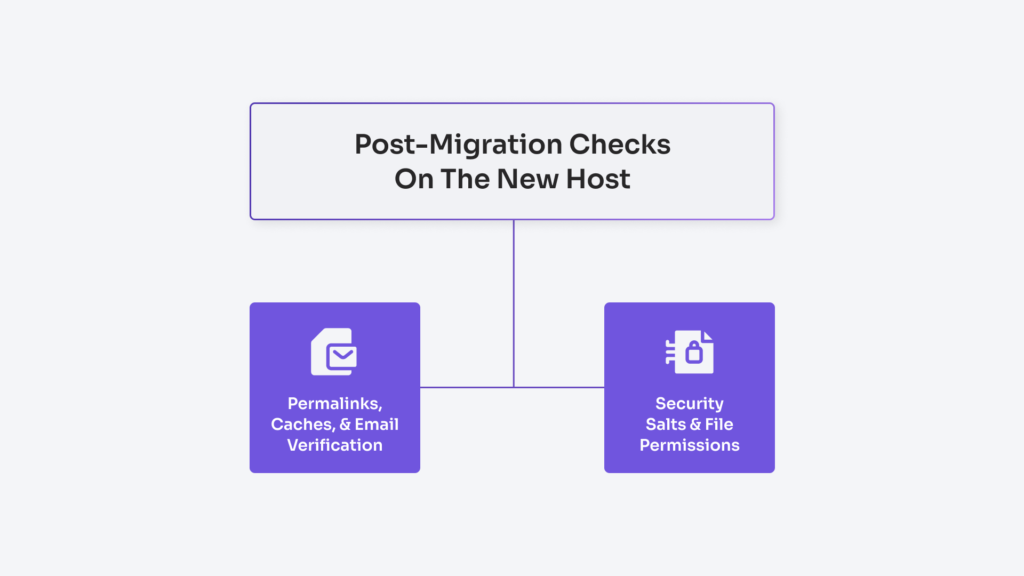
Post-Migration Checks on the New Host
Post-migration checks on the new host are the verification and hardening step that closes the move: a structured walk-through of the migrated site after DNS and SSL have flipped, to confirm what worked on the old host still works on the new one. The mechanical work is finished; the remaining task is to prove the result on the surface a real visitor sees, and to close the security gaps any host moves quietly opens.
The work splits along two axes. Functional verification asks whether the front end renders, the admin logs in, permalinks resolve, caches return fresh content, and email leaves the new host. Security hardening rotates the secrets that protected the old install, forces a password reset for accounts that may have been exposed, and tightens file ownership and permissions to the new host’s expectations.
The cutover is reversible at this point. If a verification step fails materially, the developer reverts DNS to the old host and restores from the pre-move backup. The old host stays online and serves until verification passes cleanly.
Permalinks, Caches, and Email Verification
Permalinks, caches, and email verification are the three functional clusters that catch the most common breakages a host move leaves behind. Permalinks are the rewrite rules that turn /sample-post/ into the right WordPress query. Caches are the layered stores (object cache in Redis or Memcached, page cache in a plugin or at the reverse proxy, opcache in PHP itself) that hold copies of the old host’s compiled state. Email is the SMTP path the new host uses to deliver password resets, contact-form submissions, WooCommerce order receipts, and every transactional message the site sends.
Permalinks come first because the symptom is the loudest: the homepage works, every other URL returns a 404. In wp-admin, the developer opens Settings → Permalinks and clicks Save Changes without altering any field. That action regenerates the rewrite rules in the database and, on Apache, rewrites .htaccess if it is writable. On Nginx, the equivalent rules live in the server block; managed hosts ship them by default.
Caches need a flush on the new host even though they should be empty by definition. The database carries cache state too: transient rows in wp_options, scheduled cache-warming events, plugin-specific cache tables. The developer flushes object cache (wp cache flush), page cache (the active plugin or the reverse proxy’s purge endpoint), and PHP’s opcache (an opcache_reset() script or a PHP-FPM restart).
Email verification is the cluster developers’ most common. The new host’s outbound mail path is rarely identical to the old one. The developer confirms three things: MX records still point at the right mail provider (a DNS-zone swap can drop MX entries by accident); the new host can send mail (wp eval ‘wp_mail(“you@elsewhere.com”, “test”, “from new host”)); the test email lands in an inbox rather than spam. If SPF or DKIM records were tied to the old host’s IP, they will update to the new one before deliverability stabilizes.
A condensed verification list keeps the pass disciplined:
Open Settings → Permalinks and click Save Changes; spot-check three internal URLs that previously 404’d.
Flush object cache, page cache, and any reverse-proxy cache; reset PHP’s opcache or restart PHP-FPM.
Confirm MX records still point to the active mail provider, then send a test email to an external inbox.
Walk the front end through five representative URLs (homepage, a post, an archive, a contact page, a logged-in admin view).
Trigger one contact-form submission, one WooCommerce sandbox checkout if applicable, and one scheduled-cron job (wp cron event run –due-now).
For exhaustive coverage across every plugin, form, and integration, the WordPress migration checklist extends this list into the longer document that a production migration needs.
Security Salts and File Permissions
Security salts and file permissions are the post-migration hardening pair that closes the security gaps a host move opens by definition. Security salts are the eight cryptographic constants in wp-config.php (AUTH_KEY, SECURE_AUTH_KEY, LOGGED_IN_KEY, NONCE_KEY, AUTH_SALT, SECURE_AUTH_SALT, LOGGED_IN_SALT, NONCE_SALT) that WordPress mixes into every authentication cookie, every session token, and every nonce; any party that ever held a copy of those salts can forge logins. File permissions are the Unix mode bits that govern who can read, write, or execute each file and directory; they decide whether a leaked plugin vulnerability lands as an annoying error or as a remote shell.
The hardening pass has three sub-steps: rotate the salts, force a credential reset, and set the permissions baseline.
Salt rotation runs first because it invalidates every active session in one move. The developer opens https://api.wordpress.org/secret-key/1.1/salt/ (the WordPress.org endpoint that returns a fresh, randomized block of eight define() lines), copies the response, opens wp-config.php on the new host, and replaces the existing salt block:
The placeholders stand in for the real, randomized values returned by the salt API; never paste production secrets into documentation or a repository. The moment the file is saved, every WordPress_logged_in* cookie that existed before the rotation stops validating. Every administrator, editor, author, and subscriber logs out at the next request, and any session tokens siphoned during the file copy or stored in an old backup become useless. The rotation costs every active user one re-login; it buys back the entire authentication surface.
The credential reset is the manual half of the same idea. Salts handle sessions; passwords need their own pass. The developer opens Users → All Users and forces a one-time reset for every administrator and every editor account at a minimum. WP-CLI handles the bulk action cleanly: wp user reset-password $(wp user list –role=administrator –field=ID) triggers the standard WordPress reset email for every administrator in one command, and the same form scoped to –role=editor covers the editorial layer.
File permissions on the new host close the third gap. WordPress’s documented baseline is straightforward: regular files run at 644, directories run at 755, and wp-config.php (which holds the database password, the table prefix, and the salts that were just rotated) tightens to 600 or 640 depending on whether the web server’s group needs read access. Two recursive commands set the baseline:
600 denies group and world access entirely, which is correct when the PHP-FPM worker runs as the same Unix user that owns the file. 640 is correct on hosts where PHP-FPM runs as a separate user in a shared group with the file owner (a common cPanel pattern). The 777 mode that some plugin tutorials suggest as a fix for write errors should never appear on a production WordPress install.
Ownership matters as much as the mode bits. Every file and directory under the WordPress root belongs to the new host’s PHP-FPM user (often www-data, nginx, or a per-site cPanel user). A recursive chown closes the gap: chown -R www-data:www-data /path/to/wordpress. With the salts rotated, the credentials cycled, and permissions and ownership rebased to the new host, the migration is finished. The old host can be decommissioned on a deliberate schedule (a week of overlap is common).
DIY or Agency WordPress Migration to a New Host
Help with moving WordPress to a new host falls into three shapes: full DIY, full agency, or a hybrid where the reader runs the safe parts and an agency takes the cutover. Most readers can finish a host move on their own. The calculus shifts the moment the site stops being a brochure.
An agency engagement has a recognizable shape. Intake covers site size, hosting source and destination, plugin stack, traffic pattern, downtime tolerance, and regulated content if any. From there: a snapshot of the live site, a staging build on the new host that mirrors the live URL surface, a cutover window booked against the lowest-traffic interval, and a monitoring tail that runs for at least 48 hours after DNS resolves to the new IP. Against the DIY path, the agency carries the risk if the cutover slips and stays on the keyboard at 3 a.m. if a checkout flow breaks two hours after launch.
The decision criteria are concrete. Hiring help becomes the rational choice when the site carries live e-commerce data and a botched search-replace would corrupt order history; when the plugin stack includes custom development nobody at the original agency still works on; when the cutover window is fixed by a regulator, contract, or press date and cannot slip; when the team has no on-call coverage for the post-cutover tail; and when monthly revenue lost during a four-hour outage exceeds the cost of a managed transfer by a comfortable multiple.
Common Errors After Moving WordPress to a New Host
Common errors after moving WordPress to a new host appear once the file copy, the database import, and the DNS cutover are all complete, including issues affecting WordPress webinar plugins. Six recurring failures show up across nearly every botched host change, each with a single cause and a single fix.
Database connection error. Throws on every page, including /wp-admin. Cause: wp-config.php credentials still pointing at the old host’s database server. Fix: update DB_HOST, DB_USER, DB_PASSWORD, and DB_NAME to the values issued by the new host.
White screen of death. Front-end and admin both render blank with no visible error. Cause: a PHP version mismatch between the old host and the new host, or a fatal error in a theme or plugin file that the new PHP rejects. Fix: temporarily switch to a default theme via SFTP, disable plugins by renaming /wp-content/plugins/ to /wp-content/plugins-off/, and read the PHP error log.
Mixed-content warnings. The browser console shows insecure-resource warnings on a site that resolves over HTTPS. Cause: hardcoded http://olddomain asset URLs survived the import. Fix: re-run the search-replace step from http://olddomain to https://newdomain, including any subdomain variants.
Broken permalinks. Home page loads, but every internal URL throws 404. Cause: .htaccess not regenerating on the new host, or nginx rewrite rules not migrating with the move. Fix: open Settings → Permalinks and click Save without changing the structure.
Slow first-load. First request after cutover takes ten or more seconds; subsequent requests behave normally. Cause: opcache cold on the new PHP process, and object cache empty on the new host. Fix: prime the cache by hitting the home page and a sample of internal URLs, and verify memory_limit and max_execution_time in the new host’s PHP config match or exceed the source host’s values.
Broken redirects. Old vanity URLs and campaign tracking paths return 404 instead of forwarding. Cause: redirect rules lived in the old host’s .htaccess or nginx config and did not migrate with the file copy. Fix: re-add the 301 rules in the new host’s .htaccess block or nginx server file, and reload the web server.
Recovery has a window. If the new host refuses to come up cleanly within the cutover window the reader booked, the host-migration backup taken before any file moved is the safe restore point: DNS reverts to the old host’s IP, and the migration restarts from that snapshot rather than the broken half-state.
SEO Preservation When Moving WordPress to a New Host
SEO preservation when moving WordPress to a new host means the indexed corpus, the inbound-link graph, and the ranking equity attached to each URL all carry forward intact through the host change. The new IP serves the same hostname over HTTPS, the same URL surface, and the same content body; Google’s crawler should see continuity, not a relaunch.
Five tactics protect the SEO surface across a host move:
301 redirects. The redirect maps every old path or old domain to its canonical target on the new host, and the redirects live at the web-server layer (nginx or .htaccess), so they fire before WordPress boots. This is what carries ranking equity from the old URL surface to the new one.
XML sitemap resubmission. The Google Search Console submission re-pings the sitemap once the canonical hostname resolves to the new-host IP. The resubmission staggers after the canonical verify step; pinging GSC while DNS still resolves to the old host wastes the crawl budget.
Internal-link integrity. A link audit confirms no internal links point at the old domain, the old IP, or the staging hostname, and no links land on /wp-admin or other non-public surfaces.
Canonical URL audit. Each public URL canonicalizes to https://newdomain with a single rel=”canonical” tag, no chains, no self-referential mismatches.
Robots.txt sanity check. The file resolves at https://newdomain/robots.txt and contains no Disallow: / block left over from staging.
The site runs on the new host, served over HTTPS at the same hostname and URL surface as before. Hardening continues from here on the schedule the team sets.
 | updated:




 ChatGPT
  Claude
  Grok
Grok  Gemini