- Expertise
Expertise That Drives Results
Explore our specialized services, tailored solutions, and industry expertise to elevate your digital presence. From custom WordPress development to seamless integrations, we build high-performing websites that deliver impact.
Solutions- Booking System Integrations
- Headless & REST API WordPress
- Hubspot Integration
- Enterprise WordPress
- Website Migration
- Internal Collaboration Platforms
- External Communications Hubs
- Work
- About
- Proof
- Contact
Learn more


How to Turn Off PHP Errors in WordPress

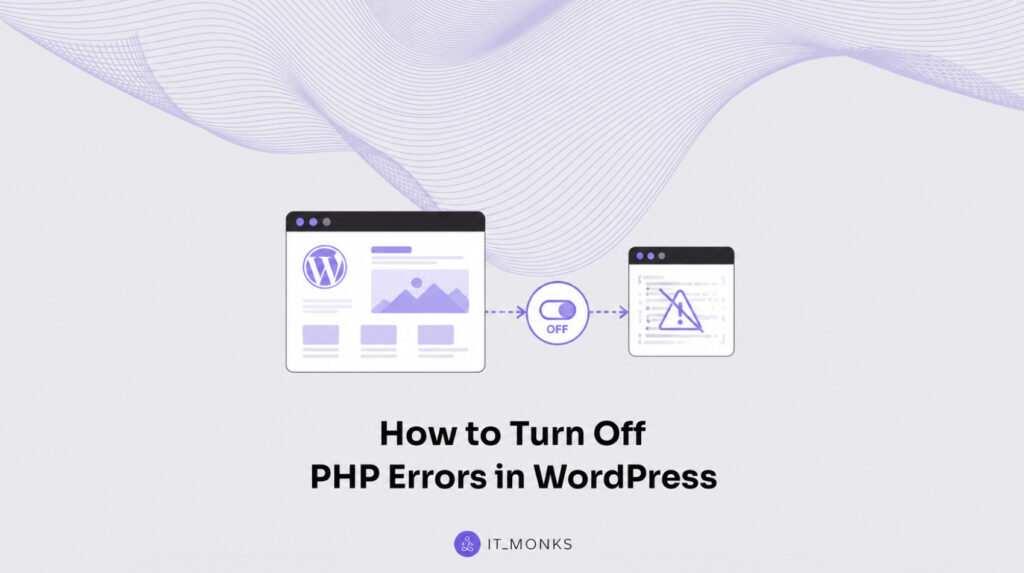
To PHP suppress warnings on a live site, you turn off PHP errors in WordPress by hiding front-end display while keeping the debug log available for review. The goal is not to erase the problem or stop WordPress from recording it. It is to prevent warnings, notices, and errors from being shown to visitors while preserving debug.log output through WP_DEBUG_LOG.
This matters most for developers and agencies working on production sites, where local-development defaults need to be reversed before launch. On a live WordPress site, PHP output should stay hidden from users, but the underlying issue should still be traceable in the log. In this guide, “turn off” means to suppress what is displayed on the front end. The PHP error persists until it is fixed in the code, plugin, theme, or server environment.
What Are PHP Warnings, Notices, and Errors?
A PHP warning is a non-fatal message the WordPress runtime raises when something is wrong but execution can still continue. A deprecated function call, a missing array key, and an argument of the wrong type triggers a warning, and the script keeps running to the end of the request. Nothing halts. The page still loads. The warning is PHP telling the developer that something deserves attention, not that the request has failed.
Notices sit one rung lower. A notice is informational. PHP raises it for minor issues such as reading an undefined variable, and like a warning it never stops execution. Errors are the opposite end of the scale: a fatal error halts execution outright, the request stops where the error occurred, and the page returns blank or partial output to the visitor. So the three classes line up by severity. Notices inform, warnings caution, fatal errors stop the script cold.
Which of these classes actually surface is decided by a single directive called error_reporting. It sets the threshold: report everything, report errors but not notices, report nothing at all. PHP raises the full range internally regardless; error_reporting is the filter that chooses which raised levels become visible output. Suppressing the display is, underneath, a decision about which of these message classes a live site is allowed to print, so knowing what each one is comes before setting WP_DEBUG_DISPLAY to hide them.
How to Suppress PHP Warnings and Errors in WordPress?
Suppressing PHP warnings and errors in WordPress means turning their front-end display off through WordPress’s own configuration, so a live site stops printing them above its pages. The switch lives in wp-config.php, the file WordPress reads on every request before it loads anything else. One constant controls the display, and setting it to false is the entire action. The warnings and errors still occur, they stop rendering where a visitor would see them.
The constant is WP_DEBUG_DISPLAY. Set it to false and WordPress withholds the messages from the page output. A second line backs it up at the PHP layer with @ini_set( 'display_errors', 0 ), which covers the rare case where a directive slips past the WordPress switch. Both go above the line that reads /* That's all, stop editing! Happy publishing. */ in wp-config.php. Anything placed below it is ignored.
// wp-config.php — above the "stop editing" line
define( 'WP_DEBUG', true );
define( 'WP_DEBUG_DISPLAY', false );
@ini_set( 'display_errors', 0 );
Once the file is saved, reload the front-end page that was showing the warning. The banner of messages at the top should be gone, and the page renders clean. That confirms the display is suppressed. WP_DEBUG stays true in this block, which keeps WordPress’s debugging system active even though nothing prints. Turning the display off and switching debugging off are independent decisions: with WP_DEBUG left on, the messages can still be captured somewhere a visitor never reaches, even after the display is gone.
How to Hide PHP Errors but Keep the Debug Log?
Hiding PHP errors while keeping the debug log is the configuration that delivers the “without losing debug logs” outcome: the front-end display stays off, and every suppressed message still gets written to a file for later review. Display off does not mean logging off. The two are governed by separate constants, so a live WordPress site can show a clean page to visitors and, at the same time, record the full stream of warnings and errors to disk.
The constant that does the recording is WP_DEBUG_LOG. Set it to true and WordPress writes every debug message to wp-content/debug.log, appending each new entry as the runtime raises it. Pair it with WP_DEBUG_DISPLAY set to false and the split is complete; display suppressed, logging preserved. Both belong in the same block in wp-config.php, because WP_DEBUG_DISPLAY and WP_DEBUG_LOG operate independently: one governs whether messages render, the other governs whether they are written to disk, and neither setting forces the other.
// wp-config.php — display off, logging on
define( 'WP_DEBUG', true );
define( 'WP_DEBUG_DISPLAY', false );
define( 'WP_DEBUG_LOG', true );
To confirm the split is working, reload a page that previously raised a warning, check that the front end stays clean, then open wp-content/debug.log and verify a fresh entry was appended at the bottom. A clean page plus a growing log file is the signal that the display is off while the record keeps building. The inverse case (getting PHP errors logged from the WordPress layer in the first place, rather than hiding what a site already displays) is its own task, covered in the guide to enable WP_DEBUG logging. With the log preserved, one route remains for hosts that never expose these WordPress constants at all.
How to Hide PHP Errors with php.ini?
Hiding PHP errors with php.ini is the alternate route for hosts that give no WP_DEBUG control. Instead of WordPress constants, the same suppression is set one layer down, directly in the PHP runtime’s own configuration. The directive is display_errors, the PHP-layer equivalent of WP_DEBUG_DISPLAY, and setting it to Off stops the runtime from printing any message to the page. A companion directive, error_reporting, tunes which severity levels are considered in the first place — the same filter described earlier, written in PHP’s own syntax.
; php.ini — suppress error display at the PHP layer
display_errors = Off
error_reporting = E_ALL & ~E_NOTICE & ~E_WARNING
That pair produces the same clean front end as the wp-config.php route, achieved at the PHP layer rather than the WordPress one. On servers where PHP runs as an Apache module, the same effect is available without touching php.ini at all, a single line, php_flag display_errors off, placed in the site’s .htaccess file does the equivalent job. That .htaccess directive only applies under the Apache module; on the PHP-FPM and FastCGI setups most managed hosts now run, it is ignored or triggers a server error, so php.ini is the reliable place to set the value there.
Setting display_errors = Off is one directive in a file that may be hard to locate and edit on a given host, and that locating-and-editing workflow is a separate job covered in the guide to find and edit php.ini for WordPress. The directive itself is the only part that suppresses the display. Whichever layer carries it, the reason for suppressing at all comes down to where the site is running.
Why Production Hides PHP Errors but Local Development Shows Them?
Production hiding PHP errors while local development shows them is a matter of environment, not preference; the correct setting flips depending on where the WordPress site is running. A production site is the public, live copy that real visitors reach; a local development environment is the private copy a developer runs on their own machine to build and test. Each one wants the opposite display behavior, and that is by design.
Local development shows PHP errors by default, and that default is right. A developer needs every warning and notice visible the moment it occurs, because that immediate feedback is how a problem gets caught before it ever ships.
Production inverts the rule completely: visitors must never see a PHP error, because a raw message printed above the page exposes file paths, looks broken, and erodes trust in a site that may otherwise be working perfectly. The same warning that helps a developer locally only harms a business in production, which is exactly why the suppression configured in wp-config.php or php.ini matters once a site goes live.
Setting up that private copy in the first place (choosing the tools that run WordPress on a local machine) is its own decision, with several established options worth weighing in a guide to the best WordPress development environment. The display defaults differ between the two environments for a sound reason, and reconciling them is what turning off PHP errors on a live site comes down to: keep the visibility where it helps, suppress it where it costs.
More Articles by Topic
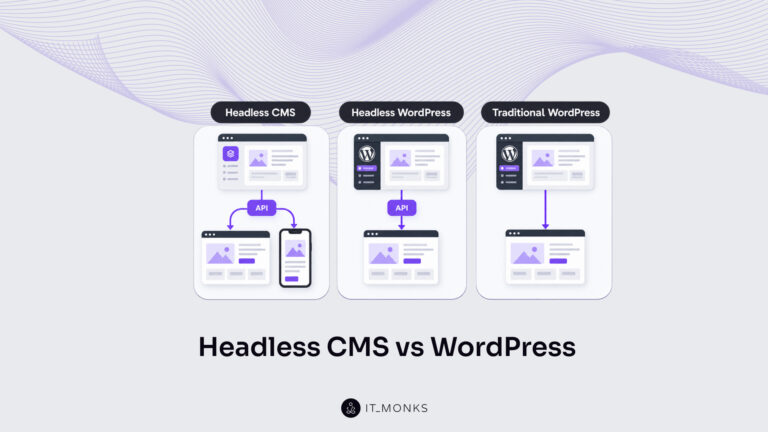
Headless CMS vs WordPress is a comparison of two choices made at once: an architecture choice between a coupled site…
Learn more 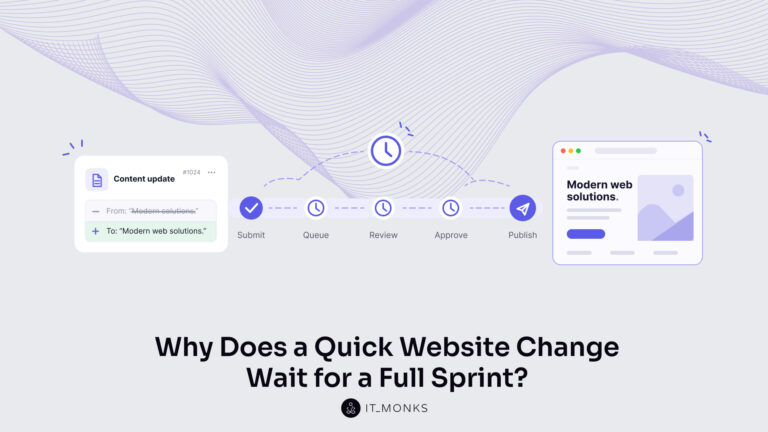
The new campaign copy is approved. The ads go live on Monday, and the landing page they point to still…
Learn more 
Imagine a marketing team two days before a campaign launch. The copy is approved, the images are ready, and the…
Learn more Contact
Feel free to reach out! We are excited to begin our collaboration!
Don't like forms?
Shoot us an email at info@itmonks.com
Don't like forms?
Shoot us an email at info@itmonks.com

CEO, Strategic Advisor
Reviewed on Clutch
 ChatGPT
  Claude
  Grok
Grok  Gemini
 Send a Project Brief
Fill out and send a form. Our Advisor Team will contact you promptly!