Explore our specialized services, tailored solutions, and industry expertise to elevate your digital presence. From custom WordPress development to seamless integrations, we build high-performing websites that deliver impact.
A file that exceeds the WordPress maximum upload size never enters the media library. It stops at the upload screen, and the answer is a higher limit rather than a smaller file. To increase the maximum upload file size in WordPress is to change the ceiling that two PHP directives, upload_max_filesize and post_max_size, place on every upload, so large images, video, themes, and plugin archives upload instead of failing.
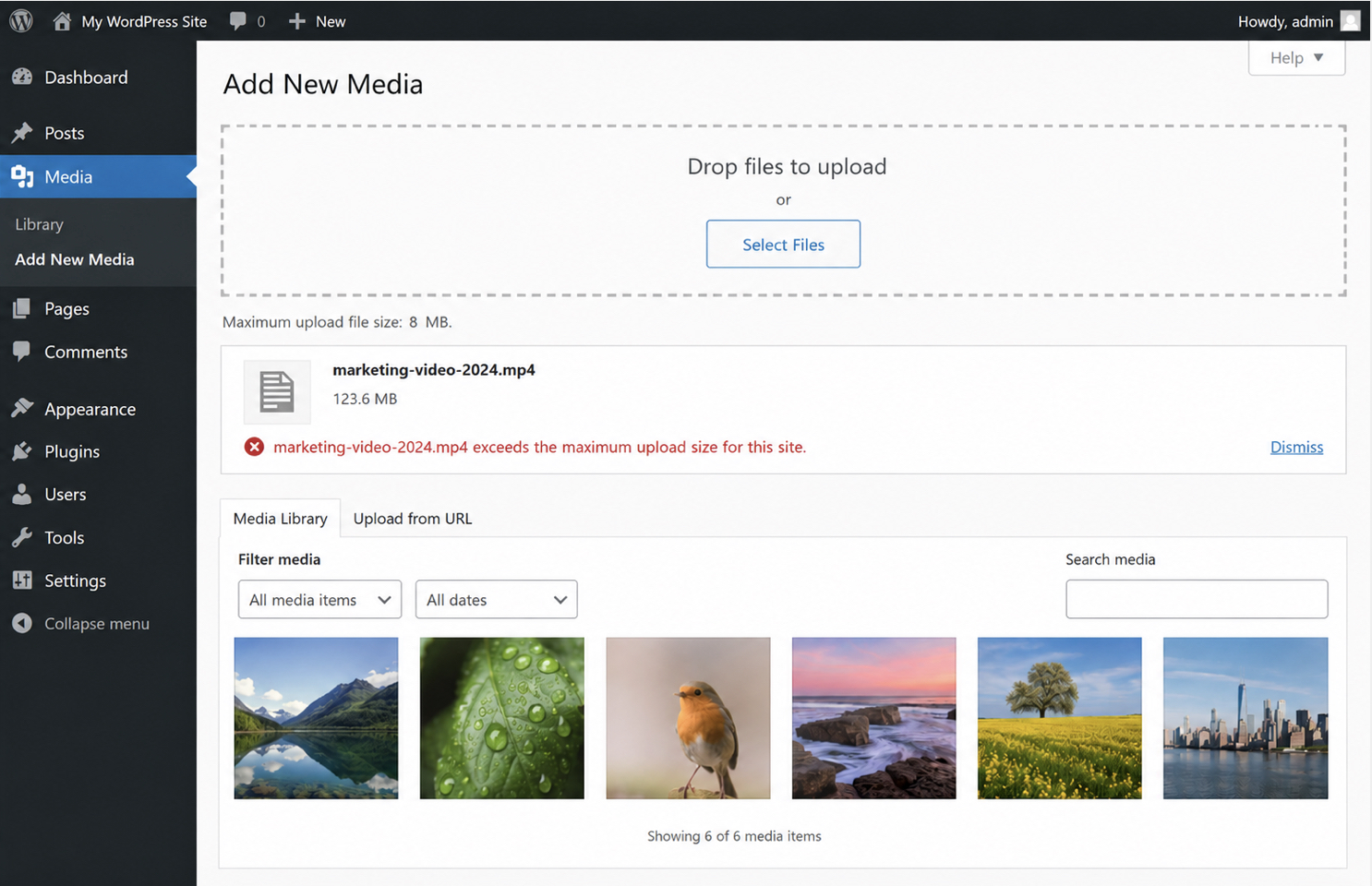
That ceiling starts low. Many hosts set the maximum upload size to 8 MB on a new install, and a single batch of high-resolution photos or a short clip can easily exceed 8 MB. When a file exceeds the upload limit, WordPress displays “exceeds the maximum upload size for this site” and declines it (the same message whether the file is a megabyte over or a hundred kilobytes over).
Increasing the WordPress upload size is a configuration edit, not a setting inside the WordPress dashboard. The value that actually takes effect is the one PHP reads from php.ini, the file that holds upload_max_filesize and post_max_size; edit the pair there (post_max_size larger than upload_max_filesize, both larger than the file that was refused), and the media screen reports the new number. Video meets the ceiling first, since even a brief clip is larger than most photographs.
The wp-config.php file, the surface many editors open first, cannot raise the pair at all. The same higher limit can instead be set in .htaccess on an Apache server, applied through a plugin that writes the directives, or granted by the host when its own configuration caps the number below the target.
For a site owner or developer, the result is one value moved into a usable range: a maximum upload size that PHP reads and keeps within the limit the host allows. Before any edit, the number itself needs to be defined: what the WordPress maximum upload size measures and where its current value can be checked.
What Is the WordPress Maximum Upload Size?
The WordPress maximum upload size is the maximum size a single file can be when it enters the media library, the largest size WordPress accepts for a single upload, measured in megabytes. It is set by upload_max_filesize, the PHP directive that caps any individual file, which is why the media screen labels the figure “Maximum upload file size.” Whatever value upload_max_filesize holds is the value WordPress enforces: the directive and the limit are one fact seen from two sides.
By default, that figure is small. Most WordPress installs report a maximum upload size of 8 MB, the value the hosting environment configures before anyone changes a setting, enough for ordinary images but short of many photo batches, theme packages, and plugin archives. Hosts rarely leave it untouched.
Managed WordPress hosts commonly set their own value, and the active figure across real sites runs from roughly 4 MB to 128 MB, depending on the hosting plan. So 8 MB is a common host starting point, not a fixed WordPress rule; the maximum upload size a site runs on is whatever its server configuration reports.
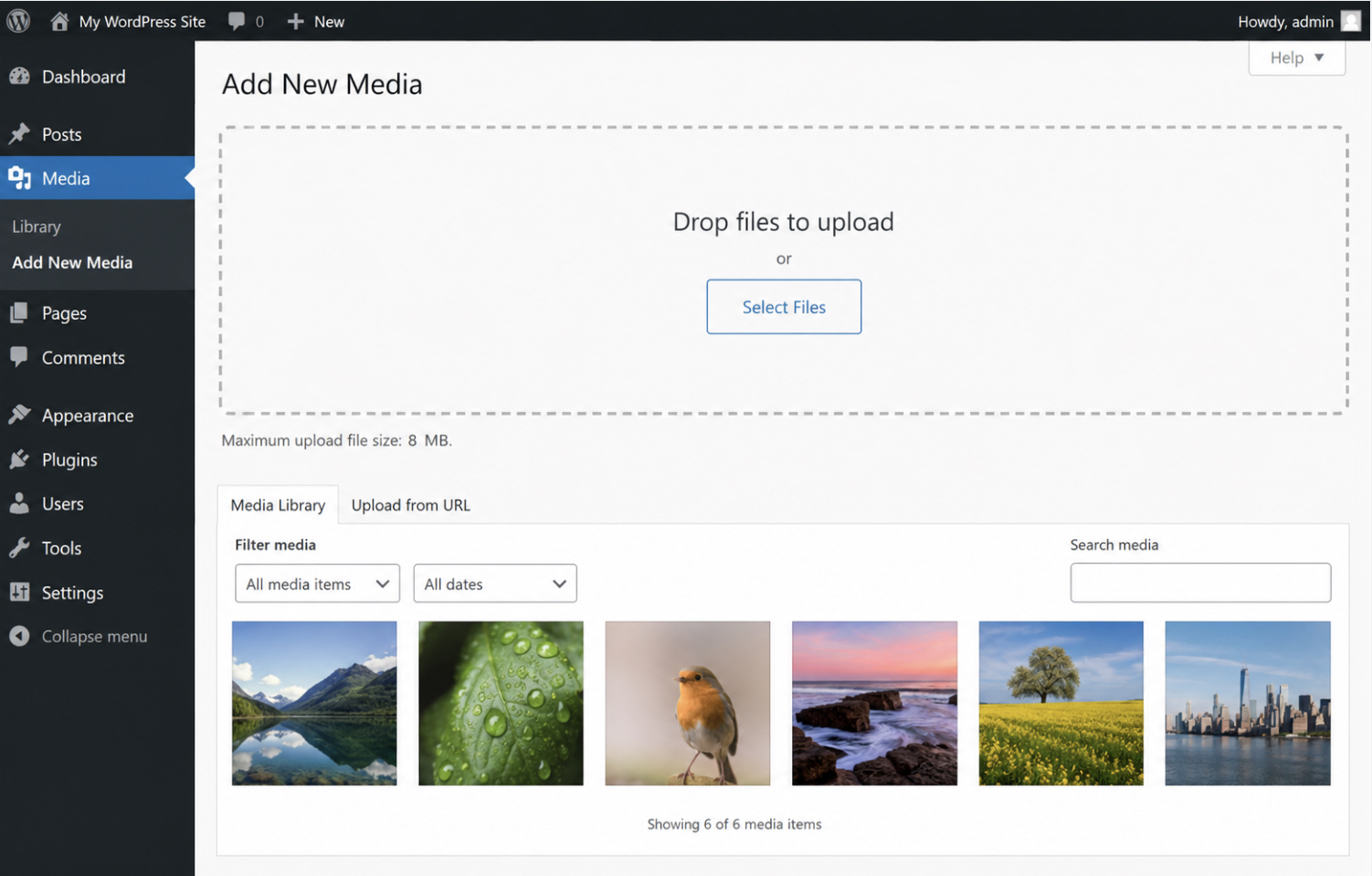
Reading that active value takes no edit. The clearest place to see it is the upload screen itself: Media then Add New prints “Maximum upload file size: N MB” beneath the file selector, and Site Health lists the same figure among the server details it collects.
That 8 MB reading is the WordPress upload limit a new file is checked against before it is ever stored: the current maximum upload size, the WordPress file size limit as the site enforces it now, and the value any later change is measured against.
This per-file ceiling is the WordPress max file size, the cap that governs one file at a time, and it is only half of a directive pair. A whole upload is also measured as a single request, and that request carries a ceiling of its own: post_max_size.
What Is post_max_size in WordPress?
post_max_size is the PHP directive that caps the entire POST request, the whole upload submission a browser sends, not just the file tucked inside it. Where upload_max_filesize measures a single file, post_max_size governs everything that travels with it in one request: the file, the accompanying form fields, and the encoding overhead that wraps them together. That difference decides whether an upload clears both ceilings or trips on the second one.
Because the request always carries more than the file by itself, post_max_size must be larger than upload_max_filesize, not merely equal to it. Equal values quietly reproduce the failure they were meant to prevent. A 64 MB file submitted inside a request that is also capped at 64 MB still fails, since the surrounding fields and overhead push the total past post_max_size even when the file alone would fit. The working pattern keeps the two a deliberate step apart: upload_max_filesize at 64M, post_max_size at 128M, the whole-request ceiling exceeding the per-file one.
That larger value is set in the same php.ini edit that raises upload_max_filesize: one line further down, one step higher. The exact figure follows the file size a site needs to allow: whatever the per-file ceiling permits, post_max_size sits above it with headroom for the request to wrap around. Level the two, or set them backward, and a file that looks small enough against the printed limit is refused anyway, which is the error WordPress throws next.
What Does “Exceeds the Maximum Upload Size for This Site” Mean?
“Exceeds the maximum upload size for this site” is the message WordPress displays when a file exceeds the active upload_max_filesize limit; the site refuses the upload as soon as it starts because the file exceeds the current limit. The media uploader prints the reason directly under the failed file: ” exceeds the maximum upload size for this site,” naming the limit that stopped the upload rather than the size of the file that hit it.
One rejection notice covers two separate breaks. The obvious case is the file itself exceeding upload_max_filesize, so the per-file ceiling blocks it. The quieter case is a file that fits under upload_max_filesize, while the whole request exceeds post_max_size, and the request-level ceiling caps the submission before the file is ever stored. Both paths surface the same wording, which is exactly why the message alone does not reveal which ceiling broke.
Reading the printed value settles the question. The media Add New screen shows the live limit (“Maximum upload file size: 8 MB” on a default install) and checking that figure against the file’s own size tells the site owner which ceiling is in play. A file above the printed number ran into upload_max_filesize; a file comfortably below it that still fails points instead at post_max_size and the size of the full request.
Shrinking or re-exporting the file misreads the problem. The file is not too big in any absolute sense; the ceiling is set too low. The durable fix is to increase that ceiling where the two directives are actually read, in the php.ini edit that raises the pair.
How to Increase the WordPress Maximum Upload Size in php.ini
Increasing the WordPress maximum upload size in php.ini means raising the two directives that set the ceiling (upload_max_filesize and post_max_size inside the one file that actually owns them. php.ini holds these directives as PHP_INI_PERDIR values, so the file that owns them is the only file where changing them takes effect; edit them anywhere PHP never reads, and the limit stays put.
That is what makes a direct php.ini edit the working primary lever for anyone who needs to increase the maximum upload file size in WordPress. The edit that changes the maximum upload size WordPress enforces on every media request.
The edit is short. Locate and open php.ini, then set the pair:
upload_max_filesize = 64M
post_max_size = 128M
Finding the file and editing it safely is its own procedure, covered in depth in the guide to find and edit php.ini in WordPress, the file mechanics are covered in that guide. The values themselves are what matter for the limit. Notice that post_max_size is set larger than upload_max_filesize128 MB against the 64 MB upload value. The M is PHP’s megabyte shorthand written straight into the directive string. Save the file. The new values apply when PHP next reads its configuration.
To confirm the increase to the file upload size took effect, re-read the media library’s printed “maximum upload file size” line, or open the Site Health screen, both display the active value. The printed number now shows the raised target instead of the old 8 MB default, and a large upload that previously threw the “exceeds the maximum upload size for this site” error completes.
A higher ceiling changes what actually reaches the media library, and the largest files a site owner routinely pushes meet that ceiling first, video most of all, where the raised limit is needed most. The wp-config.php file, the one place many editors turn to first, cannot move either of these two directives. Past php.ini, an Apache .htaccess override and a dedicated plugin reach the same pair, and the host sets the ceiling directly when the configuration files sit out of reach.
What Is the WordPress Video Size Limit?
The WordPress video size limit is not a separate setting. It is the same maximum upload size, applied to a video file. WordPress puts no separate video ceiling on uploads of its own; whatever value upload_max_filesize allows is the value every video upload has to fit under. The video limit is a value instance of the upload ceiling, not a distinct control that governs video on its own.
Video files hit that ceiling first because they are the largest media type most sites upload routinely. The 8 MB default rejects most video outright, which is exactly why raising upload_max_filesize and post_max_size in php.ini matters most for a site that publishes video. It also explains a common non-working attempt: the wp-config.php file, edited in the hope of lifting the video limit, changes nothing, because the two directives that cap the limit do not answer to it.
Why Can’t the wp-config.php File Increase the Maximum Upload Size?
The wp-config.php file cannot increase the WordPress maximum upload size, and the reason sits in how PHP classifies the two directives that set that ceiling. upload_max_filesize and post_max_size are PHP_INI_PERDIR directives, values PHP reads from per-directory configuration, not settings a running script is allowed to rewrite. wp-config.php is a running script. By the time PHP loads it, PHP has already set the upload limit for the request, so any line in wp-config.php that is meant to change the pair arrives after the decision it wants to influence.
The pattern that circulates for this looks complete enough to trust:
ini_set() asks PHP to change a directive while the script runs. For a PHP_INI_PERDIR directive that request is refused: ini_set() returns false and prints no warning, so the leading @ has nothing to suppress. The edit saves cleanly, the media screen still reports the old limit, and nothing anywhere reports a problem, the failure is silent by construction. functions.php contains the same code as the identical non-result, since a theme file runs at the same stage and reaches a per-directory directive no better than wp-config.php does.
One related directive does accept a change from a running script, and that difference is the source of most confusion. The memory limit is runtime-settable, so the same wp-config.php that fails on the upload pair succeeds on it. The mechanics of increasing the WordPress memory limit run under per-request rules, not the per-directory rules that govern upload_max_filesize and post_max_size.
What wp-config.php owns is that other ceiling, not anything on the upload pair. To open and change the configuration file itself without breaking the install, editing wp-config.php safely handles the mechanics. Neither of those touches upload_max_filesize or post_max_size.
The upload pair does change, just not from PHP that executes after PHP has finished reading its configuration. It changes on a surface PHP treats as per-directory configuration in its own right, which on an Apache server is the .htaccess file.
How to Increase the WordPress Maximum Upload Size in .htaccess
The .htaccess file increases the WordPress maximum upload size on an Apache server because .htaccess is precisely the kind of surface the upload pair accepts changes from. It is a per-directory configuration file, and upload_max_filesize and post_max_size are per-directory (PHP_INI_PERDIR) directives; the match wp-config.php could never make. Where the mod_php module runs PHP, two php_value lines placed in .htaccess change the pair before PHP sets the ceiling for the request:
Add the two lines to the .htaccess file in the site root and save. post_max_size holds the larger value (128 MB around a 64 MB upload) as the outer cap on the whole request always must.
This route applies only where Apache runs PHP as a module. A server that delivers PHP through PHP-FPM ignores php_value outright: the lines sit in the file and change nothing, the same quiet non-result wp-config.php produces. On those setups, php.ini stays the primary lever for the pair, and .htaccess is the fallback that happens to work when the module is mod_php. For most sites, the order holds, php.ini first, .htaccess where mod_php is in play.
When neither php.ini nor .htaccess is within reach (a locked admin, no file access, a host that keeps both closed), the same ceiling still moves from inside the WordPress dashboard, through a plugin built to increase it.
How to Increase the Maximum Upload File Size with a WordPress Plugin
A WordPress plugin increases the maximum upload file size from inside the admin dashboard, without opening a single configuration file by hand. This is the plugin route: the least-technical surface for raising the ceiling and a subordinate one. It sits beneath php.ini rather than replacing it. It suits a site owner who cannot access php.ini or .htaccess directly, whether due to missing file access or simple caution about editing server configuration.
The plugin built for exactly this task is named, without pretense, “Increase Maximum Upload File Size.” Install it, activate it, then set the new limit in its settings:no file to locate, no code to type. The plugin route raises the WordPress maximum upload size straight from the admin, which is its entire appeal.
That admin-side convenience does not change what a plugin is underneath: PHP code that WordPress runs on each request. A running PHP script cannot move upload_max_filesize or post_max_size, the same PHP_INI_PERDIR directives a wp-config.php edit cannot touch, fixed before WordPress runs any code.
What a plugin can do is write the per-directory configuration file the running server reads first: an .htaccess php_value entry where Apache runs PHP as a module, a .user.ini entry where the server runs PHP-FPM or CGI. Each of those files is read only by the setup that matches it, so the write moves the ceiling on either one; on a module server the plugin writes the same .htaccess entry the manual .htaccess route uses. The route fails only where the plugin cannot write that file, or the host disallows the override.
The media screen settles it without guesswork: when the printed “Maximum upload file size” value does not change after the new limit is saved in the plugin, the server did not accept the write, and the working ceiling is set by php.ini or the host. Either way, a plugin cannot exceed the server’s ceiling, one set to 64 MB on a server that caps uploads at 32 MB still fails at 32 MB. When that ceiling blocks the upload and every surface the site owner can reach is locked, the party who set it is the host.
When Does the Host Increase the Maximum Upload File Size?
The host increases the maximum upload file size in one situation where earlier surfaces cannot be reached: when php.ini is behind a lock and .htaccess overrides are ignored. That setup is standard on managed and shared hosting, where the server-level files remain outside the account holder’s control. Here the ceiling is not a file to edit at all. It is a value only the host can move, because the host enforces the server ceiling that every surface below it runs into.
The request to make is specific. The host raises upload_max_filesize and post_max_size together, post_max_size the larger of the two by the same pair rule that holds throughout: 64M and 128M make a safe pair. After the host raises them, the site owner confirms the change where the whole process started: the media screen, where a new printed value replaces the “Maximum upload file size: 8 MB” the screen showed at the outset.
That is the shape of the whole task. The WordPress maximum upload size is the upload_max_filesize and post_max_size pair, nothing more exotic; its current value is whatever the media screen prints. Raising it means changing that pair where the directives are actually read: php.ini first, the primary lever, at 64M and 128M with post_max_size the larger of the two, then .htaccess or a plugin where php.ini is out of reach.
wp-config.php cannot raise these two: they are PHP_INI_PERDIR directives, fixed before any WordPress code runs. And when every surface is locked, the host raises the ceiling. Everything past that is detail around the one edit that decides what WordPress will accept, the php.ini directive pair.







 ChatGPT
  Claude
  Grok
Grok  Gemini