Explore our specialized services, tailored solutions, and industry expertise to elevate your digital presence. From custom WordPress development to seamless integrations, we build high-performing websites that deliver impact.
A WordPress portfolio website is a work-showcase site built on WordPress, made to present work in a clear, browsable way rather than to publish updates. If you’re searching how to create a portfolio on WordPress, the core identity stays the same: a project gallery that leads into individual project pages, supported by an about page and a contact form so the work can turn into conversations with clients or employers.
This format serves creatives, freelancers, and developers who need a focused place for proof (what was made, what problems were solved, and what the results look like), without drifting into a blog, an ecommerce site, or a landing page. The usual path is straightforward in concept: start with a method, shape the project gallery (the portfolio differentiator), then add the about page and contact form to complete the site and set up the next decision about how the build will be handled.
Build Method for a Portfolio Website
The build method is the first decision in how to create a portfolio on WordPress, settled before a single project page is assembled. The method is the route used to produce the gallery, the project pages, and the supporting pages, and the route selected here determines how much design control is available and how quickly the site comes together. Selecting the method first prevents wasted effort, because rebuilding a gallery after switching routes means redoing the layout work.
Four routes create a WordPress portfolio website, and they differ mainly on one axis: control versus ease. A route that does more of the layout work automatically asks less effort but offers less freedom; a route that hands over full layout control asks more setup time in return. The right route depends on the situation: whether a theme is already in place, how much design control the work demands, and what budget exists for premium tools. A photographer satisfied with a clean grid has different needs than a designer who wants every margin under personal control.
The four routes that create a WordPress portfolio website are a portfolio theme, a portfolio plugin, a page builder, and the block editor, each suited to a different balance of control and ease.
Portfolio theme: best for the fastest start, when a purpose-built design out of the box matters more than custom control.
Portfolio plugin: best for keeping an existing theme while adding gallery and project features on top of it.
Page builder: best for the most layout control, when the visual arrangement of galleries and project pages needs to be exact.
Block editor: best for adding no extra cost or dependency, using only what WordPress already includes.
Each route earns a closer look, beginning with the theme, the quickest way to a finished portfolio.
Portfolio Theme
A portfolio theme is a WordPress theme that ships gallery and project-page layouts out of the box, so the structure a portfolio needs is already designed before any project is added. The theme includes the grid for the gallery, the template for an individual project page, and styling tuned for visual work, which means the site looks like a portfolio from the first activation rather than after hours of arrangement.
A portfolio theme is the fastest route to a finished site, and that speed is also its trade-off: it offers the least custom control. The layouts arrive fixed to the theme author’s design, and changing them beyond the built-in options means editing the theme itself. For a creative who wants a polished result without touching layout, this trade is worth making; for one who needs a specific arrangement, it can feel restrictive.
The theme route sits inside the wider decision between buying a prebuilt design and commissioning a custom build. A prebuilt portfolio theme delivers a working site immediately at a low cost, while a custom build delivers an exact, one-of-a-kind result at a higher cost in time and money. The full weight of that prebuilt-versus-custom decision belongs to the guide on custom WordPress development vs themes, which sets out when each path pays off. When the existing theme should stay in place rather than be replaced, a plugin handles the portfolio features instead.
Portfolio Plugin
A portfolio plugin adds gallery and project functionality on top of any existing theme, so a site already designed around a chosen look gains a portfolio without changing its appearance. The plugin installs the gallery grid and the project-page features as an extension, leaving the active theme untouched and adding only the showcase capability the site was missing.
A portfolio plugin keeps the current theme, which is its main advantage and the source of its trade-off: it adds a dependency. The site now relies on the plugin to render its galleries, and the plugin must be kept updated and compatible alongside the theme. For a site with an established design that lacks a work showcase, that dependency is a small price; the alternative would mean discarding a theme that already works.
A plugin beats switching themes when an existing site already carries a specific design that should not be lost, or when only a single gallery layout is needed rather than a full portfolio-oriented redesign. The plugin adds the feature precisely where it is missing and nowhere else. When full command over how galleries and project pages are laid out matters most, a page builder provides it.
Page Builder
A page builder is a tool such as Elementor, Divi, or a Gutenberg-adjacent builder that gives drag-and-drop layout control over galleries and project pages, letting each element be placed by hand rather than within a fixed template. The builder lays out the gallery, sizes the project tiles, and arranges the supporting content visually, so the design answers to the maker rather than to a theme author’s defaults.
A page builder gives the most layout freedom of the four routes, and that freedom is its trade-off: it carries a steeper setup. There are more controls to learn, more decisions to make, and more time spent before the first page is finished, because nothing is pre-arranged. For a designer who wants every detail exact, the extra effort buys precision that the faster routes cannot match.
Which builder to use is a decision of its own, and the comparison of the best WordPress page builders covers how the leading tools differ on price, performance, and feature depth. The route itself remains the same regardless of tool: drag-and-drop control over the portfolio’s layout. When that level of control is more than a portfolio needs, the editor already inside WordPress is enough on its own.
Block Editor
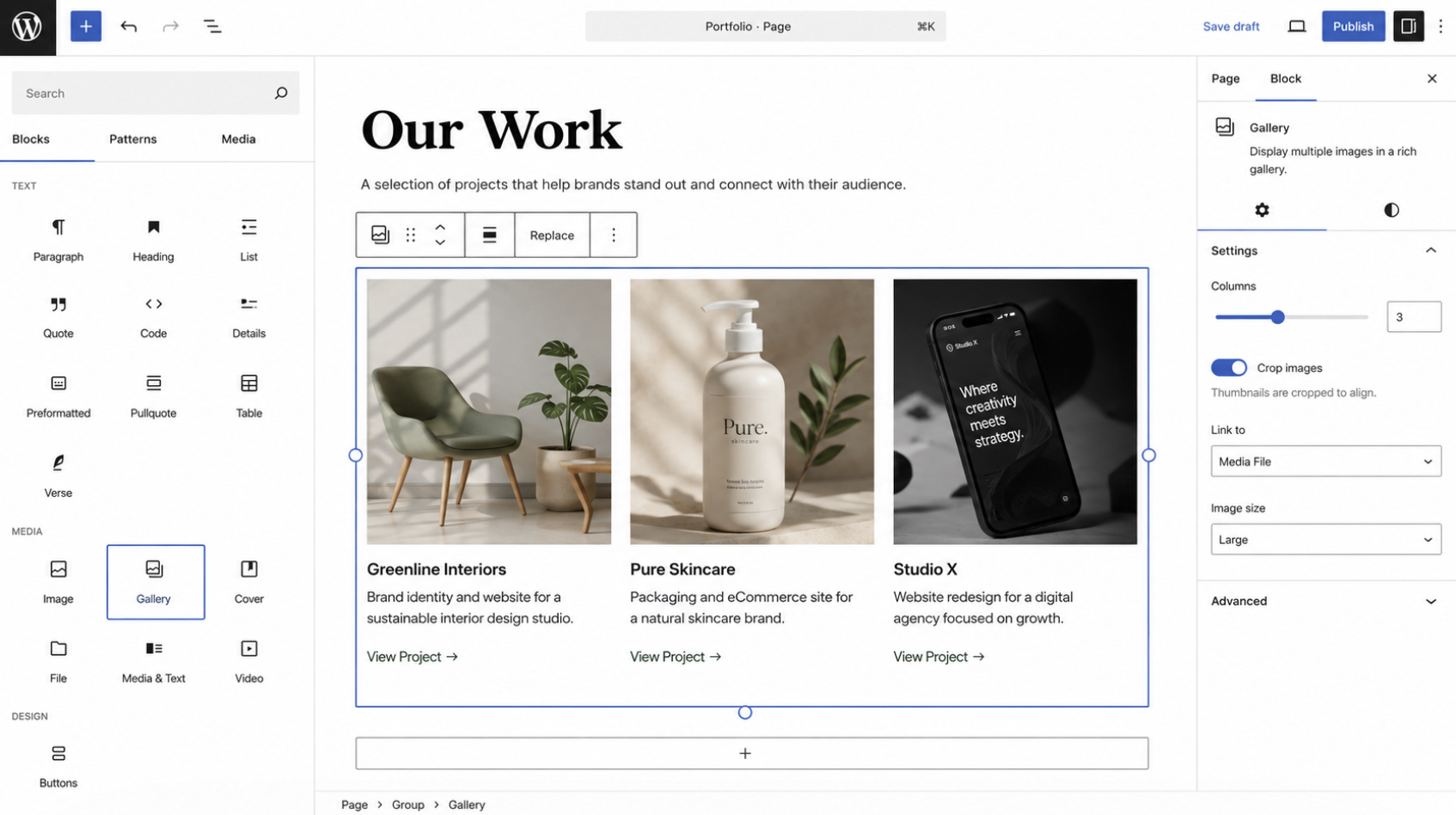
The native block editor, known as Gutenberg, creates a portfolio with no extra plugins or themes, using the core blocks that ship with every WordPress install. A gallery block holds the project images, columns and group blocks arrange the project tiles, and the standard page blocks build the project pages, so the whole portfolio comes together with tools already present and nothing else added.
The block editor adds no cost and no dependency, and that is the defining cost of its trade-off: it asks for more manual layout work. Without a builder’s drag-and-drop controls or a theme’s ready-made gallery template, each grid and tile is arranged by hand using core blocks. The result is a lean site that relies on nothing beyond WordPress itself, at the price of the hands-on effort the other routes reduce.
The block editor is enough when the portfolio is small and the grid is simple, a handful of projects shown in a clean layout, where a builder’s extra controls would go unused and a premium theme’s cost would not be justified. With one of these four routes settled, the build moves to the part that makes the site a portfolio: creating the project gallery that holds the work.
How to Create a Project Gallery?
A project gallery is the work-showcase grid that forms the core of a portfolio website, and it is the single element that distinguishes a portfolio on WordPress from a generic informational site. The gallery consists of project pages arranged into a grid of tiles, and each tile presents one piece of work. Where an ordinary WordPress site organizes posts and static pages around information, a portfolio site organizes its pages around visual proof of work, and the gallery is where that proof is presented.
A project gallery is assembled from individual project pages. Each project page is a single entry that documents one piece of work: its title, a short description, and the visuals that represent it. Each project page carries a featured image, which is the representative image WordPress pulls into the gallery grid as that project’s tile. The featured image is what a visitor sees first in the grid, so it stands in for the whole project before anything is clicked. The relationship runs in one direction: the portfolio website has the project gallery, the project gallery consists of project pages, and each project page has its featured image.
To create a project page, add a new page or a new entry in the WordPress editor and give it the project title, a concise description of the work, and the images or media that document it. Set the featured image from the editor sidebar. This is the image that represents the project in the grid, and WordPress reuses it automatically once the project is added to the gallery.
With the project page saved and its featured image set, add the page to the gallery grid using a gallery block, a grid block, or the gallery template that a portfolio theme provides. Repeat the same sequence for each piece of work, and the tiles accumulate into the completed grid. Once at least three project pages are added, the individual entries resolve into a single work showcase: a grid of tiles, each carrying the featured image of one project.
A featured image carries two attributes worth setting deliberately: its dimensions and its file weight. Dimensions are measured in pixels (px), and a consistent dimension across every project page keeps the grid tiles uniform rather than ragged. File weight is measured in kilobytes (KB), and a lighter file loads the grid faster when many tiles render at once. A square or matched-ratio image sized to the theme’s grid and saved at a modest file weight is enough here; deeper image preparation belongs to the asset-optimization work, not to assembling the gallery itself.
With the project gallery assembled and populated, the portfolio still needs the pages that tell a visitor who produced the work. The first of these is the about page.
How to Create an About Page?
An about page is a constitutive part of a portfolio website. It is the page that tells the visitor who is behind the work in the gallery. Where the project gallery shows what a creative or freelancer has produced, the about page identifies the person or studio that produced it, and a portfolio site is incomplete without both. The about page answers the question the gallery raises: the grid demonstrates the work, and the about page attaches a name, a face, and a track record to it.
An effective portfolio about page contains a short bio, a clear statement of the specialism, a headshot, and the credibility cues that establish trust. The bio is a brief account of who the creative is and what they do. The specialism names the field or service the work concentrates on, so a visitor immediately knows whether the portfolio matches the need. The headshot puts a face to the name and personalizes the page. Credibility cues (relevant experience, named clients, awards, or qualifications) give the visitor a reason to trust the work on display.
To create the about page, add a new page in WordPress, write the bio and specialism into it, set the headshot as page content, and place the credibility cues alongside them. Once the page is saved, add it to the site menu so it sits in the main navigation next to the gallery, a portfolio about page earns its purpose only when a visitor can reach it from anywhere on the site. With the about page written and linked from the menu, one constitutive page remains before the portfolio is complete: the contact form.
How to Create a Contact Form?
A contact form is the last constitutive part of a portfolio website; it is the element that turns portfolio views into client inquiries. The project gallery attracts attention and the about page establishes trust, but neither converts a visitor into a lead on its own. The contact form does that conversion: it gives an interested visitor a direct path to reach the creative, so a viewing becomes an inquiry and an inquiry becomes a potential client.
A portfolio contact form needs a small, deliberate set of fields. A name field identifies who is making contact. An email field captures the address the reply goes to. A message field holds the inquiry itself. For a portfolio specifically, an optional project-type field is worth adding, a short selection that lets a prospective client signal the kind of work they have in mind, which qualifies the inquiry before any reply. These four fields are enough; a portfolio contact form succeeds by being short, because every extra field reduces the number of visitors who finish it.
To add a contact form, install a contact-form plugin, create the form with the name, email, message, and optional project-type fields, and place it on a contact page that sits in the site menu. The plugin generates the form and handles the submissions; adding it to a contact page is a single step here, kept light because the full form build is its own undertaking, set out end to end in the dedicated guide on how to create a contact form in WordPress. With the contact form in place, every constitutive page of the portfolio (gallery, about, and contact) is present. What the build has assumed throughout is the foundation every WordPress portfolio runs on: WordPress hosting.
WordPress Hosting for a Portfolio Website
Every portfolio website on WordPress sits on WordPress hosting, the shared prerequisite that the build steps for “how to create a portfolio on wordpress” all assume rather than restate. The portfolio site requires a WordPress install, and that install in turn requires a hosting account where the server space, the database, and the WordPress core files run. That groundwork (domain registration, hosting selection, and the launch checklist) runs as one ordered flow in the guide on how to build a WordPress website, the parent build sequence the portfolio site inherits its full setup path from. The project gallery, the about page, and the contact form covered earlier presuppose that this foundation is already in place; the build adds the portfolio-specific layer on top of a running WordPress install, it does not create the hosting underneath it.
Selecting a hosting plan, registering a domain, and stepping through the WordPress install screen by screen sit outside the portfolio build. The install step itself (setting up WordPress on the chosen host, configuring a staging copy, and reaching the first dashboard) is documented in the resource on how to install WordPress. Those tasks belong to the cluster resources that own them at depth, so the portfolio build stays focused on the gallery, the supporting pages, and the suitability rationale instead of duplicating the generic site-build sequence.
Some creatives and freelancers run that full lifecycle alone; others bring in outside help for the setup, the build, or the launch rather than handle every stage themselves. The engagement, hiring, and launch options for that route sit in the broader WordPress development guide, which maps how an outside developer or agency fits into a WordPress project. With hosting and the install treated as the assumed groundwork, one question still sits ahead of every new portfolio build: is WordPress a good fit for showing work in the first place?
Is WordPress Good for Portfolios?
Yes, WordPress is good for portfolios, and it is one of the strongest portfolio platforms available for showing creative work online. The suitability is direct: WordPress supports portfolio-specific themes out of the box and gives full control over how a project gallery, an about page, and a contact form are arranged and styled.
WordPress supports portfolios through several capabilities that a work showcase depends on. Portfolio themes ship gallery and project layouts ready to populate, so the grid that displays the work exists from the first activation. Gallery and grid options (through a portfolio plugin, a page builder, or the native block editor) let the project tiles, featured images, and individual project pages take the exact shape the work calls for.
Design control extends to typography, spacing, and color, so the presentation matches the creative’s own brand rather than a fixed template. Ownership is the decisive contrast with hosted website builders: a WordPress portfolio site, with its own hosting and domain, belongs to the person who runs it, where a hosted builder rents that presence on infrastructure the creative does not control.
A portfolio on WordPress is, in one definition, a work-showcase site on WordPress (a project gallery of individual project pages, supported by an about page and a contact form) built to attract clients, employers, or commissions. That purpose is exactly what the suitability rests on: WordPress is good for portfolios because it makes that work-showcase site straightforward to assemble and fully owned once it is live.
A WordPress portfolio website realizes that suitability through the build already set out: select a build method (a portfolio theme, a portfolio plugin, a page builder, or the block editor), then create the project gallery that carries the work, an about page that introduces the person behind it, and a contact form that turns visits into inquiries. The method choice plus those four outputs answer how to create a portfolio website in WordPress, and the platform’s themes, design control, and ownership are why the result holds up as a portfolio.





 ChatGPT
  Claude
  Grok
Grok  Gemini