Explore our specialized services, tailored solutions, and industry expertise to elevate your digital presence. From custom WordPress development to seamless integrations, we build high-performing websites that deliver impact.
A WordPress Docker Compose stack is composed of two services declared in a single file: WordPress, and the MySQLdatabase that holds its content. The stack runs both as Docker containers on one machine, joins them on one private network, and comes up from a single command. WordPress then answers in a browser at a mapped address, at the standard install screen with a database waiting behind it.
The stack is portable by construction: a laptop, a colleague’s laptop and a rented server each read the identical declaration, so the description travels and the machine underneath stops mattering.
The stack stays small by design: one image for WordPress, one for the database, both from Docker Hub. It stops short of production operation, at a stack that answers and stays operable.
The work runs in a set order. First the host has to be able to start a Docker container at all. The file comes next with its two services, environment variables, volumes and port mapping. WORDPRESS_DB_HOST then takes the database service’s name, not localhost, the stack comes up, WordPress installs through the browser, and the work turns operational, returning to a working state when the site stops answering.
The Docker Prerequisite for the WordPress Docker Compose Stack
The Docker prerequisite for a WordPress Docker Compose stack is a working Docker runtime on the host, one able to start a Docker container on demand. Until the host meets it, a compose file is text naming images that nothing on the machine can start.
The host arrives in two shapes, the prerequisite identical in both. On a desktop or a laptop the runtime comes from Docker Desktop, which has to be open before anything answers. On a server it runs as a background service the operating system starts and leaves up.
One command settles it. docker ps lists the Docker containers running on the host:
docker ps
A ready host prints a header row and nothing under it:
CONTAINER ID IMAGE COMMAND CREATED STATUS PORTS NAMES
An empty table is the pass: a runtime up and holding no running Docker containers, the state a fresh WordPress Docker Compose stack starts from.
When the runtime is down, the same command prints this instead:
Cannot connect to the Docker daemon at unix:///var/run/docker.sock. Is the docker daemon running?
That output calls for one action: start Docker, then run docker ps again and read the header.
The stack asks for that and nothing else, carrying WordPress, MySQL and its web server inside its own Docker containers rather than requiring them on the machine. It needs only a host with a Docker runtime already installed, by whichever path. Once the header row prints, the only missing piece is the file that tells Docker what to run.
How to Compose the WordPress Docker Compose Stack in One File
Composing the WordPress Docker Compose stack in one file means writing a single docker-compose.yml that declares every service the stack consists of. A declaration file states a wanted end state instead of the steps toward it. The compose file is that declaration for a multi-container Docker application, and docker-compose.yml is the filename Docker Compose looks for.
Two services sit inside it, neither of any use alone: one serves the site, the other stores it, and one file brings the same stack up unchanged on another engineer’s machine.
Seven key classes make up a compose file: services, image, environment, volumes, ports, networks and depends_on. Six of them appear here. Networks stays out, because Docker Compose supplies a default one unasked. Environment carries the credentials and database address read at first boot. Ports maps host port 8080 onto container port 80, host side first; reversed, it produces no error and answers nothing. Depends_on starts the wordpress service after db starts, not after db is ready.
One line under the wordpress service attaches ./wp-content to /var/www/html/wp-content inside the Docker container. That mount is local WordPress development with Docker: theme and plugin code stays on the host. db_data, the other volume, persists MySQL data past the Docker container holding it.
Every other key leads back to services and the two names underneath.
The WordPress and Database Services
Composing the services key means naming the Docker containers a WordPress Docker Compose stack consists of, one entry per container, each name chosen by whoever writes the file.
services:
  wordpress:
  db:
Neither name carries special meaning to Docker Compose: renaming db to mysql breaks nothing, provided every other key pointing at it uses the new spelling.
Three parts follow from that key. The wordpress service serves the site: WordPress core, PHP and the Apache web server answering on port 80 inside its Docker container. The database service stores it, since posts, pages, users, options and the site address are rows in MySQL. The service name is the value the rest of the file refers to, appearing in the environment block as the database address and under depends_on.
The image line under each separates the two entries.
The wordpress:latest image
The wordpress:latest image is the packaged, read-only starting point a Docker container is created from, and every service in the WordPress Docker Compose stack names exactly one image.
    image: wordpress:latest
    image: mysql:8.0
The reference under the wordpress service is the WordPress Docker Official Image on Docker Hub, which is why the file needs no Dockerfile of its own.
A reference has two halves divided by a colon: the name half, wordpress, selects the image. The tag half, latest, selects the build the Docker container is created from, whichever Docker Hub publishes under it at pull time. A tag describes a build, it never guarantees one.
The database service carries mysql:8.0 in the same two-part form.
An image is read-only, so anything WordPress core or MySQL writes after its Docker container is created belongs to that container’s writable layer.
The named volume for db_data
The named volume for db_data is the storage declaration a WordPress Docker Compose file composes so that MySQL data persists after the Docker container holding it is gone.
A Docker container is disposable by design: its writable layer goes when the container goes.
db_data attaches at /var/lib/mysql, the data directory MySQL keeps its tables and indexes in. Those files sit in a volume Docker manages apart from any Docker container, so a teardown leaves them. Three events have two outcomes, db_data declared and db_data omitted:
Event
Declared
Omitted
The database after docker compose down
The tables sit in the volume and reattach on the next start.
The tables are gone with the discarded Docker container.
Uploaded media after the WordPress container is recreated
Every attachment is still listed, because each one is a database row.
The media library lists nothing.
Install state on the next docker compose up
The site opens at the login screen it was left at.
The WordPress install screen returns and asks for a site title.
The other line under volumes points the opposite way. A bind mount connects a host directory into the Docker container: ./wp-content becomes /var/www/html/wp-content inside the wordpress container. A theme file saved in an editor is the file Apache reads on the next request, with no image rebuild between. The mount carries local WordPress development on Docker through every save, the stack serving host code in place.
Neither declaration says how the two services find each other. Docker Compose puts every service from one file on the same default network under its service name, so the wordpress service reaches the database at the hostname db.
The WORDPRESS_DB_HOST Environment Variable in the Compose File
WORDPRESS_DB_HOST is one of four environment variables in a WordPress Docker Compose file, a value the WordPress service reads at startup, declared in the file rather than set in the application afterwards. The service carries four, each prefixed WORDPRESS_DB_, together holding the whole database contract between the two services.
WORDPRESS_DB_HOST has the strictest requirement of the four: its value must equal the name of the database service. Not localhost. Not an IP address. The service name, exactly as it appears under services:.
The database service there is named db, so WORDPRESS_DB_HOST is db. Rename it and the variable changes with it: one equality, not two independent settings. Compose puts every service on a single project network, where each service name is a hostname. localhost there points at the WordPress container itself, which holds no database process.
The other three carry no such privilege: each must match its MYSQL_ counterpart exactly.
Variable
What it must equal
Where it comes from
WORDPRESS_DB_HOST
the database service’s name
the services: key in this compose file
WORDPRESS_DB_NAME
MYSQL_DATABASE
the database service’s environment: block
WORDPRESS_DB_USER
MYSQL_USER
the database service’s environment: block
WORDPRESS_DB_PASSWORD
MYSQL_PASSWORD
the database service’s environment: block
Those counterparts sit on the database service, in the same file:
MYSQL_ROOT_PASSWORD sets the administrative credential the database service is initialised with, and the mysql:8.0 image requires it. The other three create the application account: MYSQL_DATABASE names the schema holding the WordPress tables, MYSQL_USER and MYSQL_PASSWORD the credential pairing the WordPress service presents, never root.
Mismatch is silent in the file: a WORDPRESS_DB_USER of wordpress against a MYSQL_USER of wp_user is two accounts, and the WordPress service holds credentials for neither.
What the file holds at that point is still a declaration. One command turns it into a stack in operation on a developer’s machine.
How to Run the WordPress Docker Compose Stack with docker compose up
docker compose up is the command that reads docker-compose.yml in the current directory and brings up every service the file declares as a Docker container. Running WordPress in Docker narrows to that one instruction: the WordPress Docker Compose stack is text on disk until docker compose up -d starts it. The file it acts on, complete:
The -d flag is detached mode. Without it the stack holds the terminal and streams both services’ logs until Ctrl+C, which stops them. With -d, the stack starts in the background and the prompt comes back. The whole deploy step, in the sense of bringing this stack up on this machine, is that line.
First boot is the slow one: neither wordpress:latest nor mysql:8.0 is present locally, so Docker pulls both from Docker Hub once before any container starts; later runs start containers rather than fetch them. Each declared service becomes exactly one Docker container: two services, two containers.
The command prints the verification.
[+] Running 4/4
 ✔ Network wordpress_default          Created
 ✔ Volume wordpress_db_data           Created
 ✔ Container wordpress-db-1           Started
 ✔ Container wordpress-wordpress-1    Started
The project network comes first, then the db_data volume, then the containers, each passing through Created and settling on Started. The port mapping then takes effect, host side first: 8080:80 sends port 8080 on the machine to port 80 inside the WordPress container. http://localhost:8080 is the address that answers, where a browser meets the WordPress installation screen.
How to Install WordPress at localhost:8080
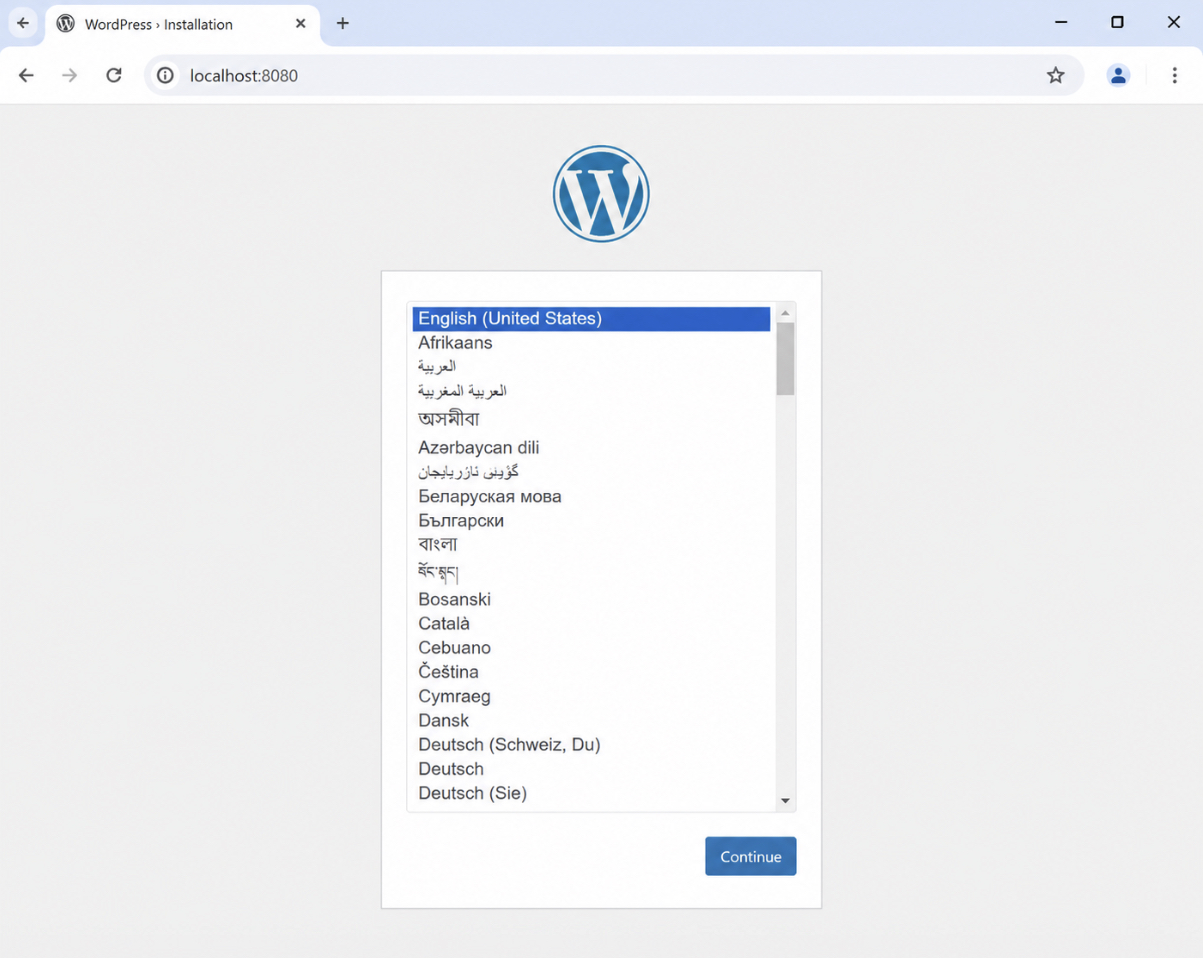
localhost:8080 is the web address a running WordPress Docker Compose stack answers on, and reaching it in a browser is where the work to install WordPress in Docker completes. It is the host side of the 8080:80 mapping the compose file carries: 8080 on the machine, 80 inside the WordPress container. A browser only ever asks for the host side.
A WordPress Docker setup is finished not when both containers run but when the install wizard completes and an administrator account sits in the database.
The install wizard is the short sequence of screens WordPress serves on the first request to that address, opening on the language step.
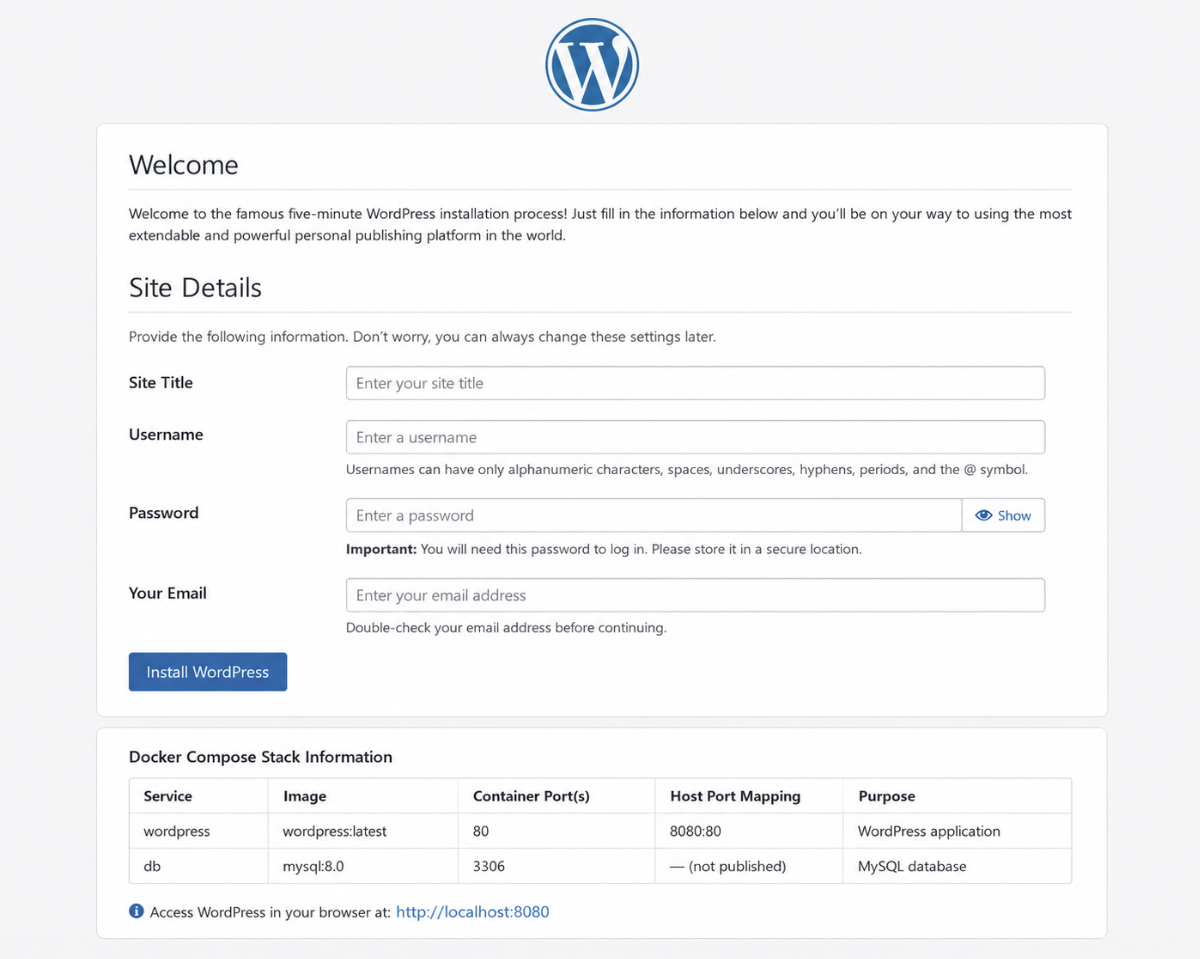
The screen after it asks for the site details: a site title, an administrator username, a password, and an email address for administrator notices. Those four values are all the wizard needs, and the Install WordPress button ends the browser half of the sequence.
A completed install proves more than that WordPress runs. Filling the WordPress tables requires the WordPress container to reach the MySQL container, so a completed wizard is evidence the two reached each other over the network Compose creates. That connection never touches the machine: 3306 appears in no mapping, and the database answers by service name on the compose network.
The result is a logged-in state, the same credentials opening the dashboard at localhost:8080/wp-admin. Both containers keep running after the browser tab closes, so the address answers again on the next session. Starting the stack, stopping it and reading what it prints are the ordinary controls between sessions.
Management Commands for the Running WordPress Docker Compose Stack
A management command for a running WordPress Docker Compose stack is a docker compose subcommand that acts on every service the compose file declares, in one call from the directory holding that file. None names an individual Docker container: the compose file already does, so one instruction reaches the WordPress container, the MySQL container and their network.
Four commands cover ordinary operation of the stack.
Command
Docker containers and network
Data in the named volume
docker compose up -d
Created and started, network built
Preserved; database reattached
docker compose down
Stopped and removed, network removed
Preserved; volume stays on disk
docker compose restart
Stopped and started in place, network untouched
Preserved; storage untouched
docker compose logs -f
Left running, network untouched
Preserved; nothing written
Between working sessions, docker compose down is the default: both Docker containers and their network go, the named volume stays, and the next docker compose up -d returns the same site with the same posts.
docker compose restart recycles the two Docker containers in place, without rebuilding either from its image. An edit to the compose file itself is a different case, applied by docker compose up -d.
docker compose logs is the read command. It streams what each Docker container reports on standard output, PHP notices from WordPress and query messages from MySQL, each prefixed with its service. With -f, the stream stays open and follows new output.
docker compose down       # remove both containers and the network
docker compose restart    # recycle the running containers
docker compose logs -f    # stream and follow container output
docker compose up -d      # return the stack to running, database intact
Storage sits outside all four: the named volume the compose file declares survives every one of them. Only one variation on docker compose down reaches into it.
docker compose down and down -v
docker compose down removes what bringing the stack up created: both Docker containers and the network Docker Compose built for them. That is its entire reach before any flag.
docker compose down
Each Docker container is stopped, then removed, and the network goes with them:
Three lines, three objects, and no fourth line for the volume. That absence is the evidence the data survived. That fourth line is absent because the compose file declares the volume holding /var/lib/mysql by name, an object Docker tracks separately from the containers that mount it.
One flag extends the removal to storage.
docker compose down -v
Now the named volume goes with the Docker containers and the network, and everything the database contained is deleted alongside it: every post, page, user account, site setting and media library record WordPress wrote there. The next docker compose up -d starts a WordPress container against an empty database, and the browser lands on the install wizard. No confirmation prompt stands in between.
The decision is binary: docker compose down pauses the stack and keeps the site, docker compose down -v starts it over from nothing, and one character separates the two. A stack that does not come up afterwards has causes in the compose file, the ports or the database container rather than in the volume.
Troubleshooting for the WordPress Docker Compose Stack
Troubleshooting a WordPress Docker Compose stack is the work of reading a symptom back to the declaration that produced it. The stack fails two ways: its containers run and the site refuses to answer, or they never start.
Four failure modes account for what a first stack produces: a database connection that fails, a port conflict on the host side of the mapping, permission denied on a mounted directory, and data lost with no named volume to hold it. Each lands on a line in the compose file, and three of the four carry a check.
Three are runtime symptoms of a declaration written wrongly; the fourth follows from one left out. The declaration is at fault, not Docker or WordPress, and the database connection fails first.
Database Connection
A database connection failure is the mode where the WordPress container cannot connect to the MySQL container while both are up. The browser reads “Error establishing a database connection” while docker compose ps lists two running containers: nothing has crashed, so the WordPress container is looking in the wrong place, or too early.
Wrong place first: WORDPRESS_DB_HOST carries the database service’s compose service name, db in most stacks, and the compose network resolves it.
Too early is the second cause, producing the identical message from a correct declaration. On first start the database container initializes its data directory and accepts connections only afterwards, while the WordPress container can query before then. Ordering is what matters: the database is ready when its own log says so.
$ docker compose logs db
db-1  | [System] [MY-013169] [Server] /usr/sbin/mysqld (mysqld 8.0.36) initializing of server in progress as process 1
db-1  | [InnoDB] InnoDB initialization has started.

$ docker compose logs db
db-1  | [System] [MY-010931] [Server] /usr/sbin/mysqld: ready for connections. Version: '8.0.36'  socket: '/var/run/mysqld/mysqld.sock'  port: 3306
A server still initializing is a timing failure, resolved by loading the page again once that directory is written. Ready for connections while the browser still shows the error is a configuration failure, and a stack that never starts at all fails at the port instead.
Port Conflict
A port conflict is the mode where a second process already holds the host side of the mapping, so docker compose up fails at once and names the port it could not bind. The database failure reaches a browser; this one fails in the terminal.
$ docker compose up -d
Error response from daemon: driver failed programming external connectivity on endpoint wordpress-1: Bind for 0.0.0.0:8080 failed: port is already allocated
In - "8080:80", 8080 is the machine’s, and only it can collide.
So something already listens on 8080: a local web server left running, or a Compose stack up from an earlier session. A socket listing reports what holds it.
sudo ss -ltnp | grep :8080
Whatever it lists is stopped, or the host side moves to a free port, container side unchanged at 80.
With that line docker compose up -d completes and the install address becomes localhost:8081. A stack that starts cleanly can still refuse a write.
Permission Denied
Permission denied is the failure mode that leaves the site running: WordPress answers, the dashboard opens, and then a plugin install, a media upload or an automatic update refuses to write.
The refusal occurs on the mounted directory, so only a stack mounting host code into the WordPress container meets it. Where ./wp-content is bind-mounted, one directory has two owners: the account that created it, and the image’s web server account, running as uid 33. Docker reconciles neither, and the write fails.
$ docker compose logs wordpress
wordpress-1  | PHP Warning:  mkdir(): Permission denied in /var/www/html/wp-admin/includes/file.php on line 2361

$ ls -ld ./wp-content
drwxr-xr-x 5 sam sam 4096 ./wp-content
A logged permission warning beside a listing naming any owner other than 33 is the mismatch.
sudo chown -R 33:33 ./wp-content
Give the directory to uid 33 and the container’s web server owns what it writes: themes, plugins and uploads recover write access. The command changes ownership on a Linux host and on a bind mount inside WSL2; the macOS file sharing layer maps ownership itself, so no mismatch arises there.
Ownership is a property of what the volumes declaration mounts, which is where this mode meets the fourth: data lost with no named volume holding the database, answered by that declaration and docker compose down -v.
Each of the four modes resolves in a line of one file, and the finished stack travels to the next machine as that file.
How to Deploy the WordPress Docker Compose Stack with up -d
Deploying the WordPress Docker Compose stack means bringing the same stack up on another host, one that is not the developer’s own machine. That bring-up of the stack is the same act, repeated somewhere else. The same file runs the same pair on a rented virtual server.
The compose file is transferred unchanged to the target host, holding no reference to the machine underneath it: service names, the wordpress:latest and mysql:8.0 image references, the named volumes and the port mapping in its host:container order all stay as written. The runtime is what the compose file expects from the target host: a Docker Engine with the Compose plugin in the v2 subcommand form, not the retired docker-compose binary. docker --version printing Docker version 27.3.1, build ce12230 is the whole requirement.
docker compose pull reads the two image references the file names and retrieves each from Docker Hub into the target host’s local image store, where they must exist before anything starts. It separates the slow network step from starting the stack.
docker compose pull
docker compose up -d
$ docker compose pull
[+] Pulling 2/2
 ✔ db         Pulled
 ✔ wordpress  Pulled

$ docker compose up -d
[+] Running 4/4
 ✔ Network wordpress_default        Created
 ✔ Volume "wordpress_db_data"       Created
 ✔ Container wordpress-db-1         Started
 ✔ Container wordpress-wordpress-1  Started
up -d starts the stack detached. The terminal returns instead of streaming logs from the two services, which is what matters on a host reached over a remote shell: the stack keeps running after the session closes. The Created and Started lines are the confirmation.
Whatever a production environment adds around a stack like this stays outside the file: TLS termination, a reverse proxy in front of the WordPress container, replica counts, resource limits and continuous-integration pipelines are separate concerns that this compose file does not carry and this bring-up does not require.
What runs on the target host after up -d is still two Docker containers: one WordPress, one MySQL, the same volumes, the same mapping, and the file describing all of it has not been edited once. That is the portability claim behind running WordPress in Docker: the unit moved is a pair of containers and a file, not a machine.
What Is a WordPress Docker Container?
A WordPress Docker container is one running instance of the wordpress image, started by Docker with its own filesystem, its own address on the Docker network and its own lifetime, carrying the WordPress site software the image was built with.
A WordPress Docker container holds six parts:
the wordpress image it starts from, pulled from Docker Hub
WordPress core, the PHP files that answer every request
the PHP runtime that executes those files
the writable layer holding anything the container writes after start
the internal port 80, where the site listens before any host mapping
the service name from the compose file, wordpress in this stack
The limit is the database. A WordPress Docker container does not carry MySQL, so WordPress core has nowhere inside it for posts, users, options or metadata. The compose file’s second service answers that.
Which image the WordPress container under Docker starts from is a value the compose file sets, and wordpress:latest is only one of them: “WordPress Docker images compared”.
One Docker container is not the stack: a WordPress site in a Docker container runs and listens on 80, with nothing to serve until Docker Compose runs the two services together.
The MySQL Container
The MySQL container is the Docker container that runs the database server, and the WordPress container under Docker requires it. WordPress core needs a database connection for every page it renders, and the MySQL container is where that connection lands.
One container per component is the rule the stack is built on: one Docker container runs the WordPress site, one runs MySQL, neither holding the other’s software. That is what makes a compose file the procedure rather than two docker run commands.
WordPress mail delivery is the notification email WordPress core sends, and neither container holds a mail transfer agent to send it: “configure WordPress email in a Docker container“.
The MySQL container persists its data on the named volume db_data, so the database outlasts the container that runs it. MySQL listens on 3306 on the stack’s internal network, never published to the host. The WordPress container reaches it by service name, carried in WORDPRESS_DB_HOST and resolved by the tool that starts both.
What Is Docker Compose?
Docker Compose is the tool that reads one file and runs the Docker containers that file declares. It is the docker compose command, a version 2 plugin of the Docker command line rather than the legacy docker-compose binary, plus the file it reads.
Two Docker containers run by hand mean two docker run invocations, two sets of environment variables at a terminal, and a network created before either container can reach the other. Compose turns that into one declared stack: one file, one command.
The compose file is the single source of truth, declaring the services, the images, the environment variables, the volumes, the ports and the network.
This stack has one alternative outside Docker, a native installer on the host, and that route is decided before the compose file is written: “when to choose Docker over Local“.
The result is portability: on any host with a Docker runtime installed, the same compose file deploys the same stack, with identical services, images and ports.
How to Install Docker on Ubuntu
Installing Docker on Ubuntu is the host-side prerequisite of the WordPress Docker Compose stack: Docker Engine and the Compose plugin have to exist before any service in the compose file starts. A container runtime is not part of a stock operating system, so a host without one cannot act on a compose file. An Ubuntu 24.04 LTS server takes Docker Engine plus the Compose plugin from Docker’s own package repository; a desktop machine gets both from Docker Desktop.
Docker’s official install script is the short path on a development server, not a production one: it adds Docker’s apt repository to the host’s package sources, then installs docker-ce and the Compose plugin.
curl -fsSL https://get.docker.com | sudo sh && docker compose version
The version check runs only after the install step exits cleanly, which && enforces. Two commands verify the result:
$ docker compose version
Docker Compose version v2.29.7

$ docker ps
CONTAINER ID   IMAGE     COMMAND   CREATED   STATUS    PORTS     NAMES
The Docker runtime is the prerequisite of every stack step: nothing in the compose file starts on a machine that answers docker ps with a command-not-found message.
A desktop workstation can also run WordPress through a native installer rather than a container runtime, a route covered in local WordPress development environments compared. On a host that answers both checks, the WordPress Docker Compose stack deploys with a single command.
The WordPress Docker Compose stack is now an artifact rather than a procedure: one file declares a WordPress service and a database service, one command brings both up, the browser install runs on the mapped host port, and each condition that interrupts the stack has a defined return. Any machine carrying a Docker runtime produces the same stack from that file, which is the reproducibility the WordPress Docker Compose stack guarantees: the compose file travels, the host does not.






 ChatGPT
  Claude
  Grok
Grok  Gemini