- Expertise
Expertise That Drives Results
Explore our specialized services, tailored solutions, and industry expertise to elevate your digital presence. From custom WordPress development to seamless integrations, we build high-performing websites that deliver impact.
Solutions- Booking System Integrations
- Headless & REST API WordPress
- Hubspot Integration
- Enterprise WordPress
- Website Migration
- Internal Collaboration Platforms
- External Communications Hubs
- Work
- About
- Proof
- Contact
Learn more


WordPress Docker Image: Official vs Bitnami vs Custom

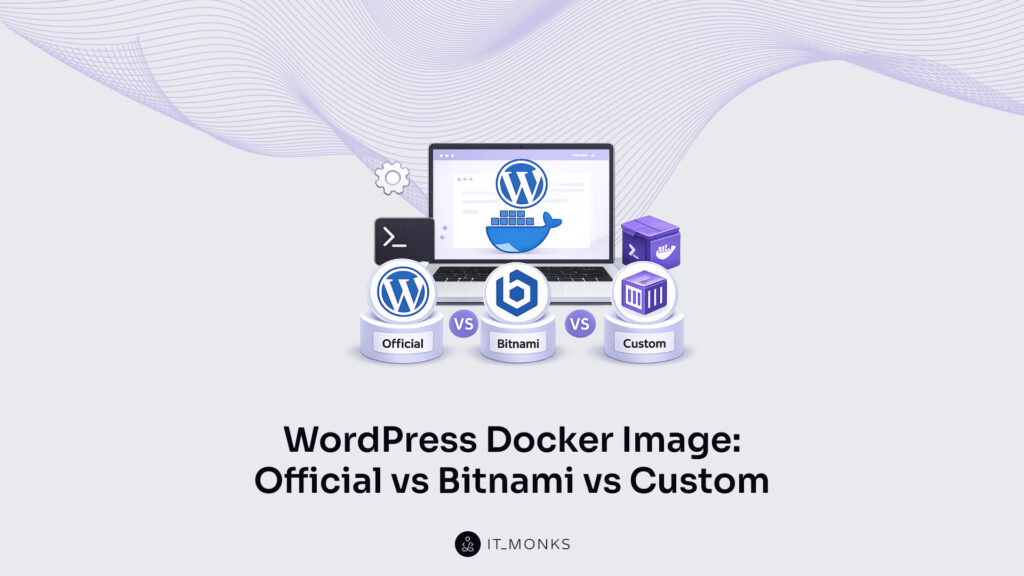
A WordPress Docker image is a pre-built, registry-hosted artifact, the packaged image a reproducible local WordPress development stack is based on. The term names the static, layered file set stored in a container registry, not the running container that is its live counterpart. One artifact, downloaded once, holds a complete WordPress environment before any container exists.
That artifact is delivered as one of three distinct instances: the official image from the Docker community’s docker-library, the Bitnami image published by Bitnami, and a custom Dockerfile image that is self-authored. Each one is a WordPress Docker image. Each carries a different base, a different maintainer, and a different configuration surface.
Which of the three is the best WordPress Docker image is the open question behind the comparison. The three instances differ on the attributes that matter to a stack: base operating system, runtime user, configuration method, bundled tooling, and maintainer. What all three share, though, is one class of artifact, the WordPress Docker image itself.
What Is a WordPress Docker Image?
A WordPress Docker image is a layered container image, a pre-built artifact that bundles everything a WordPress installation requires into a single stack of read-only layers. Each image contains a base operating system layer, a PHP runtime, a web server, the WordPress core files, and a wp-config layer whose database credentials and site settings are set from environment variables rather than from a hand-edited file. Those layers sit one on top of another, and together they are the image.
The base operating system layer is a Debian or Alpine Linux foundation, set by the image tag. Above it, the PHP runtime is fixed at a specific version: the official image’s tags span PHP 8.2 through 8.5, according to its Docker Hub tag listing. The web server layer is Apache or nginx, likewise fixed by the tag, and the WordPress core files above it are the actual content-management-system code. The wp-config layer, closest to the top, holds the configuration values that a container reads at startup, supplied by environment variables, not typed into a file by hand.
A WordPress Docker image is not a complete site on its own. It pairs with a separate database, either MySQL or MariaDB, in its own container beside it. The image holds the application layers; the database container holds the site’s posts, users, and settings. This split is why a Docker image for WordPress is almost always one half of a two-container pairing, described as an application image rather than a whole running site.
Unlike a native installer, which ties WordPress to a host machine’s own operating system, a WordPress Docker image is self-contained and independent of the host’s own configuration. Because the same image file is byte-for-byte identical on any machine that has Docker, the local WordPress development stack based on it is reproducible (the same on every workstation). Every one of these images, official or Bitnami or custom, has one more thing in common: the registry it is published to and identified through.
WordPress Docker Images on Docker Hub
Every WordPress Docker image is hosted on Docker Hub, the public container registry for container images. On Docker Hub, the official image is the docker-library listing under the plain wordpress name, and the Bitnami image is a separate repository at the bitnami/wordpress path. The registry is the one axis all three instances share: whatever the base or the maintainer, each image has a Docker Hub identity.
That identity is just the exact name that points to the image on Docker Hub. The official image is identified as wordpress; the Bitnami image is identified as bitnami/wordpress. Those two identifiers are all that separates one image’s registry location from the other’s:
docker pull wordpress
docker pull bitnami/wordpress
Both identifiers belong to the same registry and the same class of artifact; only the maintainer and the path differ. The first of the two, the plain wordpress listing maintained by the Docker community, is the official WordPress Docker image.
The Official WordPress Docker Image
The official WordPress Docker image is the docker-library reference image of the class, a Debian-based image maintained by the Docker Community and published on Docker Hub as the plain wordpress repository. As the reference member, it contains WordPress core layered on a Debian base, a PHP runtime, and a web server, and is suited to a reproducible local WordPress development stack without any vendor-specific conventions on top.
The official image’s base layer is Debian, and its maintainer is the Docker Community team behind the Docker Official Images program. Every published tag pairs one WordPress core release with a PHP runtime version, and the current tags range from PHP 8.2 to 8.5, listed under “Image Variants” on the image’s Docker Hub page (source: hub.docker.com). A tag such as wordpress:6.5-php8.3-apache therefore names a WordPress version, a PHP version as x.y, and a web server in a single identifier.
The official image is configured from environment variables rather than a committed wp-config.php. The variables WORDPRESS_DB_HOST, WORDPRESS_DB_USER, WORDPRESS_DB_PASSWORD, and WORDPRESS_DB_NAME hold the database connection details, and from them the wp-config.php file is generated at container startup through the bundled wp-config-docker.php template. So the image itself contains no credentials, and a single image is usable across every environment in the stack.
Documentation is one of the official image’s strengths. Its documentation, published on the Docker Hub page under “How to use this image” and “Image Variants”, is the reference material the other members are measured against. The official WordPress Docker image documentation lists the environment variables, the tag matrix, and the volume layout in one place. WP-CLI is included through the image’s separate cli variant; the default apache and php-fpm tags do not include the command-line tool.
The official image pairs with a separate MySQL or MariaDB database. The official image’s values across the shared decision attributes are these:
- Base OS : Debian
- Maintainer : Docker Community (Docker Official Images)
- Configuration : environment variables; wp-config.php generated from them via wp-config-docker.php
- Documentation: published on Docker Hub (“How to use this image”, “Image Variants”)
- WP-CLI: available as the separate
clivariant, absent from the default tag
A minimal tag reference for the stack identifies the official image and its version:
image: wordpress:6.5-php8.3-apacheThat reference is enough to identify the official image inside the stack.
The Bitnami WordPress Docker Image
The Bitnami WordPress Docker image is a non-root, security-hardened member of the class, published on Docker Hub as bitnami/wordpress by Bitnami. For that same local stack, it is distinct from the reference image first in its security posture: the image is non-root, with UID 1001 as its runtime user rather than root.
Non-root operation is the Bitnami image’s defining attribute. Its runtime user is the numeric UID 1001, and its processes and files are owned by that unprivileged account, so a container compromise has only non-root access. Persistent WordPress data belongs to a dedicated volume path, /bitnami/wordpress, and the base layer is a minimal Debian base (minideb).
Configuration is where the Bitnami image is most distinct. It has a large environment-variable surface, considerably wider than the reference image’s four database variables, spanning the database connection, the initial administrator account, and behavioral flags. The vendor’s Docker Hub “Configuration” section lists these variables but is cut off at the point most useful for a local stack. The variables most relevant to a local stack are these:
| Environment variable | Purpose | Default |
|---|---|---|
| WORDPRESS_DATABASE_HOST | MariaDB host for the image’s connection | mariadb |
| WORDPRESS_DATABASE_USER | database user | bn_wordpress |
| WORDPRESS_DATABASE_PASSWORD | database password for the image’s connection | no default; must be set |
| WORDPRESS_DATABASE_NAME | database schema | bitnami_wordpress |
| WORDPRESS_USERNAME | initial administrator account | user |
| WORDPRESS_PASSWORD | administrator password | bitnami |
| WORDPRESS_EMAIL | administrator email | user@example.com |
| ALLOW_EMPTY_PASSWORD | flag permitting an empty database password for local development | no |
(Source: hub.docker.com/r/bitnami/wordpress, “Configuration”)
For the database, the Bitnami image pairs with MariaDB (its defaults name a mariadb host and a bn_wordpress user) rather than including a database of its own. Documentation is present on the same Docker Hub page, though it is oriented toward orchestration defaults rather than the local-stack configuration surface set out for the shared decision attributes. WP-CLI is not part of the default image, matching the reference image on the WP-CLI attribute. Across the same decision attributes, the Bitnami image is the hardened, non-root option: it has a broad configuration surface and an unprivileged runtime user in place of the reference image’s minimal, well-documented simplicity.
A Custom WordPress Dockerfile Image
A custom WordPress Dockerfile image is the self-authored member of the class, an image whose definition is a Dockerfile owned by the developer or team rather than by a vendor. Where the official and Bitnami images are delivered pre-assembled, the custom image is a first-class option in its own right: its Dockerfile names a chosen base image in its FROM instruction, and every layer on top of that base is under the developer or team’s control.
Full control is the custom image’s defining attribute. Its FROM line names a chosen base image (either the official wordpress tag or a plain PHP base such as php:8.3-apache), and from that starting point the layers are entirely the maintainer’s: PHP extensions, web-server configuration files, opcache settings, and bundled wp-content all belong to the Dockerfile rather than to a vendor’s conventions. This is where the custom image is most distinct from the other two members: nothing about its contents is fixed by an external maintainer.
That control has a matching trade-off on documentation and maintenance. The custom image has no maintainer documentation. There is no vendor “How to use this image” page, because the Dockerfile and its behavior are internal to the project. It is likewise self-maintained: base-image updates, PHP version changes, and security patches are the developer or team’s responsibility rather than a vendor’s release cadence. Vendor-maintained and self-maintained are opposite conditions, and the custom image is firmly self-maintained.
On configuration, the custom image has exactly what its base image includes plus what the Dockerfile contains. A FROM the official wordpress tag, for instance, includes the environment-variable and wp-config-docker.php behavior; a plain PHP base includes none of it. Across the same decision attributes, the custom WordPress Docker image is the full-control, self-maintained, undocumented member, the counterpart to the two vendor images, suited to a local stack that needs exact, project-specific layers.
Which WordPress Docker Image Is Best?
The best WordPress Docker image depends on what the stack has to support, not on any single quality ranking. Across the class, the official, Bitnami, and custom Dockerfile images each answer a different need, and the right one follows from that need. Defaults, a hardened security posture, and full control over the layers each point to a different member of the class. Image selection itself is one layer within WordPress in Docker as a whole, the packaged artifact a containerized stack is based on, before any container exists.
Laid side by side, the three images line up across the shared decision attributes as follows:
| Image | Registry | Base OS | Runtime user | wp-config handling | WP-CLI | Documentation | Database pairing | Update model | Maintainer |
|---|---|---|---|---|---|---|---|---|---|
| Official | Docker Hub docker-library (wordpress) | Debian, PHP 8.2–8.5 tags | root (Apache workers as www-data) | Generated from environment variables (wp-config-docker.php) | Separate cli variant, not in the default tag | Published on Docker Hub (“How to use” / “Image Variants”) | Separate MySQL or MariaDB container | Docker community, tracks WordPress core releases | Docker Community (docker-library) |
| Bitnami | Docker Hub bitnami/wordpress | Debian (minideb) | Non-root, UID 1001 | Large environment-variable surface | Not in the default tag | Docker Hub bitnami/wordpress “Configuration” plus Bitnami docs | Separate MariaDB container | Bitnami (Broadcom), frequent rebuilds | Bitnami (Broadcom) |
| Custom Dockerfile | None by default; a chosen base pulled from any registry | Whatever the chosen base image ships | Author-defined | Author-defined (environment variables or a copied file) | Only when the author adds it | None (self-maintained) | Author’s choice of MySQL or MariaDB | Self-maintained, rebuilt on demand | The developer or team |
Specifications drawn from the official docker-library and bitnami/wordpress listings on Docker Hub.
Across those attributes the pattern is plain. So the best WordPress Docker image is the official one for defaults and the fastest route to a reproducible stack, the Bitnami image for a hardened container fixed to the non-root UID 1001, and a custom Dockerfile image for full control over every layer when neither vendor image fits the project. Each option stays paired with a separate database container, so that half of the reproducible stack holds constant whichever image fits.
Whichever image fits the stack, it then pairs with the Docker Compose configuration that connects the image to its database and ports, the WordPress Docker Compose setup carries that pairing in full.
Which image suits the stack is only one input to a further question: whether a containerized workflow fits the project at all, or whether a local environment is the better fit. That trade-off, Docker against a local environment, belongs to Docker vs Local for WordPress, where the image here is one factor among several.
A WordPress Dockerfile Example
A WordPress Dockerfile is the build definition a custom WordPress Docker image is produced from, a plain-text recipe that names a base image and layers a few adjustments on top of it. Where the official and Bitnami images arrive pre-assembled, the custom image starts from a file like this:
FROM wordpress:6.5-php8.3-apache
RUN docker-php-ext-install opcache
COPY php.ini /usr/local/etc/php/conf.d/custom.ini
COPY opcache.ini /usr/local/etc/php/conf.d/opcache.ini
COPY ./wp-content/ /var/www/html/wp-content/
EXPOSE 80
Each instruction sets a state the resulting image carries. The FROM line names wordpress:6.5-php8.3-apache as the base, so the custom image inherits PHP 8.3 and Apache from the official tag before anything else is added (base tag per Docker Hub). The RUN line adds the OPcache extension through docker-php-ext-install, which keeps compiled PHP bytecode in memory so repeated requests skip recompilation. Two COPY lines drop a local php.ini and opcache.ini into PHP’s conf.d directory as custom.ini and opcache.ini: the first carries general php.ini overrides such as memory_limit and upload_max_filesize, the second carries the OPcache directives that switch the cache on and size it. A further COPY line brings the project’s wp-content into the web root, and EXPOSE 80 records port 80 as the container’s HTTP port.
That handful of instructions is the whole difference between a vendor image and a self-authored one. The WordPress Dockerfile holds the PHP extensions, configuration files, and content the project needs, and nothing it does not. A custom Dockerfile also has room for Composer-managed dependencies, the Bedrock-style layout that pulls WordPress core and plugins in as packages, a path covered in install WordPress with Composer.
The Nginx WordPress Docker Image Variant
The nginx variant of the WordPress Docker image is the web-server option whose front-end web server is nginx rather than the bundled Apache. Each image tag has its web-server choice in the tag name. An Apache tag contains the WordPress core together with the Apache HTTP server in a single image; a php-fpm tag contains the PHP-FPM runtime alone, on PHP tags such as 8.2 to 8.5, for use with a separate front-end web server (hub.docker.com, Image Variants).
The nginx variant is part of that php-fpm path. On it, the fpm image is the PHP runtime and nginx is the front-end web server, and a dedicated nginx-based WordPress image is also available from Bitnami, so a docker WordPress nginx pairing is available two ways: an fpm image with nginx in front, or a single vendor image. The nginx variant, the Apache tag, and the php-fpm tag are three values of the same web-server axis, and that axis is one more spec detail in the selection of a WordPress Docker image for a local stack. The web-server tag is one packaging detail that distinguishes the tags. Whether the command-line tooling is included is another.
Is WP-CLI Included in the WordPress Docker Image?
WP-CLI is included in the WordPress Docker image through the official image’s dedicated cli variant, not in the default tag (hub.docker.com, “How to use this image”). The answer is conditional on the variant: the official docker-library image has a cli tag that contains the WP-CLI command-line tool, while the default apache and php-fpm tags do not contain it.
WP-CLI: included in the official WordPress Docker image through its cli variant (for example, the
wordpress:clitag); the default apache and php-fpm tags do not contain it.
Across the three instances, WP-CLI inclusion is uneven. The official image includes WP-CLI in a separate cli variant. The Bitnami image and a custom Dockerfile image do not contain WP-CLI in their base tags; a custom image contains only what its build definition already includes. WP-CLI availability is therefore one decision axis in the selection of a WordPress Docker image, alongside the registry, the base OS, the runtime user, and the web-server tag. For a local stack that has command-line management as a requirement, the official image’s cli variant includes it directly, and the other instances have it only when their tags already contain the tool.
More Articles by Topic

Headless WordPress is a website setup in which WordPress stays the back end, where marketers write, edit and manage content,…
Learn more 
The 10 free ecommerce API options for 2026 are WooCommerce, Shopify, PayPal, Square, Adyen Checkout, Amazon Selling Partner API, Medusa,…
Learn more 
In late August, 2026, Jess Cook, VP of Marketing at Vector, posted a meme about her late nights since her…
Learn more Contact
Feel free to reach out! We are excited to begin our collaboration!
Don't like forms?
Shoot us an email at info@itmonks.com
Don't like forms?
Shoot us an email at info@itmonks.com

CEO, Strategic Advisor
Reviewed on Clutch
 ChatGPT
  Claude
  Grok
Grok  Gemini
 Send a Project Brief
Fill out and send a form. Our Advisor Team will contact you promptly!