Explore our specialized services, tailored solutions, and industry expertise to elevate your digital presence. From custom WordPress development to seamless integrations, we build high-performing websites that deliver impact.
Basic Git commands are the text instructions typed in a terminal, the word git plus a command name, that tell Git what to do with a repository. Every command is run by Git, the version control system that records the changes made to the files of a project in a repository. The same commands are sometimes named Git codes.
The set of Git basic commands holds 14 commands, the most common ones, in the order of a working session: git config, git init, git clone, git status, git add, git commit, git log, git branch, git checkout, git merge, git remote, git push, git fetch and git pull.
Each of the 14 is complete on its own: what the command does, its syntax, its options, one example with the terminal output and one error message. Listed together, the 14 commands are a cheat sheet, one table with each command and its syntax. Every one is typed as a single command line, and a Git command line is read in a fixed order of parts.
Git Command Syntax
Git command syntax is the order of the parts in a command line: the word git, a command name, options and arguments. Every command typed for Git follows one general form.
git <command> [<options>] [<arguments>]
A Git command line starts with the word git, and some commands are typed with a second word after the command name, a subcommand.
Part
What it is
Example
git
The program; starts every command
git
Command name
What Git should do
commit in git commit
Subcommand
Second word of some commands
add in git remote add
Option
Changes how the command works
-m, --global
Argument
What the command works on
index.html in git add index.html
An option starts with one dash or two dashes and changes how the command works. The short form is one dash and a letter, as in -m; the long form is two dashes and a word, as in --global. Option letters are case-sensitive, so -d and -D are two different options.
An argument names what the command works on: a file, a branch, a repository. In a syntax line the argument is not a real value but a placeholder. A placeholder in angle brackets stands for a value typed in its place, so replace <file> with the name of a real file, such as index.html. Each placeholder name stands for one kind of value, except <name>, which stands for a setting in git config and for a remote in git remote.
Placeholder
Stands for
Example
<file>
Path of a file or folder
index.html
<branch-name>
Branch name
new-feature
<repository> or <URL>
Repository URL
https://github.com/owner/repo.git
<msg>
Commit message, in quotes
"Update home page"
<name>
A setting in git config or a remote in git remote
user.name
<remote>
A remote in git push, git fetch and git pull
origin
A syntax line holds four signs, the same four that the manual pages on git-scm.com show. None of the signs is typed.
Angle brackets, <file>: replace the name with a real value.
Square brackets, [<directory>]: the part is optional.
Parentheses with a bar, (-d|-D): choose one of the two.
Three dots, <file>…: the part may repeat.
The syntax line git add <file>… is typed as git add index.html, with no brackets and no dots. The syntax line of each of the 14 basic Git commands follows these rules: a sign means the same in every line.
The manual page of any Git command is shown by git help, typed with the command name as its argument.
git help <command>
Replace <command> with a command name, commit for instance. The Git reference lists the commands by topic and holds the complete list of all commands. The first command to run after Git is installed is git config.
git config
git config is the Git command that sets and reads Git settings. The first two settings are user.name and user.email: a name and an email address that Git records in the author field of every commit, a saved snapshot of the project files.
One syntax line sets any of the settings.
git config [--global] <name> <value>
<name> is the setting, a section and a key joined by a dot, as in user.name. <value> is what to store.
One option of git config sets whether a setting is for one repository or for all of them; the other prints the stored settings. A repository is the hidden .git folder inside a project folder, where Git holds the history of the project.
Option
What it changes
--global
Saves the setting in ~/.gitconfig, for every repository of this user. Without it, the setting goes to .git/config of the current repository.
--list
Prints every setting with its value.
The Git documentation on git-scm.com writes the same actions as subcommands, git config set and git config list, and marks the option forms as deprecated; both spellings store the same value.
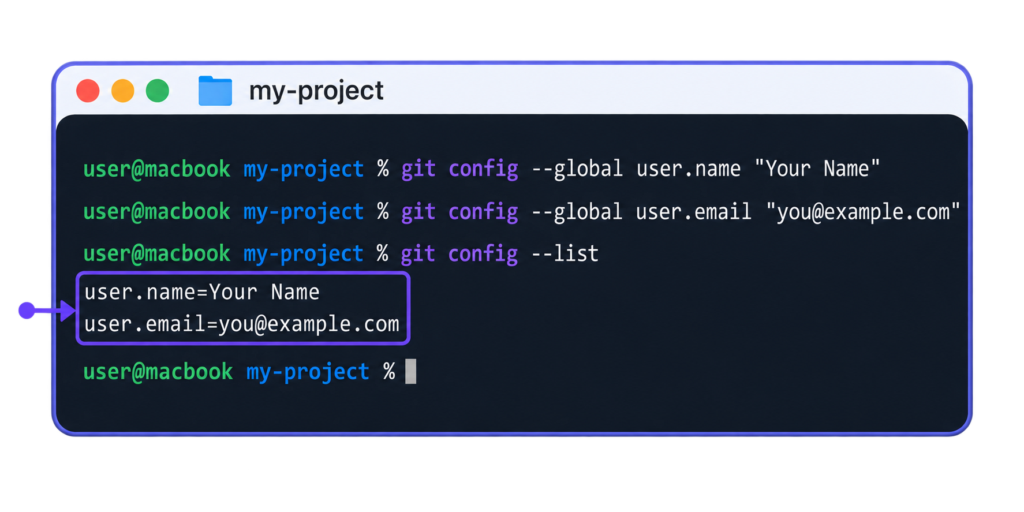
Type the two set lines with a real name and email address, then run git config --list to read the settings back.
git config --list prints a longer list, and these two lines are part of it.
user.name=Your Name
user.email=you@example.com
The screenshot shows the three typed lines and the two printed lines with the name and the email.
git config is also the fix for an error message of git commit, the command that saves a commit. git commit prints the message only when no name and email are set and Git cannot work them out from the computer account.
*** Please tell me who you are.

Run

  git config --global user.email "you@example.com"
  git config --global user.name "Your Name"

to set your account's default identity.
Omit --global to set the identity only in this repository.
Run the two lines Git prints, each with the real value between the quotation marks, then run git commit again.
The full list of settings and options is in the git config reference. With the name and the email stored, git init creates the first repository.
git init
git init is the Git command that creates, or initializes, an empty Git repository in a folder. The new repository is local. It stays on the computer, and every later command works on it.
The repository is the hidden .git folder inside the project folder, where Git holds the history of the project. No file is tracked yet, meaning Git checks none of the project files for changes so far.
Both parts of the syntax line are optional: a branch name and a folder.
git init [-b <branch-name>] [<directory>]
<branch-name> is the name for the first branch, and a branch is a separate line of commits, the saved snapshots of the project files. <directory> is the folder to create the repository in. git init makes that folder if it is missing and uses the current folder when none is named.
git init needs one option at most for a first repository.
Option
What it changes
-b <branch-name>
Names the first branch. Without it, the name is master or the value of init.defaultBranch.
The master default is the one named in the Git documentation on git-scm.com; the example names the first branch main. A second git init in the same folder is safe. It prints Reinitialized existing Git repository and overwrites nothing.
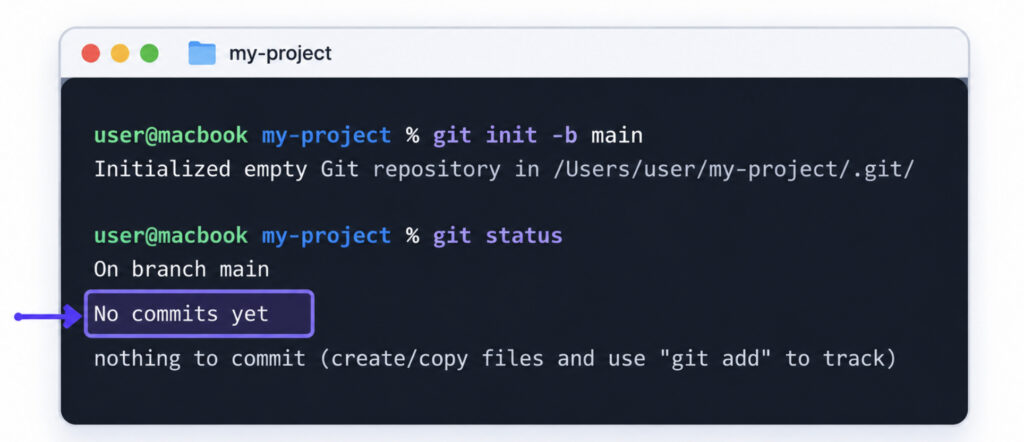
Type both lines in the empty folder my-project. The second one, git status, prints the state of the new repository.
git init -b main
git status
The first line prints after git init, the other three after git status.
Initialized empty Git repository in /Users/you/my-project/.git/
On branch main

No commits yet

nothing to commit (create/copy files and use "git add" to track)
The path in the first line differs per computer. The screenshot shows both typed lines and the four printed lines in the folder my-project.
git init is one of two fixes for the error message not a git repository. Commands that need a repository, such as git status, print it in a folder that holds none.
fatal: not a git repository (or any of the parent directories): .git
Open the terminal in the project folder when the repository is already there. Run git init in the project folder when that folder holds no repository yet.
Every option of the command is in the git init reference. git init starts a new repository, and git clone is the way to get one that already exists.
git clone
git clone is the Git command that copies an existing repository into a new folder on the computer. A repository is the hidden .git folder inside a project folder, where Git holds the history of the project. The source is a remote repository, which is a copy of the project on a server, or a repository in another folder of the same computer. The copy that git clone creates is the local repository.
The clone holds the files, the history and the branches of the project. The new folder is a full project folder with its own repository inside, not only the newest files. Git names the source repository origin, and origin is a remote: the short name Git holds for the URL of the source.
One repository URL is all the syntax line of git clone needs.
git clone <repository> [<directory>]
<repository> is the repository URL, the address Git downloads from. <directory> is the name of the new folder, and the square brackets mean it is optional. With <directory> left out, Git names the folder after the repository.
-b and --depth change what the clone holds: the branch in the new folder and the number of commits. A branch is a separate line of commits, and a commit is a saved snapshot of the project files.
Option
What it changes
-b <branch-name>
Checks out that branch after the clone, so the new folder holds the files of that branch
--depth=<depth>
Copies only that number of the newest commits
Type the command with the URL of github/gitignore, a public repository held on GitHub. The clone creates a folder of its own, so any folder outside my-project is the place to run it.
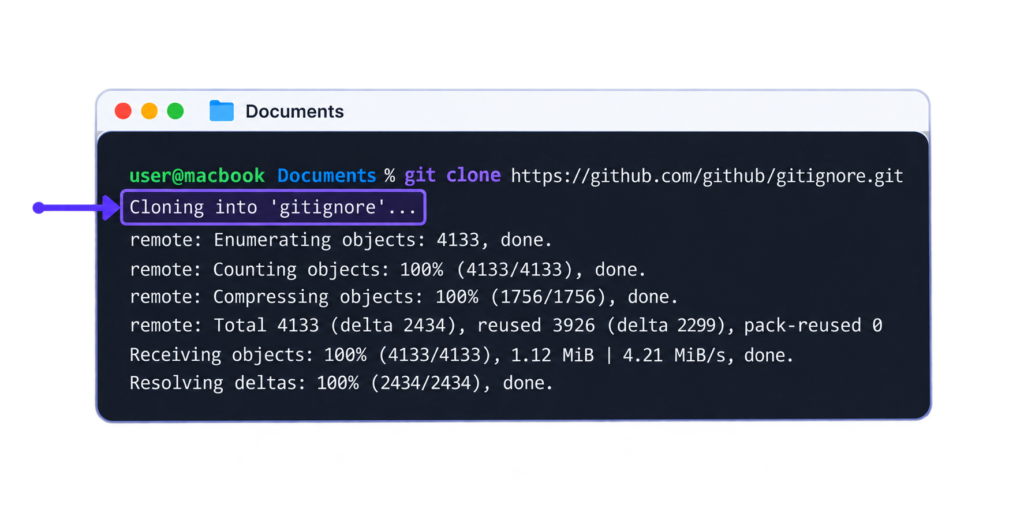
git clone https://github.com/github/gitignore.git
The first line that git clone prints names the new folder.
Cloning into 'gitignore'...
Progress lines follow and end with done. Their numbers differ per repository.
After the clone, the terminal shows the command, the Cloning into line and the progress lines down to the last done.
git clone stops when the target folder exists and is not empty. A folder named gitignore that already holds files is that case, and Git prints one error message.
fatal: destination path 'gitignore' already exists and is not an empty directory.
The fix for this error message is another folder name at the end of the command: git clone <repository> <directory>.
The full list of options is in the git clone reference. Once the clone is on the computer, git status is the command that shows the state of a repository.
git status
git status is the Git command that shows the state of the working directory and the staging area: which files are staged, which are changed and which are new. The working directory is the project folder with its files. The staging area is the list of changes added for the next commit, and a commit is a snapshot of the project files.
git status changes nothing in the repository. The files, the staging area and the history stay as they are, so the command is safe to run at any moment, before or after any other Git command.
The syntax line of git status needs no argument.
git status [-s]
The square brackets mean -s is optional.
Option
What it changes
-s
Short format, one line per file
-b
Adds the branch line to the short format
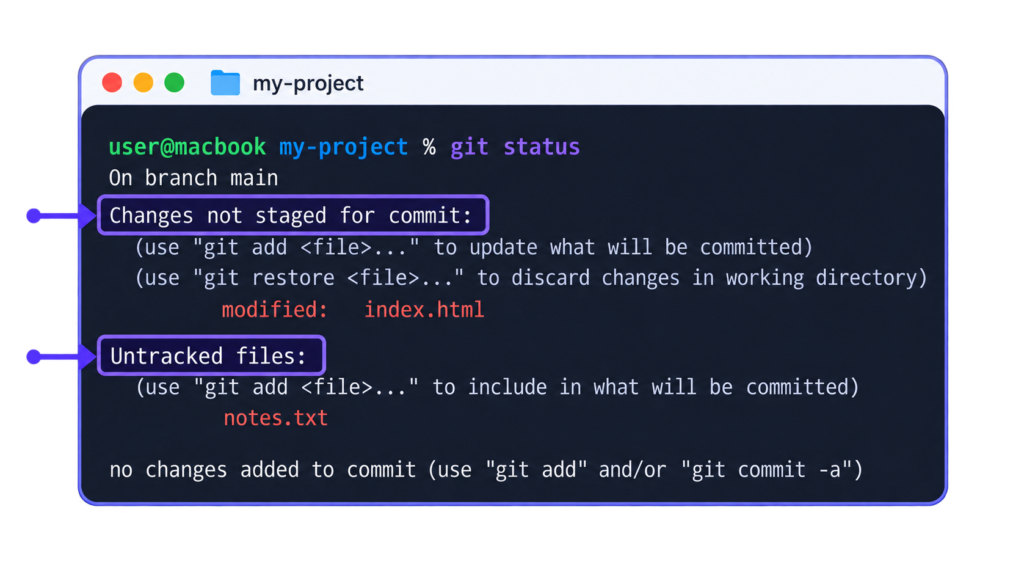
Run git status in the project folder my-project. Its repository holds one commit with index.html in it. Since that commit, index.html was edited and a new file, notes.txt, was created.
git status
In that state git status prints the branch line, two groups with one file each, and a closing line.
On branch main
Changes not staged for commit:
  (use "git add <file>..." to update what will be committed)
  (use "git restore <file>..." to discard changes in working directory)
        modified:   index.html

Untracked files:
  (use "git add <file>..." to include in what will be committed)
        notes.txt

no changes added to commit (use "git add" and/or "git commit -a")
After git status, the terminal shows the whole output, from the branch line to the closing line. The two group headings in it are Changes not staged for commit and Untracked files.
The output of git status has three groups, and each group heading means one state and one next command. The example shows two of them. The group absent from it, Changes to be committed, is printed before the other two once a file is staged with git add. The lines in parentheses are hints: under a group heading, the output names the next command.
Group in the output
What it means
Next command
Changes to be committed
Lists the files in the staging area, the files of the next commit
git commit
Changes not staged for commit
Lists tracked files that are changed but not staged
git add
Untracked files
Lists new files Git does not track yet
git add
my-project stays in this state until git add stages a file and git commit records the staged change. A clean repository, with no staged, changed or new file, ends the output with nothing to commit, working tree clean.
git status stops with an error message when the project folder is owned by another user account on the computer. <path> in the message is the path of that folder.
fatal: detected dubious ownership in repository at '<path>'
To add an exception for this directory, call:

        git config --global --add safe.directory <path>
The fix for this ownership error is the git config line that Git prints in the message. Add the exception only for a trusted folder.
The short format and every other option are in the git status reference. The example output names one command more than any other: git add, which stages the changed and the new files.
git add
git add is the Git command that moves changes from the working directory, the project folder with its files, to the staging area. The staging area holds the changes of the next commit, so it is the list Git reads when git commit runs. A commit is a saved snapshot of the project. git add stages changes. It records no commit.
A file changed after git add needs git add again. The staging area keeps the version of the file that was added, and a later edit of that file stays in the working directory.
Type the command with a file name after it.
git add <file>…
<file> is the file name: the path of a file or of a folder. The three dots mean that several names may follow each other, with a space between them. A dot in place of a name, git add ., stands for the current folder and all folders inside it.
The options of git add set how much is staged at once.
Option
What it changes
-A
Stages every change in the whole repository, deleted files included.
-p
Asks part by part which changes of a file to stage.
git add . stages every change in the current folder and the folders inside it, deleted files included. git add -A differs in reach only: it stages the same kinds of change in the whole repository.
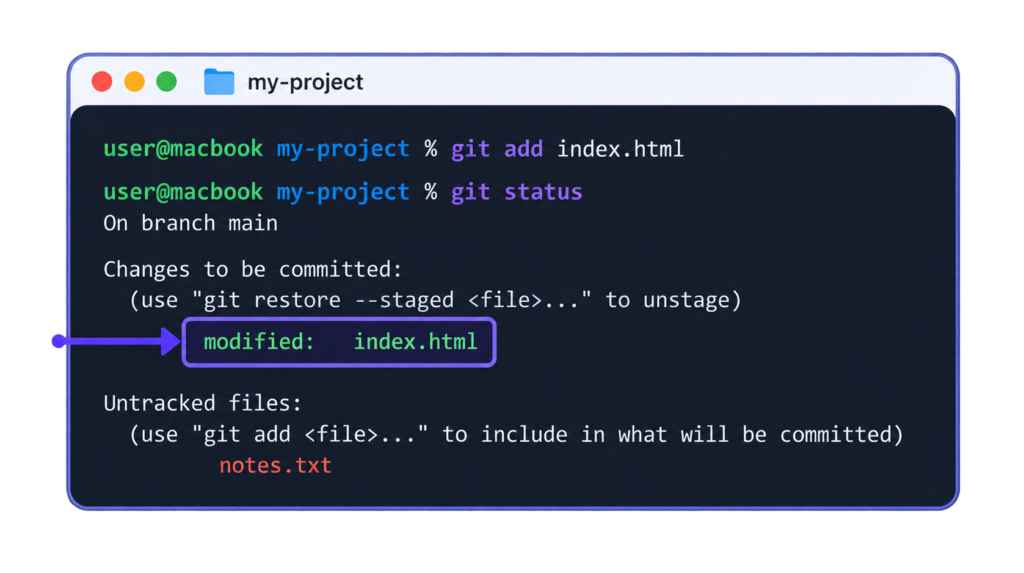
In the project folder my-project, index.html is a changed file and notes.txt is a new one. Stage index.html, then check the result with git status.
git add index.html
git status
git add prints nothing. git status shows the staged file.
On branch main
Changes to be committed:
  (use "git restore --staged <file>..." to unstage)
        modified:   index.html

Untracked files:
  (use "git add <file>..." to include in what will be committed)
        notes.txt
index.html is now under Changes to be committed, which means it is staged. notes.txt stays under Untracked files, the files Git does not track yet, because no git add named it. The screenshot shows both commands and this output, with the modified: index.html line marked.
git status closes with this line when the only changes are new files and none of them is staged.
nothing added to commit but untracked files present (use "git add" to track)
A commit has nothing to save in that state. The fix for the nothing added to commit message is git add <file> with the name of a new file, which stages that file for the next commit.
Every option of git add is listed in the official git add reference. What git add stages, git commit saves.
git commit
git commit is the Git command that saves the staged changes as a new commit in the local repository, the hidden .git folder inside the project folder. A commit is a saved snapshot of the project. It holds the state of the files as they were staged, a message, an author and a date. The new commit stays on the computer until git push sends it to a remote repository, a copy of the repository on a server.
Type the command with -m and a commit message.
git commit -m <msg>
-m gives the commit message on the command line, and <msg> is that message: a short text in quotes that says what changed. Without -m, Git opens a text editor for the message.
The options of git commit set the message, stage files first or replace the last commit.
Option
What it changes
-m <msg>
Takes the message from the command line.
-a
Stages every changed or deleted tracked file first; new files are left out.
--amend
Replaces the last commit: a new message or a forgotten file.
A tracked file is a file that was in the last commit or is staged.
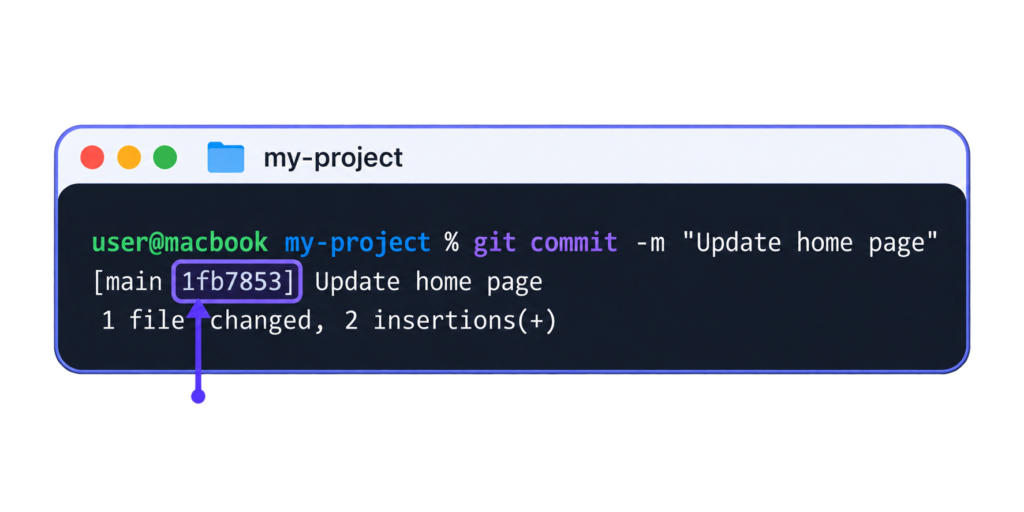
In my-project, index.html is staged. Record it with a message that names the change.
git commit -m "Update home page"
Git prints two lines.
[main 1fb7853] Update home page
 1 file changed, 2 insertions(+)
Inside the square brackets are the branch, main, and the commit ID, 1fb7853. Git prints the commit ID here as a short hash: the first 7 hex characters (digits and the letters a to f) of the full hash that names this one commit. After the brackets is the commit message, and the second line is the change count: 1 file changed and 2 insertions, the lines that were added. Hash and counts differ per commit. The screenshot shows the command and both lines, with the commit ID marked.
git commit records nothing when files are changed and none is staged. Its output then closes with this line.
no changes added to commit (use "git add" and/or "git commit -a")
The no changes added to commit message has two fixes. Stage the files with git add <file> and commit again, or run git commit -a -m <msg>, which stages every changed tracked file first.
The official git commit reference lists the other options of the command. Each commit that git commit records is one more entry for git log, the command that lists the commits made so far.
git log
git log is the Git command that lists the commits of the current branch, the newest first. A commit is a saved snapshot of the project, a branch is a separate line of commits, and the current branch is the one new commits are added to. This list is the history of the local repository: every entry shows who made the commit, when, and with which message.
Run the command with nothing after it, or with options and a file name.
git log [<options>] [<file>]
Square brackets mean an optional part. <file> is a file name; with it, the list shows only the commits that changed that file.
The options of git log shorten the list or draw the branches in it.
Option
What it changes
--oneline
One line per commit: short commit ID and message.
-n <number>
Only the newest <number> commits.
--graph
Draws the branches as lines beside the commits.
git log prints each commit ID as the full 40-character hash; --oneline shortens each commit to one line and the ID to its short form.
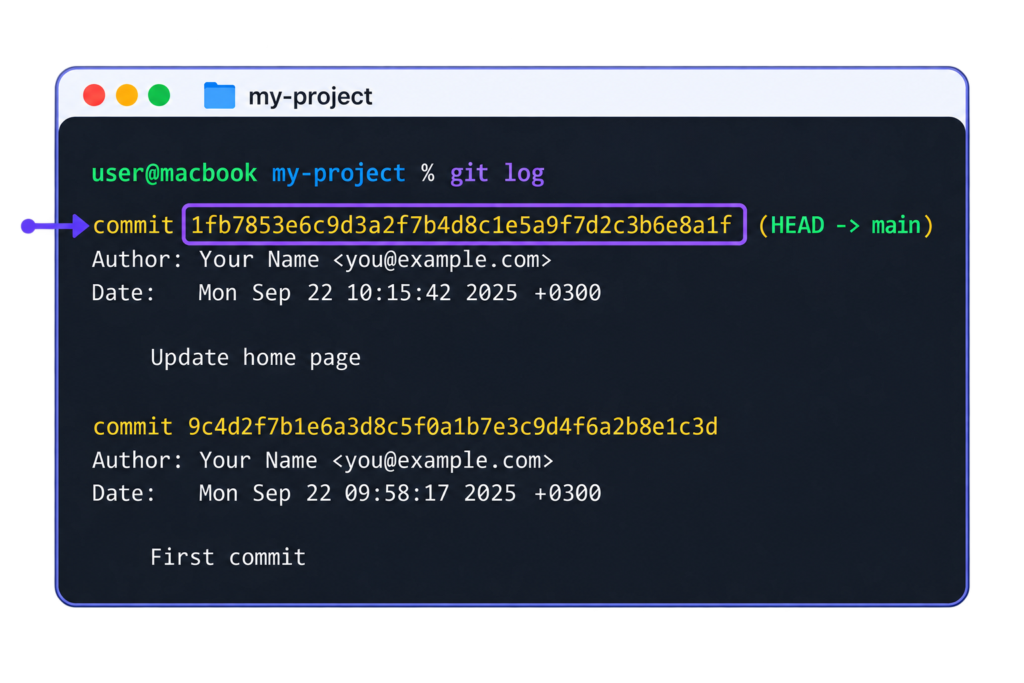
In my-project, which has two commits, run the command without options.
git log
Git prints one entry per commit, the newest at the top. Each entry has this layout.
A log entry shows four parts: the commit ID, the author, the date and the commit message. <hash> is the commit ID. <author> is the person who made the commit, <author-date> is the day and time it was made, and <title-line> is the first line of the commit message. In a terminal, the first line of the newest entry has one more part after the hash: a label in parentheses that names the current branch, main. The screenshot shows the entries of both commits with their full hashes, authors, dates and messages, and the commit ID of the newest commit is marked.
git log prints one line and stops in a repository that has no commit yet.
fatal: your current branch 'main' does not have any commits yet
The fix for the does not have any commits yet error is the first commit: stage a file with git add, then record it with git commit -m <msg>. After that, git log lists that commit.
The full list of options is in the official git log reference. git log reads one branch, the current one. A separate line of commits needs another command, git branch.
git branch
git branch is the Git command that lists the branches of a repository and creates, renames or deletes a branch. A branch is a separate line of commits, and each commit is a saved snapshot of the project files. Commits added to one branch are not added to the others, so the main branch stays as it was while work is recorded on a new branch.
The syntax line of git branch is the command and a branch name.
git branch [<branch-name>]
<branch-name> is the name of the new branch. The square brackets mean that the name is optional: typed with no name, git branch lists the branches. A new branch points to the last commit of the current branch.
The options of git branch delete a branch, rename a branch or add the remote-tracking branches to the list.
Option
What it changes
-d <branch-name>
Deletes a branch that is fully merged
-D <branch-name>
Deletes the branch even when it is not merged
-m <old-branch> <new-branch>
Renames a branch
-a
Lists the remote-tracking branches too
A remote-tracking branch, such as origin/main, is the local record of a branch on a remote server.
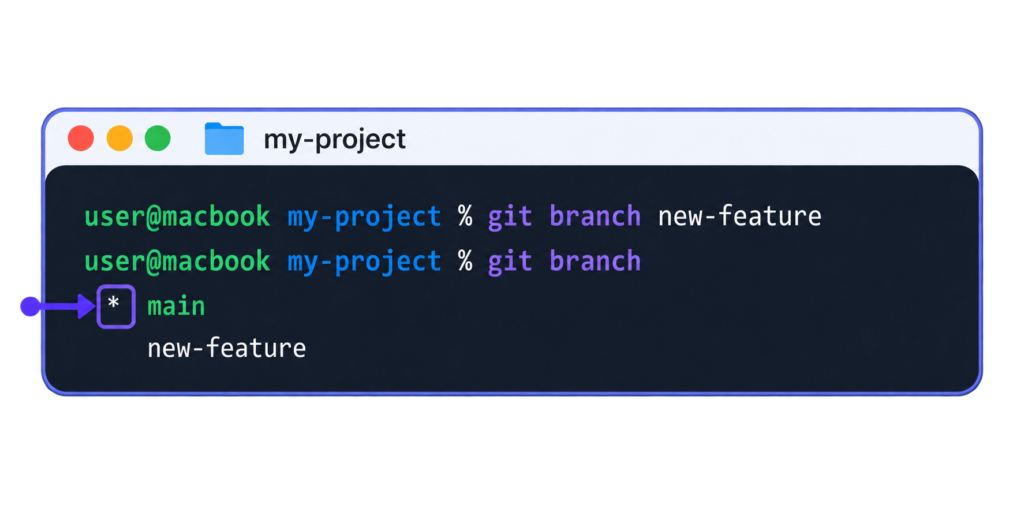
Type both lines in the folder my-project, on the branch main. The first line creates the branch new-feature, and the second lists the branches.
git branch new-feature
git branch
The first line prints nothing. The second prints the two branch names.
* main
  new-feature
The asterisk marks the current branch, and it stays at main: git branch new-feature creates the branch and does not switch to it. The screenshot shows both commands in the terminal, the two branch names and the asterisk at main.
-d deletes only a branch that is fully merged, which means that all of its commits are already combined into the current branch with git merge. Typed while new-feature still holds commits that are not merged, git branch -d new-feature stops and prints an error with a hint.
error: the branch 'new-feature' is not fully merged
hint: If you are sure you want to delete it, run 'git branch -D new-feature'
Git prints one more hint line after these two, and that line names the setting that stops the hint. There are two fixes for the error not fully merged. Merge the branch first, and -d then deletes it. Or type git branch -D new-feature, which deletes the branch together with its unmerged commits.
The full list of options is in the git branch reference. A branch that git branch created is not the current branch yet; git checkout switches to it.
git checkout
git checkout is the Git command that switches the working directory to another branch. A branch is a separate line of commits, and each commit is a saved snapshot of the project files. The working directory is the project folder with its files, and Git updates the files of the working directory to match the last commit of that branch. After the switch, new commits are added to that branch.
The syntax line of git checkout needs one branch name.
git checkout [-b] <branch-name>
<branch-name> is the branch to switch to. The square brackets mean that -b is optional; with -b, <branch-name> is the name of a new branch.
Other forms of git checkout create a branch or replace a file.
Form
What it does
git checkout -b <branch-name>
Creates the branch and switches to it in one step
git checkout <file>
Replaces that file with its last staged or committed version; the local changes to it are gone
The file form is the second job of git checkout, and it is not a switch: the current branch stays as it is. git switch does the same branch job as git checkout under a newer name.
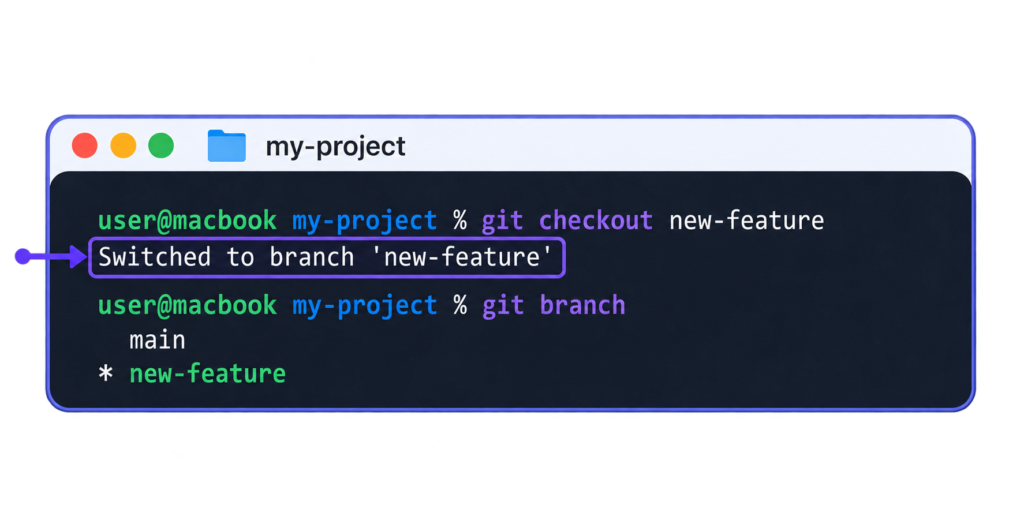
Type the line in the folder my-project, on the branch main, after git branch new-feature created the branch.
git checkout new-feature
Git prints one line.
Switched to branch 'new-feature'
With -b, the line is Switched to a new branch '<branch-name>'. Run git branch after the switch, and the asterisk, the sign of the current branch, is at new-feature. The screenshot shows the command, the Switched to branch line and the asterisk at new-feature.
git checkout stops when a changed file is not committed and the other branch holds another version of that file. A switch would replace the file and the local changes would be gone, so Git prints an error that names the file.
error: Your local changes to the following files would be overwritten by checkout:
        index.html
Please commit your changes or stash them before you switch branches.
Aborting
Aborting means that Git did not switch; the current branch and the files stay as they were. The fix for the error would be overwritten by checkout is a commit of the local changes: stage the file with git add index.html, record it with git commit -m <msg>, where <msg> is the commit message in quotes, then type the git checkout line again. When both branches hold the same version of the changed file, Git switches and the local changes stay in the working directory.
The other forms of the command are in the git checkout reference. Commits recorded on new-feature stay on that branch until git merge combines them with main.
git merge
git merge is the Git command that brings the commits of another branch into the current branch. A commit is a saved snapshot of the project files, a branch is a separate line of commits, and the current branch is the one switched to with git checkout. Run git merge on the branch that receives the commits, most often main. The other branch stays as it is.
The syntax line of git merge needs one name, the branch to bring in.
git merge <branch-name>
<branch-name> is a placeholder for the branch whose commits come in. Type the real name in its place, without the angle brackets.
The common options of git merge stop a merge or set whether a merge commit is recorded.
Option
What it changes
--abort
Stops a merge that has conflicts and goes back to the state before it
--no-ff
Records a merge commit even when a fast-forward is possible
--ff-only
Merges only when a fast-forward is possible
A fast-forward moves the current branch to the newest commit of the merged branch, and no new commit is recorded. A merge commit is a commit that records the merge of two branches.
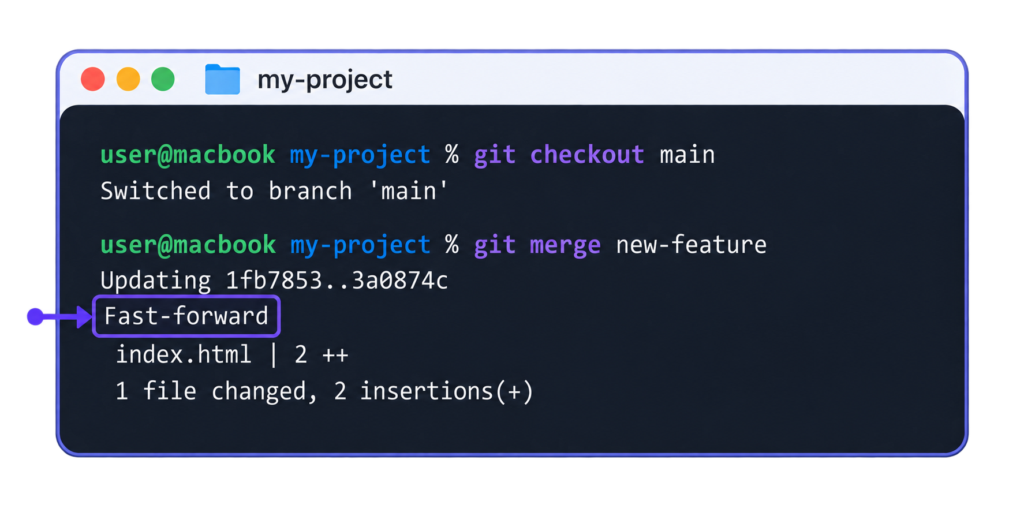
In the folder my-project, the branch new-feature holds one commit that main lacks. Switch to main, then merge new-feature into it.
The terminal after both commands shows the Updating line, the word Fast-forward and the line for index.html.
Fast-forward means that main had no new commits of its own, so Git only moved it forward. The Updating line prints both commit IDs of that move, 1fb7853 and 3a0874c, and the last line is the change count, 1 file changed, 2 insertions(+). A fast-forward is not possible once main has new commits of its own; git merge then records a merge commit. For that commit Git opens a text editor with a prepared message, and the merge is recorded once the message is saved and the editor is closed. Git prints Already up to date. when new-feature has nothing new, and main stays where it is.
git merge stops with a conflict message when it cannot combine two changes.
Auto-merging index.html
CONFLICT (content): Merge conflict in index.html
Automatic merge failed; fix conflicts and then commit the result.
A merge conflict happens when both branches changed the same lines of one file, here index.html, and Git cannot choose between the two versions. No commit is recorded. Git adds marker lines (<<<<<<<, =======, >>>>>>>) to the file around both versions, and there are two ways to continue. The first: edit index.html, choose the lines that stay, delete the marker lines, then run git add <file> to stage the fixed file and git commit to record the merge.
git commit opens the same text editor with the merge message already written; saving the message and closing the editor records the merge. The second is git merge --abort, which returns the repository to the state before the merge. --abort does not always return changes that were not committed when the merge started, so save open changes in a commit before a merge.
The full list of options is in the git merge reference. git merge combines branches inside the local repository, the hidden .git folder of the project on the computer; git remote links that local repository to one on a server.
git remote
git remote is the Git command that manages the remote repositories linked to the local repository. A remote repository is a copy of the repository on a server such as GitHub. A remote is a short name for the URL of a repository on a server, so later commands need only the name, not the full address. origin is the usual name, the one git clone gives to the source repository. Typed with no argument, git remote lists the names of the remotes.
git remote lists the remotes in its short form and adds a remote with the add subcommand.
git remote [-v]
git remote add <name> <URL>
Square brackets mean an optional part, so git remote runs with or without -v. In the second line, add is a subcommand: a word after git remote that names the action. <name> is the short name of the new remote, most often origin, and <URL> is the repository URL, the address of the repository on the server.
The -v option is for a check of the remotes, and the subcommands are for a change to them.
Option or subcommand
What it does
-v
Shows the URL after each name
add <name> <URL>
Adds a remote
rename <old> <new>
Renames a remote
remove <name>
Removes a remote
set-url <name> <newurl>
Changes the URL of a remote
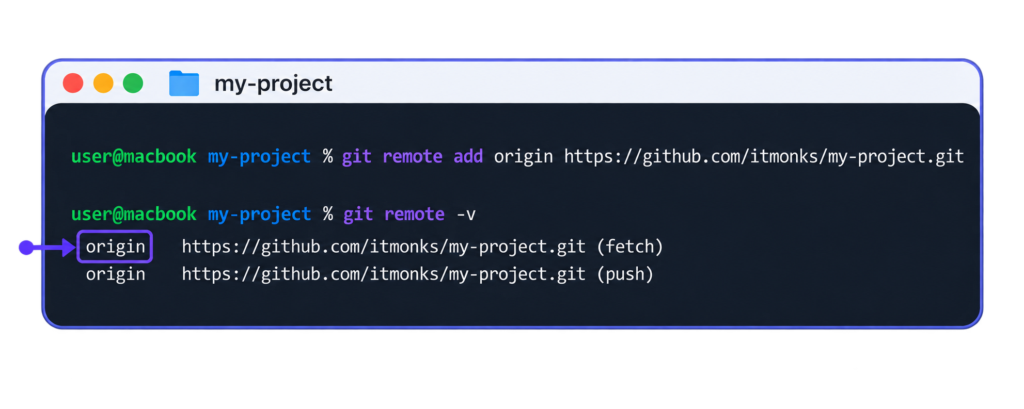
Add a remote named origin to the folder my-project, then list it with its URL. The address in the example is a sample: the address of an empty repository on GitHub replaces it.
git remote add prints nothing when it adds the remote. git remote -v prints the name origin twice, first with the URL Git downloads from and then with the URL Git sends to.
git remote add only stores the address. It sends nothing and downloads nothing, so the repository on GitHub stays empty.
The screenshot shows both commands and both output lines, with a box around the name origin.
In a repository with no remote, git push typed with no remote name stops and prints this error message.
fatal: No configured push destination.
Either specify the URL from the command-line or configure a remote repository using

    git remote add <name> <url>

and then push using the remote name

    git push <name>
git remote add <name> <URL> fixes the error. Run git remote add origin with the repository URL, then name the remote and the branch in the push: git push -u origin main.
The git remote reference lists every subcommand and option. git push then sends the commits to the remote repository that origin points to.
git push
git push is the Git command that sends the commits of a local branch to a remote repository. A commit is a saved snapshot of the project files, a branch is a separate line of commits, and a remote repository is a copy of the repository on a server. Until a push, a commit exists only in the local repository, on one computer. The push sends it to the server, where the remote branch then has the same commits as the local one.
The usual form of git push names a remote and a branch.
git push [-u] <remote> <branch-name>
<remote> is the name of a remote already added, most often origin, and <branch-name> is the branch to send, such as main. Square brackets mean an optional part, here the option -u. Typed in full, git push origin main updates the main branch on the remote named origin.
The options of git push are for the first push of a branch and for a push that overwrites the remote branch.
Option
What it changes
-u or --set-upstream
Sets the remote branch as the upstream of the local branch, so git push and git pull work with no arguments
--force-with-lease
Overwrites the remote branch only if it still stands where the last fetch left it; safer than --force
An upstream is the remote branch that a local branch tracks. Once -u has set the upstream, the branch needs no -u again. --force is the option to avoid: it overwrites the remote branch with no check, and the remote repository can lose commits that another developer sent in the meantime.
Send the branch main of my-project to the remote origin, and set its upstream in the same command.
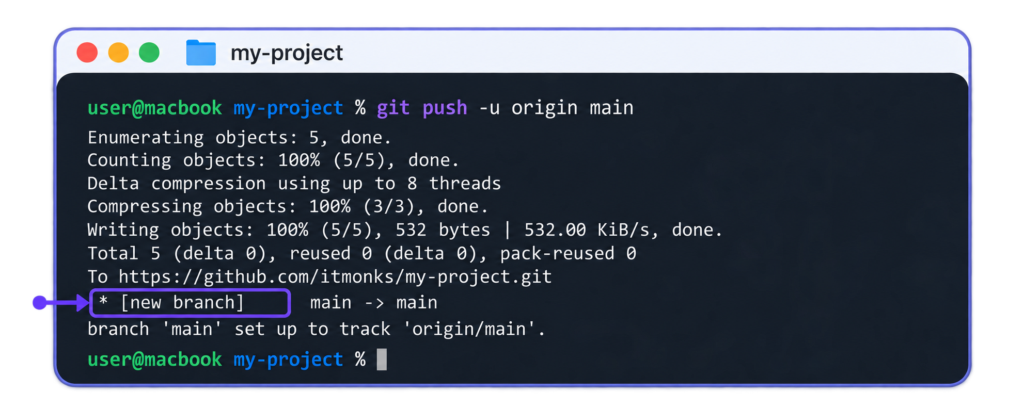
git push -u origin main
The first push to an https:// address on GitHub asks for the GitHub sign-in before any other line, unless the computer already has that sign-in stored. Git then prints lines that count what it sends. The last three lines of a first push name the address, the new branch and the upstream.
To https://github.com/your-name/my-project.git
 * [new branch]      main -> main
branch 'main' set up to track 'origin/main'.
The [new branch] line means that main is new in the remote repository. The last line means that origin/main is now the upstream of the local main, so git push typed alone is enough from then on. A later git push with nothing new to send prints Everything up-to-date.
The screenshot shows the command and every line Git prints up to the prompt, with a box around the [new branch] line.
A branch that was never pushed has no upstream. On such a branch, here new-feature, git push typed with no arguments stops and prints this error message.
fatal: The current branch new-feature has no upstream branch.
To push the current branch and set the remote as upstream, use

    git push --set-upstream origin new-feature
The message names its own fix. Run the line Git prints, or its short form git push -u origin new-feature. On any other branch, git push --set-upstream origin <branch-name> fixes the same error.
The git push reference lists every option. git push sends commits one way, from the computer to the remote repository; git fetch downloads commits the other way, from the remote repository to the computer.
git fetch
git fetch is the Git command that downloads new commits and branches from a remote repository into the local repository. The local repository is the hidden .git folder inside the project folder, where Git holds the history of the project; a remote repository is a copy of that repository on a server, and a commit is a saved snapshot of the project files.
git fetch updates the remote-tracking branches, and a remote-tracking branch such as origin/main is the local record of where the branch main was at the last download from the remote origin. git fetch leaves the local branches and the working files unchanged: main stays on its last local commit, and no file in the project folder is updated.
The syntax line of git fetch has two optional parts.
git fetch [<remote>] [<branch-name>]
<remote> is the name of the remote; with no name typed, git fetch downloads from origin. <branch-name> limits the download to one branch.
The options of git fetch add remotes to the download or delete remote-tracking branches that are no longer needed.
Option
What it changes
--all
Fetches from every remote.
-p
Also removes remote-tracking branches that no longer exist on the remote.
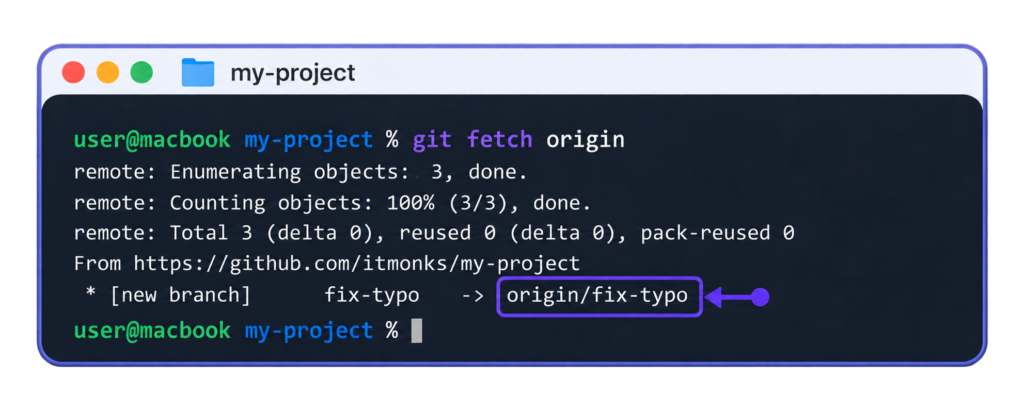
In the folder my-project, a teammate has pushed a new branch, fix-typo, to the remote repository, and the branch is not on the computer yet. Run git fetch with the remote name origin to download it.
git fetch origin
Git first prints a few counting lines, which differ from one repository to the next. The last two lines of the output name the remote repository and the new branch.
From https://github.com/your-name/my-project
 * [new branch]      fix-typo   -> origin/fix-typo
The arrow means that the branch fix-typo of the remote repository is now on the computer as the remote-tracking branch origin/fix-typo. The screenshot shows the command, the From line with the address of the remote repository, and the line with the arrow, with a box around origin/fix-typo.
No local branch named fix-typo is created by the download. git log origin/fix-typo shows what arrived; git merge origin/fix-typo would bring it into the current branch.
git fetch origin stops with an error in a repository that has no remote named origin. Git then prints an error message with these last lines.
fatal: Could not read from remote repository.

Please make sure you have the correct access rights
and the repository exists.
Git prints these three lines for a remote name that is not set, because it reads the name as a path on the computer. The same lines print for an SSH address, one that starts with ssh:// or git@, when the repository does not exist or the access rights are missing. The line printed before these three names the cause. Run git remote -v to check the name and the URL of each remote; if origin is not in the list, git remote add sets the name and the URL.
git fetch has more options than --all and -p, and the official git fetch reference lists every one. git fetch stops after the download, while git pull downloads and updates the current branch in one command.
git pull
git pull is the Git command that brings the new commits of a remote branch, a branch in the copy of the repository on a server, into the current branch, the branch that is active in the project folder. The command is two steps in one: git pull runs git fetch, which downloads the commits from that copy, the remote repository, and then updates the current branch with them. A commit is a saved snapshot of the project files.
The syntax line of git pull names a remote and a branch, both optional.
git pull [<remote>] [<branch-name>]
<remote> is the name of the remote, and <branch-name> is the remote branch to bring in. With neither part typed, Git reads both from the upstream of the current branch, which is the remote branch that the local branch is set to track.
A fast-forward is the default update of git pull. In a fast-forward the current branch has no new commits of its own, so Git updates it straight to the newest downloaded commit. git pull stops when the local branch and the remote branch have both gained commits; an option then says how to combine the two.
Each option of git pull names one way to update the current branch.
Option
What it changes
--ff-only
Updates only by fast-forward; the default.
--no-rebase
Merges the remote branch into the local one when both have new commits.
--rebase
Replays the local commits on top of the remote ones.
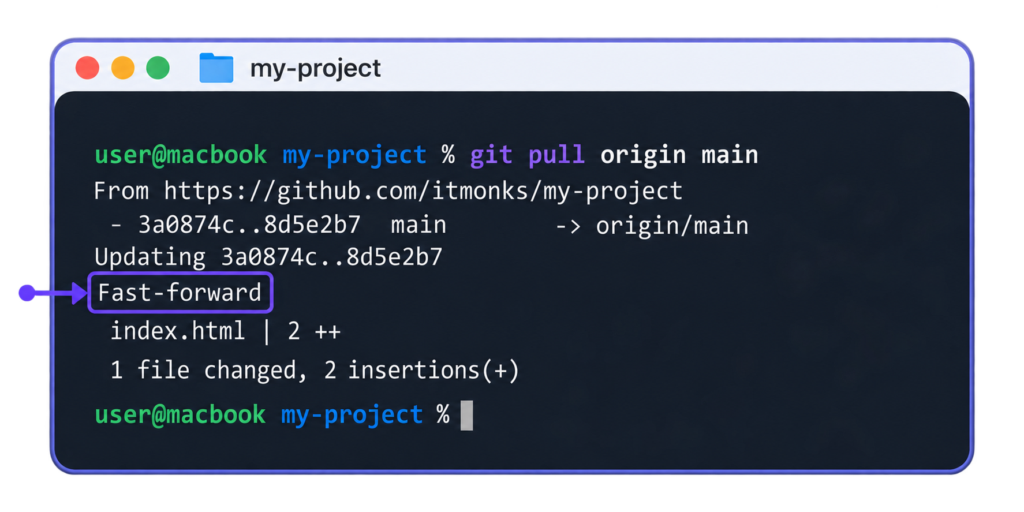
In the folder my-project, the remote branch main has one commit that is not on the computer yet, a commit that adds two lines to index.html. Run git pull with the remote name and the branch name.
git pull origin main
The fetch part prints its own lines first. The last four lines of the output show the update.
Updating 3a0874c..8d5e2b7 names two commit IDs in the 7-character short form: the commit the branch was on, then the commit it is on now. Fast-forward is the kind of update, and the two lines after it list the changed file and the count, 1 file changed with 2 insertions. The screenshot shows the command and its full output, from the From line of the download to the file line, with a box around Fast-forward.
git pull stops with an error when a changed file is not committed and the update would replace that change. With an uncommitted edit in index.html and a new remote commit on the same file, Git prints this message.
error: Your local changes to the following files would be overwritten by merge:
        index.html
Please commit your changes or stash them before you merge.
Aborting
Git stops before any file is updated, so the uncommitted edit stays in index.html; the download itself is already done. To fix the error, stage the file with git add index.html, save it with git commit -m <msg>, where <msg> is the commit message, then run git pull --no-rebase origin main. Plain git pull origin main would stop again: Git prints fatal: Need to specify how to reconcile divergent branches. because both sides now have a new commit.
The option --no-rebase merges the remote branch into the local branch. Git then opens the text editor with a prepared message for the commit that records the merge, and the pull is complete once the message is saved and the editor is closed. The merge stops earlier, with index.html named as a conflict, where both commits change the same lines of the file.
The remaining options of git pull are listed in the official git pull reference. git pull is the last of the 14 basic Git commands, and a Git commands cheat sheet lists all 14 side by side.
Git Commands Cheat Sheet
The Git commands cheat sheet is one table that lists the 14 basic commands, each with one line on what it does and its syntax. The table names the commands in the order of a working session, from git config to git pull.
Command
What it does
Syntax
git config
sets Git settings such as name and email
git config [--global] <name> <value>
git init
creates an empty repository
git init [-b <branch-name>] [<directory>]
git clone
copies an existing repository
git clone <repository> [<directory>]
git status
shows staged, changed and untracked files
git status [-s]
git add
stages changes
git add <file>…
git commit
saves staged changes as a commit
git commit -m <msg>
git log
lists commits
git log [<options>] [<file>]
git branch
lists, creates and deletes branches
git branch [<branch-name>]
git checkout
switches branches
git checkout [-b] <branch-name>
git merge
brings another branch in
git merge <branch-name>
git remote
manages remote addresses
git remote add <name> <URL>
git push
sends commits to a remote
git push [-u] <remote> <branch-name>
git fetch
downloads commits, changes no local branch
git fetch [<remote>] [<branch-name>]
git pull
fetches and updates the current branch
git pull [<remote>] [<branch-name>]
The table stops at the 14 basic commands, and the Git project lists more on its own Git cheat sheet.
Three advanced commands are outside the basic set. git reset unstages a file that git add staged, or undoes a commit that git commit saved. git reflog <branch-name> lists the commits that the branch pointed to before, so it is the place to find a commit that looks lost after it has been undone. git clean deletes untracked files, the files in the project folder that Git does not track, and that deletion cannot be undone with Git.
The basic set runs the same way in every kind of project, and a WordPress site is one such project.
Git Command Usage in WordPress
Git command usage in WordPress is the use of the same Git commands on a WordPress site, where they track the code files of the site, the themes and the plugins. A developer pushes the WordPress files to a repository on GitHub with these commands, and the guide on GitHub with WordPress holds the full task path: the steps from that first push of the files to the pull of later changes onto the live site. WP-CLI is the other command-line tool of a WordPress project: it manages the database, the plugins and the users from the same terminal, and its own commands are in the guide to WP-CLI.
On GitHub, a service named GitHub Actions runs a job when commits arrive in a repository whose workflow file is set to run on a push, and a deploy is a job that copies the WordPress files of the site to its host. git push is the trigger of a GitHub Actions deploy: the commits it sends start the job, and the workflow file, the secrets and the host targets belong to the guide on deploying WordPress with GitHub Actions.






 ChatGPT
  Claude
  Grok
Grok  Gemini