- Expertise
Expertise That Drives Results
Explore our specialized services, tailored solutions, and industry expertise to elevate your digital presence. From custom WordPress development to seamless integrations, we build high-performing websites that deliver impact.
Solutions- Booking System Integrations
- Headless & REST API WordPress
- Hubspot Integration
- Enterprise WordPress
- Website Migration
- Internal Collaboration Platforms
- External Communications Hubs
- Work
- About
- Proof
- Contact
Learn more


WordPress Video Embed Shortcode: YouTube, Vimeo, Instagram

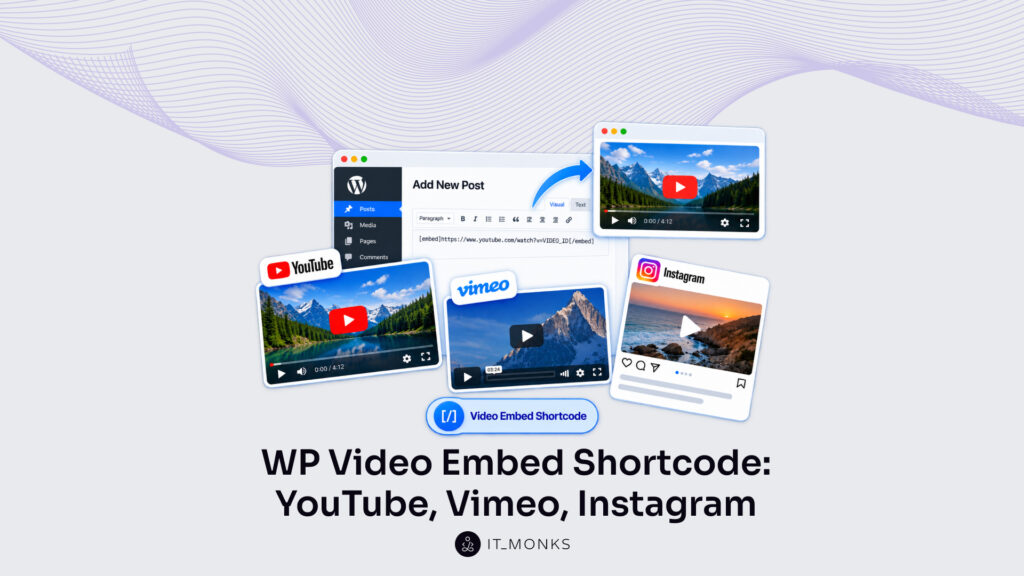
The WordPress video embed shortcode embeds video onto a page or post without the block editor, whether the source is a self-hosted file or a clip on an outside platform. The shortcode supports two source types through two tags: [ video ] embeds a self-hosted file, usually an mp4 in the media library, and [ embed ] embeds a platform URL copied from YouTube, Vimeo, or Instagram.
For an agency practitioner working inside page-builder rows, widget areas, or a theme template, a shortcode embeds video where the block editor doesn’t run. That gap is why the shortcode route still holds a place beside the native embed block, and it settles which of the two an editor picks for a given layout. Of the four sources, the self-hosted file is the most shortcode-native, and the tag is the instrument scoped to it.
How to Embed a Self-Hosted Video with the Shortcode
The WordPress video shortcode, written as the [ video ] tag, embeds a self-hosted video file, a clip uploaded to the site rather than streamed from a platform. WordPress renders it through the built-in HTML5 player, with no plugin required.
The workflow runs in three moves. First, the file’s URL becomes the src value, the address WordPress copies from the media library after an upload. The tag is then placed into the post or page content; it is self-closing and names the file through src, so it wraps nothing. Display attributes finish the job: width and height in pixels, a poster image for the still shown before playback, and playback flags such as loop and autoplay.
A complete tag names the file and its display frame:
[video src="https://example.com/wp-content/uploads/2026/09/product-demo.mp4" width="640" height="360" poster="https://example.com/wp-content/uploads/2026/09/demo-cover.jpg"]Here src points at the uploaded mp4, width and height set the player at 640 by 360 pixels, and poster names the image WordPress shows until playback starts. That single line is the whole self-hosted path; the WordPress video embed shortcode needs no companion markup to produce a working player.
A self-hosted embed is one use-case inside the wider system of WordPress shortcodes, which apply the same bracketed-tag pattern to galleries, audio, and captions. Within that system, [ video ] is the tag scoped to local media, and its attributes decide how the clip appears.
The [ video ] shortcode accepts a compact set of display attributes:
| Attribute | Value | Default | Purpose |
|---|---|---|---|
| src | URL of the video file | none (required) | Names the self-hosted mp4 the player loads |
| width | Integer, pixels | 640 | Sets the player width |
| height | Integer, pixels | 360 | Sets the player height |
| poster | URL of an image | none | Shows a still frame before playback starts |
| loop | true / false | false | Replays the clip from the start when it ends |
| autoplay | true / false | false | Starts playback on page load, and needs muted alongside it |
| preload | metadata / none / auto | metadata | Controls how much of the file loads ahead of playback |
| muted | true / false | false | Silences audio, and pairs with autoplay so browsers allow the start |
Every attribute here assumes the file is on the site’s own server. When the source is a platform URL instead (a clip that YouTube, Vimeo, or Instagram already hosts), a different tag applies, and src no longer points at the media library.
How to Embed External Media with Shortcodes
External media is video that a platform hosts rather than the site: a clip that streams from YouTube, Vimeo, or Instagram while the page only references it. Because the file is not local, the shortcode embeds it by wrapping the platform URL, not an src that points at the media library.
The move is the same on every platform: a URL copied from the video’s own page goes inside a shortcode, and WordPress renders that URL as an embedded player. One address, one tag, one player, the pattern holds whether the clip comes from YouTube, Vimeo, or Instagram. Unlike a self-hosted file, external media brings its own hosting, bandwidth, and player controls, so the shortcode’s job shrinks to placement rather than delivery.
That difference guides where a builder points each clip. A product demo the agency owns belongs in the media library, while a conference talk already on Vimeo or a reel that Instagram hosts is better referenced where the platform serves it. YouTube is the most common of the three sources, and a YouTube URL is the clearest starting case for the wrapping pattern.
How to Embed a YouTube Video
The WordPress YouTube shortcode embeds a hosted YouTube video by dropping its watch URL between [ embed ] tags. [ embed ] takes that public watch URL as its object and returns a working player, so the value it carries is the clip YouTube streams rather than a file sitting in the media library. Pasting the same watch URL on its own line produces an identical result. WordPress reads the bare address and renders the player without the surrounding brackets.
[embed]https://www.youtube.com/watch?v=VIDEO_ID[/embed]Width and height ride along as optional [ embed ] attributes when a template calls for a fixed player size, though the default responsive frame fits most layouts. The YouTube shortcode WordPress recognizes stays the same across a tutorial, a product demo, or a conference recording; only the video identifier inside the URL changes.
How to Embed a Vimeo Video
The WordPress Vimeo shortcode embeds a Vimeo video through the same wrapping move, with the Vimeo URL placed inside [ embed ]. [ embed ] passes that URL to Vimeo’s oEmbed endpoint, and WordPress renders the returned player in place.
[embed]https://vimeo.com/VIDEO_ID[/embed]Vimeo now leans on oEmbed and its own native block inside the editor, so pasting a Vimeo URL there often produces the embed with no shortcode at all. Where that native block is not the tool in use, the [ embed ] tag wrapping the Vimeo URL stays the dependable form.
How to Embed an Instagram Video
The Instagram shortcode in WordPress is the tag that wraps an Instagram post or reel URL. A reel URL behaves the same as a post URL. [ embed ] treats either address as the value it passes to Instagram’s oEmbed service.
[embed]https://www.instagram.com/p/POST_ID/[/embed]Whether that URL renders as a player depends on the state of WordPress core. Since version 5.5.2, core no longer ships the Instagram oEmbed provider, so a bare [ embed ] around an Instagram URL renders the media only when the site holds an official Instagram connection; without that connected account, the same tag degrades to a plain link. That wrapping step is the one [ embed ] performs for any external URL, whichever platform hosts the media.
How Is a URL Embedded with the Shortcode?
The WordPress embed shortcode, written as [ embed ], wraps an external media URL so that WordPress can turn a plain web address into a playable video. Every platform used the same move (a watch or post URL dropped between two brackets), and that repetition points at one underlying tool. [ embed ] is the single core tag behind every external case; once the URL sits inside the brackets, the platform differences fall away.
What happens after the wrap belongs to WordPress core, not to the markup. As soon as the wrapped URL is saved, WordPress matches it against its oEmbed provider list, requests the matching player from the source, and returns that player in place of the raw address. The tag names the intent; oEmbed supplies the frame. A site-builder who has not yet met shortcode syntax can start with what a WordPress shortcode is, then read as one shortcode of that kind.
Dimension control is the part a bare link cannot give. The [ embed ] shortcode accepts width and height as attributes, both measured in pixels, so the rendered player fits the column it lands in rather than the platform’s own default frame.
[embed width="640" height="360"]https://example.com/media-page-url[/embed]Here width sets the player to 640 pixels across and height fixes it at 360 pixels tall, and WordPress passes both numbers straight to the returned embed. Percent values suit a responsive layout, but pixels stay the dependable default for a fixed slot. With that, the whole external-media path narrows to one repeatable form: wrap the URL, set the dimensions, let WordPress render the player. What is left is a decision rather than a mechanic, whether a shortcode is the right instrument for a given embed at all.
When Is a Shortcode Still the Right Tool for Embeds?
The native embed block is the block editor’s built-in control for external media: a URL pasted into a fresh block renders the player with no shortcode at all. A shortcode remains the right tool, though, wherever the block editor does not run: page builders, widget areas, theme template files, and query loops. Inside an ordinary post or page, that native block usually settles the matter, since it reaches the same platforms the tag does and asks for no bracketed markup.
Each of those contexts renders content outside the block editor and offers no native embed block, yet every one of them accepts a shortcode. Placed in a page builder’s text module, a sidebar widget, or a theme template, and carry the same wrap-and-render behavior they show inside a post. The rule of thumb stays short: inside the block editor, reach for the native embed block; everywhere the block editor does not run, a shortcode is what still works. The broader mechanics of placing a shortcode across posts, pages, and widgets belong with how to use shortcodes in WordPress rather than with any single embed.
That settles the choice cleanly: the native embed block handles the routine case, and a shortcode covers everything outside the block editor. Between them, the WordPress video embed shortcode ([ video ] for self-hosted files and [ embed ] for external URLs) keeps both self-hosted and external video playable across posts, page builders, widgets, and theme templates alike, without leaning on the block editor to render a single frame.
More Articles by Topic

Headless CMS vs WordPress is a comparison of two choices made at once: an architecture choice between a coupled site…
Learn more 
The new campaign copy is approved. The ads go live on Monday, and the landing page they point to still…
Learn more 
Imagine a marketing team two days before a campaign launch. The copy is approved, the images are ready, and the…
Learn more Contact
Feel free to reach out! We are excited to begin our collaboration!
Don't like forms?
Shoot us an email at info@itmonks.com
Don't like forms?
Shoot us an email at info@itmonks.com

CEO, Strategic Advisor
Reviewed on Clutch
 ChatGPT
  Claude
  Grok
Grok  Gemini
 Send a Project Brief
Fill out and send a form. Our Advisor Team will contact you promptly!