- Expertise
Expertise That Drives Results
Explore our specialized services, tailored solutions, and industry expertise to elevate your digital presence. From custom WordPress development to seamless integrations, we build high-performing websites that deliver impact.
Solutions- Booking System Integrations
- Headless & REST API WordPress
- Hubspot Integration
- Enterprise WordPress
- Website Migration
- Internal Collaboration Platforms
- External Communications Hubs
- Work
- About
- Proof
- Contact
Learn more


How to Manage WordPress Users and Passwords with WP-CLI

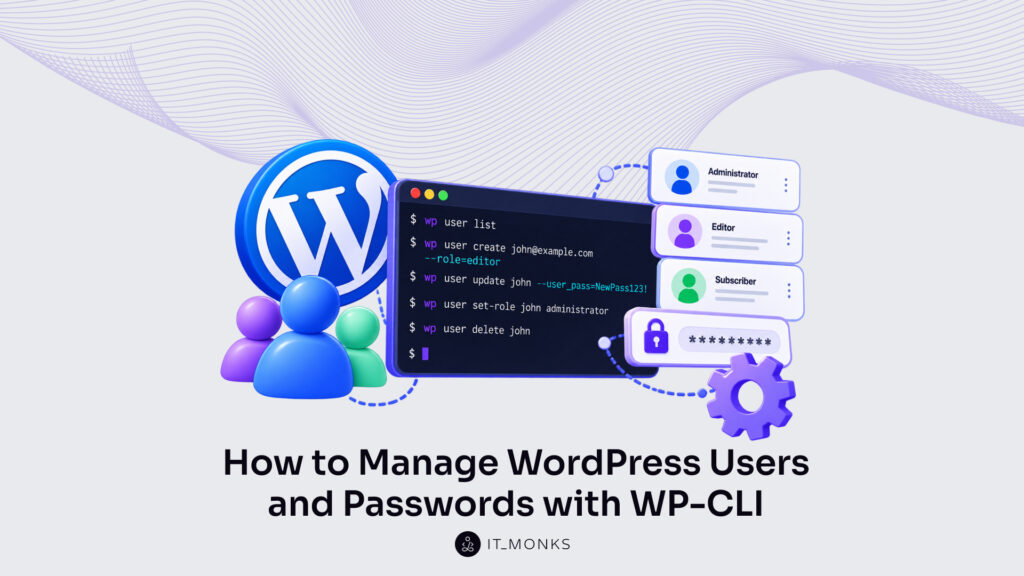
WP-CLI manages WordPress users from a terminal, with no login to the wp-admin Users screen: a developer or site admin with shell access runs WordPress account administration on the server that hosts the site. Most account operations pass through one command, wp user: its subcommands let a developer create a WordPress user with WP-CLI, set that user’s role and change a password to a chosen value, while super admin rights on a multisite network go through wp super-admin.
The main risk sits in deletion, because removing an account without naming a new owner for its posts deletes those posts too. A common misunderstanding is that a password reset lets the admin pick the new password; a reset sets a random one, and a chosen password needs a different subcommand.
Every WordPress user is identified by a user ID, a user login and a user email. The account also holds a role, and that role sets its capabilities. Most wp user commands accept the ID, the login or the email as their target, though a password reset accepts only the ID or the login.
The account operations, in order, are to list the users, create a new one, reset a password, set a role, update profile fields and delete an account, then change a password to a chosen value and, on a multisite install, grant super admin rights. Apart from the creation of a new account, each operation has an existing account as its target. The target account’s user ID is the thing to find first.
How to List WordPress Users with WP-CLI
The wp user list command lists the WordPress users on a site and prints each account as a row in a table. That row is where a developer finds the user ID or login that every later wp user command accepts as its target, next to the role the account holds. The command runs only where wp answers on the server that hosts WordPress, so install WP-CLI on that machine before any user command.
Run without arguments, wp user list prints these default columns for each WordPress user:
- ID
- user_login
- display_name
- user_email
- user_registered
- roles
The ID column holds an integer per account, and no two accounts on a site share one. When the site has many accounts, the same command narrows its output with a filter, a column limit or a different format:
wp user list
wp user list --role=administrator --fields=ID,user_login,roles
wp user list --field=ID
wp user list --format=ids
--role=administrator shows only the accounts that hold the Administrator role. --fields limits the table to the columns it names, here ID, user_login and roles. For scripts, --field=ID prints the ID alone for each user and --format=ids returns the same user IDs on one line, separated by spaces. The --format flag accepts table, which is the default, plus csv, ids, json, count and yaml.
Whichever format prints it, that user ID is the target a developer passes when WP-CLI resets a password, sets a role, updates a profile or deletes an account. A new account is the one case with no ID to find yet, because the create command prints that ID in its own Success line.
How to Create a WordPress User with WP-CLI
wp user create is the WP-CLI command that creates a WordPress user from a login and an email address, in that order: wp user create <user-login> <user-email>. No wp-admin form is involved. The command runs on the server, adds the account to the site, and reports back in the terminal.
Run with a role, the command returns two lines:
wp user create bob bob@example.com --role=author
Success: Created user 3.
Password: <generated-password>
Success: Created user 3. prints the new user ID, the same integer that sits in the ID column of the user list. The Password line is there only because WP-CLI generated the password. That generated password is printed once, in this output, and nowhere else.
Flags decide what kind of account the command adds. --role picks the role, author for bob; when --role is left out, the new account is given the site’s default role. A chosen password passed as --user_pass='<new-password>' replaces the generated password, and with no generated password to report, the Password line drops out of the output. --user_registered takes a registration date in the yyyy-mm-dd-hh-ii-ss format, and without that flag the account holds the current date.
A script that adds a user and then acts on it needs the ID and nothing more. --porcelain prints only the new user ID:
wp user create ann ann@example.com --porcelain
4
The trade-off is the password. --porcelain hides a generated password along with the rest of the output, so a script that runs it without --user_pass gets an account whose password was never printed.
Whichever flags are passed, wp user list confirms the result: the added account appears with its ID, login, email and role next to the accounts that were already there. The same command also creates an admin user, and the only change is one role value.
Administrator Role
The administrator role is the WordPress user role that has full control of a single site, and passing --role=administrator to wp user create creates an admin user in one command. The first line adds the account, and the second checks it:
wp user create alice alice@example.com --role=administrator
wp user list --role=administrator
Administrator is one of the role values --role accepts, alongside editor, author, contributor and subscriber. The difference is scope: administrator is the only one of the five with full control of the site, and the other four each hold a narrower set of permissions.
wp user list --role=administrator returns only administrator accounts, so the new login alice is in that list, with administrator in the roles column.
Because wp user create needs shell access rather than a wp-admin login, the same command adds an administrator on a site where none remains, as long as the server still runs WP-CLI. When the new admin is a person rather than a script, the create command can email that person the account details.
–send-email Option
The --send-email option is the wp user create flag that sends the new user an email with their account details at the moment the command creates the account. Without the flag, the create command sends no account email at all. The account exists; its owner is not told. Passing it takes one extra word on the same command:
wp user create bob bob@example.com --role=editor --send-emailThe account email carries the login and a link to set a password. It does not carry the password itself.
Pass the flag when the person behind the account sets their own password from that link. Skip it when the credentials are handed over directly, for instance a --user_pass value shared with a colleague outside email. The flag belongs to account creation only. Giving an existing account a new password is a different job, done with a different wp user command.
How to Reset a WordPress Password with WP-CLI
wp user reset-password is the command to reset a WordPress password with WP-CLI: it resets the password of one or more WordPress users and generates a new random password for each account. It takes user logins or IDs as arguments. Several can go into one run: wp user reset-password admin editor resets both accounts, and the Success line at the end counts them, as in Success: Passwords reset for 2 users.
By default, every affected user receives the change email. That email only reports that the password changed; it does not contain the new password. Pass --skip-email and that notification never goes out. The new password itself is never printed unless one of two flags asks for it: --show-password prints it under the reset line, and --porcelain is stricter still, printing only the new password with no other output around it.
A reset run with neither flag leaves nobody knowing the new password, so the account needs a second reset with --show-password, a chosen password through wp user update --user_pass, or the “Lost your password?” link on the login screen.
wp user reset-password editor --show-password
Reset password for editor.
Password: <generated-password>
Success: Password reset for 1 user.
Resetting every account that holds one role needs no hand-typed list of logins. wp user list --format=ids --role=administrator lists the IDs of the administrator accounts only, and the shell passes those IDs straight to wp user reset-password as its arguments:
wp user reset-password $(wp user list --format=ids --role=administrator)Swap administrator for editor or any other role to reset that group instead; drop --role altogether and the run resets the password of every WordPress user on the site, each of whom gets the change email unless --skip-email is passed too, and none of whom learns the new password from it. This command sets only a random password. A password chosen in advance goes through wp user update --user_pass instead.
An administrator who can no longer log in to wp-admin at all can still get a new password this way, over shell access.
Locked-Out Administrator
A locked-out administrator is a WordPress admin who cannot log in to wp-admin, yet whose password WP-CLI can still reset, because the admin keeps shell access to the server that runs the site. Recovery of the administrator account takes three steps, and only the last one happens in a browser:
- Find the administrator login with
wp user list --role=administrator. - Reset its password with
--show-password --skip-email. - Log in at
wp-login.phpwith the printed password.
wp user list --role=administrator --fields=ID,user_login
wp user reset-password admin --show-password --skip-email
The first command lists every administrator account by ID and user_login, so the right login is on screen before any password changes; admin in the second command stands for that login. With --show-password, the terminal prints the new password, and the admin logs in with it at wp-login.php straight away. --skip-email drops a notification that would not help here: the change email carries no password, so --show-password is the step that gives the admin a way back in.
Sometimes the list finds no administrator at all. One cause is an admin account that still exists but was moved to a lower role. wp user list --fields=ID,user_login,roles shows every account with its current role, and wp user set-role <login> administrator restores the right one. When no such account exists, wp user create with --role=administrator adds a new administrator in its place.
Back in wp-admin, the admin controls the site again. Administrator is only one of the roles an account can hold, and you can also change any account’s role from the terminal.
How to Set a WordPress User Role with WP-CLI
The wp user set-role command sets a WordPress user role from the terminal: wp user set-role <user> <role>, with the user given as an ID, an email or a login. Whatever roles the account held before, the new role replaces all of them. Leave the role argument out and the site’s default role applies instead, the same role WordPress gives a new account.
wp user set-role 12 author
# Success: Added johndoe (12) to http://example.com as author.
wp user add-role 12 editor
wp user remove-role 12 editor
wp user list --fields=ID,user_login,roles
That Success line carries four values: the login, the ID in brackets, the site URL and the role now set. Replacing the account’s existing roles is not always the goal, though. wp user add-role adds one or more roles and keeps the ones the account already has, so after the second line user 12 holds author and editor at once. wp user remove-role removes only the named role; author stays.
| Subcommand | What it does to existing roles |
|---|---|
wp user set-role | Replaces them with one role |
wp user add-role | Adds one or more roles and keeps the rest |
wp user remove-role | Removes the named role |
Run wp user list with the roles field to check the result. Each row prints the ID, the login and every role the account has, which shows whether user 12 ended up with the role wp user set-role assigned. A role is one attribute of a WordPress user, and the other fields an account holds, from the display name to the email address, are the job of wp user update.
How to Update WordPress User Profile Fields with WP-CLI
wp user update is the WP-CLI command that updates profile fields on an existing WordPress user in one run. Its syntax is wp user update, then one or more users, then one or more --field=value pairs.
wp user update <user>... --<field>=<value>Each user is a login, an email or an ID. Several can go in one run, and wp user update applies the same field values to every account it is given. The field name is the profile field itself after two dashes, so --display_name changes the name shown on the site while --user_email changes the account email address, and both pass on one line:
wp user update 42 --display_name='Mary Smith' --user_email=mary@example.com
# Success: Updated user 42.
A changed email address sends the user a notification email by default; pass --skip-email and that email is not sent. wp user update accepts other fields too, --nickname, --first_name and --last_name among them, as the WP-CLI Commands reference on developer.wordpress.org lists, and --user_pass is the password field in the same syntax.
An updated account is still on the site. Removing it from the site is a separate operation, and one that cannot be undone.
WordPress User Deletion with WP-CLI
WordPress user deletion with WP-CLI is the removal of an account with wp user delete <user> --reassign=<user-id>, a command that deletes the account and reassigns the posts it owns to another user ID. Two IDs are in play, so list the accounts first:
wp user list --fields=ID,user_login
wp user delete 57 --reassign=7
# Success: Removed user 57 from http://example.com.
The list prints every ID beside its login. One ID is the account to remove; the other belongs to the user who keeps the posts, here user 7.
Skip --reassign, and the posts are deleted together with the account. WP-CLI asks for confirmation before it goes ahead. --yes answers that prompt in advance, so a command run with --yes and without --reassign removes the posts with no question asked.
On a multisite install, wp user delete removes the user from the current site only, and the account itself stays in the network.
Deletion is final for the account. Accounts that stay on the site keep their posts and roles, and some of them need nothing more than a new password, chosen by hand rather than generated.
How to Change a WordPress User Password with WP-CLI
wp user update --user_pass changes a WordPress user password to a chosen value: wp user update <user> --user_pass=<password> sets the exact password passed on the command line, unlike wp user reset-password, whose new password is random. The <user> argument accepts a user login, user email or user ID. The whole change takes one line, and Success: Updated user 15. confirms it.
wp user update 15 --user_pass='<new-password>'
Success: Updated user 15.

wp user update 15 --prompt=user_pass
Plain text is the risk. --user_pass takes “a string that contains the plain text password for the user”, in the words of the wp user update page of the WP-CLI Commands reference on developer.wordpress.org, and a password entered that way can stay in the shell history of whoever ran the command, readable later next to every other command line. --prompt=user_pass changes where the value goes: WP-CLI asks for the user_pass value at the terminal once the command runs, so the history holds the command and never the password.
When a password does go on the command line, single quotes should wrap it, because unquoted characters such as $, ! or & are shell syntax rather than password characters.
Each password change on a WordPress account also sends the user a notification email, and one flag on the same command stops it. Separately, wp user session destroy is the command that removes the login sessions an account holds, which logs a user out with no password change at all.
–skip-email Option
The --skip-email option is the flag that stops the notification email wp user update --user_pass sends to the user after a password change. Without the flag, WordPress sends that email by default. Pass --skip-email when a site admin changes the password on the user’s behalf and hands the new one over directly:
wp user update 15 --user_pass='<new-password>' --skip-emailwp user reset-password accepts the same flag, so a random reset can skip the email too.
Session Destroy
wp user session destroy is the WP-CLI command that ends a user’s login sessions by removing the stored session tokens, and the --all flag removes every one of them. The user is a user ID, user email or user login. wp user session destroy <user> --all prints Success: Destroyed all sessions., while the same command without --all ends the most recent session only and reports how many are left:
wp user session destroy admin --all
Success: Destroyed all sessions.

wp user session destroy admin
Success: Destroyed session. 3 sessions remaining.
A password change with wp user update --user_pass already signs out every login cookie issued with the old password, because WordPress ties each login cookie to the stored password hash. wp user session destroy <user> --all removes the stored session tokens, and its main use is logging a user out of every session without changing the password. On a multisite install, one account can also hold super admin rights across the whole network.
How to Create a WordPress Super Admin with WP-CLI
wp super-admin add <user> creates a super admin with WP-CLI by granting super-admin capabilities to an existing WordPress user. A super admin is a user with administrator rights on every site of a multisite network, so the command runs on a multisite install only.
It takes one or more user IDs, user emails or user logins, which means the account has to exist before the super-admin grant. When it does not, wp user create adds it first; wp super-admin add then grants the rights, and its Success line has the count of users granted:
wp user create superadmin2 superadmin2@example.com
wp super-admin add superadmin2
Success: Granted super-admin capabilities to 1 user.
wp super-admin list
wp super-admin list is the check: it lists the network’s super admin accounts, and superadmin2 is on it after the grant. Managing users, roles and shared content across the network is a wider job, the one a site admin takes on to manage a WordPress multisite network.
Next to those super admin accounts sit the network’s options and site settings, which the wp option and wp site commands handle, the tools developers use to manage WordPress options and site settings with WP-CLI.
More Articles by Topic

Imagine a marketing team two days before a campaign launch. The copy is approved, the images are ready, and the…
Learn more 
Headless WordPress is WordPress used as a content store and editorial interface only, with the public site rendered by a…
Learn more 
Take a company that sells custom printed boxes to other businesses. We made it up for this article, but each…
Learn more Contact
Feel free to reach out! We are excited to begin our collaboration!
Don't like forms?
Shoot us an email at info@itmonks.com
Don't like forms?
Shoot us an email at info@itmonks.com
CEO, Strategic Advisor
Reviewed on Clutch
 ChatGPT
  Claude
  Grok
Grok  Gemini
 Send a Project Brief
Fill out and send a form. Our Advisor Team will contact you promptly!