- Expertise
Expertise That Drives Results
Explore our specialized services, tailored solutions, and industry expertise to elevate your digital presence. From custom WordPress development to seamless integrations, we build high-performing websites that deliver impact.
Solutions- Booking System Integrations
- Headless & REST API WordPress
- Hubspot Integration
- Enterprise WordPress
- Website Migration
- Internal Collaboration Platforms
- External Communications Hubs
- Work
- About
- Proof
- Contact
Learn more


WP-CLI: What It Is, How to Use It, and Main Commands

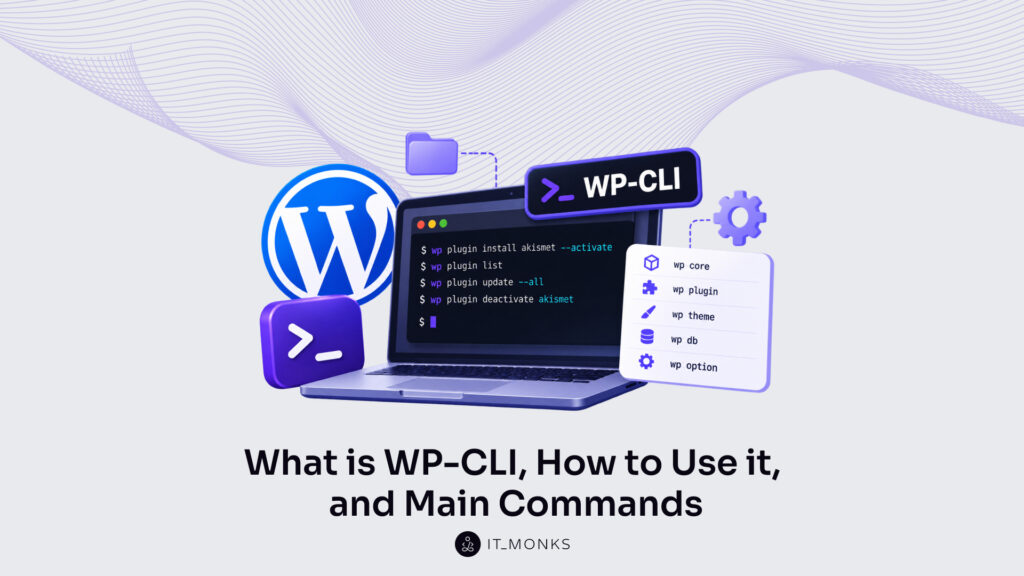
WP-CLI runs WordPress admin and development tasks from the command line, in a terminal, instead of through the WordPress admin screens. A plugin install, a database export, a core update: each is one typed command, run on the server that has the site, with no browser open.
How to use WP-CLI is one ordered sequence. Install WP-CLI and check that the wp command answers. Read the command syntax, which every command shares. Run the main command families for WordPress core, plugins, themes and the database. Store repeated settings in a configuration file, and script the jobs that repeat. Debug errors last, with the –debug argument, which shows what WP-CLI is doing while a command runs.
That order is not arbitrary. Syntax has nothing to act on until the wp command exists, and a script is only as reliable as the commands inside it. WordPress developers and site managers meet the same dependency in daily work: a command typed once becomes a line in a Bash script, a cron job runs that script on a schedule without anyone logging in to the WordPress admin, and a failed run sends them back to the error message. The starting point is what WP-CLI is, and what it is not.
What Is WP-CLI?
WP-CLI is the command line interface for WordPress: a standalone tool, run with the wp command in a terminal, and not a plugin. The WP-CLI handbook on make.wordpress.org describes it as the tool used to do administrative and development tasks in a programmatic way. WP-CLI is PHP code distributed as a Phar build, which PHP runs directly from the command line, so it has no place in the Plugins list of any site. One copy of WP-CLI on a server can run commands against every WordPress installation on that server.
The project’s goal is a complete alternative to the WordPress admin: for any action taken there, there should be an equivalent WP-CLI command, as the WP-CLI quick start guide puts it. WP-CLI covers installing and updating plugins, importing content, creating users and running a search-replace across the database. Each of those commands is typed once, runs without a browser and can be scripted, which replaces a run of admin clicks with one command. That puts WP-CLI inside routine WordPress development work rather than rare server chores, the same build-to-launch work a WordPress development guide sets out.
WP-CLI has shipped continuously since 2011, maintained by volunteers from across the WordPress community, according to the project site at wp-cli.org. Using it starts with getting the wp command onto a machine.
WP-CLI Installation
WP-CLI installation is the step that puts a working wp command on a machine or server, and it is the prerequisite for every later WP-CLI command. Install WP-CLI on a system with PHP 7.2.24 or later, the minimum the WP-CLI handbook sets, and check the available version with php --version. WP-CLI has no requirements beyond those of WordPress itself.
The Phar build is the recommended installation, a single downloaded file that is made executable and placed on the PATH. Composer, Homebrew and Docker are alternative routes, and the steps for each operating system and environment belong to the full guide on how to install WP-CLI.
Composer, the dependency manager for PHP, has a second role as well. At the project level, WP-CLI is added as the wp-cli/wp-cli-bundle package in the require section of the project’s composer.json, so its version is stored with the rest of the project’s dependencies, the setup described in Composer for WordPress.
A Phar install is updated in place with wp cli update. When root owns the file, the same command runs as sudo wp cli update. The Phar route itself takes four commands, and wp --info then confirms that WP-CLI is installed and on the PATH.
The WP-CLI Phar File
The WP-CLI Phar file is WP-CLI packaged as a single PHP archive, wp-cli.phar, similar to a Java JAR file. It contains the whole tool, and PHP runs it as it is.
curl -O https://raw.githubusercontent.com/wp-cli/builds/gh-pages/phar/wp-cli.phar
php wp-cli.phar --info
chmod +x wp-cli.phar
sudo mv wp-cli.phar /usr/local/bin/wp
Download wp-cli.phar with curl first; wget works too. Then run php wp-cli.phar --info to check that PHP can run the archive before anything else changes. The last two lines make the file executable and move it to /usr/local/bin/wp, a directory on the PATH, so the command is typed as wp instead of php wp-cli.phar.
Verifying the download, with GPG signatures or checksums, is marked optional but recommended in the WP-CLI handbook, as a check before the Phar is first used. Whether the move worked shows in one command.
The wp –info Command
The wp --info command is the check that WP-CLI is installed and on the PATH. It reads the environment WP-CLI runs in, so it needs no WordPress site to answer.
wp --info
# Output fields: OS, Shell, PHP binary, PHP version, php.ini used,
# WP-CLI root dir, WP-CLI global config, WP-CLI version
The output shows the operating system and shell, the PHP binary and the PHP version WP-CLI uses, the php.ini file in use, the WP-CLI root directory and configuration paths, and the WP-CLI version. Output that lists the PHP version and the WP-CLI version confirms a working install; a bare Content-type: text/html line instead means PHP has Phar support disabled. A “command not found” error is different: the shell cannot find wp, which points back to the move to /usr/local/bin/wp.
With wp answering, every WP-CLI command follows one shared syntax.
WP-CLI Command Syntax
WP-CLI command syntax is the set of WP-CLI basics every command follows: wp first, then a command, a subcommand, and the arguments. The command is the part of WordPress being worked on, such as plugin or theme. The subcommand is the action, and arguments pass the values that action uses. Knowing how to use WP-CLI starts with that order, because every command, from wp plugin install to wp db export, takes its parts in the same sequence.
The synopsis is the usage line that defines which positional and associative arguments a command accepts. The WP-CLI handbook uses the synopsis of wp plugin install, in a shortened form, as its example:
wp plugin install <plugin|zip|url>... [--version=<version>] [--force] [--activate] [--activate-network]Angle brackets mark a value to type in, so <plugin|zip|url> accepts a plugin slug, a ZIP file or a URL. Square brackets mark an optional argument; anything outside them is required. An ellipsis marks a repeatable argument. Read that way, the line says wp plugin install needs at least one plugin, and every other argument it shows is optional.
WP-CLI syntax contains six parts, each with one rule:
| Part | Example | Rule |
|---|---|---|
| Command | plugin | Follows wp and names the WordPress component |
| Subcommand | install | Follows the command and names the action |
| Positional argument | akismet | A value identified by its position |
| Associative argument | --version=<version> | A --key=value pair identified by its key |
| Flag | --activate | An associative argument without a value |
| Global argument | --path=<path> | Works with every command |
A flag is a kind of associative argument, so after the command four kinds of part follow: the subcommand, positional arguments, associative arguments and global arguments. A given command uses only the kinds it needs.
Subcommands in WP-CLI
A subcommand in WP-CLI is the action word that follows the command, as list in wp plugin list or install in wp plugin install. One command has several subcommands: wp plugin has list, install, activate and update, and each belongs to the plugin command while running a different action on the same plugins.
Some commands go a level deeper. The nested form wp cron event run has two subcommand levels: event belongs to wp cron and groups the actions for cron events, and run is the action itself.
wp plugin list
wp plugin install akismet
wp cron event run --due-now
To list the subcommands a command has, run wp help plugin. The same pattern works for any command name.
Most subcommands name an action with an object. wp plugin install has nothing to install until a plugin slug follows it, and that slug is a positional argument.
Positional Arguments in WP-CLI
A positional argument in WP-CLI is a value identified by its position after the subcommand, not by a name. In wp plugin install akismet, akismet fills the first position after install, which makes it the plugin to install.
A plugin slug is the common case, but the synopsis form <plugin|zip|url> shows three kinds of value filling the same position: a slug, a path to a ZIP file, or a URL. The ellipsis after it marks the argument as repeatable, so one command passes several values and installs several plugins:
wp plugin install akismet classic-editorOrder matters when a command takes more than one positional value. wp option update expects the option name first and the new value second; reversed, the two values update an option named after the intended value. WP-CLI reads positional values by place alone.
Associative arguments work the other way: each value carries its own key.
Associative Arguments in WP-CLI
An associative argument in WP-CLI is a --key=value pair, identified by its name rather than its position. In --status=active, status is the key and active the value. Order does not matter, so --status and --format can swap places and the command returns the same output.
wp plugin install akismet --activate
wp plugin list --status=active --format=json
A flag is an associative argument without a value, and it switches a behavior on by being present. --activate activates the plugin in the same step as the install; without the flag, the plugin is installed but inactive.
On wp plugin list, --status=active filters the list down to active plugins, and --format sets the output: table by default, or json and csv for a script or spreadsheet to read.
The synopsis uses the same form. [--version=<version>] is an associative argument that takes a plugin version number, and its square brackets mark it optional.
Positional and associative arguments belong to one command. A third kind of argument works with every WP-CLI command.
Global Arguments in WP-CLI
Global arguments in WP-CLI are parameters that work with all commands and set how and where a command runs, rather than what it does.
--path sets which WordPress install a command runs against. Without --path, WP-CLI looks in the current directory and its parents, so a command typed inside the site folder finds WordPress on its own, and --path points it at an install elsewhere on the server. --url sets which site in a multisite network a command runs against, since one install there holds several sites.
wp --path=/var/www/html plugin list
wp --url=example.com/blog option get home
The WP-CLI handbook lists the global arguments in these forms, each with the value it sets:
| Argument | What it sets |
|---|---|
--path=<path> | The WordPress files a command runs against |
--url=<url> | The site; the target site in a multisite network |
--user=<id|login|email> | The WordPress user a command runs as |
--ssh=[<scheme>:][<user>@]<host>[:<port>][<path>] | The remote host a command runs on |
--skip-plugins[=<plugin>] | Plugins left unloaded, all or named |
--skip-themes[=<theme>] | Themes left unloaded, all or named |
--debug[=<group>] | PHP errors and extra verbosity |
--quiet | Informational messages suppressed |
Global arguments work with the core, plugin, theme and database command families in the same form.
WP-CLI Commands
WP-CLI commands are the top-level commands of WP-CLI, and each command is a family that manages one area of WordPress: the core install, plugins, themes, users, the database, scheduled events, settings or content. Every family runs through the same wp executable. The subcommands under a family name the actions it covers, which is why wp plugin and wp theme share verbs like install, activate and update.
The official reference at developer.wordpress.org lists every top-level WP-CLI command, and wp help prints the same set on any server. The WP-CLI commands list for daily WordPress work starts with these families, each described after the official command reference:
| Command | What it manages |
|---|---|
wp core | Downloads, installs, and updates WordPress |
wp plugin | Installs, activates, and updates plugins |
wp theme | Installs, activates, and updates themes |
wp user | Manages users, roles, and capabilities |
wp db | Runs database operations with wp-config.php credentials |
wp search-replace | Replaces strings in the database |
wp cron | Tests, runs, and deletes WP-Cron events |
wp option | Retrieves and sets site options |
wp post | Manages posts, content, and meta |
wp help | Gets help on WP-CLI or one command |
wp user manages accounts along with their roles and capabilities, the user work the WordPress admin spreads across the Users screens. Its subcommands are the base for the scripts that manage WordPress users with WP-CLI across many accounts at once. wp cron covers the scheduled events WordPress keeps in its own queue: wp cron event list lists those WP-Cron events, and wp cron event run runs one on demand.
Families combine, too, and a reset of a WordPress site comes in two depths. wp plugin deactivate --all deactivates every plugin and wp theme activate switches the site to a default theme, which resets its behavior and design while posts, users and settings stay in place. A wipe goes further: wp db reset removes every table in the database, and wp core install then installs WordPress again on the empty database, leaving plugin and theme files on disk but none of the old content. Which depth to use, and how to reset a WordPress site with WP-CLI at either one, depends on what has to survive. wp core, the family that closes that wipe, manages WordPress itself.
The wp core Command
The wp core command is the family of WP-CLI commands that downloads, installs, updates and manages a WordPress installation, so wp core works on the WordPress software rather than on the content stored in it. Plugin, theme and user commands all need an installed WordPress to act on, and wp core is the command that puts it in place.
Routine upkeep uses two subcommands. wp core version prints the installed WordPress version, and wp core update updates core to the latest release. A third, wp core verify-checksums, checks the core files against WordPress.org checksums and flags any file that does not match:
wp core version
wp core update
wp core verify-checksums
A flagged file is a core file that has changed on disk since the release. Run the checksum check after an update or before a migration, when a clean result matters most.
A new site uses a different pair. wp core download downloads the WordPress core files and wp core install runs the WordPress installation, and the step that sits between the two, wp config create, writes wp-config.php with the database name, user and password. Each option of that sequence, in order, is set out in the guide to install WordPress with WP-CLI. Core is only the starting point, though; plugins build on top of it.
The wp plugin Command
The wp plugin command is the family of WP-CLI commands that manages plugins, including installs, activations and updates, and wp plugin reaches every plugin on a WordPress site without opening the Plugins screen.
wp plugin install akismet --activate
wp plugin list
wp plugin update --all
wp plugin deactivate akismet
One command can handle install and activation together. wp plugin install akismet --activate downloads Akismet from the WordPress.org plugin directory, installs it and activates it. wp plugin list then shows each installed plugin with its status and version.
Deactivation is the reverse step. wp plugin deactivate akismet deactivates the plugin without deleting it, so it can be activated again later without a new install.
The --all flag applies one subcommand to every plugin on the site. wp plugin update --all updates every plugin with a newer version available, in a single run, and that flag is where bulk operations with WP-CLI begin. Themes are the other extension family, and wp theme mirrors most of the same subcommands.
The wp theme Command
The wp theme command is the family of WP-CLI commands that manages themes, including installs, activations and updates. wp theme handles every installed theme, one of which is the active theme, the theme a WordPress site runs at any moment; in that, it mirrors wp plugin.
wp theme install twentytwentyfive
wp theme activate twentytwentyfive
wp theme list
wp theme delete twentytwentyfour
Installing a theme changes nothing on the front end. wp theme install twentytwentyfive installs Twenty Twenty-Five from the WordPress.org theme directory, and the site keeps its current design until wp theme activate twentytwentyfive switches the active theme to the new one.
wp theme list shows each installed theme with its status. Cleanup is wp theme delete, which removes an installed theme such as twentytwentyfour. It refuses to delete the active theme unless --force is passed, a guard that stops a site from losing the theme it is displaying.
Themes and plugins are files on disk. The posts, users and settings they display are rows in the database, and that data is what wp db reaches.
The wp db Command
The wp db command is the family of WP-CLI commands that performs basic database operations using the credentials stored in wp-config.php, so wp db connects to the WordPress database with no separate login.
wp db export backup.sql
wp db import backup.sql
wp search-replace 'https://old.example.com' 'https://example.com' --dry-run
wp db export backup.sql exports the whole database to a SQL file named backup.sql. wp db import backup.sql imports that file back into the database named in wp-config.php.
Both import and reset overwrite data. Importing a file replaces the tables it contains with the copy in the file, and wp db reset goes further and removes every table in the database. Export first, before either one.
String changes use a separate command, not a wp db subcommand. That command replaces one string with another across the WordPress tables and handles serialized data, and its name is wp search-replace. The --dry-run flag previews the run: it shows which values would be replaced and writes nothing.
Moving a site between domains is the common case. After the database arrives on the new server, wp search-replace swaps the old URL for the new one, one step inside the wider WordPress migration guide. Commands this specific are easy to forget, and WP-CLI prints every one of them on request.
The wp help Command
The wp help command is the WP-CLI command that gets help on WP-CLI or on a specific command, and wp help run on its own prints the full commands list for the machine it runs on. That list covers more than the bundled families. Commands added by installed WP-CLI packages appear in it too, so it can differ from one server to the next.
wp help
wp help plugin install
Narrower lookups name the command. wp help plugin install prints the synopsis, options and examples of that one subcommand, which answers exactly what arguments it accepts without leaving the terminal.
The same reference is online at developer.wordpress.org/cli/commands, a listing of the available WP-CLI commands with links to documentation on usage and subcommands, useful for looking up a command before WP-CLI is installed. Some arguments repeat on every run, such as the path to the WordPress install, and a configuration file stores them once.
WP-CLI Configuration File
The WP-CLI configuration file is a YAML file that stores default arguments, such as the path, the url and aliases for remote servers, so each command needs less typing. WP-CLI reads the file on every run and uses its values wherever a command leaves an argument out.
Three configuration files exist. WP-CLI reads wp-cli.local.yml and wp-cli.yml from the current directory or from any parent directory, while the global ~/.wp-cli/config.yml is stored in the home directory and holds defaults for every WordPress install on the machine.
When two sources set the same argument, WP-CLI applies them in this order of precedence, from highest priority to lowest:
- An argument typed on the command
- wp-cli.local.yml (current directory or upwards)
- wp-cli.yml (current directory or upwards)
- ~/.wp-cli/config.yml (global)
A typed argument overrides every configuration file. Stored defaults stay defaults, and one command can still set a different value without any edit to the YAML.
The configuration file stores global arguments as YAML keys. The path key stores what –path sets and the url key stores what –url sets, so both are written into the file once instead of onto every command.
The WP-CLI configuration file is a different file from wp-config.php. It contains WP-CLI arguments only, and WordPress itself never reads it. Of the three configuration files, wp-cli.yml is the project-level one.
The wp-cli.yml File
wp-cli.yml is the project configuration file for WP-CLI, created in the root of a WordPress project. Because the lookup reads upward from the current directory, a command run inside a theme or plugin folder of that project still uses the same wp-cli.yml.
Two keys cover most projects. path sets the location of the WordPress files, here a wp folder, and url sets the site address, so wp plugin list runs anywhere in the project without –path or –url.
A block named after a command sets default associative arguments for that command, written as YAML keys without the leading dashes. Under config create, dbuser: root and dbhost: localhost replace –dbuser=root and –dbhost=localhost each time wp config create runs:
# wp-cli.yml in the project root
path: wp
url: https://example.test

# Defaults for one subcommand: wp config create
config create:
  dbuser: root
  dbhost: localhost
config.yml accepts exactly these keys too. Written into ~/.wp-cli/config.yml, a path, url or subcommand default holds for every project on the machine, until a project’s own wp-cli.yml sets a different value.
wp-cli.yml is committed with the project, so every developer who checks it out uses the same path and url. Machine-specific values belong elsewhere: wp-cli.local.yml overrides wp-cli.yml on one machine, for example with a local url, and stays out of the commit. Besides defaults, wp-cli.yml also stores aliases for remote servers.
Remote Servers in WP-CLI
Remote servers in WP-CLI are machines that WP-CLI connects to over SSH, running a command there through a named alias or through the –ssh global argument. The command runs against the WordPress install on the remote server, and its output returns to the local terminal.
An alias names one remote WordPress install. An @staging entry in wp-cli.yml stores the SSH user, the host and the path to the WordPress files on the remote server:
# wp-cli.yml
@staging:
  ssh: user@staging.example.com/var/www/html
With that alias stored, wp @staging core version runs on the staging copy of the site, the WordPress staging site where changes are tested before production, and shows its WordPress version. No manual SSH login and no change of directory come first.
Remote use requires WP-CLI on both machines. The local copy connects over SSH; the copy installed on the remote server, available there as wp, runs the command itself.
For a one-off connection, the –ssh argument passes the SSH details on the command line in the form –ssh=[:][@][:][]. The scheme defaults to ssh. Leave out the user and WP-CLI uses the current system user; leave out the port and SSH uses port 22; leave out the path and the command starts in the SSH user’s home directory, while a given path is a full system path starting with / or ~. wp cli alias list shows every alias the configuration files store.
wp @staging core version
wp --ssh=user@example.com/var/www/html plugin list
Older tutorials show wp ssh –host. That form is retired: current WP-CLI connects through –ssh and aliases, both built in. A single remote command covers a check, while several commands in a fixed order, run the same way each time, are where WP-CLI scripting starts.
How to Script WP-CLI Commands
Scripting WP-CLI commands is saving a sequence of wp commands in a file that runs as one repeatable job, so a WP-CLI script replaces a string of commands typed one at a time. Nothing gets retyped. The script runs the same WP-CLI commands in the same order on every run, which is the whole gain over a terminal session that depends on memory.
Maintenance jobs are the common case. Backups and updates are needed week after week in the same order, and a script that holds them is the usual first step to automate WordPress maintenance with WP-CLI.
Where the sequence runs from matters less than the sequence itself. It can sit in a shell script started by hand, in a cron job that runs on a schedule, or in a deploy step that runs after new code reaches the server; the cron job and the deploy step use the same file a developer would start manually. In a pipeline for WordPress CI/CD deployment, that deploy step is where WP-CLI clears stale state after each release with its flush commands: wp cache flush for the object cache, wp rewrite flush for the rewrite rules and wp transient delete --all for stored transients.
Each job still runs against one WordPress install: the directory wp starts in, or the one --path names. When a script stops mid-sequence, the WP-CLI error it prints and the --debug argument are what it takes to debug the failure. The first place a sequence is written, though, is a Bash script.
Bash Scripts for WP-CLI
A Bash script for WP-CLI is a .sh file that lists wp commands in the order they run, and bash maintenance.sh runs the whole Bash script from a terminal. This maintenance script backs up the database before it changes anything:
#!/usr/bin/env bash
set -e

/usr/local/bin/wp --path=/var/www/html db export "$HOME/backup.sql"
/usr/local/bin/wp --path=/var/www/html plugin update --all
/usr/local/bin/wp --path=/var/www/html cache flush
Order carries the logic. wp db export exports the database to backup.sql in the home directory, outside the web root; wp plugin update –all updates every plugin; and wp cache flush flushes the object cache, so the site stops serving data cached before the update.
set -e stops the script at the first failing command. Without that line, Bash runs the next command anyway, and a failed export would still let every plugin update run with no backup behind it.
Every line names the wp binary by its full path, and --path names the WordPress install, so the script runs the same way from any directory.
maintenance.sh belongs in the project repository, under Git version control next to the theme and plugin code, so every developer runs the same file and every edit to it is reviewed like any other change, the practice a Git workflow for WordPress sets out. The script asks for no input at any point, which means it can run unattended on a schedule.
Cron Jobs for WP-CLI
A cron job for WP-CLI is a system crontab entry that runs a wp command or a script on a schedule, with no one at the terminal. This one runs the due WordPress events:
0 3 * * * /usr/local/bin/wp --path=/var/www/html cron event run --due-nowIts five time fields mean 03:00, every day. wp cron event run --due-now runs the WP-Cron events that are due, so WordPress’s own event queue, which otherwise waits for a page load, also runs on the server’s clock. System cron is the scheduler here and WP-Cron the queue it triggers; this line is a nightly catch-up pass, and running WP-Cron from system cron as a replacement for page loads calls for a shorter interval, the setup behind WordPress cron jobs.
Cron starts commands with a minimal PATH, which is why the entry, like maintenance.sh, names the wp binary and the WordPress install in full. The same entry form runs maintenance.sh too, with the script’s full path after the five fields. Add the entry with crontab -e as the user that owns the site files, not root, because WP-CLI refuses to run as root and stops with an error.
A scheduled command fails with nobody watching. The WP-CLI error it printed is where the work to debug it starts.
How to Debug WP-CLI Errors
A WP-CLI error is the message WP-CLI prints when a command cannot finish. The error stops the command before it finishes, and its first line, which starts with Error: or PHP Fatal error:, states what went wrong. A scheduled cron line that fails stops the same way, so a command cron runs is debugged like one typed by hand. Three common causes stand behind these errors: WP-CLI cannot reach the database, PHP runs out of memory, or a plugin or theme breaks WordPress loading.
Debugging a WP-CLI error follows a fixed order. Read the message first; the database and memory errors state their cause in plain words. When the message stays unclear, rerun the same command with --debug, which shows all PHP errors. Then isolate the cause with --skip-plugins and --skip-themes if that output points at an extension. All three are global arguments, so they work with every command, from wp plugin list to the wp db export a nightly script calls.
Of the messages WP-CLI prints, the database connection error is the one to recognize first.
Database Connection Error in WP-CLI
The database connection error is the WP-CLI error that reports a failed connection to the database, and it means WP-CLI read wp-config.php but could not reach MySQL. WP-CLI has no credentials of its own: it reads the database name, user, password and host from the same wp-config.php the site loads, so wrong credentials there break the site’s own connection as well. Credentials are one cause among several. A site that loads in the browser while only the terminal fails points at the WP-CLI side instead: a different PHP binary from the one the site runs, or a multisite network.
Check five things:
DB_NAME,DB_USER,DB_PASSWORDandDB_HOSTinwp-config.phpmatch the database.- The MySQL or MariaDB server is running and accepts connections.
--path(orpathinwp-cli.yml) points at the intended WordPress install.- The PHP binary that
wp --inforeports is the one the site runs, not a separate PHP install on the same server. - On a multisite network,
--urlnames the site the command runs against.
The --path check is easy to miss. A --path aimed at another install hands WP-CLI a different wp-config.php and a different set of credentials, even when the site itself connects without trouble. Fix one item at a time and rerun the failing command after each change; the error clears once WP-CLI connects.
A command that reaches the database can still stop for a different reason: PHP itself runs out of memory.
Memory Exhausted Error in WP-CLI
The memory exhausted error is the PHP fatal error that begins PHP Fatal error: Allowed memory size of, and it means the PHP process running WP-CLI reached its memory_limit before the command finished. Any command that needs more memory than memory_limit allows can trigger it, and wp package install is the case the WP-CLI handbook names.
Raising memory_limit in the php.ini file the command line uses is the permanent fix. That file is not always the web server’s. wp --info names it on the “php.ini used” line, and a server can run one php.ini for PHP on the command line and another for the site. Edit the file wp --info reports and set the value as php.ini writes it, 512M: memory_limit = 512M.
For a single run, raise the limit on the command line instead:
php -d memory_limit=512M "$(which wp)" package install <package>The -d flag sets memory_limit on the fly for that one run, a temporary fix that leaves php.ini unchanged. Rerun the command either way.
Not every WP-CLI error names its cause this clearly. A fatal error inside a plugin file, or a command that stops with no useful message, needs more output than the error line gives.
The –debug Argument
The --debug argument is a global argument that makes a WP-CLI command display all PHP errors and adds verbosity to the WP-CLI bootstrap process. Debugging with it takes no new syntax. Use the failing command unchanged, keep every subcommand and argument, add --debug at the end and rerun:
wp plugin list --debugThe bootstrap output grows more verbose, and each PHP error prints with the file path and line number that raised it. Read the last lines before the command stops: they show how far the bootstrap got, and the PHP error names the file at fault.
--debug sits among the same global arguments as --path, --skip-plugins and --skip-themes, which work with every command. When the file it names sits inside wp-content/plugins/, the fault is in a plugin, and --skip-plugins isolates which one.
The –skip-plugins Argument
The --skip-plugins argument is a global argument that loads WordPress without its plugins for one command, and --skip-themes does the same for the active theme. Must-use plugins still load. The argument skips loading rather than deactivating, so the skip lasts for that one command.
Isolation runs in order. Rerun the failing command with both arguments. If it works, the cause is a plugin or the theme, so rerun it with --skip-themes alone, which loads the plugins again. A failure then points at a plugin; a success points at the theme. To find the plugin, skip one slug at a time with --skip-plugins=<slug> until the command works. Then deactivate that plugin in a command that also skips it, so it cannot break loading again while WP-CLI deactivates it.
wp plugin list --skip-plugins --skip-themes
wp plugin list --skip-themes
wp plugin list --skip-plugins=hello
wp plugin deactivate hello --skip-plugins=hello
A failure with both skipped rules out plugins and themes, and it sends any WP-CLI command, from the first wp --info check to the 03:00 cron job, back to its message and its --debug output.
More Articles by Topic

Imagine a marketing team two days before a campaign launch. The copy is approved, the images are ready, and the…
Learn more 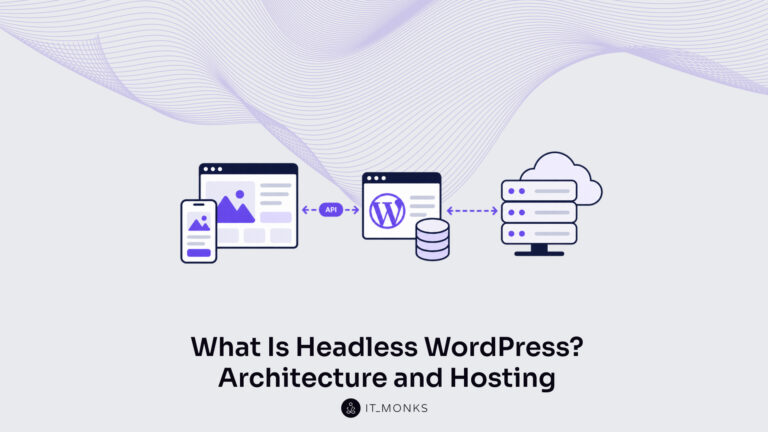
Headless WordPress is WordPress used as a content store and editorial interface only, with the public site rendered by a…
Learn more 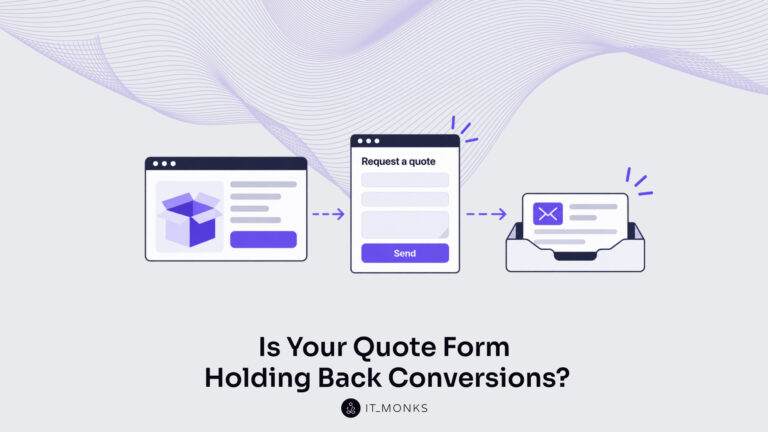
Take a company that sells custom printed boxes to other businesses. We made it up for this article, but each…
Learn more Contact
Feel free to reach out! We are excited to begin our collaboration!
Don't like forms?
Shoot us an email at info@itmonks.com
Don't like forms?
Shoot us an email at info@itmonks.com
CEO, Strategic Advisor
Reviewed on Clutch
 ChatGPT
  Claude
  Grok
Grok  Gemini
 Send a Project Brief
Fill out and send a form. Our Advisor Team will contact you promptly!