Explore our specialized services, tailored solutions, and industry expertise to elevate your digital presence. From custom WordPress development to seamless integrations, we build high-performing websites that deliver impact.
Installing WP-CLI, the command-line tool for WordPress, adds a wp command that runs WordPress tasks from a terminal on the machine where it is installed. WP-CLI ships as wp-cli.phar, a single Phar build that PHP runs. The recommended way to install WP-CLI downloads that Phar build, makes it executable and moves it onto the PATH, and at that point wp-cli.phar becomes the wp command.
A developer or site admin runs only the steps for the machine at hand. On Linux, WP-CLI installs through the full Phar command sequence. Ubuntu runs that sequence unchanged or installs a .deb build instead, while Windows requires a wp.bat wrapper plus a change to the PATH environment variable, and macOS installs WP-CLI either with the Linux commands or through Homebrew.
Once wp answers, wp cli update replaces the Phar with a newer release and wp --info verifies the installation. A Docker container run from the wordpress:cli image already contains WP-CLI.
Every one of those routes starts from what the machine requires before wp-cli.phar is downloaded: PHP and a command line.
WP-CLI Requirements
The requirements to install WP-CLI are the conditions a machine meets before wp-cli.phar is downloaded: PHP on the command line, and access to that command line. WP-CLI requires PHP 7.2.24 or later, the minimum stated on the “Installing” page of the WP-CLI Handbook on make.wordpress.org, and php --version reports the PHP version the command line runs.
Both requirements apply to the machine that will run wp:
PHP 7.2.24 or later, available on the command line
Command-line access: a terminal, an SSH session or Command Prompt
The PHP check runs from that same terminal, SSH session or Command Prompt:
php --version
A printed version of 7.2.24 or higher passes. Anything lower does not.
Apart from PHP and command-line access, WP-CLI has no requirements beyond those of WordPress itself, so the check is complete once PHP reports a qualifying version and the command line answers. A machine that meets both requirements is ready to download wp-cli.phar, the first of the Linux steps.
How to Install WP-CLI on Linux
WP-CLI installs on Linux as one file, and the install is finished when the wp command runs WordPress tasks from any directory at the command line: wp-cli.phar is downloaded, made executable and moved onto the PATH.
curl downloads wp-cli.phar, the Phar build of WP-CLI, straight from the wp-cli builds repository; installing from that Phar build is the method the WP-CLI handbook recommends. The Phar runs as a single archive. PHP reads it as it is, so the tool is never unpacked into a folder of separate files.
The Linux install takes three steps, in this order:
Download wp-cli.phar with curl.
Make wp-cli.phar executable.
Move the file into /usr/local/bin, a directory already on the PATH, as /usr/local/bin/wp.
Run as root or with passwordless sudo, none of the three steps waits for input, which is why the same commands install WP-CLI unattended, whether on a server during provisioning or on a CI runner that deploys a WordPress site. In an ordinary terminal session, sudo asks for the account password at the third step. Ubuntu runs the steps unchanged.
The result is the tool, not a website. A Linux server with no site on it yet uses WP-CLI afterward to install WordPress with WP-CLI, a separate procedure that starts only once wp answers. A working wp command starts with downloading wp-cli.phar.
wp-cli.phar Download with curl
wp-cli.phar is the single Phar archive that contains WP-CLI and that PHP runs directly, so downloading it with curl is the first action in any Linux install of the tool. The Phar holds every command WP-CLI ships.
curl -O saves wp-cli.phar to the current directory, keeping the file name the builds URL ends with:
wget downloads the same URL just as well on a machine where curl is missing.
Verification is optional, and the WP-CLI handbook still recommends it before the file is used. The project signs the Phar, and its signature, wp-cli.phar.asc, is in the builds repository next to it. The first command downloads that signature, the second imports the WP-CLI signing key into gpg, and gpg --verify then checks wp-cli.phar against its signature for tampering:
php wp-cli.phar --info confirms that PHP runs the downloaded Phar:
php wp-cli.phar --info
The command prints a report on the PHP binary and WP-CLI itself. Still, php wp-cli.phar in front of every command is long to type, and making wp-cli.phar executable and moving it onto the PATH shorten it to wp.
Executable File
An executable file, in a WP-CLI install, is wp-cli.phar with the execute permission set, so the shell runs it without php typed first. Execute is one file permission among three, next to read and write.
chmod +x sets that execute permission and makes wp-cli.phar executable:
chmod +x wp-cli.phar
Before the change, wp-cli.phar is a plain file that only starts through php wp-cli.phar. After it, the file becomes a program the shell runs on its own. The +x adds execute and leaves the read and write permissions as they were, so nothing broader is granted.
The file still carries its long name, though, and it is still in the download directory, where the shell reaches it only by its path. Moving wp-cli.phar to /usr/local/bin/wp gives the file a place on the PATH and the short name wp.
PATH on Linux
The PATH, on Linux, is the environment variable that lists the directories the shell searches for a command name typed at the command line, and moving wp-cli.phar puts the wp command into one of those directories.
/usr/local/bin is on the PATH of a standard Linux install. sudo mv moves wp-cli.phar into that directory and renames it wp in a single command, with sudo supplying the root access that writing to /usr/local/bin requires:
sudo mv wp-cli.phar /usr/local/bin/wp
Shared hosting is different. Without root access, wp-cli.phar stays in the home directory, and an alias added to ~/.bashrc maps wp to ~/wp-cli.phar; source reloads ~/.bashrc so the current shell has the alias:
The alias serves interactive shells. A cron job or deploy script does not read it and calls ~/wp-cli.phar by its full path instead.
Either route ends in the same place: wp becomes a command that runs from any directory. Leave wp-cli.phar outside /usr/local/bin, or skip the alias in ~/.bashrc, and the shell has nothing to find, which is when typing wp returns “wp: command not found”.
Ubuntu, a Linux distribution, runs this exact sequence and adds a package route of its own.
How to Install WP-CLI on Ubuntu
WP-CLI installs on Ubuntu from either the Phar build or a .deb package, and both routes end with the same wp command on the machine. The two routes differ in what updates the installed file: wp cli update updates a Phar install, and apt updates a .deb install.
The Phar route requires PHP on the command line. When php --version fails because no PHP is installed, the PHP CLI package comes first:
sudo apt install php-cli
With PHP present, the three Linux steps run unchanged to install WP-CLI on Ubuntu: download wp-cli.phar, make it executable, move it to /usr/local/bin/wp. On a minimal server image that ships wget but not curl, wget downloads the file from the same builds URL. The PHP CLI package is enough for WP-CLI itself, but WP-CLI has no requirements beyond those of WordPress, so commands that load a WordPress site also need the PHP extensions WordPress requires on that server.
The .deb route installs WP-CLI as a package instead. The .deb files are published in the deb folder of the wp-cli builds repository, at github.com/wp-cli/builds/tree/gh-pages/deb, and after one is downloaded, apt installs it from the local file:
The installed file then belongs to that apt package, so a newer .deb from the same folder, installed the same way, updates WP-CLI in place.
An Ubuntu server may run the production site or a staging copy of it, and WP-CLI is installed on each machine it runs commands against. A team that goes on to create a WordPress staging site on a second Ubuntu server repeats the install there, by whichever route the first server used.
How to Install WP-CLI on Windows
Installing WP-CLI on Windows ends with the wp command answering in any Command Prompt window, once wp-cli.phar is saved in c:wp-cli behind a wp.bat wrapper and that folder is on the PATH. One condition comes first. WP-CLI on Windows requires PHP 7.2.24 or later, with php.exe already running from the command line and its folder on the PATH, because every wp call runs through PHP.
WP-CLI installs on Windows in four steps:
Check that PHP runs from Command Prompt: php --version prints the installed PHP version.
Download wp-cli.phar from the same builds URL the Linux install uses, and save it to c:wp-cli.
Create wp.bat in c:wp-cli.
Add c:wp-cli to the PATH, then open a new Command Prompt.
Windows has no chmod and no /usr/local/bin. Two of the Linux steps are therefore replaced: wp.bat replaces the executable bit, and the PATH entry replaces moving wp-cli.phar into /usr/local/bin/wp. The Phar itself never changes. WP-CLI runs from wp-cli.phar as one file, exactly as downloaded.
Two other routes install WP-CLI on Windows. Git Bash requires a second, extensionless wrapper next to wp.bat, while Composer installs WP-CLI as a global package and needs no wrapper at all. For Command Prompt, though, the batch file is the piece that makes wp a command.
wp.bat
wp.bat is a batch file that Command Prompt runs when wp is typed, and it passes every argument to PHP running wp-cli.phar. Create it as c:wp-cliwp.bat, in the same folder as wp-cli.phar, and save it with the two lines the WP-CLI handbook gives:
@ECHO OFF
php "c:/wp-cli/wp-cli.phar" %*
With @ECHO OFF on the first line, the batch file prints WP-CLI’s output alone, without printing its own lines first. The second line contains the call itself, and there %* holds every argument typed after wp, passed on unchanged: wp --info runs as php "c:/wp-cli/wp-cli.phar" --info. The forward slashes inside that path are how the handbook writes the line, and the file runs as written.
The wrapper is the Windows counterpart of the executable /usr/local/bin/wp on Linux, yet saving it completes only half of the Windows install. Windows runs wp.bat from any folder only once c:wp-cli is on the PATH.
PATH Environment Variable
The PATH environment variable is the list of folders Windows checks when a command name is typed, and installing WP-CLI on Windows adds c:wp-cli to that list. The WP-CLI handbook adds c:wp-cli to the PATH with setx:
setx path "%path%;c:wp-cli"
The PATH saved this way applies to new windows only, so in the Command Prompt window already open, wp is still an unknown command. Open a new Command Prompt from the Start menu and run wp --info there; when the output reports the PHP binary and the WP-CLI version, WP-CLI is installed and answering.
The Environment Variables dialog in System Properties sets the same entry through the Windows interface: open the user variable Path, add c:wp-cli as a new line and save.
Git Bash is the exception to all of this, since the wp.bat wrapper does not run in that shell, and c:wp-cli needs a second wrapper for it.
WP-CLI in Git Bash
WP-CLI in Git Bash runs through a second wrapper, a file named wp with no extension in c:wp-cli, because the wp.bat wrapper does not run in Git Bash. Create that file with the handbook script, unaltered:
#!/usr/bin/env bash

script_path=$(command -v "$0" 2>/dev/null || printf '%sn' "$0")
d=${script_path%[/\]*}
[ "$d" = "$script_path" ] && d=.
dir=$(cd "$d" && pwd)

# See if we are running in Cygwin by checking for cygpath program
if command -v 'cygpath' >/dev/null 2>&1; then
  # Cygwin paths start with /cygdrive/ which will break windows PHP,
  # so we need to translate the dir path to windows format. However
  # we could be using cygwin PHP which does not require this, so we
  # test if the path to PHP starts with /cygdrive/ rather than /usr/bin
  if [[ $(which php) == /cygdrive/* ]]; then
    dir=$(cygpath -m "$dir")
  fi
fi

php "${dir}/wp-cli.phar" "$@"
The script does three things in order. Its first lines set dir to the folder the script is saved in. A cygpath check comes next: a Cygwin path that starts with /cygdrive/ is one Windows PHP cannot use, so when which php points into /cygdrive/, the script converts dir to Windows format. The last line calls php on wp-cli.phar in that folder, and "$@" carries every argument typed after wp.
Then make the file executable from Git Bash:
chmod +x /c/wp-cli/wp
wp.bat stays exactly where it is. c:wp-cli now contains three files, wp-cli.phar, wp.bat for Command Prompt and the extensionless wp for Git Bash, and both wrappers run the same Phar. No second PATH entry is needed either: the Windows PATH carries over into Git Bash, where c:wp-cli appears as /c/wp-cli.
A Composer install of WP-CLI needs no hand-made wrapper at all.
WP-CLI with Composer
WP-CLI with Composer is the second Windows method the handbook lists, next to the manual wp.bat install: WP-CLI installs through Composer as a global package, with no manual download of wp-cli.phar and no wrapper to create. Run composer global require wp-cli/wp-cli-bundle in Command Prompt:
composer global require wp-cli/wp-cli-bundle
The wp command answers only after one more step. WP-CLI installed this way requires Composer’s global vendorbin folder on the PATH, and on Windows that folder is AppDataRoamingComposervendorbin inside the Windows account’s user folder. Add it the same way as c:wp-cli, through setx or the Environment Variables dialog, then open a new Command Prompt.
Updates change with the install method. A Composer install of WP-CLI updates through composer global update, and wp cli update updates the Phar install only, so it is the wrong command for the bundle.
macOS runs the Linux Phar steps unchanged and adds Homebrew as its package route.
How to Install WP-CLI on macOS
To install WP-CLI on macOS, run the three Linux Phar steps in Terminal: download wp-cli.phar with curl, make it executable with chmod +x, and move it to /usr/local/bin/wp with sudo mv. macOS is a Unix-like operating system, so it runs the Phar build exactly as Linux does.
What differs on a Mac is PHP. WP-CLI requires PHP on the command line, so php --version has to print a supported version before the download of wp-cli.phar starts. When that check fails on a Mac, Homebrew’s PHP or the PHP of a local stack provides the binary.
Once the file is at /usr/local/bin/wp, wp answers from any Terminal directory, as on Linux. Beyond the manual Phar route, macOS adds two of its own: Homebrew, which installs WP-CLI with one command, and a custom PHP binary for local stacks such as MAMP.
WP-CLI with Homebrew
Homebrew is the macOS package manager, and it installs WP-CLI with one command run in Terminal, brew install wp-cli:
brew install wp-cli
After that install, WP-CLI runs as wp from Homebrew’s bin folder, which is already on the PATH, so the install needs no chmod +x or sudo mv step.
Homebrew owns the installed wp file, so brew upgrade wp-cli updates it and keeps Homebrew’s record of the version in sync. It is the package-manager rule from the .deb install on Ubuntu, applied to macOS: the tool that installed WP-CLI is the tool that updates it.
Homebrew’s PHP is not the only PHP a Mac can carry, though. A local stack such as MAMP installs a PHP binary of its own, and WP-CLI installed from the Phar runs on that binary only after a change to the PATH.
Custom PHP Binary
A custom PHP binary is a PHP build other than the system default, such as the PHP that MAMP installs for its local server. WP-CLI runs on whichever PHP binary is first on the PATH, so on a Mac with MAMP the tool uses another PHP until the MAMP PHP binary moves to the front.
Two lines from the WP-CLI handbook, added to ~/.zshrc for Zsh, put the newest MAMP PHP bin folder first on the PATH:
The first line lists the PHP folders inside MAMP, sorts them and keeps the newest. The second adds that version’s bin folder ahead of every other entry on the PATH. Zsh reads ~/.zshrc for every new shell session; on Bash, the same two lines go in ~/.bash_profile, reloaded with source ~/.bash_profile.
Save the file, then reload it and check which PHP runs WP-CLI:
source ~/.zshrc
wp --info
source reloads ~/.zshrc in the open Terminal session. wp --info reports the environment WP-CLI runs in, and after the change its PHP binary line shows a path inside /Applications/MAMP/bin/php/.
Composer and Git installs of WP-CLI can set the WP_CLI_PHP environment variable to the MAMP PHP binary instead of changing the PATH. That variable works for non-Phar installs only, per the WP-CLI handbook, so the Phar at /usr/local/bin/wp keeps the PATH method. Whichever PHP binary runs it, an installed WP-CLI stays at its release until an update replaces it.
WP-CLI Update
A WP-CLI update replaces the installed Phar with the newest WP-CLI release, and wp cli update is the command that runs it for the recommended Phar install. The command checks the WP-CLI releases API for the newest stable version, downloads that release, confirms the new version works, and only then replaces the old wp file. Already on the newest release? The command reports that WP-CLI is at the latest version and replaces nothing.
A run that finds a newer release stops at a [y/n] prompt that contains the installed version and the newer one, and answering y confirms the update. --yes removes the prompt, which a script or a cron job requires. File ownership sets the other variation: when root owns the installed file, as it does after a sudo mv to /usr/local/bin/wp, the update runs as sudo wp cli update, the form the WP-CLI handbook gives for a root-owned install.
wp cli update            # Phar install, answer y at [y/n]
sudo wp cli update       # root owns the file
wp cli update --yes      # no prompt
wp cli update --nightly  # development and staging only
wp cli update is the update path for the Phar installed by hand, and the command reference limits it to that installation mechanism. Composer, Homebrew and .deb installs of WP-CLI each update through the tool that installed them:
Composer: composer global update updates the wp-cli/wp-cli-bundle package along with every other global Composer package.
Homebrew: brew upgrade wp-cli updates the formula.
.deb package: a newer .deb from the same builds folder, installed the same way, replaces the older package.
Six options change which release wp cli update installs, or how the run behaves:
Option
Effect
--patch
Only perform patch updates
--minor
Only perform minor updates
--major
Only perform major updates
--stable
Update to the latest stable release; skips the update check
--nightly
Update to the latest built version of the main branch; potentially unstable
--yes
Do not prompt for confirmation
In a release string written as WP-CLI x.y.z, a patch update changes z, a minor update changes y, and a major update changes x. --stable installs or reinstalls the latest stable release, so the same flag returns a machine on a nightly build to a stable one. The nightly build itself is for development and staging machines, not production: the command reference calls it stable enough for development and staging environments and does not recommend it for production.
Whichever option runs, wp cli update updates the tool, and the WordPress core files on the site stay at their current version. Core has its own commands, and the steps to update WordPress core with WP-CLI run against the site rather than against the wp file. An update, like an install, is finished only when the machine reports the new WP-CLI release.
WP-CLI Installation Verification
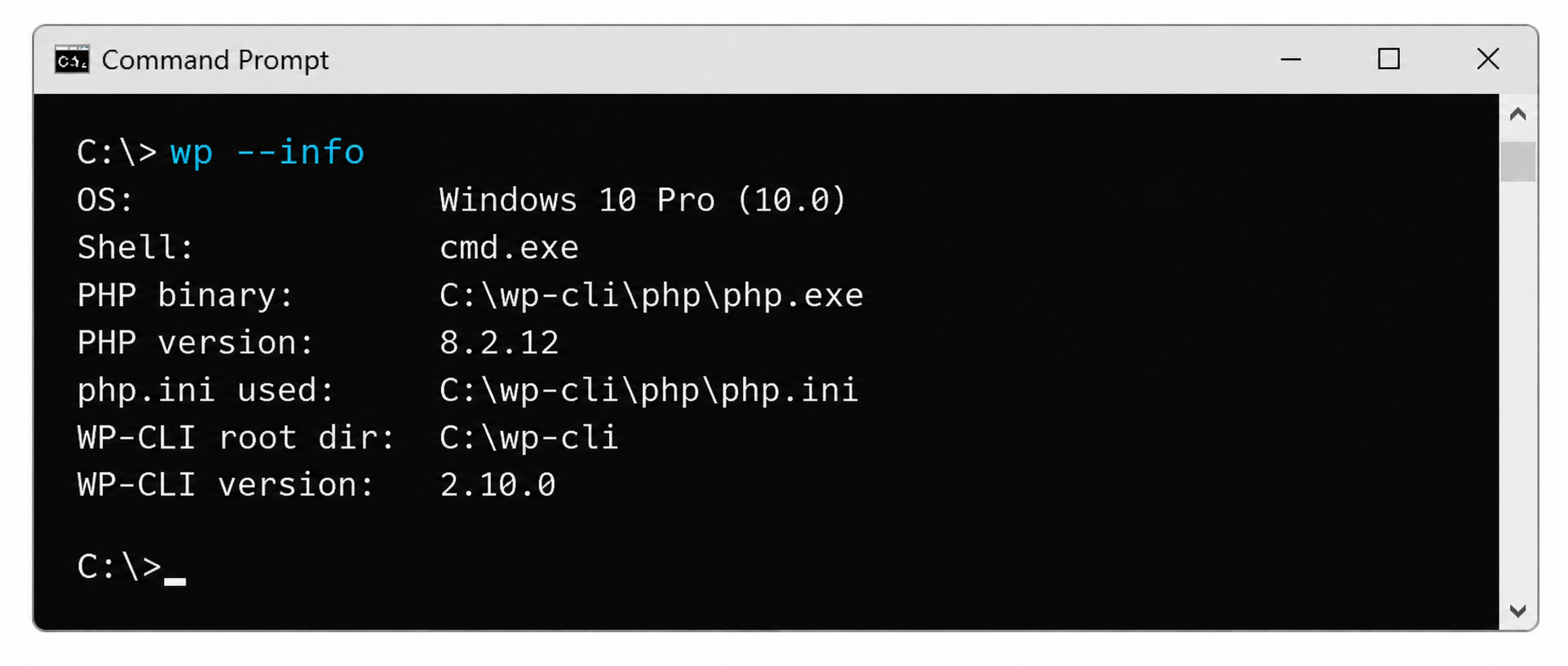
WP-CLI installation verification is the check that runs once the steps to install WP-CLI are done: an installed WP-CLI answers wp --info from any directory and prints its environment report, the same report wp cli info prints. Run it from a terminal, an SSH session or Command Prompt on the machine where WP-CLI is installed. The report is diagnostic, and an excerpt of it looks like this, with ... standing in for omitted lines:
OS and Shell report the machine and the shell the command ran from. Four lines check the install itself. PHP binary is the PHP that runs WP-CLI, the executable behind every wp command on that machine.
PHP version reports the version of that binary, and it reads 7.2.24 or later on a machine that meets the WP-CLI requirement. php.ini used is the configuration file the command line loads; it is typically a different file from the one the web server reads, so the two can hold different PHP settings for the same WordPress site. And WP-CLI version reports the installed release.
wp cli version is the one-line check. It prints the installed WP-CLI version and nothing else, which is the whole check after an install or an update:
wp cli version
WP-CLI x.y.z
A shell that reports wp as not found has no wp command in that session, which means the PATH step is missing: wp-cli.phar was never moved to /usr/local/bin/wp on Linux, Ubuntu and macOS, or c:wp-cli with wp.bat, or Composer’s global vendorbin folder, is not on the Windows PATH.
The same reply comes from a session that predates the change, such as a Command Prompt window opened before setx or a shell that has not reloaded ~/.bashrc after the alias, so check in a new window before repeating any step.
Once wp answers, WP-CLI is ready to run commands against the WordPress site, including the plugin and theme commands a site admin runs to manage WordPress plugins and themes with WP-CLI. Some Docker images ship WP-CLI, and a container that runs from one of them needs no install step at all.
WP-CLI in Docker Containers
WP-CLI in Docker containers is present only when the container runs from an image that ships it, and in such a container no separate install runs. The standard wordpress image that serves the site does not contain WP-CLI; the Docker community maintains WordPress and WP-CLI as two images, and a project references the WP-CLI image by name, with this line from the WP-CLI handbook:
image: wordpress:cli
The wordpress:cli image contains WP-CLI, so a service that runs from that image runs wp commands with no separate install. That service reaches the site only when it shares the WordPress files and the database settings of the wordpress service; without them, wp runs but finds no WordPress installation.
For local development, the WordPress tool that runs a site in Docker containers is wp-env, and wp-env ships WP-CLI in its containers, so no separate install runs there either.
WP-CLI installed on Linux, Ubuntu, Windows or macOS answers as wp, and in Docker the wordpress:cli image and the wp-env containers ship WP-CLI ready to run.






 ChatGPT
  Claude
  Grok
Grok  Gemini