Explore our specialized services, tailored solutions, and industry expertise to elevate your digital presence. From custom WordPress development to seamless integrations, we build high-performing websites that deliver impact.
Learning how to increase the WordPress memory limit comes down to one file and two constants. The limit sets how much PHP memory WordPress may use while it processes a single request, and raising it lets memory-intensive work complete (a bulky import, an active page builder, a plugin update) instead of stalling on a memory-exhaustion error. That error is what sends a site owner looking to increase the value in the first place.
Two constants control the limit, both defined in wp-config.php: WP_MEMORY_LIMIT for the front end and WP_MAX_MEMORY_LIMIT for the admin side. Raising it runs as a short sequence. Confirm what the limit is and the default value it starts from, then open wp-config.php and set those two constants higher. For anyone who cannot edit wp-config, an .htaccess line or a memory-limit plugin achieves the same result, and above all of these sits php.ini, the server-level setting that caps how high any method can go. On shared hosting the host, not the site owner, is the one who raises that cap.
Site owners and developers who edit their own WordPress configuration take this route, rather than routing the request through a host’s support desk. The payoff is a higher memory ceiling set the WordPress-native way, in the same file WordPress already reads on every request. Where that ceiling begins, and what the default value actually is, is the place to start.
What Is the WordPress Memory Limit?
The WordPress memory limit is the cap on how much PHP memory WordPress may use to build a single request. Every page load, every admin action, every scheduled cron task runs inside that ceiling; when a process needs more memory than the limit allows, PHP halts it and WordPress reports a memory-exhausted error. Two constants hold the value, and both live in wp-config.php:
WP_MEMORY_LIMIT controls the front end, meaning everything a visitor triggers. WP_MAX_MEMORY_LIMIT controls the admin and back-end, where heavier jobs such as media imports and core updates need more headroom. Both sit on top of the server’s own php memory_limit directive, the underlying PHP setting that WordPress can request memory within but never override from wp-config.
Out of the box, WordPress defaults to 40MB on a single-site install and 64MB on multisite. That default is the starting point every increase measures from: a fresh install runs at 40MB until a constant raises the ceiling. The number is deliberately conservative, which is why memory-heavy plugins and themes push a stock install past it.
One distinction matters before any of this gets touched. The WordPress memory limit is not the server memory_limit in php.ini, which is the true ceiling all of these values ultimately answer to. It is also a separate setting from the maximum upload and post size, another wp-config resource limit that governs file and form size rather than PHP memory. With the limit defined and its 40MB default known, editing the WP_MEMORY_LIMIT constant in wp-config.php is the WordPress-native way to set it higher.
How to Increase the WordPress Memory Limit in wp-config.php
Raising the WordPress memory limit in wp-config.php means editing two constants in the same file — WP_MEMORY_LIMIT for the front end and WP_MAX_MEMORY_LIMIT for the admin. This is the WordPress-native procedure and the primary way to raise the limit: WordPress reads WP_MEMORY_LIMIT from wp-config.php on every front-end request and honors whatever value the constant holds. Change that value, and the ceiling moves with it.
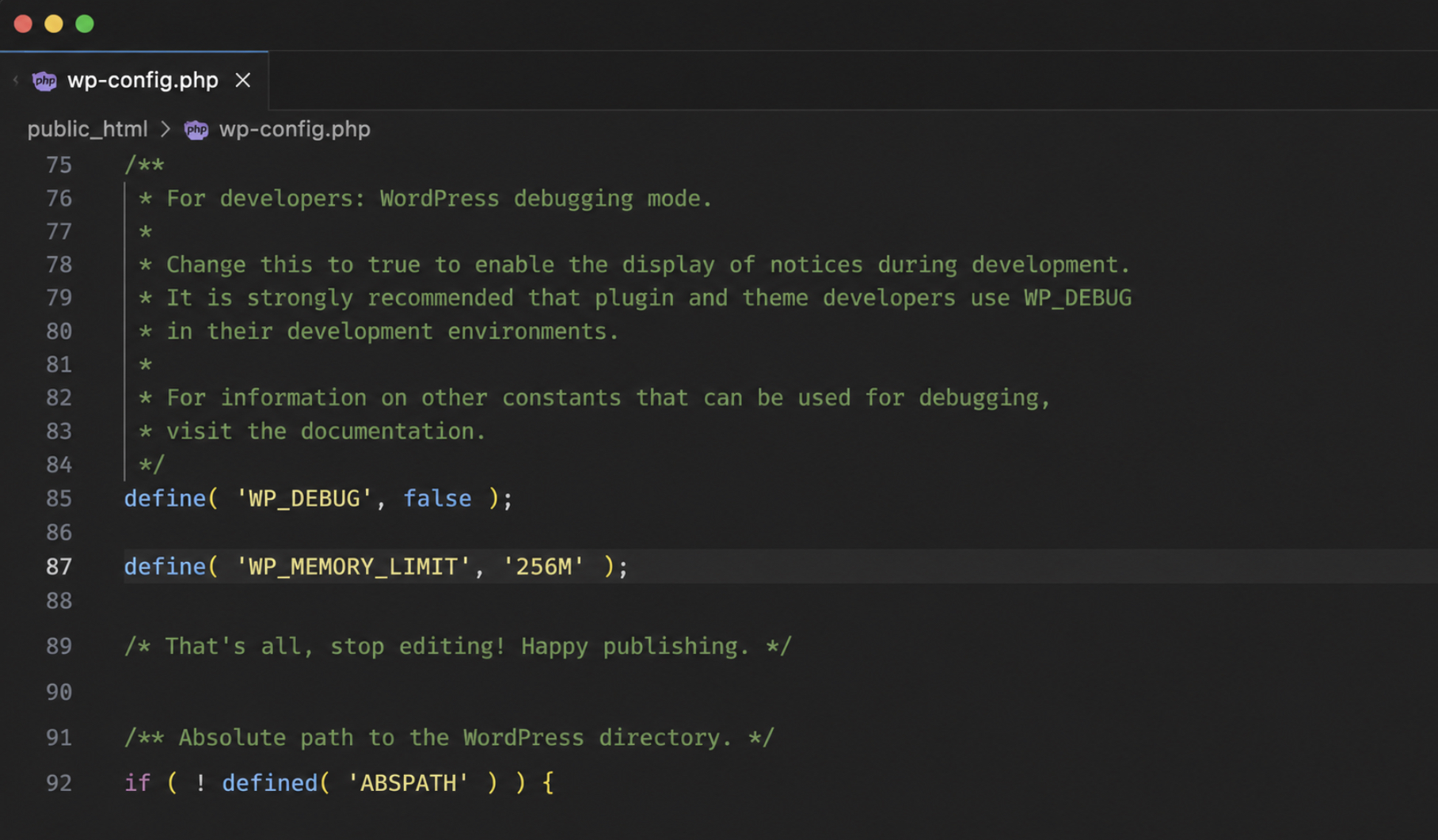
The edit itself is short. Open wp-config.php from the site’s root directory, add the define line just above the comment that reads /* That's all, stop editing! Happy publishing. */, and save. Placement matters; anything added below that line is ignored. Editing a core configuration file this way assumes some comfort with editing wp-config.php safely, which has its own full walkthrough.
define('WP_MEMORY_LIMIT', '256M');

/* That's all, stop editing! Happy publishing. */
The value stays in WordPress’s M shorthand: 256M, written directly inside the constant string, which sets a comfortable working ceiling for most memory-heavy front-end work.
One edit, and the front end has its higher limit. That same edit also sets a second constant, one that governs a different part of WordPress: the admin ceiling, WP_MAX_MEMORY_LIMIT.
How to Increase WP_MAX_MEMORY_LIMIT for the WordPress Admin
WP_MAX_MEMORY_LIMIT sets the higher memory ceiling WordPress may use inside the admin, or back-end, a separate constant from the front-end limit, and one the default wp-config.php leaves unset. Where WP_MEMORY_LIMIT caps front-end requests, WP_MAX_MEMORY_LIMIT controls how much memory the dashboard side may claim, and WordPress deliberately allows the back-end a larger figure because the admin runs the heaviest jobs.
Add it in the same wp-config.php edit, on its own line above the stop-editing comment, right beside WP_MEMORY_LIMIT:
define('WP_MAX_MEMORY_LIMIT', '256M');
The reason for the extra headroom is practical. Bulk imports, plugin and core updates, and media processing all run in the admin, and each can demand far more memory than loading a page ever does. Setting WP_MAX_MEMORY_LIMIT to 256MB gives those tasks room to finish instead of stalling at the default admin ceiling.
With both constants saved, the WordPress-native path is complete: WP_MEMORY_LIMIT for the front end, WP_MAX_MEMORY_LIMIT for the admin, both set in wp-config.php. The result is visible in practice: the memory-heavy work that stalled before, a bulky import, an active page builder mid-save, now runs to completion instead of halting at the memory-exhausted error. For anyone who cannot reach that file, other routes arrive at the same limit from outside WordPress core.
How to Increase the WordPress Memory Limit in .htaccess
The .htaccess route raises the WordPress memory limit through a single php_value memory_limit directive placed in the root .htaccess file, and it stands as a subordinate alternative to the wp-config.php method rather than a replacement for it. On an Apache server, a site owner who would rather not open wp-config.php can add one line to .htaccess and reach the same higher ceiling.
Add the directive near the top of .htaccess and save the file:
php_value memory_limit 256M
The 256M value holds the same M shorthand written into the wp-config.php constants, so the number stays consistent whichever method sets it.
This line takes effect only on Apache running PHP through mod_php, and only where the server permissions allow an .htaccess file to override the PHP memory value. Where those conditions fail, the outcome splits two ways. On nginx, which never reads an .htaccess file at all, the directive is ignored in silence and the memory limit holds at whatever it was before.
On Apache without mod_php (PHP running as CGI or FastCGI), the php_value directive is not a recognized command and triggers an Invalid command php_value 500 error that takes the whole site down. That split, sometimes silent and sometimes breaking, is why the wp-config.php edit stays the recommended, WordPress-native path: it never depends on the server reading .htaccess at all. When neither wp-config.php nor .htaccess is an option, one more route remains.
How to Increase the PHP Memory Limit with a WordPress Plugin
A WordPress plugin raises the PHP memory limit from inside the WordPress admin, which makes it the least-technical of the subordinate alternatives — the route for a site owner who cannot, or would rather not, edit wp-config.php or .htaccess by hand. Install and activate a memory-limit plugin, open its settings, and set the memory value there in the familiar M shorthand. The plugin applies the value on the site owner’s behalf instead of asking for a file edit.
Two plugins expose this control directly:
WP Memory surfaces the current WordPress memory limit alongside the memory already in use, then offers a field that raises it.
A general configuration plugin that exposes a memory-limit field among its other settings.
Whichever one sets the value, the plugin route still cannot push the WordPress memory limit past the php.ini ceiling. A plugin requests memory the same way the wp-config.php constants do, and the server’s php.ini limit remains the boundary every one of these methods runs into. That php.ini ceiling is the number that decides how high any of these routes can actually go.
Why Is the php.ini Memory Limit the True Ceiling?
The php.ini memory_limit is the true ceiling on the WordPress memory limit wherever the host enforces that limit: on shared hosting, and on any server where the php.ini memory_limit cannot be raised at runtime, a value set in wp-config.php requests PHP memory only up to the server’s php.ini memory_limit, and it cannot exceed it.
WP_MEMORY_LIMIT and WP_MAX_MEMORY_LIMIT are requests, not guarantees. Where the server enforces that limit, the php.ini memory_limit is the figure it actually holds, so it caps whatever the wp-config value asks for. On an unrestricted, self-managed server WordPress raises the running memory_limit itself, so the wp-config value can exceed the plain php.ini figure; the hard ceiling holds only where the host restricts that runtime change.
This is what explains a raise that appears to do nothing. When a WordPress memory limit set to 256MB behaves as though it were still 40MB, the php.ini memory_limit sits lower than the requested value, and PHP holds the request down to that server ceiling. The fix is not another wp-config edit but the php.ini limit itself, which has to be raised above the value wp-config requests before the request takes effect. Confirming which figure the server holds means checking the active php.ini memory_limit, and the how-to for that is at find and edit php.ini in WordPress.
On shared hosting the php.ini file is out of reach. The server owner controls it, not the site owner. When that ceiling cannot be edited directly, the party who can raise it is the host.
When Does the Host Increase the WordPress Memory Limit?
The host increases the WordPress memory limit whenever the server enforces a maximum the site owner cannot lift alone. On shared hosting the host sets a server-level maximum in php.ini, and because a wp-config.php value cannot exceed that maximum, only the host can raise it. The request to make is specific: raise the php.ini memory_limit to the target value, whether 256MB or 512MB, so the WordPress memory limit that wp-config asks for is the one the server allows.
Whether the change took effect shows in the same place the ceiling is read, where the active php.ini memory_limit now matches the requested figure. That server-ceiling relationship is not unique to memory; the same limit the host enforces on memory also governs a sibling wp-config resource limit, the maximum file size an upload may reach. Raising that WordPress limit is a separate task, the maximum upload and post size.
Everything the WordPress memory limit asks for comes down to one method. Define it first (WP_MEMORY_LIMIT sets how much PHP memory the front end may use, WP_MAX_MEMORY_LIMIT sets the higher ceiling for the admin), then raise both in wp-config.php, the WordPress-native place to do it. A php_value line in .htaccess and a memory-limit plugin do the same job as subordinate alternatives, nothing more.
Every one of these levers only requests memory up to the php.ini ceiling, and where that ceiling sits under the host’s control on shared hosting, the host raises it. Set WP_MEMORY_LIMIT and WP_MAX_MEMORY_LIMIT in wp-config.php, and the WordPress memory limit is raised the way WordPress intends.




 ChatGPT
  Claude
  Grok
Grok  Gemini