Explore our specialized services, tailored solutions, and industry expertise to elevate your digital presence. From custom WordPress development to seamless integrations, we build high-performing websites that deliver impact.
WordPressMySQL configuration is the setup work that joins a WordPress site to the MySQL database it depends on. It gathers a handful of related tasks into one arrangement: creating the database that stores the site’s content, creating a dedicated MySQL user, granting that user the privileges WordPress needs, and setting the connection values inside wp-config.php.
The order matters, because each piece depends on the one before it. A practitioner creates the database first, then a MySQL user with a password, then grants that user its privileges on the database, and finally records the database name, user, password, and host in wp-config.php so WordPress knows where to sign in.
Done correctly, the configuration establishes a working connection: WordPress authenticates against MySQL on every page load and reads and writes content without interruption. A single wrong value (a mistyped password, the wrong host) leaves the site unable to connect at all, which is why the pieces are worth understanding before they are built.
What Is MySQL Configuration for WordPress?
MySQL configuration for WordPress is the arrangement of a MySQL database, a database user, and connection settings that lets a WordPress site read and write its data. WordPress runs on MySQL, the relational database it was built to use, and it cannot store a single post or setting until it reaches that database with valid credentials. The configuration is what supplies them, defining how WordPress and MySQL work together.
Four things make up that arrangement. The database holds the site’s content and settings. A dedicated MySQL user is the account WordPress signs in as, kept separate from the server’s administrative accounts. That user’s privileges are the specific permissions it holds on the database, enough to read and change WordPress data, and no more. The connection settings in wp-config.php record which database, which user, and which host WordPress should reach for.
This is narrower than general MySQL user administration. Creating a database and a user on a MySQL server, on its own, stops at the server; nothing yet tells WordPress those objects exist. Configuring MySQL for WordPress carries the work one step further, binding the database, the user, and its privileges to the site through wp-config.php so the connection actually resolves. Building it starts with the database itself.
How to Create the WordPress Database
The WordPress database is the MySQL schema that stores everything a WordPress site holds between requests: its published content, its configuration settings, and the metadata that ties those records together. WordPress database setup begins with this schema: before a single credential is wired or a connection is tested, the container that will hold the wp_ tables has to exist.
Creating it is procedural step one, and every step after it (the dedicated user, the granted privileges, the connection constants) assumes this schema is already in place. The exact name given to the database at creation is the identifier later recorded in the connection settings, so the name itself, not just the empty schema, is part of what this step produces.
A schema, in MySQL terms, is a named container for tables. WordPress builds its own tables inside that container at install time, so the practitioner creates the empty database first and lets WordPress populate it. One statement does the work:
CREATE DATABASE wp_site CHARACTER SET utf8mb4 COLLATE utf8mb4_unicode_ci;
The CREATE DATABASE statement establishes the schema; the name that follows it (wp_site here) is the identifier WordPress will later resolve to. The two clauses after the name matter as much as the name itself.
WordPress expects the utf8mb4 character set because utf8mb4 encodes the full range of Unicode, including the four-byte characters that older three-byte encodings drop: emoji in a post title, extended scripts in a comment, symbols a plugin writes into an option. The utf8mb4_unicode_ci collation then sets how the database sorts and matches that text. Declaring both at creation time spares a later conversion and keeps the stored content consistent with what WordPress reads and writes.
Run the statement, and the WordPress database exists as an empty MySQL schema, ready for WordPress to build its tables into. The name chosen inside that statement is not arbitrary. It becomes the value the connection settings resolve to later: the database name, recorded exactly as it was created.
WordPress Database Name
The WordPress database name is the identifier WordPress resolves to when it reaches its database, the exact string that names the schema the CREATE DATABASE statement built. There it was wp_site; that token is the database name, and it is the value WordPress uses to select the correct schema out of every database on the server.
The name carries one hard requirement: it must match exactly, character for character, between MySQL and wp-config.php. WordPress records the name in wp-config.php as the DB_NAME value, and MySQL holds the schema under the name it was created with. Where the two differ by a single character (a capital letter, an underscore, a stray space), WordPress asks for a database the server does not have, and the connection fails. The database name and the DB_NAME value are one string kept in two places; they work only when they are identical.
To confirm the exact identifier before it is recorded, list the databases on the server:
SHOW DATABASES;
The output lists every schema MySQL has, wp_site among them, spelled exactly as it was created. Reading the name from that list, rather than from memory, is what guarantees the DB_NAME value will match it. With the database created and its name confirmed, the schema still has no account permitted to use it. That account is the dedicated MySQL user, created next, and set to own this database and connect to it on WordPress’s behalf.
How to Create a MySQL User for WordPress
A dedicated MySQL user is the database account WordPress authenticates as, a login created for a single site and kept separate from root, the administrative superuser account MySQL installs by default. Creating that MySQL user is the second step of the configuration, once the WordPress database from the first step exists. A sound setup never lets WordPress connect as root. It signs in as an account made for it, scoped to the database it will own, holding only the access one site needs.
The account comes into being through a single CREATE USER statement:
CREATE USER 'wp_user'@'localhost' IDENTIFIED BY 'strong_password';
Two fragments of that line matter most. The @'localhost' portion is the host scope, and it fixes where the account is allowed to connect from. localhost is the right value when MySQL runs on the same server as WordPress, which covers most shared and single-server setups. A managed host that keeps the database on its own server issues a different host value instead, and the CREATE USER line takes that value in place of localhost. IDENTIFIED BY sets the password, where a long, random string unique to this account is what stops anything but WordPress from reaching the database.
Creating the account is only half of step two, though. A brand-new MySQL user can log in and still do nothing to the WordPress database until it holds the permissions to read and write. Both the account and the permissions attached to it can be checked later through the same browser tool a practitioner uses to access the WordPress database with phpMyAdmin, where the user and its grants appear under user management. What turns this empty account into the one WordPress actually runs on is the grant that follows.
MySQL User Privileges
MySQL user privileges are the GRANT-controlled permissions the MySQL user holds on the WordPress database, the exact operations MySQL will let that account perform against the tables. They are not the roles and capabilities WordPress assigns to people who sign in to the dashboard; one governs what a database account may do to the data, the other governs what an editor or administrator may do inside the site. Keeping the two apart matters, because the grant here answers only to MySQL.
WordPress needs a defined working set of privileges to run. It reads rows and writes new ones, updates and deletes them, and during installation, updates, and certain plugin actions it creates, alters, and indexes tables, occasionally dropping one. Eight named privileges cover that whole range: SELECT, INSERT, UPDATE, DELETE, CREATE, ALTER, INDEX, and DROP. The GRANT statement assigns exactly those on the site’s database, then a second line makes them active:
GRANT SELECT, INSERT, UPDATE, DELETE, CREATE, ALTER, INDEX, DROP ON wp_site.* TO 'wp_user'@'localhost';
FLUSH PRIVILEGES;
wp_site.* names the WordPress database and every table in it, so the grant reaches those tables and stops at the boundary of that one database.
The GRANT statement takes effect the moment MySQL runs it, so those eight privileges apply to the account at once. FLUSH PRIVILEGES reloads the grant tables, a step MySQL needs only after the grant tables are edited directly rather than through GRANT; here it stands as a harmless convention. Assigning this eight-privilege minimum instead of ALL PRIVILEGES is a deliberate choice: WordPress never requires server-wide administrative rights, and an account limited to what a single site uses contains the damage if its password is ever exposed.
With the WordPress database created and a privileged MySQL user in place, the two credentials WordPress connects with (the account name and its password) now exist on the server. What remains is recording them where WordPress reads its connection settings, inside wp-config.php.
How to Configure wp-config.php Connection Settings
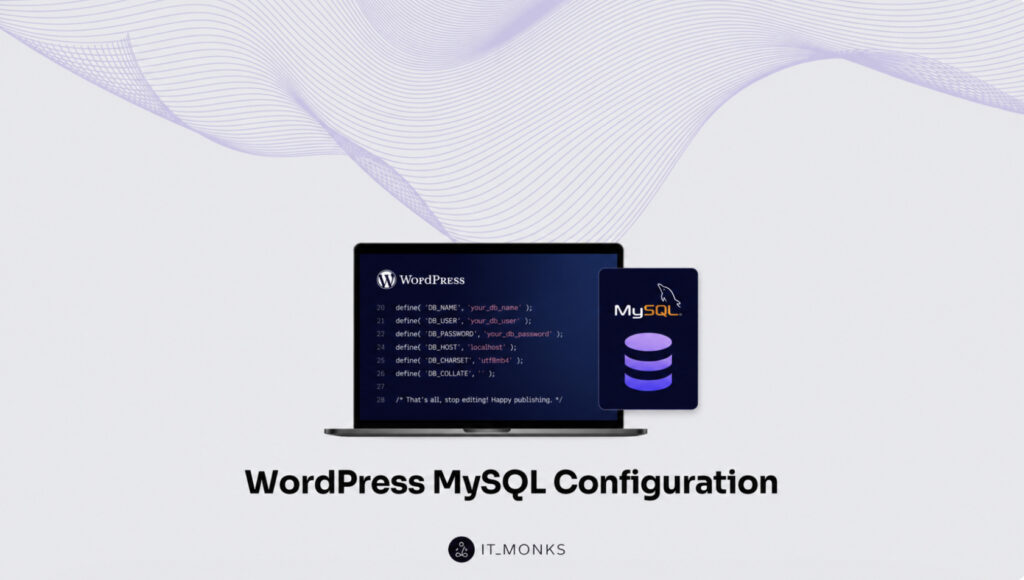
The wp-config.php connection settings are the four constants WordPress reads to reach MySQL: DB_NAME, DB_USER, DB_PASSWORD, and DB_HOST. Each one carries a value produced by the earlier steps, the database created for the site, the dedicated MySQL user, that user’s password, and the host the database answers on. WordPress opens this file on every request, reads the four constants, and connects to the database with them. Wire them correctly and the site loads. Leave one wrong and WordPress never reaches MySQL.
The mapping is direct. DB_NAME holds the name of the database created in the first step; DB_USER holds the dedicated MySQL user, and DB_PASSWORD holds the password granted to that user. DB_HOST names the server the database runs on: localhost when MySQL sits on the same machine as WordPress, or a supplied host name when the database runs on its own server.
Two more values finish the file. WordPress also stores the table prefix that labels its tables inside the database, and the pair of constants that fix the site address. A practitioner sets all of them in the same wp-config.php.
A configuration that stops at the four database constants is only half complete: the prefix and the site URL belong beside them, and together they make a file WordPress can actually run on. Where the database name, user, and password come from is the first question, and on a managed host the answer arrives as a set of default credentials to copy in.
Default Credentials
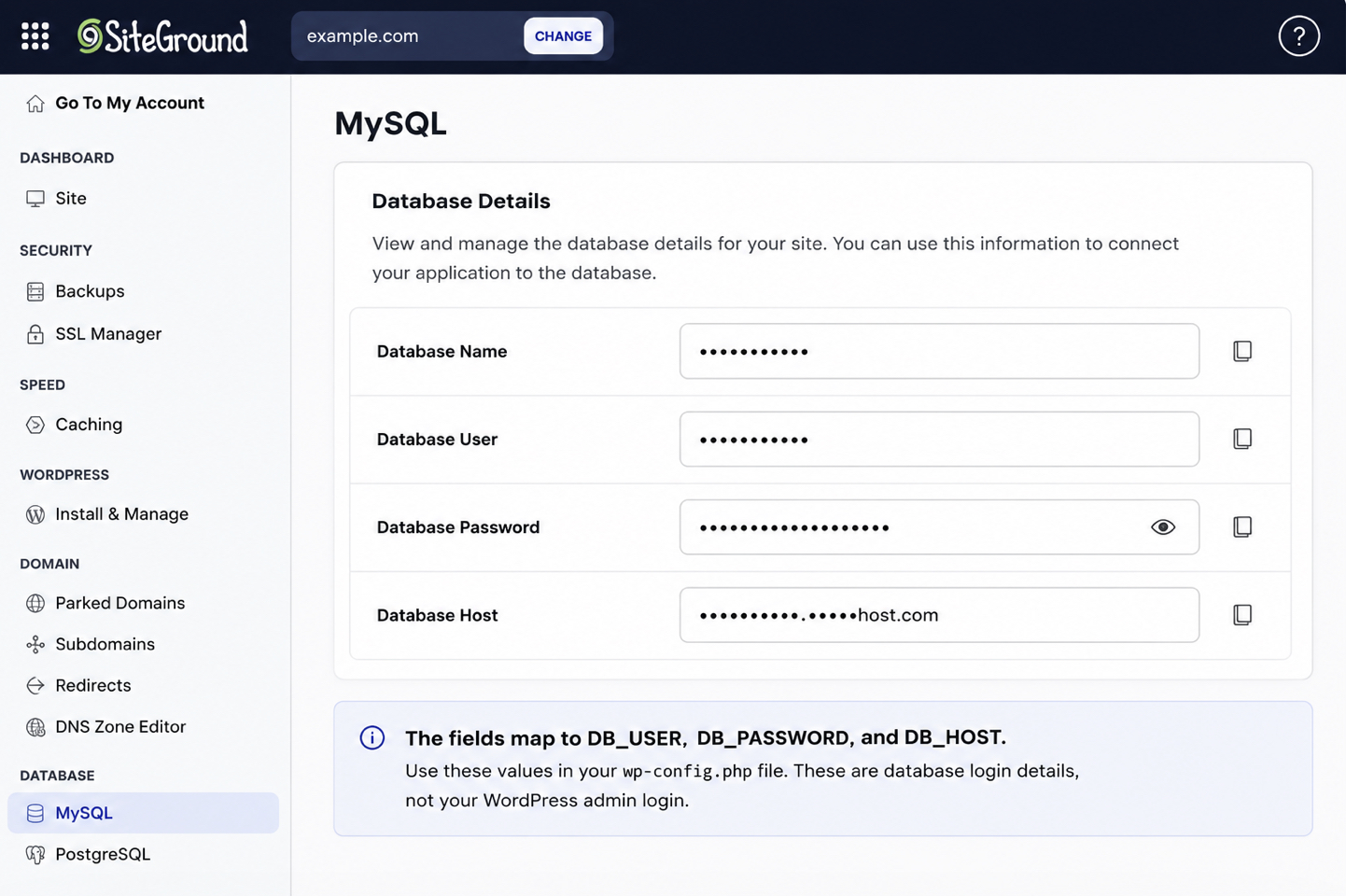
Default credentials, in the database sense, are the database name, database user, and password a managed host provisions when it sets up MySQL for a site. These are the values WordPress authenticates with against the database, not the username and password for the wp-admin dashboard, which belong to a separate account entirely. Only the database credentials go into wp-config.php, and keeping the two straight is what stops the wrong pair from landing in the file.
On a managed host, these values appear in the hosting dashboard rather than inside WordPress. A database panel lists the provisioned database name, the database user, and the host, ready to be located and copied into the configuration file. Some platforms generate them automatically at signup; others expose a screen where the practitioner reads them off directly.
Which defaults a host ships, and which privileges it grants that user out of the box, can depend on the database engine running underneath. A host built on one engine may provision a slightly different default set than a host built on another, a difference traced in MariaDB vs MySQL for WordPress.
Once located, the values map straight onto the constants: the database user becomes DB_USER, its password becomes DB_PASSWORD, and the host becomes DB_HOST. With the credentials in place, the next value WordPress needs is the prefix that names its tables inside that database.
Database Prefix
The database prefix is the short string WordPress prepends to every table it creates, declared in wp-config.php as $table_prefix. On a standard install the value is wp_, which is why the core tables read as wp_posts, wp_options, and wp_users. The prefix is how WordPress addresses its own tables inside a database that could hold others.
$table_prefix = 'wp_';
This line sits in wp-config.php beside the database constants, and its value has to match the tables MySQL actually holds. Set the prefix to something the database does not use, and WordPress looks for tables that are not there; the connection reaches MySQL but stalls the moment it tries to read them. The default wp_ is right for a fresh install; a custom prefix is right only when the tables were built with that same prefix. With the prefix matched to the tables, one value remains: the address the site answers on.
Site URL
The site URL is the web address WordPress treats as its own, fixed in wp-config.php through two constants, WP_HOME and WP_SITEURL. WP_SITEURL is the address where the WordPress core files are reached; WP_HOME is the address a visitor types to land on the site. Many installs keep these in the database, yet declaring them in the configuration file beside the database constants pins them to one value and completes the working config.
Setting them explicitly earns its place when the addresses would otherwise drift: after a move to a new domain, behind a reverse proxy, or when a stray redirect keeps sending requests to the wrong host. Each constant points WordPress at the address it should resolve to, so the two together stop the software guessing.
Editing this file safely (a backup first, the right access method, the syntax left intact) is its own procedure, set out in the guide to edit wp-config.php. With the database constants, the prefix, and the site URL all wired into the file, one step is left: confirming WordPress connects to MySQL through the values now in place.
How to Configure the WordPress MySQL Connection
The WordPress MySQL connection is WordPress authenticating to MySQL with the credentials wired into wp-config.php: the DB_NAME, DB_USER, DB_PASSWORD, and DB_HOST values, reached over the default TCP port 3306 unless a host overrides it.
Configuring this connection is the last of the four setup moves: the database exists, a dedicated MySQL user holds its privileges, the credentials sit in wp-config.php, and now WordPress has to reach the engine and sign in with them. Everything before this point prepared the pieces. The connection is where WordPress uses them.
Confirming it takes one action rather than a page of checks. Load the site in a browser, and a normal front page means WordPress reached MySQL, selected the named database, and authenticated against it. For a check that does not depend on rendering, WP-CLI runs the same test from the command line:
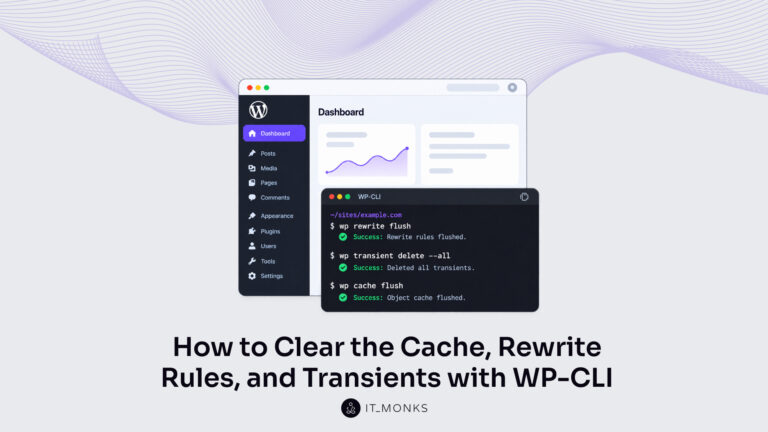
wp db check
The command connects to MySQL with the exact wp-config.php values and reports on the tables it finds. A clean result confirms the connection. It verifies the wiring, and it does not alter or repair anything. Once the check comes back clean, the configuration is done: WordPress is connected to MySQL and serving from the database it was pointed at.
A failed check does not mean MySQL itself is broken; it means one of the four wp-config.php values does not match what MySQL expects, and WordPress reports that mismatch to the browser as a single recognizable page. All of this assumes MySQL is already running on the server to begin with, the one prerequisite the configuration steps take for granted.
What Is the WordPress Database Connection Error?
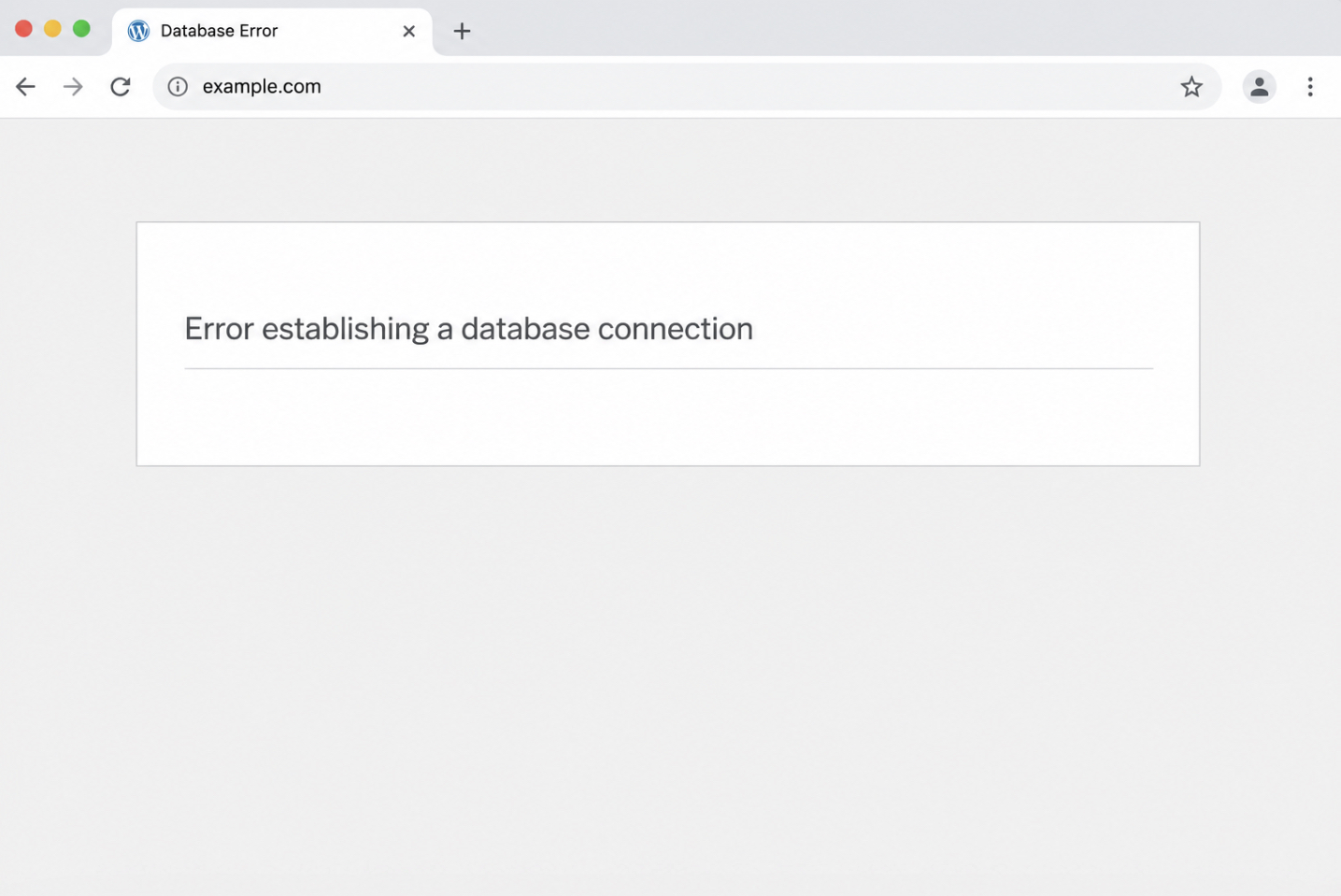
The WordPress database connection error is the message WordPress renders in the browser, “Error establishing a database connection,” when it cannot reach MySQL. It is a plain page carrying that single line, shown in place of the site, and it stands as the direct consequence of the connection step: when WordPress tries to sign in and cannot, this is what loads instead of the front page.
The message points straight back to the credentials just wired into wp-config.php. WordPress shows it when DB_NAME names a database that does not exist, when DB_USER or DB_PASSWORD does not match the MySQL account, or when DB_HOST addresses the wrong server. Any one of the four values off by a character is enough to trigger it. Reading the error, then, means matching those four constants against what MySQL actually holds: the database name that was created, the user that was granted privileges, that user’s password, and the host the engine listens on.
Matching the symptom to those four config values is the immediate step; the full sequence for restoring a downed connection is a separate task. What the error takes for granted, though, is that MySQL exists to be reached at all, which is never a given on a machine where the engine was never installed.
How to Install MySQL for WordPress
Installing MySQL for WordPress means getting the database engine onto a local development machine or a self-managed host so the configuration steps have something to run against. On managed WordPress hosting the engine is already present; the install matters when the server is a developer’s laptop or a plain virtual machine that ships without a database. The point is availability, MySQL installed and running, not a full production server build.
A package manager handles it in one pass. On Debian or Ubuntu, apt installs the server package; on macOS, Homebrew does the equivalent, and each then starts the service so the engine is listening for connections:
# Debian / Ubuntu
sudo apt-get install mysql-server
sudo systemctl start mysql

# macOS (Homebrew)
brew install mysql
brew services start mysql
Once the service is up, MySQL provides the running engine the configuration requires, the one the connection reaches and the one that holds the created database. With MySQL available and running, a WordPress database created, a dedicated MySQL user holding the minimum privileges granted to it, the DB_NAME, DB_USER, DB_PASSWORD, and DB_HOST constants together with the $table_prefix and the site-URL settings wired into wp-config.php, and the connection confirmed by a clean check, WordPress is fully configured against MySQL.




 ChatGPT
  Claude
  Grok
Grok  Gemini