- Expertise
Expertise That Drives Results
Explore our specialized services, tailored solutions, and industry expertise to elevate your digital presence. From custom WordPress development to seamless integrations, we build high-performing websites that deliver impact.
Solutions- Booking System Integrations
- Headless & REST API WordPress
- Hubspot Integration
- Enterprise WordPress
- Website Migration
- Internal Collaboration Platforms
- External Communications Hubs
- Work
- About
- Proof
- Contact
Learn more


How to Network WordPress and Database Containers in Docker

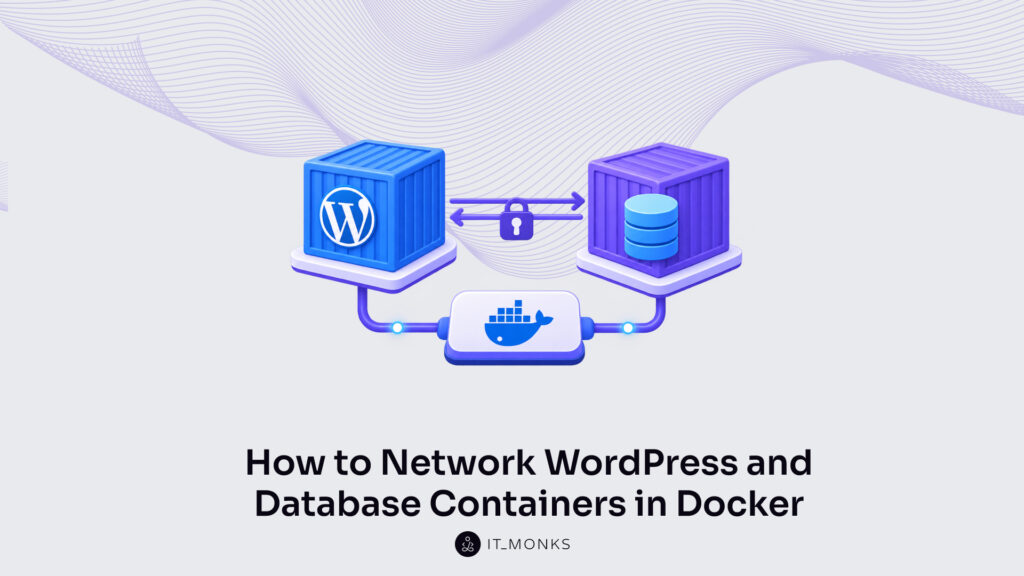
A Docker network connects the WordPress container and the database container on a single Docker host, so the two services that make up a WordPress stack can reach each other without either one being exposed beyond that host. The WordPress container holds the application: the PHP runtime, the theme files, the installed plugins.
The database container holds the MySQL data those files read from and write to. Run in isolation, the two have no network route to reach each other. The shared network is what wires them together: the WordPress container addresses the database by its service name, the request crosses the network, and the answer returns, all inside one host.
That single relationship (one Docker network carrying traffic between two containers by name) unfolds in stages. Networking a WordPress stack starts with the default bridge that Docker Compose creates on its own, then depends on the service-name DNS that lets the WordPress container find the database without a hard-coded address.
From there it extends to creating a network by hand, connecting a container to it, and inspecting what Docker built. It reaches into three narrower choices a WordPress developer eventually faces: switching a container to host network mode instead of the default bridge, isolating the database on an internal network so nothing outside can touch it, and attaching a pre-existing external network shared across projects.
Each of those steps rests on the same object: the Docker network that moves data between the WordPress container and the database container. So the network itself needs a definition before anything gets created or inspected.
What Is a Docker Network?
A Docker network is a software-defined virtual network that Docker manages on a single Docker host, distinguished by its driver rather than by any physical cabling. It is not a LAN in the hardware sense. There is no switch, no router, no network card a person can point at. The bridge driver, which Docker applies by default, is the component that gives the network its behavior on the host and assigns every attached container an address of its own. That address space is the layer the WordPress container and the database container use to reach each other.
A Docker network consists of four constitutive parts:
- A network driver, the bridge driver by default, that determines how the virtual segment behaves and how containers on it communicate.
- An IP subnet, a private CIDR range such as 172.18.0.0/16, from which each container draws its address.
- An embedded DNS resolver at the fixed address 127.0.0.11, which maps container and service names to those addresses so nothing has to be referenced by a raw number.
- The attached containers themselves, which join the network and become reachable on it the moment they start.
The networking layer presumes a working container-and-image model already exists in the developer’s head; anyone who needs that foundation first can pick it up from Docker for WordPress developers and come back to the network once containers and images make sense.
Containers attached to the same Docker network reach each other directly, with no published port and no traffic leaving the host. In a WordPress stack that shared network rarely gets built by hand. It appears on its own, created by Docker Compose the moment the stack comes up.
How Does Docker Compose Create the Default Bridge Network for the WordPress Stack?
The default bridge network is the per-project network that Docker Compose creates automatically, using the bridge driver, whenever a Compose file names no network of its own. For a WordPress stack, that single default means the WordPress service and the database service both attach to one shared network without a line of network configuration anywhere in the file. Docker Compose reads the services, finds no networks: block, and provisions a default bridge for the project.
A minimal Compose file carries two services and nothing about networking at all:
services:
  wordpress: {image: wordpress:latest, ports: ["8080:80"]}
  db: {image: mysql:8.0}
When this stack starts, Docker Compose creates exactly one network and attaches both services to it. Neither the WordPress service nor the database service requests a network: the attachment is the default behavior of the bridge driver, applied per project. The WordPress container publishes its port to the host so a browser can reach it; the database container needs no published port at all, because it only ever answers the WordPress container across the shared bridge.
The network Compose builds carries a predictable name. Listing the host’s networks after the stack is up shows it:
docker network ls # NAME: myproject_default DRIVER: bridgeThe name follows a fixed pattern: the project name, an underscore, and default. A project directory called myproject produces myproject_default, and the DRIVER column confirms what kind of network it is: bridge. That is the <project>_default network, the one both containers now share.
Both containers attach to that same bridge, and that shared membership is what lets the WordPress container find the database by its service name instead of by any address. Turning a shared bridge into a working connection is the job of service-name resolution, where the name db becomes a route to the database container.
How Does Service Name DNS Connect the WordPress and Database Containers?
Service-name DNS connects the WordPress and database containers by letting the WordPress container reach the database container through its Compose service name instead of a numeric address. When Docker Compose brings the stack up, it registers every service under the name declared in the compose file and wires an embedded DNS resolver into each container. That resolver is what turns a service name such as db into a routable address on the default bridge network, so the WordPress container and the database container find each other the instant they start together.
The service name is the join key. A compose file that names its database service db gives the WordPress container a stable handle it can look up at any time, and Docker’s resolver answers that lookup with the database container’s current address on the bridge. This is the layer beneath the environment wiring a WordPress developer already meets in a working WordPress Docker Compose setup, the compose stack declares the services, and service-name DNS is the mechanism that lets them reach each other.
WORDPRESS_DB_HOST carries that service name into the WordPress container. WordPress reads the variable to decide where its database runs, and the correct value is the service name db, never a hard-coded IP address:
services:
  wordpress:
    environment: {WORDPRESS_DB_HOST: db}
  db: {image: mysql:8.0}
Setting WORDPRESS_DB_HOST to db rather than to an address is what keeps the connection alive across restarts. Container addresses on a bridge network are assigned by Docker and can change when a container is recreated; the service name does not. Compose re-registers db with the resolver every time the stack comes up, so the WordPress container keeps resolving the same name to whatever address the database container now holds.
Watching the resolution happen makes the mechanism concrete. From inside the running WordPress container, a lookup for db returns the database container’s address, handled by the embedded resolver that every Compose-networked container carries at the fixed loopback address 127.0.0.11:
docker compose exec wordpress getent hosts db # 172.18.0.2 dbThe address on the left changes from host to host and from run to run. It is whatever Docker leased the database container on the bridge that day. The name on the right stays db. Docker intercepts the lookup at 127.0.0.11, matches the service name against its registry, and hands back the live address, so the WordPress container connects to its database by name while the resolver returns the current address, and the WordPress container never hard-codes it. Once names carry the traffic on the network Compose builds for the stack, the next move is building that network deliberately.
How to Create a Docker Network for the WordPress Stack
Creating a Docker network means building a user-defined bridge network that the WordPress and database services attach to on purpose, the deliberate alternative to the default network Compose generates on its own. docker network create makes that network from the command line, and a named networks: block makes the equivalent network inside the compose file. Both produce a bridge-driver network scoped to one Docker host, and both give the WordPress stack an explicit, named surface its containers can join. Creating the network comes first, and connecting a running container to that network is the step that follows.
The command-line path is a single instruction. Name the network, set the driver to bridge, and Docker provisions it:
docker network create --driver bridge wp_stack_netSome references invert the words to docker create network, but the executable keeps the object first: docker network create, then the flags, then the name. The result is a standalone bridge network called wp_stack_net, ready for any container to attach to.
The compose path reaches the same outcome by declaration. A named networks: block defines the network once, and each service lists it under its own networks: key to attach:
services:
  wordpress:
    networks: [wp_stack_net]
  db:
    networks: [wp_stack_net]
networks:
  wp_stack_net:
    driver: bridge
These two paths are equivalent outcomes. The CLI form creates wp_stack_net before any container exists and lets containers connect to it afterward; the compose form creates the same bridge network as part of docker compose up and joins the WordPress and database services to it in one step. A WordPress developer who wants the network to outlive any single stack tends to reach for the command-line form; one who wants the network described alongside the services keeps it in the networks: block. Either way, the WordPress and database services attach to a user-defined bridge network the administrator named, not an anonymous default. With the network in place, an already-running container can be joined to it directly.
How to Connect a Container to the Docker Network
Connecting a container attaches an already-running container to an existing network with docker network connect. The command names the network first and the container second, and Docker adds the container to that network without stopping or recreating it:
docker network connect wp_stack_net wordpressHere docker network connect attaches the running wordpress container to wp_stack_net, the network created a step earlier. The final argument is the actual container name, which for a Compose-run stack is <project>-wordpress-1 by default (Compose builds the name from the project name, the service name wordpress, and the replica index), visible via docker ps, rather than the bare service name wordpress.
The container keeps every connection it already had; the command adds a new one. A single container can join more than one network this way: a WordPress container can sit on the stack’s shared bridge and on a second, isolated network at the same time, each attachment made by its own docker network connect call. After the container joins, confirming that the membership took hold is a matter of inspecting the network and reading back the containers now attached to it.
How to Inspect the WordPress Stack’s Docker Networks
Inspecting the WordPress stack’s Docker networks means listing them first and then examining one in detail, so a developer can confirm that the WordPress container and the database container sit on a single network. Two commands cover the whole check. docker network ls lists every network the Docker engine knows about, and docker network inspect opens one of those networks to reveal its attached containers and its subnet.
Run the pair in order:
docker network ls
docker network inspect myproject_default
docker network ls prints one row per network. Alongside the built-in bridge, host, and none entries, the Compose stack’s own network shows up under the <project>_default name, the network Docker Compose created automatically when the stack came up. That row confirms the network exists and runs on the bridge driver.
docker network inspect then reads the detail. Pointed at <project>_default, it returns a JSON document whose Containers block lists the members and whose IPAM block reports the subnet in CIDR notation, such as 172.18.0.0/16. Both the WordPress container and the database container appear in that Containers list, each holding its own address inside that subnet. The inspect output also includes the driver, the subnet, and the gateway beside the membership, which is why it is the command that settles any question about who is attached where.
Two names in one inspect output is the verification. When the WordPress container and the database container both appear on one network, and that network carries a single subnet, the two are reachable to each other by service name and the wiring is correct. What kind of network they share, its type and its mode, is a separate decision.
What Are the Docker Network Types for the WordPress Stack?
A Docker network type is the category, fixed by the network’s driver or mode, that determines how isolated the attached containers are and whether they can find each other by service name. For a single Docker host running a two-service WordPress stack, three types matter: the bridge network, which is the default the stack already uses; host mode; and the internal network. Each is a value of one attribute, the network type, and the driver behind it decides the behavior.
Bridge is what Docker Compose hands the stack with no extra configuration, and it is the recommended type for the WordPress container and the database container. Host mode and the internal network are narrower choices for narrower situations. The network mode is the axis that separates them: a bridge network keeps each container isolated on a private subnet with an embedded DNS resolver, while host mode drops that isolation entirely.
| Type | Driver | Isolation | Service-name DNS | Fit for the two-service stack |
|---|---|---|---|---|
| Bridge (default) | bridge | Containers isolated on a private subnet | Yes, resolves each service by its Compose name | Recommended; the WordPress and database containers use it as created |
| Host mode | host | None; shares the host’s network namespace | No; service names stop resolving | Rare; unsuited to a stack that relies on service isolation |
| Internal | bridge with internal: true | Isolated, with no outbound route to the host or the internet | Yes | Keeps the database off any host-reachable surface |
Bridge stays the network the WordPress stack runs on. What host mode changes about a container, how an internal network isolates the database, and how an existing external network connects to the stack are the three adjustments that build on this default.
What Is Host Network Mode for a WordPress Stack?
Host network mode is a Docker network type in which the container shares the host machine’s network namespace directly, rather than joining a bridge network of its own. A container in host mode has no separate network identity; it binds to the host’s interfaces and ports as though the process were running on the host itself. That single change defines host mode and marks it off from the default bridge.
The trade-off is specific. Because host mode removes the private bridge network, it also removes the embedded DNS resolver that lets containers find each other by service name. On a bridge network, the WordPress container reaches the database container by its Compose service name; under host mode, that service name no longer resolves, and the connection must use an address and a port on the host instead. A published TCP port in host mode binds straight to the host interface rather than being mapped from container to host.
In Compose, host mode is a one-line setting on a service:
services:
  wordpress:
    network_mode: host
For a two-service WordPress stack, that one line is a poor trade. The stack depends on the WordPress container and the database container reaching each other by service name over an isolated network, and host mode removes exactly that. So the default bridge remains the network the stack runs on. Host mode suits a single container that needs the host’s raw network, not a WordPress-and-database pair that needs both isolation and name resolution. Keeping the database reachable only inside the stack, rather than on the host, is the next isolation step, and an internal network is what connects the database to it.
How to Connect the WordPress Database to an Internal Network
Connecting the WordPress database to an internal network isolates the database container from everything outside the stack. An internal network is a Docker network with no route to the host or to anything beyond it, only the containers joined to it can reach what runs there. In Docker Compose, that kind of network is declared with internal: true, and joining the database service to it is the whole mechanism.
services:
  wordpress:
    networks: [default, backend]
  db:
    networks: [backend]
networks:
  backend:
    internal: true
One flag does the work. internal: true keeps the backend network off any published or host-reachable surface: the database container maps no port to the host, and nothing outside the Docker host can open a connection to it. Its 3306 answers only from inside the network. Isolating the database this way removes its external attack surface, and that isolation, rather than a host firewall, is where Docker network security actually begins.
The WordPress container joins two networks at once, the default bridge and the isolated backend, so it still resolves the database by its Compose service name across the internal network. WORDPRESS_DB_HOST stays the service name, never an address, and the site keeps loading exactly as it did before. Walling the database off is one direction. Opening the same stack to containers that run outside the compose file is the other.
How to Connect an External Docker Network to the WordPress Stack
Connecting an external Docker network to the WordPress stack attaches the stack to a network that already exists outside the compose file. An external network is a shared network created on the Docker host before Compose ever runs, one that other stacks or standalone containers can also join.
Two steps make it work, and their order matters. The shared network is created on its own first, outside any single project:
docker network create shared_netThe compose file then references that network instead of building a new one, using external: true:
services:
  wordpress:
    networks: [shared_net]
networks:
  shared_net:
    external: true
external: true tells Compose the network is not its to create. The stack attaches to shared_net as it starts, and the WordPress and database services join whatever is already there. Drop that flag and Compose tries to build its own shared_net, which defeats the purpose. An external network earns its name precisely because it is pre-existing, shared, and not re-created for each project.
On a single Docker host, everything the WordPress and database containers need in order to reach each other comes from one default bridge network that Compose creates per project for free. Over that bridge the two containers connect by Compose service name, resolved by the embedded DNS server at 127.0.0.11, with WORDPRESS_DB_HOST set to the database service name and never to an address.
Beyond the default, a user-defined network can be created with docker network create or a named networks: block, a running container joined to it with docker network connect, and docker network ls alongside docker network inspect confirms that both containers share one network and its subnet. Host network mode, an internal network that isolates the database, and a shared external network each extend that type set. None of them displacing the default bridge the WordPress stack already runs on.
More Articles by Topic
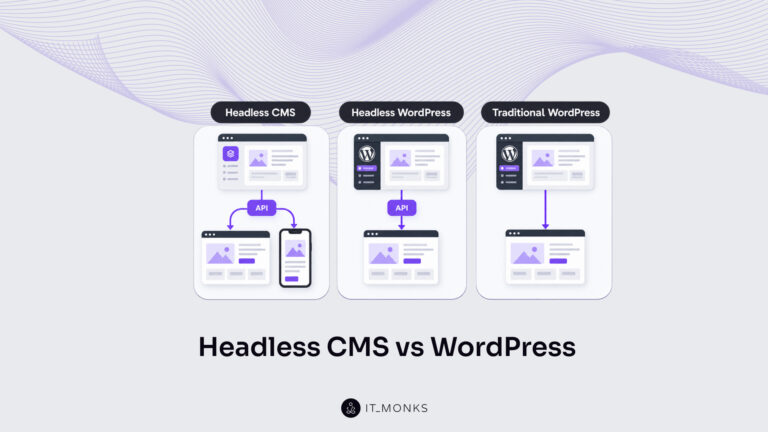
Headless CMS vs WordPress is a comparison of two choices made at once: an architecture choice between a coupled site…
Learn more 
The new campaign copy is approved. The ads go live on Monday, and the landing page they point to still…
Learn more 
Imagine a marketing team two days before a campaign launch. The copy is approved, the images are ready, and the…
Learn more Contact
Feel free to reach out! We are excited to begin our collaboration!
Don't like forms?
Shoot us an email at info@itmonks.com
Don't like forms?
Shoot us an email at info@itmonks.com

CEO, Strategic Advisor
Reviewed on Clutch
 ChatGPT
  Claude
  Grok
Grok  Gemini
 Send a Project Brief
Fill out and send a form. Our Advisor Team will contact you promptly!