- Expertise
Expertise That Drives Results
Explore our specialized services, tailored solutions, and industry expertise to elevate your digital presence. From custom WordPress development to seamless integrations, we build high-performing websites that deliver impact.
Solutions- Booking System Integrations
- Headless & REST API WordPress
- Hubspot Integration
- Enterprise WordPress
- Website Migration
- Internal Collaboration Platforms
- External Communications Hubs
- Work
- About
- Proof
- Contact
Learn more


How to Manage a WordPress Docker Container with Docker Commands and WP-CLI

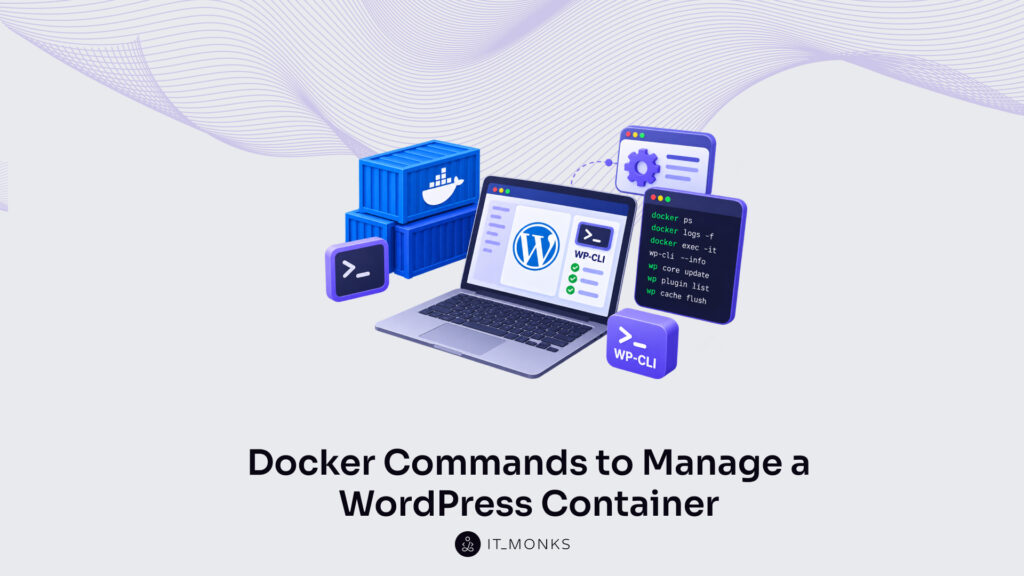
Managing a WordPress Docker container comes down to a handful of Docker commands run against a running container from the host and a set of WP-CLI commands run inside it. The container itself holds a live WordPress site and its companion database, already up and serving on the host; the developer does not tear it down to work on it, but reaches inside and drives it from the command line. Two instruments carry that work. The Docker command line on the host starts, stops, watches, and cleans up the container, while WP-CLI inside the container edits the WordPress site directly, without a browser and without touching the admin dashboard.
Managing that live container breaks into a handful of operations a developer performs against something already alive. Getting a shell inside it comes first. Then running WP-CLI against the WordPress core, plugins, themes, and database. Launching a container and cycling it through its running state: start, stop, restart. Reading what the container is doing through its logs and its process list, and pulling apart its configuration when something looks wrong. Copying files across the boundary between host and container in both directions. Reclaiming disk space once stopped containers, dangling images, and unused volumes accumulate.
Every one of those tasks begins from the same place: a shell inside the running container. That shell is what docker exec opens.
How to exec Into the Running WordPress Container
docker exec -it <container> /bin/bashdocker exec runs a command inside the already-running WordPress container from the host, and with the -it flags plus /bin/bash it opens an interactive shell instead of firing a single command and exiting. That shell is the entry point for every in-container operation: editing configuration, checking files, and, above all, running WP-CLI against the WordPress site. A developer who wants the container and image concepts sitting underneath these commands before reaching for the shell can start with Docker for WordPress developers.
The <container> placeholder takes the NAMES value from docker ps, the human-readable name Docker assigned the WordPress container rather than the database container beside it. Once the prompt turns into a root shell inside the container, the developer is standing where WordPress actually runs: the wp binary, the PHP runtime, and the WordPress files all sit on the local filesystem from that prompt.
The -it pairing is what keeps the session usable. -i holds the input stream open and -t allocates a terminal, so the shell behaves like an ordinary login session instead of a dead pipe. Drop either flag and docker exec still executes, but the interactive prompt collapses. For a single call there is a shorter form that skips the shell entirely: docker exec <container> wp core version --allow-root runs one WP-CLI command against the container and returns right away.
What docker exec never does is share the container’s running foreground process, and that single distinction is where docker attach behaves differently.
How to attach to the Running WordPress Container
docker attach <container>
# detach without stopping the container: press Ctrl-P, then Ctrl-Q
docker attach connects the terminal straight to the WordPress container’s main process, the one running as PID 1 that Docker started the container to run in the first place. Where docker exec spawns a brand-new shell beside that main process, attach shares it: the terminal now shows the live output of whatever the container runs in the foreground, and every keystroke lands on that same process.
That shared connection is the risk. Because attach is wired to PID 1, a stray Ctrl-C sent while attached can signal the main process and stop the container outright, and every visitor’s connection to the WordPress site drops with it. The detach sequence exists to avoid exactly that: Ctrl-P followed by Ctrl-Q releases the terminal and leaves the container running behind it.
So the two access paths answer different needs. docker attach fits a quick look at live foreground output, watching in real time what the running WordPress or database process is emitting. docker exec fits everything else and stays the safer default, since a new shell can be exited without disturbing the process that keeps WordPress online. From that exec shell, the move that matters most for a WordPress container is the next one: running WP-CLI against the WordPress site itself.
How to run WP-CLI Commands Inside the WordPress Container
docker exec -it <wordpress-container> wp core version --allow-root
docker exec -it <wordpress-container> wp plugin list --allow-root
docker exec -it <wordpress-container> wp db check --allow-root
WP-CLI is the WordPress command-line interface that runs inside the WordPress container, reached through the docker exec shell rather than fired from the host. The command-line interface splits along two lines here: WP-CLI drives WordPress from within the container, while the Docker CLI drives the container itself from the outside. Keeping that split clear is what makes the chain work: a wp command only means anything once it is already inside the WordPress container.
Prefixing each wp call with docker exec -it and the container name is the entire trick. The container’s shell runs as root, and WP-CLI refuses to operate as root unless --allow-root sits on the call, so that flag rides beside every wp call. Drop it and the tool stops before it does anything.
The three calls cover the layers a developer touches most. wp core version reports the running WordPress release. wp plugin list enumerates every active and inactive plugin without a trip to the dashboard. wp db check validates the database tables that the companion database container holds. Together they let WP-CLI run WordPress management commands from inside the container, so WordPress internals stay reachable without ever leaving the shell.
That same exec entry point does more than read state; it is also where in-container configuration gets edited, the route a developer takes to configure WordPress email in Docker from the identical shell. Every one of these calls assumes one condition: the WordPress container is already running, which is the state a launch command has to produce first.
How to run the WordPress Container with docker run
docker run -d -p 8080:80 --name <wp> wordpressdocker run is the container lifecycle command that launches the WordPress container from its image into a running state. The image named at the end of the line, wordpress, is the source the container starts from, the same image a WordPress Docker Compose setup declares in stack form. Where a stack file describes the container, docker run starts one directly.
Three flags fold into that single line, each carrying a distinct value. -d runs the container detached, so the host terminal stays free to drive docker exec, docker logs, and docker ps against the container rather than being pinned to its foreground output. --name <wp> assigns a stable handle so later commands target the container by name instead of a shifting ID. -p 8080:80 publishes the container’s port 80 to port 8080 on the host, written host:container as a plain TCP port pair; requests to 8080 on the outside arrive at 80 inside.
One distinction matters more than the flags. docker run creates a brand-new container, unlike docker start, which only resumes one that already exists. Run it twice and two containers appear, not one restarted. The container docker run produces this way is the object every later command (the start, the stop, the restart), then operates against.
How to Start, Stop, and Restart the WordPress Container
docker start <wordpress-container>
docker stop <wordpress-container>
docker restart <wordpress-container>
docker start, docker stop, and docker restart are the coordinated lifecycle commands that act on the one running WordPress container without ever re-creating it. Each takes the container name that docker ps reports as its single argument. The three cover the full swing between a halted container and a running one.
The distinction decides which fits. docker stop halts the container and releases it; docker start brings a halted container back up from where it left off; docker restart does both in a single call. A configuration edit that needs to take effect calls for restart, since it reloads the container in place. A full release (freeing the port, pausing the workload) wants stop, then start when the container is needed again.
The companion database container answers to the same three commands. docker start, docker stop, and docker restart each take its name the same way, so the pair moves together when a full environment has to come down or back up. After any of them, the WordPress container settles back into a running state, and reading what that running container is actually doing (the PHP notices, the request errors, the startup messages) is what docker logs streams to the terminal.
The Running WordPress Container Logs with docker logs
docker logs -f --tail 50 wordpressdocker logs streams the running WordPress container’s standard output and standard error straight to the terminal, which makes it the fastest way to read what the WordPress container is doing without opening a shell inside it. The command takes one argument, the container name, and prints everything the container’s main process has written to stdout and stderr since it started. For a WordPress container, that stream carries the PHP notices, the fatal errors, and the web server’s request log, so a white screen or a 500 response usually has its cause sitting in the most recent lines.
Two flags shape what comes back. -f (follow) holds the stream open and prints new lines as the container produces them, which turns the terminal into a live tail while a failing request is reproduced in the browser. --tail 50 caps the window to the last 50 lines. The measurement here is a line count, not a duration, so raising or lowering the number trades deeper history for a shorter read. When the question is “what happened in the last quarter hour” rather than “the last N lines,” --since 15m or an absolute timestamp such as --since 2026-08-05T09:00:00 bounds the output by elapsed duration or clock time instead.
Because the container writes PHP and WordPress errors to that same stream, most diagnosis never needs an interactive session at all: the stack trace, the failing plugin path, the database connection error all print in place. Confirming the container is actually up, and reading the exact name to hand to this command, is the job of docker ps.
The Running WordPress and Database Containers with docker ps
docker ps
docker ps -a
docker ps lists every running container on the host, which for a WordPress stack means two rows: the WordPress container itself and the companion database container it talks to. The plain command prints one line per running container across a fixed set of columns: CONTAINER ID, IMAGE, COMMAND, STATUS, PORTS, and NAMES. STATUS confirms each container is up and how long it has been running; PORTS shows the published TCP port that maps the WordPress container’s internal port 80 out to the host, for example 0.0.0.0:8080->80/tcp.
The NAMES column carries the single most reused string on the screen. Every other Docker command that operates the WordPress container (exec, logs, restart, cp, inspect) takes a container name as its argument, and that name is exactly what docker ps prints here. Reading it once removes the guesswork from every command that follows; a WordPress container often carries a generated name such as wordpress-app-1 rather than a tidy label chosen by hand.
By default docker ps hides anything that has already exited. docker ps -a widens the list to include stopped containers, which is how a WordPress container that crashed on startup, or a database container that never came up, becomes visible — a running-only list would simply omit it and leave the failure invisible. Once the exact name is in hand, reading a single container’s full configuration is what docker inspect returns.
How to inspect the WordPress Container with docker inspect
docker inspect wordpress
docker inspect -f '{{ .State.Status }}' wordpress
docker inspect returns the low-level configuration of the WordPress container as a single JSON document, gathering in one place everything Docker records about how the container was created and how it currently runs. Run against a container name, the plain form prints the whole object (network settings, attached volumes, environment variables, the entrypoint, the restart policy, and the resolved image digest), which is thorough but rarely what one lookup actually needs.
The --format flag (short form -f) extracts a single field instead of scrolling the entire document. A Go-template expression pulls one value straight out: --format '{{ .State.Status }}' returns the WordPress container’s running state — running, exited, or restarting — --format '{{ json .Mounts }}' returns only the volume entries, and --format '{{ .Config.Env }}' lists the environment variables — the database host, user, and password that WordPress reads on boot. Targeting the field turns a hundred-line read into a one-line answer.
What inspect surfaces is the configuration fixed at the container’s creation: the named volumes holding the site’s files and database, and the environment values that connect WordPress to its database container. Its own job stops at showing which named volumes are attached and the path each maps to inside the container, not at the persistence those volumes provide across the container’s own lifecycle. With the configuration read and the container name confirmed, moving individual files in and out of the WordPress container is what docker cp handles.
Files In and Out of the WordPress Container with docker cp
# Pull a file out of the running WordPress container to the host
docker cp wordpress:/var/www/html/wp-config.php ./wp-config.php

# Push a file from the host into the container
docker cp ./photo.jpg wordpress:/var/www/html/wp-content/uploads/

# The container name ("wordpress" here) comes from docker ps
docker ps --format '{{.Names}}'
docker cp moves files in and out of the running WordPress container, copying them between the host filesystem and a path inside the container. One command handles both directions. Reading from the container puts the container reference first: docker cp wordpress:/var/www/html/wp-config.php ./ pulls the live wp-config.php, or a database export, out onto the host for editing or backup. Writing into the container flips the order: docker cp ./photo.jpg wordpress:/var/www/html/wp-content/uploads/ pushes an upload back in against the same running instance.
The container:path half of each command fixes source and destination. Whichever side carries the wordpress: prefix is the container end; the bare path is the host end, so the position of that prefix alone selects the copy direction. The container name that goes in front of the colon is whatever docker ps reports for the WordPress service, not the image tag, the container’s runtime name.
A copy made this way crosses the boundary between host and container as a one-time transfer, without a shared volume wired between the two. That suits ad-hoc moves (grabbing wp-config.php to inspect it, dropping a single media file into wp-content/uploads) rather than storage meant to survive the container’s own lifecycle. After pushing a file in, docker exec wordpress ls /var/www/html/wp-content/uploads/ confirms it landed. Copies also accumulate: stray files and stopped containers pile up on disk over time, and clearing that space is where docker prune takes over.
How to run docker prune for the WordPress Container
# Remove stopped containers, dangling images, and unused networks around WordPress
docker container prune
docker image prune
docker network prune

# The broader sweep in one command
docker system prune

# DANGER — also removes unused volumes, including WordPress data
docker system prune --volumes
docker prune reclaims disk space by removing unused Docker objects left around the WordPress container: stopped containers, dangling images from earlier iterations, and networks no longer attached to anything running. The name covers a family: docker container prune clears stopped containers, docker image prune drops untagged layers, and each reports how much it freed. Docker states the reclaimed total in bytes, scaling the readout to KB, MB, or GB as the amount grows.
docker system prune runs the whole cleanup in a single sweep: containers, images, networks, and the cache together. It is the fast way to recover space on a host crowded by months of WordPress iterations. Adding one flag changes the risk profile entirely.
Caution:
docker system prune --volumeserases any volume that no container still references. The WordPress database and thewp-contentvolume stay safe while their container references them, but turn unrecoverable once that container is removed and the volume is left orphaned.
Keeping the database and wp-content intact across a container’s removal and recreation belongs to a separate mechanism, walked through in Docker volumes for WordPress. The distinction matters at the moment of typing --volumes: prune spares a named volume as long as any container still references it, running or merely stopped, and marks it for deletion only once no container references it at all. A WordPress data volume becomes vulnerable the moment its container is removed with docker rm or docker compose down, which leaves the volume orphaned and unreferenced, exactly the state --volumes erases.
Prune closes the operating loop that began with getting inside the container and driving it from the command line. Every command that reached that point (the ones for entering, observing, moving files, and cleaning up) collects into one quick-reference table.
Docker and WP-CLI Commands Cheat Sheet for the WordPress Container
One consolidated cheat sheet holds every Docker and WP-CLI command that operates the WordPress container, pairing each with its exact syntax and its purpose. It gathers the full set into a single reference so the common commands, their basic forms, and their frequently used flags sit in one place rather than scattered across separate walk-throughs. The table is the payload: a container-management reference where every row names a command, shows how to type it, and states what it does for the running WordPress container.
| Command | Syntax | What it does for the WordPress container |
|---|---|---|
docker exec | docker exec -it wordpress bash | Opens an interactive shell inside the running WordPress container (-it keeps the terminal attached). |
docker attach | docker attach wordpress | Connects the terminal to the container’s main process and its live output. |
wp (WP-CLI) | docker exec -it wordpress wp core version --allow-root · wp plugin list --allow-root · wp db check --allow-root | Runs WP-CLI against the WordPress site inside the container for core, plugin, and database operations. |
docker run | docker run -d -p 8080:80 --name wordpress wordpress | Starts a new WordPress container in the background (-d) and publishes container port 80 on host TCP port 8080. |
docker start / stop / restart | docker start wordpress · docker stop wordpress · docker restart wordpress | Controls the lifecycle of the existing WordPress and database containers. |
docker logs | docker logs --tail 100 -f wordpress | Streams the container’s log output; --tail 100 limits the window to the last 100 lines, -f follows new entries. |
docker ps | docker ps · docker ps -a | Lists running containers; -a includes stopped WordPress and database containers. |
docker inspect | docker inspect wordpress · docker inspect --format '{{.State.Status}}' wordpress | Returns the container’s full configuration; --format extracts a single field. |
docker cp | docker cp wordpress:/var/www/html/wp-config.php ./ · docker cp ./file wordpress:/var/www/html/ | Copies files between the host and the WordPress container in either direction. |
docker prune | docker system prune · docker system prune --volumes | Reclaims disk space by removing unused objects; --volumes also deletes WordPress data. |
docker -v | docker -v · docker version | Reports the Docker CLI (client) version; docker version also shows the Server (Engine) version. |
Every entry here reaches the WordPress container through the same program: the Docker command-line client bundled with Docker Engine, the tool that turns each typed instruction into an action against the running container.
What Is the Docker CLI?
The Docker CLI is the docker command-line client, the program that relays every Docker command to the engine running the WordPress container: docker exec, docker logs, docker run, docker prune, and the rest. A developer types docker plus a subcommand into a terminal, and the client hands that request to the Docker daemon, the background service that actually creates, runs, and manages containers on the host.
The client states the intent; the daemon carries it out. Docker Desktop wraps the same engine in a graphical window, yet the command-line client is what keeps each operation copy-runnable and scriptable against a live WordPress container.
WP-CLI is a separate instrument, and the difference is worth keeping straight. Where the Docker CLI drives the container from the host, WP-CLI (the wp command) runs inside the container and manages WordPress itself: its themes, plugins, users, and database records. Two clients, two layers. docker exec opens a shell into the container; wp does the WordPress work once inside it.
That is exactly why an in-container WordPress operation takes the shape docker exec <container> wp ...
The Docker client reaches in, and WP-CLI acts on WordPress. The client can also report on itself, including which release of the Docker Engine it happens to be driving.
Which Docker Version Runs in the WordPress Container?
docker -v
# Docker version 27.3.1, build ce12230

docker version
# Full Client and Server (Engine) report, e.g. Server: Engine  Version: 27.3.1
docker -v prints the Docker CLI (client) version (a semantic version in major.minor.patch form, such as 27.3.1) for the client installed on the host machine. docker version reports both the Client and the Server (Engine) versions, the Engine version being the Server: Engine figure it prints, which helps when those two were refreshed at different times. Either command reads its values straight from the local Docker install the CLI talks to; neither reaches inside the WordPress container.
That distinction is the whole answer. The version from docker -v belongs to the host’s Docker client, not to anything inside the WordPress container. The container runs its own, separate figure: the WordPress image tag, the release of WordPress the container was started from, such as wordpress:6.6-php8.3-apache. Engine version and image tag are two different values, read two different ways, and the version command reports only the first.
More Articles by Topic

In late August, 2026, Jess Cook, VP of Marketing at Vector, posted a meme about her late nights since her…
Learn more 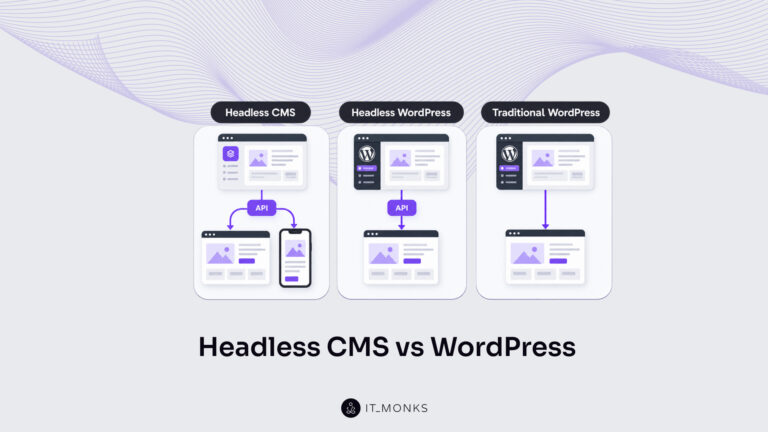
Headless CMS vs WordPress is a comparison of two choices made at once: an architecture choice between a coupled site…
Learn more 
The new campaign copy is approved. The ads go live on Monday, and the landing page they point to still…
Learn more Contact
Feel free to reach out! We are excited to begin our collaboration!
Don't like forms?
Shoot us an email at info@itmonks.com
Don't like forms?
Shoot us an email at info@itmonks.com
CEO, Strategic Advisor
Reviewed on Clutch
 ChatGPT
  Claude
  Grok
Grok  Gemini
 Send a Project Brief
Fill out and send a form. Our Advisor Team will contact you promptly!