Explore our specialized services, tailored solutions, and industry expertise to elevate your digital presence. From custom WordPress development to seamless integrations, we build high-performing websites that deliver impact.
To convert an HTML site to WordPress, you move a static HTML site (whether hand-coded, framework-based, or statically generated) into self-hosted WordPress.org so it can run as a managed WordPress site.
This guide is for HTML site owners and front-end developers who need to convert an HTML website to WordPress with the right scope in view: a pre-conversion inventory, four method families, and a post-conversion cutover that completes the move.
Why Convert from Static HTML to WordPress
WordPress is a database-backed dynamic CMS, which is why many HTML to WordPress projects start when a static HTML site no longer fits the way the site needs to operate. An HTML to WordPress conversion usually happens when the HTML site owner needs CMS-driven publishing, plugin extensibility for SEO, forms, commerce, webinar plugins, or analytics, easier content handoff to non-developers, scalability beyond a small brochure site, broader design flexibility through the theme ecosystem, or a way to reduce dependency on a single developer maintaining hand-coded files.
At the same time, not every static HTML site should convert to WordPress. Very small or rarely updated sites sometimes work better when the HTML stays as HTML and the overhead of a CMS exceeds the convenience it adds.
This guide focuses on HTML to WordPress conversion, but readers coming from other platforms should use the dedicated guides for Wix to WordPress and Squarespace to WordPress. Separate Joomla to WordPress and Drupal to WordPress guides are also planned for publication.
Pre-Conversion Inventory of the HTML Site
very effort to convert HTML to WordPress starts with a pre-conversion inventory of the source HTML site before any destination work begins. The audit establishes what the HTML site contains, what the conversion needs to preserve, and what the converter must account for while converting HTML to WordPress. Before any cutover, it is also useful to capture an original-site snapshot through a mirrored copy or archived reference so the source remains recoverable if files, layouts, or assets change during the process.
The inventory spans six categories:
HTML pages
Static assets
Forms and backends
Inline scripts
External embeds
SEO assets
Skipping the audit usually creates gaps between the source HTML site and the finished WordPress version, so the inventory should be complete before the conversion moves into the HTML page review stage.
HTML Page Inventory
The HTML page inventory captures every page on the source HTML site, with three pieces of evidence recorded for each one:
the file path on disk (typical layouts being /index.html, /about.html, /services/web-design.html),
the URL structure visitors actually type or land on,
the internal anchor links that connect each page to the others.
Recording the full set keeps the converter from missing pages that exist on disk but never appear in the navigation, and from missing the anchor-link map that determines which redirects the cutover needs to write.
Three approaches enumerate the page set, and the converter picks one as a primary and a second as a cross-check;
A file-system walk works for hand-coded HTML sites where every page exists as a discrete .html file in a known directory structure.
The existing sitemap.xml works for statically generated sites whose generator wrote the sitemap during the build.
A crawl tool, run against the live site, works as a cross-check for either case and catches pages reachable through the navigation but missing from the file listing.
The output is one flat list – file path, URL, internal anchor links – that the static asset inventory then builds against.
Static Asset Inventory
The static asset inventory catalogs every non-HTML file the source site relies on: images, PDFs, downloadable files, and video files. Video files belong here when the source site hosts the video file directly on its own server (embedded videos that pull from YouTube or Vimeo belong to the external embed inventory and are handled there). The distinction matters because hosted video files need a destination on the WordPress media library or a media plugin, while embedded videos are the embed code that points to the third party.
Each asset has a path on the source site that determines whether existing inbound links survive the conversion. Typical layouts route images through /images/ or /img/, downloadable PDFs through /downloads/ or /files/, and asset bundles through /assets/ or hand-coded folder structures the original developer chose.
The converter records every asset path so the cutover can preserve the same URLs (where any external site links to those assets) or write redirects from the old paths to wherever the WordPress media library places them.
Form and Backend Inventory
The form-and-backend inventory captures every <form> on the source HTML site coupled with the backend it currently posts to.
Three backend shapes account for most static-site forms:
A CGI script: typically a formmail.cgi or a small PHP handler in a /cgi-bin/ directory – receives the form submission and emails it onward.
A third-party form service (Formspree, Basin, Getform, or a similar hosted endpoint) takes the submission via an HTTP POST to a vendor URL, with the action attribute pointing outside the site.
A mailto: link skips the form-handler model entirely and opens the visitor’s email client.
Backend mapping matters because each shape maps to a different WordPress replacement. A CGI script maps to a WordPress form plugin. Contact Form 7, WPForms, and Gravity Forms are common options that an HTML-to-WordPress workflow uses to replace the old handler.
A third-party form service stays as a third-party embed: the same vendor endpoint receives submissions from the WordPress page, with no WordPress-side form plugin involved.
A mailto: link stays as a mailto: link or graduates to a form plugin if the converter wants to capture submissions in a WordPress dashboard rather than in an email inbox.
Inline Script Inventory
The inline script inventory captures every <script> block embedded directly in the source HTML that adds interactivity: image carousels, accordions, modal dialogs, custom widgets, inline tracking pixels, hand-rolled form validators.
Inline blocks are the ones that ship inside the page markup itself, not the external <script src=”…”> references that load a library file (those belong to the asset inventory’s framework-dependency line). A grep across the source-site files for <script> tags surfaces the full set, and each block gets recorded against the page it lives on so the WordPress-side replacement lands in the right place during the conversion.
WordPress core does not permit raw <script> tags inside standard post or page content for any author below the unfiltered_html capability. The editor strips them on save as a security measure (on a single-site install, administrators carry that capability; on multisite, only superadmins do).
Two replacement paths apply:
A code-snippet plugin such as WPCode loads the inline JavaScript through a managed snippet that names the page or section it belongs to.
The active theme’s functions.php file enqueues the script through wp_enqueue_script() for site-wide handlers that belong with the theme.
External Embed Inventory
The external embed inventory captures every third-party widget, embedded video, embedded map, embedded social-media post, and similar external dependency on the source HTML site.
Typical surfaces include <iframe> embeds (YouTube videos, Vimeo videos, Google Maps, calendar widgets), oEmbed-friendly URLs (a bare YouTube link that the page renders as a player), and vendor-specific embed scripts (a Twitter post embed, a chat-widget loader, an analytics-and-personalization snippet). Each embed gets recorded against the page it lives on and the vendor it depends on.
Two paths separate the embeds that survive the conversion as-is from the ones that need a WordPress-side equivalent.
Typical <iframe> embeds copy across cleanly: the iframe markup pastes into a Custom HTML block on the WordPress page and renders the same vendor content from the same vendor URL.
Vendor-specific embed scripts may need a Gutenberg embed block (the WordPress core handles YouTube, Vimeo, Twitter, Spotify, and a long built-in list through the block’s URL field) or a plugin the vendor publishes for WordPress (a chat widget, a booking widget, a vendor-specific analytics integration).
Embeds that depended on the original page’s <head> JavaScript or on vendor scripts loaded site-wide on the static site need their loaders relocated to the new WordPress site through the same code-snippet plugin or theme functions.php path the inline script category described.
SEO Asset Inventory
The SEO asset inventory captures the SEO standing the conversion must preserve: current rankings on the queries the source HTML site currently earns clicks for, top pages by organic traffic, backlinks pointing at the source site’s URLs, and the current sitemap.xml. Recording the standing first turns it into a known input the cutover protects, rather than something the converter rediscovers after a ranking drop.
Each asset has a source the converter draws from. Google Search Console provides current rankings and the top pages by organic clicks and impressions over a chosen window, typical practice runs a three-month or twelve-month window depending on traffic seasonality.
A backlink tool surfaces inbound links pointing at the source HTML site’s URLs; the inventory records the linking domain, the target URL, and the anchor text so the redirect map preserves ranking equity through 301 redirects from old URLs to new ones. The existing sitemap.xml, or its generator, lists every URL the source site published as canonical. The converter retains it as the redirect-map input and as the model for the new WordPress sitemap.
Page-Builder Rebuild Method for the HTML Site
The page-builder rebuild method for the HTML site recreates the source pages visually inside WordPress using a page builder, with no PHP fluency required from the converter. WordPress runs on PHP under the hood, but a page builder hides that surface. The converter works inside a visual canvas that produces the same rendered output a hand-coded HTML page would, while the underlying templating stays in the builder’s hands.
The method has its own tradeoff. The destination pages will not be a pixel-perfect clone of the source HTML. The destination pages will be a visual refresh that matches the source’s content and roughly its layout, finished in the builder’s typography, spacing, and component vocabulary rather than the source’s hand-written CSS.
This conversion path fits the source HTML site when two conditions hold together.
The converter is willing to refresh the design rather than preserve every pixel from the static layout.
The converter has no PHP fluency and prefers a visual workflow over template editing.
When both conditions hold, the page-builder rebuild method moves the source content into WordPress faster than a manual theme would, and the converter retains design control through the builder’s component panel rather than a code editor.
The page-builder rebuild method spans four steps:
Builder-friendly theme installation: a near-blank parent theme is added to the fresh WordPress installation so the builder controls the page area.
Page recreation in the builder: each source HTML page is reproduced inside the WordPress page editor using the builder’s blocks and components.
Form recreation with a form plugin: every source <form> is recreated inside a WordPress form plugin, with the new form pointed at the same destination the source used.
Inline script replacement via code snippet: every interactive <script> block from the source HTML is replaced through a builder widget or a code-snippet plugin, since WordPress will not accept raw <script> tags inside post or page content.
A short note on the prerequisite. Each method assumes the destination WordPress installation already exists on the converter’s chosen host, with a starting theme appropriate to the method picked. The host-and-installation work is itself the destination-setup territory the four methods all assume; a converter who has not yet stood up the destination WordPress installation needs to do that first, regardless of which method follows.
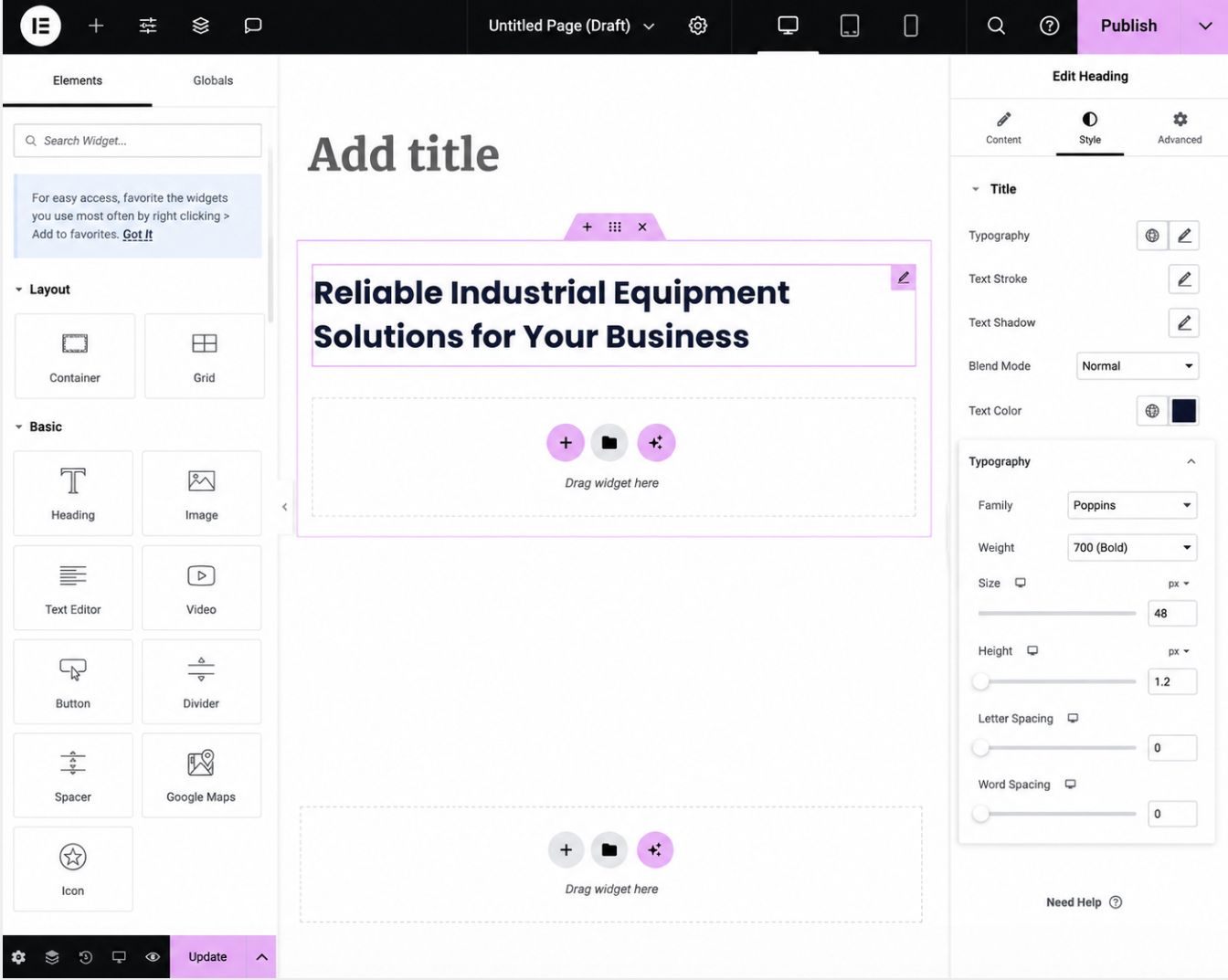
Builder choice is open. Gutenberg, the WordPress core block editor, ships with the WordPress installation itself. Elementor, Bricks, and Beaver Builder are common third-party page builders the converter installs as a plugin. The four are peer options. The method works the same way in each.
Reader queries that frame the conversion specifically as an Elementor task (“html to elementor converter”) fold into this same method: Elementor is one of the four builders the converter picks during this step, with the same Hello Elementor near-blank theme and the same four-step sequence.
Builder-Friendly Theme Installation
A builder-friendly theme is one that yields the page area to the builder rather than imposing its own layout, sidebar, or wrapped content area on top of what the builder produces. The opposite kind of theme, an opinionated theme that fights the builder by injecting its own page templates and sidebar regions, leads to layout conflicts the converter then has to undo block by block.
On a fresh WordPress installation, picking a near-blank parent theme is therefore the first move of the page-builder rebuild method, because the theme decision constrains every page the builder will draw afterward.
Four neutral peer options cover the common builder pairings.
Hello Elementor is the near-blank theme Elementor’s authors publish for use with Elementor;
GeneratePress is a builder-agnostic near-blank theme that runs cleanly under Gutenberg, Elementor, Beaver Builder, or Bricks;
Twenty Twenty-Five is the WordPress core default theme and works for a Gutenberg-only conversion where no third-party builder is used;
Bricks ships a bundled theme of its own that the converter activates when the chosen builder is Bricks.
The chosen theme depends on which builder the converter committed to earlier, not on which theme has the most reviews. A builder-agnostic option such as GeneratePress is a safe default when the converter has not yet committed to one builder.
The install path on a fresh WordPress installation is short. The converter opens Appearance → Themes → Add New in the WordPress dashboard, searches by name for the chosen builder-friendly theme, clicks Install, and then clicks Activate on the same screen once the file finishes downloading.
The activated theme becomes the new parent theme of the WordPress site, and the page area it yields is the canvas the builder will draw the recreated pages onto. With the canvas ready, the work shifts to porting each source HTML page into the builder one page at a time.
Page Recreation in the Builder
Page recreation is the act of walking each source HTML page into a new WordPress page inside the page editor, using the builder’s components rather than the source HTML’s hand-coded markup.
The work is per-page and per-block: the converter opens a new WordPress page for each source page in the inventory, switches the editor into the builder of choice, and reproduces the content one block at a time from the source’s rendered output. The source page’s appearance becomes the reference; the builder’s components become the new vocabulary the page is recomposed in.
The starting state on each new page is a blank canvas inside the chosen WordPress builder – Gutenberg, Elementor, Bricks, or Beaver Builder – opened from the WordPress dashboard’s Pages > Add New screen and switched into the builder’s editing mode. The canvas waits for the source page’s content to be reproduced one block at a time; the source HTML page sits open in a separate browser tab as the visual reference.
Source content ports into builder blocks one-to-one. Source paragraphs and source headings move into heading and paragraph blocks. Source <img> tags move into image blocks, with the same media file uploaded to the WordPress media library as the image source. Source <ul> / <ol> lists move into list blocks; source <table> markup moves into table blocks.
The builder’s block vocabulary covers the standard HTML content shapes the source pages contain, and the conversion stays at the rendered-content level rather than the markup level. Pasting the raw HTML source into a builder block does not work – page builders sanitize incoming markup, so the source’s class attributes, inline styles, and hand-rolled wrappers are stripped on save and the destination page renders without the source’s styling.
Inline styling that does not map directly to a builder block has two routes. Per-page custom CSS goes into the builder’s own custom-CSS panel, scoped to the single page being recreated. Site-wide custom CSS (typography rules, color tokens, header and footer adjustments that need to apply across every recreated page) goes into the theme’s additional-CSS area under Appearance → Customize → Additional CSS.
Page recreation handles the markup that the source page rendered as content; the same source page also carried <form> markup that does not survive the recreation as live HTML, and a WordPress form plugin replaces it.
Form Recreation with a Form Plugin
Form recreation rebuilds every source <form> inside a WordPress form plugin, because the source <form> plus its CGI script, third-party form-service action, or mailto: backend does not survive page recreation as live HTML markup.
A page builder strips raw <form> tags pasted into a content block for the same reason it strips raw <script> tags: the builder sanitizes the page on save and the form’s wiring back to its handler does not come through intact. The replacement is a managed form, recreated as a plugin object that the builder embeds as a single block.
Three WordPress form plugins are common neutral peer options.
Contact Form 7 ships the lightweight free plugin many static-site converters reach for first;
WPForms is the form plugin with the most downloads in the WordPress ecosystem;
Gravity Forms is the long-standing premium option whose feature surface covers complex form workflows.
The choice between them depends on which feature surface the source forms need, not on vendor reputation – a single contact form on the source site works under any of the three.
Each source form is recreated field-for-field inside the chosen plugin. The converter consults the form-and-backend inventory recorded earlier, names every field the source <form> exposed (name, email, message, and any custom fields the source captured), and re-creates each field inside the plugin’s form builder.
The new form then points at the right destination, a notification email address when the source posted to a CGI script or a mailto: link, or the same vendor endpoint when the source posted to a third-party form service such as Formspree, Basin, or Getform.
Pointing the new form at the same destination keeps the inbox or vendor dashboard the source site already used, so submissions arrive where the site owner already reads them. With form markup replaced, only one source-page element remains unhandled by the builder: the inline <script> blocks that supplied interactivity, which need their own managed path because WordPress will not accept raw script tags in content.
Inline Script Replacement via Code Snippet
Inline script replacement is the recreation of interactive <script> blocks from the source HTML through one of two managed paths: a builder widget that covers the same behavior natively, or a code-snippet plugin when no widget covers the behavior.
The page-builder rebuild method strips raw <script> tags on save the same way it strips raw <form> tags, so the source’s inline scripts cannot ride along inside a content block – the replacement uses a managed registration the WordPress installation accepts.
The two paths split by what the source <script> was doing.
Image carousels, accordions, modal dialogs, lightboxes, and similar interactive widgets are replaced by the builder’s own component for the same behavior. Page builders ship widgets for all of those.
The widget is configured inside the builder, the source’s bespoke JavaScript is dropped, and the replaced widget renders the same surface the source page had. Analytics tags, third-party trackers, custom JavaScript handlers, and any inline script the builder has no widget for take the snippet path.
A code-snippet plugin registers the inline JavaScript as a managed snippet and loads it on the page or pages where the source had it. WPCode is one common code-snippet plugin in the WordPress ecosystem; it lets the converter paste an inline script, scope it to a specific page or post type, and the plugin manages the loader.
A short PHP example shows the snippet-plugin pattern at the API level, replacing what was a raw <script> block at the bottom of a single source HTML page. The snippet is registered against the page slug so it loads only on that page:
// Loads only on the page whose slug is "about" - replaces an inline
// <script> from the source HTML's about.html
add_action( 'wp_footer', 'converter_about_inline_script' );

function converter_about_inline_script() {
    if ( ! is_page( 'about' ) ) {
        return;
    }
    ?>
    <script>
        // ported from the source HTML <script> block
        document.addEventListener( 'DOMContentLoaded', function () {
            // original inline behaviour goes here
        } );
    </script>
    <?php
}
Import the HTML Site into WordPress with a Converter Plugin
An HTML to WordPress converter is an automated import method that runs an HTML-import plugin against the source HTML files and pulls their content into the destination WordPress site without page-by-page manual recreation. The method has a narrow but real fit: many content-heavy pages, low attachment to the original visual design, and acceptance that the imported pages will render under a fresh WordPress theme rather than under the source site’s own stylesheet.
When those three conditions hold, an HTML to WordPress converter plugin shortens the work of bringing the body copy and the image references across by an order of magnitude relative to recomposing each page in a builder by hand. When the original design must survive intact, the plugin route is the wrong tool – its honest output is content first, presentation second.
Three converter plugins show up across the practical literature as the common neutral options for this method:
HTML Import 2 (a long-running import tool that maps a directory of HTML files into WordPress pages and posts),
WP Siteimporter (a similar directory-based importer),
Childify Me (a related tool that converts a static design into a starter child theme rather than into pure post content).
A practical caveat applies before any of them gets activated. HTML-import plugins sit in a quiet corner of the plugin ecosystem and some of them have not been updated in years. A converter plugin’s last updated date and tested with WordPress version are the freshness signals that typically decide whether the import on a current WordPress installation will run cleanly or break against modern core changes.
A plugin last touched in 2018 against WordPress 5.0 can run on a 2026 WordPress 6.x destination, but the import may also produce malformed posts or fail mid-job and leave a partial dataset behind – the plugin author has not verified the behaviour against the version actually in use. Reading those two values in the plugin directory before activation is the cheap step that protects the import from that uncertainty.
The plugin route, as a whole, runs in four steps:
The HTML import plugin install on the destination WordPress site, with the freshness check applied before activation.
The source HTML file upload into the plugin, exposing the static site to the importer either as a server directory or as an uploaded archive.
The page-to-post mapping configuration, where the plugin asks how each kind of source HTML file should land in WordPress – as a page, as a post, or as a custom post type.
The list of what the plugin method does not convert cleanly, which sets honest expectations and points the manual-fix work back at the same WordPress patterns the page-builder method already uses for forms and inline scripts.
A converter run begins on the destination WordPress side rather than on the source HTML side, because the plugin has to reach the WordPress dashboard before it can read any source file.
HTML Import Plugin Installation
An HTML import plugin is a WordPress plugin that reads a directory of HTML files and writes their content into WordPress pages or posts; activating one is the destination-side prerequisite that has to land cleanly before the plugin can read any source HTML.
The starting point inside the WordPress admin is Plugins > Add New – the plugin search and install screen – where a search for html import returns the small set of converter plugins as candidates. From that screen, an HTML to WordPress converter plugin installs the same way any other WordPress plugin installs: search, install, activate. The simplicity ends there.
Activation is the wrong place to start trusting a converter plugin.
Four directory signals (each one published on the plugin’s own WordPress.org plugin directory page by the WordPress.org plugin team) decide whether a candidate plugin is fit for the import job before it ever touches the source HTML:
The last updated date is the freshness floor that the WordPress.org plugin directory surfaces on every plugin page. A last updated value that lags far behind the current major WordPress release on a category this niche raises a question – converter plugins that were left untouched as WordPress core moved through several major versions tend to drift away from the current editor and post-content APIs they need to write into. A recent date is not a guarantee, but a stale date can signal that the plugin’s authors have moved on.
The tested with value is the WordPress core compatibility floor that the WordPress plugin team’s own plugin-handbook compatibility guidance treats as the maintainer’s verification claim. A plugin tested with WordPress 5.x on a destination WordPress 6.x installation may still run, but the plugin author has not verified it against the version actually in use; any quiet incompatibility falls to the converter to discover the hard way. A plugin tested with the current major WordPress version is the safer call.
The active-install count is the field-evidence floor the WordPress.org plugin directory publishes alongside each plugin’s listing. Converter plugins are inherently low-volume tools – most readers run them once and move on – so absolute numbers tend to run lower than for general-purpose plugins. Inside that smaller pool, ratio still applies: a plugin with a substantial active-install count and recent reviews typically has a real user base sanity-checking it, while one with a handful of installs and no reviews offers no community evidence that it works at all.
The support-thread freshness on the WordPress.org plugin page is the responsiveness floor the WordPress.org plugin directory exposes through the support tab on every plugin listing. Recent threads with author replies say the plugin is being maintained against current issues; a wall of unanswered threads says the opposite, and the import job can be on its own when something goes wrong.
A candidate plugin that clears all four checks earns activation. One that fails any of them sends the converter back to the candidate list to pick a different option, or back to the page-builder method as the manual fallback. Once a plugin is installed and activated, the plugin exposes a settings or import screen that asks for the second input the import job needs – the source HTML itself.
Source HTML File Upload to the Plugin
Source HTML file upload is the act of handing the static HTML site to the converter plugin as the input the import will read. Each converter plugin exposes one of two intake paths, and the source files travel along whichever one the plugin offers.
The first path is a source-directory pointer. The plugin reads from a server-side path, typically somewhere inside the WordPress hosting account where the original HTML files have already been copied (for example, a directory like /wp-content/uploads/html-import-source/ containing the raw files from the static site).
The second path is a file-upload UI – a familiar WordPress upload screen that accepts an archive of the HTML site as a single .zip and unpacks it into the plugin’s working area before the import runs.
Both paths import the same content; the difference is where the source files sit. The directory-pointer path suits a converter who already has shell or file-manager access to the WordPress server and who finds it easier to deposit files there once than to re-upload through the browser. The file-upload UI suits a converter working entirely from the WordPress admin without server-level access. The plugin’s documentation usually settles which path applies; some plugins offer both.
The packaging of the source HTML matters more than the intake path. The original HTML site’s directory structure carries its meaning – index.html at the root, about/ and services/ and blog/ as sub-directories, an images/ folder beside them, a css/ folder beside that, <img src=”../images/logo.png”> references reaching across those folders.
The relative paths between pages, between pages and images, and between pages and stylesheets only resolve if the directory layout that produced them stays intact. A flattened upload – where every file lands in the same folder regardless of its source location – breaks every relative path the source HTML wrote, and the import lands a set of pages whose internal references go nowhere.
The packaging rule that keeps relative paths intact is straightforward: the archive (or the directory deposited on the server) preserves the original folder layout exactly as it shipped on the static-HTML host. The source index.html belongs at the top of the archive; the about/ directory keeps its name and its contents; the images/ folder sits where the source HTML expects to find it; the css/ folder, the js/ folder, and any sub-page directories all keep their original positions.
A side-by-side directory listing of the static-HTML host and of the archive – same folders, same filenames, same nesting – is the verification step before the import runs. With the archive structured cleanly, the plugin’s next configuration question decides where each imported file actually lands inside WordPress.
Page-to-Post Mapping Configuration
Page-to-post mapping is the configuration choice that tells the plugin which WordPress content type each source HTML file should land in.
WordPress holds three relevant content types:
page (evergreen, navigational, hierarchical – the home page, the about page, the services page, the contact page);
post (chronological, archive-driven, taxonomy-tagged – the blog post, the news entry, the dated update);
custom post type (a developer-registered third kind for content that does not fit either of the first two – case studies, products, team members, portfolio items, events).
The mapping configuration asks, for each kind of source HTML file, which of those three destinations applies.
A practical rule of thumb settles most of the mapping cleanly. Top-level marketing files, the ones that sit at or near the root of the source HTML directory and serve the visitor’s navigation needs (index.html, about.html, services.html, contact.html, pricing.html), map to WordPress pages. Pages are the right destination because their content rarely changes, because they live outside the chronological feed, and because they belong inside the WordPress page hierarchy where parent and child relationships matter (an about page with team and history as children, for example, mirrors how the source HTML probably already nested those files).
Date-stamped article files (the ones inside a blog/, news/, or posts/ directory, often with date-based filenames or front-matter dates, organized by publication time rather than by site navigation) map to WordPress posts.
The WordPress post archive is chronological by design; it offers categories and tags and author archives and date archives that the source HTML’s static blog directory was probably approximating with hand-maintained index pages. Bringing those files into the WordPress post type lets WordPress own the chronology and the taxonomy that the static site was simulating.
The custom post type case applies when the source HTML site already separated a third content kind into its own directory and treated it as something other than a marketing page or a blog post. A case-studies/ directory full of long-form client write-ups, a products/ directory with a per-product file, a team/ directory with a per-person bio page, an events/ directory with one file per event.
Each of these is a candidate for a custom post type on the WordPress side, because each one has its own set of attributes (a case study has a client name and an industry; a product has a price and an inventory status; a team member has a role and a photograph) that neither the page nor the post model represents cleanly.
The mapping decision for the custom post type case usually involves registering the post type on the WordPress side first (in the theme’s functions.php or via a plugin) and then pointing the import plugin at the directory.
With the mapping configured and the import primed to run, the limits of what the import brings across become the operative concern – however carefully the mapping is configured, parts of the source page do not survive the plugin path in working condition.
What the Plugin Method Does Not Convert Cleanly
The plugin method does not convert cleanly across the board: an HTML to WordPress converter pulls the prose body and the image references from the source HTML files into WordPress with reasonable fidelity, but the rest of the source page – the visual design, the inline scripts, the contact forms, the third-party embeds – does not survive the import in working condition.
A converter who runs the import expecting a finished site lands instead at a half-finished site whose text and images sit inside whatever WordPress theme is active, with the source design absent and the interactive elements broken. The honest reading is that the plugin import is one phase of the work, not the whole of it.
The handling per source-page element falls into a small predictable matrix of import behavior plus the manual fix that follows it.
Source HTML element
Plugin-import behavior
Manual fix required
Text content (<p>, <h1>–<h6>, lists)
Imported into the WordPress post or page body.
None – the prose lands intact.
Images (<img>)
Image URLs imported; the files themselves re-uploaded into the WordPress media library.
Verify alt text on each imported image; re-add it where the import dropped it.
Original CSS / visual design
NOT imported as design; the imported content renders with whatever WordPress theme is active.
Re-apply the visual design via the active theme’s customizer, via a child theme that overrides the parent’s stylesheet, or via a page builder that lets the converter recompose each page’s layout.
Inline <script> tags
NOT imported into post content; even where the script source is preserved, WordPress core strips <script> tags from post and page bodies on save for any author below the unfiltered_html capability.
Re-establish the script as a managed registration through the same code-snippet plugin (WPCode) the page-builder method uses, or as a wp_enqueue_script call inside the theme’s functions.php.
Forms (static <form> elements pointing at CGI / mailto / third-party endpoints)
NOT imported as functional forms; the form markup may land inside the post body but the submission target on the source page is gone.
Recreate each form inside a WordPress form plugin – Contact Form 7, WPForms, and Gravity Forms are the common options – and route the submission through the WordPress mail or webhook layer rather than the source site’s old backend.
Partial – <iframe>-based embeds may survive into the post body and render; <script>-based widget embeds usually do not, for the same <script>-stripping reason that affects inline scripts.
Re-embed each item using a WordPress block (the YouTube block, the Google Maps block), a vendor-supplied shortcode, or a widget plugin appropriate to the embed type.
The manual-fix sequence runs in an order the fixes themselves dictate, because they depend on each other. The active WordPress theme has to be set first. Every other fix renders inside it, and a theme swapped mid-way through the cleanup re-styles every page already touched.
The form recreation and the script re-registration then proceed independently, since each is self-contained and uses the same WordPress plugin patterns the page-builder method already established for forms and for code snippets. The embed restoration runs last because each embed is a small, item-by-item job that benefits from the page already being in its final visual state. A converter who works this matrix top-to-bottom on each imported page closes out the post-import cleanup without backtracking.
The plugin import method, taken end to end with its honest cleanup, fits a particular kind of source HTML site – content-heavy, design-detached, willing to land on a fresh WordPress theme – and falls short on the kind that needs the source design preserved against pixel-perfect expectations.
For a source site that needs the design preserved through a parent-supplied framework, a different conversion path applies: a parent WordPress theme already shaped to the source design, with the design overlaid as a child theme.
Child Theme Method on a Parent Framework
A child theme is a WordPress theme that sits on top of an existing parent theme, inheriting the parent’s templates and PHP while overriding only the styles and the templates the child explicitly replaces.
The child theme method on a parent framework converts the source HTML site by starting from an existing parent WordPress theme, then overlaying the source HTML site’s design through a child theme on top of that parent.
The parent supplies the framework (its template files, its core PHP, its security and update channel) and the child supplies the styling and the selective template overrides that bring the source HTML site’s look into the WordPress front end. The overlay relationship is what gives the method its character: the parent does the heavy lifting, and the child recolours and selectively re-shapes what the parent already renders.
The method fits a particular kind of source HTML site. The HTML site’s design has to convey mostly through CSS, a layout that lives in stylesheets rather than in deeply nested page-specific markup, with typography, colour, spacing, and component styling carrying the visual identity.
The reader also has to want what a parent framework offers in return for accepting that the child cannot intercept every parent decision: continuing parent-theme security patches to secure your WordPress site, framework updates that ship with WordPress core compatibility already verified, and a child boundary that survives those parent updates without a re-merge.
Original design fidelity may not match a pixel-perfect verbatim of the source HTML – the parent’s structural decisions show through in places where the child stylesheet alone cannot reach, and a converter who needs the source design preserved exactly is on the wrong method.
The child-theme method runs in four steps, each step the prerequisite for the next:
Parent theme selection – picking the framework the child overlays.
Child theme style.css with Template header – the registration file that declares the parent–child relationship.
Parent stylesheet enqueue – loading the parent’s CSS so the child overrides land on top of it.
Child theme customization – applying the source HTML site’s design and the selective template overrides.
Parent Theme Selection
Parent theme selection picks the WordPress theme the child overlays, and that pick is the foundation choice that constrains every step that follows.
A parent that ships with strong opinions about layout, colour, and component styling will fight the child overlay at every turn. The child stylesheet has to keep undoing the parent’s decisions before it can apply the source HTML site’s.
A parent that ships with minimal default styling lets the child overlay read cleanly, because the child is adding rather than overwriting. The right parent for a child-theme conversion is therefore a deliberately restrained one, intended to be styled on top of rather than used as-is.
Four neutral parent options serve the conversion well in practice: Hello Elementor, Astra, GeneratePress, and Twenty Twenty-Five.
Hello Elementor ships almost stripped of styling on purpose. Its design intent is to defer to whatever sits above it.
Astra and GeneratePress both keep their default rules light and expose plenty of CSS hooks the child can lean on.
Twenty Twenty-Five is the current WordPress core default and inherits the project’s own standard for restraint and forward compatibility.
Each of the four clears the same selection criteria in roughly the same way, and the choice between them comes down to the converter’s familiarity with the parent rather than to a quality difference between the four.
The selection criteria themselves matter more than the specific parent picked. The right parent has minimal default styling so the child overlay reads cleanly without first wrestling the parent’s opinions to the ground. The right parent has active maintenance – recent updates against current WordPress core, recent security patches, an author still answering issues – so the framework promise of inherited updates is real rather than nominal.
And the right parent has broad child-theme compatibility, meaning a documented child-theme path, a stable hook set the child can rely on, and enough field use in child-theme configurations that the corner cases are already known. A parent that clears these three lets the child theme register against it cleanly through its own style.css.
Child Theme style.css with Template Header
The child theme’s style.css is the registration file that declares this theme as a child of a specific parent. Every child theme starts with a style.css whose comment header carries a Template directive pointing at the parent theme’s folder name.
The Template line is the single mechanism WordPress uses to recognise this theme as a child of that specific parent. Without it, WordPress reads the theme as a parent in its own right, the child–parent relationship breaks, and the parent stylesheet enqueue has nothing to enqueue against. A minimal child style.css carries four header fields: Theme Name, Template, Version, and (optionally) the description and author lines a polished theme card prefers.
The Template value is the parent theme’s folder name as it appears under wp-content/themes/, not the parent’s display title. A parent listed in the WordPress admin as “Hello Elementor” usually lives in a folder named hello-elementor; that folder name is what the Template field needs.
A typo in the Template value is the most common reason a freshly registered child theme fails to find its parent – the theme registers, the theme activates, and the front end renders as if no parent exists. The Theme Name field, by contrast, is the converter’s free choice, and shows up as the title on the theme card in the WordPress admin. The Version field is a string the converter increments on each meaningful child update.
The file lives at wp-content/themes/<child-theme-name>/style.css – under the WordPress installation’s themes directory, in a sub-folder whose name matches the child theme’s intended slug. The slug folder name and the Template value are independent: the child folder is named for the child, and the Template field names the parent. With the registration file in place, the child theme is recognised by WordPress but is not yet loading the parent’s stylesheet; that wiring lives in functions.php.
Parent Stylesheet Enqueue
A parent stylesheet enqueue is the call that loads the parent theme’s CSS into the child theme’s pages, written inside the child theme’s functions.php. WordPress activates a child theme as the active theme and only loads the parent stylesheet when the child explicitly asks for it.
Without the enqueue, the child renders against an empty stylesheet, the child overrides have nothing to override, and the page comes out unstyled. The enqueue is a function hooked onto the wp_enqueue_scripts action that calls wp_enqueue_style with the parent path resolved through get_template_directory_uri.
That helper returns the parent theme’s directory URL – the parent, not the child – which is the exact route to the parent’s style.css for the child to enqueue.
A handful of details earn their place in the snippet.
The function name is the converter’s free choice and only needs to be unique inside the child theme.
The handle string parent-style is the converter’s free choice as well, but a child override stylesheet that depends on the parent later (through a $deps argument) names this same handle to declare the dependency.
The get_template_directory_uri() call resolves to the parent because the helper distinguishes parent-directory and child-directory lookups by name – get_template_directory_uri for the parent, get_stylesheet_uri and get_stylesheet_directory_uri for the child. Mixing the two is a quiet bug source.
The older pattern that placed @import url(‘../<parent>/style.css’); at the top of the child style.css is deprecated and should not be used in a new child-theme conversion. WordPress core treats wp_enqueue_scripts as the supported registration path; an @import in the stylesheet forces the browser to discover the parent CSS during render, blocks parallel asset loading, and breaks the dependency model that other child stylesheets rely on.
The enqueue function in the snippet is the modern equivalent that the rest of the conversion’s customization work assumes.
Child Theme Customization
Child theme customization overlays the source HTML site’s CSS on the parent theme through the child stylesheet. Most of the conversion work for this method lands here, because the child stylesheet is where the source HTML site’s design surfaces inside the WordPress front end.
The child stylesheet ships in wp-content/themes/<child-theme-name>/style.css, after the registration header, and carries the typography rules, the colour rules, the spacing rules, and the component-level rules transcribed from the source HTML site’s stylesheets.
The order matters because the parent stylesheet has already been enqueued by the function the child theme registered earlier; the child stylesheet loads after it on the page, and CSS specificity plus source-order resolution lets the child rules override the parent rules they target.
A small part of the work is naming each rule’s selector against the parent’s actual markup. Selectors that worked verbatim in the source HTML may not resolve against the parent’s class names, and the child rule has to be re-pointed at whatever the parent renders.
Individual template overrides (copying header.php or footer.php from the parent into the child and editing the copy) apply only where the parent layout cannot be coerced through CSS alone.
The rule of restraint applies because each copied template is a fork: WordPress loads the child’s copy in place of the parent’s, the parent’s later updates to that file no longer reach the front end, and the child carries the maintenance cost from that point on.
Template overrides earn their place when the source HTML site has a header structure the parent’s CSS hooks cannot reach (a search bar in a place the parent’s header.php does not expose, a footer column count the parent’s grid does not expose) and where a CSS-only rewrite would amount to fighting the markup. Where a CSS rule can do the same job, the CSS rule wins because the parent file stays under the parent’s update channel.
Functional changes (additions to behaviour rather than to styling) land on the right hook surface for the kind of change. A new menu location, a custom image size, a script registration, an admin notice, or a removed parent action all sit in the child’s functions.php as add_action and add_filter calls against the parent’s exposed hooks.
Site-owner-facing options that benefit from a UI sit in the WordPress Customizer through customize_register. Block-level layout decisions that the source HTML site approximated through hand-written markup land cleanly as block-pattern templates, registered through the WordPress block-pattern registration. None of these requires forking a parent file.
A converter who needs the source design preserved exactly, beyond what a child overlay can carry, needs a custom WordPress theme assembled file by file from the source HTML.
Convert the HTML Site into a Custom WordPress Theme
A custom WordPress theme is a self-contained set of theme files (style.css, header.php, footer.php, index.php, and functions.php at minimum, joined optionally by page.php, single.php, and the rest of the WordPress template hierarchy) that WordPress core renders against directly without depending on a parent. To convert the HTML site into a custom WordPress theme is to split the source HTML files into that standard theme file set, with the source design preserved verbatim instead of overlaid on top of someone else’s framework.
The source HTML pages get decomposed at file boundaries the static site never used. The parts that wrap every page peel off into header.php and footer.php, the per-page body content moves under the WordPress Loop in index.php, the styling rules collect inside style.css, and the asset registrations move into functions.php.
The output is a WordPress theme assembled from the source HTML’s own pieces, rendered by WordPress core through the standard template hierarchy.
WordPress development is the broader practice this method draws on: the discipline of writing themes, plugins, and custom integrations that extend WordPress core through its theme APIs and its hook system. This method fits a converter who needs the original visual identity to survive the conversion intact, who has writing-level PHP fluency or will hire a developer who does, and who is willing to spend the time the manual path costs against what it returns.
Trade-offs sit on three axes:
the method delivers the highest control of the four method families, because every theme file is the converter’s to write;
it sets the slowest pace, because every theme file is the converter’s to write;
it requires PHP fluency at the writing level to author the template files from scratch rather than only follow the function calls the WordPress template tags resolve to.
A converter who wants to go deeper on the WordPress side after the conversion is complete; beyond the immediate theme files this method produces, into the broader practice the theme files are part of – has a starting point in the dedicated guide to WordPress development at the parent pillar. That reading is supplementary; the conversion itself completes through five steps.
The custom-theme method runs in five steps, listed in the order WordPress reads the files at theme load:
Theme folder and style.css – the registration file that declares the theme to WordPress.
header.php and footer.php – the wrapping markup that frames every page.
index.php and The Loop – the default content template that pulls each page or post out of WordPress and renders it.
functions.php for stylesheet enqueue – the asset registration that makes WordPress load the theme’s CSS and JS.
Theme activation – the cutover that switches WordPress to render through the new theme.
WordPress will not recognise a theme as a theme until the folder and the registration file both exist, which is why the theme folder and style.css are the first two artifacts the manual conversion produces.
Theme Folder and style.css
A theme folder is the directory under wp-content/themes/<theme-name>/ whose name doubles as the theme’s slug – WordPress reads the folder name in admin URLs, in theme switches, and in the data each enqueued asset is keyed against – so the folder is named once at the start with the theme’s intended identifier and not renamed afterwards.
The style.css file sits at the top level of that folder, alongside the other theme files (header.php, footer.php, index.php, functions.php), and is the only file WordPress core requires before it recognises the directory as a theme. The manual conversion starts here because the comment header at the top of style.css is what registers the theme with WordPress.
/*
Theme Name: My Custom Theme
Description: Converted from the source HTML site.
Version: 1.0.0
Author: Site Owner
*/
The header carries four fields at minimum: Theme Name, Description, Version, and Author.
Theme Name shows on the theme card in the WordPress admin and on the active-theme indicator everywhere that surface appears.
Description is the short summary that sits on the same card; a one-line note about the source HTML origin is enough to remind a future maintainer where the theme came from.
Version is a string the converter increments on each released change and is what update tooling reads.
Author is the converter’s name or organisation.
The Template field that the child-theme style.css carried is omitted here on purpose: the absence of Template is the signal to WordPress that this theme is a parent in its own right, not a child of any other theme.
The source HTML site’s CSS rules land in this same style.css, after the header comment. The transcription is per-rule rather than copy-paste: typography rules first, layout rules next, then component rules in the same order the source HTML stylesheet ordered them, preserving the cascade the source already relied on.
A style.css that grew large in the source can be split across partials imported through PHP into the theme rather than through CSS @import, but the direct version (one rules-rich style.css) is enough for most conversions and is the simplest starting state for the wrapping markup that the next two theme files carry.
header.php and footer.php
header.php and footer.php hold the parts of the original HTML that wrap every page: the doctype declaration, the opening <html> and <head>, the site header markup, then on the other side the site footer markup, the closing </body>, and the closing </html>.
The static HTML site repeated those wrapping blocks across every page. The WordPress theme moves them into two shared files that every other template includes through get_header() and get_footer(), so the wrapping is written once and used everywhere. Each file has a small set of WordPress template tags that earn their place where the static HTML had hard-coded values.
wp_head() belongs inside <head>, immediately before </head> – every plugin and every theme feature that adds anything to the document head (meta tags, canonical links, schema, plugin-injected styles) writes it through this hook, and the head is incomplete without the call.
bloginfo(‘name’) replaces the static site title hard-coded into the source HTML with the value set under WordPress Settings, so a future site rename does not require an edit to header.php. wp_nav_menu(array(‘theme_location’ => ‘primary’)) renders whatever menu the WordPress admin assigns to the primary location, which functions.php registers; the static HTML’s hand-coded <nav> markup does not move into header.php directly, because the dynamic menu is the point of the move.
wp_footer() belongs immediately before </body> and is the parallel hook to wp_head for footer-injected scripts and tracking calls.
A common mistake at this point is moving every <link> and <script> from the source HTML’s <head> straight into the new header.php. They do not belong there. The source HTML pasted asset references inline because static HTML had nowhere else to put them; the WordPress theme registers each of those references through wp_enqueue_scripts inside functions.php. header.php keeps the structural markup; functions.php carries the asset registration. With header and footer written, the per-page content template completes the rendering pipeline.
index.php and The Loop
index.php is the default fallback template – WordPress falls back to it whenever no more specific template (page.php, single.php, archive.php, category.php) matches the current request. A theme can therefore ship with index.php alone and still render every URL on the site, which is why a manual conversion starts here even when more specific templates will eventually join it.
The composition of index.php is get_header() first, then The Loop, then get_footer() – the wrapping markup the previous two files established, the request-specific content in between, and the wrapping close at the end.
The Loop is the conditional if (have_posts()): while (have_posts()): the_post(); block that walks the posts WordPress queried for the current request. the_post() advances the loop one item and prepares the per-post template tags that follow – the_title() outputs the current item’s title, the_content() outputs its rendered body.
The static HTML’s per-page body markup decomposes against this Loop: the parts of each source page that were the page’s actual content (the article body, the post body, the marketing-page body) move into the_content()’s output, written back through the WordPress editor when the imported pages are first opened; the parts that were structural wrappers around that content (a section header repeated across pages, a sidebar shared across the site) move into the surrounding markup of index.php itself.
A static page that consisted of one block of editorial copy renders through the Loop body verbatim; a static page with a richer layout decomposes between the Loop body and the surrounding index.php markup in proportion to how much was content and how much was frame.
page.php and single.php join index.php when finer control is needed. page.php renders WordPress pages and is where the marketing pages converted from the static site’s top-level files want to land; single.php renders WordPress posts and is where the converted blog or news files want to land.
A theme that ships only index.php works in both cases, because both fall back to index.php. A theme that needs a different layout for pages versus posts adds the more specific templates and lets the WordPress template hierarchy route each request to the right one. With the content templates in place, the theme’s CSS and scripts still need a registration path so WordPress loads them, which is what functions.php provides.
functions.php for Stylesheet Enqueue
functions.php registers the theme’s stylesheets and scripts through the wp_enqueue_scripts action – this is the WordPress-correct way to tell the browser which CSS and JS the theme depends on, and it replaces the inline <link rel=”stylesheet”> and <script src=”…”> tags the source HTML carried in its <head>.
The reason the registration goes through PHP rather than through markup is that several WordPress facilities – caching plugins that concatenate or defer assets, page builders that need a stable handle to dequeue or modify, child themes that depend on the parent’s registered handles – read the registered list rather than the rendered HTML. An inline <link> in header.php is invisible to all of them and shows up as an unexplained asset where they expect a registration.
wp_enqueue_style(‘my-theme’, get_stylesheet_uri()) registers the active theme’s style.css under the handle my-theme. get_stylesheet_uri() resolves to the active theme’s style.css URL( for a parent theme, that is the parent’s; for a child theme, that is the child’s), so the same call works whether this functions.php ships in a parent or a child.
wp_enqueue_script registers a script with a handle, a source URL (composed against get_template_directory_uri() for an asset shipped inside the theme folder), a dependency array (array(‘jquery’) declares that this script needs jQuery and that WordPress should load jQuery first), a version string, and a final boolean true that places the script in the footer rather than in the head.
add_action(‘wp_enqueue_scripts’, ‘my_theme_assets’) hooks the function onto the WordPress action that fires at the right moment to register both styles and scripts – wp_enqueue_scripts is the correct hook for both, despite the name.
A theme that ships a single CSS file and one JS bundle gets along with this snippet alone. Themes with multiple stylesheets (a print stylesheet, a conditional stylesheet for a specific component) add further wp_enqueue_style calls inside the same function, each with its own handle and its own source.
Themes with several scripts add further wp_enqueue_script calls, each declaring its own dependency chain so WordPress orders them correctly. The pattern stays the same: registrations inside one function, that function hooked onto wp_enqueue_scripts. With assets registered, the theme is ready to be activated.
Theme Activation
Theme activation switches WordPress to render through the new custom theme – the configuration changes saved up to this point belong to a theme that exists in the filesystem but is not yet the active theme. Activation flips that state. The theme folder uploads to wp-content/themes/ on the destination WordPress installation through one of three routes: SFTP or SSH for converters who already have file-level access to the host, the WordPress admin’s Appearance > Themes > Add New > Upload Theme flow for converters who packaged the theme as a .zip, or a deploy pipeline for converters whose host integrates with one. Whichever route the upload takes, WordPress reads the new folder under wp-content/themes/ and adds the theme to the list under Appearance > Themes.
The new theme appears as one of the cards on the Appearance > Themes screen alongside whichever theme is currently active, with the theme name (the value carried in style.css) as the card title and an Activate button on the card itself.
The activation path is Appearance > Themes > Activate on the new theme card. The single click is what makes WordPress switch from rendering through the previous theme to rendering through the new one – every page load after the click runs through the new index.php, the new header.php, the new footer.php, the new functions.php, and the new style.css. The previous theme stops rendering at the same moment.
A timing rule earns its place at activation: hold activation on the destination site until the inventory items map cleanly onto the new theme’s rendering pipeline. The pre-conversion inventory itemised what the source HTML carries (pages, assets, forms, scripts, embeds, SEO standing); the manual theme work prepares the rendering pipeline that is supposed to receive each of those items; activation is the moment WordPress starts using that pipeline for every visitor. A theme activated before the imported pages are reviewed against the inventory leaves the site rendering against a half-finished theme for whatever window the cleanup takes. A converter who waits – keeps the previous theme active instead of risking having to delete a WordPress site after a failed deployment.
Conversion Method Selection for Your HTML Site
Picking a conversion method comes down to four reader-side variables, evaluated in a fixed order: source-site complexity, time budget, PHP expertise, and design preservation priority.
The right method to convert HTML to WordPress is not the same answer for every reader, because the four methods – the page-builder rebuild, the HTML-to-WordPress converter plugin import, the child theme on a parent framework, and the manual custom theme – each carry a distinct effort profile and a distinct best-fit source-site profile. The decision is read off these four variables together, not picked by reputation or vendor preference.
A decision-aid that lays the four methods alongside the four variables on one surface settles the cross-method comparison the four-variable evaluation requires. Time is expressed as a relative comparison only (hours versus days, fastest versus slowest) because the per-site variables (page count, custom interactivity, design fidelity expectation) widen any concrete hour estimate too far to be useful.
PHP fluency reads in three tiers:
none (the converter stays inside the WordPress admin user interface),
reading-level (the converter can read core PHP tags and modify values),
writing-level (the converter can author template files from scratch).
Design fidelity reads in three positions: pixel-perfect (the original visual identity is preserved verbatim), close-enough (a parent framework absorbs minor visual deltas), and open-to-refresh (the source design gets folded into a new component vocabulary).
Method
Time
PHP fluency
Design fidelity
Best-fit
Page-builder method (Method 1)
Medium – hours to days
None
Open-to-refresh
Medium-complexity sites where the converter accepts the builder’s component vocabulary
Low-complexity sites with under 20 pages, no forms, and no custom JavaScript
Child theme on a parent framework (Method 3)
Slow – close to Method 4
Reading-level
Close-enough
Sites where a parent framework’s structure already fits and minor visual deltas are acceptable
Manual custom theme (Method 4)
Slowest – days
Writing-level
Pixel-perfect
Brand-critical sites where original CSS must carry over verbatim
The single-recommendation framing (“one method fits every reader”) fails in this decision because no method dominates across all four variables. A 10-page brochure site gets converted fastest by Method 2 (the converter plugin), but the same Method 2 returns disappointing results on a 60-page site with three forms and a calendar widget. A pixel-perfect brand site needs Method 4 (the manual custom theme), but Method 4 demands writing-level PHP that most non-developer site owners do not have.
There is a fifth practical answer the four-method space alone does not surface: hiring experts. When the conversion is large (a hundred pages or more), when the original design must carry over pixel-perfect, when PHP expertise sits below the writing-level Method 4 needs, or when the timeline does not accommodate a self-driven conversion, the practical answer is to hire a WordPress developer and offload the method execution.
The framing matters here: the four self-driven methods are the right path for most sites, and the hire-help option lives alongside them as a real choice for the cases where the converter’s variables push past what a self-driven conversion can absorb – not as a default, and not as a sales angle.
 | updated:



 ChatGPT
  Claude
  Grok
Grok  Gemini