- Expertise
Expertise That Drives Results
Explore our specialized services, tailored solutions, and industry expertise to elevate your digital presence. From custom WordPress development to seamless integrations, we build high-performing websites that deliver impact.
Solutions- Booking System Integrations
- Headless & REST API WordPress
- Hubspot Integration
- Enterprise WordPress
- Website Migration
- Internal Collaboration Platforms
- External Communications Hubs
- Work
- About
- Proof
- Contact
Learn more


How to Update, Verify, and Reinstall WordPress Core with WP-CLI

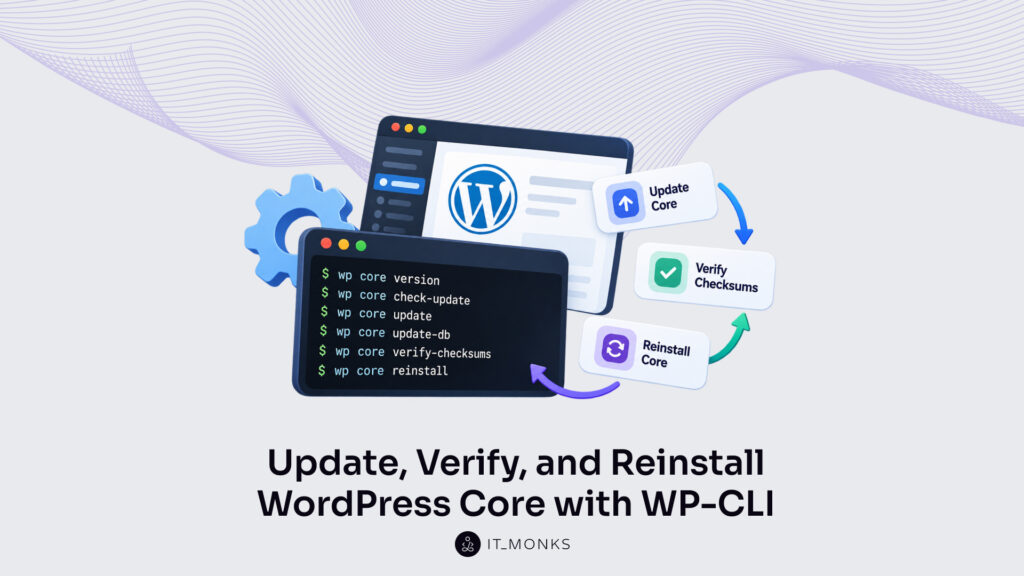
WP-CLI updates WordPress core from a shell on the server that runs the site, and the command is wp core update. The same wp core command family verifies the core files against WordPress.org checksums and reinstalls them on an existing install.
WordPress core is updated, reinstalled and verified in one order. Getting the installed version is first. The core update is next, and the update of the core database after it. A core reinstall replaces changed or missing core files, and checksum verification confirms the core files match the release. Plugin files get the same checksum verification afterwards.
Every wp core command is run over a shell, so the commands are for developers and site admins with shell access to that server. Both the core update and the core reinstall read the installed version, which is why it is the value to get before either one runs.
How to Get the WordPress Core Version
The WordPress core version is the release number held in wp-includes/version.php, and getting that WordPress version with WP-CLI is one command: wp core version displays it. The command reads the file before WordPress loads, as the wp core version documentation on developer.wordpress.org shows.
wp core version shows a version only where wp answers on the server and the shell is in the WordPress root. With both in place (install WP-CLI on that server if wp is missing), run the bare command, then the same command with --extra:
wp core version
<version>
wp core version --extra
WordPress version: <version>
Database revision: <revision>
TinyMCE version: <tinymce-version>
Package language: en_US
Alone, the command prints the WordPress version and nothing else. --extra shows extended version information in four lines, and WP-CLI reads all four values from wp-includes/version.php. Database revision holds the integer revision of the WordPress database, and Package language holds the locale code of the installed core package, which is en_US when the file holds no other locale. TinyMCE version is the version of TinyMCE in that core release.
wp cli version is a different command: it prints the version of the WP-CLI tool, not the WordPress version.
The installed version and the package language are the two inputs of the core update and the core reinstall.
How to Update WordPress Core
wp core update is the command to update WordPress core with WP-CLI: it updates WordPress to a newer version, and it defaults to the latest version when no flag is passed. The update replaces core files, so one step comes first. A site admin runs the database export ahead of it, and the full procedure to back up WordPress with WP-CLI covers that export.
Run from the WordPress root, wp core update prints each stage of the core update as it happens.
wp core update
Updating to version <version> (en_US)...
Downloading update from <package_url>...
Unpacking the update...
Cleaning up files...
No old files were removed.
Success: WordPress updated successfully.

wp core update --minor
wp core update --version=<version>
wp option delete core_updater.lock
The first line prints the version and the locale the update moves the site to. After unpacking the package, wp core update cleans up obsolete core files, and No old files were removed. is the result on an install that holds none. The Success line carries no version number. Once the run ends, wp core version is the command that shows the version WordPress core holds.
Two flags change what the bare command updates to.
| Flag | What it changes |
|---|---|
--minor | Limits the update to minor releases: 4.3 moves to 4.3.3 instead of 4.4.2 |
--version=<version> | Sets a specific version to update to, instead of the latest version |
One error has its own fix. core_updater.lock is a database option that blocks a second update while one is in progress, and an error message starting Error: Another update is currently in progress. means that option is set. Confirm that no other update is running, then delete the core_updater.lock option with wp option delete core_updater.lock.
The scope of wp core update is the site: the command acts on WordPress core, not on the WP-CLI tool. Two more wp core commands run around it: wp core check-update runs before the update, and wp core update-db, the database update, runs after it.
wp core check-update Command
wp core check-update is the wp core command that checks for WordPress updates through the Version Check API, and it runs before the core update. The check changes nothing on the site. Its whole job is to list what is available.
wp core check-update
+-----------+-------------+-----------------------------------------------------------------+
| version   | update_type | package_url                                                     |
+-----------+-------------+-----------------------------------------------------------------+
| <version> | major       | https://downloads.wordpress.org/release/wordpress-<version>.zip |
+-----------+-------------+-----------------------------------------------------------------+

wp core check-update --force-check
When WordPress updates are available, wp core check-update prints a table with one row per update and three columns: version, update_type and package_url. The version column is the release on offer, update_type is major or minor, and package_url is the zip on downloads.wordpress.org that holds it. With no update available, the command prints Success: WordPress is at the latest version. and no table at all.
The result of the update check is cached. WordPress keeps that result in a transient and sends no new request to the Version Check API while the last update check is under one minute old. --force-check bypasses the transient cache and runs a fresh update check.
Each listed version is one that wp core update installs. With a major row and a minor row in the table, the bare command moves WordPress core to the latest version, and wp core update --minor stays on a minor release. Once the core files are at that version, the database update follows.
wp core update-db Command
wp core update-db is the wp core command that runs the WordPress database update procedure, and it runs after the core update. wp core update does not call it. WordPress’s own update routine only requests a database upgrade over HTTP after copying the files, so wp core update-db is the command that reports the state of the database in the terminal.
Start with a dry run. --dry-run compares database versions without performing the update, and it reports whether a database update is still required. Every dry run prints Performing a dry run, with no database modification. and then one Success line: on a database that is behind, the line names the db version the database will move from and to, and on a current one it states that the database is already at the latest db version.
wp core update-db --dry-run
Performing a dry run, with no database modification.
Success: WordPress database will be upgraded from db version <old> to <new>.

wp core update-db --dry-run
Performing a dry run, with no database modification.
Success: WordPress database already at latest db version <N>.

wp core update-db
Success: WordPress database upgraded successfully from db version <old> to <new>.

wp core update-db --network
Success: WordPress database upgraded on <N>/<N> sites.
Without the flag, wp core update-db updates the database and prints the old and the new db version. The new db version matches the Database revision line of wp core version --extra, an integer the updated core files hold in wp-includes/version.php.
A multisite network stores a db version for each site. --network updates the databases of all sites on a network, and its Success line prints the count as <N>/<N> sites.
At that point the database matches the WordPress core version on disk. Core files that are changed or missing are a separate fault, and those get reinstalled.
How to Reinstall WordPress Core
wp core download --force is the WP-CLI command that reinstalls WordPress core: it overwrites the core files of an existing install with a clean copy of the installed version. wp core download downloads and extracts WordPress core files to the current directory, and --force overwrites the files already there. Without --force the command stops at Error: WordPress files seem to already be present here. and no core file is replaced.
Two flags match the reinstall to the release already on disk. --version takes the installed version and --locale takes the package language, the two values wp core version --extra prints as WordPress version and Package language. Without --version the latest release is fetched, which on an older install replaces the core files with a newer release than the installed one. Without --locale the en_US package is downloaded.
A backup of the WordPress files and the database is the step before the command, because the reinstall overwrites core files in place.
wp core download --version=<version> --locale=<locale> --skip-content --force
Downloading WordPress <version> (<locale>)...
md5 hash verified: <md5>
Cleaning up files...
No old files were removed.
Success: WordPress downloaded.

wp core download --version=$(wp core version) --locale=<locale> --skip-content --force
The command prints the stages of the reinstall in order. Its download line shows the version and the locale that were passed, the hash line shows that the downloaded package matches its checksum, and Success: WordPress downloaded. is the closing line. The second command reads the installed version from wp core version, which prints the bare version number, and passes it to --version with no number typed in.
Overwriting the core files is not the whole run. After extracting the package, WP-CLI cleans up obsolete core files: Cleaning up files... followed by No old files were removed. is the result when no such file is removed. The checksum-based step of that cleanup skips every path under wp-content.
wp-config.php is not in the package, so the configuration file of the install stays as it is. wp-content is a different case. The package holds the default themes and plugins, and without --skip-content they are extracted over the copies in wp-content; --skip-content leaves them out of the reinstall.
Four flags are passed in the reinstall command, each one described in the WP-CLI wp core download documentation on developer.wordpress.org.
| Flag | What it does |
|---|---|
--force | Overwrites existing files, if present. |
--version=<version> | Selects the version to download. Accepts a version number, latest or nightly. |
--locale=<locale> | Selects the language to download. |
--skip-content | Downloads WordPress without the default themes and plugins. |
On a server with no WordPress files yet the task is a first install, not a reinstall, and a developer can install WordPress with WP-CLI from an empty directory instead.
A reinstalled WordPress core is verified next: wp core verify-checksums compares the reinstalled core files against the WordPress.org checksums.
How to Verify WordPress Core Checksums
wp core verify-checksums verifies WordPress core checksums: the command checks the installed core files against the checksums WordPress.org holds for the same release, as the WP-CLI documentation for the command on developer.wordpress.org states.
It downloads the md5 checksums for the installed version from WordPress.org and compares them with the files on the server without loading WordPress; the version and the locale are read from wp-includes/version.php. Run the check after a wp core update or a wp core download --force reinstall. A matching install prints one Success line. An install that differs prints a Warning for each file, then an Error line:
wp core verify-checksums
Success: WordPress installation verifies against checksums.

wp core verify-checksums
Warning: File doesn't verify against checksum: wp-includes/version.php
Warning: File doesn't exist: readme.html
Warning: File should not exist: wp-includes/extra.php
Error: WordPress installation doesn't verify against checksums.

wp core verify-checksums --format=json
[{"file":"readme.html","message":"File doesn't verify against checksum"}]
Error: WordPress installation doesn't verify against checksums.
Each Warning names one file and one of three states. File doesn't verify against checksum names a changed file, a core file whose content differs from the release. File doesn't exist names a missing file, and File should not exist names an extra file among the core files, one the release does not list.
Changed and missing files end the run in the Error line: wp core download --force with the installed version and locale reinstalls them, and a second wp core verify-checksums run verifies the result. An extra file is different. It stays until it is removed, and a run whose only Warning is File should not exist still ends in Success.
A Warning names a mismatch and nothing more. A wrong --locale or --version fails files too, because WordPress core is then compared with the checksums of another language or another release; both values match the install when they are the ones wp core version --extra prints. Five options from the official WP-CLI documentation for the wp core verify-checksums command set what the core check compares and how it prints the result:
| Option | What it does |
|---|---|
--include-root | Verifies all files and folders in the root directory and warns when a non-WordPress item is found |
--version=<version> | Verifies checksums against a specific version of WordPress |
--locale=<locale> | Verifies checksums against a specific locale of WordPress, such as en_US, ja or nl_NL |
--format=<format> | Prints the messages as plain (the default), table, json, csv, yaml or count |
--exclude=<files> | Excludes a comma-separated list of file paths from the verification |
With --format=json, the messages print as one array of file and message pairs in place of the Warning lines, and the Error line still prints. --exclude="readme.html" excludes that file path, so an edited readme.html no longer fails the run. With --include-root, File should not exist also names non-WordPress files and folders anywhere in the root directory, not only among the core files.
Plugin files sit outside this check in both cases: wp core verify-checksums skips the checksums of every path under wp-content, and WordPress core is all it verifies.
How to Verify WordPress Plugin Checksums
wp plugin verify-checksums verifies WordPress plugin checksums: the command checks plugin files against the checksums WordPress.org holds for each plugin version, as the WP-CLI documentation for the command on developer.wordpress.org states. It is the same check wp core verify-checksums runs on core files, here on the plugin folders the core command skips. wp plugin verify-checksums checks one plugin by slug, or verifies every plugin with --all:
wp plugin verify-checksums akismet
Success: Verified 1 of 1 plugins.

wp plugin verify-checksums --all
Success: Verified 8 of 8 plugins.

wp plugin verify-checksums --all --strict
The Success line prints a count: plugins verified of plugins checked, 1 of 1 for akismet and 8 of 8 for the --all run. --strict treats soft changes, such as readme.txt edits, as checksum errors, so plugin files that pass the default check fail the strict one when only a readme.txt differs.
Plugins not hosted on WordPress.org have no checksums there: the command prints the Warning Could not retrieve the checksums for version <version> of plugin <slug>, skipping., skips the plugin and leaves it out of the verified count. Run wp plugin verify-checksums again after each plugin update. Plugin updates run next to core updates with the commands that manage WordPress plugins and themes with WP-CLI.
More Articles by Topic

In late August, 2026, Jess Cook, VP of Marketing at Vector, posted a meme about her late nights since her…
Learn more 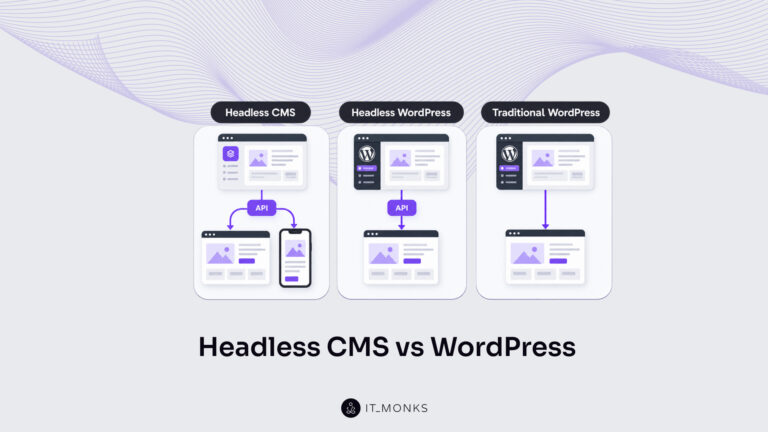
Headless CMS vs WordPress is a comparison of two choices made at once: an architecture choice between a coupled site…
Learn more 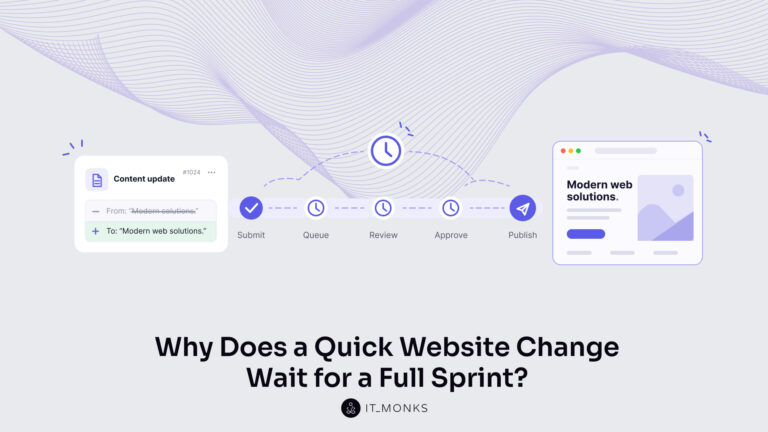
The new campaign copy is approved. The ads go live on Monday, and the landing page they point to still…
Learn more Contact
Feel free to reach out! We are excited to begin our collaboration!
Don't like forms?
Shoot us an email at info@itmonks.com
Don't like forms?
Shoot us an email at info@itmonks.com
CEO, Strategic Advisor
Reviewed on Clutch
 ChatGPT
  Claude
  Grok
Grok  Gemini
 Send a Project Brief
Fill out and send a form. Our Advisor Team will contact you promptly!