Explore our specialized services, tailored solutions, and industry expertise to elevate your digital presence. From custom WordPress development to seamless integrations, we build high-performing websites that deliver impact.
A WordPress REST API error is a failure of the /wp-json interface, the endpoint WordPress exposes so the block editor, plugins, and outside applications can read and write site data. To fix a REST API error in WordPress, the developer reads what the failure actually reports, then resolves it one cause at a time. The failure rarely touches the public front end. Visitors keep loading pages as normal while the block editor refuses to save, plugin features stall, and headless clients receive nothing but an error status back from /wp-json.
That split is the first clue. A REST API error is not a generic PHP fault that whitescreens the whole site, and it is not, on its own, an authentication problem. It is specifically the /wp-json layer returning a status the calling application cannot use.
One symptom can trace back to permalinks, a single plugin, a rewrite rule, or the server itself, so a fix applied before the cause is known misses unless the guess happens to match. Reading the error signal first lets the message name the cause; the matching fix follows, and a final check confirms /wp-json responds again. Every fix here shares one goal, a working /wp-json interface.
How to Check the REST API Error Message
The REST API error message is the diagnostic signal that names which /wp-json failure is present, and it is where every REST API error in WordPress should be worked from first. A raw symptom, the editor that will not save, could originate anywhere. The message narrows that field to one candidate: a permission denial reads differently from a timeout, and a blocked route reads differently from a missing rewrite rule.
Reading the true message replaces working from assumptions. Four sources report it, each one level closer to the server than the last, and the developer checks them in a fixed order:
The Site Health check surfaces the built-in WordPress warning without any code.
The WP_DEBUG log records the underlying PHP error behind that warning.
The browser network request shows what the block editor or a headless client receives from /wp-json.
The curl endpoint test confirms the same status from the server side, outside the browser.
Each source reconnects to the same REST API error, and together they move a plain-English warning down to a raw server response. The Site Health screen is where the read begins.
Site Health check
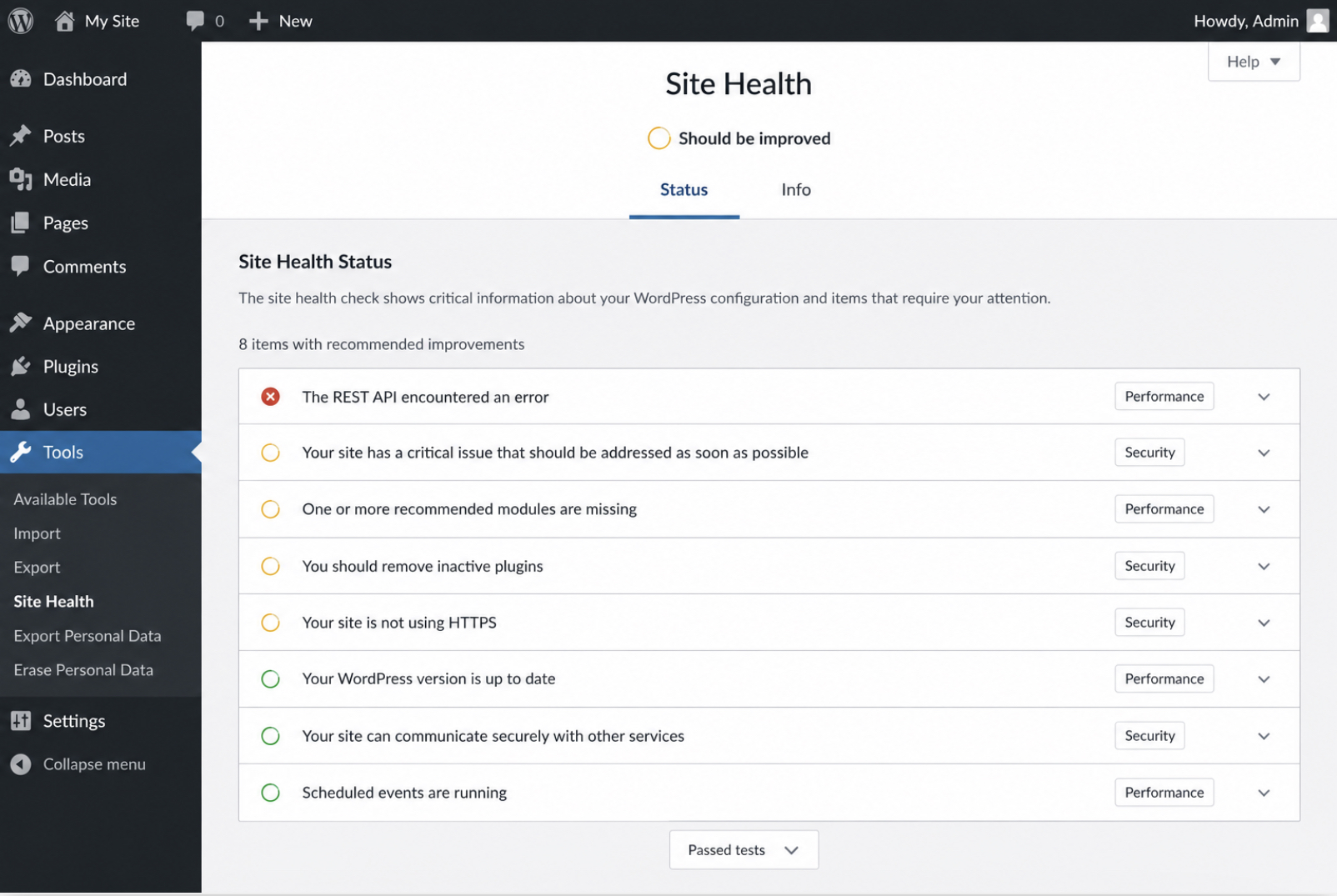
Site Health is the built-in WordPress tool that reports on a site’s technical condition, and it surfaces the REST warning without a single line of code. Reached through Tools → Site Health and its Status tab, it runs a batch of checks and flags the problems it finds. When the /wp-json interface is failing, one row reads, verbatim, “The REST API encountered an error.” Matching that exact string against the Status screen confirms the developer is reading a genuine REST fault, not an unrelated notice such as an outdated PHP version or an inactive HTTPS setting.
What Site Health withholds is the reason. The warning confirms that /wp-json returned something wrong; it stops short of naming which cause did it. For that detail, the debug log keeps the PHP-level line the warning only summarizes.
WP_DEBUG log
The WP_DEBUG log is the file where WordPress records the underlying PHP error that a Site Health warning only summarizes. Three constants in wp-config.php switch it on and route every error to /wp-content/debug.log:
WP_DEBUG turns logging on, WP_DEBUG_LOG sends the output to the log file instead of the screen, and WP_DEBUG_DISPLAY set to false keeps those messages away from visitors on a production site. For the full safe-enable routine, logging on, display off, and reverting the constants once the fault is found, the dedicated guide on how to enable WP_DEBUG carries the walkthrough.
With logging active, reproducing the error writes a timestamped line to debug.log that names the file, function, and message behind the /wp-json failure, the precise detail Site Health leaves out. That line points straight at the cause: a fatal error from a plugin file reads differently from a memory notice or a missing rewrite. The client side tells the other half, what the browser itself receives when it calls /wp-json.
Browser network request
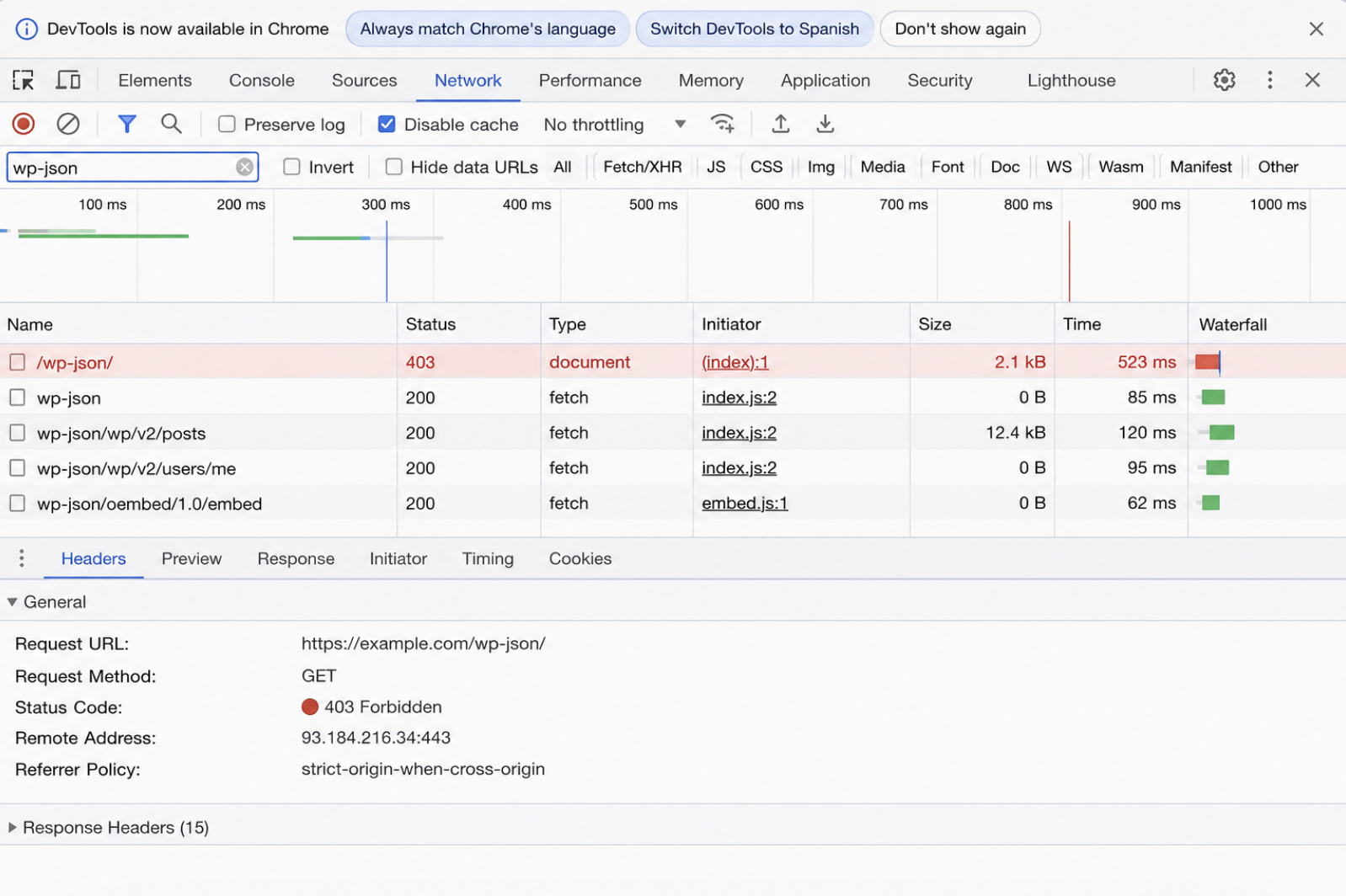
The browser network request is the client-side view of the failing /wp-json call, the exact response the block editor or a headless application receives when it asks WordPress for data. Chrome DevTools captures it. Opening DevTools, switching to the Network tab, and typing wp-json into the filter box narrows the list to REST traffic; reloading the editor then replays the call. The failed row shows its HTTP status in the status column.
That status is the first real lead. A 403 points toward a block or a permission rule denying the route. A 500 points the other way, toward a server-side fault that never let the response finish. A 404 suggests the route itself is not registered, and a 401 flags authentication. The browser reads the status the client sees; a server-side check confirms whether the same status holds outside the browser entirely.
curl endpoint test
The curl endpoint test is the server-side check that queries /wp-json directly, bypassing the browser and ruling out client-side scripts or a cached response as the source of the noise. A single command reads the raw status:
# Read the raw HTTP status, bypassing the browser
curl -I https://example.com/wp-json/wp/v2/types
The -I flag requests headers only, so the reply is the bare HTTP status line: 200 when the interface is healthy, or the same 401, 403, 404, or 500 the browser reported when it is not. A matching status on both sides confirms the fault originates in WordPress, not in the browser or a proxy in front of it. One result reads differently. A cURL error 28 is a connection timing out after its allotted seconds, a network-reachability problem rather than a REST fault to chase.
The raw response also settles which layer is failing. A call to /wp-json/wp/v2/types that returns a REST status confirms the failing request is a REST request, not an admin-ajax call routed through admin-ajax.php, and the two run on separate handlers worth telling apart before any fix; the WordPress REST API vs admin-ajax comparison draws the full line between them.
With the layer confirmed as REST and a concrete status in hand, the cause is no longer a mystery but a specific fault to correct. The most common of those, and the simplest to rule out, is a stale set of permalink rules that stopped routing /wp-json.
How to Flush WordPress Permalinks
The permalink settings in WordPress hold the rewrite rules that map every incoming request to the code meant to answer it, and the /wp-json route the REST API depends on is one of those mapped paths. That dependency is why flushing permalinks is the first fix to try. It takes no code and clears the most common cause of a REST API error in WordPress.
When the rewrite rules go stale or half-written after a migration, a core update, or a plugin that reorders routing on activation, the /wp-json path stops resolving even though the endpoint code behind it is perfectly intact. The request still reaches WordPress. WordPress just no longer knows where to send it.
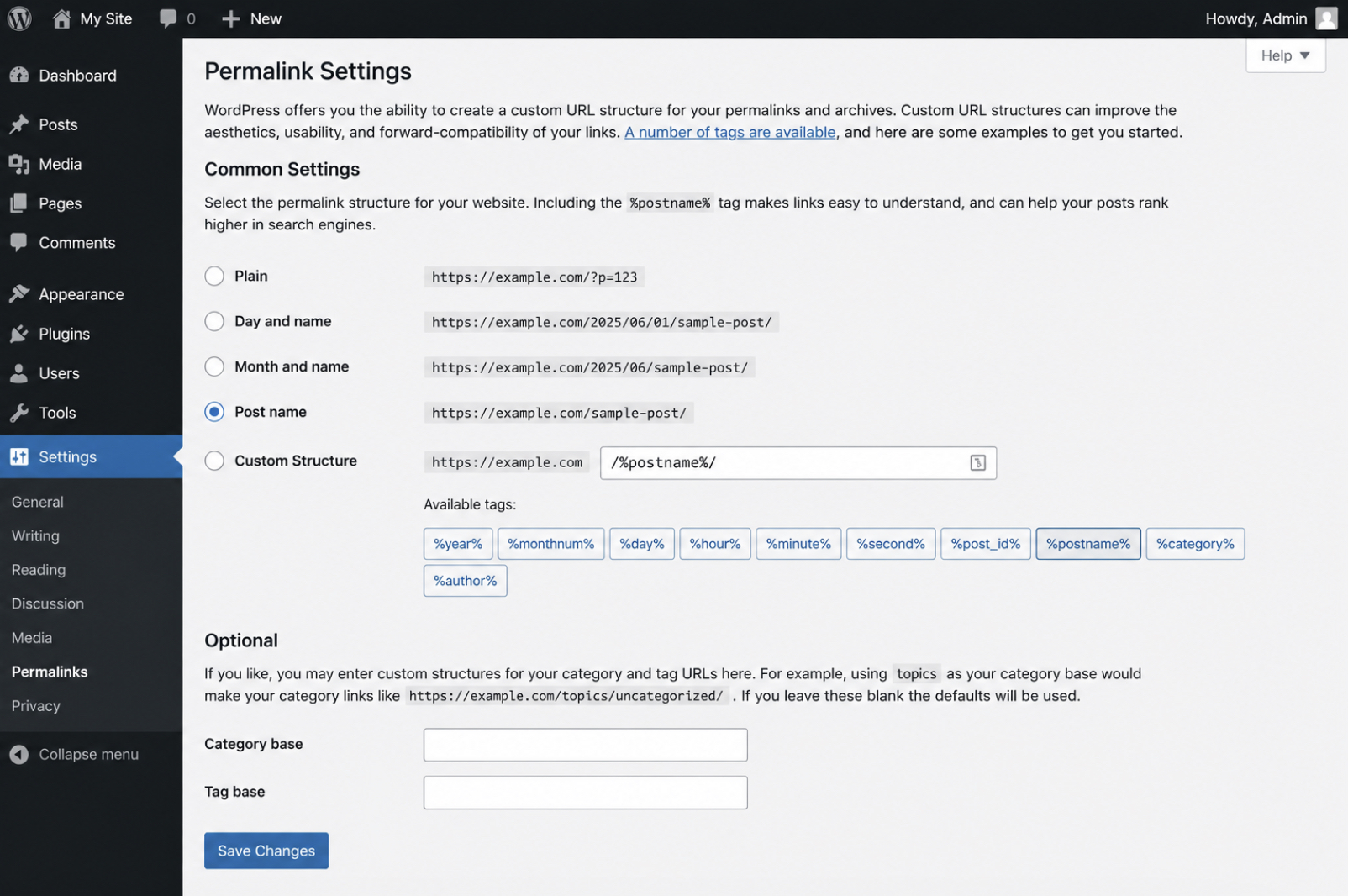
Regenerating the rules takes no code and no file edit. A developer opens Settings then Permalinks, leaves the existing structure exactly as it is, and clicks Save Changes. WordPress reads the current permalink structure, rewrites the entire rule set from scratch, and re-registers the REST namespaces as part of that rebuild. No URL format changes; resaving forces a clean rebuild of the routing table so the REST route is mapped again.
A single reload settles whether the flush landed. Load /wp-json/wp/v2/types once more after the resave; valid JSON in return means the rewrite rules route the REST call correctly again and the failure is gone. If valid JSON comes back, the permalink layer was the cause and the fix holds. If the same failure repeats, the rewrite table is healthy and the fault sits somewhere else, and the next candidate is a plugin that intercepts the /wp-json route before WordPress ever gets to answer it.
How to Fix a Plugin Conflict
A plugin conflict is a REST API error in WordPress caused by an installed plugin that blocks or overrides the /wp-json route before the REST API can answer it. When flushing permalinks leaves the failure in place, a plugin conflict becomes the next suspect, and the way to confirm it is to deactivate plugins and watch whether the endpoint recovers. Third-party code hooks into the same request cycle the REST API runs on, so one plugin registering a competing route, forcing an early redirect, or denying the request outright is enough to stop /wp-json from responding while the rest of the site loads normally.
Finding the responsible plugin is a matter of isolation, not guesswork. The dependable method is bisection: clear the entire plugin set, confirm the endpoint recovers, then bring plugins back one at a time until the failure returns on a known plugin.
Deactivate every active plugin from the Plugins screen.
Retest /wp-json by reloading the endpoint or the block editor, and confirm the REST API error has cleared.
Reactivate one plugin at a time, retesting /wp-json after each, until the request fails again. The plugin activated just before the failure returns is the conflict.
Two shapes of plugin conflict cover most cases. The first is a general conflict, where a plugin of any purpose disrupts the route and simple deactivation isolates it. The second is narrower and more frequent than most developers expect: a security plugin denying REST access on purpose as a hardening measure. The general isolation pass comes first; the security-plugin case needs a different fix, a setting change rather than a removal. Once bisection names the offending plugin and the endpoint answers again, the REST API error is resolved, and the next candidate cause worth ruling out is a modified .htaccess file.
Plugin deactivation
Plugin deactivation is the isolation step that switches off every active plugin at once so the /wp-json route can respond with nothing but core WordPress in the request path. Deactivation edits no data and removes no files; it suspends a plugin’s hooks so its code stops running, which is exactly what makes it a safe diagnostic toggle that reverses completely the moment the test ends. That reversibility is the foundation of the bisection pass.
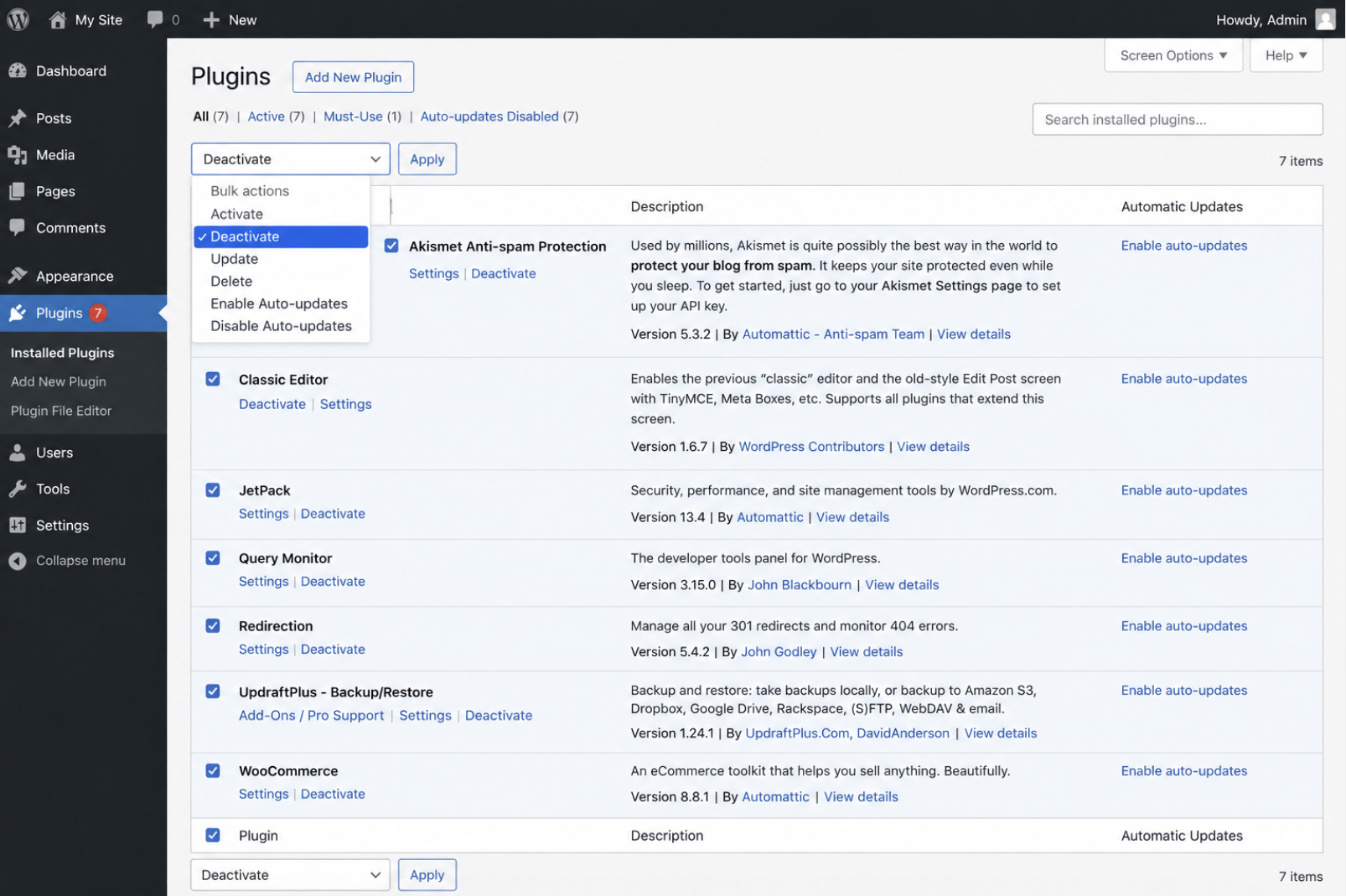
On the Plugins screen, the bulk-action selector clears the whole set in one motion: select all installed plugins, choose Deactivate from the bulk menu, and apply. Individual plugins carry their own Deactivate action for the reactivation pass. With every plugin suspended, a reload of /wp-json shows whether the REST API error survives against a clean install. A recovered endpoint proves the fault originates in a plugin; an endpoint that still fails clears the entire plugin layer and sends the search back toward the server.
Isolation only names the culprit on the way back up. Reactivating plugins one at a time, and retesting /wp-json after each, keeps every plugin under suspicion until one activation brings the REST API error back. The plugin that reintroduces the failure is the conflict, and it can stay deactivated or be swapped for an alternative once it is pinpointed. When the plugin that reintroduces the failure turns out to be a security tool guarding the endpoint deliberately, the fix moves from removal to configuration.
Security plugin block
A security plugin block is a REST API error in WordPress produced not by faulty code but by a security plugin enforcing a hardening rule that denies access to /wp-json. Many hardening tools treat an open REST endpoint as an exposure and close it by default, which turns a working endpoint into a 403 the instant the plugin activates. Because the block is intentional, the fix is never removal of the plugin; it is a configuration change that re-permits REST access on the routes the site actually needs. The common culprits, and where each one re-permits the endpoint, are these:
WP Cerber: open the Hardening settings, clear the “Disable REST API” restriction, or add the required routes to Cerber’s REST API allow-list.
Wordfence: allow-list the /wp-json request under the firewall’s allowlisted URLs, or switch off the option that restricts REST-based user discovery.
Disable REST API: in the plugin’s own settings, move the namespaces the site depends on out of the blocked set and into the allowed-routes list instead of denying every request.
With the allow rule saved, one reload of /wp-json shows the endpoint answering the block editor and any connected client again, the sign the error is resolved. With the security layer re-permitting the route, the plugin keeps hardening the rest of the site while legitimate REST traffic passes through. When no plugin is responsible and the endpoint still fails, the rewrite layer itself becomes the next place to look, starting with a modified .htaccess file.
How to Fix a Modified .htaccess File
A modified .htaccess file is a rewrite or deny directive sitting in the site root that intercepts the /wp-json route before WordPress can answer it, and it belongs on the short list of causes worth checking when fixing a WordPress REST API error. Apache reads .htaccess on every request. A hardening snippet, a migration plugin, or a hand-edited redirect can drop in a rule that refuses /wp-json while every ordinary page keeps loading, which is exactly why this cause is hard to detect.
Back up the file before touching a single line. .htaccess edits carry real risk, since one malformed directive returns a 500 across the whole site, and a copy saved somewhere safe is the difference between a quick revert and a scramble. With the backup in hand, open .htaccess over SFTP or the host file manager and look for anything wrapping, rewriting, or denying rest, wp-json, or index.php outside the standard WordPress block.
The default WordPress rewrite block is the known-good state to restore. Replace any tampered directives between the WordPress markers with the stock rules, or remove the block entirely and resave permalinks under Settings → Permalinks so WordPress regenerates it:
# BEGIN WordPress
RewriteEngine On
RewriteBase /
RewriteRule ^index.php$ - [L]
RewriteCond %{REQUEST_FILENAME} !-f
RewriteCond %{REQUEST_FILENAME} !-d
RewriteRule . /index.php [L]
# END WordPress
With the default block back in place, call /wp-json one more time. Valid JSON confirms the rewrite layer no longer blocks the route, and the .htaccess fault is closed out. If the endpoint still fails after the file is restored, the fault sits elsewhere, and a stale cache is the next thing worth ruling out.
How to Clear the WordPress Cache
Caching is the layer that stores a ready-made copy of a response and serves it on the next request, and when that stored copy is a stale REST reply, it masks a /wp-json endpoint that already works. That makes the cache a frequent false alarm behind a WordPress REST API error: the fix has landed, the endpoint has recovered, yet a cached failure keeps getting served until the layer is purged. Clearing it is less a repair than a way to read the true state of the endpoint.
Stale copies can persist in more than one place, so clear every layer that sits between WordPress and the browser:
Page-cache plugin, such as W3 Total Cache, WP Super Cache, or a host caching add-on, purged from its own settings screen
Server or object cache, including Redis, Memcached, or a reverse proxy such as Varnish running at the host level
Content delivery network, such as Cloudflare, where an edge copy can outlive every local purge
Purge from the outermost layer inward, then reload a request to /wp-json. A correct JSON response now reflects the live endpoint rather than a remembered failure, which settles whether the REST API error is still real or a cached copy of one already fixed. When a purge exposes an endpoint that still fails, the address the site reports for itself is the next thing to check.
How to Fix an HTTPS Mismatch
An HTTPS mismatch is a disagreement between the protocol WordPress expects and the one the server actually serves, and it misroutes REST requests to the wrong host, which places it among the less obvious causes of a WordPress REST API error. Two of the three ranking guides for this problem skip it entirely, yet a site half-migrated to SSL, or one whose addresses were never updated after a certificate went live, will send /wp-json calls toward a URL that redirects, drops, or rejects them.
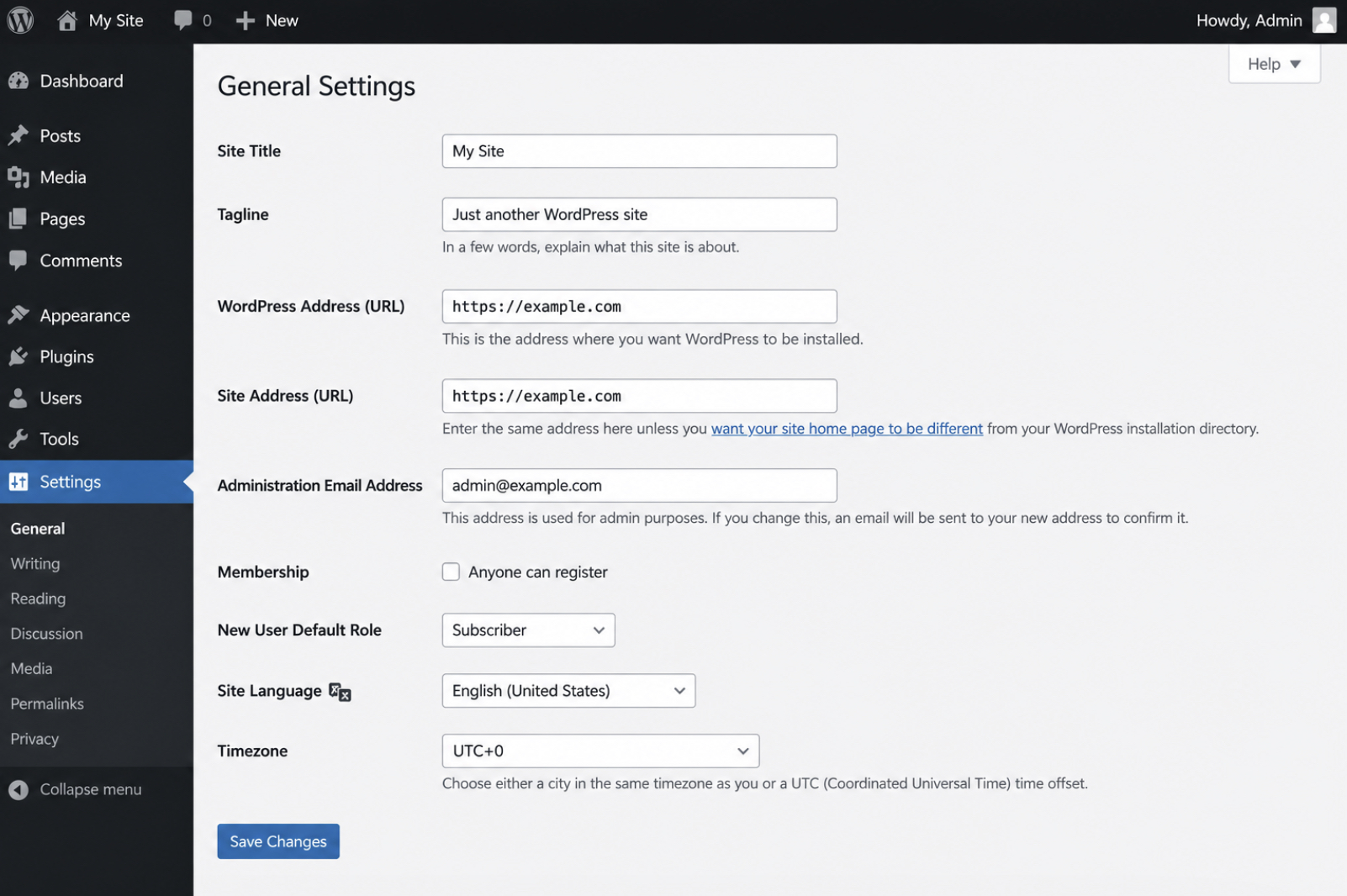
Two settings decide where those REST requests are sent. Under Settings → General, the WordPress Address (URL) and the Site Address (URL) have to use the same scheme. When one reads http and the other https, WordPress builds its REST endpoint URLs on one protocol while the server answers on the other, and the /wp-json handshake fails on the redirect. The SSL state weighs just as heavily: a mixed configuration, where part of the site still loads resources over http on an otherwise-secure host, produces the same split that strands REST calls between two addresses.
Align both addresses to https, save the change, and clear any cached copy of the old scheme. Then query /wp-json a final time; a reply served over https shows the two addresses now agree, and the protocol-split failure no longer surfaces. A site whose addresses and certificate already line up but still returns a REST failure has pushed the problem down to the server itself.
How to Fix a Server Configuration Error
A server configuration error is a server-side limit or permission that stops WordPress from returning a complete REST response, and it sits at the deeper end of the causes behind a WordPress REST API error, because the fault originates beneath WordPress in PHP settings and filesystem rules rather than in any plugin or option screen. Two server-level values account for most of these failures: the memory PHP is allowed to use, and the permissions that decide which files the web server may read.
An under-provisioned PHP memory limit truncates the REST response mid-generation, so /wp-json returns a partial payload or a blank 500 in place of clean JSON. Raising the limit gives WordPress the headroom to finish the response. Add the constant to wp-config.php, above the line that reads “That’s all, stop editing”:
define( 'WP_MEMORY_LIMIT', '256M' );
Wrong file permissions block the web server from reading the files it needs to serve /wp-json at all. The correct scheme keeps the owner in control while limiting group and world to read-or-traverse access: 644 for files, 755 for directories, with the web-server user owning the tree. On a typical Apache or Nginx host that user is www-data:
With memory raised to 256M and permissions corrected to 644 on files and 755 on directories, one more call to /wp-json should return a complete JSON payload, the confirmation the server can finish the response. A REST API error that survives every server-side and site-side fix so far points to a different situation altogether: an endpoint that is not faulty but deliberately switched off.
How to Enable a Disabled REST API Endpoint
A disabled REST API endpoint is a /wp-json route that someone switched off on purpose, so a request WordPress could easily answer comes back refused instead. This variety of REST API error in WordPress sits apart from an accidental misconfiguration: nothing is set wrong, no rewrite rule is stale, and the server is willing to respond. Access was turned off, almost always to harden the site, and the route stays shut until a developer turns it back on.
Two mechanisms produce the same block. The first is a filter dropped into a theme’s functions.php or a small standalone plugin, hooked onto rest_authentication_errors, that hands back an error for every unauthenticated call:
add_filter( 'rest_authentication_errors', function ( $result ) {
    return new WP_Error( 'rest_disabled', 'REST API disabled', array( 'status' => 401 ) );
} );
The second is the graphical equivalent. The Disable REST API plugin carries a master toggle on its settings screen that clamps the same route shut without a single line of code. A 401 status on /wp-json with no matching server-side fault in the logs points at one of these two sources rather than anything the earlier fixes address.
To enable the endpoint again, the developer locates the block and removes it. A code filter comes out of functions.php or the mu-plugins folder; the Disable REST API toggle is switched from deny back to allow. Once the filter is gone, /wp-json resolves on the very next request and the REST API error clears.
One distinction has to land before moving on. A deliberately disabled endpoint is not the same thing as an endpoint that authentication is blocking. The disable filter refuses everyone, unconditionally, with no regard for who is asking. An authentication problem is choosier: it refuses only the calls that arrive without a valid credential, or with one the server declines to accept. So when /wp-json returns a 401 and no disable switch exists to explain it, the diagnosis has moved off access control and onto authentication.
How to Check a REST API Error for an Authentication Cause
An authentication cause is the reason a REST API error surfaces when the request reaches a perfectly healthy endpoint but arrives without the identity WordPress requires before it will honor the call. Not every /wp-json failure comes from a misrouted request or a bad setting. A separate class of them traces to authentication, where the route itself works and the caller is either not recognized or not permitted.
A short set of signals separates an authentication cause from the general misconfigurations diagnosed earlier. Each one points at identity, not at routing:
a 401 unauthorized response, returned when no valid credential travels with the request
a 403 forbidden response, returned when a credential is present but lacks permission for that route
a CORS error, raised when the browser blocks a cross-origin call before WordPress ever replies
a missing authorization header, where the credential never accompanies the request at all
Reading one of these signals is where the general diagnosis stops and a different one starts. The root-cause fix for any of them (how a credential is issued, carried, and validated on the way to /wp-json) belongs to the dedicated guide on WordPress REST API authentication, which handles each method in full depth. What matters at this stage is only the recognition: a 401 or 403 that authentication explains gets routed there, not chased through permalinks and plugins that were never the problem.
With authentication set aside, whether ruled out by the absence of those signals or handed to the guide that owns it, the general REST diagnosis picks back up. And once every site-side cause has been checked and cleared and no authentication signal appears, one uncommon possibility is still standing: the fault may not originate in the site at all, but in the copy of WordPress running it.
How to Update WordPress to Fix a REST API Bug
Some REST API errors originate not in a site’s own settings but in a bug inside WordPress core itself, and fixing a REST API error in WordPress of that kind means updating WordPress to a release where the bug has been patched. A core bug is the edge case, reached only after the site-side causes (permalinks, plugins, the rewrite file, caching, protocol alignment, server limits, a deliberate disable) have each been checked and cleared. It stays rare, and treating every /wp-json failure as a core defect would send a developer updating the whole platform when the real culprit was a single plugin.
WordPress core bundles several third-party libraries, and a defect inside one of them can surface as a REST API error on certain configurations, even when nothing in the site’s own settings is wrong. On an affected install, no permalink flush and no plugin bisection restores /wp-json, because the fault originates in the shipped software rather than in the configuration around it. That is the tell for this case: the standard per-cause work comes up empty even though it was done correctly.
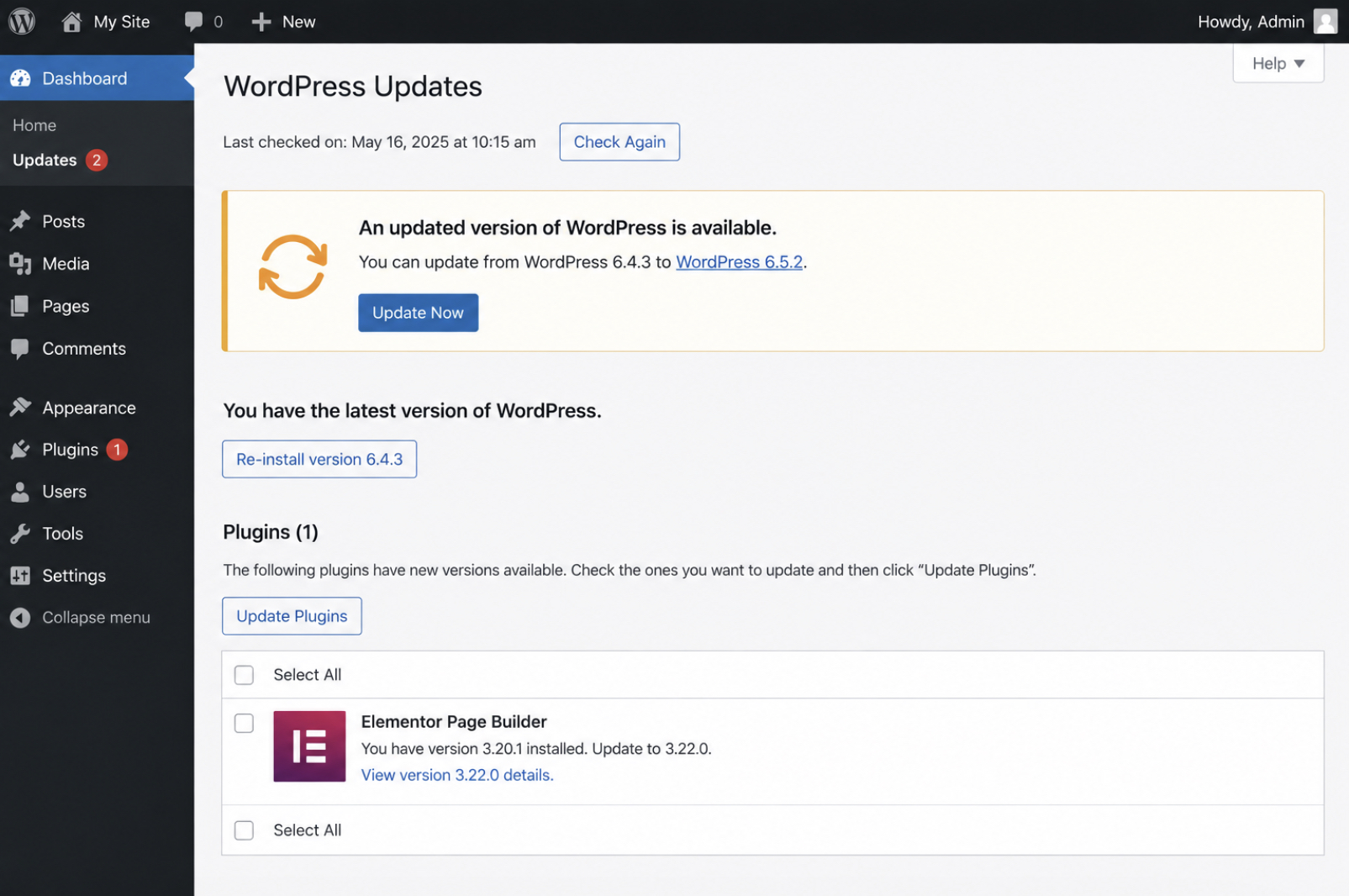
The repair is a core update. From Dashboard → Updates, the administrator applies the pending WordPress release, moves the installation onto the latest version, then checks /wp-json to see the endpoint respond normally once more.
When a core update lands and /wp-json still refuses to answer, with every site-side and authentication cause already cleared behind it, the REST API error has exceeded the standard fixes.
What to Do When Standard REST API Fixes Fail?
When standard REST API fixes fail, it means every per-cause repair has already run and /wp-json still will not respond. The permalinks were flushed, the plugins bisected, the rewrite file restored, the cache purged, the addresses aligned, the memory and permissions corrected, the endpoint confirmed enabled, and authentication ruled out, and the REST API error is still there. At an agency juggling dozens of client sites, this is exactly the point where guesswork gets expensive. The answer is to stop guessing and run a fixed escalation instead.
A set order keeps that escalation reproducible from one client site to the next:
Collect the evidence first. Capture the WP_DEBUG log and the raw curl output against /wp-json before anything else changes, so the trail is preserved rather than overwritten by the next attempt.
Confirm the request layer. Verify the failing call is a REST /wp-json request and not an admin-ajax call showing the same symptom, because the two fail for entirely different reasons.
Contact the host. Ask about a server-side block, a firewall rule, a mod_security signature, or a managed-platform policy that denies /wp-json above the WordPress layer where no plugin setting can reach it.
Open a support ticket. Attach the log, the curl output, and exact reproduction steps, so whoever picks it up begins from evidence instead of a vague description.
That second step, proving whether the failing request even is REST, earns its own reference for agency teams that meet it across many client sites; the same layer confusion sits behind shortcodes showing as plain text, where a request lands in the wrong handler and the symptom points nowhere useful. Collected evidence, a confirmed request layer, and a host that can read its own server logs are what turn an unsolved REST API error into a ticket someone can actually close.





 ChatGPT
  Claude
  Grok
Grok  Gemini