- Expertise
Expertise That Drives Results
Explore our specialized services, tailored solutions, and industry expertise to elevate your digital presence. From custom WordPress development to seamless integrations, we build high-performing websites that deliver impact.
Solutions- Booking System Integrations
- Headless & REST API WordPress
- Hubspot Integration
- Enterprise WordPress
- Website Migration
- Internal Collaboration Platforms
- External Communications Hubs
- Work
- About
- Proof
- Contact
Learn more


How To Back Up WordPress with WP-CLI

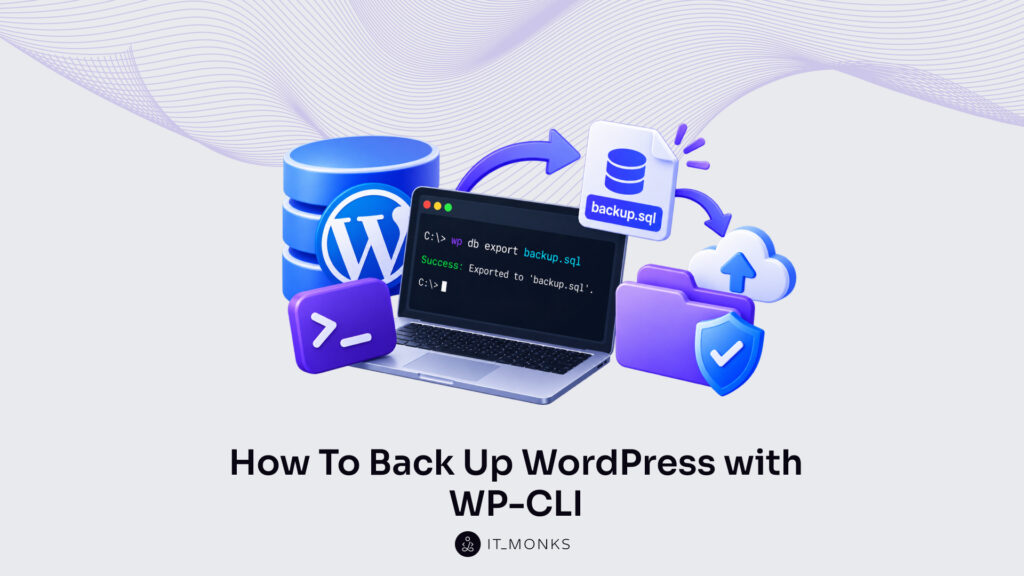
Backing up WordPress with WP-CLI produces two files on the server: a .sql export of the database, written by wp db export, and a .tar.gz archive of the WordPress files, written by tar. Kept side by side and stamped with the same date, those two files form one backup set. Restoring a WordPress site fully takes both.
The database and the files hold different parts of the same site. The .sql export contains the posts, comments, users and settings stored in MySQL or MariaDB, while the .tar.gz archive holds WordPress core, themes, plugins, uploads and wp-config.php. Neither contains the other. Because the database is stored in a separate database system outside the WordPress directory, archiving that directory leaves every post out of the backup, and exporting the database leaves out every theme and upload.
WP-CLI has no single backup command. wp db export exports the database, and tar, a standard shell tool rather than a WP-CLI command, archives the files, so both halves of the set come from one shell session on the machine that runs WordPress. Every step therefore needs shell access to the server, held by the developer or site admin who runs the backup.
The database export comes before the file archive. An integrity step covers both: a check of the live database tables ahead of the export, then a test of the compressed export and the file archive once they are written. Export options narrow or rebuild the export where a site calls for it, and a copy of the finished set then leaves the server for another location.
Restoring runs the other way round, WordPress files first and the database import second, the same order the WordPress backup documentation on developer.wordpress.org gives. Two database changes follow the restore: moving the exported database to another host, and changing the table prefix, which starts from a fresh backup.
The first file in every backup set is the database export.
How to Export the Database for a WordPress Backup
wp db export is the WP-CLI command that exports the WordPress database to a .sql file, as the WP-CLI db export documentation on developer.wordpress.org defines it. It runs the mysqldump utility with the database credentials that wp-config.php holds: DB_HOST, DB_NAME, DB_USER and DB_PASSWORD. No database login goes on the command line, and the same command also writes the export to STDOUT for compression.
The command runs on the server rather than in a browser, so install WP-CLI on the machine that hosts WordPress before the first export. Run the wp-cli db export command from a backup folder and point it at the WordPress root with --path, which keeps every export out of /var/www/html:
mkdir -p ~/backups && cd ~/backups
wp db export --path=/var/www/html
Success: Exported to 'wordpress_db-2026-09-30-4f1c2a9.sql'.
wp db export backup-$(date +%F).sql --path=/var/www/html
Success: Exported to 'backup-2026-09-30.sql'.
Without a file argument, WP-CLI gives the export the default name {dbname}-{Y-m-d}-{random-hash}.sql and writes it into the current folder, here ~/backups. A name passed as the first argument replaces that default. backup-$(date +%F).sql gives the file an ISO 8601 date, the same stamp the file archive of the WordPress backup can carry. Each run prints a Success line with the file name; add --porcelain and the command prints the file name alone, which a shell script can pass straight to its next command.
gzip compresses that STDOUT stream into a .sql.gz file in the same shell session. The database export runs in the browser instead on a host that gives no shell access, through the steps in the WordPress phpMyAdmin guide.
Compressed Export
A compressed export is the output of wp db export -, which writes the database to STDOUT, piped through gzip into a .sql.gz file in one step. The content stays SQL. Only the gzip wrapper is new, and the .sql.gz file carries the same $(date +%F) stamp as a plain .sql export would.
set -o pipefail makes the pipe report a failed wp db export - instead of gzip’s success, because gzip still writes a valid but empty .sql.gz when the export stops. The next line writes the compressed export, and the last line is its restore counterpart:
set -o pipefail
wp db export - --path=/var/www/html | gzip > ~/backups/backup-$(date +%F).sql.gz
gunzip < ~/backups/backup-2026-09-30.sql.gz | wp db import - --path=/var/www/html
wp db import reads plain SQL from a file or from STDIN, never a .gz file. So gunzip unpacks the compressed export and pipes the SQL into wp db import -, where the - tells the import to read from STDIN.
That .sql.gz file is the database half of a WP-CLI backup set. The WordPress files, the other half, need an archive of their own, since no database export contains them.
File Archive for a WordPress Backup
A file archive is the file half of a WP-CLI backup: the .tar.gz copy of the WordPress files that tar builds from the WordPress directory, either the whole directory or only wp-content with wp-config.php. It holds everything the database export lacks. The .sql file copies tables and rows, not the directory, so an export on its own leaves the site’s code, media and configuration out of the backup.
WP-CLI has no file backup command. Its wp db commands work on the database only, which leaves the files to tar, run from the parent of the WordPress root:
tar -czf ~/backups/wordpress-files-$(date +%F).tar.gz -C /var/www htmlIn that command, -c creates the archive, -z compresses it with gzip and -f names the output file. Then -C /var/www moves tar into the parent directory before it copies anything, and html is the one folder it archives, so every path inside the .tar.gz starts at html/ instead of at the filesystem root. Those relative paths matter later: extracted into /var/www, the archive returns each file to the place it came from.
Both files of the backup carry the same $(date +%F) stamp, the YYYY-MM-DD value the database export received, so wordpress-files-2026-09-30.tar.gz sits next to backup-2026-09-30.sql in ~/backups, and the matching pair forms one backup set.
The full-directory archive holds four groups of WordPress files:
- WordPress core files
- wp-content, with its themes, plugins and uploads
wp-config.php.htaccess
One file can fall outside that list. On servers where wp-config.php sits one level above the WordPress root, at /var/www/wp-config.php, the command never reaches it, and a restore from the archive comes back without the database credentials that importing the database export depends on. Name it after html in the same command (-C /var/www html wp-config.php) and the archive holds it again.
Of those four groups, the core files (wp-admin, wp-includes and the core PHP files in the root) are identical on every WordPress site running the same version. wp-content, wp-config.php and .htaccess belong to one site only.
wp-content Folder
The wp-content folder is the WordPress folder that holds themes, plugins and uploads, the files unique to one site. Backing up wp-content together with wp-config.php gives a smaller archive than the full-directory one, because the core files stay out of it:
tar -czf ~/backups/wp-content-$(date +%F).tar.gz -C /var/www/html wp-content wp-config.phpThis time -C points at the WordPress root, /var/www/html, where both names in the command sit. wp-config.php sits in the WordPress root, outside wp-content, so the command names it next to the folder; without it, the archive would carry the site’s files but not the database credentials.
The core files the smaller archive leaves out are the part WordPress supplies again with any fresh copy of the same version, which is why a site-specific archive can skip them. .htaccess is left out too, and no fresh copy of WordPress supplies it, so a site that relies on its own .htaccess rules needs that file copied into the backup as well.
Either archive, full or partial, is only half of the backup set. And a backup set helps only when both of its files are sound.
WordPress Backup Integrity
WordPress backup integrity is the condition of a WP-CLI backup whose database was sound at export time and whose files open without errors. Each half needs its own test, and the two tests run at different moments.
wp db check checks the database side, and it checks the live tables rather than any backup file. The command runs mysqlcheck with --check, using the wp-config.php credentials, and prints Success: Database checked. when the tables pass. Since wp db check never reads the .sql file, its place in the backup is ahead of the database export, not after it: run wp db check before the export, so the tables it confirms are the same tables the export then copies.
In order, the full sequence is the database check before the export, then four tests on the finished files:
wp db check --path=/var/www/html
Success: Database checked.

gzip -t ~/backups/backup-2026-09-30.sql.gz
tar -tzf ~/backups/wordpress-files-2026-09-30.tar.gz > /dev/null
ls -lh ~/backups
gunzip -c ~/backups/backup-2026-09-30.sql.gz | grep -c 'CREATE TABLE'
gzip -t tests the compressed export, and tar -tzf reads through the whole archive, with its file list sent to /dev/null. Each prints nothing when the file opens and an error when the file is damaged. ls -lh lists every file in ~/backups with a size in K, M or G.
Opening cleanly is not the same as holding data. When wp db export fails inside the compressed-export pipe, gzip still writes a valid .sql.gz of about 20 bytes, and gzip -t passes it. The last command counts the table definitions inside the export: a count of 0, or a size of a few bytes in the ls -lh listing, marks an export that holds no tables.
All of those tests still fall short of proof, because only a restore confirms that a backup restores: import the export into a staging copy of the site with wp db import.
The export under test here is the default one, every table written in full. wp db export also accepts options that narrow the export to chosen tables or change how its SQL is written.
Export Options for a WordPress Backup
The wp db export options for a WordPress backup are flags that change which tables the export contains and which statements the .sql file holds for each table. By default, with no option passed, wp db export includes every table in the database, whatever created it.
Two of the flags limit that set. --tables exports only the tables it names; --exclude_tables skips the tables it names and exports the rest. The value of each is a comma-separated list of full table names, table prefix included, so a site whose $table_prefix is wp_ passes wp_options, never options. wp db tables lists the exact names first. A third flag, --add-drop-table, leaves the set of tables as it is.
The three export options for a WordPress backup, each in its reference wording, are these:
| Option | What it does (reference wording) |
|---|---|
--tables=<tables> | The comma separated list of specific tables to export. |
--exclude_tables=<tables> | The comma separated list of specific tables that should be skipped from exporting. |
--add-drop-table | Include a DROP TABLE IF EXISTS statement before each CREATE TABLE statement. |
Each flag goes on its own wp db export line, and each line writes its file to ~/backups, outside the web root, under its own name:
wp db export ~/backups/options-users-$(date +%F).sql --tables=wp_options,wp_users --path=/var/www/html
wp db export ~/backups/no-logs-$(date +%F).sql --exclude_tables=wp_actionscheduler_logs --path=/var/www/html
wp db export ~/backups/drop-table-$(date +%F).sql --add-drop-table --path=/var/www/html
Neither the options-users file nor the no-logs file is a full backup. A table-limited export is a partial export, and when the restore imports it, every table the flags left out is missing: a site restored from the options-users file alone has settings and accounts but no posts, pages or comments. The full export, taken with no table flag, is the only file that holds the whole WordPress database.
An empty database for that restore comes from a reset, not from an export flag: wp db reset empties the database before wp db import runs the file.
Whatever flags it was exported with, the finished .sql file is still on the server that runs the site, next to the .tar.gz archive.
Offsite Copy of a WordPress Backup
An offsite copy of a WordPress backup is the backup set, the .sql or .sql.gz database export plus the .tar.gz file archive, stored on a machine apart from the server that runs the site. A backup kept only on that server is lost with it: a failed disk, a closed hosting account or a compromised server removes the site and its only copy together, while a copy on another machine is untouched.
The offsite copy comes off the server with one scp command run on the local machine, which pulls both files of one set over SSH into a local folder:
scp user@example.com:~/backups/backup-2026-09-30.sql.gz
    user@example.com:~/backups/wordpress-files-2026-09-30.tar.gz
    ~/site-backups/
The two remote paths come first and the local destination, ~/site-backups/, comes last; user@example.com is the SSH login on the server. Because the local machine opens the connection, the server holds no login for the local machine.
Keep 3–5 recent backups, with copies stored in different locations, as the Backups page of the Advanced Administration Handbook on developer.wordpress.org recommends. Each backup in that count is a pair of files. The export and the archive share one YYYY-MM-DD date stamp, and they are copied, moved and stored together, since a restore needs the database and the files from the same moment.
The copy in ~/backups on the server counts as one of those locations. The offsite set survives a live-server failure, and it is the set a restore reads when the server copy is gone.
WordPress Backup Restore
A WordPress backup restore is the return of one backup set’s files and database to the server so the site runs again: the file archive goes back through tar, and the export from wp db export goes back in through wp db import, as the WP-CLI db export and import documentation describes the two commands. The restore order is files first, then the database, the order developer.wordpress.org gives for a WordPress backup. The reason is wp-config.php: extracting the file archive returns it, and wp db reset and wp db import read the database credentials it holds before they run.
The restore runs in three steps:
- Rename the current WordPress directory, then extract the file archive with
tar -xzfinto the directory it was archived from. - Reset the database with
wp db reset --yes. - Import the database export with
wp db import.
On the server, those three steps are these commands:
mv /var/www/html /var/www/html.damaged
tar -xzf ~/backups/wordpress-files-2026-09-30.tar.gz -C /var/www
cd /var/www/html
wp db reset --yes
Success: Database reset.
wp db import ~/backups/backup-2026-09-30.sql
Success: Imported from '/home/user/backups/backup-2026-09-30.sql'.
mv renames the current directory to html.damaged, so tar -xzf extracts the .tar.gz archive into /var/www, the parent directory it was archived from, and returns html with only the files the archive holds, wp-config.php among them. Extracted over the existing directory instead, tar replaces the files the archive contains and leaves every other file in place, plugins added after the backup and files an attacker left behind included. The renamed directory stays on the server until the restored site loads.
wp db reset removes all tables from the database, as the WP-CLI wp db reset documentation states, by running a DROP DATABASE and a CREATE DATABASE statement with the wp-config.php credentials. Every table is removed, WordPress tables or not, so no table from before the restore remains beside the imported ones. The reset runs only when the database user holds the DROP and CREATE privileges. --yes passes the answer to the confirmation prompt, and Success: Database reset. prints once the database is empty. The same command is the database step in the procedure to reset a WordPress site.
WP-CLI imports the database with wp db import, which runs the SQL of the export into the empty database with the same credentials and prints Success: Imported from '<file>'. at the end. wp db import does not create a database by itself; it runs only what the SQL contains, and that is why the reset, with its CREATE DATABASE statement, comes before it. For a .sql.gz export, gunzip < ~/backups/backup-2026-09-30.sql.gz | wp db import - takes the place of the plain import line.
The restore is complete when the Success line prints and the site loads at its URL with its posts, settings and users back in place. On another host the same import runs unchanged, but a database restored under a different domain still holds the old URLs, and changing them is a job for wp search-replace.
How to Migrate a WordPress Database
To migrate the WordPress database with WP-CLI is to export it on the old host and import it on the new host. The new host already holds the WordPress files and its own wp-config.php pointing at an existing database, because wp db import does not create one: it runs the SQL against the database that wp-config.php names, and nothing more. The move starts from a fresh backup set on the old host, plus a fresh export on the new host when its database already holds tables, since the import overwrites any table that shares a name with one in the export.
The first path writes no extra file. wp db export - prints the WordPress database to STDOUT, ssh carries that stream to the new host, and wp db import - reads it from STDIN inside /var/www/html. The second path takes the dated .sql file from the backup set instead: scp copies it into /tmp on the new host, then --ssh runs wp db import on that remote server, where the /tmp path resolves. Both paths run from the WordPress root on the old host:
cd /var/www/html
wp db export - | ssh user@new.example.com 'cd /var/www/html && wp db import -'

scp ~/backups/backup-2026-09-30.sql user@new.example.com:/tmp/
wp --ssh=user@new.example.com/var/www/html db import /tmp/backup-2026-09-30.sql
Migrating a database with WP-CLI this way needs WP-CLI installed on both servers, one exporting and the other importing. One value has to agree across the two machines. The new wp-config.php keeps the export’s table prefix, since every table name in the moved database starts with it, and that database move is one step of the work to migrate a WordPress site to a new host.
How to Change the WordPress Table Prefix
To change the WordPress table prefix with WP-CLI is to change $table_prefix, the wp-config.php value that starts every WordPress table name, together with every table and row still carrying the old value. wp db prefix displays the current table prefix, such as wp_. Table names inside an export carry it too, so the wp-config.php that restores that export has to hold the same prefix.
The change runs in a fixed order, starting with a fresh export that keeps the database under its old names in the backup set. Each table is then renamed with RENAME TABLE through wp db query, and two groups of rows that still hold the old prefix are updated: the wp_user_roles option and the prefixed meta_key rows in the usermeta table. Only after that does wp config set set table_prefix to newp_ as a variable in wp-config.php. On a single-site install, the sequence runs from the WordPress root:
cd /var/www/html
wp db prefix
wp_

wp db export ~/backups/backup-$(date +%F).sql
for t in $(wp db tables --all-tables-with-prefix); do
  wp db query "RENAME TABLE $t TO newp_${t#wp_}"
done
wp db query "UPDATE newp_options SET option_name = 'newp_user_roles' WHERE option_name = 'wp_user_roles'"
wp db query "UPDATE newp_usermeta SET meta_key = CONCAT('newp_', SUBSTRING(meta_key, 4)) WHERE LEFT(meta_key, 3) = 'wp_'"
wp config set table_prefix newp_ --type=variable
Skipping the renames turns that last line into the step that breaks the site. Run alone, wp config set points WordPress at newp_ tables that do not exist, while every row of content sits in tables named wp_. Once the full sequence has run, wp db prefix prints newp_. From that change on, the new table prefix starts every table name, and the next backup set carries it.
More Articles by Topic

Imagine a marketing team two days before a campaign launch. The copy is approved, the images are ready, and the…
Learn more 
Headless WordPress is WordPress used as a content store and editorial interface only, with the public site rendered by a…
Learn more 
Take a company that sells custom printed boxes to other businesses. We made it up for this article, but each…
Learn more Contact
Feel free to reach out! We are excited to begin our collaboration!
Don't like forms?
Shoot us an email at info@itmonks.com
Don't like forms?
Shoot us an email at info@itmonks.com

CEO, Strategic Advisor
Reviewed on Clutch
 ChatGPT
  Claude
  Grok
Grok  Gemini
 Send a Project Brief
Fill out and send a form. Our Advisor Team will contact you promptly!