Explore our specialized services, tailored solutions, and industry expertise to elevate your digital presence. From custom WordPress development to seamless integrations, we build high-performing websites that deliver impact.
WordPress debug mode is the WP_DEBUG family of wp-config.php constants that turns silent PHP failures into readable diagnostics. Enable it, and WordPress starts recording the PHP errors, notices, and warnings that a normal production site suppresses without any record. The purpose stays deliberately private: surface those messages for the developer diagnosing a fault, and keep them away from the people visiting the site.
The mode resides entirely inside wp-config.php, alongside the other configuration constants that define how a WordPress install behaves. Three constants carry the whole job. WP_DEBUG switches the diagnostics on, WP_DEBUG_LOG routes the captured output to a file, and WP_DEBUG_DISPLAY decides whether errors also print on screen. Between them, a site owner can watch exactly what is failing without filling the front end with raw error output.
Working with the mode follows a predictable order. A developer enables it, sends the captured errors to a private debug.log file, controls whether those errors appear on screen, switches the mode back off once the site returns to production, and traces the occasional case where the diagnostics stay stubbornly silent. Each move is a single constant edit, and each one builds on the one before it.
What Is WordPress Debug Mode?
WordPress debug mode is the WordPress-native debugging configuration that the platform reads from wp-config.php the moment a page loads. Defined through the WP_DEBUG constant and its two companions, the mode instructs WordPress to expose the PHP errors, notices, and deprecation warnings that stay hidden on a standard install. Debugging in WordPress means catching those messages while a fault is still reproducible, instead of guessing at the cause of a broken page long after it happened.
The distinction that matters is where the errors go. Debug WordPress carelessly and every visitor sees the raw failures; configure it deliberately and only the debug.log file receives them. That is why the recommended default pairs three constants rather than one lone switch:
This combination is the production-safe baseline. WP_DEBUG at true activates the diagnostics, WP_DEBUG_LOG at true records them to a private file, and WP_DEBUG_DISPLAY at false keeps them off the visitor-facing page. A developer gets a complete error trail; visitors get an ordinary site with nothing broken on display. Enabling WP_DEBUG is the first of the three edits, and it alone decides whether the other two do anything at all.
How to Enable WP_DEBUG in wp-config.php
WP_DEBUG is the master on/off switch for WordPress debug mode, a Boolean constant that ships set to false on every standard install. While the constant stays false, WordPress runs quietly and suppresses its diagnostics; turn it to true and the platform begins reporting PHP errors. The dependency runs one way only. WP_DEBUG_LOG and WP_DEBUG_DISPLAY do nothing until WP_DEBUG is true, which is what makes enabling this constant the first real step.
WP_DEBUG is defined in wp-config.php, among the configuration lines near the “That’s all, stop editing” comment. A fresh install already contains the line define('WP_DEBUG', false);, so the change is an edit to one value rather than a new line.
Enabling WP_DEBUG takes three steps in wp-config.php:
Open wp-config.php in the WordPress root directory.
Find define('WP_DEBUG', false); and replace false with true so the line reads define('WP_DEBUG', true);.
Save wp-config.php and reload the site.
define('WP_DEBUG', true);
Because wp-config.php governs the entire installation, one misplaced quotation mark can take the whole site offline, so the file warrants a cautious approach, the workflow for editing wp-config.php safely walks through the backup and syntax precautions worth taking before any constant changes. With the value saved, confirm the edit by triggering the faulty page again; where WP_DEBUG is true, the previously hidden error now surfaces.
Enabled on its own, WP_DEBUG renders those errors straight onto the screen, in plain view of anyone loading the page. A production site rarely wants that, which is exactly why a companion constant exists: WP_DEBUG_LOG routes the same errors into a private debug.log file rather than broadcasting them to visitors.
How to Log Errors with WP_DEBUG_LOG
WP_DEBUG_LOG logs PHP errors to a private file on the server instead of printing them onto the rendered page, which is the exact problem with running WP_DEBUG on its own. The constant records every notice, warning, and fatal error that WordPress encounters, then saves each one to wp-content/debug.log. It only takes effect once WP_DEBUG is already true, so logging is the second production-safe constant and the real-world order is WP_DEBUG on first, logging second.
Activating it takes one line in wp-config.php:
define('WP_DEBUG_LOG', true);
Once the value is set to true, WordPress writes each captured error to wp-content/debug.log and appends new entries as they occur. Nothing surfaces to a visitor. A developer opens the file directly to review what the server recorded.
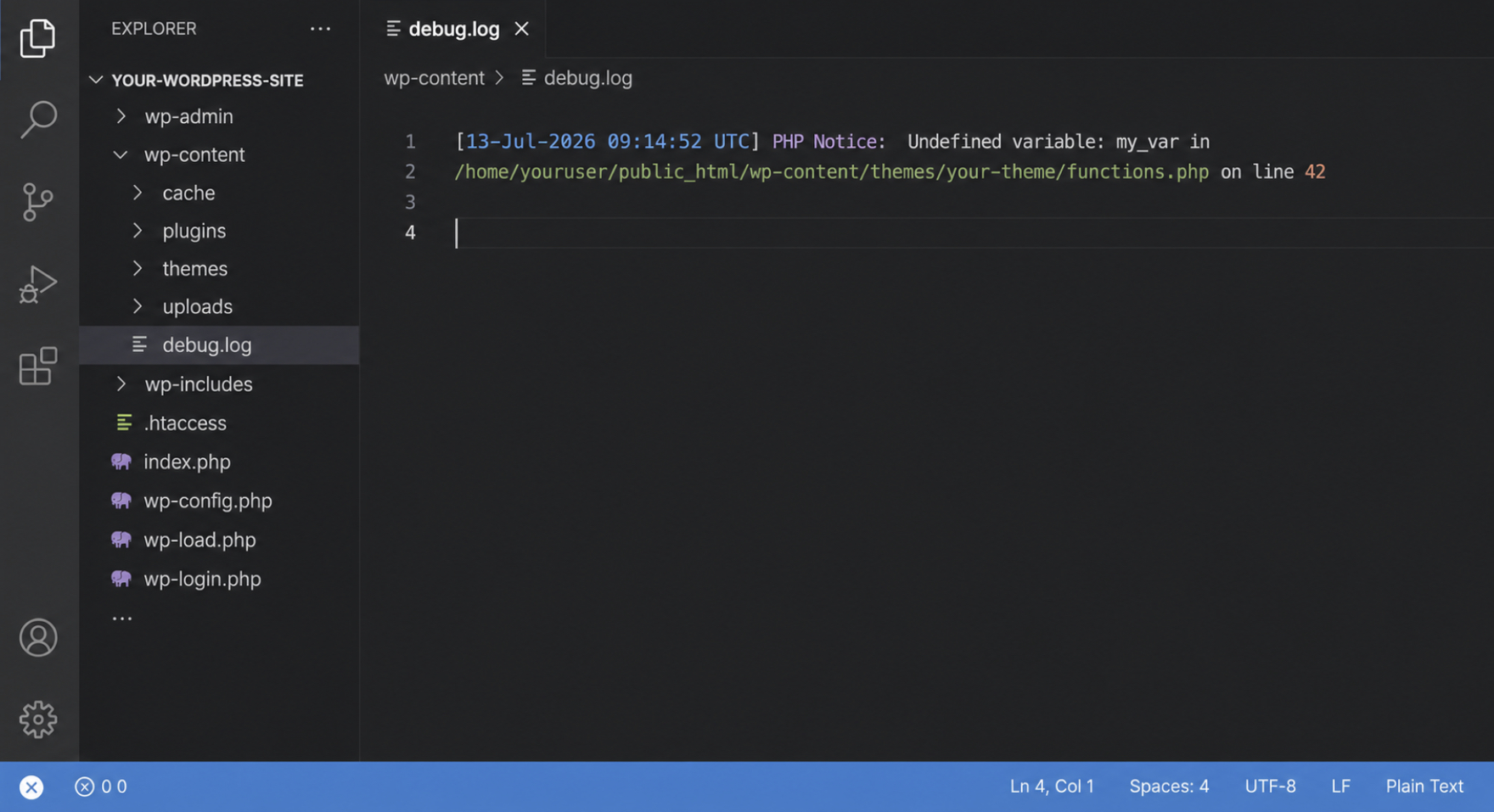
Each entry in debug.log follows a fixed anatomy, which makes a long file quick to scan:
Timestamp: the moment the error occurred, in 13-Jul-2026 09:14:52 UTC form (DD-Mon-YYYY HH:MM:SS UTC).
Error type: the severity WordPress assigned: notice, warning, or fatal error.
Cause: the message describing what went wrong, such as an undefined variable or a call to a missing function.
File and line: the absolute path and line number where the fault fired, so the source is found without guesswork.
A healthy debug.log stays small, a few kilobytes across a normal browsing session. Size itself is a signal: when the file climbs into the megabytes, a repeating error is writing on every request, and the cause is worth finding before it fills the disk.
How to Display Errors On-Screen with WP_DEBUG_DISPLAY
WP_DEBUG_DISPLAY controls whether WordPress renders its errors on-screen, directly on the page a browser loads. The constant takes one of two values, and each value serves a different audience. Set to true, it shows every notice and warning inline while a developer diagnoses a problem on a staging copy. Set to false, live visitors never see a single error, because the render is suppressed at the WordPress layer.
On a production site the safe value is false:
define('WP_DEBUG_DISPLAY', false);
The pairing is what makes this production-safe. WP_DEBUG_DISPLAY hides the on-screen render while WP_DEBUG_LOG still captures every error in debug.log, so nothing is lost: the faults sit privately in the file and are read on demand rather than shown to the public. On-screen visibility belongs to development; a false value belongs to production.
That distinction is a WordPress-layer control. WP_DEBUG_DISPLAY governs WordPress’s own error rendering, and with debug mode on, WordPress adjusts the PHP display_errors directive to match the value set: true to show errors, false to hide them.
What that reach cannot cover is everything outside the WordPress request window: an error raised before WordPress initializes, or a display_errors value forced at the server level, stays unaffected by the constant. Treating WP_DEBUG_DISPLAY as full error suppression is the common mistake: hiding errors inside WordPress does not, by itself, silence what PHP is configured to emit across every execution context, which is why php.ini-level suppression is a separate control.
Together, WP_DEBUG, WP_DEBUG_LOG, and WP_DEBUG_DISPLAY complete WordPress debug mode: one constant to catch errors, one to save them to debug.log, one to hide them from visitors.
Should WordPress Debug Mode Be On in Production?
No. WordPress debug mode should not stay on in a live production environment. Debug mode is a diagnostic state, built for a developer working on a staging or local copy, not for the public site that customers reach. Two concrete risks make the answer a clean one rather than a conditional.
The first is exposure. With debug mode active, any PHP error can be printed onto a public page, handing visitors, and anyone probing the site, file paths, plugin names, and database details that belong nowhere near a live front end. The second is file growth: debug.log keeps appending, and on a busy site a single recurring error can push the file from harmless kilobytes into hundreds of megabytes, quietly consuming disk space until something breaks.
On a production site the reversal is one edit. Set WP_DEBUG back to false in wp-config.php:
define( 'WP_DEBUG', false );
Deactivating the parent constant switches off the whole family, because logging and on-screen output both depend on WP_DEBUG being true and stop the moment it is false. For sites that also need to suppress errors at the server level, the PHP layer has its own controls; the walkthrough on how to turn off PHP errors in WordPress covers that side directly and sits outside WordPress debug mode itself.
With WP_DEBUG set to false, the live site runs clean again, and any debug.log already written stays on disk for a developer to review when a problem next needs tracing.
Where Is the WordPress debug.log Located?
The WordPress debug.log file is located inside the wp-content directory, at the path wp-content/debug.log. WordPress writes the file there automatically the moment WP_DEBUG_LOG is set to true, so debug.log appears alongside the themes and plugins folders rather than in the site root. An administrator reaches it through the same file access already used to edit wp-config.php: an FTP or SFTP client, or an SSH session on the server. Open wp-content, and debug.log sits at the top level of that directory.
Sometimes debug.log is not there at all. Two conditions explain a missing file: WP_DEBUG_LOG was never actually set to true, so no entry was ever recorded; or the constant points WordPress at a custom path (an absolute location outside wp-content, or the site root), and the entries landed there instead. Check the value assigned to WP_DEBUG_LOG before concluding that logging did not run. When debug.log still does not appear after those checks, the cause is not where the file is stored but how debug mode itself was set up.
Why Is WordPress Debug Mode Not Working?
WordPress debug mode is not working when the constants sit in wp-config.php yet nothing surfaces: no errors appear on screen, or no debug.log is written even though WP_DEBUG and WP_DEBUG_LOG both read true. The mode is already switched on in the file, so the fault is rarely the intent: one condition between the constant and the recorded entry has quietly broken the path from one to the other. The same diagnosis applies when the debug.log is not working as expected: present but empty, or never created at all.
The most common cause is the simplest one. Either WP_DEBUG or WP_DEBUG_LOG is not actually true, a value of false left over from an earlier edit, a // comment marker sitting in front of the line, or a second define() further down wp-config.php that overrides the first. Each of these leaves debug mode dormant while the file looks correct at a glance. Work through the causes in order, and each one carries its own check:
WP_DEBUG or WP_DEBUG_LOG is not truly enabled. Confirm each line reads define( 'WP_DEBUG', true ); and define( 'WP_DEBUG_LOG', true ); with the boolean true (not the string 'true'and with no comment marker in front. Scan the whole file for a duplicate definition that quietly wins.
The constants are declared in the wrong order. Verify both define() calls sit above the /* That's all, stop editing! */ line and the require_once ABSPATH . 'wp-settings.php'; that follows it. A constant defined after wp-settings.php loads is read too late and ignored.
The wp-content directory is not writable. WordPress can only create debug.log where the server user has write permission. Check that wp-content is writable by the web server; a read-only directory stops the file from ever being created.
Output is produced before logging is armed. An error raised in wp-config.php itself, above the debug constants, or inside custom code added near the top of the file, happens before WordPress finishes initializing its logging and never reaches debug.log. Confirm the debug constants sit high in wp-config.php, ahead of any custom additions.
The log runs out of memory or grows too large. A debug.log that has swelled to several megabytes, or a request that exhausts available memory before WordPress can flush its output, leaves no entry for the very error that mattered. When a memory ceiling is the cause, raise the WordPress memory limit so the request completes and the entry is written.
With the booleans confirmed as true, the constants ordered ahead of wp-settings.php, wp-content writable, and enough memory for the request to finish, WordPress debug mode works as configured. WP_DEBUG raises the errors, WP_DEBUG_LOG records them in wp-content/debug.log, and WP_DEBUG_DISPLAY keeps them off the live page. Debug mode is enabled, configured, and, once the site returns to production, safely switched off, with the recorded entries left to resolve the underlying faults.






 ChatGPT
  Claude
  Grok
Grok  Gemini