- Expertise
Expertise That Drives Results
Explore our specialized services, tailored solutions, and industry expertise to elevate your digital presence. From custom WordPress development to seamless integrations, we build high-performing websites that deliver impact.
Solutions- Booking System Integrations
- Headless & REST API WordPress
- Hubspot Integration
- Enterprise WordPress
- Website Migration
- Internal Collaboration Platforms
- External Communications Hubs
- Work
- About
- Proof
- Contact
Learn more


How to Manage WordPress Plugins and Themes with WP-CLI

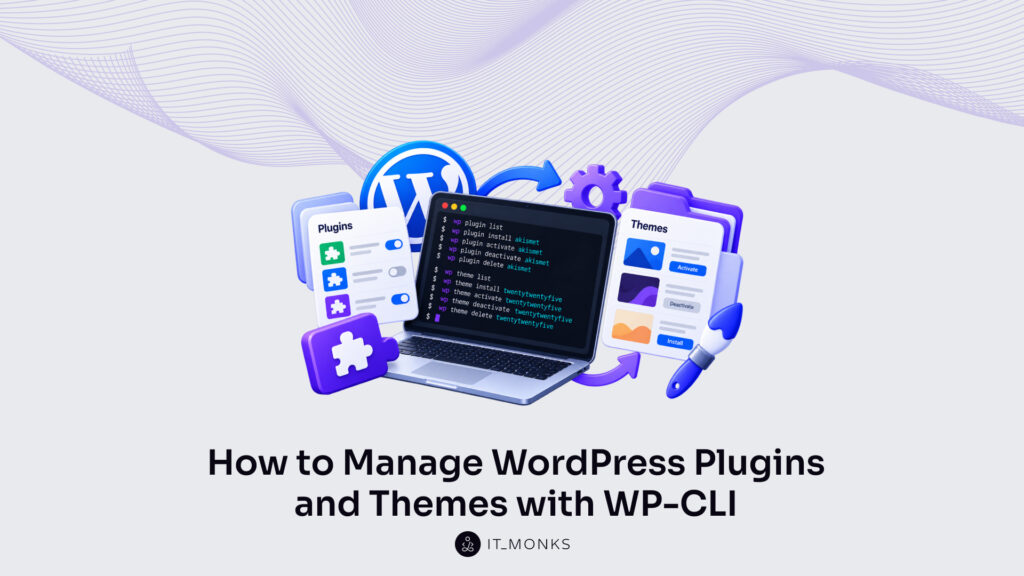
WP-CLI manages WordPress plugins, plugin updates included, from a shell on the server that runs the site, and it changes the active theme with wp theme activate. The plugin side belongs to one command family, wp plugin, whose subcommands list, install, activate, update and deactivate plugins.
Every WordPress plugin has a status, a version and an update state. For a regular plugin on a single site, status is active or inactive. The version is the release number installed on the site, and the update state reads available when a newer release exists and none when the installed release is current. Each wp plugin subcommand either reads that state or changes it.
The plugin work runs from reading that state to changing it. Listing the installed plugins opens it; installing a plugin by its slug and activating it follow, then a check for updates, an update of one plugin or of all of them, auto-updates, and the DISALLOW_FILE_MODS constant in wp-config.php. Deactivating plugins closes the plugin work, and wp theme activate then switches the site to a different installed theme.
Every step runs over a shell on that server, which makes the commands a tool for developers and site admins who hold shell access to it. Before any plugin changes, wp plugin list shows what the site already has installed.
How to List WordPress Plugins
wp plugin list is the WP-CLI command that lists every WordPress plugin installed on a site, with each plugin’s status, update state and version, as the WP-CLI plugin list documentation on developer.wordpress.org describes it. WP-CLI runs against the WordPress installation on the server that hosts it, so install WP-CLI on that server before running the first list:
wp plugin list
+---------+----------+-----------+---------+----------------+-------------+
| name    | status   | update    | version | update_version | auto_update |
+---------+----------+-----------+---------+----------------+-------------+
| akismet | active   | none      | 5.3.1   |                | on          |
| hello   | inactive | available | 1.6     | 1.7.2          | off         |
+---------+----------+-----------+---------+----------------+-------------+
wp plugin list --status=active --format=count
1
Six columns make up the default table. name holds the plugin slug, and status shows whether the plugin runs on the site. The update column holds available for a plugin with a newer release and none for a current one, version has the installed release, update_version names the newer release when there is one, and auto_update reads on or off. Here, akismet is active at version 5.3.1 with nothing to update, while hello is inactive at 1.6 with 1.7.2 waiting. The second command filters the same list down to active plugins and prints only their number: 1.
The list is read-only: WP-CLI changes no plugin while wp plugin list runs, and these flags filter or reformat its output, as the plugin list command documentation defines them:
| Flag | Effect |
|---|---|
--status | Filters the list by plugin status: active, inactive, active-network, must-use or dropin |
--format | Renders the list as table (the default), csv, count, json or yaml |
--field | Prints the value of a single field for each plugin, such as --field=name |
--fields | Limits the output to the named fields, such as --fields=name,version |
The update column is where checking for plugin updates starts: a row marked available has a newer release, and update_version shows which one. A plugin that is missing from the list is not installed on the site at all, and installing it takes its slug.
How to Install a WordPress Plugin
wp plugin install is the WP-CLI command that installs one or more WordPress plugins, as its developer.wordpress.org documentation defines it, and it accepts three sources: a plugin slug, the path to a local zip file, or the URL of a remote zip file. Pass a plugin slug and the command downloads that plugin’s stable version from the WordPress Plugin Directory on wordpress.org.
$ wp plugin install akismet
Plugin installed successfully.
Success: Installed 1 of 1 plugins.

$ wp plugin install bbpress --version=2.5.9
$ wp plugin install ../my-plugin.zip
$ wp plugin install https://example.com/my-plugin.zip
The Success line is the one to read. Installed 1 of 1 plugins counts the plugins installed against the plugins passed, so a run with three slugs that installs all three ends on Installed 3 of 3 plugins.
Not every install wants the newest release. With --version=2.5.9, wp plugin install downloads bbPress 2.5.9 from wordpress.org instead of the stable version, which holds a site on the exact release it was tested against. The zip sources run the same install for plugins the WordPress Plugin Directory does not hold, such as a custom plugin built for one site: pass a local zip file path or a remote zip URL where the slug would go.
A plugin installed without --activate stays inactive. Its files are in wp-content/plugins, yet WordPress runs none of its code until the plugin is activated, and activation, like every other wp plugin command, addresses the plugin by its slug.
Plugin Slug
A plugin slug is the short string that identifies a WordPress plugin to WP-CLI, and it is not always the plugin name. The slug is the last part of the plugin’s URL in the WordPress Plugin Directory, lowercase and hyphenated, while the display name is the title people see. Yoast SEO shows the gap: the display name is Yoast SEO, the slug is wordpress-seo, and wp plugin install wordpress-seo is the command that installs it.
When only the display name is known, wp plugin search finds the slug from the shell. It searches the WordPress Plugin Directory for a string and returns each match with its name and slug.
$ wp plugin search "yoast seo" --per-page=1 --fields=name,slug
+-----------+---------------+
| name      | slug          |
+-----------+---------------+
| Yoast SEO | wordpress-seo |
+-----------+---------------+
Two flags trim that output. --per-page=1 returns the top result only, and --fields=name,slug keeps two columns in wp plugin search output. Neither is required; without them, the search returns ten results per page with its default columns, and the slug is one of those columns.
Once found, the slug identifies the plugin in wp plugin activate, wp plugin update and wp plugin deactivate alike. For plugins already on the site, no search is needed: the name column of wp plugin list prints each installed plugin’s slug, not its display name.
How to Activate a WordPress Plugin
Activating a WordPress plugin switches an installed plugin to status active, the state in which WordPress runs its code. WP-CLI reaches that state by two routes, and the right one depends on whether the plugin is installed yet.
For a plugin already installed, run wp plugin activate with its slug. The command prints Plugin 'hello' activated. and closes on Success: Activated 1 of 1 plugins.
For a plugin not yet on the site, wp plugin install with --activate installs the plugin and activates it in one run. The output shows both steps, first the install and then the activation.
$ wp plugin activate hello
Plugin 'hello' activated.
Success: Activated 1 of 1 plugins.

$ wp plugin install bbpress --activate
Plugin installed successfully.
Activating 'bbpress'...
Plugin 'bbpress' activated.
Success: Installed 1 of 1 plugins.

$ wp plugin list --status=active --field=name
Both routes print an activated line. Only the first ends on an Activated count, though; the one-step route closes on Installed 1 of 1 plugins, because its Success line reports the install. On a multisite network, --network activates the plugin across every site instead of one.
The last command confirms the result. wp plugin list --status=active --field=name prints the slug of each active plugin, one per line, and a plugin that reads active there has left the inactive state a plain install leaves it in. Every installed plugin, active or inactive, also shows a version number in wp plugin list, and the update check compares that version with the newest release on wordpress.org.
How to Check for WordPress Plugin Updates
A WP-CLI check for plugin updates is wp plugin list filtered to list only the plugins whose update field reads available, run from a plain shell on the server that runs WordPress. The filter is --update=available. Every plugin whose update field reads none is filtered out, so each row that remains has a newer version on offer.
wp plugin list --update=available
| name | status | update | version | update_version | auto_update |
| hello | inactive | available | 1.6 | 1.7.2 | off |

wp plugin list --update=available --field=name
wp plugin update --all --dry-run
Two columns carry the answer. The update_version column holds the version an update would install, and it reads against version, the release installed now: hello shows 1.6 installed and 1.7.2 on offer. Status and auto_update stay in the row, but only that pair shows how far a plugin is behind.
The update column comes from the plugin update check that wp plugin list runs by default. Passing --skip-update-check skips that check, so leave that flag off when checking for plugin updates.
--field=name prints slugs only, one per line, with no table around them. The update command reads the same set from its own side: wp plugin update --all --dry-run previews which plugins would be updated, and no plugin is updated by the preview. The slugs that list prints are the plugins the update command moves to a newer version.
How to Update WordPress Plugins
wp plugin update is the WP-CLI command, documented on developer.wordpress.org, that updates WordPress plugins to a newer version: one plugin, or several, named by slug after the command. That newer version is the latest release by default, major versions included, so a plugin at 1.3 moves straight to 2.0 when 2.0 is the latest. That documentation lists upgrade as the command’s alias; both names run the same update.
wp plugin update akismet
wp plugin update akismet --patch --dry-run
The opening line updates akismet to its latest release. The next line limits the update to a patch release and previews it, with nothing applied.
Two flags limit the release type. --minor limits an update to minor releases, 1.3 to 1.4 but not 2.0; --patch limits it further, to patch releases, 1.3 to 1.3.3 but not 1.4. Both flags assume the plugin numbers its releases by semantic versioning, as major.minor.patch. Not every plugin does. On a plugin that ignores that scheme, a 1.3 to 1.4 update is still a minor release by number, whatever its changes hold.
Four more flags shape the run. --version updates a plugin to one specified version instead of the latest. --exclude keeps the named plugins at their installed version. --dry-run previews the updates without applying them, and --format sets how the result prints. The wp plugin update command documentation describes each flag in these words.
| Flag | What it does (reference wording) |
|---|---|
--minor | Only perform updates for minor releases (e.g. from 1.3 to 1.4 instead of 2.0) |
--patch | Only perform updates for patch releases (e.g. from 1.3 to 1.3.3 instead of 1.4) |
--version=<version> | If set, the plugin will be updated to the specified version. |
--exclude=<name> | Comma separated list of plugin names that should be excluded from updating. |
--dry-run | Preview which plugins would be updated. |
--format=<format> | Render output in a particular format. Default: table. Options: table, csv, json, summary. |
Named slugs cover a few plugins; --all covers every plugin with an update. Core updates and checksum checks run next to plugin updates on the same server, from the same shell, where a developer can update, verify, and reinstall WordPress core with WP-CLI.
How to Update All WordPress Plugins
With --all, wp plugin update updates all plugins that have an update available, in one run, with no slug named. The wp plugin update documentation states it plainly: “If set, all plugins that have updates will be updated.”
A bulk update replaces the code of every plugin on the list and can run database updates, so back up WordPress with WP-CLI before the run.
wp plugin update --all
Enabling Maintenance mode...
Downloading update from https://downloads.wordpress.org/plugin/akismet.3.1.11.zip...
Plugin updated successfully.
Downloading update from https://downloads.wordpress.org/plugin/nginx-champuru.3.2.0.zip...
Plugin updated successfully.
Disabling Maintenance mode...
| name | old_version | new_version | status |
| akismet | 3.1.3 | 3.1.11 | Updated |
| nginx-cache-controller | 3.1.1 | 3.2.0 | Updated |
Success: Updated 2 of 2 plugins.

wp plugin update --all --exclude=akismet
The output prints the run in order. Maintenance mode is enabled first. A download line and a Plugin updated successfully. line show for each plugin, then maintenance mode is disabled. The table prints old_version beside new_version with a status for every plugin, akismet from 3.1.3 to 3.1.11, and the Success line counts the result: Updated 2 of 2 plugins.
--exclude keeps named plugins at their current version while --all updates the rest. The second command runs the same bulk update on every plugin except akismet; several slugs go in one comma-separated value.
Re-running wp plugin list --update=available confirms the bulk update: no row reads available except a plugin held back by --exclude, which stays on its installed version until a deliberate manual run. Plugins a site admin wants kept current without manual runs are the ones handed to WordPress auto-updates.
How to Manage WordPress Plugin Auto-Updates
Plugin auto-updates are a per-plugin WordPress setting, part of WordPress since version 5.5, under which WordPress updates a plugin in the background, and WP-CLI manages that setting with wp plugin auto-updates. A manual wp plugin update run is the opposite route: the update happens only when the command runs. Auto-updates switch chosen plugins from those manual runs to WordPress itself.
Three subcommands manage the setting, as the WP-CLI documentation for wp plugin auto-updates lists them. status reads it for one plugin. enable and disable switch it on or off per slug, and enable --all enables auto-updates for every installed plugin in one run. This command sequence reads, enables and disables the setting for Hello Dolly, slug hello, then enables it for all plugins and reads the result back:
wp plugin auto-updates status hello
Auto-updates for plugin 'hello' are disabled.
wp plugin auto-updates enable hello
Plugin auto-updates for 'hello' enabled.
Success: Enabled 1 of 1 plugin auto-updates.
wp plugin auto-updates disable hello
Plugin auto-updates for 'hello' disabled.
Success: Disabled 1 of 1 plugin auto-updates.
wp plugin auto-updates enable --all
wp plugin list --fields=name,auto_update
Each enable or disable run prints one line per plugin, then a Success line with the count. The last command is the check. Its auto_update column shows on or off for every plugin, and since the column is part of the default wp plugin list table, --fields=name,auto_update only trims the output to the slug and the setting.
An on value does not guarantee a background update. Background updates run only while WordPress allows file modifications: wp_is_file_mod_allowed() returns false when the DISALLOW_FILE_MODS constant in wp-config.php is true, and WordPress then disables its entire automatic updater, whatever the auto_update column shows.
DISALLOW_FILE_MODS for WordPress Plugin Updates
DISALLOW_FILE_MODS is the wp-config.php constant that blocks plugin and theme installation and every plugin update from the WordPress admin area, as the wp-config.php documentation on developer.wordpress.org describes it. Set to true, DISALLOW_FILE_MODS also disables the plugin and theme file editor and the automatic updater, so no background plugin update runs, even for plugins whose auto-updates are enabled through WP-CLI.
WP-CLI writes the constant with wp config set, and --raw writes the value as the boolean true instead of the quoted string 'true':
wp config set DISALLOW_FILE_MODS true --raw
Success: Added the constant 'DISALLOW_FILE_MODS' to the 'wp-config.php' file with the raw value 'true'.
The command writes this line into wp-config.php, above the /* That's all, stop editing! */ comment by default:
define( 'DISALLOW_FILE_MODS', true );On a wp-config.php that already holds the constant, the Success line is Updated the constant instead of Added the constant. The boolean matters most when the lock is lifted later. PHP reads the string 'false' as true, like any non-empty string other than '0', so a wp config set DISALLOW_FILE_MODS false run without --raw still blocks updates in the admin area.
The lock covers the admin area only. wp plugin install and wp plugin update still run from WP-CLI on a site with DISALLOW_FILE_MODS set to true, because the constant has no effect on WP-CLI plugin commands, as WP-CLI issue 1879 on GitHub records. On a locked site the admin area blocks every plugin update, WordPress runs no background update, and wp plugin update --all updates plugins from the shell exactly as before.
Deactivation changes a plugin’s state, not its files, and WP-CLI runs wp plugin deactivate on a locked site like every other plugin command.
How to Deactivate WordPress Plugins
To deactivate a WordPress plugin with WP-CLI is to switch it from active to inactive while its files stay installed on the server. wp plugin deactivate runs that change from the shell, and one slug is enough to disable a single plugin. The disabled plugin keeps its folder and its version, and wp plugin list still shows it, now with the status inactive. For every plugin it switches off, the command prints a Plugin 'hello' deactivated. line, then a Success line with the count:
wp plugin deactivate hello
Plugin 'hello' deactivated.
Success: Deactivated 1 of 1 plugins.

wp plugin deactivate --all

wp plugin deactivate --all --exclude=hello,wordpress-seo
Plugin 'contact-form-7' deactivated.
Plugin 'ninja-forms' deactivated.
Success: Deactivated 2 of 2 plugins.

wp plugin deactivate hello --uninstall
The WP-CLI command to deactivate all plugins, as the wp plugin deactivate documentation on developer.wordpress.org lists it, is wp plugin deactivate --all, which passes no slug and disables every active plugin in one run. Turning every plugin off is also one of the steps to reset a WordPress site, which returns the site to a clean default state. Adding --exclude limits the --all deactivation: --exclude holds a comma-separated list of slugs that stay active while deactivate --all switches the rest to inactive. The Success count then holds only the plugins the command deactivated, two of two here, with hello and wordpress-seo still active.
--uninstall is the one flag that removes the plugin itself. After the plugin is inactive, the flag runs the uninstall routine and then deletes the plugin files, so hello no longer appears in wp plugin list at all. Deactivation on its own changes status only. The same site reset also switches the site to a default theme such as twentytwentyfive, a theme change WP-CLI runs with wp theme activate.
How to Change the WordPress Theme
To change the WordPress theme with WP-CLI is to activate a different installed theme: the new theme becomes the active theme, and the previous one becomes inactive while staying installed. The WP-CLI wp theme activate command, as the developer.wordpress.org documentation shows it, has one argument, the slug of the theme to activate. Before the switch, wp theme list --status=active filters the theme list down to the single theme the site runs now.
wp theme list --status=active

wp theme activate twentytwentyfive
Success: Switched to 'Twenty Twenty-Five' theme.

wp theme install twentytwentyfour --activate
Success: Switched to 'Twenty Twenty-Four' theme.
Success: Installed 1 of 1 themes.
The Success line prints the theme’s display name, 'Twenty Twenty-Five', rather than its slug. wp theme activate does not install a missing theme; it switches only between themes already on the server. For a slug that is not installed yet, wp theme install twentytwentyfour --activate installs the theme and activates it in one command, the same pattern as wp plugin install --activate for plugins, and its output shows the Switched line ahead of the Installed count. After either command, the WordPress theme named in the Switched line is the active theme, and wp theme list --status=active shows it in place of the previous one.
More Articles by Topic

Imagine a marketing team two days before a campaign launch. The copy is approved, the images are ready, and the…
Learn more 
Headless WordPress is WordPress used as a content store and editorial interface only, with the public site rendered by a…
Learn more 
Take a company that sells custom printed boxes to other businesses. We made it up for this article, but each…
Learn more Contact
Feel free to reach out! We are excited to begin our collaboration!
Don't like forms?
Shoot us an email at info@itmonks.com
Don't like forms?
Shoot us an email at info@itmonks.com

CEO, Strategic Advisor
Reviewed on Clutch
 ChatGPT
  Claude
  Grok
Grok  Gemini
 Send a Project Brief
Fill out and send a form. Our Advisor Team will contact you promptly!