Explore our specialized services, tailored solutions, and industry expertise to elevate your digital presence. From custom WordPress development to seamless integrations, we build high-performing websites that deliver impact.
A WordPress shortcode is a bracketed tag, something like [ gallery ] or [ contact-form-7 ], that WordPress swaps for dynamic content the moment a page loads. Adding one is a matter of placement, not programming. Almost every shortcode worth using already exists: it ships in WordPress core, comes with a plugin, or is bundled in a theme. So the work here is placement: adding a shortcode that is already available, not defining a custom one from scratch.
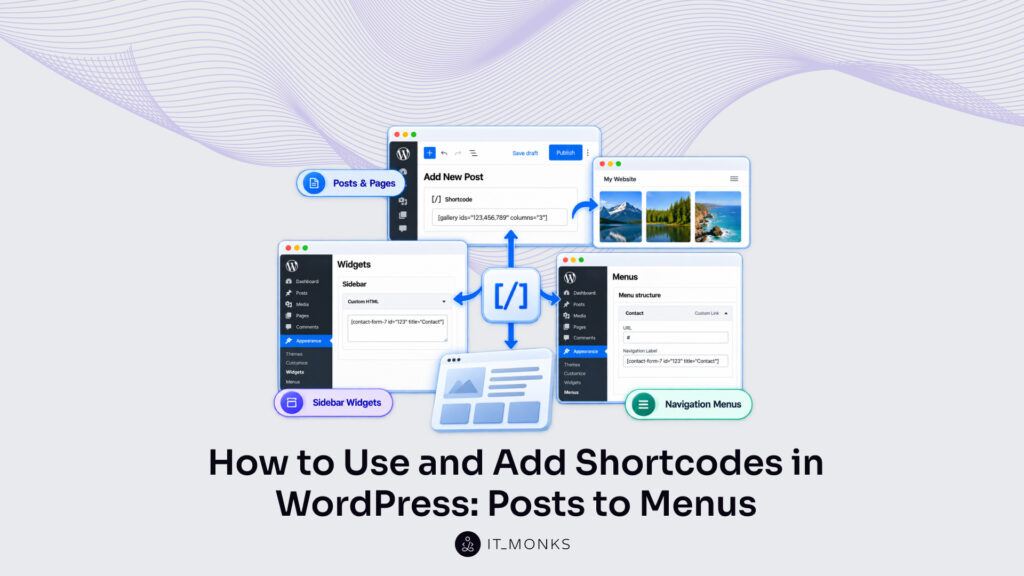
That single tag works almost anywhere content can go. The same [ contact-form-7 ] tag drops into a blog post, sits inside a sidebar widget, goes into a navigation menu, or gets called straight from a theme template: four places, one tag, identical output. Each of those places pairs a spot in the WordPress admin with the method that adds the shortcode there.
Placement
Where in WordPress
Method
Shortcode block (posts and pages)
Block editor, inside any post or page
Add the Shortcode block, paste the tag
Sidebar widget
Appearance › Widgets
Add a Shortcode block in the block widget area (WordPress 5.8+); a legacy Text or Custom HTML widget needs a filter or a plugin
Navigation menu
Appearance › Menus
Place the tag in a Custom Link item, with a plugin or a filter
Theme file
Theme template (.php)
Call do_shortcode() around the tag
Posts and pages host more shortcodes than any other spot, through a dedicated block in the WordPress editor.
How to Use a Shortcode in Posts and Pages
To add a shortcode to a WordPress post or page, use the Shortcode block, the block-editor field designed to hold an existing tag. In the block editor, the Shortcode block is a small field that takes the bracketed tag verbatim and keeps it untouched until the page renders. Posts and pages are the most common places a shortcode goes, and the Shortcode block is how it gets there, with the Classic Editor covering older sites that haven’t switched to blocks.
The same tag behaves identically on both post types, which is one reason WordPress shortcodes are treated as a single, portable content element across an entire site, a tag added to a page renders exactly as it would inside a post. Learning how to add a shortcode in WordPress once covers every post and page on the site.
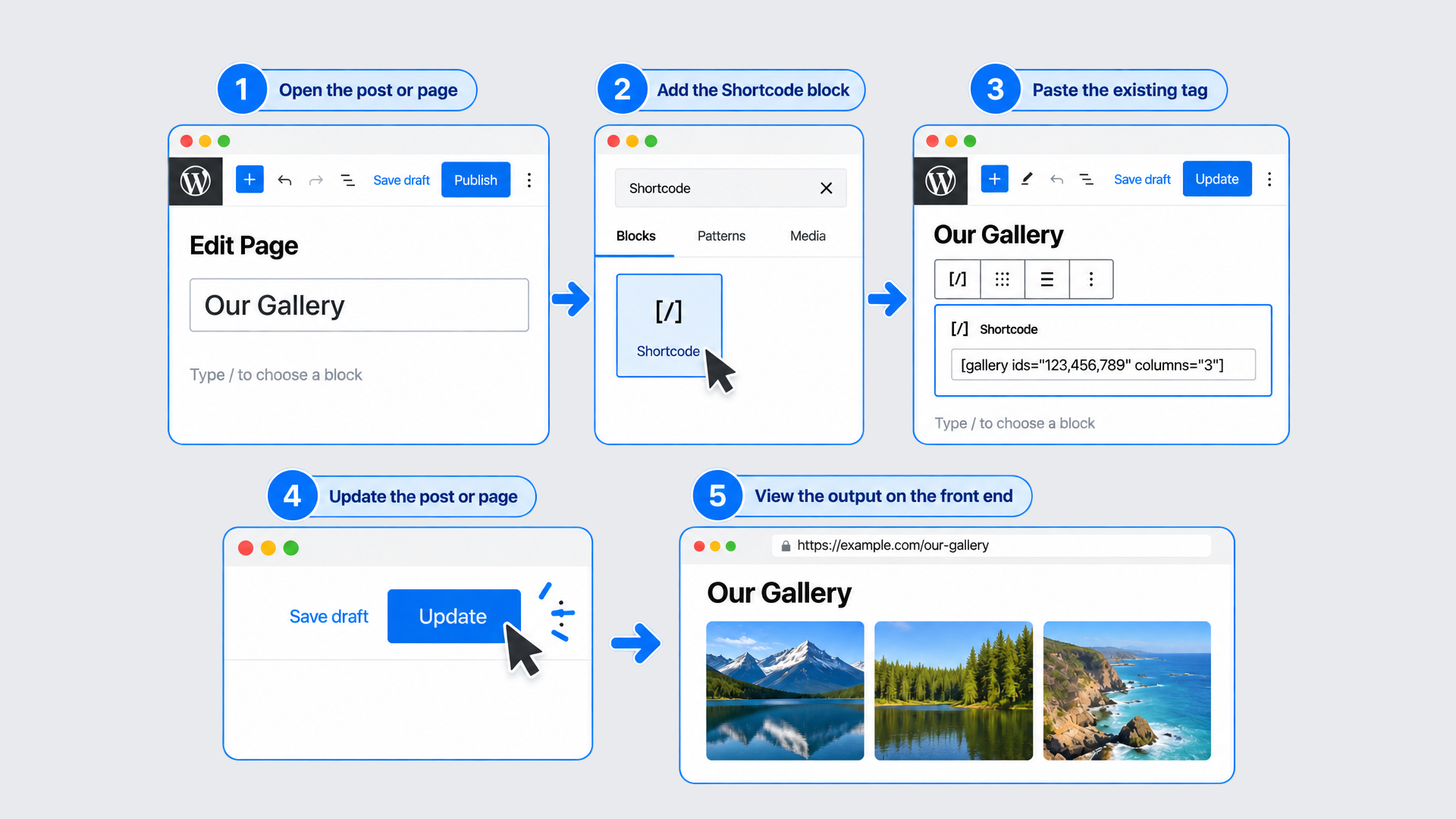
Adding the tag takes five steps in the block editor:
Open the post or page in the block editor.
Click the block inserter and search for “Shortcode.”
Add the Shortcode block, then paste the existing tag into its field.
Update or publish the post.
View the front end to confirm the output.
Once the post updates, the bracketed tag disappears on the front end and the shortcode renders its output in its place: the contact form, the gallery, or the button the tag stands for. Nothing else is needed: paste the tag, update the post, and WordPress substitutes it on render.
Sites still on the Classic Editor add the same shortcode, just a little differently.
How to Use a Shortcode in the Classic Editor
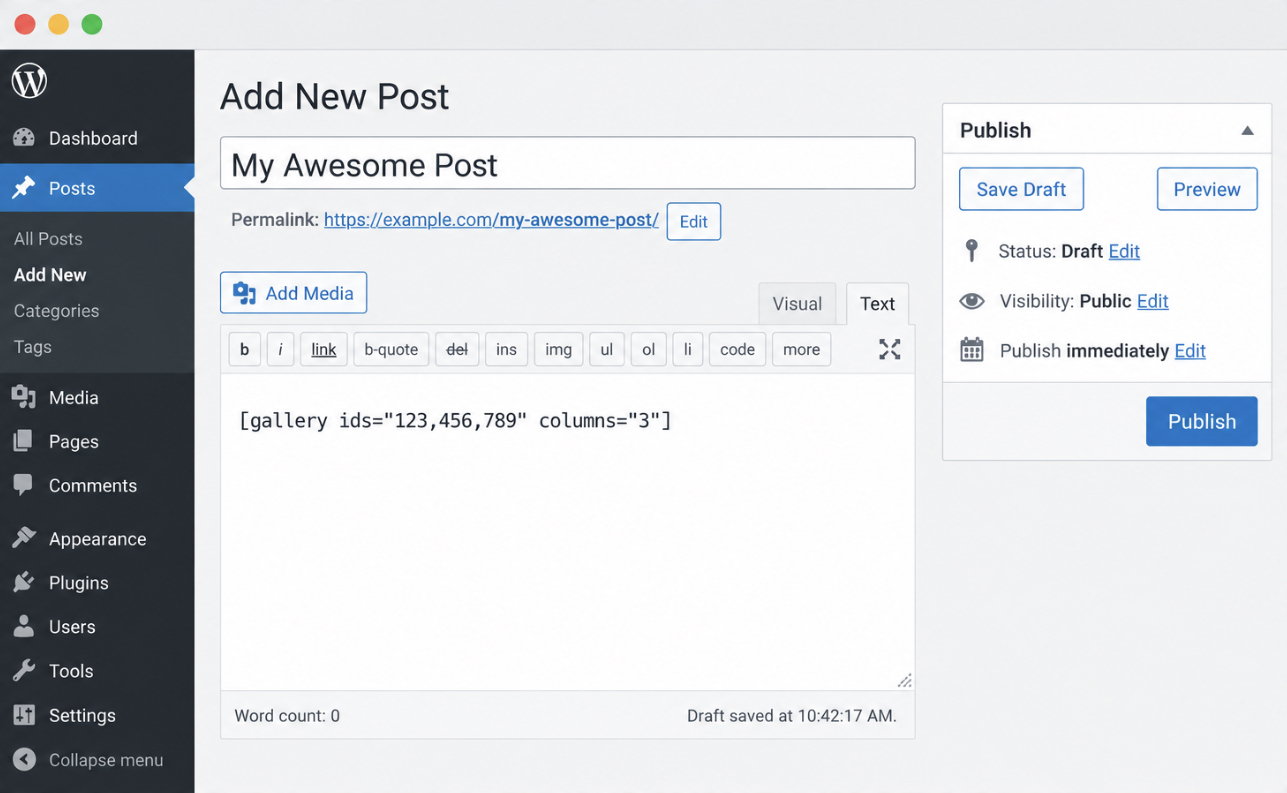
The Classic Editor handles the same shortcode without a Shortcode block. As the legacy WordPress post editor, the Classic Editor predates blocks, so a shortcode goes straight into the writing area: paste the bracketed tag into the Text tab or the Visual tab, and it stays as plain text until publishing. No block wraps it; the tag on its own is enough.
The rendered output is identical to the block-editor result. The same [ gallery ] or [ contact-form-7 ] tag produces the same front-end display whether it was added through the Shortcode block or typed into the Classic Editor. A shortcode behaves the same across both editors, because both hand the tag to WordPress for the same render-time substitution. Beyond the editor, a shortcode can also sit in the sidebar.
How to Use a Shortcode in a Sidebar Widget
A WordPress widget shortcode sits in the sidebar, added through a widget in any widgetized area. The sidebar widget area is the column beside or beneath the main content that WordPress fills with modular units called widgets, and a shortcode can go into that column as readily as into a post, provided the widget actually processes it.
This placement assumes the bracketed syntax is already familiar; a short refresher on what a WordPress shortcode is covers the tag itself before it reaches a widget.
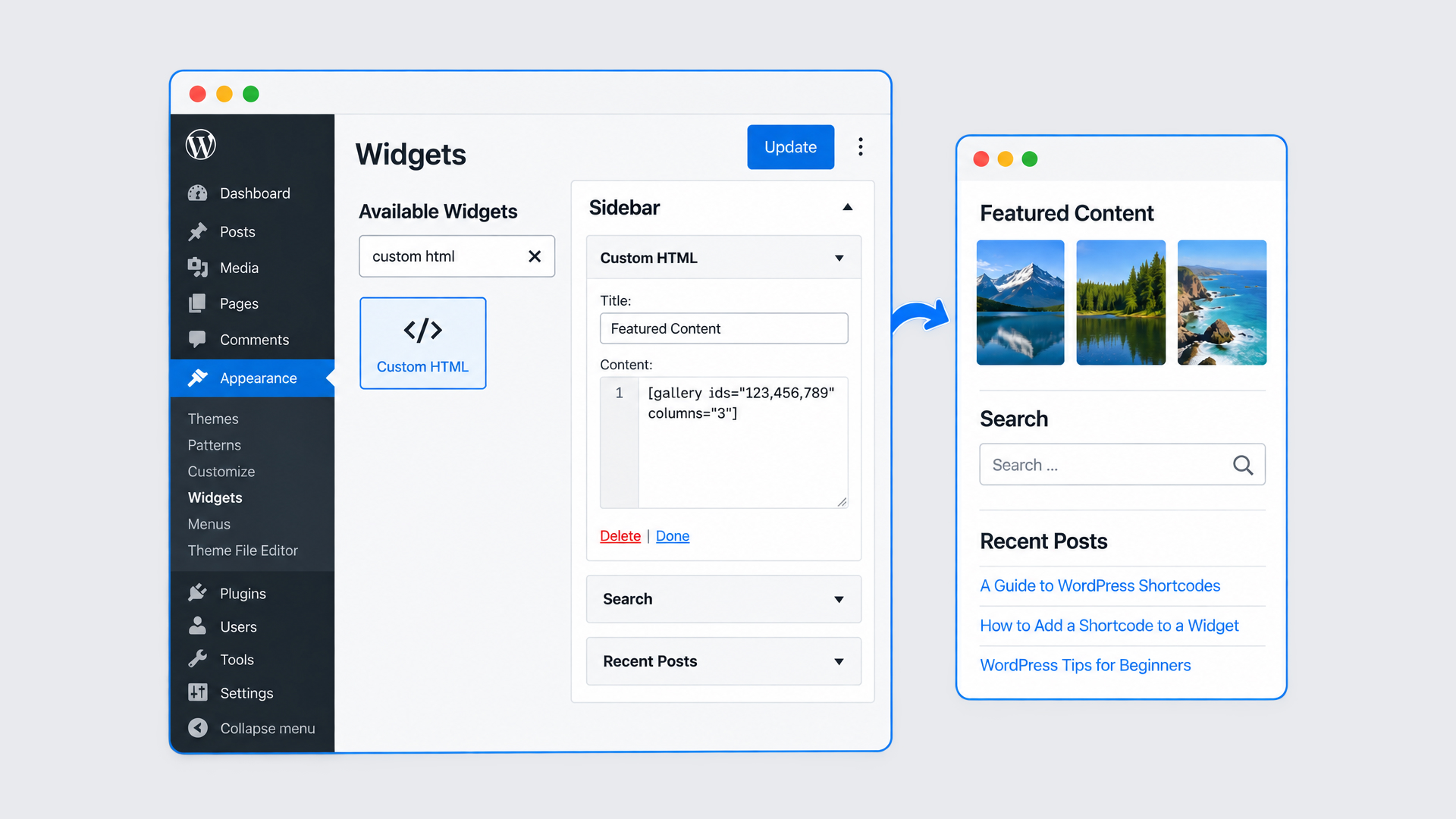
How a shortcode renders in a widget depends on the WordPress version. On WordPress 5.8 and later, the widget area uses the same block editor as posts, so a shortcode drops into a Shortcode block there and renders exactly as it does inside a post: open Appearance › Widgets, add a Shortcode block to the sidebar, and paste the existing tag. The exception is a legacy widget: a shortcode placed in one stays plain text on its own, and renders only after a one-line filter turns on shortcode processing (add_filter( 'widget_text', 'do_shortcode' ) for the classic Text widget, or add_filter( 'widget_custom_html_content', 'do_shortcode' ) for the Custom HTML widget) or after a shortcode-in-widgets plugin does the same.
Once the widget is saved, the shortcode displays its output in the sidebar on every page that shows that widget area: a subscribe form, a list of recent posts, an advertisement block. The same output the tag would produce inside a post.
Navigation menus are less accommodating: they will not render a shortcode without extra help.
How to Add a Shortcode to a WordPress Menu
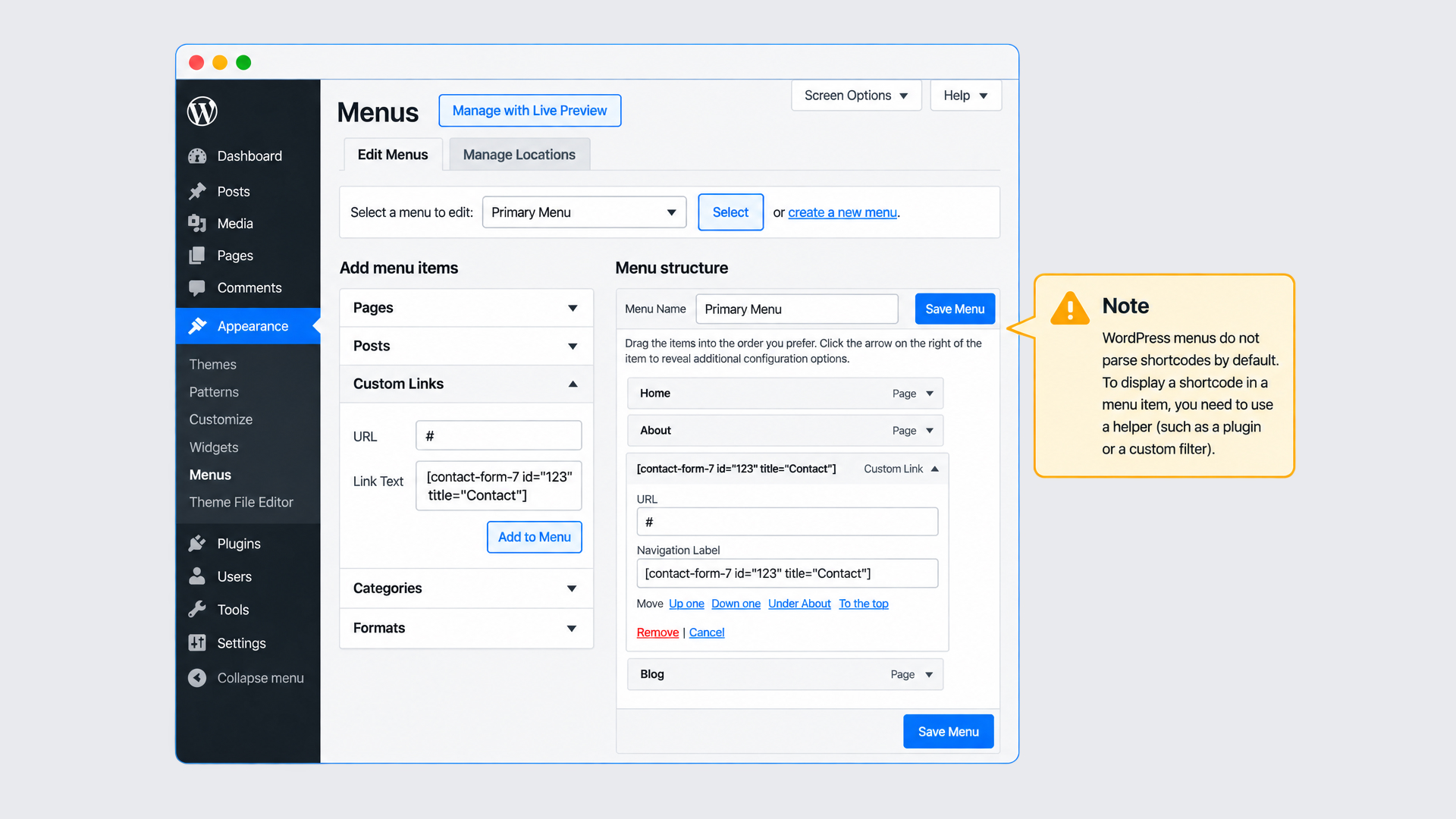
Adding a shortcode to a WordPress menu is the one placement most guides skip, and it comes with a limitation worth stating first. A WordPress menu is the navigation list, usually across the header, assembled under Appearance › Menus from links, pages, categories, and Custom Link items. A shortcode can be added to the label of a Custom Link item, but the menu does not treat the tag the way an editor does.
Native WordPress menus do not parse shortcodes at all. A menu item stores the bracketed tag as literal text and prints it verbatim, and (unlike a legacy Text widget, which at least gains shortcode support from a widget_text filter) a menu offers no native switch of its own. Two routes fix that: a menu-shortcode plugin, which processes tags in menu labels automatically once activated, or a one-line filter that passes menu-item output through do_shortcode(): add_filter( 'walker_nav_menu_start_el', 'do_shortcode' ) in the theme’s functions.php. Either route lets the menu render the shortcode where a plain menu item would only show its brackets.
To place one, open Appearance › Menus, add a Custom Link item, and paste the existing tag into its Navigation Label field; with the plugin active or the filter in place, the menu renders the shortcode instead of the raw tag. What a shortcode outputs can be changed by editing the tag’s own attributes, the parameters that control the result.
How to Edit a Shortcode’s Parameters
Editing a shortcode in WordPress usually means editing its parameters, the attributes written inside the brackets that control what the shortcode outputs. A shortcode parameter is a name-value pair placed next to the tag name, and adjusting that value changes the result without touching a single line of the function behind it. Most existing shortcodes expose a handful: an id, a size, a style, a url.
To pass a parameter, type it inside the brackets after the tag name; to change one, edit the value already sitting there. A button shortcode is a clear case, because it usually carries a url parameter that points the button somewhere:
The shortcode now outputs a button that links to the contact page instead of the pricing page: the same tag, one edited value, a different result. Getting a url parameter right matters more than the rest, since a wrong value quietly sends visitors to the wrong place while the button still looks correct.
When an edited shortcode refuses to render and shows its raw brackets instead, that is a different problem with its own causes, “shortcodes showing as plain text” covers the diagnosis and the fix. Parameters aside, some shortcodes have to be placed where no editor reaches at all: inside a theme file.
How to Use a Shortcode in a Theme File with do_shortcode()
Using a shortcode in a theme file relies on do_shortcode(), the WordPress function that executes an existing shortcode in places the editor cannot reach: a header, a footer, a custom template. A bracketed tag written straight into a template does nothing on its own, because PHP treats it as ordinary text. Wrapped in do_shortcode(), that same tag is processed as a string and returns its rendered output for the theme file to display.
The calling pattern is short. Wrap the existing tag in do_shortcode() and echo the result inside the template file:
<?php echo do_shortcode( '[contact-form-7 id="a1b2c3" title="Contact form 1"]' ); ?>
The wrapped tag returns the same output it would produce in a post, and echo prints that output into the template at the exact spot, a contact form in the footer, a gallery in a custom page template, wherever the tag belongs.
This method assumes the shortcode already exists. A tag that WordPress and its plugins do not supply is a different job altogether: how to create a custom shortcode covers defining one from scratch, which is developer work rather than placement.
With do_shortcode() handling the template, an existing WordPress shortcode can go anywhere the site displays content: a post or page through the Shortcode block or the Classic Editor, a sidebar through the block widget area or a filter-enabled Custom HTML widget, a navigation menu through a plugin or a do_shortcode filter, and a theme file through do_shortcode(), with its parameters edited at any point to change what it outputs.







 ChatGPT
  Claude
  Grok
Grok  Gemini