Explore our specialized services, tailored solutions, and industry expertise to elevate your digital presence. From custom WordPress development to seamless integrations, we build high-performing websites that deliver impact.
A WordPressdatabase is the MySQL or MariaDB store that holds every post, page, comment, setting, and plugin option a site owns, and to optimize a WordPress database means shrinking that store and speeding up the queries that read it. Content accumulates in predictable ways. Every saved edit spawns a revision, every plugin writes its own options, and expired cache values linger long after they stop being useful, so the database grows heavier month after month even when nothing looks wrong on the surface.
WordPress database optimization runs through six steps in a fixed order: back up the database, clean up unused rows, optimize the tables, add indexes, tame autoloaded data, then maintain the result so bloat does not creep back. That order is deliberate. A safe restore point protects the destructive cleanup that follows it, and cleanup strips out dead rows before the later steps defragment and index whatever remains.
Both site owners and developers can work through this. The payoff is the same at either level of comfort: a smaller database, faster queries, and better overall performance. Because the first step guards everything after it, it comes before any change that deletes or rewrites data: backing up the database.
WordPress Database Backup Before Cleanup
A WordPress database backup is a complete, restorable copy of the database saved before any destructive cleanup or optimization touches it. Backing up the database is not a bolt-on precaution; it is step one and precedes every DELETE, OPTIMIZE, or ALTER statement in this procedure. If a cleanup query removes the wrong rows, the backup is the only thing that brings them back.
Two routes produce that copy. A developer with WP-CLI installed runs a single export from the site root:
wp db export backup-before-cleanup.sql
The file backup-before-cleanup.sql lands in the current working directory. The manual equivalent, run from a shell or a hosting terminal, is mysqldump:
mysqldump -u USER -p DBNAME > backup-before-cleanup.sql
Here USER and DBNAME are placeholders the site owner swaps for real credentials, and the wp_ table prefix may differ on a hardened install. Both routes write the same portable .sql file, and both belong somewhere off the live server once created.
A backup only protects a site if it actually restores. Before deleting anything, import the file into a scratch database and confirm the tables and row counts come back intact; a backup nobody has tested is a guess, not a safety net. With a verified restore point in place, the next step removes the unused rows that inflate the database.
How to Clean Up the WordPress Database
Cleaning up the WordPress database means deleting accumulated rows that no longer serve the site: revisions, expired cache entries, spam, and orphaned metadata that pile up in the core tables. This is the highest-demand part of the whole routine, and for a plain reason: a clean WordPress database asks MySQL to read far less data on every page load. WordPress database cleanup comes before table optimization by design, since defragmenting a table is cheaper once its dead rows are already gone.
Most cleanup follows a single pattern: a targeted DELETE from the table holding the junk. Removing post revisions looks like this:
DELETE FROM wp_posts WHERE post_type = 'revision';
Four kinds of bloat account for most of the waste. Post revisions stack up in wp_posts, expired transients linger in wp_options, spam collects in wp_comments, and orphaned postmeta outlives the posts it once described. Each has its own safe statement, and each shrinks a different corner of the database. The first target, and usually the largest, is post revisions.
Post Revisions
A post revision is an autosaved copy WordPress stores every time an editor saves a change to a post or page. The feature guards against lost work, but it never clears up after itself. A single heavily edited page can carry dozens of revision rows, and every one lives in wp_posts beside the published content, so the table MySQL reads most often is the one that inflates fastest.
With the backup from step one in place, one statement removes them all:
DELETE FROM wp_posts WHERE post_type = 'revision';
The wp_ prefix may differ on a given install. Deleting revisions is safe because the published post is a separate row the statement never touches, only the autosaved copies go. Expired transients are the next target, and they hide in a different table.
Expired Transients
A transient is a cached value with a built-in expiry that WordPress parks in the wp_options table; a plugin might store an API response as a transient set to last twelve hours. The catch is that WordPress only clears an expired transient when something asks for it again. On a site with rotating plugins, thousands of expired timeout rows can sit in wp_options long after anything reads them.
This statement removes the expired ones by comparing each stored timeout against the current time:
DELETE FROM wp_options WHERE option_name LIKE '_transient_timeout_%' AND option_value < UNIX_TIMESTAMP();
Because wp_options is one of the tables WordPress leans on constantly, trimming it directly lightens one of the busiest structures in the database. Spam comments are the next source of bloat.
Spam Comments
Spam comments are the unapproved comment rows that accumulate in wp_comments, together with the wp_commentmeta rows attached to them. Even with a filter catching them at the door, flagged spam often sits in the database indefinitely.
DELETE FROM wp_comments WHERE comment_approved = 'spam';
Once the comments are gone, their wp_commentmeta rows point at nothing and can be cleared the same way. The last cleanup target, orphaned postmeta, needs more care than a single-table delete.
Orphaned Postmeta
Orphaned postmeta are metadata rows in wp_postmeta whose parent post has already been deleted. Plugins write postmeta entries constantly, and when a post is removed or a plugin is uninstalled without tidying up, the meta rows it left behind continue to point to an ID that no longer exists. Across years of edits, these parentless rows can outnumber the valid ones.
Removing them safely takes a JOIN, so the statement deletes only the rows with no matching post:
DELETE pm FROM wp_postmeta pm LEFT JOIN wp_posts p ON p.ID = pm.post_id WHERE p.ID IS NULL;
The LEFT JOIN matches every wp_postmeta row against wp_posts and keeps only those where no parent is found, leaving valid metadata untouched; more caution than the earlier single-table deletes require. With revisions, transients, spam, and orphaned meta cleared, the tables are smaller, and the next step optimizes what remains.
How to Optimize WordPress Database Tables
Optimizing WordPress database tables means reclaiming the empty overhead left by DELETE statements and defragmenting the remaining rows, so MySQL reads each table in fewer operations. When rows are deleted, the space they held is not automatically reclaimed; the table retains the gaps as overhead until it is rebuilt. Running the cleanup first is what makes this step cheap: there are fewer rows left to defragment, and the reclaimed overhead can run to several megabytes on a badly bloated table.
Optimization is the standard way to tune a fragmented table back into shape, and it has two parts worth understanding: the OPTIMIZE TABLE statement that does the work, and the storage engine beneath each table that decides what that statement actually does.
OPTIMIZE TABLE wp_posts, wp_postmeta, wp_options;
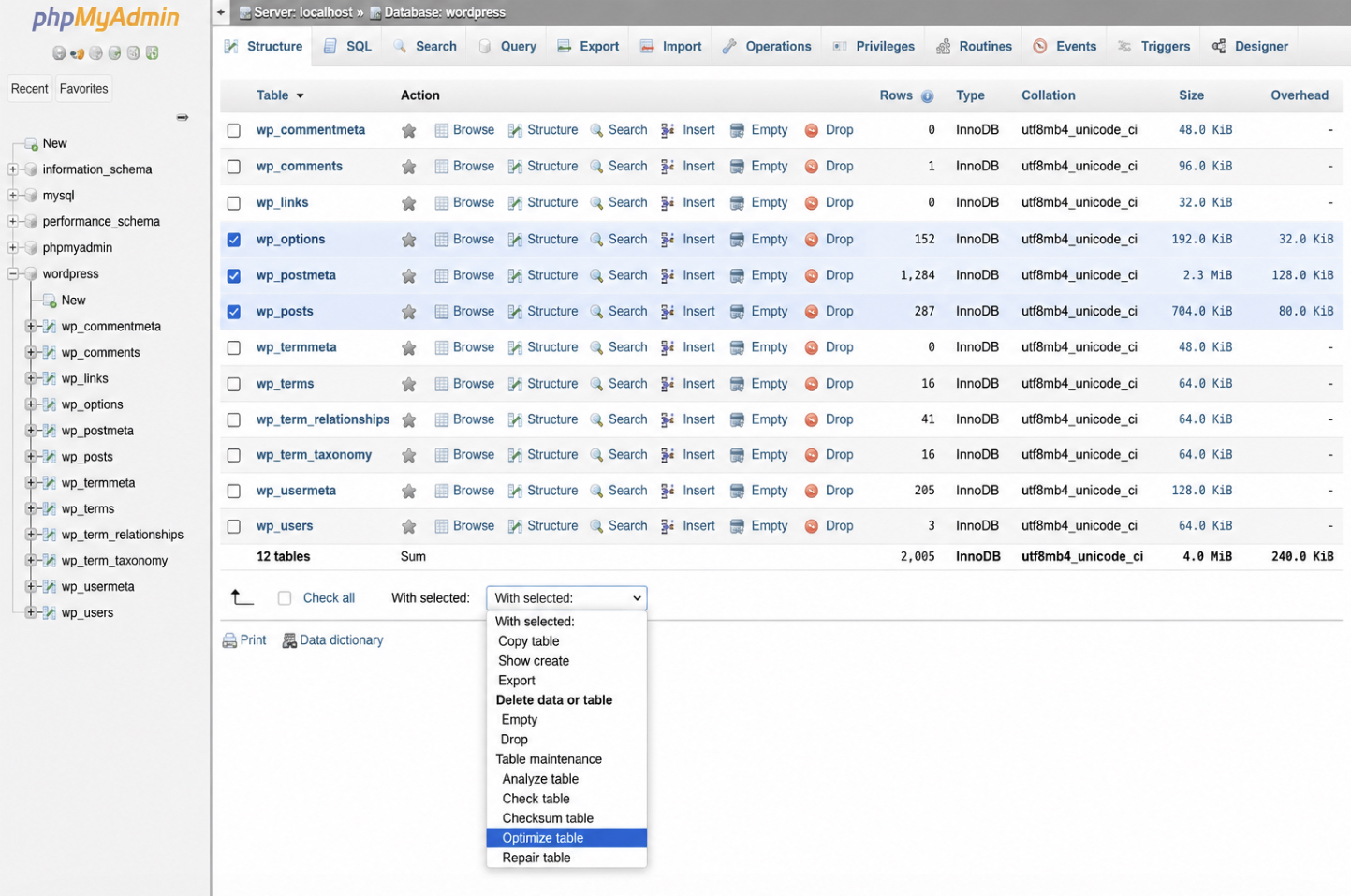
phpMyAdmin performs the same operation without touching the SQL tab, straight from its table list.
The statement itself is the place to start.
OPTIMIZE TABLE
OPTIMIZE TABLE is the MySQL statement that rebuilds a table from scratch to reclaim its unused space, measured in megabytes; where each table is stored in its own file, as the modern default arranges, that reclaimed space returns to the operating system. It accepts one table or several at once:
OPTIMIZE TABLE wp_posts, wp_postmeta, wp_options;
The same rebuild runs from phpMyAdmin by selecting the tables and choosing “Optimize table” under “With selected,” the point-and-click route for an administrator who avoids the SQL tab. Either way, the outcome is a defragmented table with its overhead reclaimed. What that rebuild does underneath, though, depends on which storage engine the table uses.
Storage Engine
A storage engine is the component MySQL uses to store and read a table’s rows, and WordPress tables run on one of two: InnoDB or MyISAM. The distinction matters because OPTIMIZE TABLE behaves differently on each. MyISAM rebuilds the table and its indexes in place, while InnoDB, which has no true in-place optimize, quietly recreates the table and rebuilds its indexes instead. Both reclaim space; they simply reach it by different methods.
InnoDB is the modern default, row-level locking and crash recovery that suit a busy WordPress site, so most tables already use it. A legacy table still sitting on MyISAM is worth converting. Check which engine each table uses first:
SHOW TABLE STATUS;
Then convert a MyISAM table with a single statement:
ALTER TABLE wp_posts ENGINE=InnoDB;
Which engine performs best also depends on how the server itself is set up, so it pays to configure MySQL for WordPress rather than accept whatever defaults shipped with the host. With the engines settled and the tables rebuilt, the next step adds indexes so MySQL can locate rows without scanning whole tables.
WordPress Database Indexes
A WordPress database index is a lookup structure that lets MySQL jump straight to the rows a query needs instead of reading every row in the table. Without one, a query that filters on an unindexed column forces a full-table scan. MySQL walks each row in turn, which grows slow once a table holds hundreds of thousands of rows. An index turns that scan into a direct lookup, and on a large wp_postmeta table the difference surfaces as query times falling from hundreds of milliseconds to a handful.
The queries that gain the most in WordPress are the ones the platform fires constantly: metadata lookups against wp_postmeta and option lookups against wp_options. Two index shapes cover most needs: a composite index spanning multiple columns, and the specific wp_postmeta index that resolves the platform’s most common slow query. A single-column index is created like this: though wp_postmeta already carries a meta_key index of its own, so the statement stands as the generic syntax rather than a change worth running on a stock install:
CREATE INDEX idx_meta_key ON wp_postmeta (meta_key);
EXPLAIN reveals whether MySQL actually uses it, printing the query plan for inspection:
EXPLAIN SELECT * FROM wp_postmeta WHERE meta_key = 'my_key';
Composite indexes come first, because the column order inside them decides which queries they help.
Composite Indexes
A composite index is a single index built across two or more columns, stored in the order those columns are listed. That order is what decides which queries the index helps. An index on (meta_key, meta_value) speeds up queries filtering on meta_key alone or on meta_key and meta_value together, yet it does nothing for a query that filters on meta_value by itself, because MySQL reads a composite index left to right.
CREATE INDEX idx_meta_key_value ON wp_postmeta (meta_key, meta_value(20));
The (20) limits the index to the first twenty characters of meta_value, which keeps the index compact while still covering most lookups. The leading column should be the one queries filter on most often. The place this pattern proves most valuable is the wp_postmeta index.
wp_postmeta Index
The wp_postmeta index fixes the single most expensive query pattern in a typical WordPress database: a lookup that filters wp_postmeta on meta_key and meta_value together. WordPress core already indexes meta_key, but no default index covers meta_value, so once a wp db query narrows to a common meta_key it still has to examine every row sharing that key to test the meta_value condition, and on a store with a million postmeta rows that examination can cost hundreds of milliseconds each time it runs.
The composite index on meta_key and meta_value removes that row-by-row check:
CREATE INDEX idx_meta_key_value ON wp_postmeta (meta_key, meta_value(20));
Proof comes from EXPLAIN, run before and after the index exists:
EXPLAIN SELECT post_id FROM wp_postmeta WHERE meta_key = 'my_key' AND meta_value = 'x';
Before the composite index, the plan reports a wide scan, with every row sharing the meta_key counted in its rows-examined figure. After, it reports a narrow index lookup examining only a handful of rows, and the query time drops to a few milliseconds. With the indexes in place, the last performance step tackles what WordPress loads on every single request, autoloaded data.
Autoloaded Data in the WordPress Database
Autoloaded data is the set of wp_options rows flagged autoload=’yes’, which WordPress loads into memory on every single request before it renders a byte of the page. These options are meant for values the site genuinely needs each time: the active theme, core settings, a few plugin configurations. The trouble is that many plugins mark large options for autoload and never unset the flag, so the autoloaded set swells, and because it loads on every request, an oversized set slows every page build across the whole site.
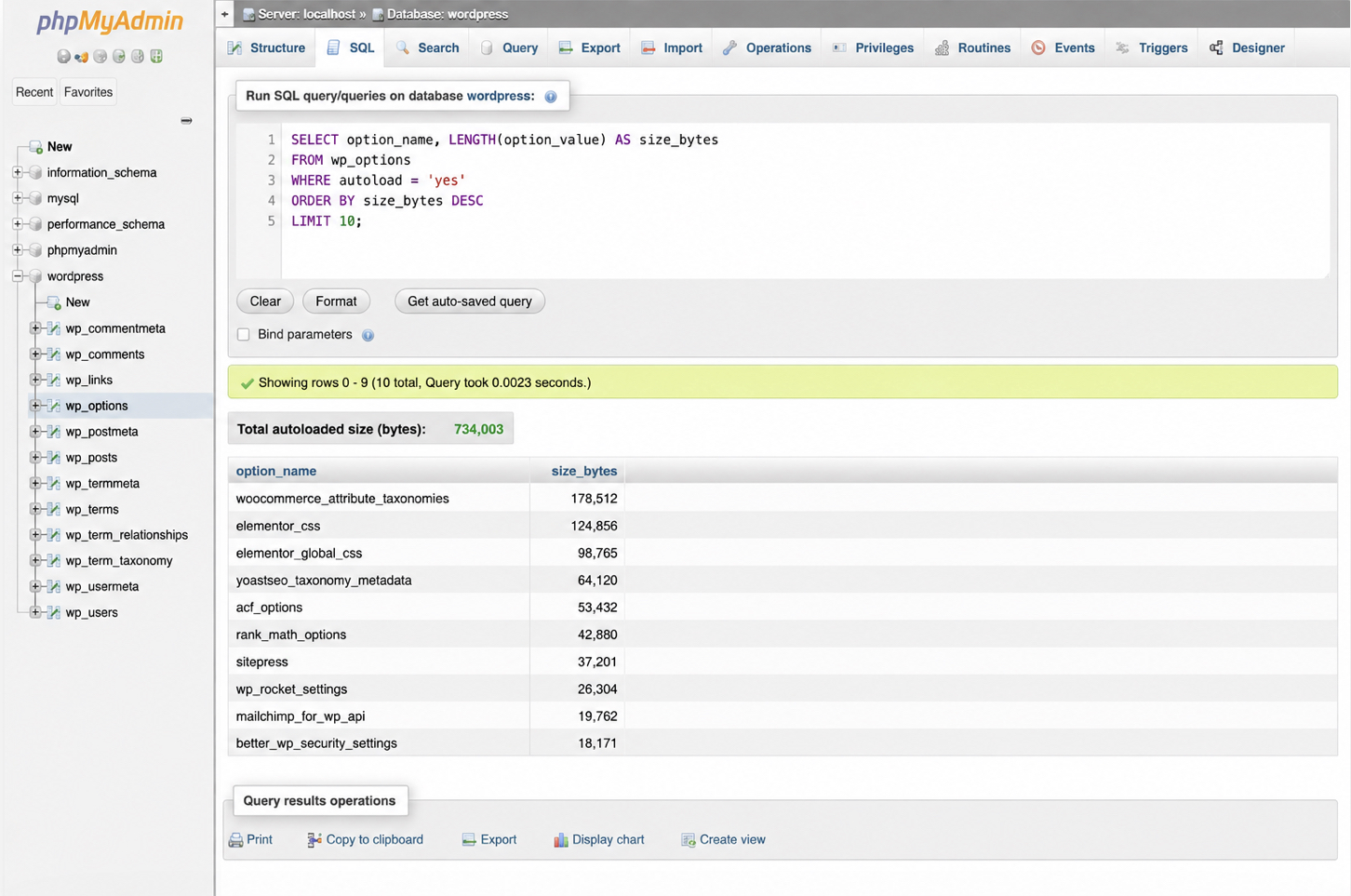
Two things decide the impact: the wp_options table where these rows live, and the total autoload size, which should stay under 800 KB. Seeing what is actually being autoloaded starts with listing the largest rows:
SELECT option_name, LENGTH(option_value) FROM wp_options WHERE autoload='yes' ORDER BY LENGTH(option_value) DESC LIMIT 10;
The table that holds all of this is where to look first.
wp_options Table
The wp_options table stores site-wide settings as name-value pairs, and its autoload column is the switch deciding whether WordPress loads each option on every request. A fresh install keeps this lean. Over time, though, plugins write their own options with autoload=’yes’ and leave them set long after the plugin is deactivated, so stale autoloaded rows accumulate here.
Once the largest autoloaded options are identified, switching an unnecessary one off is a single update:
UPDATE wp_options SET autoload='no' WHERE option_name = 'some_large_option';
Flipping autoload to ‘no’ keeps the option in the database but stops WordPress loading it on every request, which shrinks the set that loads each time. How large that loaded set should be in the first place is the question autoload size answers.
Autoload Size
A healthy autoload size is the combined byte weight of every autoloaded option, and the working threshold is 800 KB. Under it, the per-request payload stays cheap; well past it, every page build carries wasted load. Summing the current total takes one query:
SELECT SUM(LENGTH(option_value)) AS autoload_bytes FROM wp_options WHERE autoload = 'yes';
The result returns in bytes, so 800 KB is roughly 800,000. When the total sits comfortably below that, autoload is not the bottleneck. When it runs past 800 KB, sometimes several megabytes on a plugin-heavy site, the fix is to disable autoload on the largest rows until the total falls back under the threshold. Keeping autoload lean, like keeping the whole database lean, is not a one-time job but an ongoing routine.
WordPress Database Maintenance
WordPress database maintenance is the ongoing practice of controlling what the platform writes to the database so the bloat just cleared does not quietly return. Every step so far treats the symptoms; maintenance treats the cause. It works through wp-config.php constants that cap how much WordPress stores in the first place, with a revision limit and an autosave interval doing most of the good:
Two levers carry most of the load: capping how many post revisions each post may keep, and giving transients an expiry so they clear themselves. Because this routine recurs for the life of the site, many site owners fold it into a standing retainer or outsourced WordPress support arrangement rather than remember it by hand every month. However the schedule is kept, the routine still has to run, either by hand through phpMyAdmin and the command line, or automatically by a plugin. Both execution paths run on the same underlying levers, and the revision limit is the first.
Post Revision Limits
The WP_POST_REVISIONS constant caps how many revisions WordPress keeps per post, written as a plain integer. Set it to 5 and each post retains its five most recent revisions while older ones fall away automatically as new edits arrive:
define( 'WP_POST_REVISIONS', 5 );
The line belongs in wp-config.php, above the “That’s all, stop editing” comment. A value between 3 and 10 keeps enough edit history to recover recent work without letting wp_posts inflate the way it did before the cleanup. Setting it to 0 disables revisions entirely, which suits few sites. The second lever, transient expiry, controls the other recurring source of bloat.
Transient Expiry
Transient expiry is the lifetime, measured in seconds, attached to a cached value so it clears itself once the time runs out. The third argument to set_transient sets it:
HOUR_IN_SECONDS is a WordPress constant, so 12 * HOUR_IN_SECONDS resolves to 43,200 seconds, twelve hours. A transient created with a real expiration removes itself on schedule instead of lingering in wp_options the way the expired rows cleared earlier did. Applied consistently across a site’s custom code, a correct expiration stops transient bloat from ever building up. Running all of this (the cleanup, the constants, the expirations) comes down to two manual methods.
WordPress Database Cleanup Methods
A WordPress database cleanup method is a manual route for running the cleanup and optimization statements against the database. Two such methods exist: phpMyAdmin and WP-CLI.
The first is phpMyAdmin, the graphical SQL interface bundled with most WordPress hosting, where an administrator pastes a DELETE or OPTIMIZE statement into the SQL tab and runs it point-and-click.
The second is WP-CLI, the WordPress command line, which suits developers who would rather script the work. Clearing every revision from the shell takes one line:
wp post delete $(wp post list --post_type=revision --format=ids) --force
Flushing all transients is just as direct:
wp transient delete --all
Both routes execute the same operations against the same WordPress database; the choice is one of comfort, not capability. For anyone who would rather not touch SQL or the command line at all, a plugin can run the whole routine automatically.
WordPress Database Optimization Plugins
A WordPress database optimization plugin is a tool that automates the same cleanup and table optimization an administrator would otherwise run by hand, deleting revisions, clearing expired transients, removing spam and orphaned metadata, and optimizing tables, all on a schedule. WP-Optimize and Advanced Database Cleaner are two established examples. Each sweeps the database on a set interval, so the revisions and transients that gather between manual passes get cleared without anyone logging in.
A plugin does nothing the manual statements cannot; it runs the same steps automatically, on a timer, from inside the WordPress admin. That leaves two workable paths to one result (the manual route through phpMyAdmin or WP-CLI, and the automated route through a scheduled plugin), which is why both site owners and developers can keep the database in shape whichever way suits them.
A WordPress database that has been backed up, cleaned of its unused rows, defragmented, indexed, trimmed of oversized autoloaded data, and placed on a standing maintenance routine is a smaller database that answers queries faster. That is the whole of it: less stored, less scanned, less time spent per request. A WordPress database that stays fast because it is kept lean, not because it was optimized once.
 | updated:







 ChatGPT
  Claude
  Grok
Grok  Gemini