Explore our specialized services, tailored solutions, and industry expertise to elevate your digital presence. From custom WordPress development to seamless integrations, we build high-performing websites that deliver impact.
To deploy a WordPress Docker stack to production is to take an already-composed local stack and stand it up on a live server the public can reach. That single move is the whole of WordPress Docker production: the same containers that once answered only at localhost, now serving a real domain over HTTPS.
The starting point is a stack that already works. A developer whose WordPress and database containers already run together on a local machine, reachable at an address like localhost:8080, has everything this step needs. That local setup is finished. Nothing here remakes the images or redoes the wiring between the services, and none of it touches how the stack was assembled in the first place. What changes is where the stack runs, not what it is.
Production means a live host that keeps the site online without a terminal window left open on someone’s desk. The containers run detached, come back on their own after the server reboots, and answer traffic on the standard secure port so browsers load the site over HTTPS. Data outlives any single container, which is what lets the site survive an update or a crash. A visitor who types the domain reaches the running WordPress Docker production site directly, the same way they would reach any other hosted website, with no sign that containers sit underneath.
Getting there is a short sequence of concrete decisions, each one setting up the next: a production host to run the stack, then a reverse proxy and a TLS certificate placed in front of it, then the environment configuration the containers read at startup, then the deploy command run on the host, then a verification pass, and finally the named volumes that hold the data.
The first of those decisions shapes all the rest: where the stack will actually run. A server has to exist before anything can sit in front of it to route requests, before a certificate can secure it, and before the deploy command has a target to run against. So the production host comes first.
The Production Host for the WordPress Docker Stack
The production host is the live server a WordPress Docker production stack runs on once it leaves the developer’s machine, a computer on the public internet, reachable by a domain name instead of a local address. Choosing it is the first real decision of the deploy, because every later step assumes a host is already there and waiting.
Whatever form it takes, a host has to give the stack three things. It needs a Docker runtime, so the containers start on the server exactly the way they started locally. A public IP address and a domain pointed at it come next, so visitors can find the site at all. And persistent storage has to be present, so the database and the uploaded files in wp-content survive restarts and redeploys rather than vanishing with a container. Miss any one of the three and a Docker WordPress production host either will not run the stack or will not keep it reachable.
Two routes lead to such a host, and choosing between them is a question of how much of the server the developer wants to operate. It is a choice about control, not about which brand-name host wins. One route is self-hosted: a virtual private server that the developer provisions and runs directly. The other is managed: a container platform that runs the stack without anyone provisioning a server at all. Both give the containerized WordPress stack a place to run in production; they differ only in where the operational work lands.
Either route receives the same payload: the local stack, promoted as-is. The compose file that already defines the WordPress and database services on a developer’s machine, the one produced during the WordPress Docker Compose setup, is exactly what gets deployed to the host.
Once the host exists and the stack has somewhere to land, one gap remains: public traffic still cannot reach a container on its own. A Docker WordPress production deployment puts a single entrypoint in front of the container to route incoming requests to it, and that entrypoint is the next thing to set up after the host is settled.
A VPS with Docker Engine
A VPS with Docker Engine is the self-hosted route to a production host: a virtual private server the developer rents, provisions, and controls end to end, with Docker Engine installed on it directly. Root access ships with the server, so the entire host (the operating system, the runtime, the firewall) is the developer’s to run and to answer for.
Sizing the VPS follows the stack it has to carry. A single-site WordPress Docker production stack runs comfortably on a modest server: roughly 2 GB of RAM, 2 vCPU, and about 40 GB of storage as a working baseline, scaled up when traffic climbs or a media library grows large. Storage is the value that moves most over time, since the database and wp-content keep accumulating while RAM and vCPU stay fairly flat.
With the server up, Docker Engine goes on in a single step. The convenience script from Docker pulls the engine and the Compose plugin together, and two version checks confirm both landed before any deploy work begins:
# On the fresh VPS (Ubuntu): install Docker Engine + Compose plugin
curl -fsSL https://get.docker.com | sh
# Confirm the runtime and compose plugin are present
docker --version
docker compose version
That is the whole host prepared: one server, one runtime, fully under the developer’s control. Teams that would rather not provision, patch, and watch a server of their own reach for a second option, where the host itself becomes somebody else’s job to keep running.
A Managed Container Host
A managed container host runs the WordPress Docker stack on infrastructure that someone else provisions, patches, and keeps running. The developer hands over a compose file and the container images; the platform allocates the compute, the networking, and the storage the stack needs to stay online. The stack itself keeps running exactly as composed while the operational ownership of the server underneath moves to the platform.
That ownership is the whole trade. A self-managed VPS gives root on the box and full say over the kernel, the Docker version, and the firewall control earned with patching, monitoring, and the occasional late-night reboot. A managed container host strips most of that operational overhead away and hands back less host control in exchange. The platform decides how the underlying node is sized and secured, and the stack runs inside those boundaries.
Neither route is more production-grade than the other. A WordPress Docker production stack behaves identically whether it runs on a VPS the agency engineer administers directly or a managed host that abstracts the server away: the container, the database, and the named volumes are the same in both places. The decision reduces to a single question: how much of the host does the team want to operate itself.
Both routes share one constraint. The container cannot face the public internet on its own. Whichever host runs the stack, an incoming request still has to arrive somewhere and be pointed at the WordPress container, and that job belongs to a reverse proxy standing in front of it.
The Reverse Proxy in Front of the WordPress Container
The reverse proxy is the single public entrypoint that sits in front of the WordPress container and routes incoming traffic to it. In a WordPress Docker production stack, the container itself never listens on the open internet. One proxy service accepts every request that reaches the host, reads which site the request is meant for, and forwards it across the internal Docker network to the WordPress container behind it. Traefik fills that role cleanly, because it configures itself from the containers already running beside it.
Traefik discovers the WordPress service through Docker labels instead of a hand-written config block. Each label on the WordPress container tells the proxy how to route to it: one label sets the hostname the site answers on, another names the internal port the container serves. The proxy reads those labels the moment the container starts and wires up the route with no restart.
The port split is what makes this a production layout rather than a local one. The proxy binds the host’s public ports (80 for HTTP and 443 for HTTPS) while the WordPress container exposes only its internal port on the Docker network, unreachable from outside. Every visitor lands on the proxy; the proxy forwards to port 80 inside the container; the container holds no public port of its own.
Mounting the Docker socket read-only is what lets Traefik watch containers start and stop and adjust its routing table on its own. The two entrypoints named in its command (web on 80, websecure on 443) are the only ports open to the public internet; the labels on the WordPress service decide what happens once a request arrives on them. Port 443 only earns its place once the proxy has a certificate to present on it, which is the next thing the stack has to supply.
The TLS Certificate for the Production WordPress Site
The TLS certificate is the Let’s Encrypt certificate the reverse proxy presents so the production WordPress site is served over HTTPS instead of plain HTTP. It encrypts every request between a visitor and the site and turns on the padlock the browser shows. Without it the proxy would still route traffic, but every login and form submission would cross the network in the clear, unacceptable for anything running as a WordPress Docker production site.
The proxy obtains the certificate automatically through the ACME challenge, so no one purchases or uploads anything by hand. When the stack first starts, Traefik requests a certificate covering the site’s domain from Let’s Encrypt, proves control of that domain over the HTTP entrypoint, and stores the issued certificate on a mounted volume. A Let’s Encrypt certificate carries a 90-day validity, and the proxy renews it on its own roughly 30 days before expiry. The certificate refreshes for as long as the stack keeps running, with no renewal date left for anyone to miss.
Serving over HTTPS covers only half the job; the other half is making sure no visitor reaches the site over plain HTTP at all. A redirect sends every request that arrives on port 80 to the secure entrypoint on 443, so someone who types the bare domain still lands on the encrypted version. The certificate secures the connection, and the redirect leaves that secured connection as the only one on offer.
The resolver named le tells the proxy which issuer to use and where to keep the acme.json file that holds the certificate; mounting the letsencrypt volume means an issued certificate survives a container restart rather than being requested again. The labels on the WordPress service opt it into TLS and pin it to the secure entrypoint, so the route the proxy built now answers only on HTTPS. With the host chosen, the proxy routing traffic, and the certificate securing it, what the stack still needs is its own configuration, the database credentials and site settings it reads at startup.
The Environment Variables for the Production WordPress Stack
The production environment variables supply the WordPress Docker stack its database credentials and its site configuration at the moment the containers start, and they do it without writing a single secret into the image or into the compose file. On the live production host, the stack reads these values from two places. A .env file holds the ordinary connection details and the non-sensitive site config; a Docker Compose secret holds the one value too sensitive to sit in plain text, the database password. Keeping the deploy repeatable rests on that separation. To deploy WordPress in Docker the same way twice, the configuration has to stay outside the containers instead of being baked into them.
The .env file supplies the WORDPRESS_DB_* values the compose file reads when it brings the stack up. Docker Compose reads the file through the service’s env_file: directive, so each variable lands inside the WordPress container as an environment variable the official image already knows how to consume: a database host, a database name, a user, a table prefix, and a block of extra configuration that forces the canonical site URL and tells WordPress it now sits behind an HTTPS entrypoint.
# .env — production configuration for the WordPress Docker stack
# Compose reads this file via the service's env_file: directive.
WORDPRESS_DB_HOST=db:3306
WORDPRESS_DB_NAME=wordpress_prod
WORDPRESS_DB_USER=wp_prod
# WORDPRESS_DB_PASSWORD is deliberately absent here — the password is supplied as a
# Docker secret via WORDPRESS_DB_PASSWORD_FILE (below). Setting both aborts container startup.
WORDPRESS_TABLE_PREFIX=wp_
WORDPRESS_CONFIG_EXTRA=define('WP_HOME','https://example.com'); define('WP_SITEURL','https://example.com'); $_SERVER['HTTPS']='on';
A database password, though, does not belong in that file, not even one kept out of version control. Docker Compose secrets store the password as a file mounted into the container at /run/secrets/, and the WordPress image reads it through WORDPRESS_DB_PASSWORD_FILE rather than WORDPRESS_DB_PASSWORD. The credential never gets injected into the image layer, never appears in the .env, and never surfaces in docker inspect output. The compose service references the secret; Docker mounts it; WordPress reads the file at start.
Locally, one variable usually carries the whole job. A developer’s compose stack points WORDPRESS_DB_HOST at the database service and gets on with the work. Production asks for more than a single host reference. That same WORDPRESS_DB_HOST still names the database container, but now it holds a real password kept as a secret, a WORDPRESS_TABLE_PREFIX that is not the shipped default, and a WORDPRESS_CONFIG_EXTRA block that pins the site URL and the HTTPS behaviour behind the reverse proxy. With the host chosen, the proxy and certificate in front, and the credentials supplied through the environment and secrets, the stack finally holds everything it needs to start.
How to Deploy the Stack to the Live Production Host
Deploying the stack to the live production host comes down to one command run on that host (docker compose up -d) which starts the whole production WordPress stack in the background and hands the site to the public internet. To deploy WordPress in Docker at this stage, the agency engineer connects to the production host over SSH, moves into the directory that holds the compose file and the .env, and runs the command there. The compose file stays exactly as it is, and the deploy runs against it directly on the host.
# on the live production host, in the stack directory
docker compose up -d
Each service carries restart: unless-stopped, and that policy keeps the containers running across host reboots. When the production host restarts for a kernel update or a provider maintenance window, Docker brings the WordPress, database, and proxy containers back on its own, and the site returns without anyone deploying WordPress with Docker a second time. The restart survives the reboot precisely because the policy, not a person, decides to launch the containers again.
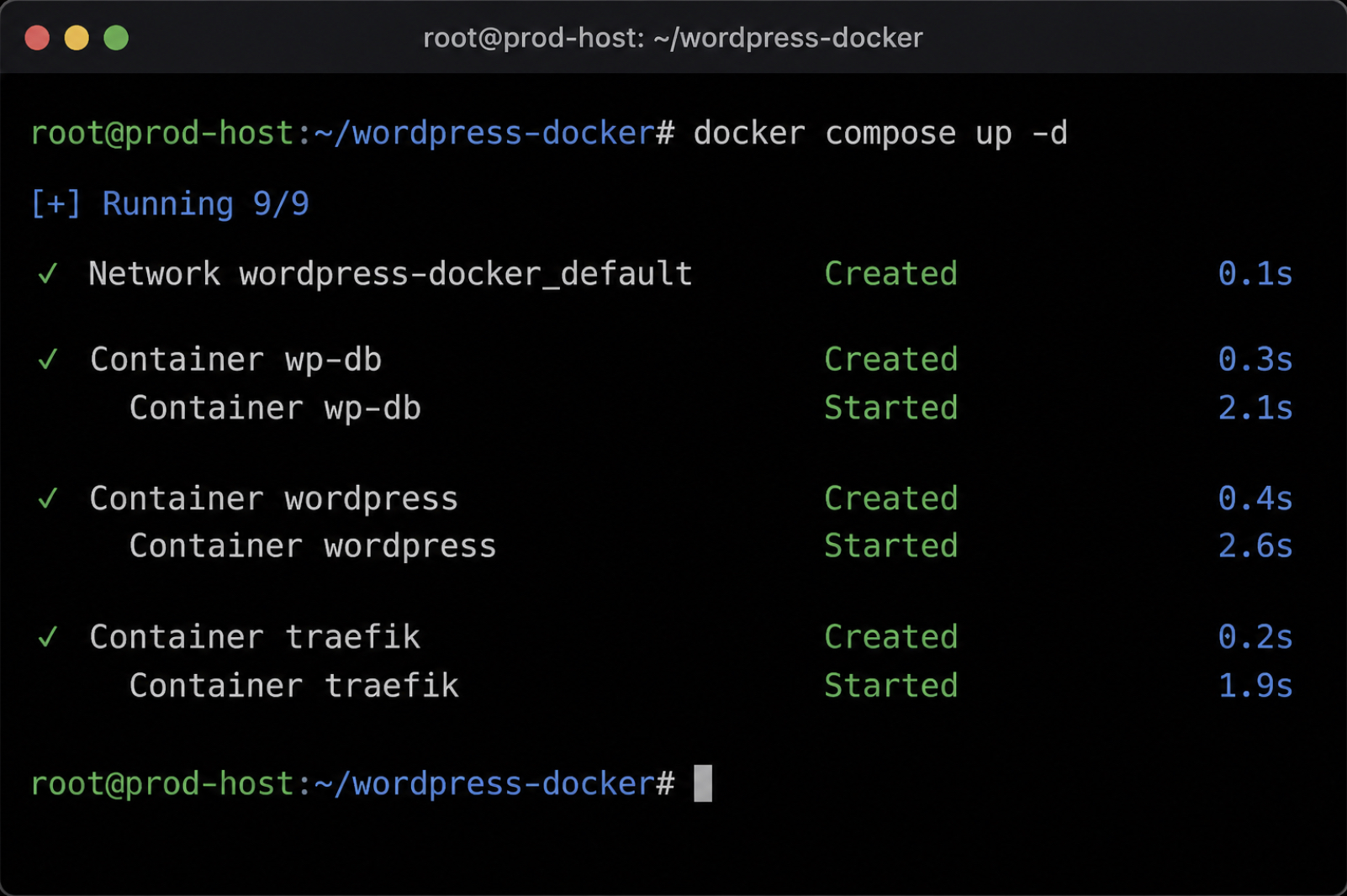
A single docker compose up -d starts every service the compose file declares at once: the WordPress container, the database container, and the reverse-proxy container that terminates TLS. The -d flag runs them detached, so the command returns the terminal and leaves the stack running in the background rather than tying it to the open session. Deploying WordPress on Docker this way brings the full production topology up in one step instead of starting each container by hand.
The command reads identically to the one that launches the stack on localhost, but the destination changes what it means. On a developer’s machine the stack answers at localhost:8080 for one person; deploying Docker WordPress on a live host, it answers on a public domain across ports 80 and 443, behind the proxy, reachable by real visitors. Same three words, different reach.
As the command runs, each container reports Created and then Started, and the stack shifts from a set of definitions in a file to a set of running processes on the host. Whether deploying WordPress in Docker landed a working site, rather than three containers that merely started, is the next thing to establish.
Post-Deploy Verification of the Production Containers
Post-deploy verification is the check that confirms the running WordPress Docker production containers serve the site correctly after docker compose up -d returns. A clean exit from the deploy command proves only that Docker accepted the instruction. Verification proves the harder claim: that the WordPress container, the database container, and the reverse proxy are each up, healthy, and answering over HTTPS.
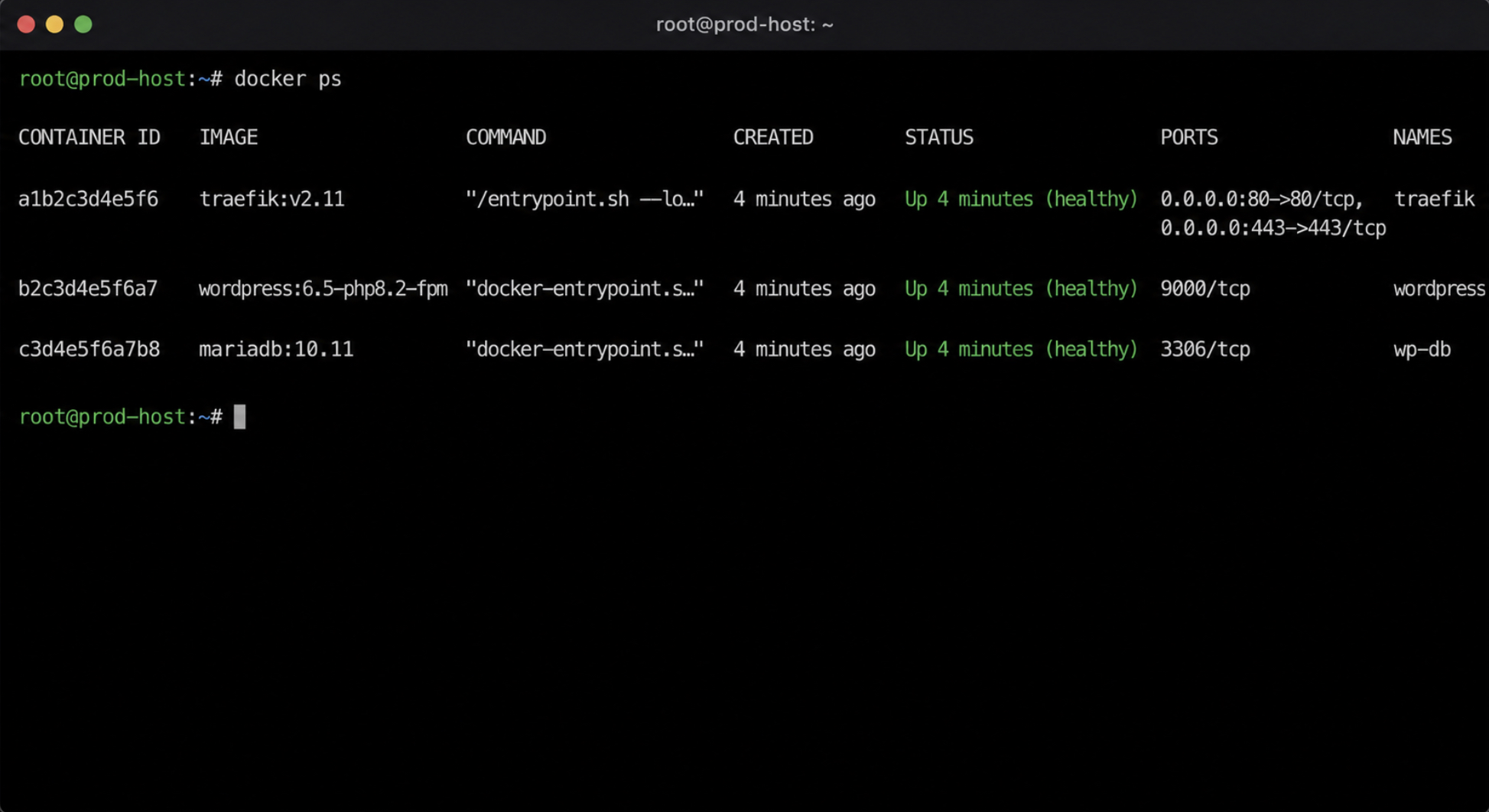
docker ps reports each container’s state and health on the host, one line per container. A sound stack shows all three with a STATUS of Up and, where the compose file defines a healthcheck, a (healthy) marker beside the uptime. docker compose logs -f then tails the startup output as it streams, and it settles two questions at once, whether WordPress finished initializing without a database connection error, and whether the reverse proxy obtained its certificate and began serving the domain over HTTPS on port 443.
docker ps
docker compose logs -f
Reading the health column and tailing the logs together confirms what the deploy command alone could not. When every container reports healthy and the domain answers over HTTPS, the stack is live in production. What keeps it live across the next restart is the data those containers depend on (the database and the uploaded files), which survive on named volumes rather than inside the containers themselves.
Production Data on Named Volumes
Production data on named volumes is the part of a WordPress Docker production stack that a container restart must never erase: the production database and the wp-content directory. A container’s writable layer is ephemeral. Stop the WordPress container, recreate it after an image update, and everything written inside that layer is gone. Named volumes exist to prevent that loss. A named volume is Docker-managed storage that survives container restarts, recreation, and upgrades, so the production database and the uploaded media in wp-content hold their contents no matter how often the containers cycle.
The stack declares these volumes in the compose file and mounts each one at the path its service reads from and writes to:
The db_data volume mounts to the database’s data directory; wp_content mounts to the path WordPress uses for uploads, themes, and plugins. Docker stores both outside any single container, which is why running the stack again after a rebuild reattaches the same data to fresh containers instead of starting empty.
Persistence, though, is not a backup. A named volume survives a container’s life cycle, yet it still sits on one host’s disk, and production data must be backed up on a schedule that can restore the site after a host failure or a bad migration. The full backup and restore workflow for these volumes has its own depth, covered in the guide to Docker volumes for WordPress. What matters at deploy time is narrower: the database and wp-content persist on named volumes before the site ever takes live traffic, the same volumes that travel with the stack as it advances through each environment on the way to production.
Environment Promotion from Staging to Production
Environment promotion is the path the containerized WordPress stack advances along before it reaches production: development first, then staging, then the live production environment where the WordPress Docker stack finally serves real traffic. Production is the terminal stage. The same stack a developer runs locally is the one that progresses to a staging host for review and, once it passes, to the production host itself.
What differs between the stages is configuration, not the stack. Each environment supplies its own values through WP_ENVIRONMENT_TYPE, its own .env file, and its own config secrets, so database credentials, the site domain, and debug settings change as the stack is promoted from one environment to the next while the containers stay identical. How each environment is provisioned and how configuration moves safely between them is a broader workflow, set out in WordPress Development, Staging, and Production Environments.
Orchestration Beyond a Single Host for the Containerized WordPress Stack
Orchestration beyond a single host is where the containerized WordPress stack scales past one machine, and it sits just past the edge of a single-host production deployment. A single-host setup runs the whole stack (WordPress, database, and reverse proxy) on one production host. That one host is the ceiling of a WordPress Docker production setup built this way: it serves a live, HTTPS-secured site reliably, and for most WordPress projects it is all the deployment needs.
Scaling out means distributing the stack across several hosts so no single machine becomes a bottleneck or a single point of failure, which is the job of a container orchestrator. Kubernetes runs the containerized stack across a cluster of nodes and handles the scheduling, self-healing, and horizontal scaling a single host cannot. That multi-host rung is its own subject; scaling containerized WordPress with Kubernetes continues where single-host production leaves off.
Can WordPress Be Deployed in Docker in Production?
WordPress can be deployed in Docker in production, and the containerized stack is production-ready the moment the surrounding essentials are in place. The answer is affirmative, with one condition attached. What makes it viable is not Docker itself but the production layer wrapped around the WordPress container: a live host to run the stack, a reverse proxy and a valid TLS certificate terminating HTTPS on ports 80 and 443, the environment variables and secrets that configure the running site at startup, and named volumes that keep the database and wp-content persistent across every restart. Whether WordPress reaches production in Docker depends on those essentials being in place, not on any limitation of the runtime.
To deploy the WordPress Docker stack, the same short path runs end to end and stays repeatable. Choose a production host, put a reverse proxy and a certificate in front of the WordPress container, supply the environment configuration the stack reads at startup, run the deploy command on the host, confirm the running containers respond, and hold production data on named volumes that survive each redeploy.
Promotion from staging to production is that same stack moving forward one environment at a time, and a single host marks the ceiling before wider orchestration takes over. None of that stretches Docker past its design. Deployed this way, an already-composed local stack becomes a live WordPress site served over HTTPS, running in production as dependably as any conventionally hosted install.







 ChatGPT
  Claude
  Grok
Grok  Gemini