- Expertise
Expertise That Drives Results
Explore our specialized services, tailored solutions, and industry expertise to elevate your digital presence. From custom WordPress development to seamless integrations, we build high-performing websites that deliver impact.
Solutions- Booking System Integrations
- Headless & REST API WordPress
- Hubspot Integration
- Enterprise WordPress
- Website Migration
- Internal Collaboration Platforms
- External Communications Hubs
- Work
- About
- Proof
- Contact
Learn more


The wp-config.php Constants Reference Index

Every WordPress site keeps its lowest-level settings in a single file, wp-config.php, and the constants defined inside it decide how the software behaves before anything else loads. This reference index gathers every useful WordPress constant into one place, a look-up sheet rather than a walkthrough. Each entry pairs a constant name with what it does and a realistic example of the define() line that sets it.
The full set breaks into eight core families that appear on nearly every install: database credentials, secret keys, site addresses, content lifecycle, debugging, environment type, security hardening, and memory. Alongside them sit a few rarer entries that govern resource ceilings, such as upload size and script execution time. Ordinary WordPress admin screens never expose most of these values. They take effect in a single PHP file, before the dashboard even exists to display them.
Each constant here is meant to be looked up when a specific behavior needs changing, not read cover to cover. Before any single one is useful, though, one question settles what the whole index rests on: what exactly a wp-config.php constant is.
What Are wp-config.php Constants?
A wp-config.php constant is a fixed configuration value that WordPress reads through PHP’s define() function, placed inside the wp-config.php bootstrap file that runs before WordPress core loads. That timing is the whole point. The value is locked in at the very start of a request, so core, themes, and plugins all inherit it as settled fact rather than something they can negotiate later.
That startup timing also separates these constants from every other place a WordPress setting can live. Options saved on the admin Settings screens sit in the database and load only after core is already running. Plugin settings work the same way, each managed through its own interface. And php.ini directives configure the PHP language one layer beneath WordPress, not inside it. A wp-config.php constant is none of those. It is a value fixed in code and read once at boot.
Each constant enters through a single define() call that names the constant and assigns its value:
define( 'CONSTANT_NAME', value );Once that line runs, the value holds for the rest of the request and cannot be reassigned elsewhere. Every entry in this index assumes the file is already open and safe to change; the mechanics of how to edit the wp-config.php file without breaking a live site are covered separately. The most fundamental of these constants come first, the credentials WordPress needs to reach its database on every request.
Database Connection Constants
Database connection constants are the credentials wp-config.php hands WordPress so it can reach its database on every request. No install runs without them. Before a single page renders, WordPress reads these values, opens a connection to MySQL or MariaDB, and pulls the content, settings, and accounts it needs to build the response. Get one wrong and the site stops at the “error establishing a database connection” message, with no dashboard to fall back on, because the dashboard itself is stored in that same database.
Five entries make up the connection block. Four are genuine constants declared with define(); the fifth, the table prefix, is a plain PHP variable rather than a constant, yet it sits in the same block and does the same configuration work:
define( 'DB_NAME', 'wp_database' );
define( 'DB_USER', 'wp_user' );
define( 'DB_PASSWORD', 'strong-password-here' );
define( 'DB_HOST', 'localhost' );
$table_prefix = 'wp_';| Constant | Purpose | Example define() value |
|---|---|---|
DB_NAME | Names the MySQL or MariaDB database WordPress stores its data in | 'wp_database' |
DB_USER | Specifies the database account WordPress authenticates as | 'wp_user' |
DB_PASSWORD | Holds the password for that database account | 'strong-password-here' |
DB_HOST | Points to the database server, most often the same machine | 'localhost' |
$table_prefix | Sets the string prefixed to every table name | 'wp_' |
Within the wider set of wp-config.php constants, these five are the baseline credential layer. The only entries every installation has to declare, no matter how stripped down. Everything further along in the index refines a site that can already connect and boot.
Secret Key Constants
Secret key constants are the keys and salts that sign and encrypt the login cookies and sessions a WordPress wp-config.php file hands to every authenticated user. Each value hardens authentication at the cookie layer: a stolen cookie is worthless to an attacker who does not also hold these secrets, because its signature no longer verifies without them. Eight constants make up the family: four authentication keys, then the four salts WordPress hashes together with them, one salt paired to each key.
AUTH_KEY secures the standard authentication cookie, and AUTH_SALT is the paired salt WordPress hashes with it to lengthen and obscure that cookie’s hash. SECURE_AUTH_KEY does the same work for sessions carried over SSL, with SECURE_AUTH_SALT as its matching salt. LOGGED_IN_KEY signs the cookie that marks a visitor as logged in, and LOGGED_IN_SALT is the salt hashed with it. NONCE_KEY secures the nonces (the single-use tokens that protect form submissions and privileged admin actions from forgery) while NONCE_SALT is the salt WordPress hashes together with NONCE_KEY to secure them.
| Constant | Purpose | Example define() value |
|---|---|---|
| AUTH_KEY | Secures the standard authentication cookie for admin login sessions | 'put your unique phrase here' |
| AUTH_SALT | Salt hashed with AUTH_KEY to strengthen that cookie’s hash | 'put your unique phrase here' |
| SECURE_AUTH_KEY | Secures the authentication cookie sent over SSL sessions | 'put your unique phrase here' |
| SECURE_AUTH_SALT | Salt paired with SECURE_AUTH_KEY for the SSL cookie hash | 'put your unique phrase here' |
| LOGGED_IN_KEY | Secures the cookie that marks a user as logged in across the site | 'put your unique phrase here' |
| LOGGED_IN_SALT | Salt hashed with LOGGED_IN_KEY for the logged-in cookie | 'put your unique phrase here' |
| NONCE_KEY | Secures the nonces that protect forms and admin actions from forgery | 'put your unique phrase here' |
| NONCE_SALT | Salt hashed with NONCE_KEY to secure the nonces | 'put your unique phrase here' |
define( 'AUTH_KEY',         'put your unique phrase here' );
define( 'SECURE_AUTH_KEY',  'put your unique phrase here' );
define( 'LOGGED_IN_KEY',    'put your unique phrase here' );
define( 'NONCE_KEY',        'put your unique phrase here' );
define( 'AUTH_SALT',        'put your unique phrase here' );
define( 'SECURE_AUTH_SALT', 'put your unique phrase here' );
define( 'LOGGED_IN_SALT',   'put your unique phrase here' );
define( 'NONCE_SALT',       'put your unique phrase here' );
In a fresh install these eight lines arrive pre-filled with placeholder text, and each real deployment defines its own values in their place. The full procedure for issuing new secret values, and doing so safely on a running site, belongs to the dedicated guide to WordPress security salts; each key and salt otherwise belongs to the wider wp-config.php constant set that governs database access, addresses, and content lifecycle elsewhere in the file.
Address Constants
Address constants are the two wp-config.php constants that pin where WordPress reads its own core files and the public address it uses to build every front-end URL. Inside a WordPress wp-config.php file, the pair splits one job in two: WP_SITEURL names the core-file location, the address WordPress loads itself from, while WP_HOME names the public site address a visitor types into the browser. On most installs the two match. They diverge when WordPress core sits in its own subdirectory yet the homepage still answers from the domain root.
Two address constants carry these locations in a WordPress wp-config.php file:
| Constant | Purpose | Example define() value |
|---|---|---|
| WP_SITEURL | Sets the core-file location, the address WordPress loads its own files from | 'https://example.com' |
| WP_HOME | Sets the public site address WordPress uses to build front-end URLs | 'https://example.com' |
define( 'WP_SITEURL', 'https://example.com' );
define( 'WP_HOME',    'https://example.com' );
Both constants sit in wp-config.php rather than the database, which is what keeps a site’s address consistent through migrations and domain moves. Changing the site address is a separate procedure; as constants, WP_SITEURL and WP_HOME each belong to the same wp-config.php constant set as every other value in the file.
Content-Lifecycle Constants
Content-lifecycle constants control how long WordPress keeps revisions, autosaves, and trashed content before it removes them for good. Each of the three governs one retention window inside a WordPress wp-config.php file, and each sets a number WordPress applies on its own in the background. Together they decide how much editorial history a database carries at any moment.
WP_POST_REVISIONS sets how many stored revisions a post retains: an integer caps the count at that number, false switches revision storage off, and true keeps every revision without limit. AUTOSAVE_INTERVAL sets the gap, in seconds, between the automatic drafts WordPress writes while an entry is open: 60 seconds by default, set longer or shorter by the integer supplied. EMPTY_TRASH_DAYS sets how many days trashed posts, pages, and comments wait before WordPress deletes them permanently, counted in whole days, thirty days by default.
Three constants set these retention windows in a WordPress wp-config.php file, each in its own native unit:
| Constant | Purpose | Example define() value |
|---|---|---|
| WP_POST_REVISIONS | Sets how many revisions a post retains, an integer count, or true/false | 5 |
| AUTOSAVE_INTERVAL | Sets the interval in seconds between automatic drafts while editing | 120 |
| EMPTY_TRASH_DAYS | Sets how many days trashed content is kept before WordPress removes it | 7 |
define( 'WP_POST_REVISIONS', 5 );
define( 'AUTOSAVE_INTERVAL', 120 );
define( 'EMPTY_TRASH_DAYS',  7 );
Set together or singly, the three trim how much editorial history the database carries: smaller numbers keep tables lean, larger ones preserve more recovery points. They round out the content-lifecycle part of the same wp-config.php constant surface that governs database access, authentication, and site addresses elsewhere in the file.
Debug Constants
Debug constants are the WordPress wp-config.php constants that control error reporting and logging, so a fault records to a file instead of printing across the live page. Three of them divide the work. WP_DEBUG is the master switch that governs whether WordPress reports its notices, warnings, and errors at all.
WP_DEBUG_LOG handles the log-to-file side of that job: when active, it records those messages to wp-content/debug.log rather than letting them disappear. WP_DEBUG_DISPLAY settles the on-screen half of the question, controlling whether the collected errors display in front of visitors or stay suppressed.
Inside a WordPress wp-config.php file, each debug constant carries one narrow job.
| Constant | Purpose | Example define() value |
|---|---|---|
| WP_DEBUG | Master switch for WordPress error reporting; when true, PHP notices, warnings, and errors are collected. | define('WP_DEBUG', true); |
| WP_DEBUG_LOG | Records reported errors to a log file (wp-content/debug.log by default) instead of showing them. | define('WP_DEBUG_LOG', true); |
| WP_DEBUG_DISPLAY | Controls whether collected errors print on screen; false keeps them off the live page. | define('WP_DEBUG_DISPLAY', false); |
define( 'WP_DEBUG', true );
define( 'WP_DEBUG_LOG', true );
define( 'WP_DEBUG_DISPLAY', false );
Those three lines describe what each debug constant holds, not the routine for switching diagnostics on and reading what lands in the file. That procedure lives in a dedicated guide on how to enable WP_DEBUG safely on a production site and interpret the recorded log.
Environment Constants
Environment constants are the WordPress wp-config.php constants that tell WordPress whether a site is running locally, in development, on staging, or in production, so its behavior adapts to the stage it occupies.
Two constants carry that signal. WP_ENVIRONMENT_TYPE accepts one of four values (local, development, staging, or production) and core, themes, and plugins read it to decide how cautiously to act. WP_DEVELOPMENT_MODE indicates which subsystem is under active development, whether that is core, a plugin, a theme, or all of them, so related caches and internal checks adapt accordingly.
Across a WordPress wp-config.php file, the two environment constants stay compact.
| Constant | Purpose | Example define() value |
|---|---|---|
| WP_ENVIRONMENT_TYPE | Declares the site’s stage (local, development, staging, or production), which WordPress and plugins read to adjust behavior. | define('WP_ENVIRONMENT_TYPE', 'production'); |
| WP_DEVELOPMENT_MODE | Signals which subsystem is under active development: core, plugin, theme, or all. | define('WP_DEVELOPMENT_MODE', 'plugin'); |
define( 'WP_ENVIRONMENT_TYPE', 'production' );
define( 'WP_DEVELOPMENT_MODE', 'plugin' );
Picking the correct value for each stage, and the way development, staging, and production sites diverge in caching, error visibility, and update handling, opens a larger subject. The full account of WP_ENVIRONMENT_TYPE across a development-to-production setup is documented separately.
Hardening Constants
Hardening constants are the WordPress wp-config.php constants that disable file editing and force secure connections into the admin, so the dashboard gives an attacker fewer openings. Each one closes a different part of the admin attack surface: in-dashboard code editing, plugin and theme modification, and unencrypted admin traffic.
DISALLOW_FILE_EDIT removes the built-in theme and plugin editors, which prevents anyone who reaches an admin account from rewriting code straight through the browser. DISALLOW_FILE_MODS goes further and blocks every file change from inside WordPress: no installs, updates, or deletions of plugins and themes through the dashboard. FORCE_SSL_ADMIN forces all login and admin requests over HTTPS, so credentials never cross the network in plain text.
Set to true, each hardening constant restricts one specific action.
| Constant | Purpose | Example define() value |
|---|---|---|
| DISALLOW_FILE_EDIT | Disables the built-in theme and plugin file editors in the dashboard. | define('DISALLOW_FILE_EDIT', true); |
| DISALLOW_FILE_MODS | Blocks all plugin and theme installs, updates, and deletions from inside WordPress. | define('DISALLOW_FILE_MODS', true); |
| FORCE_SSL_ADMIN | Forces admin and login sessions over HTTPS so credentials are not sent unencrypted. | define('FORCE_SSL_ADMIN', true); |
define( 'DISALLOW_FILE_EDIT', true );
define( 'DISALLOW_FILE_MODS', true );
define( 'FORCE_SSL_ADMIN', true );
None of these three reaches beyond configuration into plugins or firewalls; each simply closes an avenue into the WordPress admin, and together they form the security-focused subset of the wider wp-config.php constant set.
Memory Constants
Memory constants are the wp-config.php constants that set how much memory PHP may allocate to WordPress, so a script finishes its work instead of dying on the fatal “allowed memory size exhausted” error mid-request. Two constants carry this job, and each governs a different scope.
WP_MEMORY_LIMIT governs the allocation available on the front end and during ordinary page loads; its packaged default sits at 40M for a single site and 64M for a multisite network. WP_MAX_MEMORY_LIMIT holds a separate, usually larger allocation reserved for admin-side and scheduled work (image resizing, imports, cron runs) where a request legitimately needs more memory than a visitor-facing page. Its default is 256M.
Both values are requests, not guarantees. A constant here can only ask for as much memory as the server’s own php.ini memory_limit already permits; that directive is the true ceiling, and a value defined above it has no effect.
| Constant | Purpose | Example define() value |
|---|---|---|
| WP_MEMORY_LIMIT | Caps the memory PHP allocates to WordPress on the front end and during normal page loads | '256M' |
| WP_MAX_MEMORY_LIMIT | Sets a higher allocation for admin-side and cron tasks such as image processing | '512M' |
Each is instantiated with a single define() call, the value written in PHP shorthand byte notation:
define( 'WP_MEMORY_LIMIT', '256M' );
define( 'WP_MAX_MEMORY_LIMIT', '512M' );
Changing either allocation upward is server-side work rather than a constant definition. Memory allocation is only the first of three resource limits WordPress reads from its configuration. The size of the payload a site will accept, and the length of time a single request is allowed to run, complete the group, and each of those, like memory, answers to php.ini before it answers to wp-config.php.
Upload Size Limits
Upload size limits are the wp-config.php hints that cap the largest file and the largest request payload WordPress will accept before it refuses the transfer. Calling them hints is deliberate. Unlike the memory allocation set through a genuine define() constant, the upload ceiling is owned by php.ini through upload_max_filesize and post_max_size; wp-config.php can echo the intent, but php.ini sets the true ceiling, and a media library that rejects a large image is almost always hitting the server value rather than anything in the configuration file.
Two hints matter, and they are not interchangeable. The max upload size hint applies to a single file moving through the media uploader: a photo, a PDF, or a plugin archive. The PHP post max size hint concerns the entire request payload, including the file, when a form is submitted, which is why it must stay at or above the max upload size: a post limit smaller than the file limit silently caps every upload at the lower limit.
| Setting | Purpose | Example value |
|---|---|---|
| Max upload size | Hints at the largest single file WordPress accepts through the media uploader | '64M' |
| PHP post max size | Hints at the largest whole request payload a submission may carry, which must stay at or above the max upload size | '64M' |
Neither hint is a true wp-config.php constant, so changing the payload a site accepts is a server-configuration task, handled the same way as memory. Within the wp-config.php constants reference, the upload hints earn their place for one reason: they name a resource limit administrators expect to control from configuration, and they mark exactly where that control passes from WordPress to php.ini.
Execution Time Limit
Execution time limit is the wp-config.php hint for how long a single PHP request may run before the server times out and stops it. The unit is seconds, and the request in question is a PHP request handled on the server, not a JavaScript routine running in the browser, a separate matter that shares the phrase but not the meaning. A timeout is what ends a long-running operation prematurely: a bulk import, a full-site backup, or a batch of scheduled tasks that needs more than the default window to finish will halt with a “maximum execution time exceeded” message once the clock runs out.
As with the upload figures, the real authority sits elsewhere. php.ini max_execution_time sets the true ceiling; the wp-config.php hint expresses how many seconds a request should be allowed, but the server directive decides how many it actually gets.
| Setting | Purpose | Example value |
|---|---|---|
| Max execution time | Hints at how many seconds a single PHP request may run before the server times out and stops it | 300 |
Execution time, upload payload, and memory allocation form the last group in the catalog, the resource limits a WordPress install reads at runtime. Read alongside the database connection, secret key, address, content-lifecycle, debug, environment, and hardening constants gathered earlier, they complete the reference: every useful wp-config.php constant, each defined once and pointing back to the single file where a WordPress install keeps its configuration.
More Articles by Topic
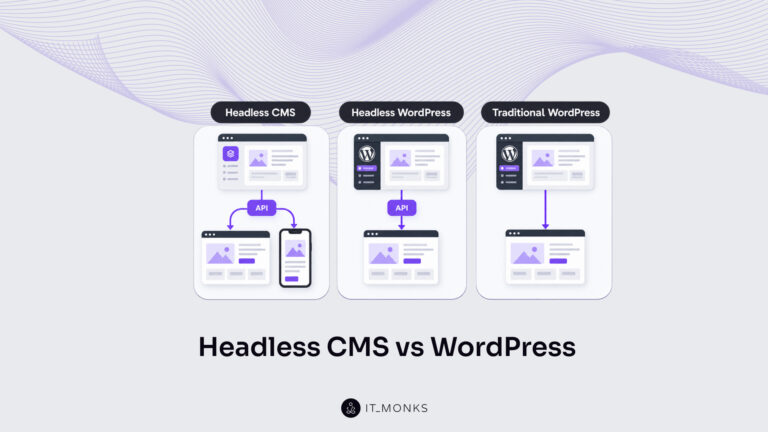
Headless CMS vs WordPress is a comparison of two choices made at once: an architecture choice between a coupled site…
Learn more 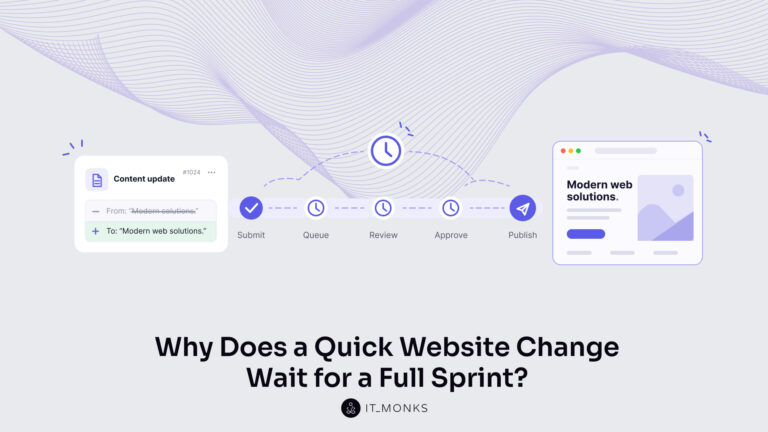
The new campaign copy is approved. The ads go live on Monday, and the landing page they point to still…
Learn more 
Imagine a marketing team two days before a campaign launch. The copy is approved, the images are ready, and the…
Learn more Contact
Feel free to reach out! We are excited to begin our collaboration!
Don't like forms?
Shoot us an email at info@itmonks.com
Don't like forms?
Shoot us an email at info@itmonks.com

CEO, Strategic Advisor
Reviewed on Clutch
 ChatGPT
  Claude
  Grok
Grok  Gemini
 Send a Project Brief
Fill out and send a form. Our Advisor Team will contact you promptly!