Explore our specialized services, tailored solutions, and industry expertise to elevate your digital presence. From custom WordPress development to seamless integrations, we build high-performing websites that deliver impact.
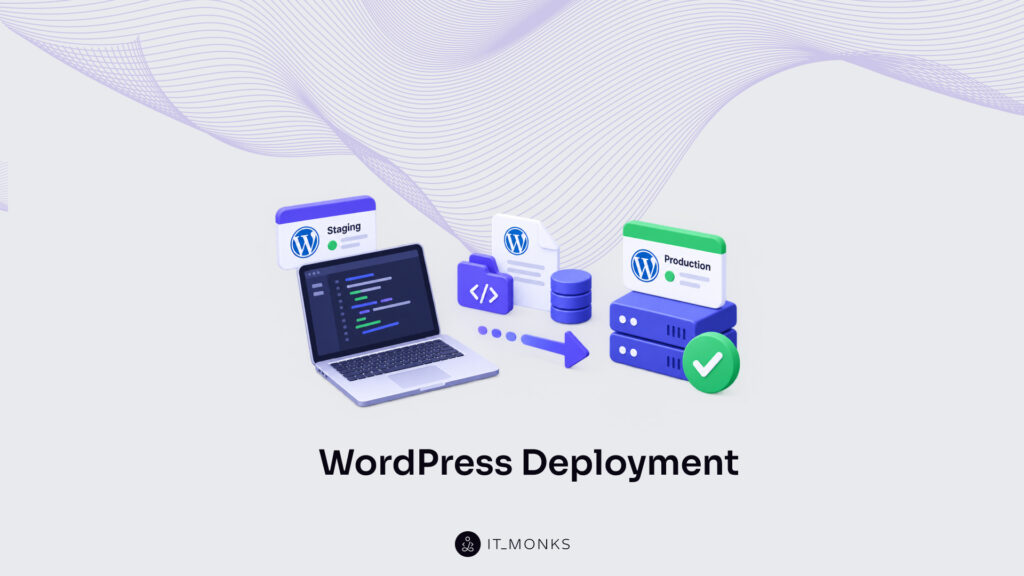
WordPressdeployment is the recurring promotion of code and content from a local environment, through staging, into production. It names a workflow that repeats: every release, every hotfix, every content change that begins on a developer’s machine and has to reach the live site safely. This is not the one-time job of standing a brand-new site up for the first time. That single relocation happens once and is finished. A WordPress deployment, by contrast, is the discipline a team returns to again and again, because a live project keeps changing long after launch.
The difference sits at the level of scope. A one-time migration carries an entire site from one place to another and never runs a second time. A recurring WordPress deployment instead promotes a controlled set of changes along a fixed path: local, where work is built and tested; staging, where it is checked against a copy of the live setup; and production, the environment real visitors reach. Code travels one way through that path. The database and content travel another. Getting both halves to production reliably, release after release, is the actual problem this workflow solves.
Each deployment method, each piece of automation, each rollback assumes that same local-to-production path underneath it. The methods that carry a release differ: a managed host’s push button, a git push, a full delivery pipeline. Automation strips out the manual steps once the path is proven and repeatable. When a release breaks the live site, a rollback returns production to its last working state. None of that holds together without the path it runs on.
Before any method matters, the three environments themselves define what every deployment has to respect. What local, staging, and production each are, and how a single change passes between them, is where a durable deployment practice begins.
What Are the WordPress Deployment Environments?
WordPress deployment environments are the stages code and content pass through on the way to production: local, staging, and production. Each one is a complete, self-contained copy of the WordPress site, configured for a single job in the release path, and a recurring deployment carries changes from the first of them to the last.
Local is the development environment. It runs on the developer’s own computer or inside a container, where new code and content are built and tested in isolation, cut off from live traffic. Nothing created here reaches visitors until it has earned its way forward.
Staging is the pre-production mirror. It reproduces the production stack as closely as possible: the same PHP version, the same plugins, the same server configuration, so a change can be verified under realistic conditions before it goes live. Because a faithful staging environment mirrors production so closely, most defects surface here instead of in front of customers. A well-built WordPress staging site gives the team a full rehearsal of every release before a WordPress deployment reaches production.
Production is the live target. It serves real visitors, holds the authoritative database, and is the environment changes are promoted into, never edited by hand. Direct edits on production are exactly what the earlier two environments exist to prevent.
The three WordPress deployment environments follow a fixed order:
Local: the development environment where code and content are created and tested.
Staging: the pre-production mirror where each release is verified against a copy of the live setup.
Production: the live environment real visitors reach, and the destination every change is promoted toward.
That direction runs one way only. Every WordPress deployment carries a change from local development to production and never back again, which is what makes the workflow repeatable: the same local-to-production path that worked last week works the same way this week, and the deployment from development to production stays predictable no matter how many releases run through it.
How to Deploy WordPress Code from Version Control
Deploying WordPress code from version control means promoting the site’s codebase, tracked in git as the single source of truth, from a repository out to the production server. In this half of a WordPress deployment, git records every version of the code, and a push sends one chosen version forward to production without touching anything else on the live site.
Code, in a deployment, is a specific set of files: themes, plugins, mu-plugins, and configuration. These are the text and PHP that version control handles well. They diff cleanly, they version cleanly, and they carry no live data with them. The database and uploaded media are a different matter, they are not code. They change on the production side as editors publish and visitors interact, so they never belong in the repository at all.
A team commits the codebase and pushes it to a repository, often a hosted service such as GitHub, then deploys from there onto the server. To push WordPress to GitHub and on to production, the developer registers a production remote and pushes the release branch to it:
git remote add production ssh://deploy@example.com/var/www/wordpress.git
git push production main
The first command adds the production server as a named git remote. The second pushes the main branch to that remote, where a hook checks the code out into the live document root. Only the tracked files travel this way: themes, plugins, mu-plugins, and configuration, and each push replaces the previous version of exactly those files.
Code alone, though, is never a complete deployment. A production site is its codebase plus the content and settings stored in the database, and git carries none of the second part. Push the repository and the templates, functions, and plugin logic land on the server correctly, yet the posts, pages, options, and media that make the site real still exist only inside the database. That content half of a WordPress deployment reaches production by an entirely separate route.
What Are the WordPress Deployment Methods?
WordPress deployment methods are the transport archetypes that promote code and content along the recurring path from a local environment through staging to production. Every method reaches the same destination, and every method processes the same promotion, yet they split on three practical questions: who runs the push, how much of the run is automated, and how much hands-on control the developer keeps over each release. Three archetypes cover the whole field: managed-host push, git push to deploy, and a CI/CD pipeline.
Those three archetypes separate cleanly on how each one carries a release, which team each one fits, and how far each one automates the work.
Method
How it works
Best for
Automation fit
Managed-host push
The host promotes a staging environment to production through a one-click control, with selectable file and database scope
Non-technical teams shipping small, infrequent changes
Low: the developer triggers each promotion by hand from the host panel
Git push to deploy
A push to a remote repository fires a server-side checkout that updates the production files
Developers comfortable with version control who want a repeatable code deploy
Medium: the push stays manual, but the server-side deploy runs on its own
CI/CD pipeline
A commit triggers an automated build, test, and deploy sequence that promotes vetted code to production
Teams running frequent releases that must pass tests before going live
High: the full build, test, and deploy sequence runs without manual steps
Which archetype a team selects depends on three factors that the automation-fit column already hints at: team size, the degree of control the workflow demands, and how much automation the release cadence justifies. A solo developer pushing an occasional theme tweak has little to gain from an automated pipeline and plenty to gain from a single host control. A larger team shipping several deploys a week inverts that math, because manual promotion becomes the bottleneck and every unscripted step is a chance to deploy the wrong branch.
Control sits in the middle: managed-host push hands most of it to the host, git push to deploy returns it to version control, and a CI/CD pipeline formalizes it into stages that a commit walks through automatically. The three that follow take each archetype in that order: from the most host-managed to the most engineered, so the manual precursor is clear before the automated form arrives.
Managed-Host Push
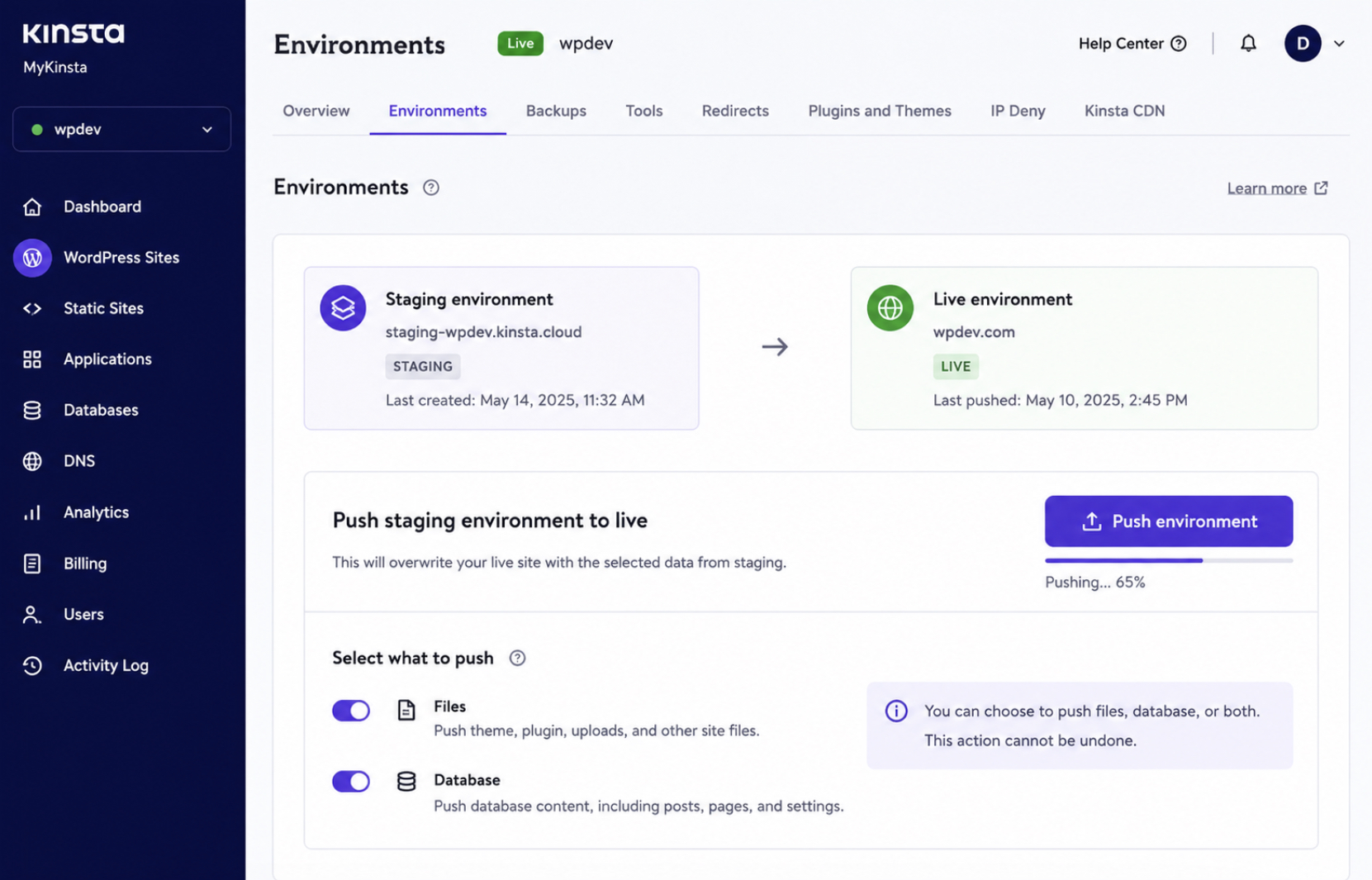
Managed-host push is the most host-managed WordPress deployment method: a one-click promotion, built into the hosting control panel, that pushes a staging environment to production without the developer touching files or the database directly. The host owns the transport. The developer confirms a single control, and the platform copies the selected staging state onto the live site.
That control is exposed in the host interface. On a managed platform such as Kinsta, the environment screen carries a Push environment button, and directly beneath it two scope toggles labelled Files and Database decide what the push actually carries from staging to production.
The point of those toggles is selective scope: the developer selects whether a given push carries only the files, only the database, or both, so a code-only release does not overwrite live content and a content-only release leaves the theme untouched. Managed-host push suits non-technical teams and small, infrequent changes for exactly this reason. The whole promotion collapses into one confirmed action, and there is no remote, no hook, and no build script to maintain.
The trade-off is control. A one-click push exposes only the options the host chose to expose, so fine-grained release logic and true version history live outside its reach, and the workflow ties the team to that one host’s tooling. For a small site with occasional edits, that lock-in is an acceptable price. For a developer who wants the release itself under version control, the next method returns it.
Git Push to Deploy
Git push to deploy is the WordPress deployment method in which a push to a remote repository triggers a server-side deploy of the code. The developer commits locally, pushes a branch to a remote, and a hook running on the server checks the received files out into the live web root. No host panel sits in the middle, and no file lands on production by hand, the push itself is the trigger.
To push a WordPress repository to a remote (a bare repository on the production server, or a hosted one such as GitHub wired to the same server), the developer names the remote and the branch, and a post-receive hook does the rest:
git push production main
# /var/www/wordpress.git/hooks/post-receive
GIT_WORK_TREE=/var/www/wordpress git checkout -f main
The flow runs repository → remote → production. A commit accumulates in the local repository, git push production main sends the main branch to the production remote, and the post-receive hook fires the moment the remote finishes receiving it. That hook sets GIT_WORK_TREE to the live web root and forces a checkout of main, which writes the received code straight into the directory the server serves. A webhook does the equivalent job when the remote is hosted rather than loca. The hosting provider calls a deploy endpoint on receipt, and the endpoint runs the same checkout.
Branch-based promotion is what makes this repeatable. The main branch maps to production, so promoting a release is nothing more than pushing to that branch, and the mapping never drifts because the hook only ever checks out main. A staging remote maps a separate branch the same way, which keeps the recurring local-to-staging-to-production path inside version control from end to end.
Git push to deploy still leaves two jobs to the developer, though, running tests and timing the push both stay manual. Wiring those into the trigger, so that a commit builds and tests before it ever reaches production, is the step that turns this manual precursor into a full pipeline.
CI/CD Pipeline
WordPress deployment becomes fully automated in a CI/CD pipeline, the continuous integration and continuous deployment sequence that runs WordPress continuous deployment from end to end. A CI/CD pipeline builds the project, tests it, and deploys the result automatically whenever the code changes, so no step waits on a person to run it in the right order. A repository push on its own hands off to a server hook; a pipeline runs that push through a fixed sequence of stages first, and only a clean run reaches production.
A minimal pipeline configuration names three stages and the branch that triggers them:
The build stage installs the project’s dependencies: composer install pulls the PHP libraries the theme and plugins rely on. The test stage runs phpunit against that build, and one failing test stops the run before anything reaches the live site. The deploy stage executes ./deploy.sh only after build and test both succeed, which keeps a broken commit from ever shipping. All three fire on a single event: a commit or merge to the main branch, declared here as the deploy branch, so the act of merging code is what starts the release.
Jenkins, DeployBot, and DeployHQ each run this build-test-deploy pattern. They are common examples of pipeline tooling, not a requirement, the stages carry the method, and the vendor that executes them is interchangeable. What a pipeline settles is the trigger itself: the code change starts the deploy, and the shift from a hand-run command to an event-driven one is exactly what it means to automate WordPress deployment.
How to Automate WordPress Deployment
WordPress deployment runs without manual intervention once it is automated. WordPress continuous deployment triggers each release from a code change instead of from a developer running the steps by hand, so the same build-and-promote work happens on its own. Automated WordPress deployment does not add new steps to the process; it changes what sets them off, an event, rather than a command someone remembers to type.
Three triggers commonly start an automated deployment, each firing on a different event:
Webhooks: a repository or host sends a signal to a listening endpoint the moment something happens (a new push, a merged pull request), and that signal starts the deploy.
Push-to-deploy: a git push to a watched branch is itself the release command, so committing code to main deploys it without a second action.
Scheduled or continuous-integration-triggered releases: a deploy runs on a clock, such as a nightly window, or on a passing pipeline, so the release goes out only after the tests succeed or at a planned time.
Automation delivers three things a hand-run deploy cannot promise. It gives consistency, because every release follows the identical steps in the identical order. It cuts manual errors, because no one skips a stage under time pressure. And it gives repeatability, because the same trigger produces the same result on the fiftieth deploy that it did on the first. DeployBot and DeployHQ package these triggers into a hosted service; they stand as examples of how automation gets wired, not a shortlist to pick from.
An automated release is fast (measured in seconds, or a few minutes for a larger build), but speed is not safety. A pipeline will push a broken change as reliably as a working one, which is why an automated workflow still runs inside a fixed set of guardrails.
WordPress Deployment Best Practices
WordPress deployment best practices are the fixed ordering that keeps every release safe and repeatable, whatever method carries the code to production. The practices do not depend on a particular host or tool; they describe the sequence a developer follows before, during, and after a push, so that a failed deploy never turns into a lost site.
A safe deployment follows five steps in order:
Back up production first. Capture the live database and files before anything changes, so a known-good state exists to return to.
Test on staging. Promote the change to a production mirror and confirm it behaves there before it touches the live site.
Deploy in a low-traffic window. Push to production when visitor numbers are at their lowest, so any disruption reaches the fewest people.
Verify on production. Load the key pages right after the deploy, confirm the change is present, and watch for errors.
Keep a rollback ready. Hold the pre-deploy backup and the previous release on hand, so a broken deploy is reversed in minutes rather than rebuilt from scratch.
The order is not interchangeable, a backup taken after a failed deploy protects nothing, and a low-traffic window matters only once staging has cleared the change. Two of these steps carry the rest. The pre-deployment backup is where every safe release starts, and the deployment rollback is what a failed release falls back on. The backup is what makes a rollback possible: without a captured database and a stored previous release, there is nothing to revert to.
Deployment Rollback
A WordPress deployment rollback returns a site to its last known-good release after a deploy fails. It comes first among the WordPress deployment best practices for recovery, because it is the step a broken release falls back on the moment something in production stops working.
Every rollback has two halves, and both run together. One half reverts the code through version control, returning the site to the commit or release tag that last worked. The other half restores the database from the snapshot captured before the deploy, so the data lines up with the reverted code. Revert the code but keep the new database, and the site serves old templates against a changed schema; restore the database but keep the new code, and the mismatch runs the other way. The known-good release is only whole when both halves land.
Two commands map directly to those halves:
git revert --no-edit HEAD        # or: git checkout <prev-release-tag>
wp db import backup-pre-deploy.sql
The first line undoes the last deploy commit; the alternate form, git checkout <prev-release-tag>, switches directly to a tagged release when a whole batch of changes needs reversing at once. The second line loads the pre-deploy database export, a file of a few megabytes on a small site, or several gigabytes on a busy store, back over the corrupted state.
How quickly a rollback finishes depends on how the deploy was built in the first place. Versioned deploys tag every release; atomic deploys swap a symlink between release folders. Either way, returning to the previous release becomes a single pointer change measured in seconds rather than a full redeploy measured in minutes. Where deployment is automated and versioned, a rollback rarely costs more than a minute or two, even while the site is under live traffic.
None of it works without the file the second command reads. A rollback can only restore what a pre-deployment backup already captured, which is why that backup is the step every safe deploy starts from.
Pre-Deployment Backup
A pre-deployment backup is a snapshot of production taken before any WordPress deployment push reaches the live server. It comes first among the WordPress deployment best practices because it is the one step that makes recovery possible at all: the earlier rollback restores from exactly this snapshot and nothing else.
A complete snapshot captures three things:
The database: every post, product, order, user account, and setting, exported as a dump that ranges from a few megabytes on a small blog to several gigabytes on a data-heavy store.
The uploads and media library: the images, documents, and other files under wp-content/uploads that sit outside version control and never travel with a code deploy.
The current release: the exact code and theme files serving the site in the instant before the push.
Backups run one of two ways. Automated backups fire on a schedule or as the opening step of a deploy pipeline, which removes the risk of a developer forgetting the step under deadline pressure. Manual backups still earn their place for one-off or high-stakes releases where a person wants to confirm the export by hand. Retention governs how many of these snapshots survive — holding the last several releases lets a rollback reach past the most recent deploy when a fault only surfaces days later.
The worth of a snapshot shows up only when a deploy fails. Because it stores the database and the previous release side by side, a pre-deployment backup is precisely what a rollback restores from: the payoff for a step that, on a clean release, looks like pure overhead.
How to Deploy the Database and Content
WordPress database and content deployment is the promotion of data changes (new posts, updated products, revised settings) alongside the code that renders them. Deploying WordPress from local to production promotes code cleanly, since code is text tracked in version control and every change has a history. Transferring the database and content the same way, from development to production, is where the work gets harder.
Production data behaves nothing like code. The orders customers place, the accounts users register, and the comments visitors leave accumulate on the live server every hour, and none of it is versioned in Git the way theme files and plugins are. That one difference sets the governing rule: production data cannot be overwritten wholesale, because a full overwrite would erase every order, signup, and comment recorded since the last export. A production database dump can run from a few megabytes on a small blog to several gigabytes on an active store, and the larger it grows, the more precise a safe deploy has to be.
Two approaches promote data changes without overwriting live records: selective push and database migrations. One sends specific content upward to production; the other applies changes in a controlled, repeatable order. Each fits a different kind of change, and each keeps the accumulated live data intact while the code is promoted forward.
Both belong to a recurring workflow: content deployed from development to production again and again as the site evolves. That is a distinct task from a one-time site migration, the single relocation performed once when a site first goes live, and knowing which of the two is underway decides which method applies.
Selective Database Push
Selective database push promotes only chosen tables or files instead of the whole database, and it is the safer of the two data methods a WordPress deployment leans on to deploy content from local to production. The distinction earns its keep the moment production holds data that never existed upstream. A full database overwrite would wipe that data out. Pushing a curated set of tables keeps the deployment narrow, and narrow is predictable.
Why select specific tables? Because of what a live site accumulates on its own. Orders, registered users, and comments are written directly on production, never in the developer’s local copy, so a wholesale push from staging would overwrite production-only data and destroy records the business runs on. Selecting only the tables that actually changed: a reworked options table, a new custom-post-type table, a revised set of taxonomy terms leaves the transactional tables alone.
Managed hosts expose this as a table-and-file selection panel. A Kinsta-style push interface lists every database table with a checkbox beside it, sets a separate file-selection list underneath for uploads and theme files, and marks the direction of travel from staging to the production target. A size column reads out the weight of each object before anything runs: a settings table might sit at a few hundred kilobytes, a full posts table at several MB, an uploads directory well into the GB range. Checking a box selects that table for the push; leaving it unchecked protects whatever production already holds there.
Selective push fits changes narrower than a full replacement: a configuration update, a new content type, an edited group of terms. A full push fits only the rare case where production carries nothing worth keeping, such as a staging rebuild before the first real visitor arrives. When the change is structural rather than row-level, though: a new index, an altered column, a URL rewrite that touches every table, the cleaner instrument is a database migration.
Database Migrations
Database migrations are versioned change scripts a WordPress deployment applies on each deploy from local to production to reconcile schema and environment-specific values across local, staging, and production. Here “migration” names a versioned change script that runs as a deploy step, not a one-time site move. Each script is committed next to the code it supports and numbered or dated, so the deploy applies them in a fixed order.
The most common migration reconciles values that differ by environment. Stored absolute URLs point at the staging domain right after a database is deployed upstream, and a search-replace rewrites them to the production domain before the site answers a single request:
wp search-replace 'https://staging.example.com' 'https://example.com' --all-tables
wp db query < migrations/2026_08_add_index.sql
The first line is the search-replace: WP-CLI walks every table and swaps the staging URL for the production URL. The second line runs a versioned change script (a dated SQL file kept in the repository) that applies a schema change, here adding an index. Both are scripted rather than clicked, so they run identically on every environment and on every deploy.
Migrations are idempotent and repeatable, which is precisely what a recurring deployment asks for. Run the same search-replace twice and the second run changes nothing; a change script guarded by “add the index only if it is absent” stays safe to reapply. That property is the line between a migration and a selective push. A selective push copies data that already exists in one place to another. A migration transforms data in place according to a rule. Row-level content differences call for the push; structural or environment-specific changes call for the migration, and the change type decides which one a given deploy needs.
Recurring Deployment vs One-Time Migration
WordPress deployment as a recurring task differs from a one-time migration in both frequency and purpose. Recurring deployment is the repeated promotion of code and content from local through staging to production, run again and again as the site evolves. A one-time migration is the initial localhost-to-live setup, the single relocation performed once when a site first goes public.
The two serve different needs. Recurring deployment assumes production already exists and keeps it current through ongoing releases on a schedule. The one-time task assumes no live site exists yet and stands one up for the first time. A developer bringing a brand-new site online once should follow the dedicated guide to moving a WordPress site from localhost to live instead of a deployment routine, since that first setup involves steps a recurring pipeline never repeats.
Everything on this page concerns the recurring case. The environments, the version-controlled code path, the deployment methods, the automation, and the database and content work all assume a production site that is already live and taking updates release after release.
Can a Managed Host Deploy WordPress?
Yes. A managed host can run WordPress deployment through built-in tooling, with no hand-assembled pipeline required. Managed platforms ship a one-click deploy or push control that promotes code and content between the staging and production environments they provision. The mechanism is the managed-host push: the platform’s own deploy control carrying a release from staging up to production.
Choosing such a host is a separate decision from the deployment workflow itself. The workflow (environments, version-controlled code, a deployment method, automation, and the database work) stays the same wherever it runs; the host only decides whether that tooling arrives ready-made or has to be built. Teams weighing that decision can turn to a dedicated guide on WordPress hosting with staging for which providers include the built-in push and staging environments a recurring deployment relies on.
Either way, the deployment workflow stays the subject. A managed host is where the deployment lands and the convenience layer that runs it, never a substitute for the recurring promotion of code and content from local through staging to production.




 ChatGPT
  Claude
  Grok
Grok  Gemini