Explore our specialized services, tailored solutions, and industry expertise to elevate your digital presence. From custom WordPress development to seamless integrations, we build high-performing websites that deliver impact.
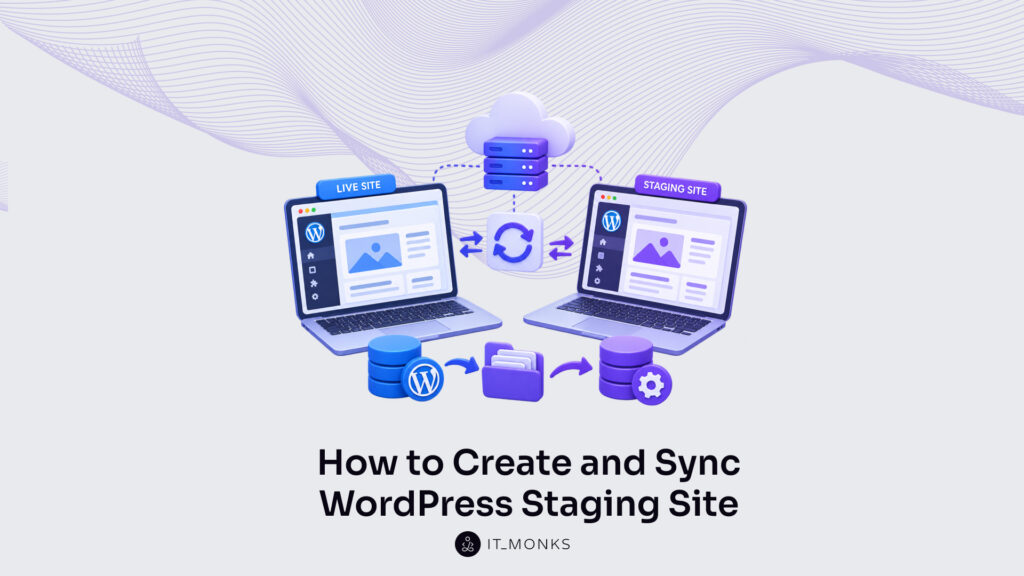
Creating a WordPressstaging site comes first in careful WordPress development, and keeping that staging site in sync with production is what keeps the work safe over time. Two jobs, really. One creates the copy; the other keeps that copy in sync with the live site over the long run.
The first job splits three ways. A managed host can create the staging site from its own dashboard. A staging plugin can build the same copy from inside WordPress. Or a developer can put one together by hand, file by file. Same destination, three routes, different amounts of control along the way.
The second job never quite ends. Each cycle syncs approved code one way and fresh database changes another, so the staging site and the production site never drift apart. New work lands on staging first, gets checked, then syncs to production only once it holds up. For a development team or an agency looking after client sites, that recurring cycle separates work that ships on a schedule from live pages patched in a rush.
Underneath both jobs sits a single idea. The local development environment, staging, and production are separate places, and WordPress keeps them separate on purpose. Everything that follows rests on that separation.
What Is a WordPress Staging Site?
A WordPress staging environment is a non-public, pre-production copy of a live site: the same files, the same database, running somewhere ordinary visitors cannot reach. Nothing published on it faces the world. That is the whole point.
Asking what a WordPress staging site is really means asking where a change is allowed to be wrong. On the live site, a broken plugin is a broken plugin the public sees. On staging, the identical break stays private, noticed by the developer and no one else. Production is public and cannot afford to fail; staging is isolated and exists so it can. The two are opposites by design.
Staging is not the only copy in a professional setup, though. It sits as the middle environment in a sequence of three, and each one holds a different kind of change:
Development environment: the local machine where a developer writes and first runs new code. It changes by the minute and answers to no visitors, which is exactly what building on a WordPress development environment is for.
Staging environment: a close mirror of production, loaded with real content and real data, where finished work is checked under lifelike conditions before it goes anywhere near the public.
Production environment: the live site the public reaches. It is the copy that must stay up, so it is the last place anyone tests anything.
WordPress can tell these three copies apart on its own. The WP_ENVIRONMENT_TYPE value labels each copy as development, staging, or production, so a plugin or a snippet of code can behave one way on a live server and another way on a private one. A debugging tool that reports every error on staging can stay switched off in production, driven by nothing more than that label.
The value itself is stored in wp-config.php, the configuration file every copy carries. Because each environment holds its own copy of that file, a change made on staging represents a change to staging alone. It stays put until someone deliberately promotes it forward. With the line between the three environments drawn, the practical question is the obvious one: how the staging copy gets created in the first place.
How Is a WordPress Staging Site Created?
A WordPress staging site is created through one of three methods: a managed host, a staging plugin, or a manual copy built by hand. Each method produces the same private mirror of the live site; the three differ only in who does the work and how much of the underlying process stays visible. Which one fits comes down to where the site already runs and how much control the work needs, a choice that belongs to the wider WordPress development guide, not to staging on its own.
A managed host with built-in staging creates the copy from the hosting dashboard, often in a single click, and the host handles the files and the database quietly in the background. A staging plugin sets up the same copy from inside the WordPress admin, guiding the work step by step, which suits sites whose host offers no staging of its own. A manual copy hands over full control and asks for the most effort in return, since every file and every database table is moved and rewired by hand.
None of the three is the “right” method for every site. The method is chosen to match the host, the team, and how much can go wrong. Because the groundwork of getting the platform running is already covered under how to install WordPress, creating the staging copy stays a separate task from the base install underneath it.
From here, the three routes diverge. The host route runs through a dashboard, the plugin route through the WordPress admin, and the manual route through the command line; three different interfaces to the same isolated copy.
How Is the Staging Site Created With a Managed Host?
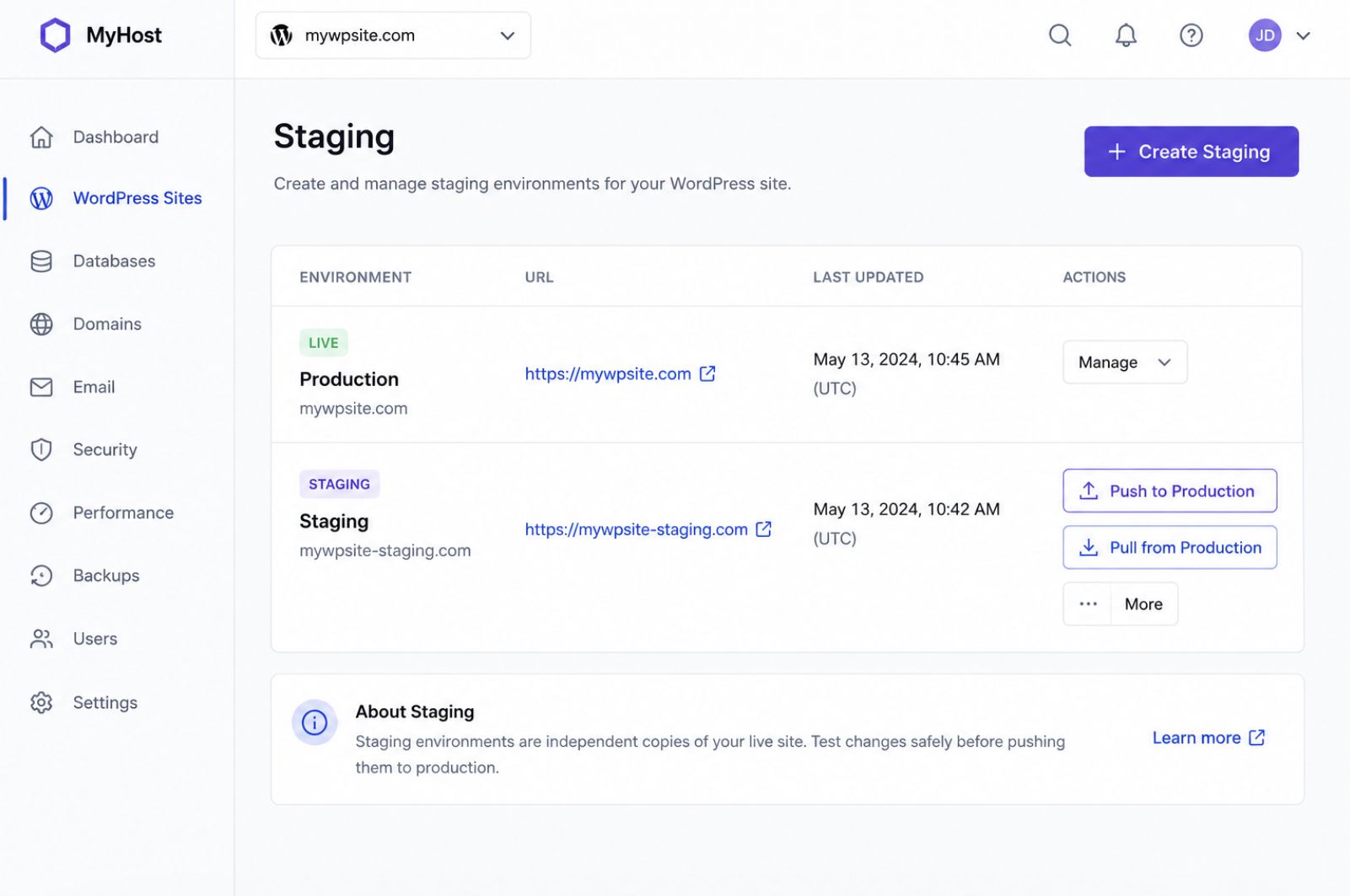
The staging site is created with a managed host straight from the hosting dashboard, where the host’s built-in staging provisions the copy, the shortest way to create a WordPress staging site inside a professional development workflow. One click, no server login: the host provisions the copy while the developer watches the dashboard confirm that a fresh staging environment now sits beside the live one.
Behind that single control, the host duplicates two things at once (the site’s files and its database) and places the pair into an isolated staging environment that runs apart from production. Nothing on the live site changes while work happens on the copy. The isolation is what makes the method safe to reach for mid-project: the staging environment provides a full, working duplicate that no visitor can touch.
Later, the same dashboard exposes two more controls. A push button sends approved changes from staging up to production; a pull button brings production’s current state back down to staging. Push and pull sit side by side, so promoting a finished change or refreshing the copy from the live site takes the same one click that created the environment in the first place.
Which managed host to run on stays a separate decision, weighed on staging capability rather than settled here. A team choosing a provider on the strength of its one-click push and pull can carry that criterion into WordPress hosting with staging, where host selection gets decided.
How Is the Staging Site Created With a Staging Plugin?
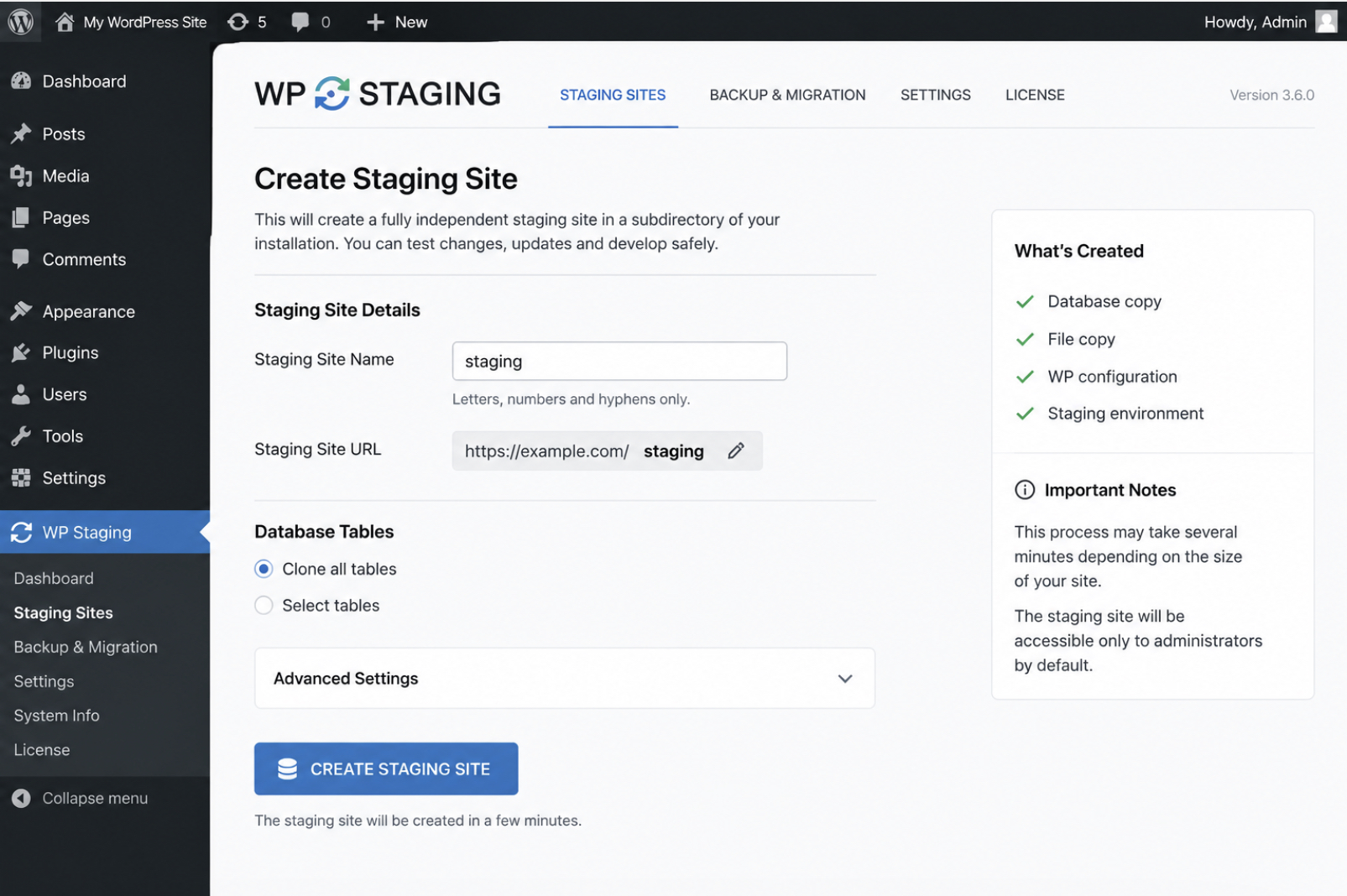
The staging site is created with a WordPress staging plugin from inside the WordPress admin, which puts the create step within reach of any site whose host offers no staging of its own. The developer installs the plugin and opens its screen in the admin, and the clone runs from there: no hosting dashboard, no server access required. That reach is the reason a WordPress staging tool exists at all.
The plugin clones the same two payloads a managed host would, files and database, and writes them into a staging slot it manages itself, with no host support underneath it. That independence is the whole point of a WordPress staging site plugin: the tool supplies the duplication that the hosting layer refuses to. Among WordPress staging plugins, the useful ones handle both the clone and the round trip that follows it, not just the first copy.
Once work on the staging slot finishes, the plugin also manages the pull-back (returning the reviewed changes toward the live site), which is precisely the piece a host without staging cannot offer. For a site whose host lacks staging entirely, the plugin covers both ends: the initial clone and the later return of changes, all configured from the admin rather than the server.
Configuring that pull-back through a plugin trades a measure of control for convenience. Where a team needs full control over every file and every table instead, the copy gets built by hand.
How Is the Staging Site Created With a Manual Copy?
The staging site is created with a manual copy by duplicating the live files and database by hand, the route that answers create a WordPress staging site with no host control and no plugin sitting in between. The developer runs each step directly on the server, and the staging site consists of exactly what those commands place there, nothing hidden behind a button.
The files copy first. A full duplicate of the live document root lands in a subdomain kept isolated from the live site, so the staging address serves the same code from a separate location. The database follows: it exports from the live installation, imports into the staging one, and its stored URLs then search-replace from the live domain to the staging domain.
That last step is more consequential than it appears. WordPress stores much of its configuration as serialized data, and a blind find-and-replace across the tables corrupts those stored strings. A URL search-replace that understands serialization rewrites the values safely, so the staging copy points at the staging domain without breaking the serialized data that still contains the old address.
# files to subdomain; export/import db; rewrite stored URLs
rsync -a /var/www/example.com/ /var/www/staging.example.com/
wp db export live.sql --path=/var/www/example.com
wp db import live.sql --path=/var/www/staging.example.com
wp search-replace 'https://example.com' 'https://staging.example.com' --all-tables --precise --path=/var/www/staging.example.com
Every identifier here is spelled out (the source root, the export file, the target subdomain), which is exactly what the manual route contains: full control over each file and each table, at the cost of the most steps of any method. What one click or one plugin action handles elsewhere, the manual copy states command by command, and that trade closes the set of ways to build the copy.
How Is the Staging Site Kept in Sync With Production?
Keeping a WordPress staging site in sync with production is a recurring ritual, not a single move made once and then forgotten. Every development cycle reopens the same question: how does reviewed work travel from WordPress staging to live production without breaking what already runs there? The staging site holds the next version of the files and the database; production holds the version the public sees. Sync is the repeated act of reconciling those two, and it repeats because building does not stop after the first release.
That reconciliation splits into two separate tracks. Code and database do not travel the same way, and treating them as one payload is where a WordPress staging to live sync goes wrong. Code is version-controlled text. The database is live state, the rows a content team edits every day. One rides a Gitdeployment workflow; the other cannot.
Code rides a Git deployment workflow and moves forward each cycle as reviewed, committed changes.
Database does not ride Git; it syncs by export and import, plus a search-replace that rewrites the stored site URLs.
The code half runs on a repeatable WordPress deployment workflow: version control promotes theme and plugin changes forward on a schedule the team controls, and the same promotion runs again next release. The database half has no commit history to lean on, so it moves through export, import, and a rewrite of the URLs stored inside its own content.
This repeatability is what separates a keep-in-sync ritual from a one-time host move. A site changes hosts once. A staging site promotes to production over and over, for the whole life of the project, and the discipline is built around running the same sync again tomorrow. Two mechanisms carry the split: version control moves the approved code forward, and a separate database sync carries the posts, options, and settings that version control never sees.
How Is Code Moved From Staging to Production?
Approved code moves from WordPress staging to live production through a single Git deployment step. The code (themes, plugins, and any custom PHP written for the project) is text under version control, so promoting it forward means committing the reviewed changes and pushing them to the branch production deploys from.
git add wp-content/themes wp-content/plugins wp-content/mu-plugins
git commit -m "Promote reviewed changes"
git push production main   # production checks out the release via a deploy hook
Because version control already tracks every theme file, plugin, and mu-plugin, this promotion is repeatable rather than a fresh hand-copy each cycle. The same three commands run next release, and the release after that, and the history records exactly what moved and when. A rollback becomes a matter of checking out an earlier commit, not reconstructing yesterday’s site from memory.
Two files never join that history. Both wp-config.php and .env stay git-ignored and are never committed, because staging and production need different database credentials, salts, and API keys, and a secret committed to a repository is a secret leaked. Per-environment configuration lives outside version control instead, in .env files for WordPress secrets that each environment loads on its own.
At scale that separation stops being optional discipline. Enterprise WordPress development treats secrets-out-of-repo as a baseline, since one shared codebase promoted across many environments cannot carry a single environment’s credentials into the next. Git moves the code cleanly. What it will not move is the database (the live rows of content, options, and URLs that never sit inside a commit), and that half of the sync runs on a command set of its own.
How Is the Database Synced From Staging to Production?
The database is the part of a WordPress staging site that Git cannot deploy, so it syncs on a separate track from the code. Everything a content team touches (posts, pages, plugin settings, user records) lives in database rows rather than version-controlled files, which is why moving from WordPress staging to live production always means handling the database directly.
A staging database also stores the staging domain inside its own content, sometimes buried in serialized option values where a blind find-and-replace would corrupt the data. Syncing it means exporting the database, importing it into the target, and rewriting those stored URLs so the copy points at the right production domain.
wp db export sync.sql
wp db import sync.sql
wp search-replace 'https://staging.example.com' 'https://example.com' --all-tables --precise
The WP-CLI search-replace command rewrites serialized data safely: it unpacks each serialized string, swaps the domain, and repacks it with corrected byte lengths, something a plain database query cannot manage. The deeper handling of options tables, precision flags, and dry-run passes belongs to a dedicated look at how to sync the WordPress database between staging and production.
Direction matters here more than anywhere else in the sync. Pushing from WordPress staging to production overwrites the live database, and with it every comment, order, and form entry created since the staging copy was taken; pulling production down into staging is the safer default for that exact reason. This recurring, cycle-after-cycle database sync stays a different task from a one-time WordPress migration between hosts, even though both move rows and rewrite URLs. The sync is built to run again next week, against live content that has to survive it. Code and database, promoted together on each pass, are what hold a staging site and its production counterpart in step.
How Is the Staging Site Accessed?
The WordPress staging site is reached at its own subdomain or the host’s staging URL, and a WordPress staging site password protects that address so the pre-production copy stays non-public. Accessing the WordPress staging site runs through one gate rather than the open web. HTTP authentication, or the staging login supplied by the managed host, requires valid credentials before the dashboard or the front end loads.
That single control is what keeps the staging environment isolated from production. A pre-production copy carries unfinished code, half-tested plugins, and a database that mirrors live content. None of it meant for visitors or search crawlers. Password protection keeps the copy behind authentication, so indexing bots and the public never reach it while the developer and the team log in to work against the same environment the production sync depends on.
Reached at a password-protected staging URL, kept in sync with production through routine code and database updates, and separated from live traffic by that same authentication, the staging environment stays a private working copy from the moment it is created until each change is ready for release.



 ChatGPT
  Claude
  Grok
Grok  Gemini